
How to Schedule WhatsApp Messages on iPhone and Android
Learn easy workarounds to schedule WhatsApp messages using built-in automations and trusted third-party tools, along with tips and troubleshooting advice.

Scheduling WhatsApp messages can be a total lifesaver. Whether you’re running a business, sending reminders, or messaging someone in a different time zone, being able to send a message later instead of now keeps you organized and professional.
The catch? WhatsApp doesn’t offer a built-in “schedule message” button like email apps do. But don’t worry; there are safe and practical ways to do it on both iPhone and Android. In this guide, you’ll learn exactly how to schedule messages on WhatsApp, what tools to use, and how to avoid common problems.
Why Scheduling WhatsApp Messages Is Useful
Scheduling messages isn’t just a cool trick; it’s incredibly practical.
Here’s where it really helps:
- Send business appointment reminders, follow-ups, or promo messages during work hours without staring at your phone all day.
- Set up reminders for birthdays, payments, or meetings, and stop worrying about forgetting the important stuff.
- If your contacts live in different time zones, you can message them at the right moment in their day, no more setting alarms for the middle of the night.
- You can just write your messages when you have time, then let them go out later, so you keep your work and personal life separate.
Can You Schedule WhatsApp Messages Natively?
WhatsApp does not currently support native message scheduling. There’s no built-in timer or “send later” button inside the app.
However, WhatsApp does not forbid users from using device-level automation tools like Apple Shortcuts or Android accessibility-based apps.
Android vs iOS Support Differences
- Android makes this easy. You get more background automation, so third-party scheduling apps work seamlessly.
- iPhone’s a bit stricter, though. You’ll need to use Apple’s Shortcuts app.
Security and Privacy Considerations
When it comes to security and privacy, WhatsApp locks things down with end-to-end encryption. That’s great for keeping your chats safe, but it does mean you get fewer automation options. So, when using third-party tools:
- Choose reputable apps with good reviews.
- Avoid apps asking for unnecessary data.
- Remember that some apps use Accessibility permissions, which give deep control of your phone.
How to Schedule WhatsApp Messages on iPhone
Apple’s Shortcuts app lets you automate tasks, including sending WhatsApp messages.
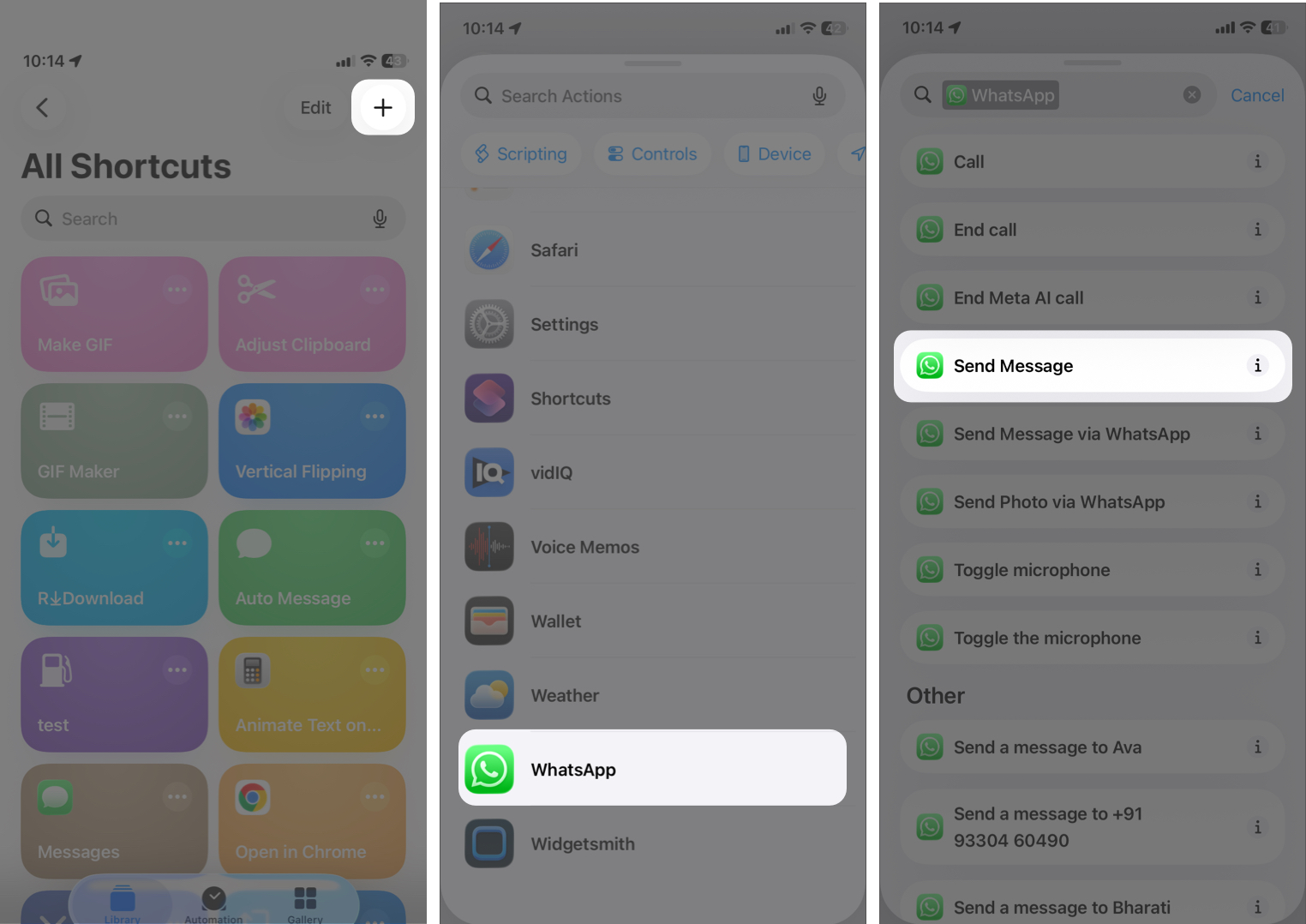
- Open the Shortcuts app and tap the plus icon.
- Scroll down the list and select WhatsApp.
- Choose Send Message.
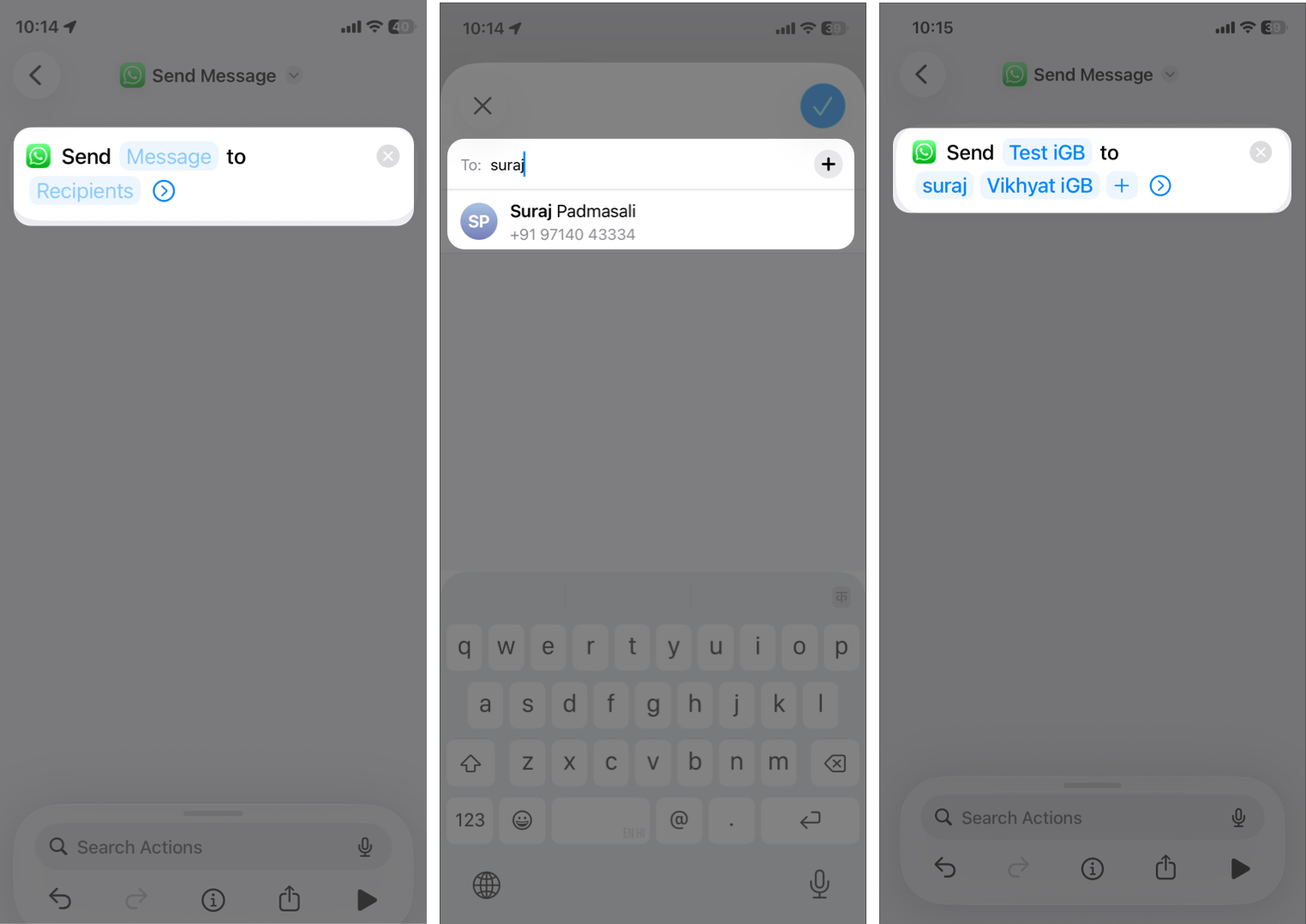
- Type your text in the Message label and select the contact in the Recipient box, then tap the checkmark.
- Go back and move to the Automation tab.
- Tap New Automation or the plus sign at the top right corner.
- Choose Time of Day from the list.
- Ensure Run Immediately is selected at the bottom.
Set the date and time you want the message sent and select the Repeat duration.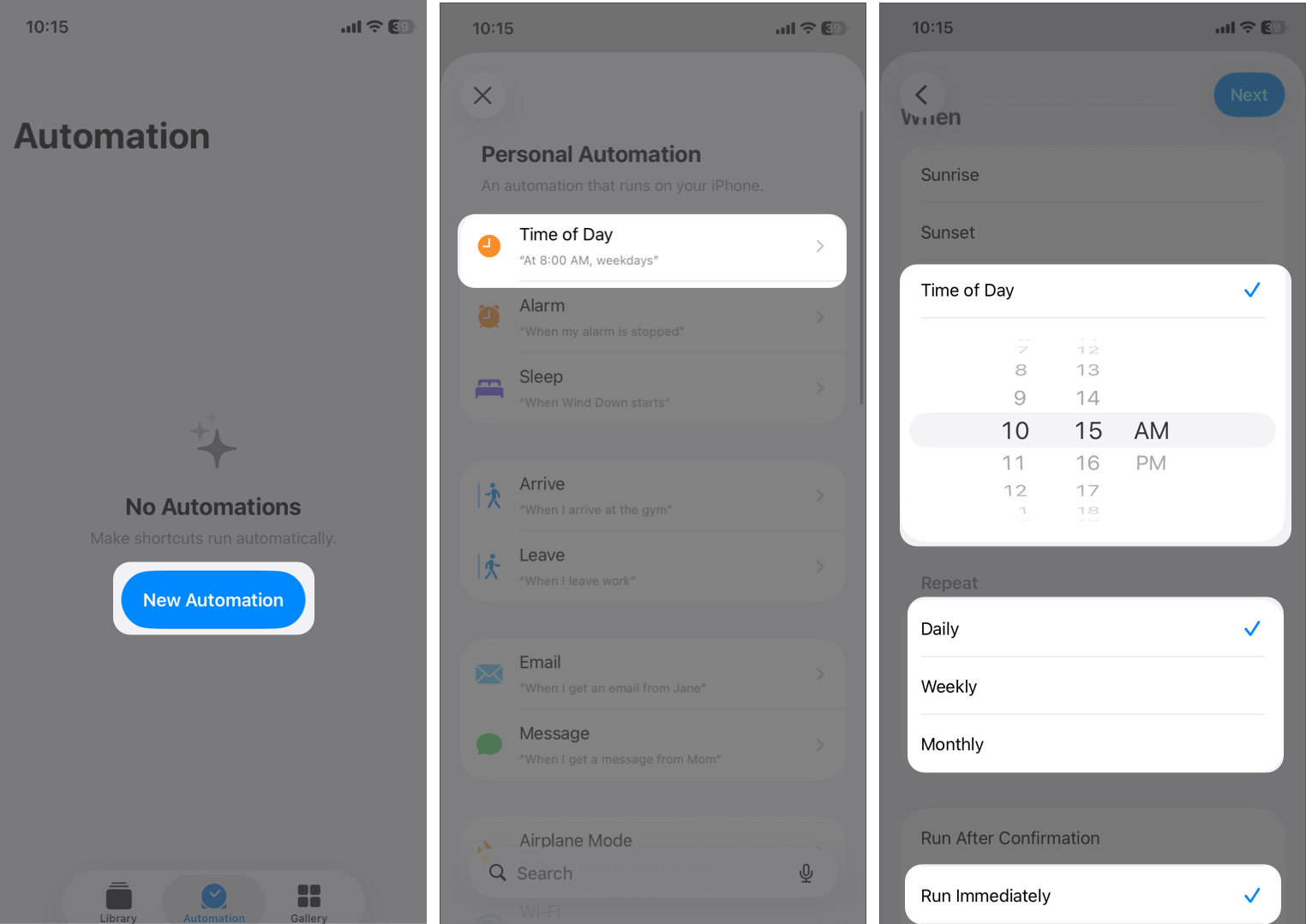
- Tap Next.
- Then select Send Message under My Shortcuts tab.
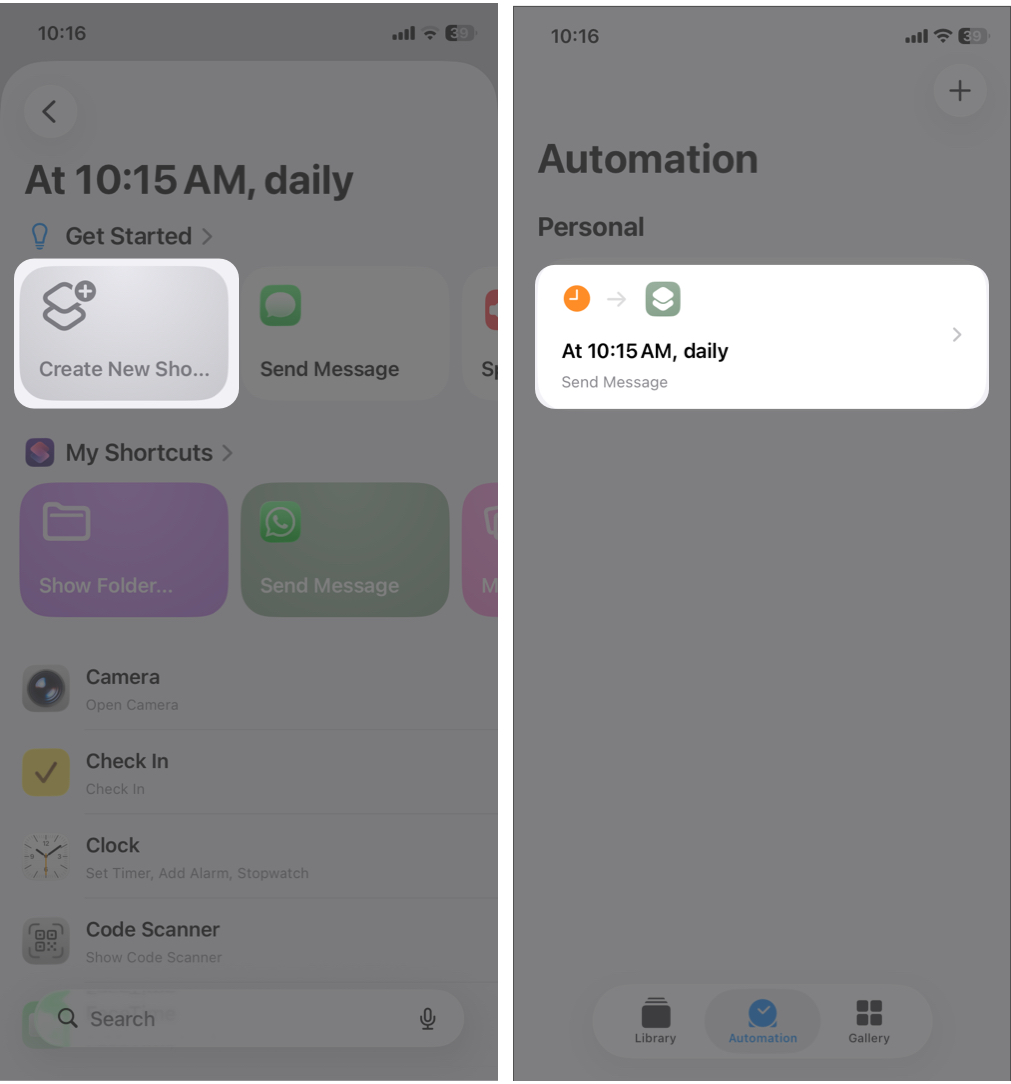
That’s it! The automation will run at the selected time and send the WhatsApp message automatically.
How to Schedule WhatsApp Messages on Android
Android makes this easier thanks to automation-friendly permissions and various third-party WhatsApp message scheduling apps like SMS Auto Reply / Scheduler, SKEDit Scheduling App, etc.
- Install the scheduling app from the Play Store.
- Grant required permissions like Accessibility and Notification access and disable battery optimization.
- Choose WhatsApp inside the app.
- Now, select Schedule Type as Contacts/Groups. You can also schedule Status, WhatsApp Polls, Broadcast list messages, etc.
- Select the Recipients.
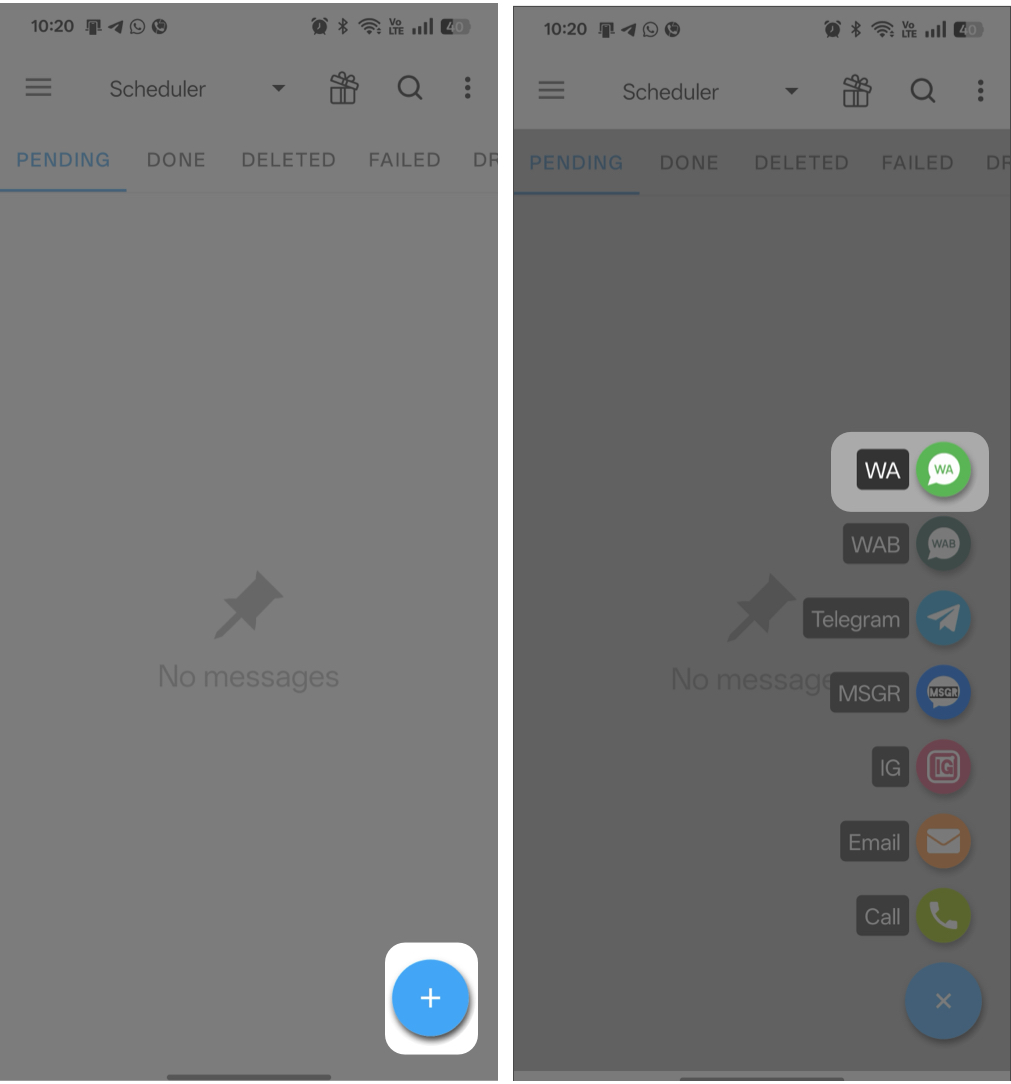
- Write your message. You can even add placeholders to customize the text for each contact and dates.
- Add any attachments.
- Set the date and time and repeat frequency.
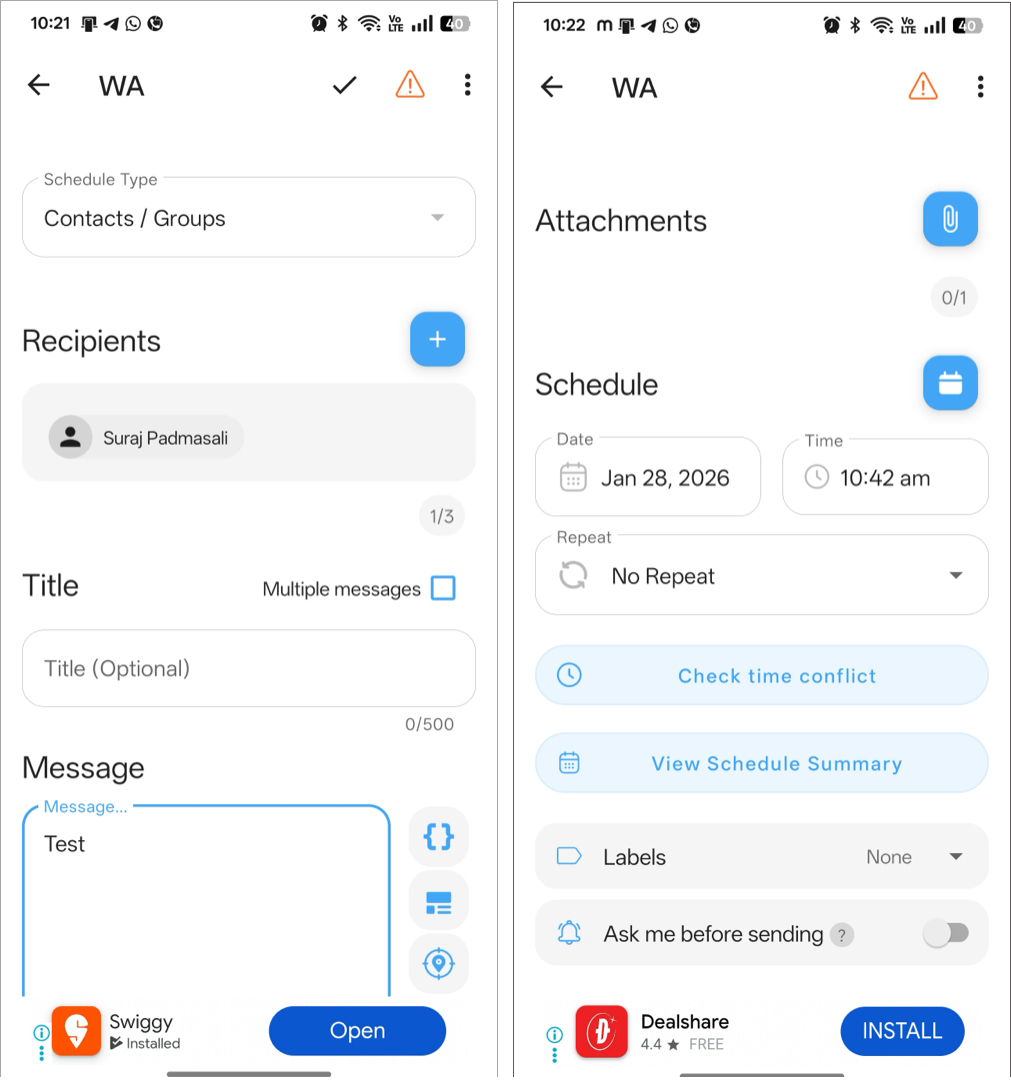
- Finally, save your setup.
Some apps send messages automatically, while others require the phone to be unlocked at the scheduled time.
Schedule Messages on WhatsApp Web
If you use WhatsApp on your computer, Chrome browser extensions like WAPlus CRM can help schedule messages. These tools are powerful as you can even schedule messages with attachments. After installing:
- Open WhatsApp Web and log in with your phone number.
- Open a chat and tap the scheduler icon next to the text box.
- Type your message and toggle on Send Attachment if required.
- Choose date and time and recurrence schedule.
- Click Save.
You can also register on WAPlus to schedule messages across your iPhone, Android, and PC WhatsApp app. Note that your browser must remain logged in.
How to Schedule Send WhatsApp Message on the Business App
WhatsApp Business doesn’t offer true message scheduling either, but it does provide automated messages:
Available Automation Features
- Greeting Messages: Sent when a customer first messages you.
- Away Messages: Sent outside business hours.
- Quick Replies: Pre-saved responses you can send in seconds.
To set up Away Messages:
- Open WhatsApp Business.
- Go to Tools.
- Tap Away Message and toggle it on.
- Type your message and tap Save.
- Set a schedule (Always / Custom hours).
- You can also choose Recipients.
iPhone vs Android vs WhatsApp Web: Comparison
If you have multiple devices, you must be confused which method to use. So, here’s a simple overview:
Ease of Setup
- iPhone – Moderate (requires Shortcuts setup)
- Android – Easy (apps are more flexible)
- Web – Easy but depends on browser
Automation Flexibility
- You get a lot more freedom like deep automation and custom message support on android.
- iPhones stick to Apple’s rules, so you run into more limits, especially with attachments.
- If you’re on the web, it all comes down to what browser extensions can pull off.
Best Platform: If you’re always scheduling reminders, business updates, or anything that needs to go out right on time, Android’s the winner. It’s just easier and lets you do more.
Common Problems and How to Fix Them
Message scheduling is not native to WhatsApp so you may face some hiccups.
| Issues | Solutions |
| Scheduled Message Not Sending | Check if the phone was locked. Make sure the app has all permissions. Confirm the automation is still enabled. |
| App Permission Issues | Recheck Accessibility access. Allow notification access. Enable background activity. |
| Battery Optimization Conflicts | Battery savers can stop scheduling apps. Go to Battery Settings and disable optimization for the scheduling app. |
| WhatsApp Updates Breaking Automation | Major updates sometimes change app behavior. To fix it, update your scheduling app and recheck permissions. |
Best Practices for Scheduling WhatsApp Messages
- Avoid Spam-Like Behavior: Sending too many automated messages can look like spam. So. don’t mass-message unknown contacts and avoid repeated promotional messages.
- Time Zone and Delivery Accuracy Tips: Double-check recipient’s time zone and schedule during normal waking hours.
I will suggest not to use automated messaging for sensitive conversations, emotional or personal messages, and situations needing real-time replies.
Final Thoughts
Scheduling WhatsApp messages isn’t built into the app, but it’s still very doable. If you’re always sending reminders, business updates, or anything urgent, scheduling messages seriously helps. It saves you time, keeps you organized, and makes you look more professional.
Tried this trick? Share your thoughts in the comments!
Frequently Asked Questions
Topics

Written by
Ava BiswasAva is a die-hard Apple aficionado and seasoned writer with a knack for breaking down complex tech concepts into easily digestible content. Having honed her writing and editing skills over 4 years at renowned media houses like TechBurner, Ava crafts informative and engaging articles including troubleshooting guides, product reviews, editorials at iGeeksBlog. When not typing, you can find her exploring the latest Apple releases or pondering the future of tech innovation.
View all posts →More from How-to

Snapchat Parental Controls: How to Set Up Family Center and Keep Your Teen Safe
Snapchat’s Family Center lets parents monitor their teen’s friend activity and screen time without reading private messages. Here’s how to set it up and what to expect.
 VikhyatMarch 3, 2026
How to Block and Unblock Someone on Instagram
Instagram lets you block or unblock someone in seconds. Follow these simple steps to take full control of your privacy and online peace.
Ava BiswasMarch 2, 2026
Apple Watch Not Responding? 8 Fixes That Actually Work
Is your Apple Watch unresponsive or stuck on a black screen? Here are 8 proven fixes to help you unfreeze it and get it working again quickly.
VikhyatMarch 3, 2026