
How to record voice memos on Apple Watch
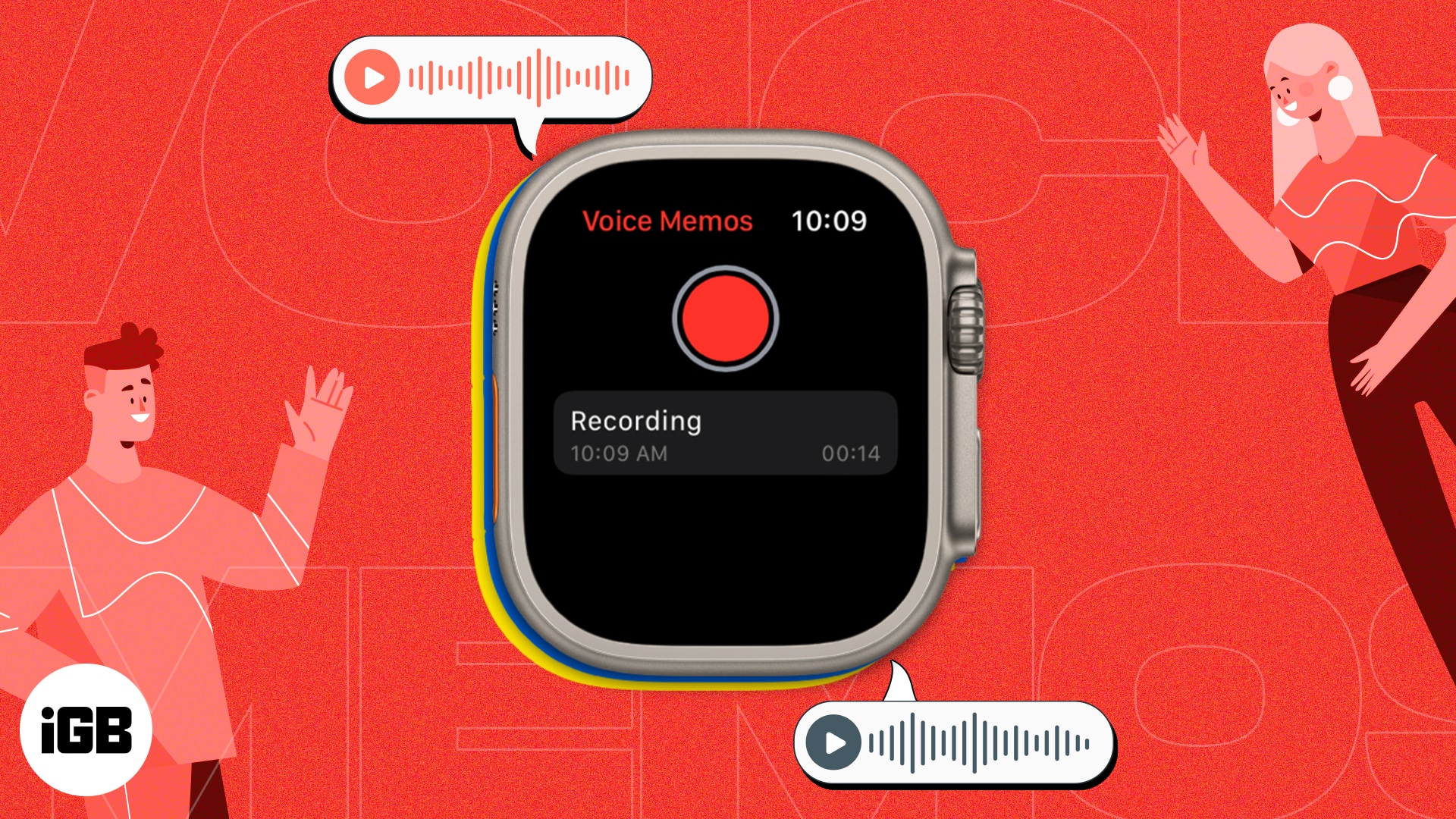
Whether you’re a busy professional who needs to keep track of important ideas or simply someone who wants to capture a moment of inspiration, the voice memo feature on Apple Watch can help you stay organized and productive.
Additionally, when you combine it with the fact that you can access it with the ease of your wrist, the feature’s value skyrockets. So, let’s look at how you can record voice memos on your Apple Watch
- How to record a voice memo on Apple Watch
- How to listen to your voice memo on Apple Watch
- Using Siri to record a voice memo on Apple Watch
How to record a voice memo on Apple Watch
- Press the Digital Crown (circular dial) on your Apple Watch.
- Find and launch Voice Memos.
- Tap the red button to start recording.
- Press the stop button to end the recording.
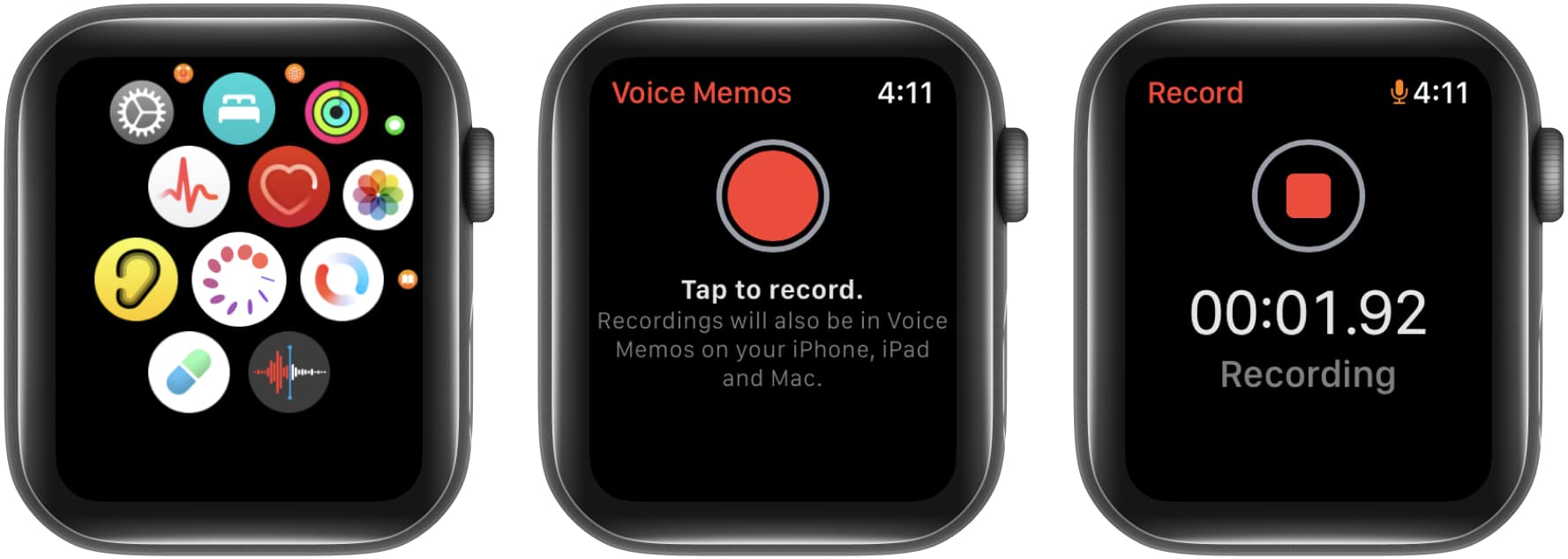
Your Apple Watch instantly synchronizes the voice notes you record to your Mac, iPhone, or iPad that use the same Apple ID. This enables you to easily view your memos and allow you to track and manage them with ease.
How to listen to your voice memo on Apple Watch
- Open the Voice Memo app.
- Tap on your desired recording.
- Select the Play button.
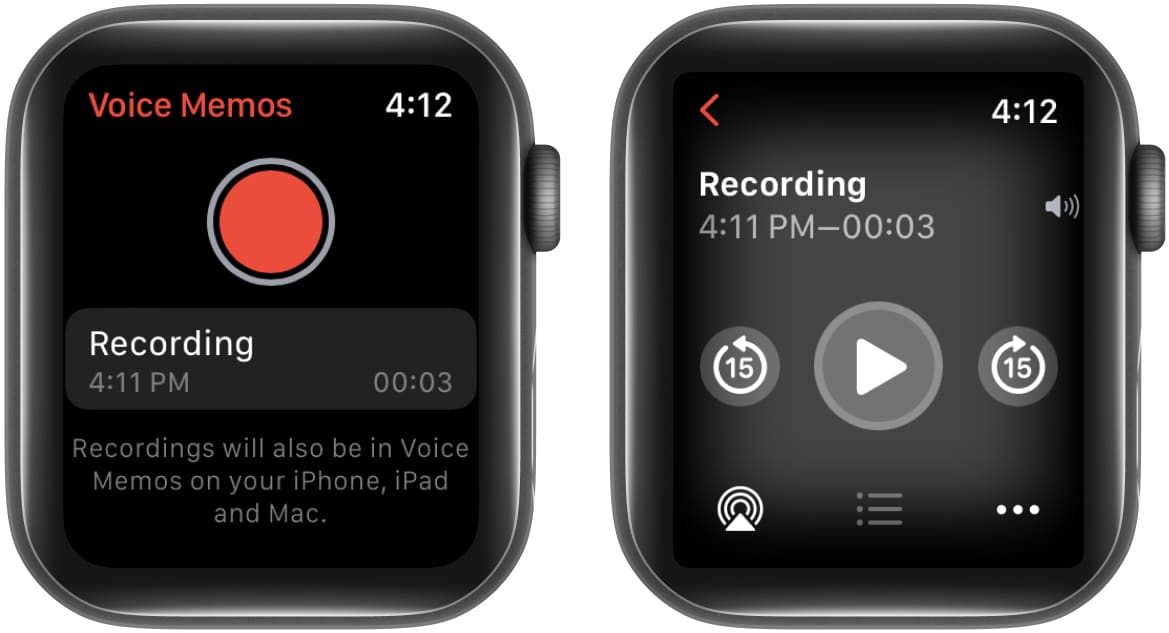
You have two options for listening to voice memos on your Apple Watch. The first option is to use the built-in speaker, which is convenient but not necessarily the best choice.
Alternatively, you may use your AirPods instead, which will provide you with better sound quality. However, ensure the connection and pairing of your AirPods with your Apple Watch.
Using Siri to record a voice memo on Apple Watch
You may use Siri, Apple’s smart assistant, to aid you when working with Voice Memos on your Apple Watch. Make sure to enable Siri on your Apple Watch to do so. Once you’ve verified this, you may proceed to activate Siri by saying, “Hey, Siri,” and then ask her to launch the app by asking, “Open Voice Memo.”
If you cannot locate the Voice Memos app on your Apple Watch, it could be because you unknowingly removed it from your paired iPhone. So, go the App Store, and download the Voice Memos app on your iPhone to make the same available on Apple Watch.
As of now, there is no official statement from Apple regarding this matter, but it appears that you can continue recording until your device’s storage is completely exhausted. Nonetheless, you can always free up some additional storage on your Apple Watch to record for a few more minutes.
Additionally, you can also edit the name of an existing recording easily. Simply, go to the recording and tap on the three dots icon → Edit Name → type a new name → select Done.
Deleting a voice memo from your Apple Watch is simple to launch Voice Memo → select a recording to delete → tap the three dots icon → select Delete.
How’s your recording experience?
The Voice Memo feature is quite useful, but it becomes even more valuable when used in conjunction with your wearable. I believe that any uncertainties you might have regarding using Voice Memos on your Apple Watch have been resolved. If you’re looking for additional Apple Watch material, check out my recommendations below.
More on Apple Watch:
Frequently Asked Questions
Topics

Written by
Bhaskar SharmaBhaskar is a tech guru who turned wordsmith. Hiding his B.Tech degree in a closet, he ditched the corporate path to simplify tech for everyone. For the past 5 years, he's been dishing out how-tos, reviews, and sharp insights. But there's more! He's a witty interview champ and has been sharing his wisdom for 3 years. Furthermore, he has honed his editing skills for 1.5 years and is now delving into marketing to assist newcomers. When not jamming his fingers on those mechanical keyboards, you may find him on strings or engaging in sports. And by evening, his quotes will be appearing on your Instagram feeds.
View all posts →More from Apple Watch

Apple Watch Not Responding? 8 Fixes That Actually Work
Is your Apple Watch unresponsive or stuck on a black screen? Here are 8 proven fixes to help you unfreeze it and get it working again quickly.
 VikhyatMarch 3, 2026
How to Mirror Your Apple Watch on Your iPhone: A Simple Guide
Want to control your Apple Watch using your iPhone? This guide explains how to turn on Apple Watch Mirroring, use it easily, and fix common issues.
 Arshmeet KaurFebruary 27, 2026
How to Restore Apple Watch From a Backup
Need to reset or switch iPhones? Here’s how to restore your Apple Watch from a backup, what data comes back, and how to make sure everything syncs properly.
VikhyatFebruary 23, 2026