
How to open a note in Pages app on iPhone, iPad and Mac
If you love jotting down ideas in the Notes app but wish to share them on a universal platform, then you’re in luck. With iOS 17 and macOS Sonoma, users can now effectively share Apple Notes to the Pages app.
By sharing notes to the Pages app, you gain access to a broader selection of formatting options, allowing you to enhance the quality of your documents. Moreover, within Pages, you can save your information in multiple formats, including docx, pdf, and rtf. Without delay, let’s explore the steps to open a note in the Pages app.
How to open a note to Pages on iPhone and iPad
- Launch the Notes app → Open the note you wish to share to Pages.
- Tap the Share icon → Select Open in Pages when prompted.
Wait till the file is prepared and imported to the Pages app.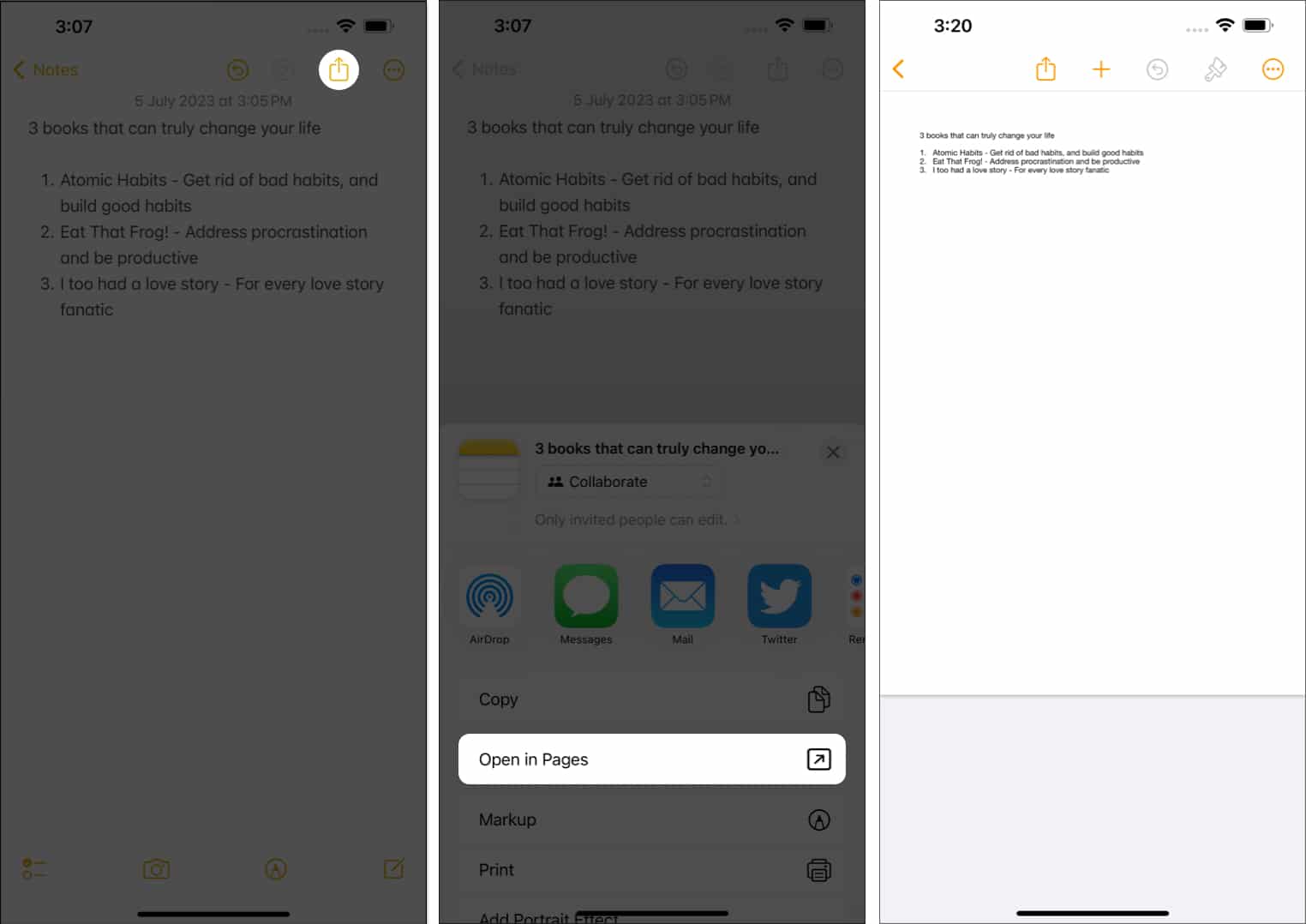
Voila! You can now modify the respective file in the Pages app.
How to open a note in Pages on Mac
- Launch the Notes app on Mac.
- Open a note → Click the Share icon.
- Select the Open in Pages option from the drop-down menu.
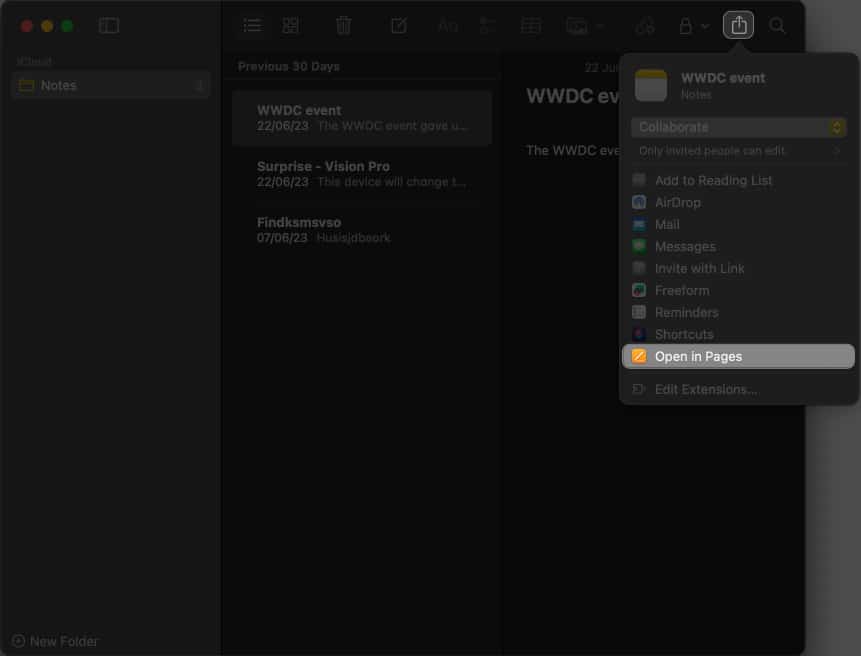
- As the note is processed completely, you can modify the same in the Pages app.
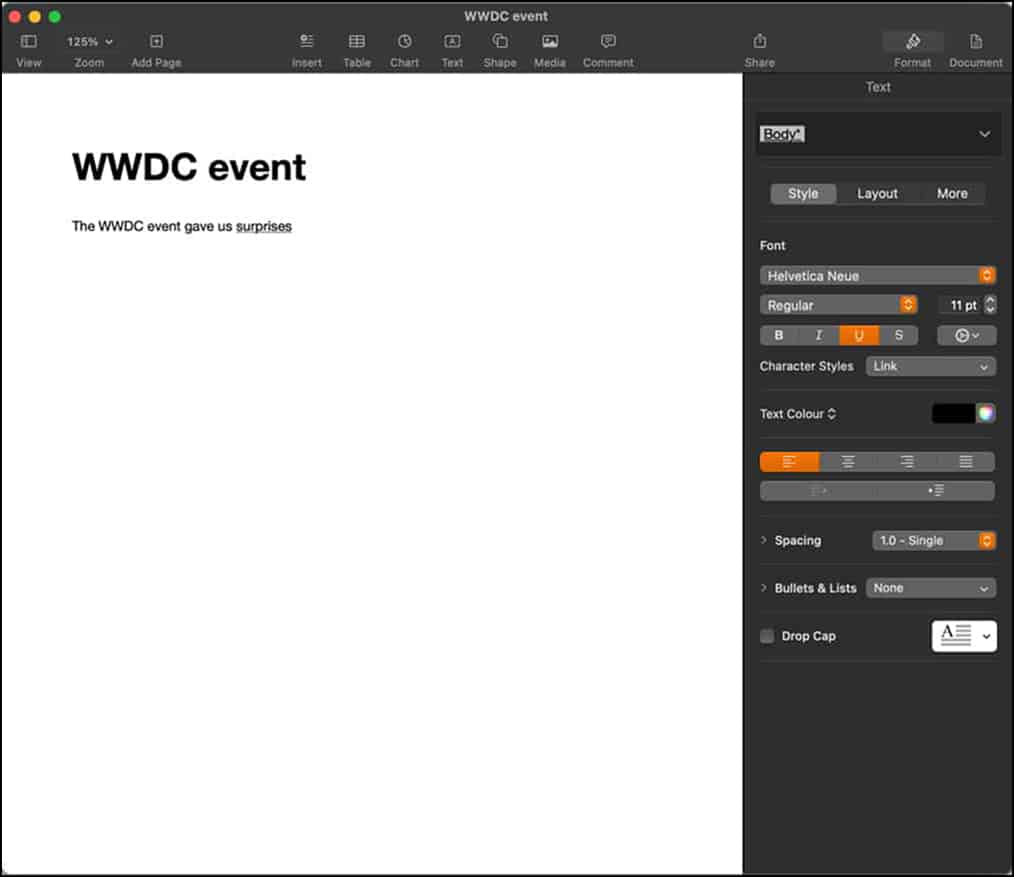
This is just a glimpse. With the Pages app on the Mac, you can enhance your creative ability even further.
Advantages of sharing Notes to Pages
If you’re wondering why someone would leave the official Notes app offered by Apple and use a similar tool like Pages, then you’re not alone. Let’s discuss some key Pages features that can help you tremendously.
- The improved collaboration feature in Pages empowers multiple users to work simultaneously on a document in real time.
- A wide variety of impressive templates are available to meet your needs. Professionals can create visually appealing documents with ready-to-go templates.
- Individuals can export the pages of your documents as image files.
- Pages now offers advanced editing tools, such as color grading for images and videos.
- Summary labels in stacked bar, column, and area charts can come in handy.
- Advanced tools like adding scalable vector graphics (SVGs) to your documents allow you to preserve visual quality at any size. Finally, users can retain SVG images when exporting books into EPUB format, including book cover art.
These top-of-the-line improvements enable professionals to curate high-quality content directly from their Apple devices. Pages app has undoubtedly streamlined the content creation process by providing unmatched versatility.
Boost your productivity!
Whether you’re using your iPhone on the go, your iPad for note-taking sessions, or your Mac for in-depth editing, Pages provides a unified and intuitive experience across all your Apple devices. So go ahead and unleash your creativity to its full extent.
Thank you for reading. Don’t hesitate to drop your thoughts in the comments below.
Frequently Asked Questions
Topics

Written by
Suraj PadmasaliSuraj is an operations head on the iGB team. He contributes to the social media section along with tips and tricks for iPhone, Apple Watch. Apart from blogging, he likes to work out as much as he can in his gym and love to listening to retro music.
View all posts →More from How-to

Snapchat Parental Controls: How to Set Up Family Center and Keep Your Teen Safe
Snapchat’s Family Center lets parents monitor their teen’s friend activity and screen time without reading private messages. Here’s how to set it up and what to expect.
 VikhyatMarch 3, 2026
How to Block and Unblock Someone on Instagram
Instagram lets you block or unblock someone in seconds. Follow these simple steps to take full control of your privacy and online peace.
 Ava BiswasMarch 2, 2026
Apple Watch Not Responding? 8 Fixes That Actually Work
Is your Apple Watch unresponsive or stuck on a black screen? Here are 8 proven fixes to help you unfreeze it and get it working again quickly.
VikhyatMarch 3, 2026