
How to open Mac app from unidentified developer

Apple only supports installing apps from the App Store. So, you may struggle to run an app downloaded from unidentified sources on your Mac. However, that doesn’t mean you can’t use third-party apps on your Mac. Here, I will share how you can install and open apps from unidentified developers on Mac.
Why can’t Mac app open from unidentified developer?
Apple tests each app thoroughly before publishing it on the App Store to protect devices from malware. Software downloaded from unidentified developers can contain harmful code but may appear safe and legitimate. So, Apple has implemented security measures called Gatekeeper to block potentially hazardous apps.
Gatekeeper scans app files for malware and displays a warning: “App cannot be opened because it is from an unidentified developer.” If you have reasons to trust the developer, despite your Mac’s inability to verify the app’s malware status, you can proceed with the installation. Below are the steps to open an app from an unidentified developer on Mac.
How to install an app from an Unidentified Developer on Mac
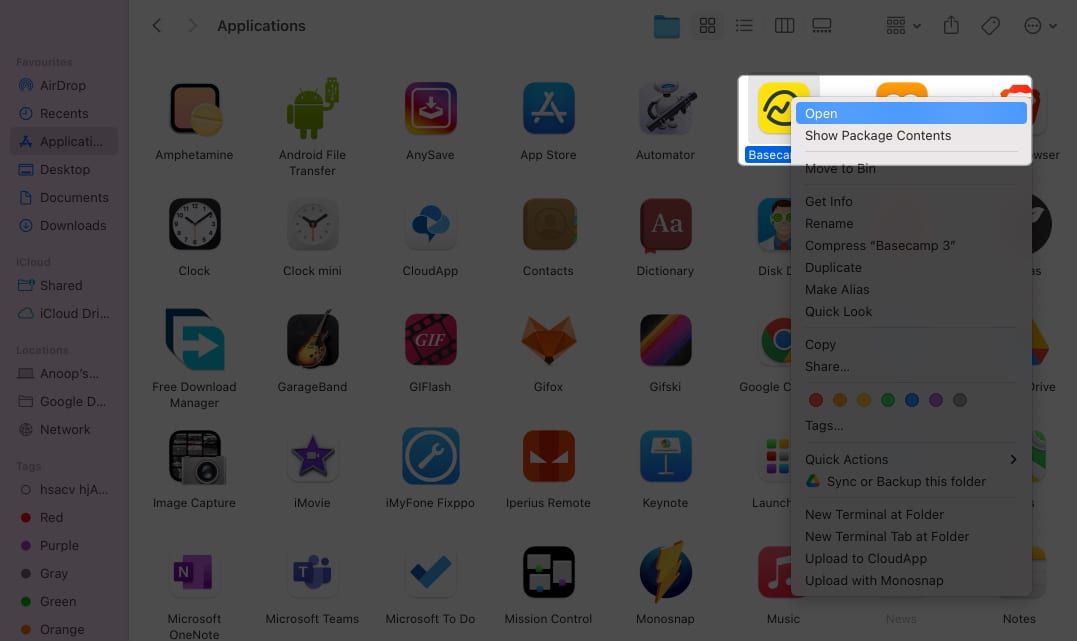
- Open Finder → Locate the app from the Downloads or Applications folder.
Note: Don’t use Launchpad to open the app. - Right-click the app → Choose Open.
- Hit Open again to confirm.
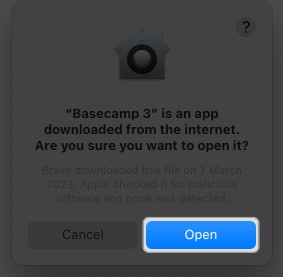
The app will open like a regular app. Afterward, macOS will make an exceptional change in the security settings for that particular app to run it. If you still can’t access the app, allow it from settings.
- Open System Settings → Choose Privacy & Security.
- Scroll down to Security → Click Open Anyway beside the app name.
- Hit Open.
- Also, choose the App Store and identified developers.
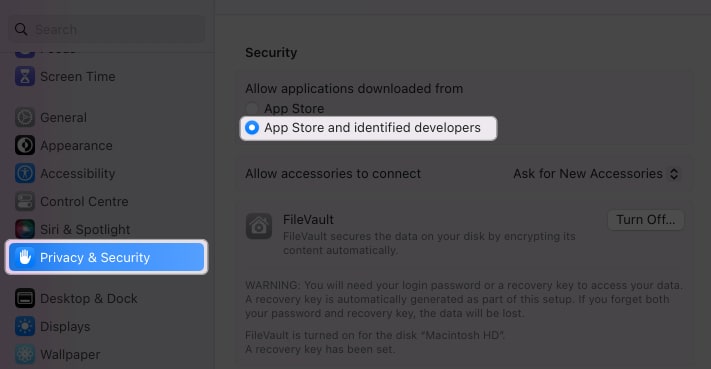
So, you don’t need to repeat the steps when installing apps from unknown sources on your Mac. Apple will only warn you before installing any apps downloaded from undefined developers.
How to open Mac app from unidentified developer
To remove blocking or warnings from Apple when you try to download and open apps from unidentified developers, you need to disable Gatekeeper.
- Open Terminal.
- Type
sudo spctl –-master-disableand hit Return. - Enter your macOS password and hit Return.
- Now go to System Settings → Privacy & security.
- Click Anywhere under Allow apps downloaded from.
Enter your Mac’s passcode if prompted.
Download safe!
Apple offers one of the safest desktop OS out there, and installing apps from unidentified developers might cause issues on your Mac. I have mentioned these steps to help install apps from unknown sources. However, I suggest using third-party antivirus and firewall software.
Frequently Asked Questions

Written by
Ava BiswasAva is a die-hard Apple aficionado and seasoned writer with a knack for breaking down complex tech concepts into easily digestible content. Having honed her writing and editing skills over 4 years at renowned media houses like TechBurner, Ava crafts informative and engaging articles including troubleshooting guides, product reviews, editorials at iGeeksBlog. When not typing, you can find her exploring the latest Apple releases or pondering the future of tech innovation.
View all posts →More from How-to

Snapchat Parental Controls: How to Set Up Family Center and Keep Your Teen Safe
Snapchat’s Family Center lets parents monitor their teen’s friend activity and screen time without reading private messages. Here’s how to set it up and what to expect.
 VikhyatMarch 3, 2026
How to Block and Unblock Someone on Instagram
Instagram lets you block or unblock someone in seconds. Follow these simple steps to take full control of your privacy and online peace.
Ava BiswasMarch 2, 2026
Apple Watch Not Responding? 8 Fixes That Actually Work
Is your Apple Watch unresponsive or stuck on a black screen? Here are 8 proven fixes to help you unfreeze it and get it working again quickly.
VikhyatMarch 3, 2026