
How to invert the colors on iPhone
Before Dark Mode became available on iPhones, the Invert Colors feature was used to achieve a similar effect. Inverting the display colors on your iPhone can help with color blindness and improve readability. It is a useful feature for individuals with color vision deficiencies or those who struggle to read phone screens. In this article, I will explain how to invert the display colors on your iPhone.
How to invert your iPhone’s display colors
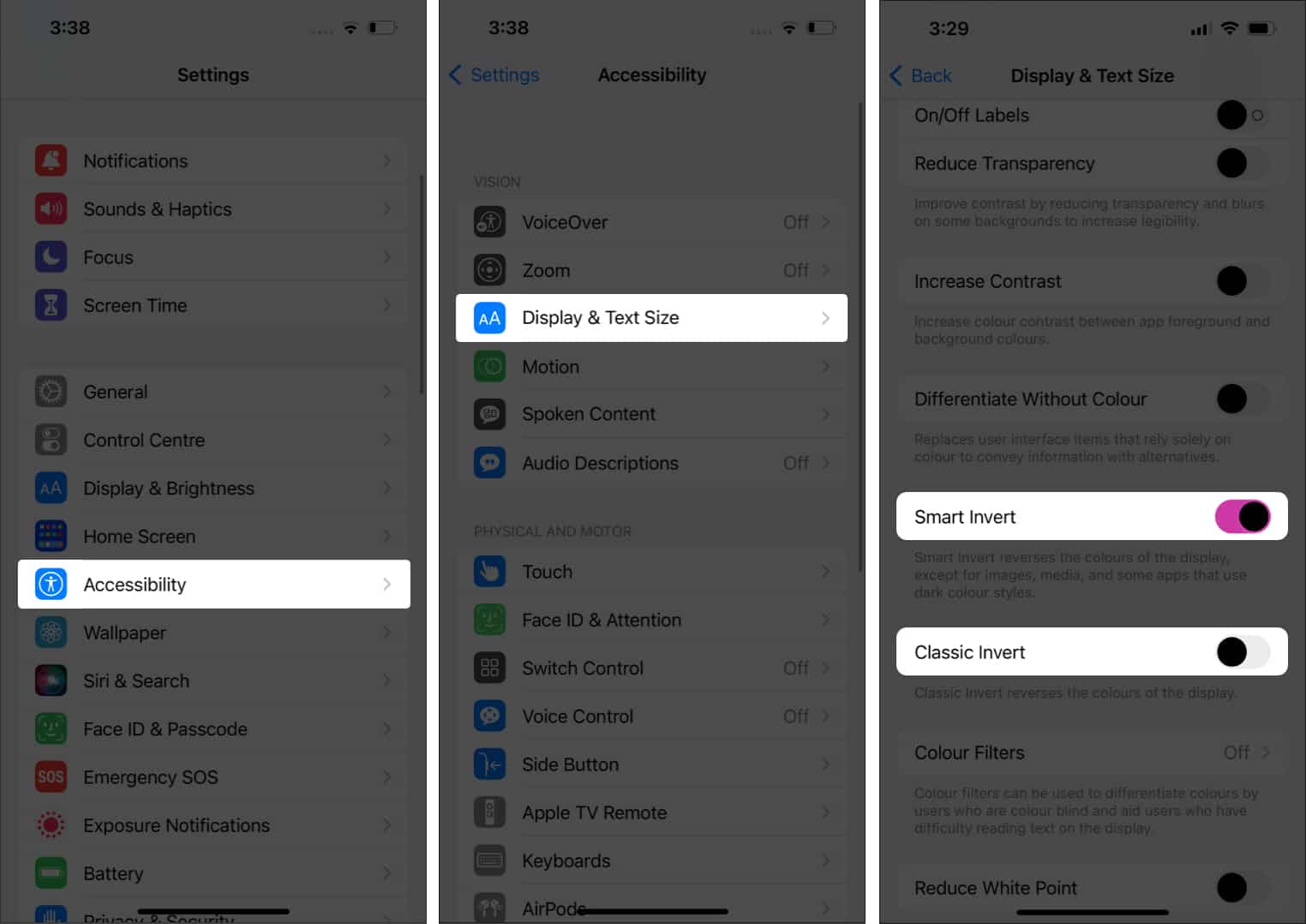
- Open Settings on your iPhone.
- Select Accessibility.
- Tap Display and Text size.
- Now, toggle on either one of the following:
- Smart invert: This smartly reverses the screen colors and makes exceptions for images, videos, and some apps with dark interfaces.
- Classic invert: This is the classic invert option we are used to. In this, all the colors in your iPhone display will appear inverted.
How to set up an inverted colors shortcut
In addition to following the previously mentioned steps every time, you can quickly turn on invert colors by using a shortcut.
- Open Settings on your iPhone.
- Tap Accessibility.
- Select Accessibility Shortcut.
- Choose the type of invert option you want.
You can choose either the smart or classic invert or both.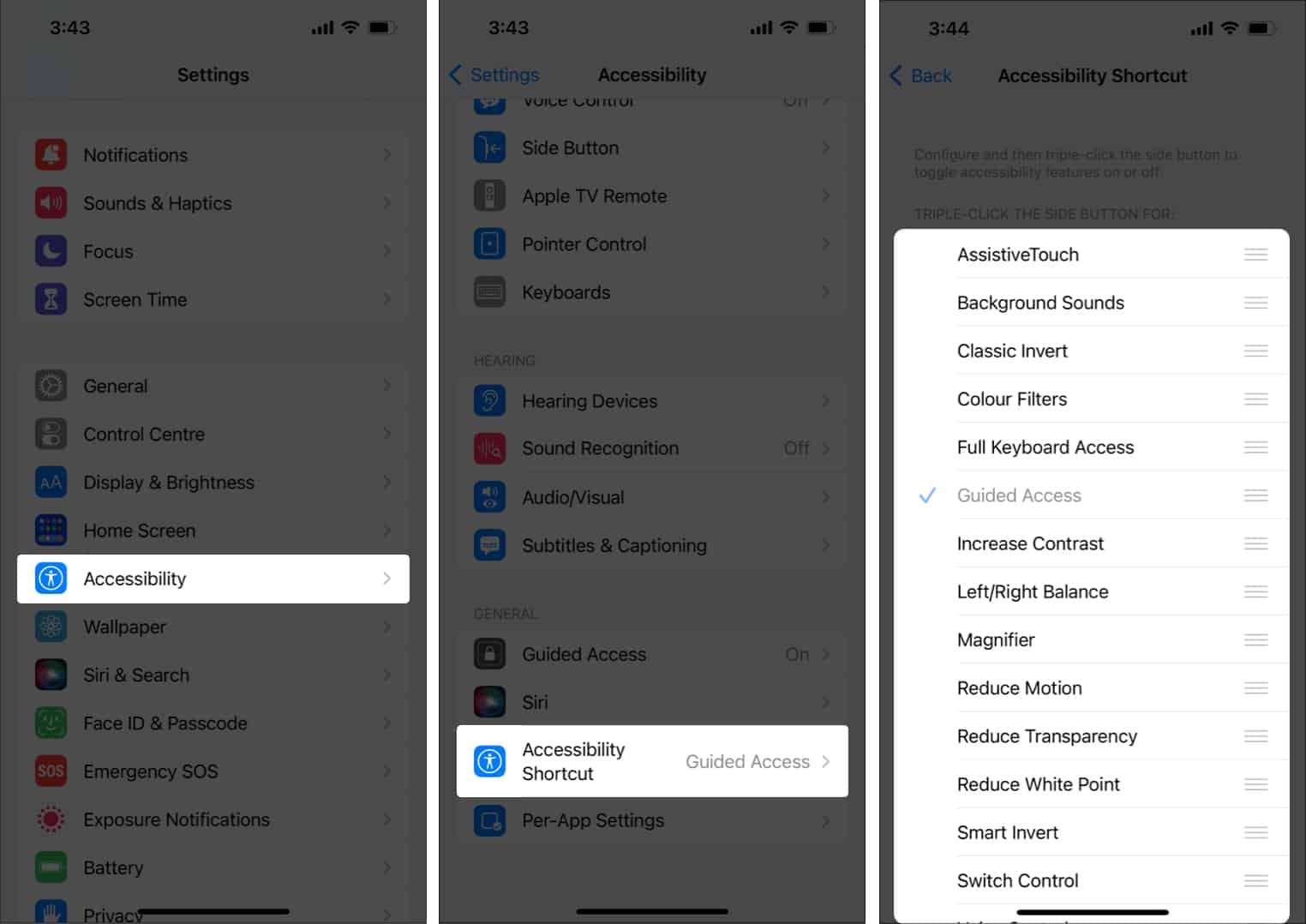
To access the Accessibility menu, triple-tap the home button (on iPhones with a home button) or the side button (on iPhones with a notch) and select the inverted color option you want.
That’s it!
While inverting color is a niche feature, many people used it to get dark mode on their iPhones before Apple introduced it. The feature is still helpful for visually impaired people. How often do you use inverted colors on your iPhone? Let me know in the comments.
No. In invert mode, the colors on your display are entirely inverted. Whereas, in Dark Mode, the UI’s colors are mainly dark.
It could be because someone has either turned on the invert colors option without letting you know, or you may have accidentally turned it on.
Here are some more tips and tricks for your iPhone:
Frequently Asked Questions

Written by
Anoop VargheseAnoop loves to find solutions for all your doubts on Tech. When he's not on his quest, you can find him on Twitter talking about what's in his mind.
View all posts →More from How-to

How to Turn Off Location on Snapchat (Step-by-Step Guide)
Want to stop sharing your location on Snapchat? This guide explains how Snapchat location sharing works and shows simple ways to turn off your location using Ghost Mode or phone settings. Stay in control of your privacy in just a few steps.
 VikhyatMarch 5, 2026
Snapchat Parental Controls: How to Set Up Family Center and Keep Your Teen Safe
Snapchat’s Family Center lets parents monitor their teen’s friend activity and screen time without reading private messages. Here’s how to set it up and what to expect.
VikhyatMarch 3, 2026
How to Block and Unblock Someone on Instagram
Instagram lets you block or unblock someone in seconds. Follow these simple steps to take full control of your privacy and online peace.
 Ava BiswasMarch 2, 2026