
How to change font size in Finder on Mac (Easiest way)

Mac users tend to change the font size of file names, folders, and other text in Finder. Users who have weak eyesight can benefit as some default text size of Finder fonts is very small and difficult to read. Therefore, adjusting the font size is the only solution. Let’s see how you can change the Finder font size on Mac.
Note:
The default text size of Finder items is 12, which can be decreased to 10, and increased maximum up to 16.
How to adjust or increase text size of Finder fonts in macOS
- Choose any folder that contains files.
- Go to the View menu and click on Show View Options.
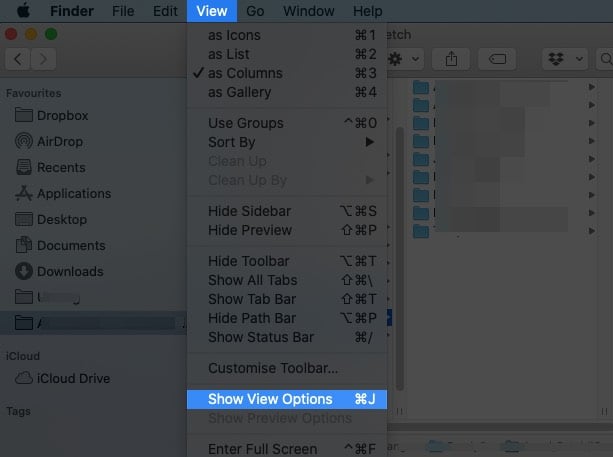
- Find the Text Size drop-down menu.
- Select the text size you want to keep and then click on Use as Default button seen under the same navigation panel.
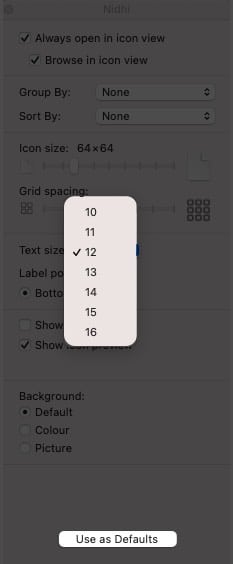
This will adjust the font size in all other Finder windows. If you haven’t selected ‘Use as Default’, you can see the change in a text size only in that particular folder within Finder.
If you know any other method, please share with us.
Read more:

Written by
Nidhi BohraA tech-aficionado whose superpower lies in blabbering interminably about new technologies. After 4+ years and 4500+ content pieces that helped diverse companies grow, I followed my passion and made iGeeks Media my home. When not gushing over technology, you will find me immersed in a fictional world, either reading or creating one.
View all posts →More from How-to

How to Turn Off Location on Snapchat (Step-by-Step Guide)
Want to stop sharing your location on Snapchat? This guide explains how Snapchat location sharing works and shows simple ways to turn off your location using Ghost Mode or phone settings. Stay in control of your privacy in just a few steps.
 VikhyatMarch 5, 2026
Snapchat Parental Controls: How to Set Up Family Center and Keep Your Teen Safe
Snapchat’s Family Center lets parents monitor their teen’s friend activity and screen time without reading private messages. Here’s how to set it up and what to expect.
VikhyatMarch 3, 2026
How to Block and Unblock Someone on Instagram
Instagram lets you block or unblock someone in seconds. Follow these simple steps to take full control of your privacy and online peace.
 Ava BiswasMarch 2, 2026