
How to Fix “Charging On Hold” Warning on iPhone
To fix “Charging On Hold” warning on iPhone, Unplug your iPhone from charging point and stop using it until it returns to normal temperature.
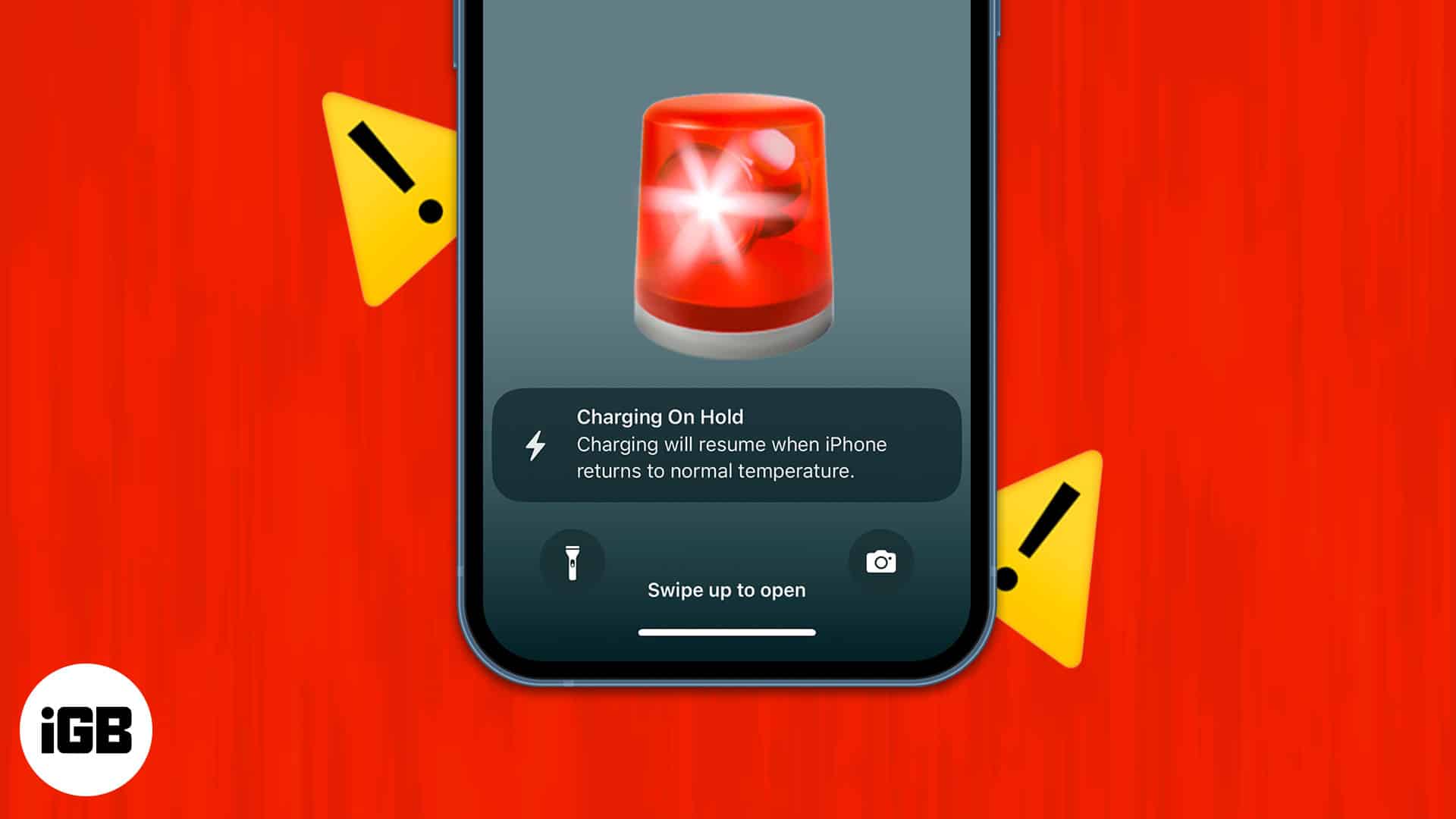
- What the ‘Charging On Hold’ alert means: The message appears when your iPhone detects overheating, pausing charging temporarily to protect battery health and prevent thermal damage.
- Why overheating happens during charging: High temperatures often stem from heavy apps, warm surfaces, low-quality chargers, or background processes that raise internal heat.
- How to fix the issue quickly: Move your iPhone to a cooler spot, remove the case, pause demanding apps, and avoid sunlight until normal charging resumes.
- Use proper chargers and updates: Stick to Apple-certified cables and adapters and install iOS updates regularly to keep temperature and charging management optimized.
- Safe charging habits: Charge in ventilated areas, avoid gaming or streaming while plugged in, and monitor for recurring heat alerts that may indicate hardware or battery wear.
You plugged your iPhone in to charge, but instead of finding a full battery, you’re greeted with a “Charging on Hold” message when you return to it later. Although this can catch you off guard, there’s no need to worry. The message usually indicates that your iPhone has detected conditions that aren’t ideal for safe charging. The upside is that this issue is often easy to resolve.
This post details a few common reasons behind the “Charging on Hold” alert and what you should do when you are greeted with it.
Why Does iPhone Say ‘Charging On Hold’?
The Charging On Hold error is a message that appears when your iPhone’s temperature exceeds the expected range while charging. You don’t have to worry when you come across this message, as it usually goes away when the phone cools. Then your iPhone will continue to charge as usual.
This fail-safe mechanism ships with iOS 16, and like Emergency Override, Apple puts it in place to preserve battery life. The Charging On Hold error message appears regardless of the heat source, which could be your charger, iPhone, or another external factor.
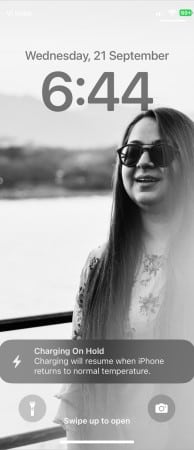
Causes of Charging On Hold on iPhone
Since the Charging On Hold message appears due to overheated iPhones, it is essential to investigate the possible causes of the problem.
Here are some things that might raise your iPhone’s temperature:
- Running heavy apps or tasks on the iPhone might also slow down your iPhone and increase its internal temperature.
- Placing the iPhone on hot surfaces, including your car’s dashboard, heated pavement, or close to a heat source, might raise its temperature and trigger the Charging On Hold error message while charging.
- Faulty charger or charging unit.
- A damaged battery might become too hot, raising your iPhone’s temperature.
- Streaming high-quality videos sometimes heat the iPhone unit.
What to Do When You See a ‘Charging on Hold’ Notification on iPhone
Resolving this error message doesn’t require any technical skills. You just need to undertake a few precautionary measures:
1. Move Your iPhone to a Cooler Place
If your iPhone feels warm to the touch, simply unplug it and move it to a cooler, shaded area and wait a few minutes for the temperature to drop. Once it does, plug the iPhone. Charging usually resumes automatically once the device cools down.
2. Remove the Case While Charging
Taking off the case can help heat dissipate more efficiently, especially if you’re using a thick or rugged case. This is particularly helpful during fast charging sessions or in warm environments.
3. Stop Intensive Tasks
Running intense tasks such as large video editing or gaming apps while charging is usually advised against, as it can generate extra heat. Close games, navigation apps, or video editing tools, and let the device rest for a bit to cool down.
4. Avoid Charging in Direct Sunlight
Always charge your iPhone indoors or in a shaded spot. Exposure to direct sunlight can heat up your device quickly and trigger the “Charging on Hold” warning.
5. Use Certified Chargers
Cheap, uncertified chargers can cause overheating and other issues. Therefore, always use Apple-certified or MFi-certified chargers for proper power regulation.
6. Update iOS to the Latest Version
Apple regularly improves power management with software updates. Go to Settings → General → Software Update and install the latest version if available.
Safe and Efficient Charging…
The “Charging on Hold” message is actually your iPhone’s way of taking care of itself. By addressing heat issues, ensuring proper ventilation, and using trusted accessories, you can keep your device charging efficiently and your battery in good shape for longer.
Read more:

Written by
Idowu OmisolaIdowu is an avid tech writer and a software surfer who loves covering knowledge gaps in consumer software, including anything related to iPhones. Well, when he's not reading and learning new things, you'll find Idowu losing gallantly on a solid chessboard or virtually on Lichess.
View all posts →More from How-to

Snapchat Parental Controls: How to Set Up Family Center and Keep Your Teen Safe
Snapchat’s Family Center lets parents monitor their teen’s friend activity and screen time without reading private messages. Here’s how to set it up and what to expect.
 VikhyatMarch 3, 2026
How to Block and Unblock Someone on Instagram
Instagram lets you block or unblock someone in seconds. Follow these simple steps to take full control of your privacy and online peace.
 Ava BiswasMarch 2, 2026
Apple Watch Not Responding? 8 Fixes That Actually Work
Is your Apple Watch unresponsive or stuck on a black screen? Here are 8 proven fixes to help you unfreeze it and get it working again quickly.
VikhyatMarch 3, 2026