- iOS 16 or later is required for edits and unsends and they only work within iMessage, not regular SMS or earlier Apple OS versions.
- Edit messages within 15 minutes by long-pressing in iMessage, tapping ‘Edit,’ and confirming with the blue checkmark after making changes.
- Unsend messages within 2 minutes by long-pressing and selecting ‘Undo Send’; the message disappears but leaves a notification behind.
- Recipients can still see edits or unsends—edited texts show a change history, and unsent ones are replaced by a “You unsent a message” label.
- Mac users can use Control-click for edits and undos on macOS Ventura or later, with the same time limits and message behavior as on iPhone.
During a text conversation, it’s way too easy to hit Send and instantly regret it. Maybe you spotted a typo a second too late. Or maybe you sent something cringey to the wrong person. We’ve all done it.
Thankfully, if you’re on iOS 16 or later, Apple gives you a way out. You can fix your mistake by editing what you sent, or even yank the message back completely. It won’t erase every trace, but it definitely saves you from the worst of the awkwardness.
What You Need Before You Start
Don’t dive in just yet. A few things need to line up first, or your edits and unsends won’t actually work:
- Your iPhone must be running iOS 16 or later.
- The other person has to be on iOS 16, iPadOS 16.1, or macOS Ventura (or newer). Otherwise, they’ll just see the original message.
- This only works with iMessages, the blue bubbles, not SMS or MMS, which are green bubbles.
- If your other devices are signed into the same Apple ID, the edit or unsend syncs across them. But if one’s offline, it might still show the old version until it reconnects.
- When you unsend a message, a “You unsent a message” alert still shows up for both of you. So no, you can’t fully cover your tracks.
How to Edit a Sent Message on iPhone
Once you’re sure everything’s compatible, here’s how I usually fix a message right after sending it:
- Open Messages and go into the iMessage thread.
- Long-press the message you want to change.
- Tap Edit from the menu.
- Make the required changes and tap the blue checkmark icon to save.
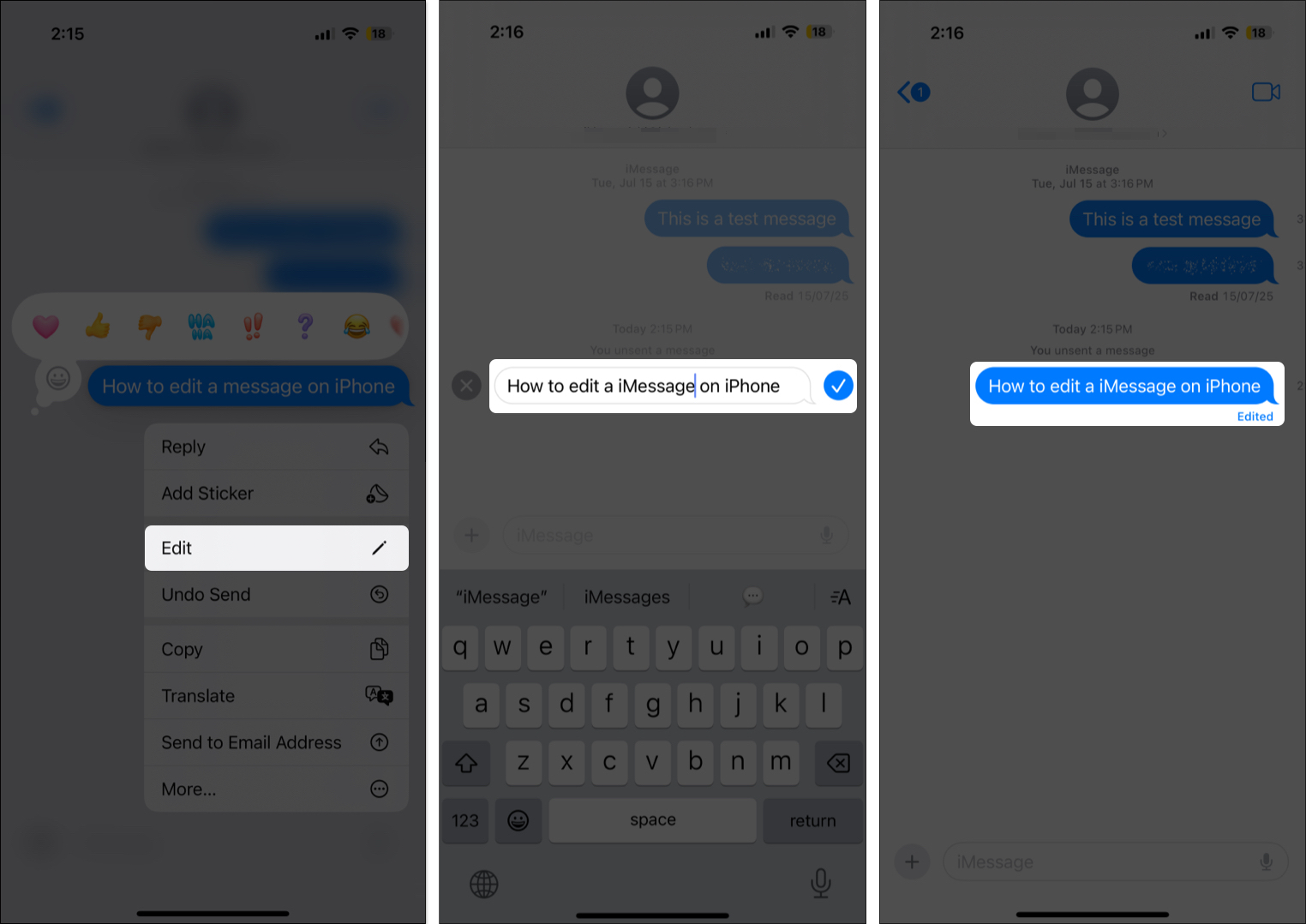
That’s it. Your updated message replaces the original. An “Edited” tag appears below it.
Just don’t wait too long. You’ve only got 15 minutes to make edits. After that, the Edit option disappears.
How to Unsend a Sent Message on iPhone
If editing isn’t cutting it and you’d rather erase the message entirely, here’s how I usually unsend something fast:
- Open the iMessage thread in Messages.
- Long-press the message bubble.
- Tap Undo Send from the menu.
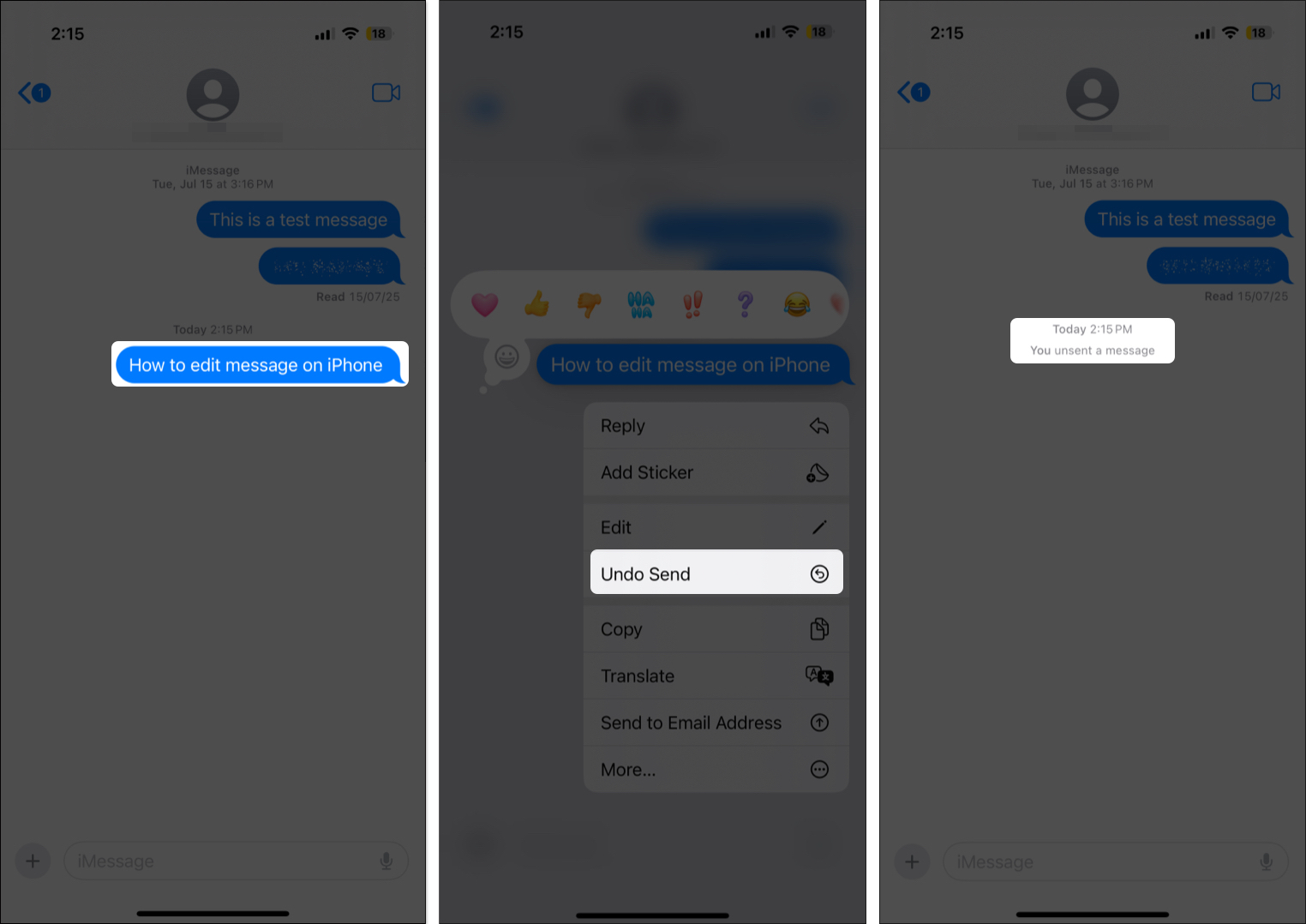
Poof. The message disappears, and a note saying “You unsent a message” takes its place.
But again, timing matters. You’ve only got 2 minutes after sending to pull it back. After that, it’s permanent.
What Happens When You Edit or Unsend a Message?
Apple didn’t just give us these features and call it a day. There’s a balance here. You can fix mistakes, but the recipient still gets some visibility.
If you edit a message:
- The old message is replaced with your updated one.
- An “Edited” label shows up below it.
- Anyone in the chat can tap “Edited” to view the original along with up to four previous versions. That’s a max of five edits total.
If you unsend a message:
- It disappears from the thread.
- Both people see “You unsent a message” where it used to be.
So yeah, it’s not completely stealthy. But it’s better than leaving a huge typo or embarrassing message sitting there.
Editing and Unsending Messages on Mac
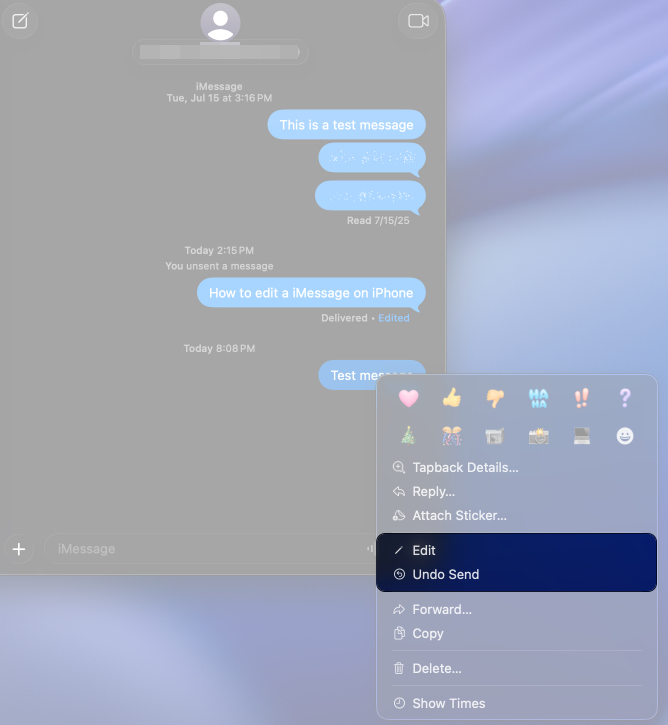
On a Mac running macOS Ventura or newer, the steps are nearly the same as on iPhone:
- Open Messages and head to the iMessage conversation.
- Control-click the message you want to edit or unsend.
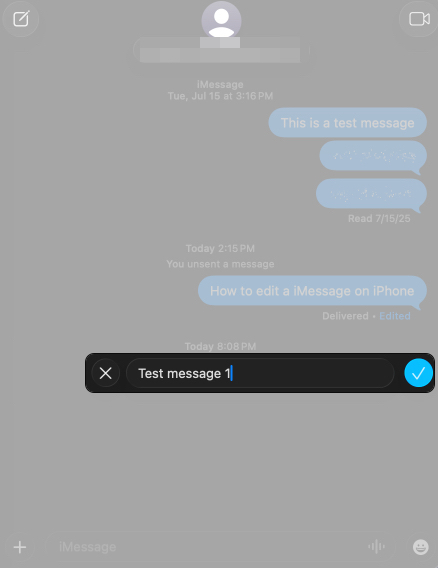
- To unsend, click Undo Send. To edit, click Edit.
- Make your changes and click the blue checkmark.


No surprises here. It’s just a familiar process on a bigger screen.
Troubleshooting: When You Can’t Edit or Unsend
If those menu options aren’t showing up, here’s what I usually check:
- Make sure it’s an iMessage, meaning a blue bubble, not an SMS.
- Check if you’re still within the time window. You get 15 minutes for edits and 2 minutes for unsends.
- Update your iPhone, and maybe remind your friend to do the same.
- Quit and relaunch the Messages app if it’s acting glitchy.
And remember, if the other person’s running an older OS, none of this will work right. They’ll still see the unedited, unsent message.
Tips to Make the Most of These Features
These tricks are awesome, but only if you’re quick and thoughtful about using them. Here’s what I’ve learned:
- Move fast. The clock starts as soon as you hit Send.
- Don’t rely on edits to clean things up privately. The history’s still right there.
- If something really needs to disappear, unsend it quickly.
- If you’re texting someone on an older OS, assume what you send is final.
Fix Your Texts with Confidence…
Apple didn’t go full “delete without a trace.” But even with limits, being able to edit and unsend is a huge relief. Just keep those time limits in mind, and double-check before tapping Send.
What iMessage feature should Apple add next? Let us know in the comments.