
How to delete Instagram account on iPhone (or deactivate it)

The social media era has ingrained platforms like Instagram into our lives. But there may come a time when you feel the need to take a break or say goodbye to the platform. If you, too, are looking for ways to step down from Instagram, then this guide is for you.
In this article, I’ll take you through the step-by-step process of deleting or deactivating your Instagram account on your iPhone.
How to delete Instagram account on iPhone (permanently)
For one reason or another, you’ve decided to delete your Instagram account. You’ll need to do so manually, either on your phone or computer. However, be aware that deleting your account permanently removes your photos and videos. I’ve included a step-by-step tutorial on downloading your IG data at the bottom of this section.
Here’s how to delete your Instagram account:
- Access Instagram on your iPhone.
- Navigate to your profile → Tap the hamburger icon → Select the Settings option.
- Choose See more in Accounts Center to proceed → Select Personal details under Account settings.
- Tap Account ownership and control → Hit Deactivation and deletion.
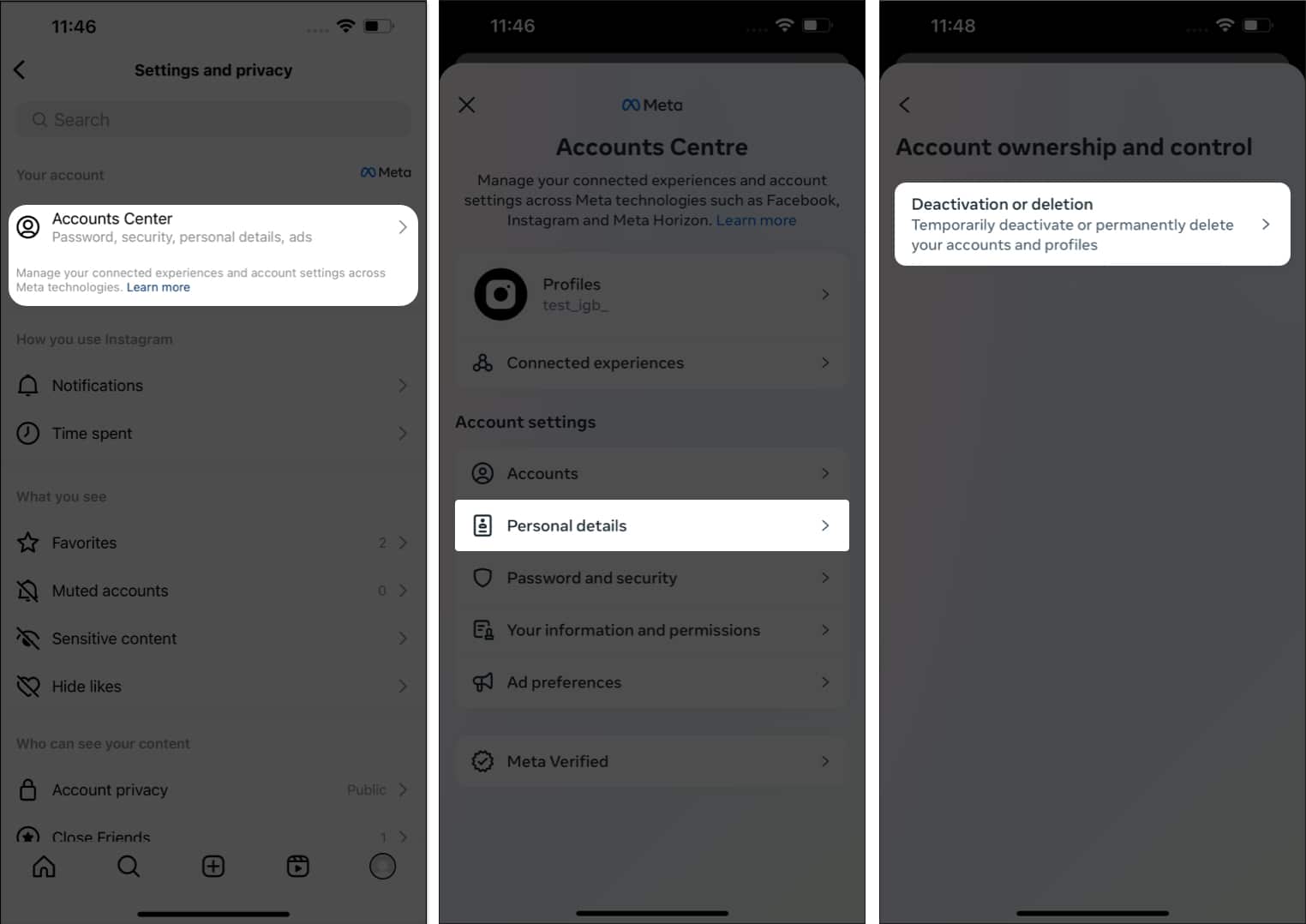
- Opt for your account when prompted.
- Choose the Delete account option → Hit Continue to proceed.
- Select a reason that justifies your case → Tap Continue.
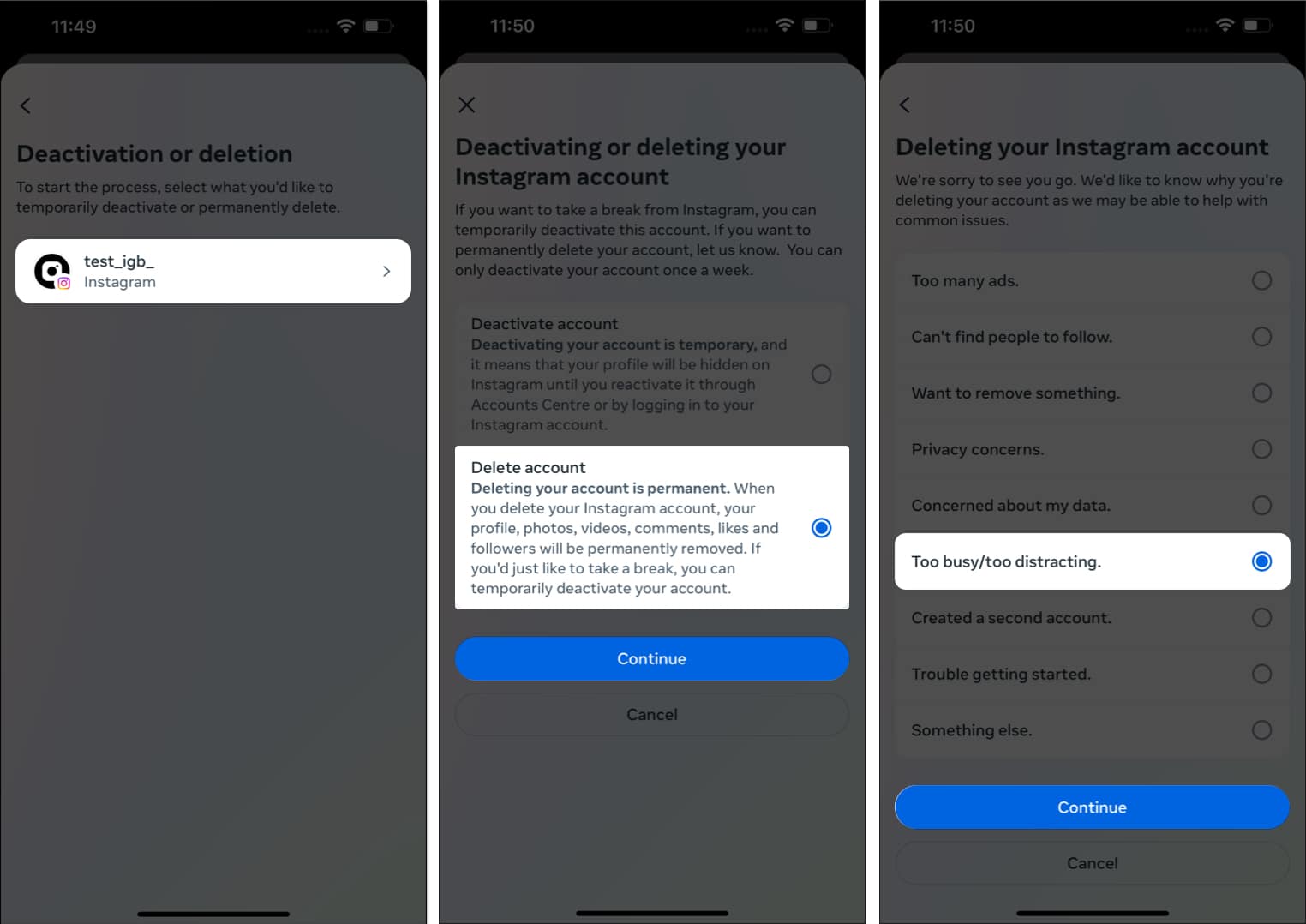
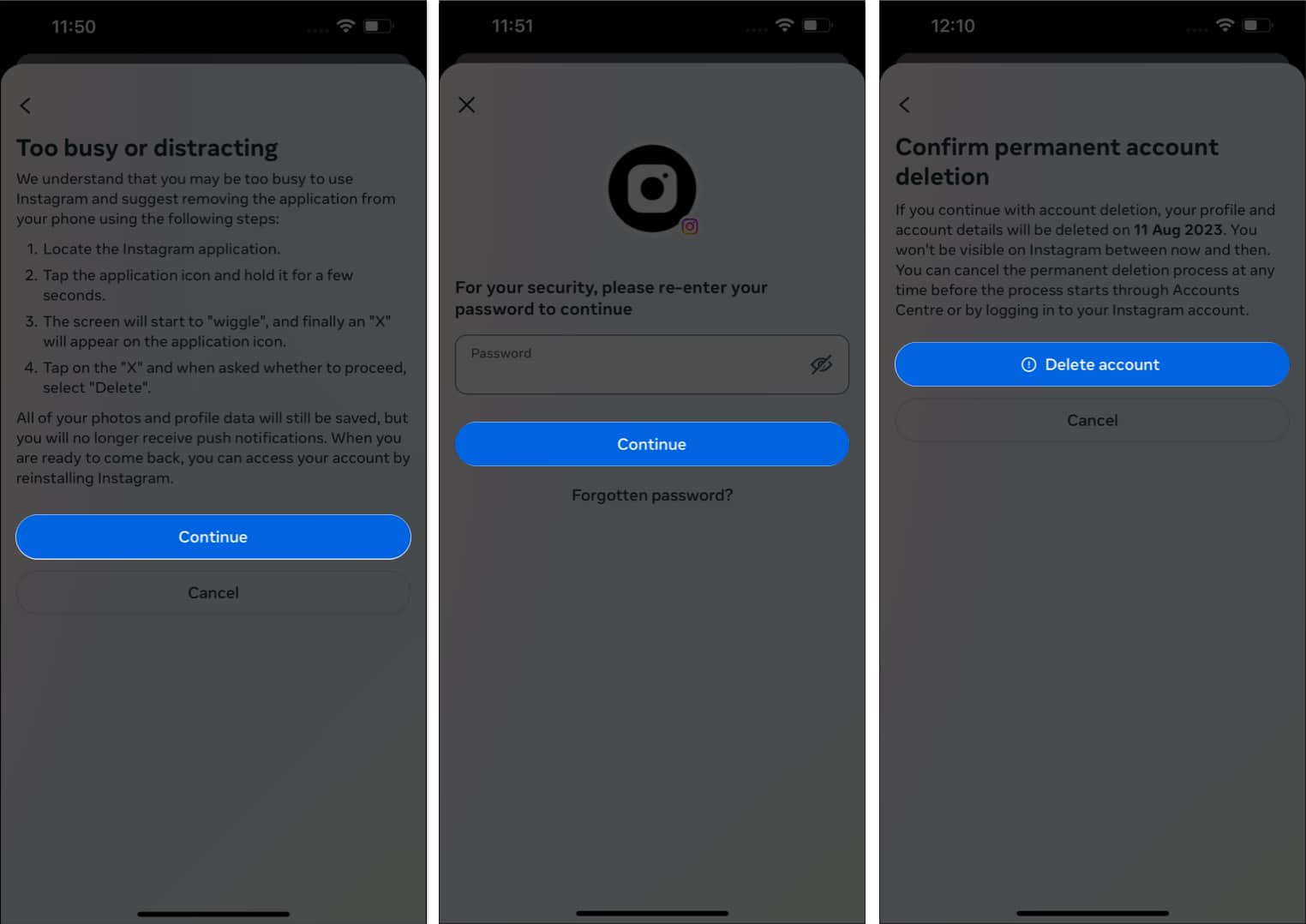
- Hit Continue.
- Enter your account password → Select Continue.
- Finally, tap Delete account to conclude the process.
Note:
You’ll be notified of the date when your account will cease to exist. Until then, if you change your mind, re-access your account to terminate the process. There will be no return once the respective date has passed.
Because deleting your account permanently removes all photos, videos, and comments you’ve posted, you may wish to download a copy of your IG data before going through with account deletion.
Here’s how:
- Head to your profile → Tap the hamburger icon → Select Settings.
- Just as before, tap See more in Accounts Center. Now choose Your information and permissions.
- Tap Download your information → Download or transfer information.
- If you have multiple Instagram profiles linked to your Accounts Center, choose the profile you’d like the information from. Then, tap Next.
- Select whether you’d like to download All available information or Some of your information (which allows you to choose what you’d like to save before deleting your account).
- Then, choose whether you want to download the information to your device directly or transfer it to another location, such as Google Drive.
- Once you’ve decided, tap Next. Then, enter the Date range from which you wish to download your data. Fill out the remaining options, such as Format and Media quality. Tap Create Files to begin downloading your information.
If you’d rather just take a break from Instagram than permanently delete your account, follow the steps below.
How to deactivate Instagram account on iPhone
A break from social media could act as a healing period for individuals. However, achieving this peace does not require extreme solutions like deleting your Instagram account. You could rather deactivate your account for a set amount of time.
- Follow steps 1-6 as discussed above.
- Choose Deactivate account → Hit Continue.
- Enter your account’s credentials and tap Continue to move ahead.
- Pick a reason → Hit Continue.
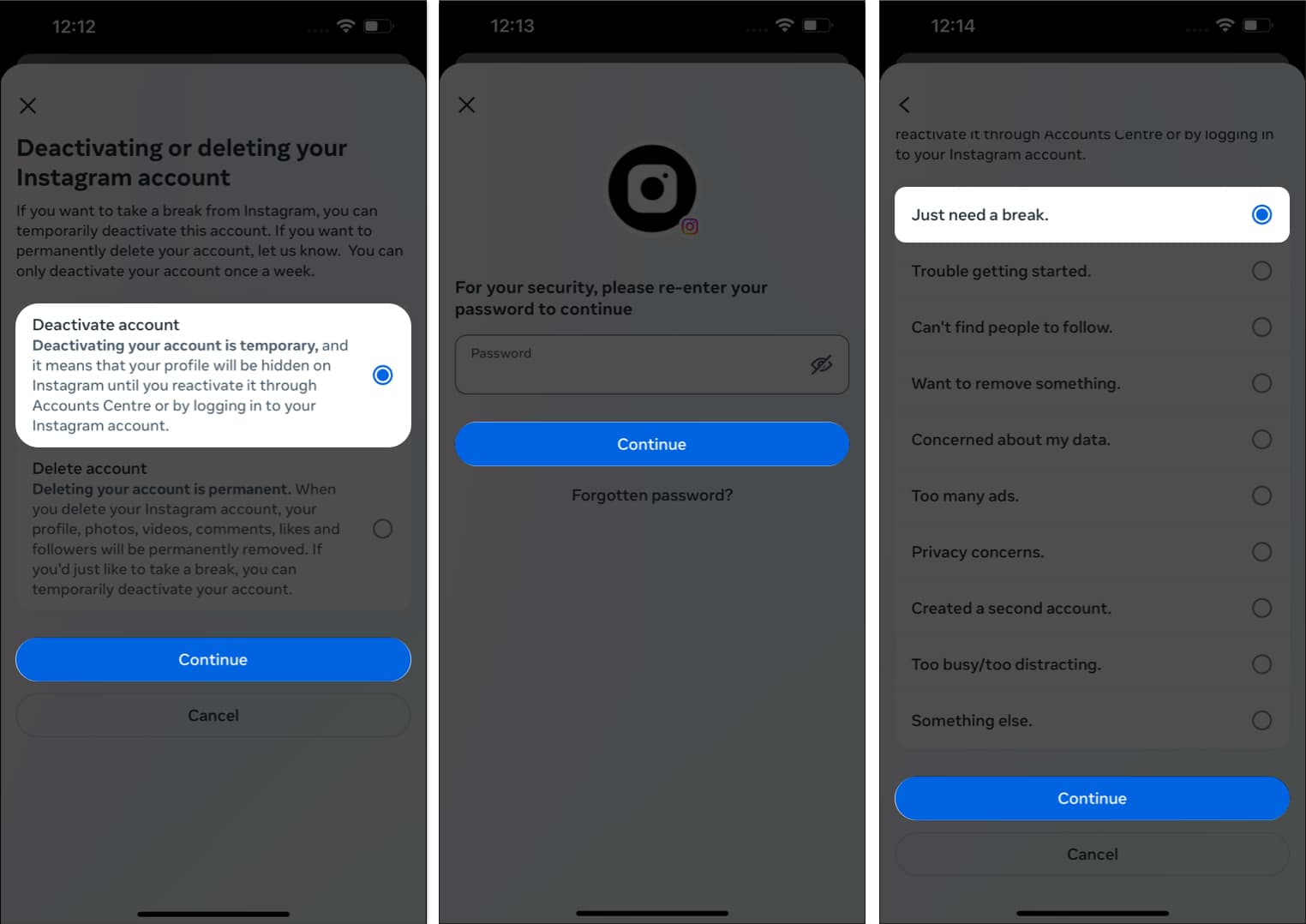
- Tap Deactivate account to conclude the process.
Note:
Your Instagram account will stay hidden from the platform until you log back in again.
Be more than an Instagrammer!
Now that you’ve successfully got the gist of deleting or deactivating your Instagram account, you can curate a mindful experience for yourself. With a clearer mind and a sense of liberation, you can redirect your energy and focus on things that truly matter.
Thank you for reading. If any, take a moment to comment on your queries or concerns, and I’ll be at your service.
Frequently Asked Questions
Topics

Written by
Marcus Mears IIIMarcus Mears III is a lifelong technology enthusiast with half a decade of experience developing prose that keeps readers in the know. With hundreds of reviews, buying guides, and how-to explainers across a number of tech and lifestyle publications like How-To Geek, MakeUseOf, and iGeeksBlog, Mears’ work helps readers around the globe learn to make the most of their devices and software. He uses a 2016 MacBook Pro as his daily driver laptop and a self-built Windows PC for gaming and productivity.
View all posts →More from How-to

Snapchat Parental Controls: How to Set Up Family Center and Keep Your Teen Safe
Snapchat’s Family Center lets parents monitor their teen’s friend activity and screen time without reading private messages. Here’s how to set it up and what to expect.
 VikhyatMarch 3, 2026
How to Block and Unblock Someone on Instagram
Instagram lets you block or unblock someone in seconds. Follow these simple steps to take full control of your privacy and online peace.
 Ava BiswasMarch 2, 2026
Apple Watch Not Responding? 8 Fixes That Actually Work
Is your Apple Watch unresponsive or stuck on a black screen? Here are 8 proven fixes to help you unfreeze it and get it working again quickly.
VikhyatMarch 3, 2026