
How to delete your Google Maps history on iPhone and the web
Step-by-step guide to deleting Google Maps history.
Google Maps plays a crucial role in providing directions and helping users reach their destinations by guiding them through the best routes, both online and offline. Similar to Google’s search engine, Google Maps automatically saves your search history. This feature helps the app autofill your search bar for a smoother experience.
However, if you have privacy concerns, you can clear your Google Maps search history on your iPhone and the web. Here’s how to do it.
Why you should clear your search history in Google Maps?
You can navigate the world using Google Maps, but the history of your searches can build up over time. Here are a few things that we’d like to bring to your attention:
- Whenever you use Google Maps, it collects data about your location and searches, which could be sold to third parties or used to target you with ads. Deleting your Google Maps history ensures that your personal data stays private.
- Old navigation directions and places can take up a lot of space in your device’s memory, leading to slower searches. Delete your history, and the searches will be faster and more accurate.
- Multiple searches can result in a cluttered environment. By clearing out all of the old data, you won’t have to spend time scrolling through old searches or navigating your way around unfamiliar areas.
Deleting your Google Maps history is a simple but important task that can secure your personal data and make your searches more accurate and efficient.
How to clear Google Maps search history on iPhone
- Launch the Google Maps app.
- Tap your profile picture at the top-right corner.
- Navigate to Settings → scroll down and choose Maps history.
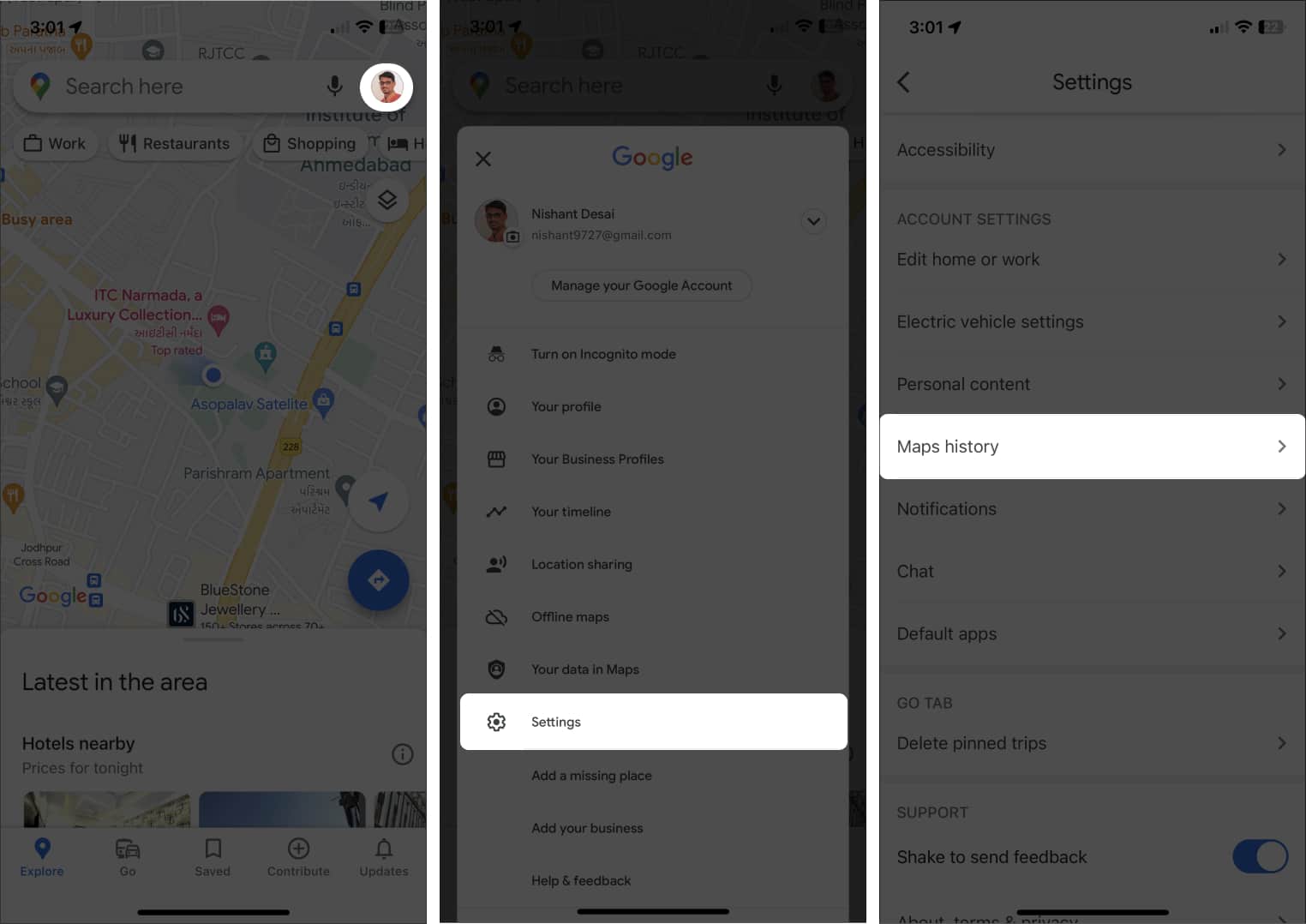
- Wait for a few seconds until Maps activity appears.
If you’re asked to verify yourself as a user, tap Verify and enter your password. - Now, tap Delete at the bottom → choose a time frame according to your preference.
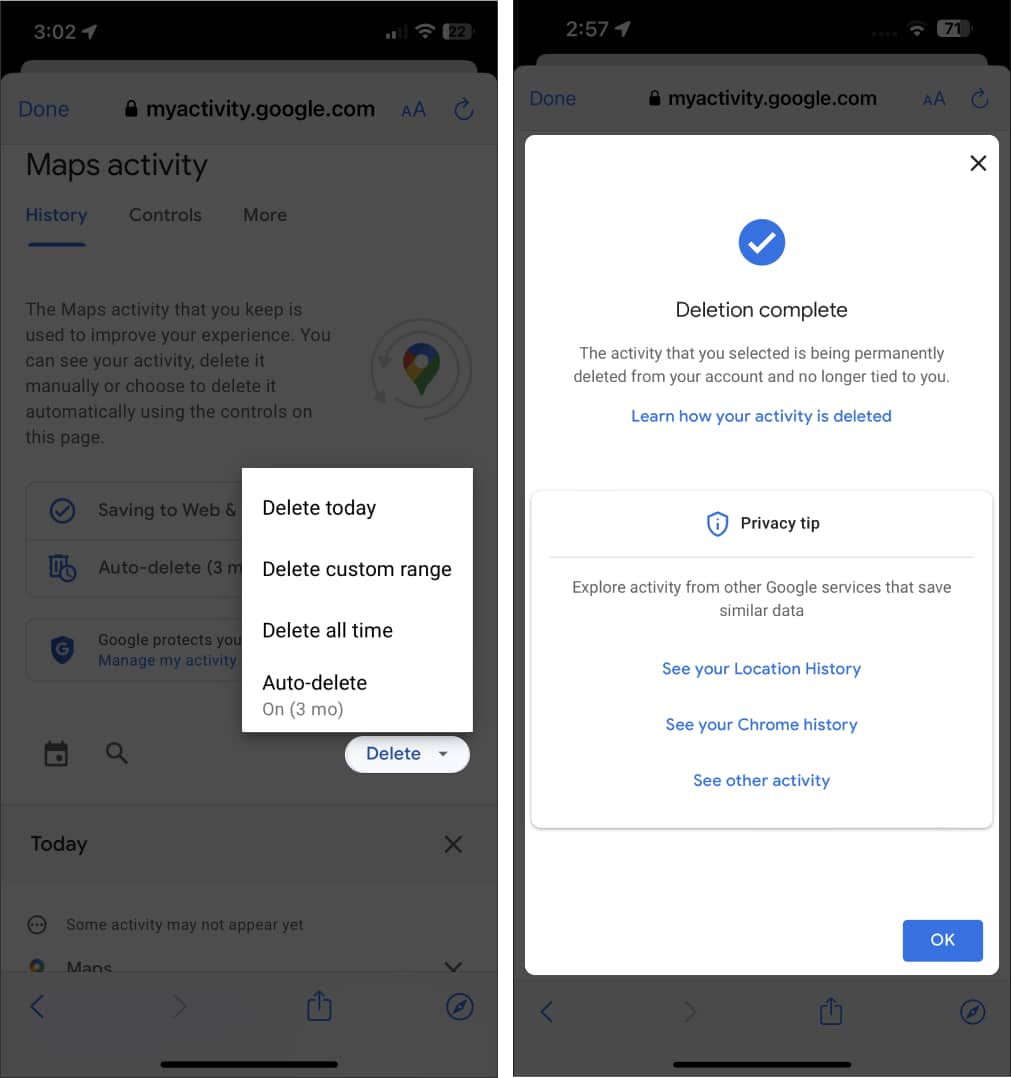
- You can choose one of these four options:
- Delete today: This option will delete the Google Maps history of the respective day. Tap OK when you’re prompted with the alert portraying Deletion complete.
- Delete custom range: This option allows you to delete your Maps history of a particular period. Select the dates you wish to clear the history from and tap Next→ Delete. You can preview the saved history before deleting your history for confirmation. Press OK once alerted Deletion complete.
- Delete all time: This option will clear your entire Google Maps history in one click. Simple press Delete→ OK when prompted.
- Auto-delete: The best of all, you can opt for an auto-delete option and set a respective time frame. Tap Next→ OK to conclude the process. This feature will automatically clear out your entire Google Maps history based on your preferred duration from 3, 18 or 36 months.
How to clear Google Maps search history on the web
- Visit the official My Google Activity page. Log in to your Google account if you haven’t already.
- Select Web & App Activity.

- Click the icon of Google Maps from Activity Control.
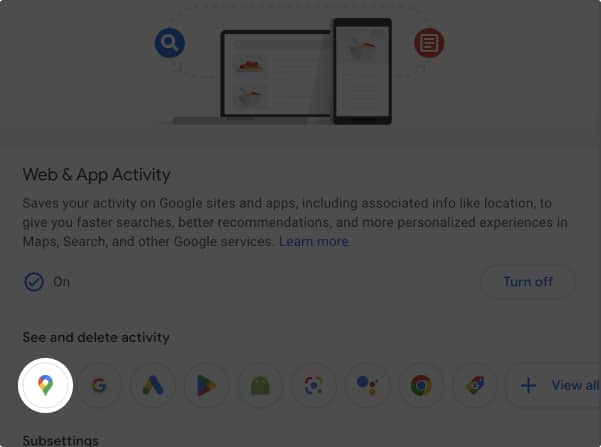
- Now, select the Delete option and choose your preferred method accordingly.
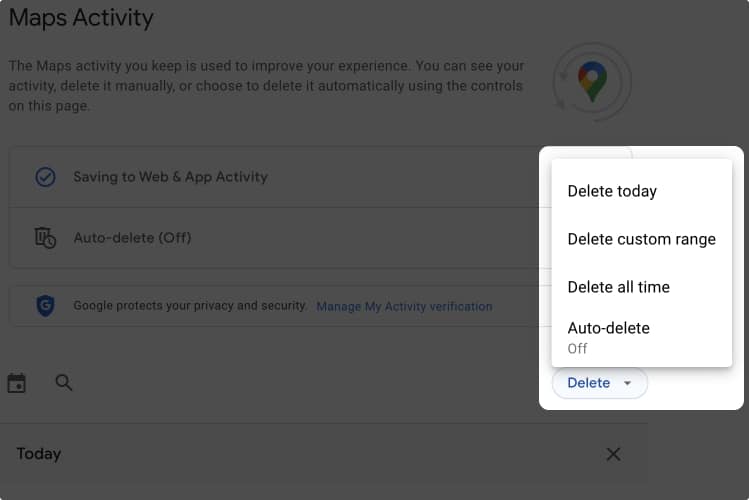
The options available with respect to the delete option are the same as mentioned above for iPhone and iPad. Have a clear understanding of those before making a move for better control over your actions.
Take better control of your presence!
While the feature is designed and kept as default to improve the overall user experience, some might find it as an intrusion into the personal space. While the steps mentioned above can help you keep your experience more personal. If there’s any further information that you wish to seek, please feel free to ask us in the comment section below.
Frequently Asked Questions

Written by
Ava BiswasAva is a die-hard Apple aficionado and seasoned writer with a knack for breaking down complex tech concepts into easily digestible content. Having honed her writing and editing skills over 4 years at renowned media houses like TechBurner, Ava crafts informative and engaging articles including troubleshooting guides, product reviews, editorials at iGeeksBlog. When not typing, you can find her exploring the latest Apple releases or pondering the future of tech innovation.
View all posts →More from How-to

How to Turn Off Location on Snapchat (Step-by-Step Guide)
Want to stop sharing your location on Snapchat? This guide explains how Snapchat location sharing works and shows simple ways to turn off your location using Ghost Mode or phone settings. Stay in control of your privacy in just a few steps.
 VikhyatMarch 5, 2026
Snapchat Parental Controls: How to Set Up Family Center and Keep Your Teen Safe
Snapchat’s Family Center lets parents monitor their teen’s friend activity and screen time without reading private messages. Here’s how to set it up and what to expect.
VikhyatMarch 3, 2026
How to Block and Unblock Someone on Instagram
Instagram lets you block or unblock someone in seconds. Follow these simple steps to take full control of your privacy and online peace.
Ava BiswasMarch 2, 2026