
How to create and manage YouTube playlist on iPhone and iPad
YouTube playlists offer a seamless way to curate and enjoy personalized collections of content. But unfortunately, many still find it hard to effectively create and manage YouTube playlists on iPhones and iPad. Whether you’re a passionate content creator, a music enthusiast, or simply looking to organize your favorite videos, this guide is all you need.
How to create YouTube playlist on iPhone or iPad
We cannot overstate the importance of YouTube playlists for those who actually find it difficult to manage their trove of entertainment. Follow these simple steps to create personalized YouTube playlists on iPhone and iPad.
Create YouTube playlist from playing video on iPhone
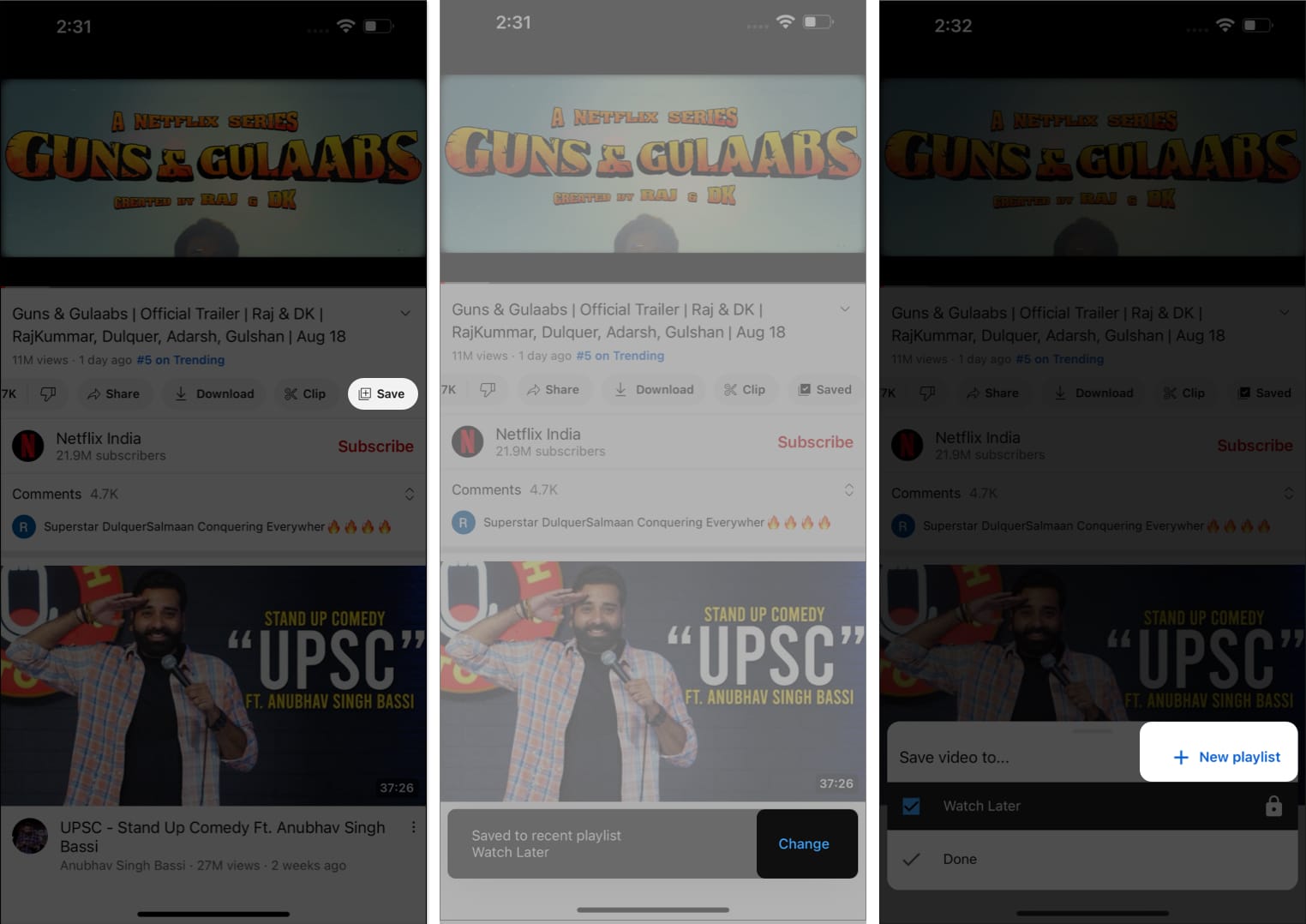
- Launch YouTube on your iPhone → Play any video you desire.
- After the video starts playing, tap the Save option below the title of the video.
- Now, you’ll receive a notification alerting you about the video being saved.
- Tap Change to proceed.
- Then select the New Playlist option.
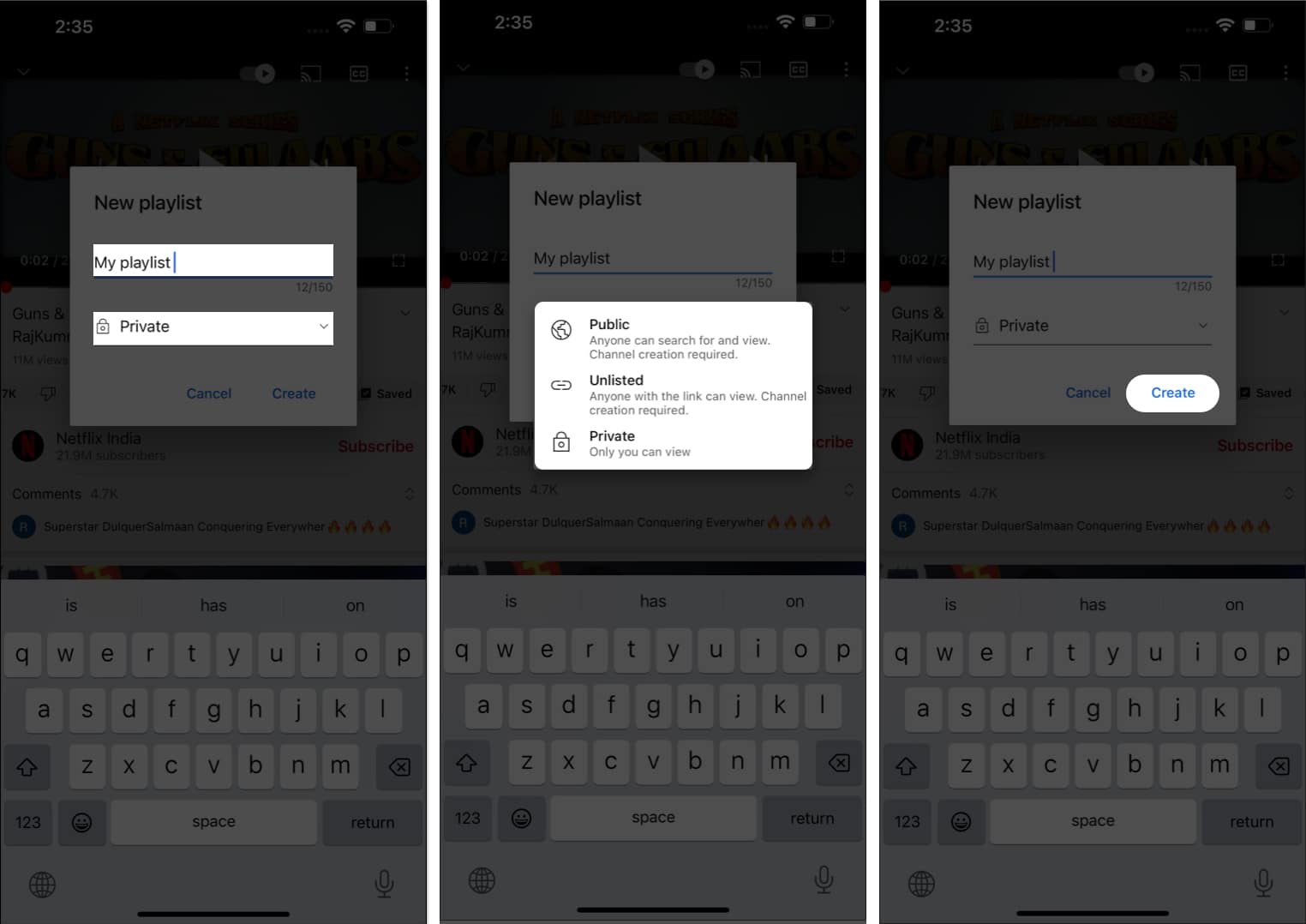
- Enter a title for your playlist and choose either of the following:
- Public: Anyone can search for the playlist.
- Unlisted: Only the ones with the link can access the playlist.
- Private: The playlist is accessible only to you.
- Tap Create to save your preferences.
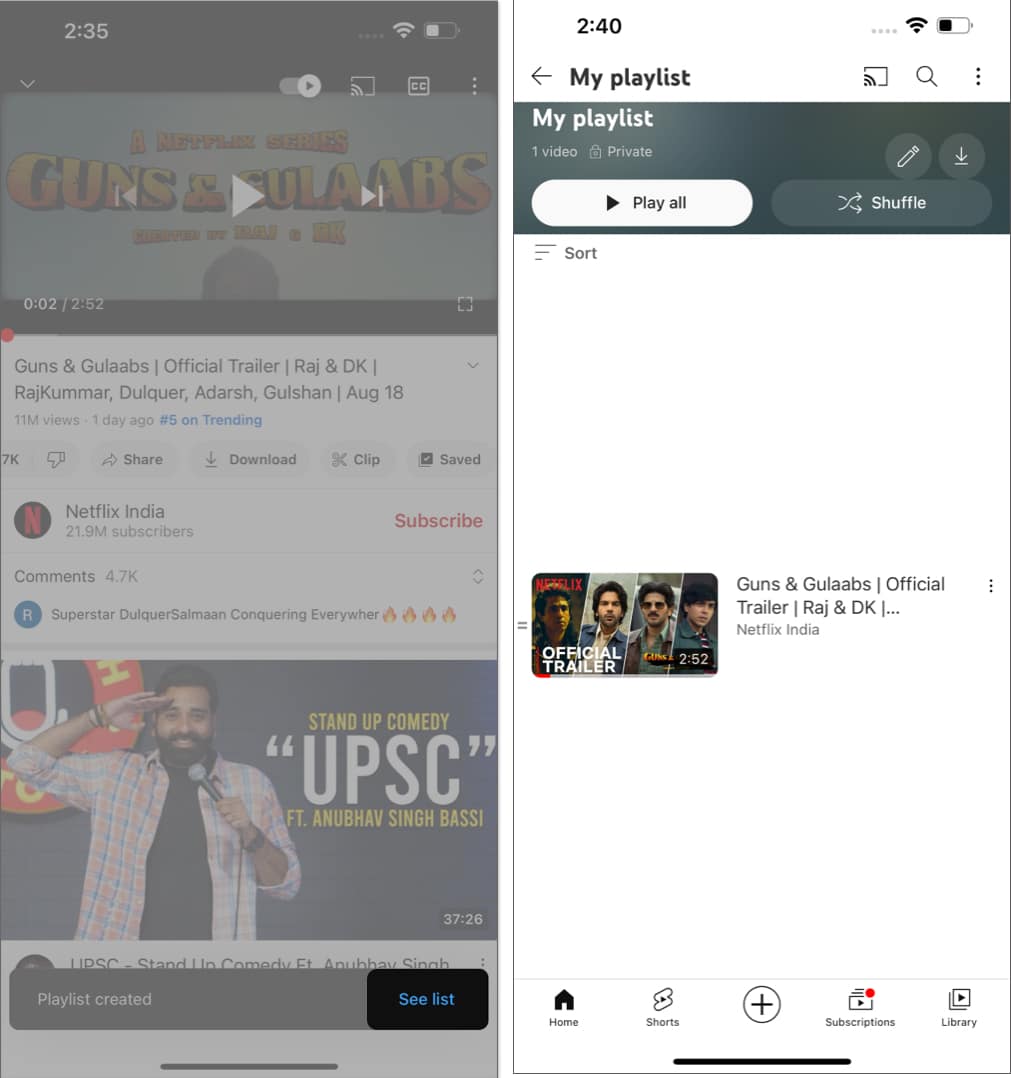
- When the playlist is successfully created, select the See List option.
- You’ll now be prompted to the home page of your playlist.
Produce YouTube playlist from Shorts on iPhone or iPad
- Launch YouTube on your iPhone → Tap Shorts to proceed.
- As you come across a short video, tap the three-dot icon from the top-right corner of the screen.
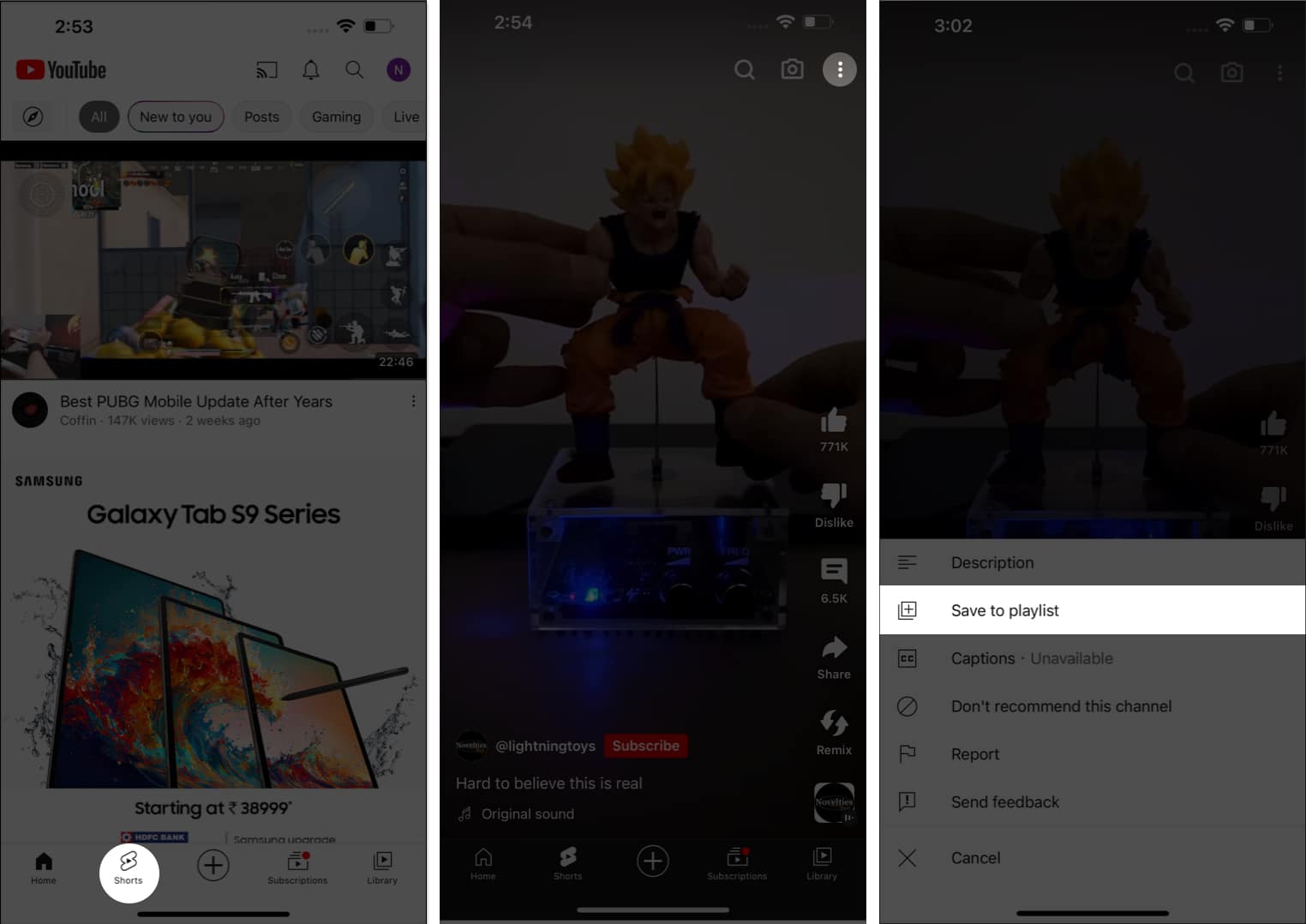
- Select the Save to playlist option.
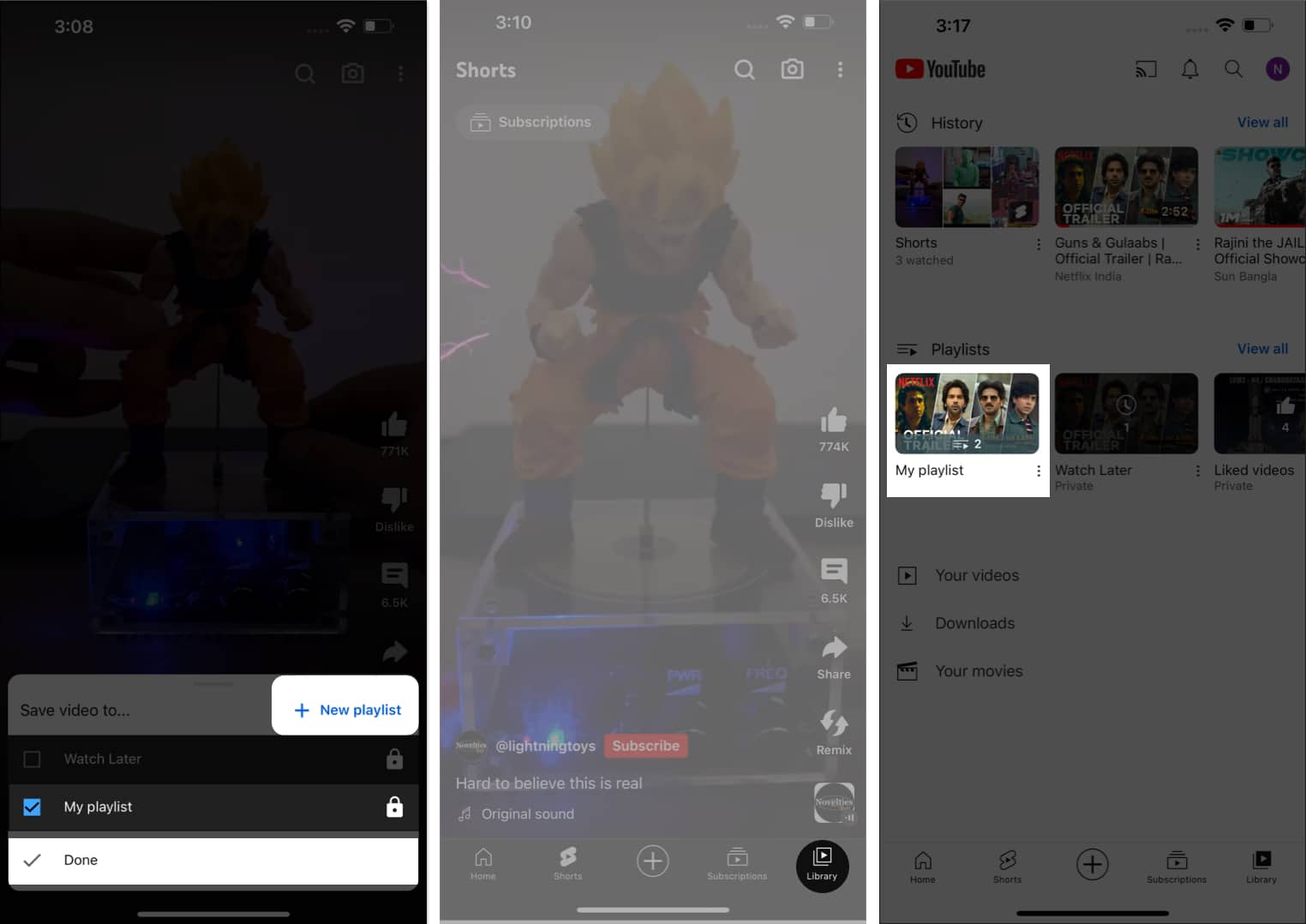
- Here, you can either select a previously created playlist or curate a New playlist, as we discussed above.
- To save the short in an existing playlist, simply select it and tap on the Done button.
- Once saved, choose Library option and select your playlist.
- Here you can locate your saved Short.
- Alternatively, if you’d like to save the short in a new playlist, follow the steps 5 to 9 outlined above.
Create a playlist from Library tab on iPhone or iPad
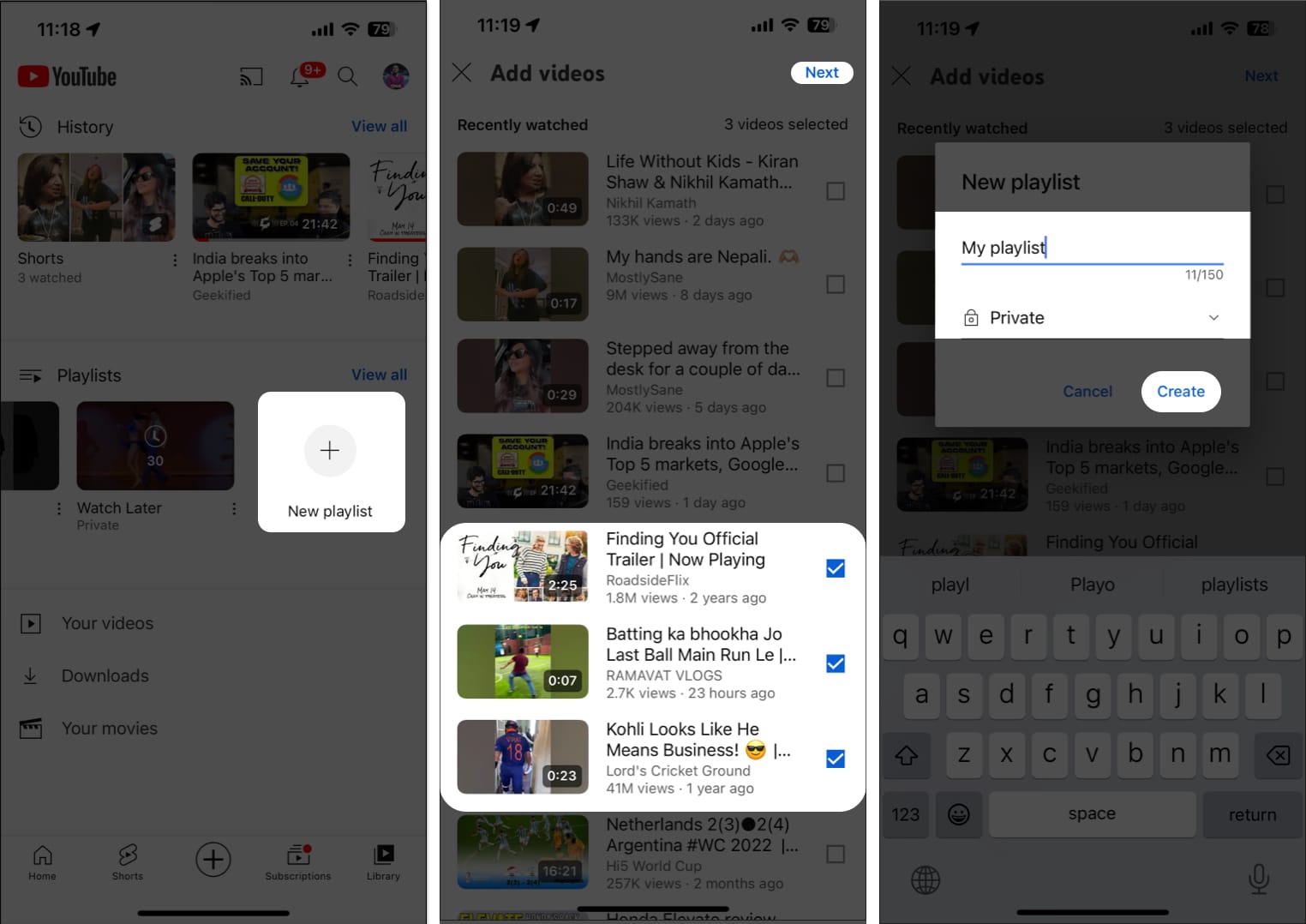
- From your YouTube home screen, go to Library.
- Select the New playlist option from the Playlist menu.
- Here, you can monitor your every recently watched video on YouTube.
- Select single or multiple videos according to your preference and hit Next.
- Entitle the playlist and select the level of privacy.
- Tap Create to conclude the process.
Now, you’re good to go.
How to manage YouTube playlist on your iPhone or iPad
When it comes to creating and managing YouTube playlists on your iPhone or iPad, there are a few factors you should consider. Follow the steps outlined below to efficiently manage YouTube playlists on your iPhone or iPad like a pro.
Sort YouTube playlist by video type on iPhone
- Access any previously created playlist you desire.
- Tap the Sort option from the top-left corner of the screen.
- Select a filter format that suits your preference.
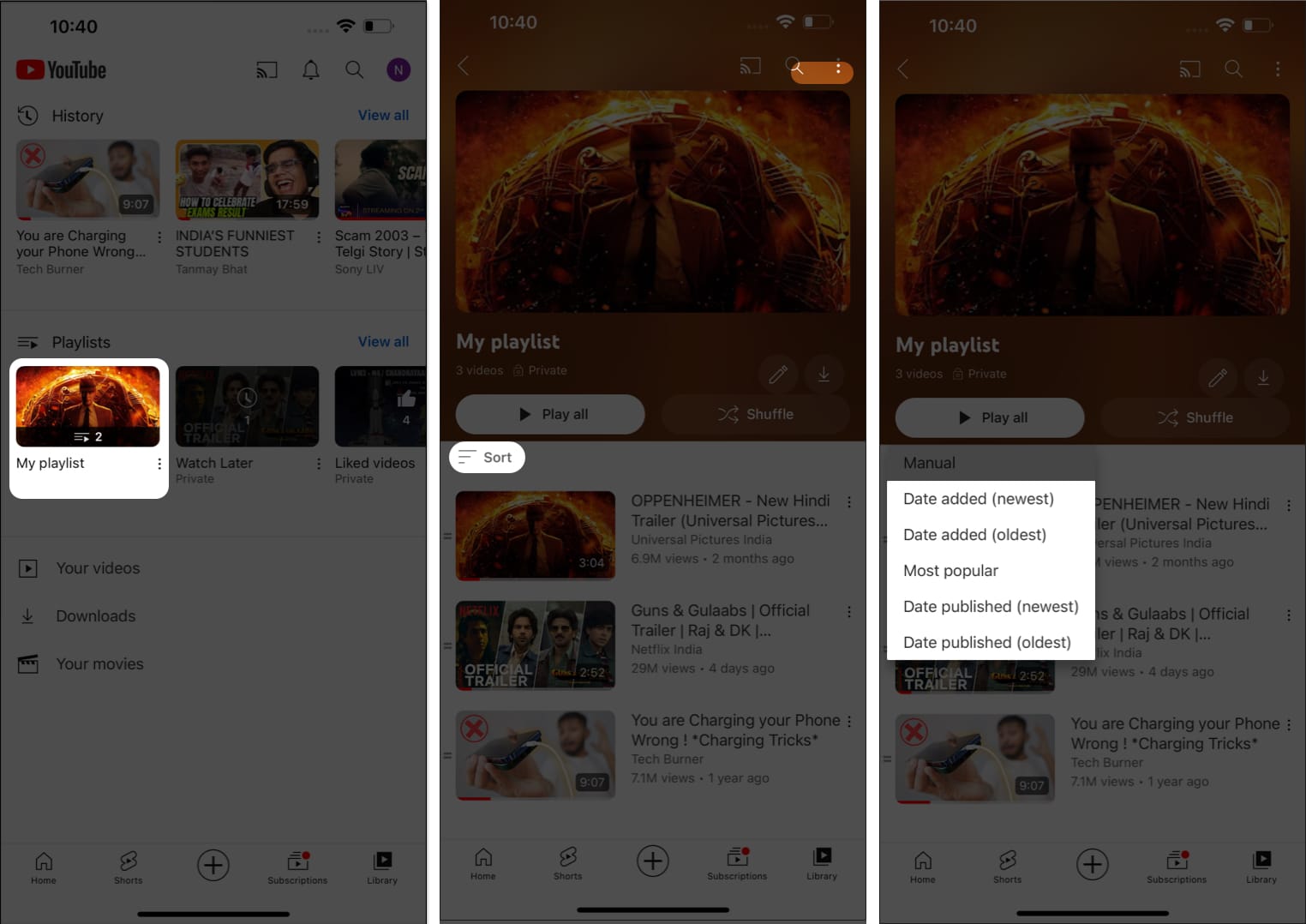
- In this instance, the videos in your playlist will rearrange accordingly.
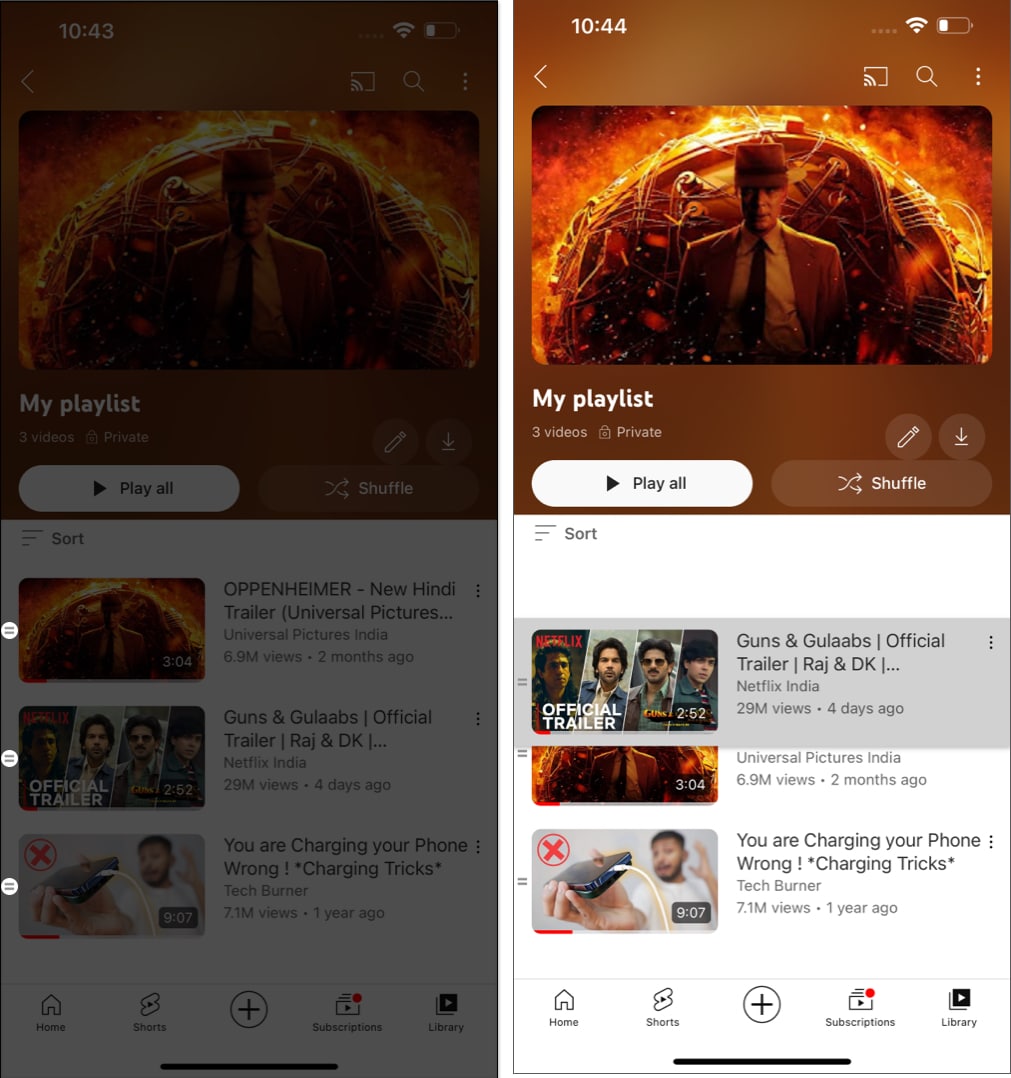
Rearrange YouTube playlist on iPhone
- Open YouTube and access a saved playlist of your choice.
- Hold the sandwich icon next to the videos and simply drag and drop the preferred video.
- Following this, you can position the videos in your playlist as you desire.
Edit YouTube playlist on iPhone
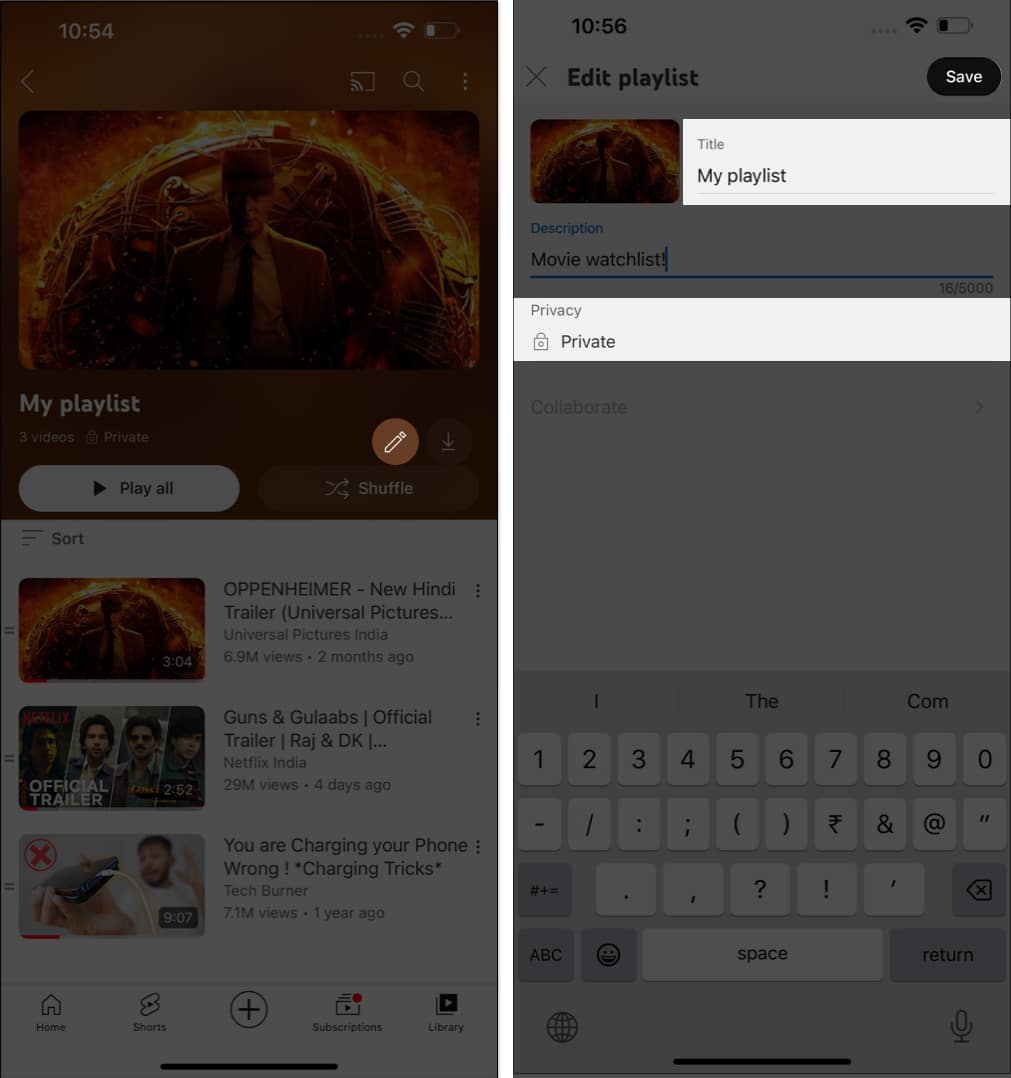
- Go to YouTube → Library → Playlist.
- Tap the pencil icon.
- Now you can alter the title, add a description or change privacy preferences as per your preferences.
- Once you’re all set, tap Save.
It’s that simple.
Download videos from YouTube playlists on your iPhone or iPad
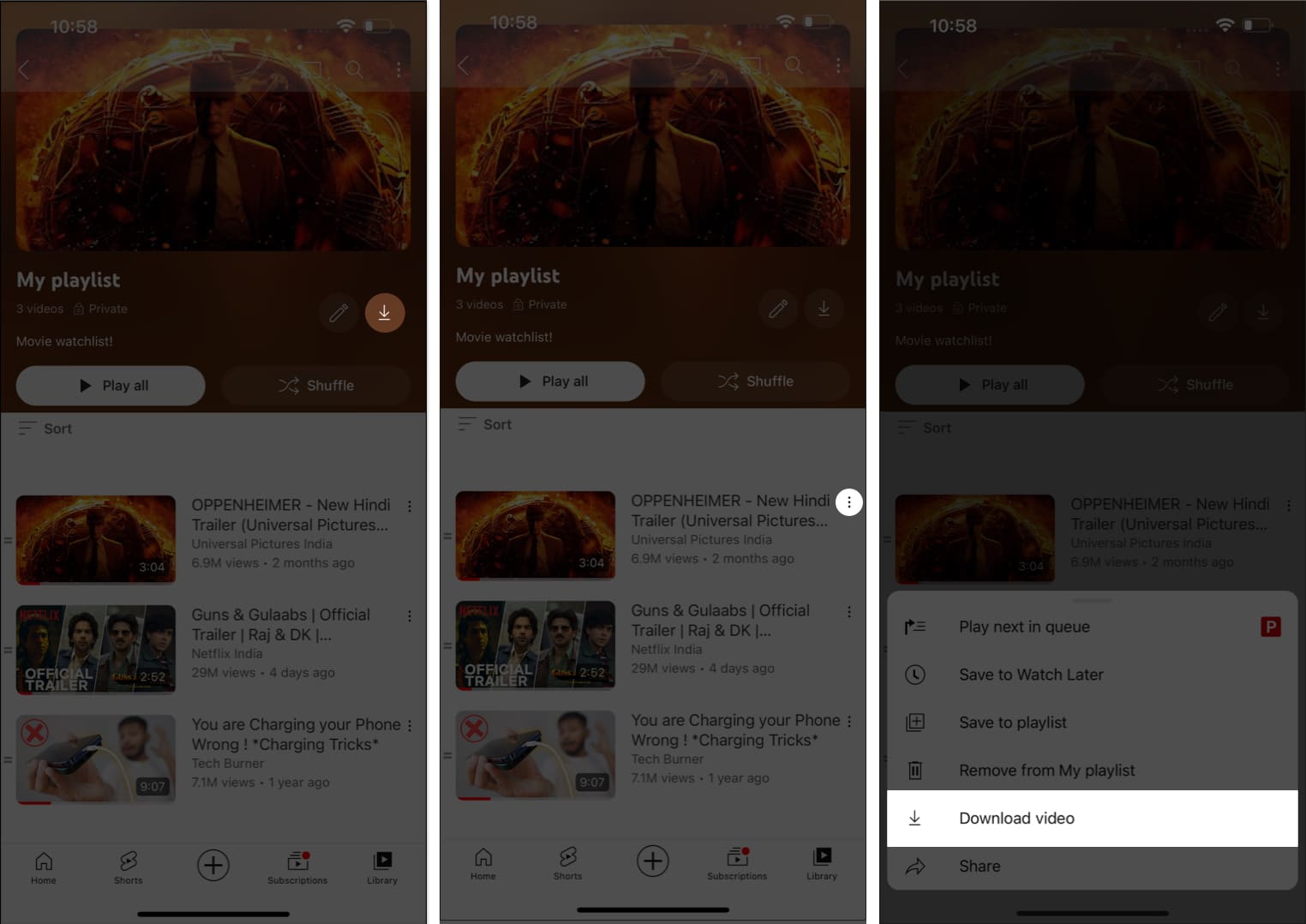
- Open a playlist you desire.
- Tap the download icon from the top-right corner for those who wish to download the entire playlist.
- If you wish to download a single video, tap the three-dot icon next to the video.
- Select the Download video option.
How to delete YouTube playlist on iPhone or iPad
Now that you’ve all you need to create and organize a YouTube playlist, let’s wrap up our tutorial with a simple guide of deleting the same with ease.
Method 1:
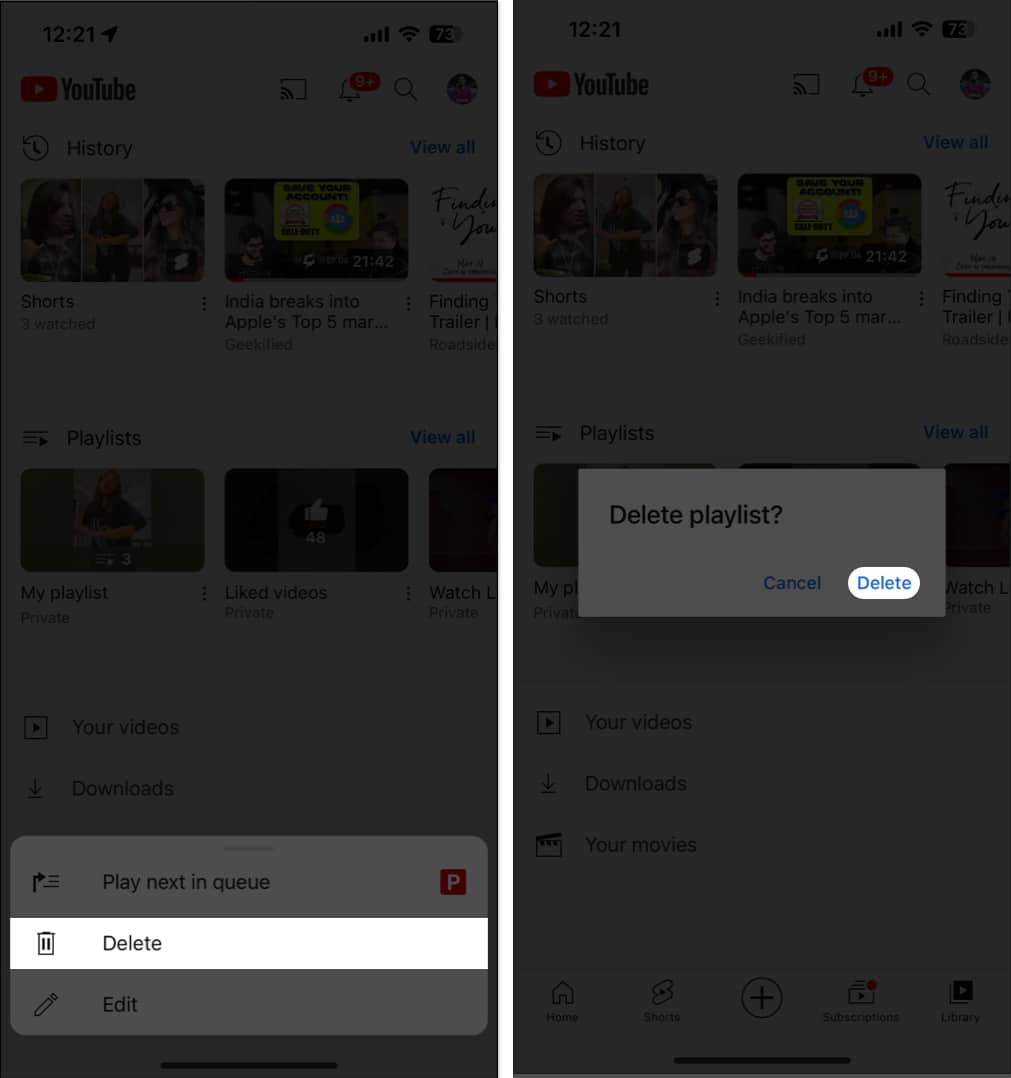
- Navigate to YouTube → Library → Playlist.
- Simply press and hold a particular playlist → Hit Delete → Once again, tap Delete when prompted.
Method 2:
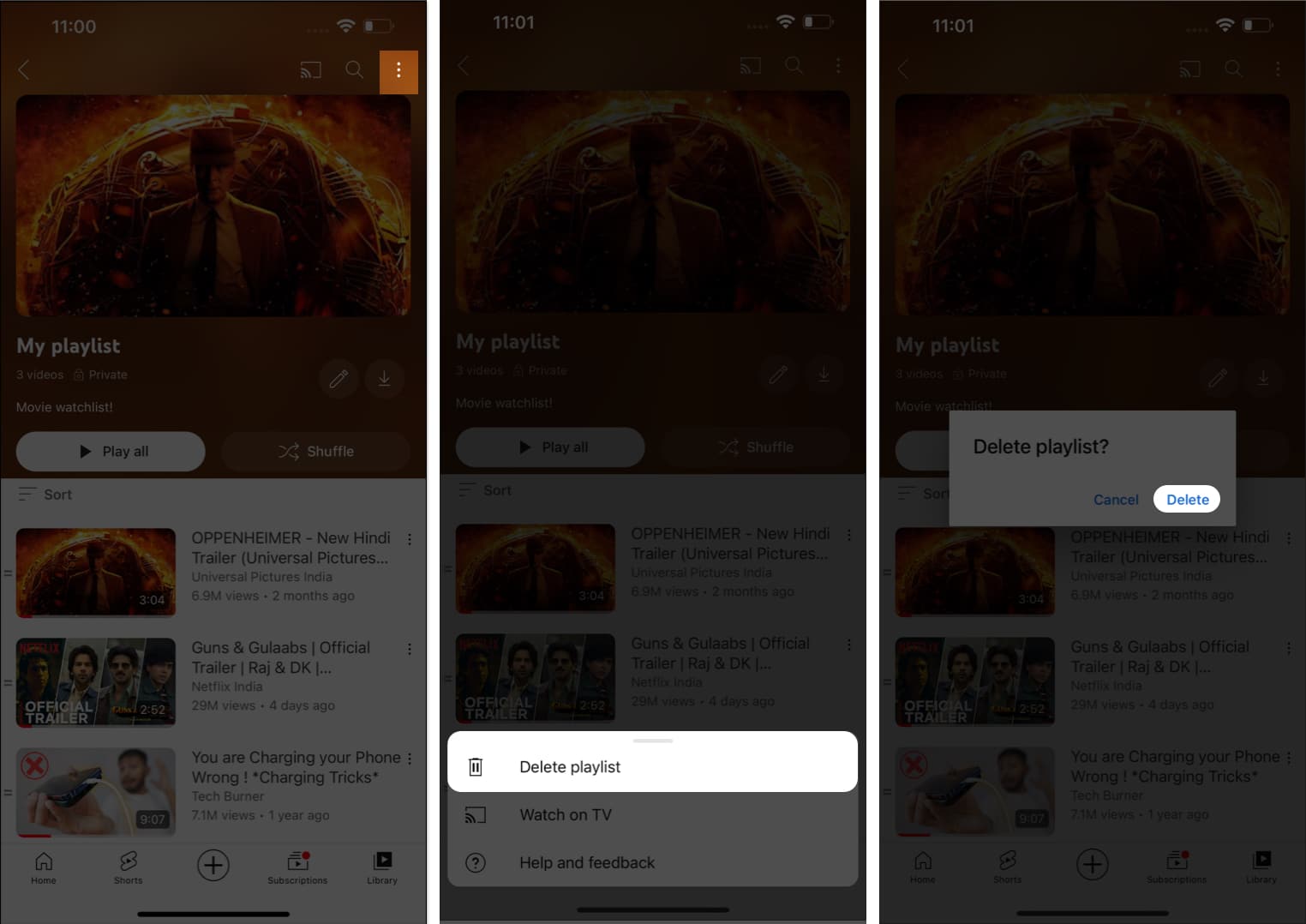
- Alternatively, tap the three-dot icon from the top-right corner.
- Select the Delete playlist option to proceed.
- Hit Delete when prompted to conclude.
Remove videos from YouTube playlist on iPhone or iPad
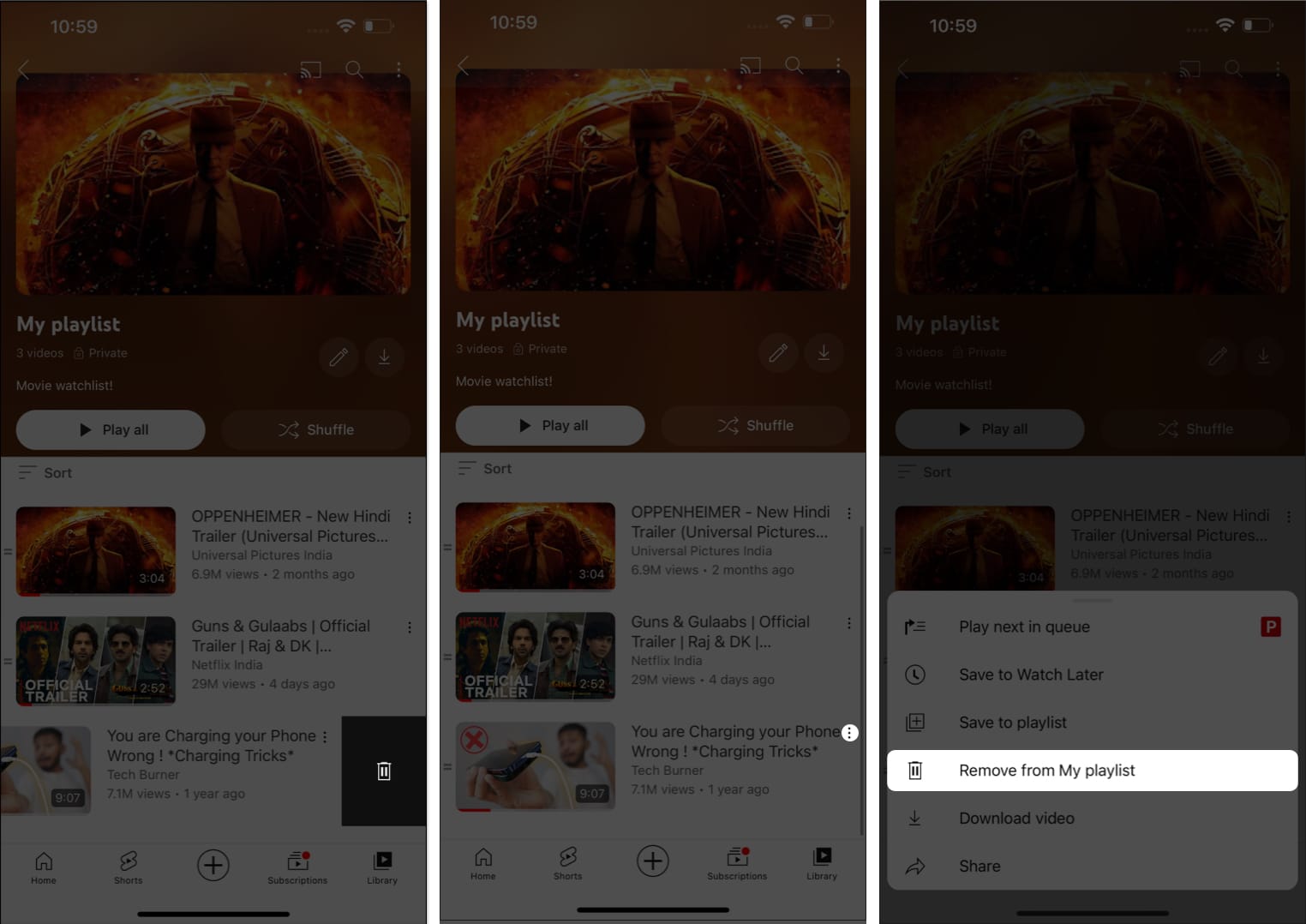
- Navigate to the desired playlist on YouTube.
- Swipe left the video you seek to remove.
- Hit the bin icon to delete the video.
- Alternatively, tap the three-dot icon and select the Remove from My playlist option.
The URL and title of a playlist will no longer be visible or searchable in YouTube Analytics when you delete a playlist. However, data associated with the playlist, such as Watch time, will still be included in broader reports without being associated with the deleted playlist.
Curate a personal YouTube playlist like a pro!
Congratulations! You’ve now mastered the art of YouTube playlist creation and management on your iPhone and iPad. By harnessing the power of playlists, you can diligently transform the way you experience and share content on YouTube, turning it into your very own entertainment hub.
Thank you for reading. Please take a moment to comment your thoughts in the comments below.
Frequently Asked Questions
Topics

Written by
Ankur ThakurI have been an Apple user for over seven years now. At iGeeksBlog, I love creating how-tos and troubleshooting guides that help people do more with their iPhone, iPad, Mac, AirPods, and Apple Watch. In my free time, I like to watch stand up comedy videos, tech documentaries, news debates, and political speeches.
View all posts →More from How-to

Snapchat Parental Controls: How to Set Up Family Center and Keep Your Teen Safe
Snapchat’s Family Center lets parents monitor their teen’s friend activity and screen time without reading private messages. Here’s how to set it up and what to expect.
 VikhyatMarch 3, 2026
How to Block and Unblock Someone on Instagram
Instagram lets you block or unblock someone in seconds. Follow these simple steps to take full control of your privacy and online peace.
 Ava BiswasMarch 2, 2026
Apple Watch Not Responding? 8 Fixes That Actually Work
Is your Apple Watch unresponsive or stuck on a black screen? Here are 8 proven fixes to help you unfreeze it and get it working again quickly.
VikhyatMarch 3, 2026