Spotify is a popular music platform with simple tools for organizing songs or podcasts. Many of us also use the queue feature of the platform to build our personalized playlists. But what if you queued a song by accident that you don’t like or just don’t want to listen to? It’s simple; you must get rid of it. So, in this post, I’ll teach you how to clear your Spotify queue on iPhone, iPad, and Mac.
How to clear a queue on Spotify using iPhone or iPad
There are two ways to remove items from the queue on the Spotify iOS app, and both are simple.
The good news is that the procedures are essentially the same for Android and iPhone users. Just make sure you have logged into the app with your credentials.
Un-queue songs from the Spotify queue on iPhone
- Launch the Spotify app on your iPhone.
- Head to the Now Playing screen.
- Tap on the queue icon (three-line).
- Select the songs to remove.
- Choose REMOVE from the bottom left of the screen.
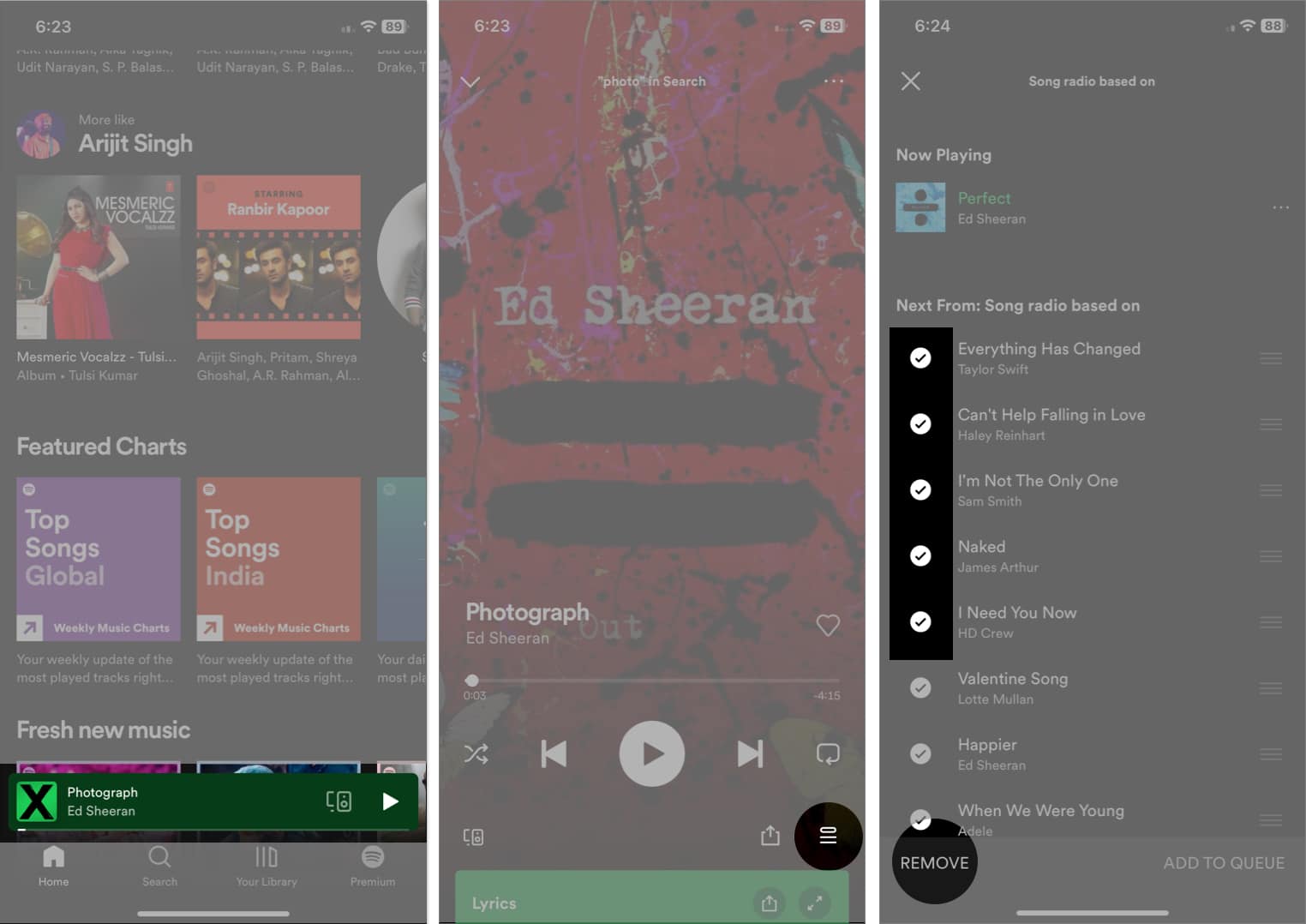
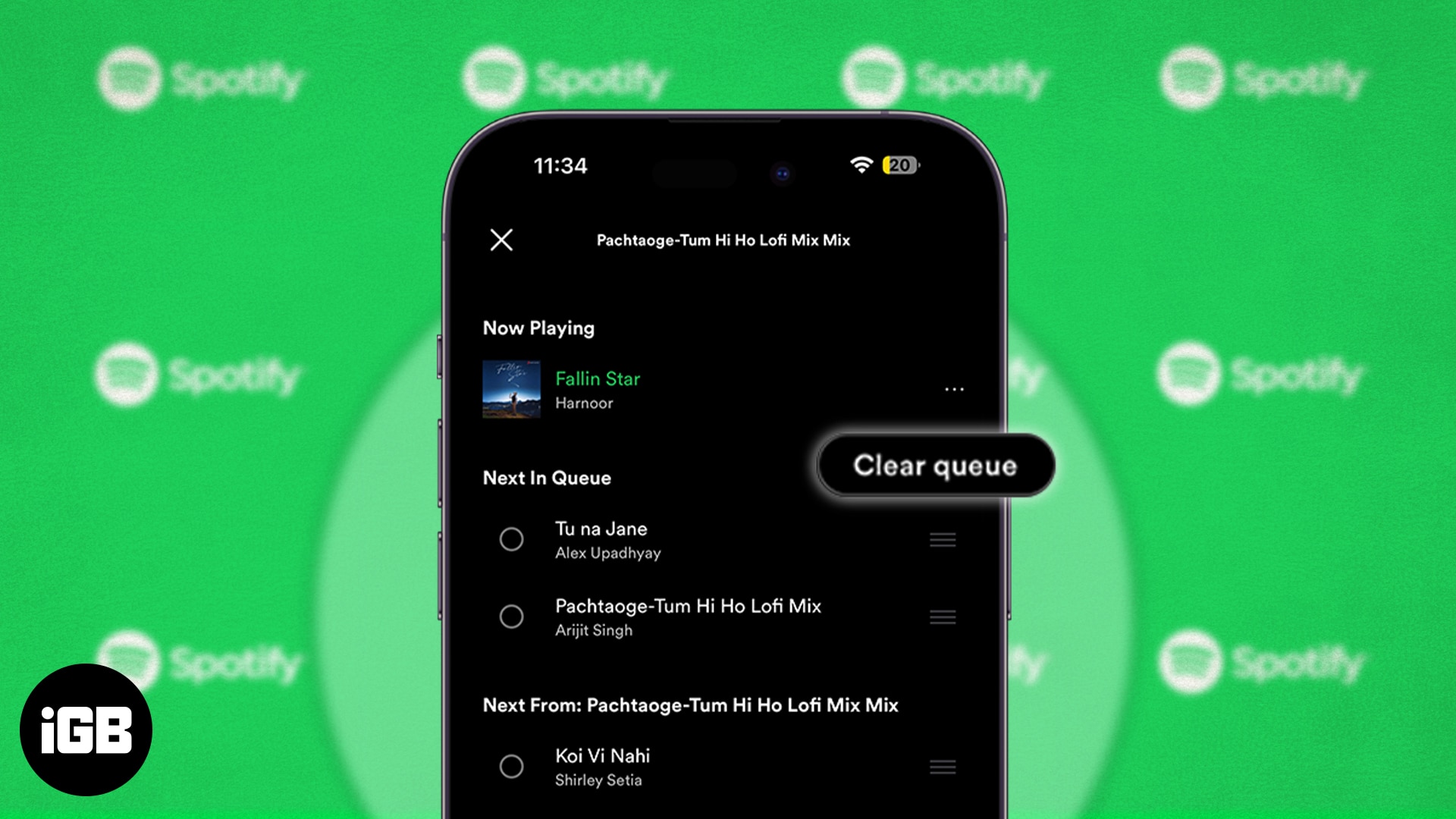
Delete all songs from the Spotify queue
The procedure will not work for an automatically formed queue. It will only be available for the manually added songs in the queue.
- Open Spotify on your iPhone → Tap on Now Playing.
- Head to the queue icon (three-line).
- Tap Clear queue.
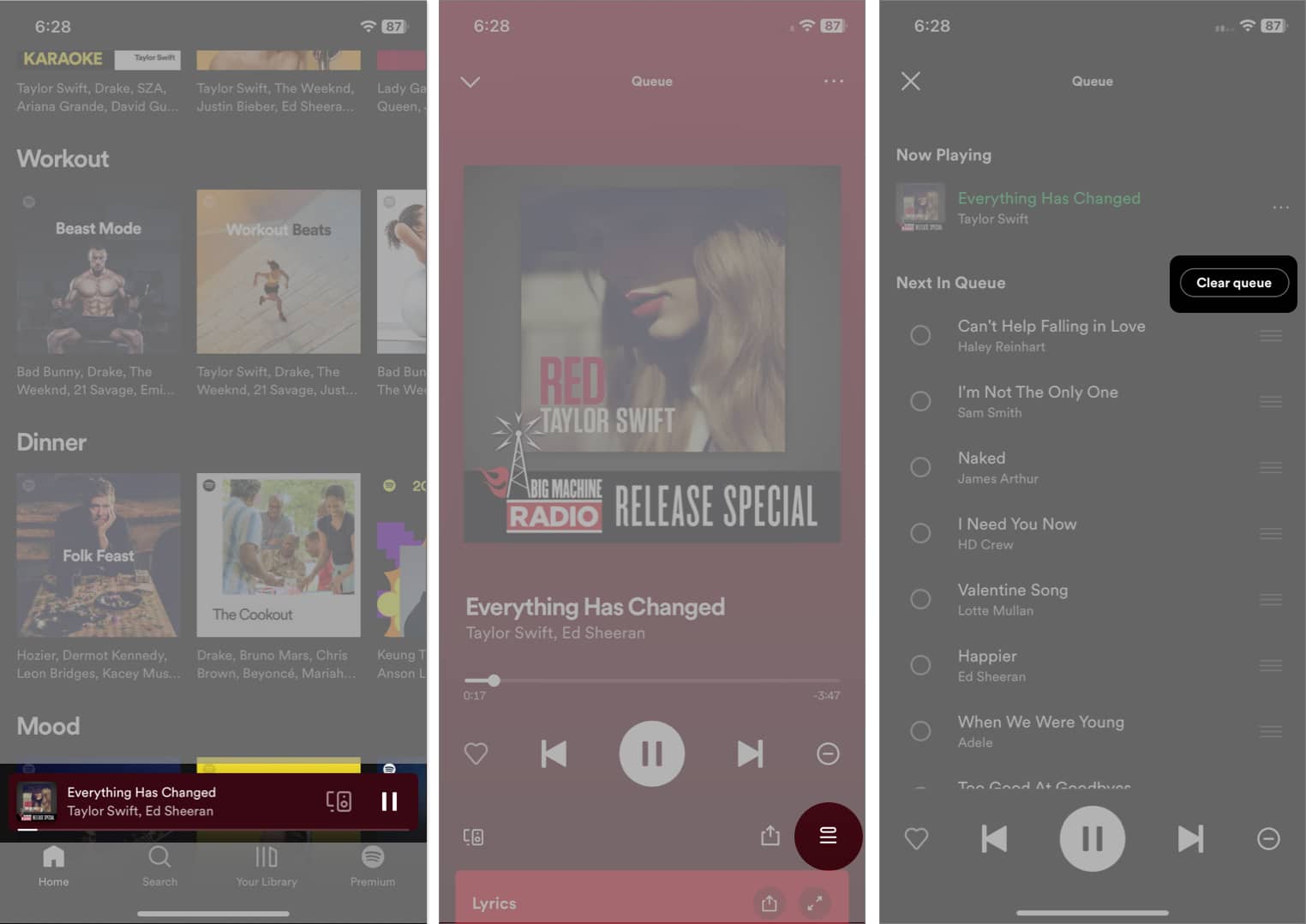
How to clear Spotify queue on Mac or Web
If you use Spotify on your Mac, the processes to change your Spotify queue differ amongst devices, so read on to find out more.
Remove songs from Spotify queue on Mac
Removal of songs from the queue is possible only if your queue is manually created.
- Launch Spotlight (Command + Spacebar).
- Search and open Spotify.
Log in to your account if you haven’t already.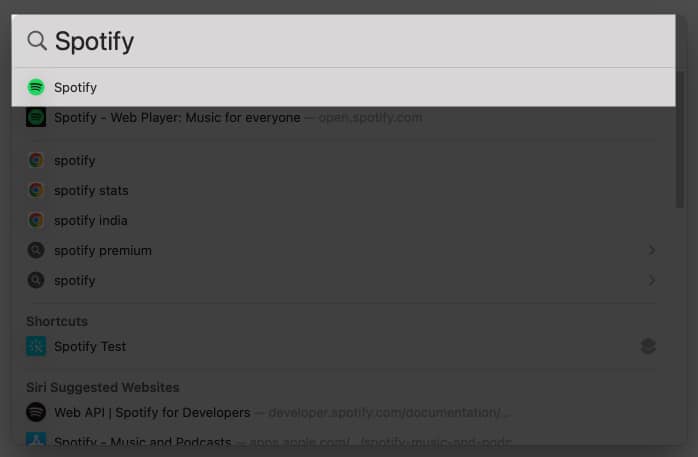
- Click on the queue icon (three-line).
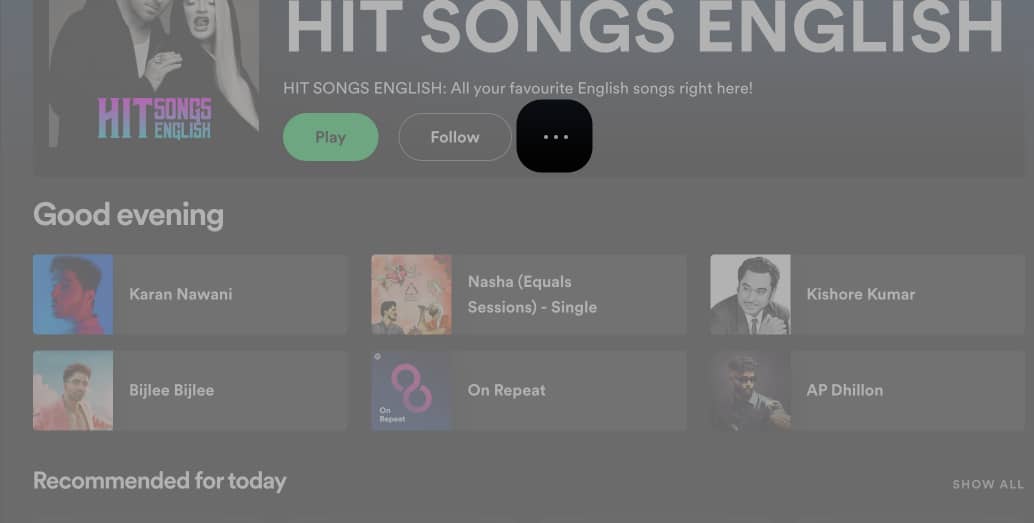
- Hover over the song you want to remove and select the three dots.
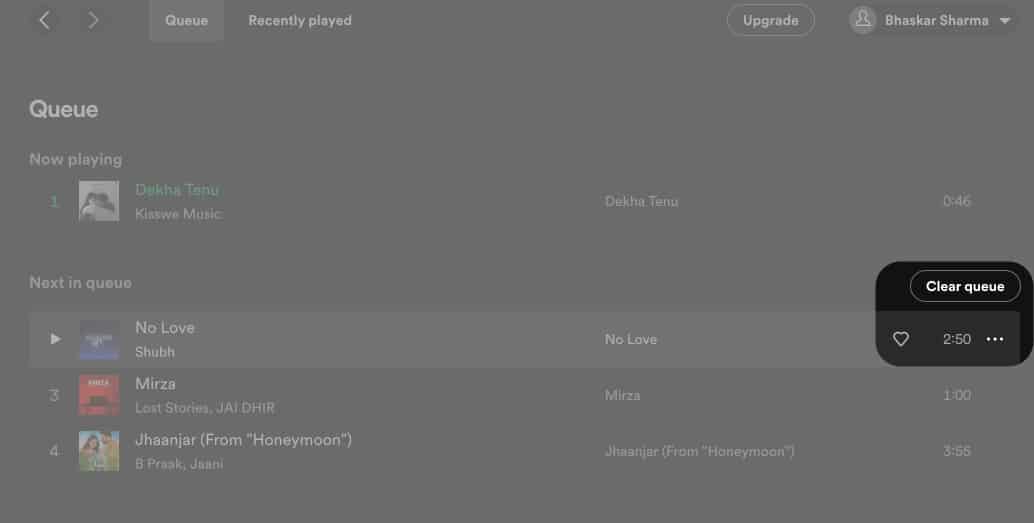
- Choose Remove from queue.
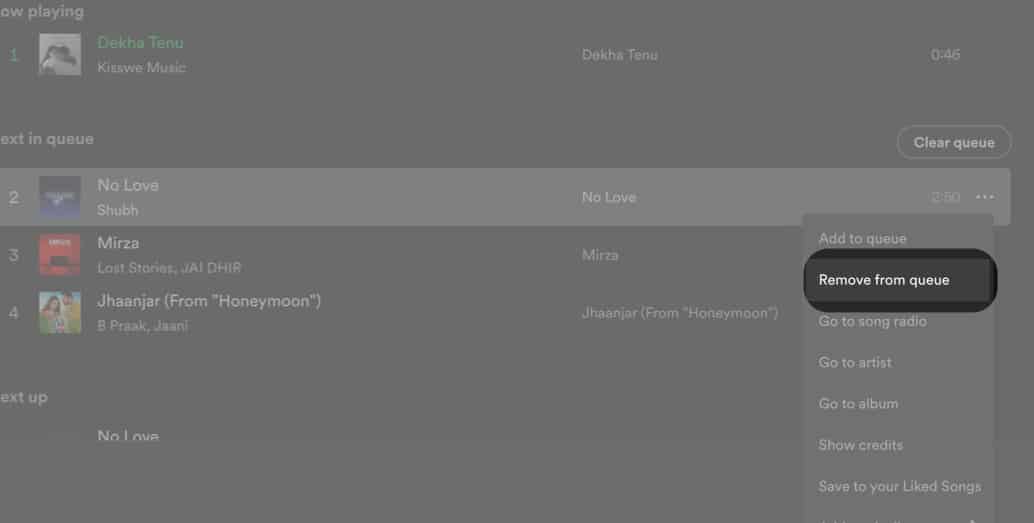


Note:
After launching the app, the steps to remove songs from the queue remain the same on the web, Mac, or Windows PC.
Clear an entire Spotify queue
- Head to Spotify on your Mac.
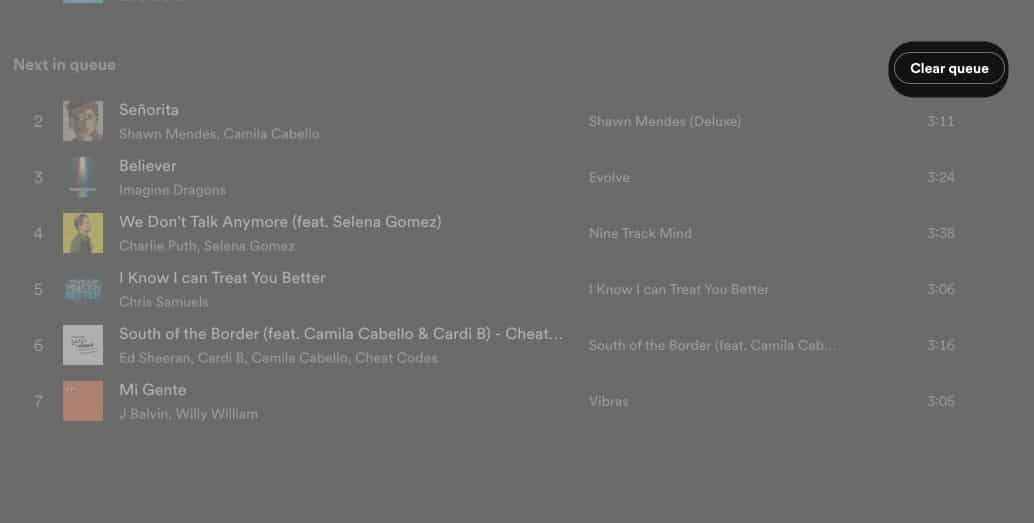
- Select the queue icon (three-line).
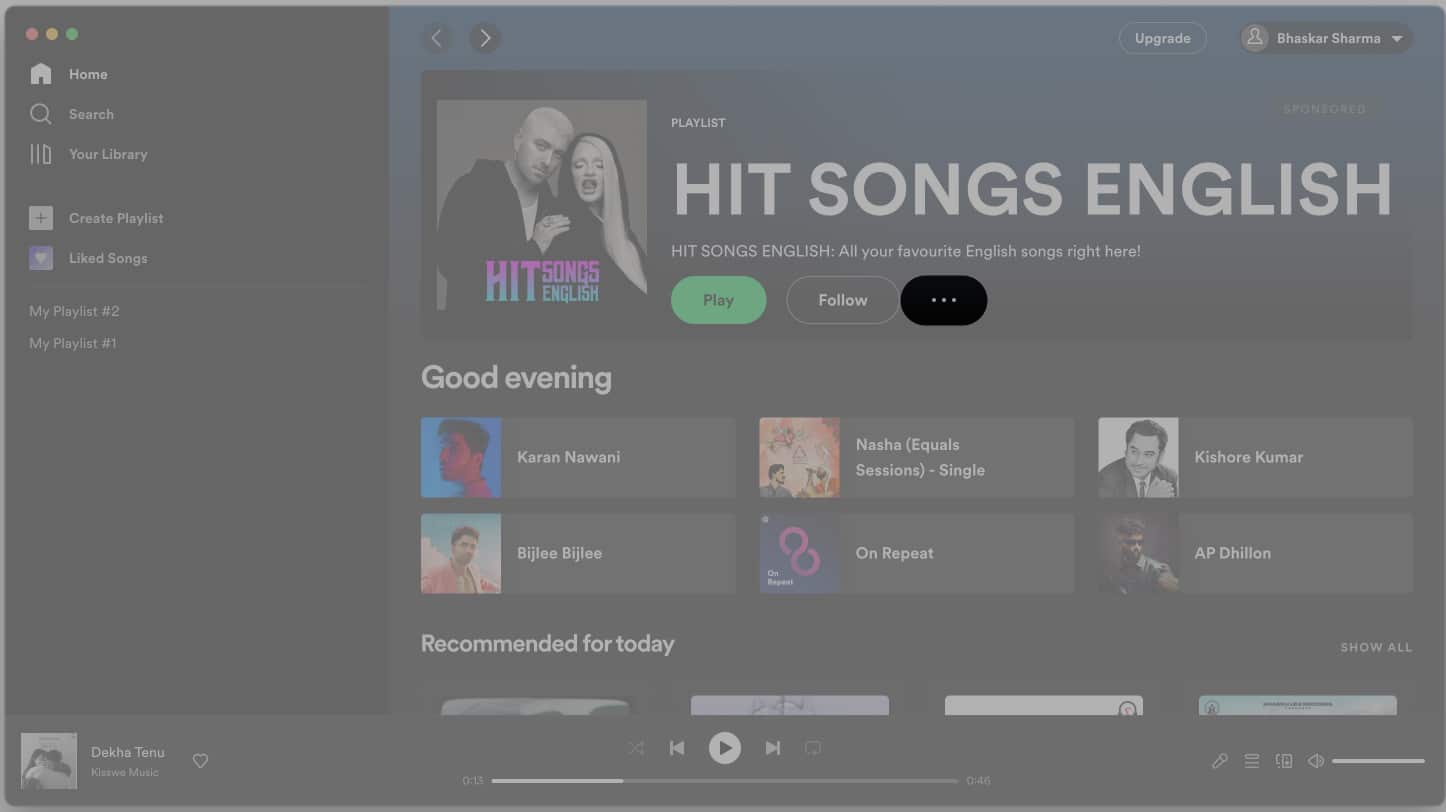
- Click on Clear queue.


Music is what keeps the world going.…
I hope this article helped you remove the undesired songs from your queue. Do you know there is a lot more you can do with Spotify Premium? So, I’d personally recommend getting the Spotify Premium subscription for your iPhone, iPad, or Mac. Please leave a comment if you would want me to cover any additional topics.