
How to Clear Keyboard History on iPhone and iPad
Clear your iPhone or iPad keyboard history to remove unwanted words and reset predictive text.
- What iPhone keyboard history stores: Your iPhone learns frequently used words and phrases to improve predictive text and typing accuracy, which can be reset anytime.
- Why you might clear keyboard history: Removing stored words helps eliminate awkward or personal suggestions, keeping predictive text more private and relevant.
- How to reset keyboard history on iPhone: Go to Settings → General → Transfer or Reset iPhone → Reset → Reset Keyboard Dictionary to erase all learned typing data.
- Alternative to deleting keyboard history: Disable Auto-Correction and Predictive Text under Settings → General → Keyboard to stop word suggestions without resetting history.
- Extra customization for typing preferences: Add or change keyboards in Settings → General → Keyboard → Keyboards to tailor your typing experience for different languages or layouts.
Have you ever had your iPhone suggest a word or phrase you wish it didn’t remember? Apple’s keyboard learns from what you type to offer better suggestions, but sometimes it picks up things you’d rather not see again.
If your keyboard predictions have gotten a little too personal or just plain annoying, it might be time to clear your keyboard history. In this guide, you’ll learn how to delete your keyboard history on iPhone and iPad, reset predictive text, and start fresh with more accurate suggestions.
What is the Keyboard History on iPhone, and How Does It Work?
The keyboard history is a repository of frequently typed words, including those pre-stored into your iPhone’s autocorrect dictionary by default.
Hence, when autocorrect is on, your iPhone tries to find the best correction from its dictionary to replace every word you type with a correct one. So, when you press the space bar or start the next word while typing, the previous one gets corrected.
While you can’t edit or correct the keyboard history, you can reset it altogether.
Why Clear Keyboard History on iPhone and iPad
Your iPhone keyboard keeps track of the words, phrases, and even emojis you use most often. Over time, this helps it predict what you might want to type next. However, it can also lead to unwanted suggestions, especially if you’ve made typos or used certain words you no longer want stored.
Clearing your keyboard history gives you a clean slate and helps your keyboard feel more accurate again.
How to Delete Keyboard History on iPhone or iPad
Deleting the keyboard history on an iPhone is pretty straightforward and can be done in just a few taps. Here’s how you can do this:
- Open Settings and tap General.
- Scroll down to the bottom and tap Transfer or Reset iPhone.
- Tap Reset.
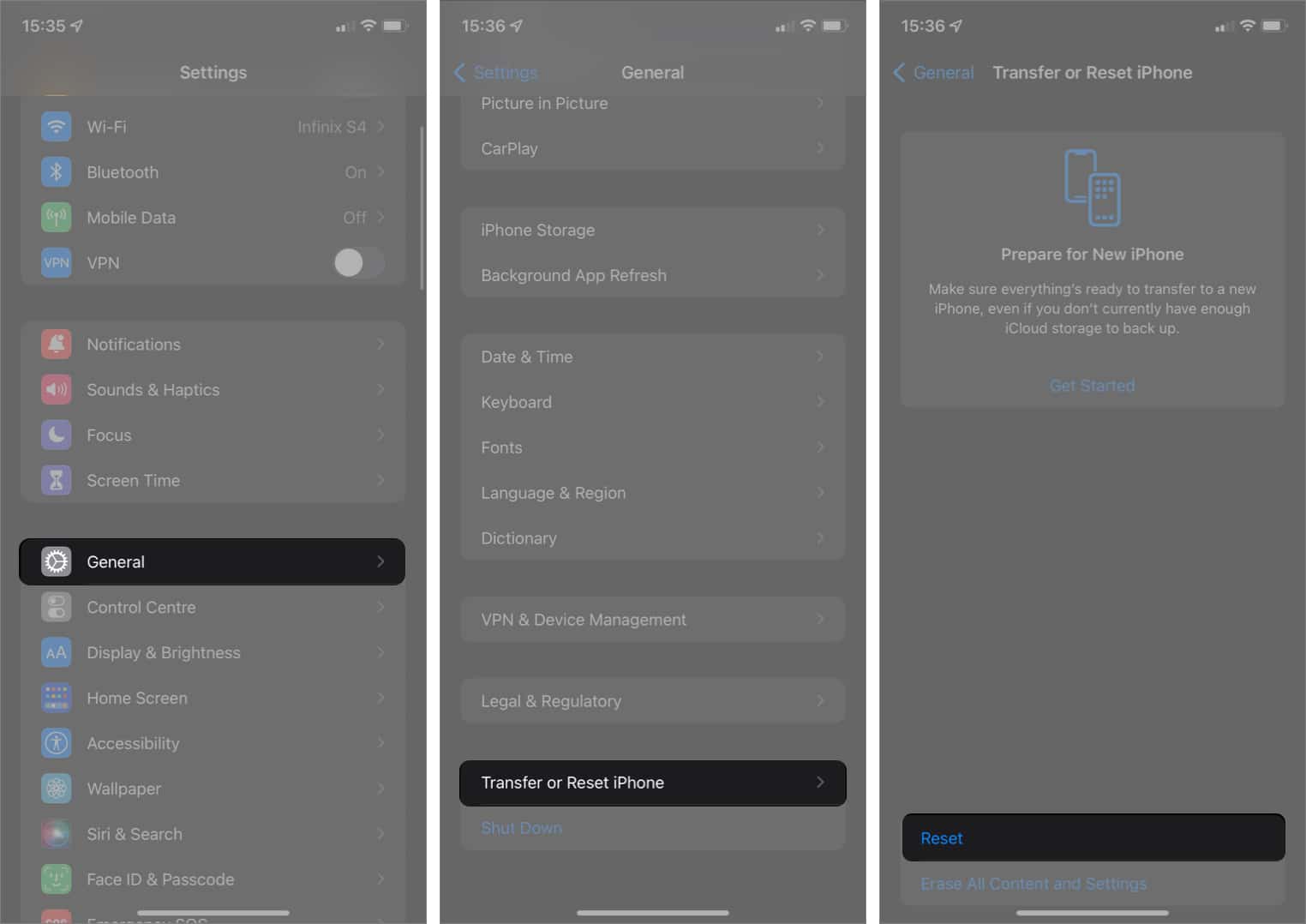
- Choose the Reset Keyboard Dictionary pop-up menu, then enter your passcode when prompted.
- Finally, tap Reset Dictionary.
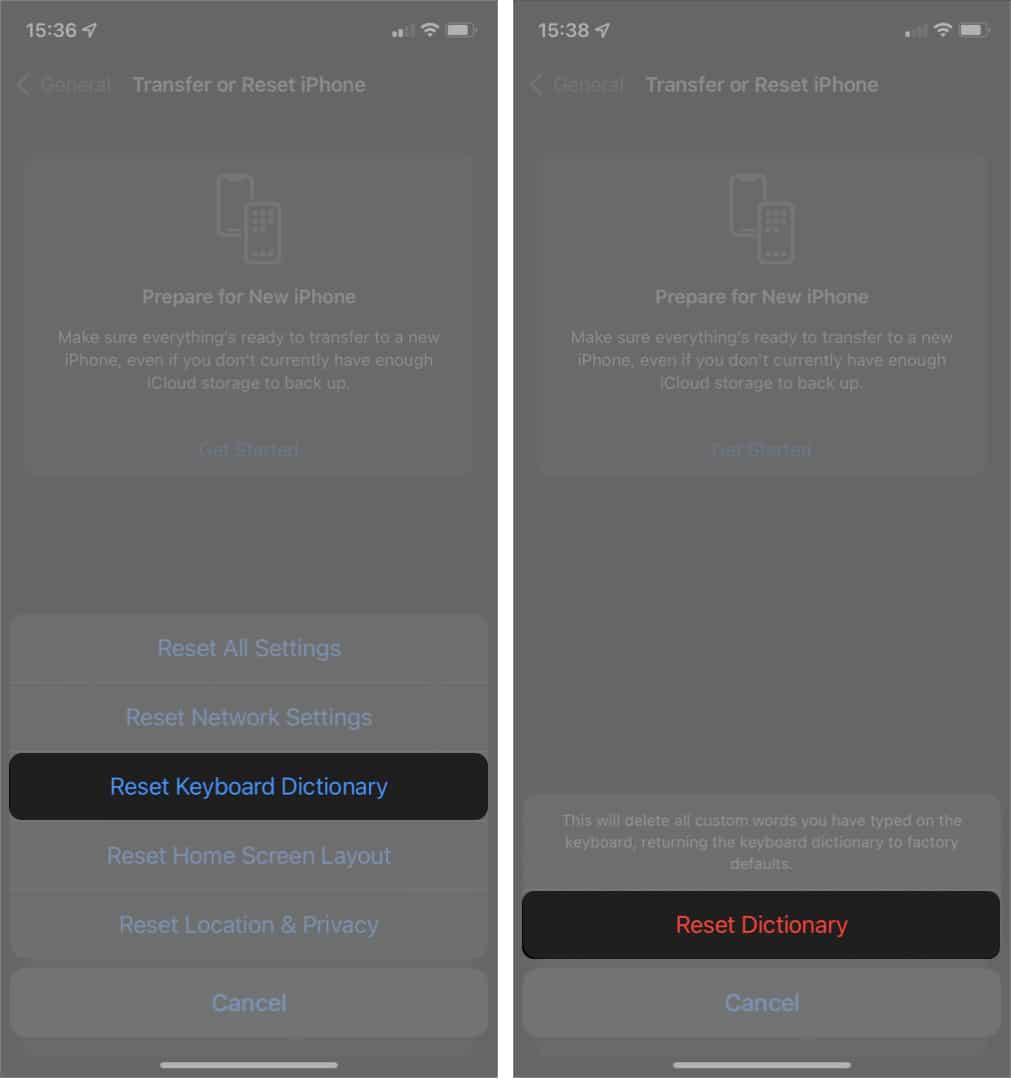
That’s it! You can now start afresh. However, if you don’t want to clear keyboard history repeatedly, you have other options. Read on!
Alternatives to Clearing iPhone keyboard History
1. Disable Auto-Correction
To stop your iPhone from correcting your words permanently, disable keyboard auto-correction. This will prevent your iPhone from making changes automatically while still suggesting words.
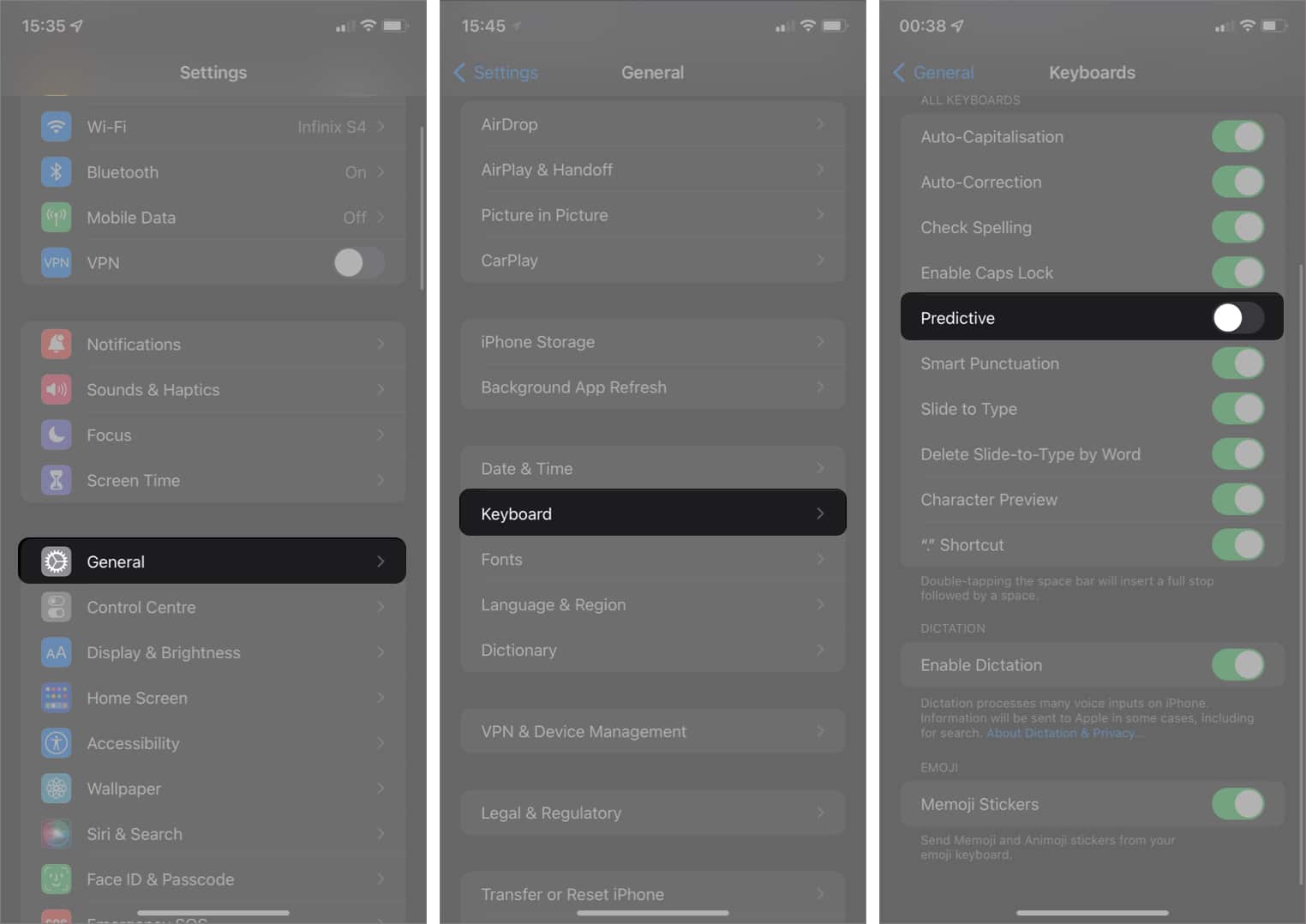
- Go to Settings → General → Keyboard.
- Toggle off Auto-Correction.
2. Disable Predictive Text
The other alternative is to disable predictive text. This will prevent your iPhone from learning new words and making new suggestions. Here’s how you can disable predictive text.
- Open Settings → General.
- Tap Keyboard.
- Toggle off Predictive.
Signing Off…
That’s how you can delete iPhone’s keyboard history! Whether you’re sending a text or typing for safe-keeping, the iPhone’s auto-correction can be annoying. It might replace words and, worse, change the meaning of your message. If you have more questions, share them in the comments below.
Frequently Asked Questions

Written by
Idowu OmisolaIdowu is an avid tech writer and a software surfer who loves covering knowledge gaps in consumer software, including anything related to iPhones. Well, when he's not reading and learning new things, you'll find Idowu losing gallantly on a solid chessboard or virtually on Lichess.
View all posts →More from How-to

Snapchat Parental Controls: How to Set Up Family Center and Keep Your Teen Safe
Snapchat’s Family Center lets parents monitor their teen’s friend activity and screen time without reading private messages. Here’s how to set it up and what to expect.
 VikhyatMarch 3, 2026
How to Block and Unblock Someone on Instagram
Instagram lets you block or unblock someone in seconds. Follow these simple steps to take full control of your privacy and online peace.
 Ava BiswasMarch 2, 2026
Apple Watch Not Responding? 8 Fixes That Actually Work
Is your Apple Watch unresponsive or stuck on a black screen? Here are 8 proven fixes to help you unfreeze it and get it working again quickly.
VikhyatMarch 3, 2026