
How to change iMessage bubble color on iPhone and iPad
Want to change the text bubble color in iMessage? Follow this quick guide on how to change iMessage bubble colors on your iPhone or iPad.
- Blue means iMessage, green means SMS and grey is for incoming messages—Apple uses these default bubble colors to show message type instantly.
- You can darken the iMessage bubble color by turning on Increase Contrast in Accessibility, though it only tweaks the default blue tone.
- Apple doesn’t support full color changes and any edits won’t show to recipients or on older iOS devices running pre-iOS 16.
- Third-party apps like Color Text Bubbles offer some workarounds but rely on image-based messages and have limited integration with native iMessage.
- Use only trusted third-party apps for custom bubbles and avoid granting full access unless absolutely necessary to protect your privacy.
In iOS 17, iMessage provides many personalization features. But you can’t still change the blue iMessage bubble color to something else. Don’t worry! In this guide, I’ll show how to change the blue iMessage bubble colors on your iPhone to make your texting more fun.
What are the standard iMessage colors?
By default, You will notice three different color bubbles when using the Messages app on your iPhone or iPad. So, here’s an explanation of what each color represents:
- Blue bubble: This represents the message being delivered to iPhone, iPad, or Mac users who use the iMessage service.
- Green bubble: It shows that the message is intended as a regular SMS to an Apple or a non-Apple user.
- Grey bubble: It is the color of the messages that have been received, whether they are SMS or iMessage.
How to change iMessage color on iPhone or iPad
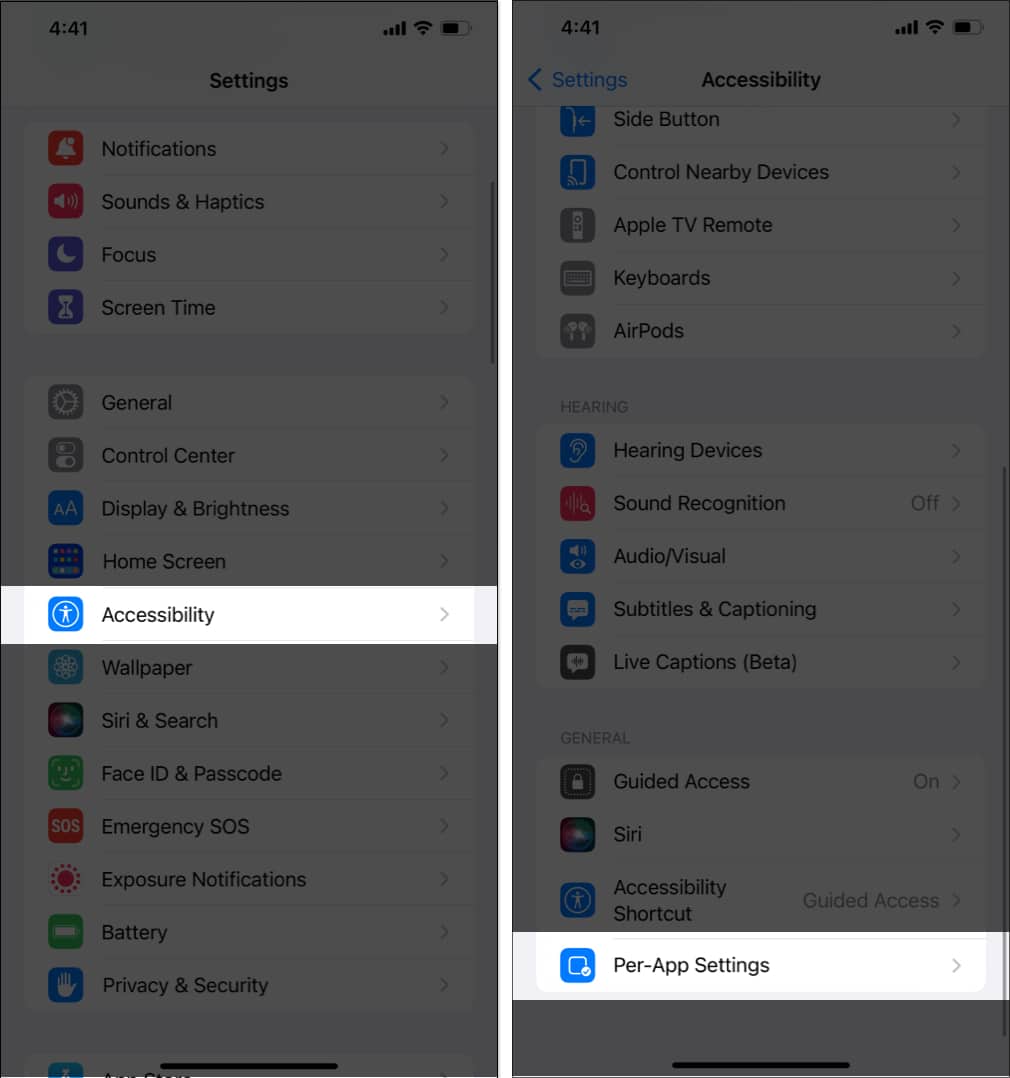
- Open Settings
- Head to Accessibility → Select Per-App Settings.
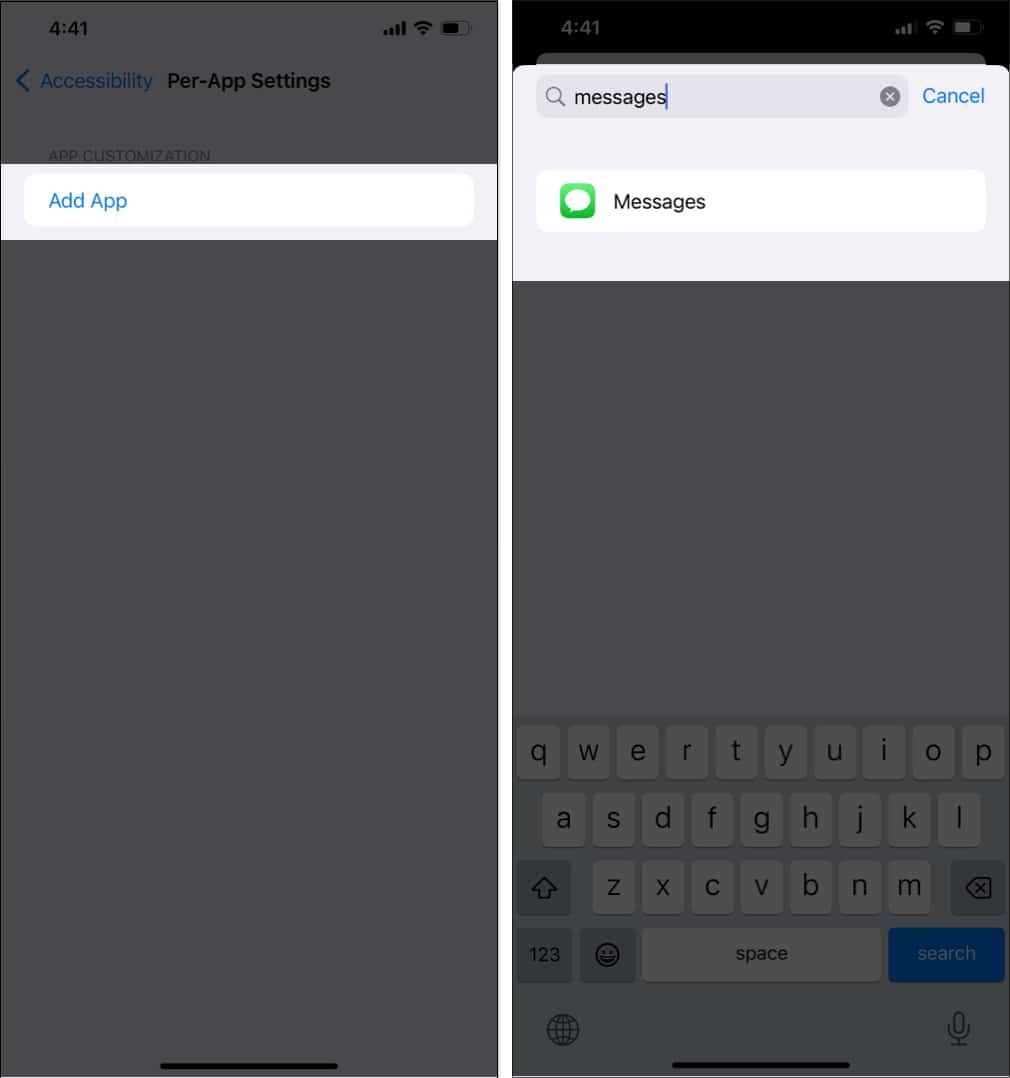
- Tap Add App → Choose Messages.
- Now, tap Messages → Go to Increase Contrast → Select On.
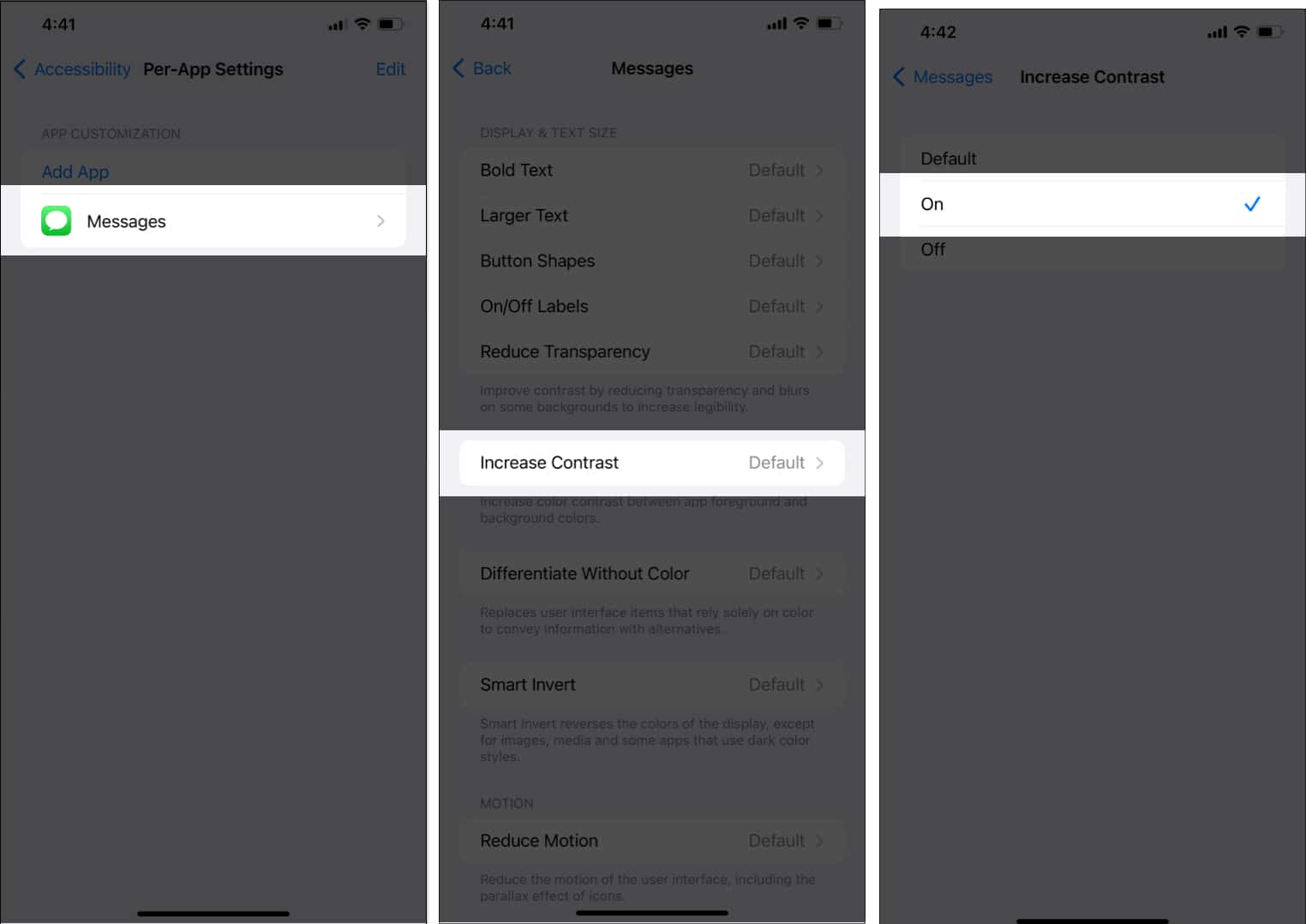
Now, you can see that the shade of blue in your iMessage’s bubble will become slightly dark.
How to change the iMessage bubble color
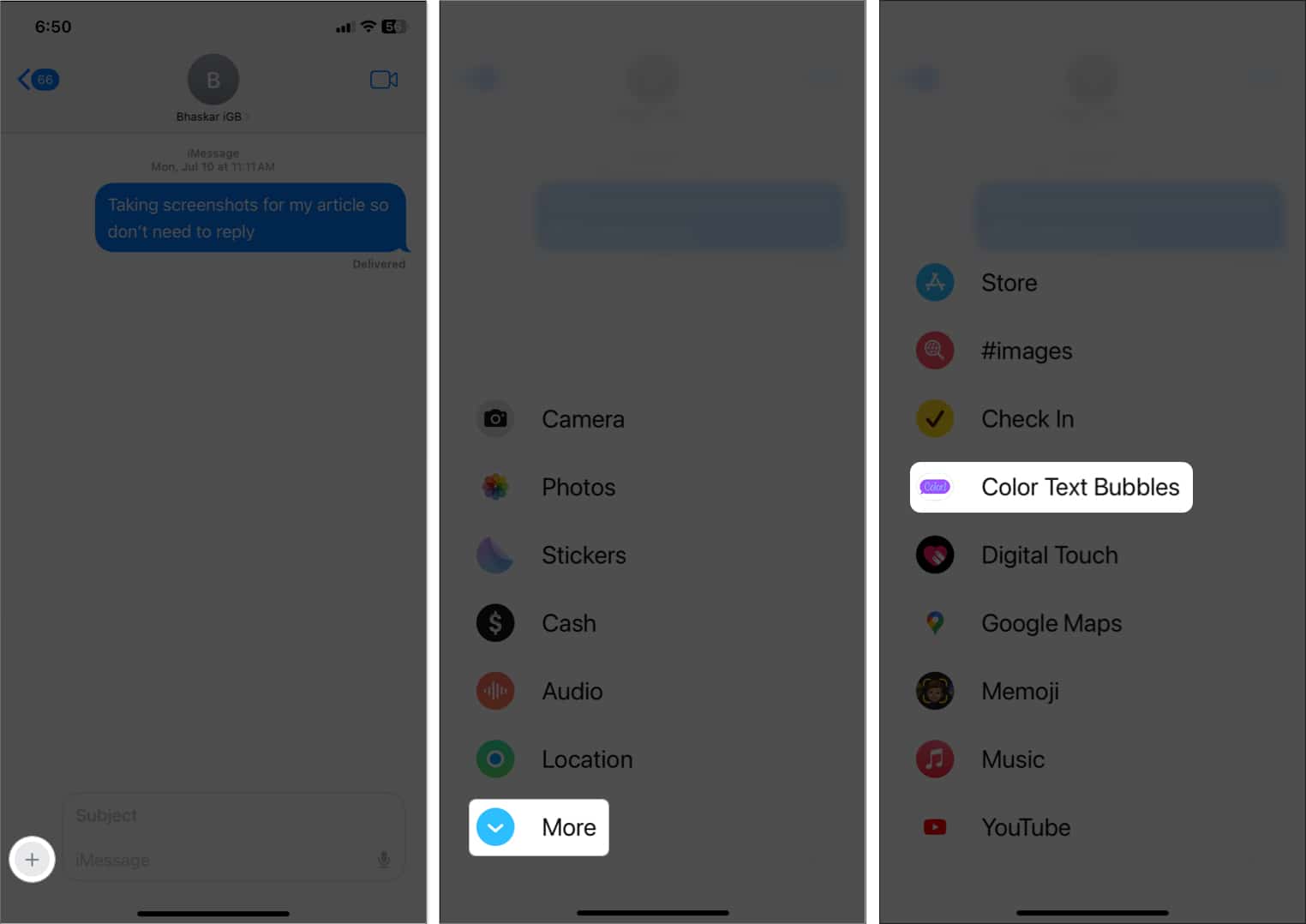
Apple currently does not allow users to change the iMessage bubble color without using a third-party app. So, we will use the Color Text Bubbles on the iMessage app.
- Download the Color Text Bubbles on the iMessage app.
- Open Messages → Choose a chat.
- Tap the plus sign beside the text bar → Select More → Color Text Bubbles.
- Choose a text bubble template or tap Type Custom Message.
- Type your message → Tap the Bubble Color icon → Choose a color → Hit Done.
If you’re using the free version, you’ll have 12 color options.
- Tap the Send button to send your custom message.
Note: If encounter a popup, wait for a second and click the X to close the ad or select Later to dismiss the upgrade offer. - Finally, tap the Send arrow.
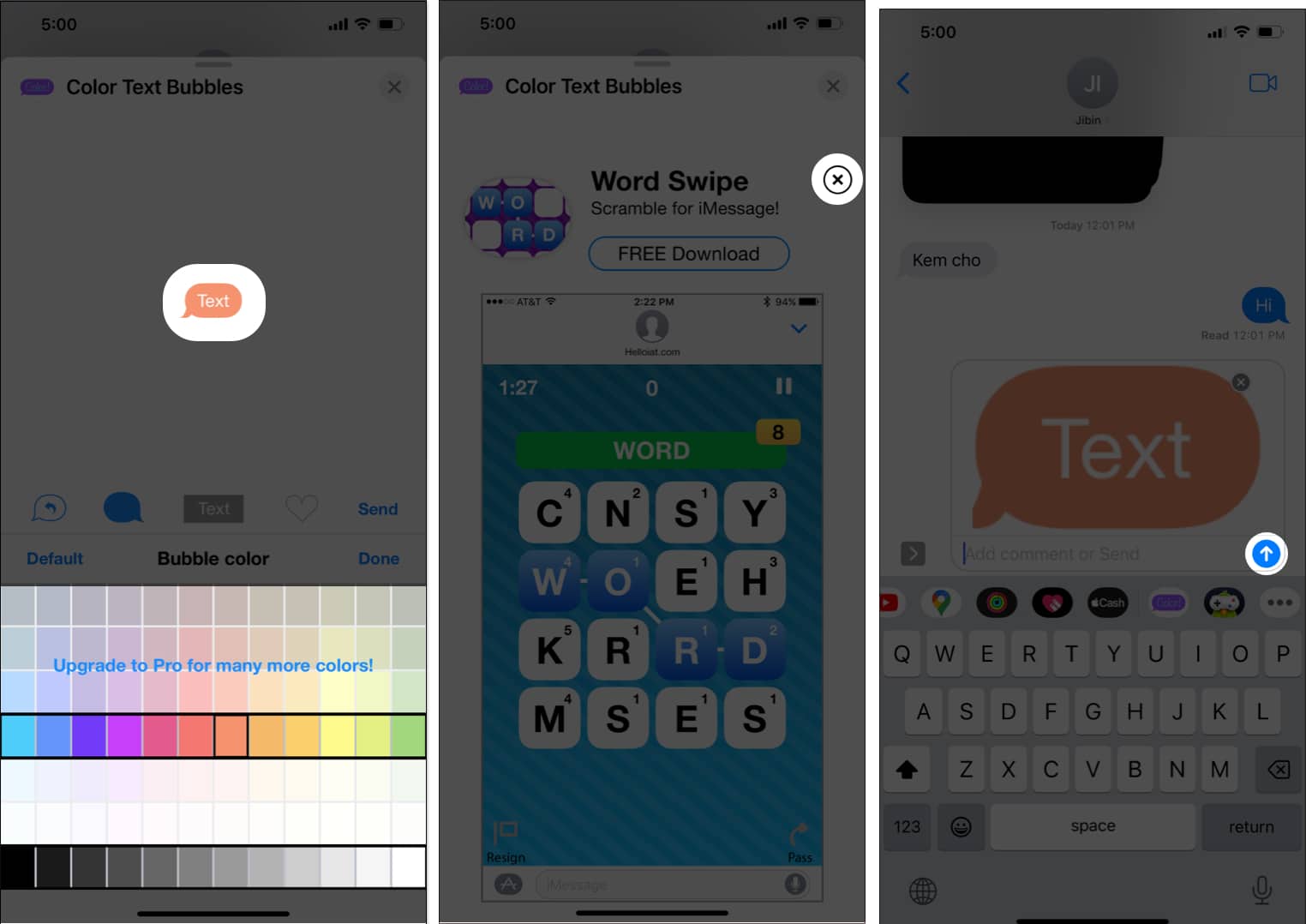
Congratulations! You have successfully sent your message with the custom color text bubble.
Bring your iMessages to life!
I hope the guide helped you customize the color of your text bubble on iOS. While the Color Text Bubbles app makes it simple to change blue iMessage bubbles colors, there are many ads. As the app is free, this is to be expected.
Nonetheless, have you used any other third-party apps to change the iMessage text color? Please let me know in the comments below.
Frequently Asked Questions
Topics

Written by
Ava BiswasAva is a die-hard Apple aficionado and seasoned writer with a knack for breaking down complex tech concepts into easily digestible content. Having honed her writing and editing skills over 4 years at renowned media houses like TechBurner, Ava crafts informative and engaging articles including troubleshooting guides, product reviews, editorials at iGeeksBlog. When not typing, you can find her exploring the latest Apple releases or pondering the future of tech innovation.
View all posts →More from How-to

Snapchat Parental Controls: How to Set Up Family Center and Keep Your Teen Safe
Snapchat’s Family Center lets parents monitor their teen’s friend activity and screen time without reading private messages. Here’s how to set it up and what to expect.
 VikhyatMarch 3, 2026
How to Block and Unblock Someone on Instagram
Instagram lets you block or unblock someone in seconds. Follow these simple steps to take full control of your privacy and online peace.
Ava BiswasMarch 2, 2026
Apple Watch Not Responding? 8 Fixes That Actually Work
Is your Apple Watch unresponsive or stuck on a black screen? Here are 8 proven fixes to help you unfreeze it and get it working again quickly.
VikhyatMarch 3, 2026