
How to change calorie goal on Apple Watch
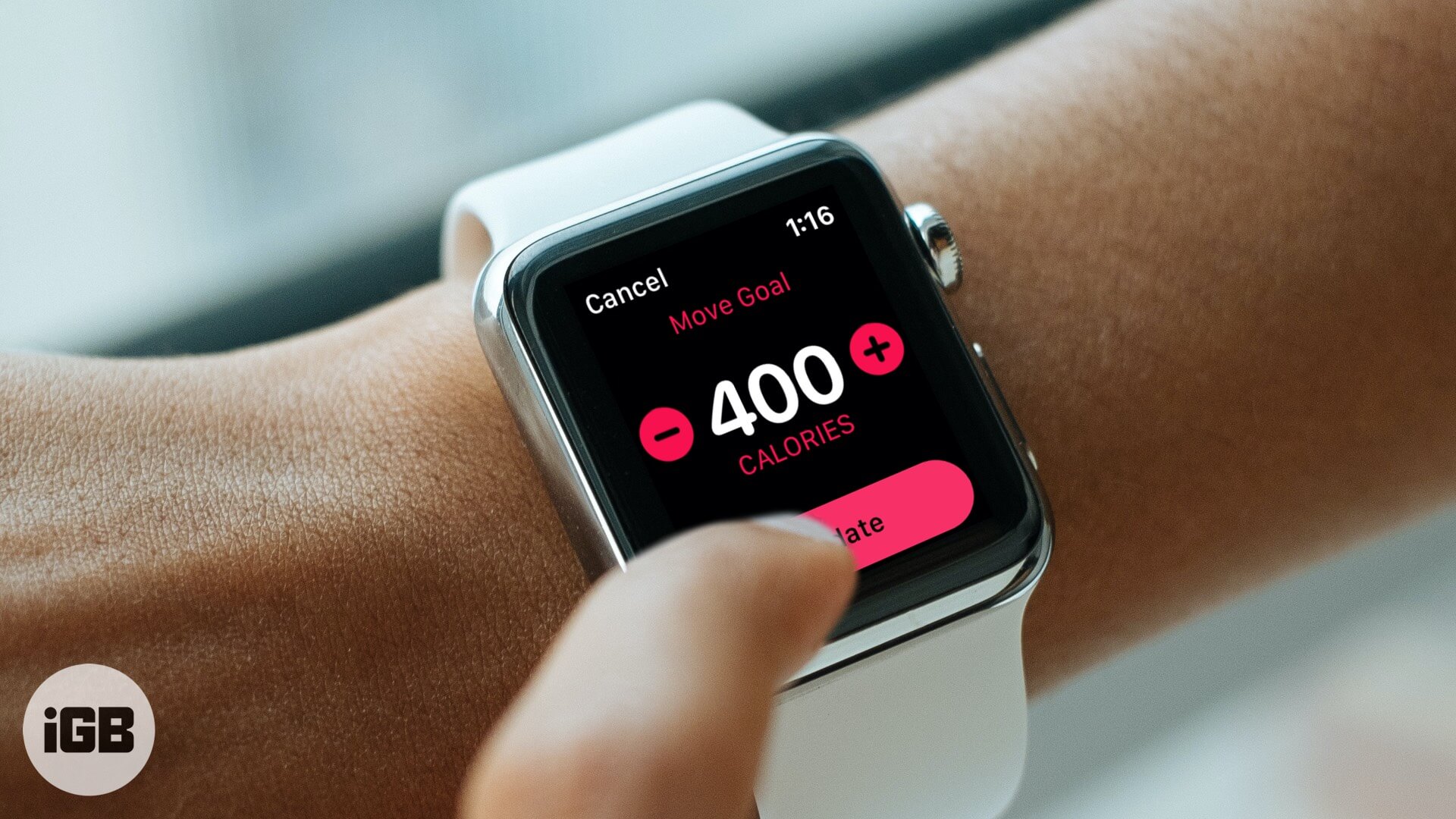
Using the Activity app on Apple Watch, you can adjust your calorie goal easily. Suppose you were very excited and optimistic and set a high-calorie goal. Now you may be looking to decrease it a bit. The vice versa may also be the case, and you may like to increase the calorie goal. Whatever be your choice, here is how to change your daily calorie goal and start closing your activity rings on Apple Watch.
- How to change your daily calorie goal on Apple Watch
- How to see what’s the right calorie goal for you
How to change your daily calorie goal on Apple Watch
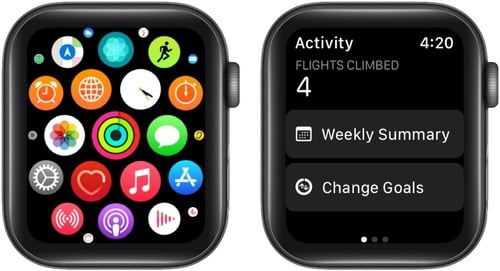
- Open the Activity app on your Apple Watch.
- Swipe down and from the bottom, tap Change Goals.
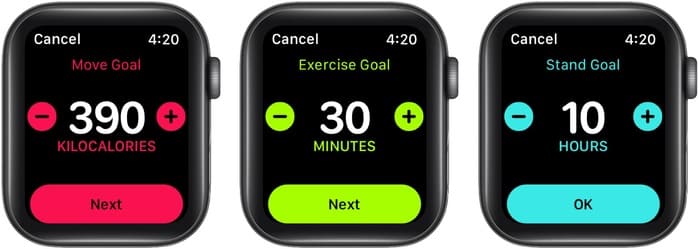
- Use the plus and minus buttons or rotate the Digital Crown to adjust your Move Goal.
- Tap Next.
- You may also change your Exercise Goal. Tap Next.
- Change Stand Goal, if needed. Finally, tap OK to save all the changes.
How to see what’s the right calorie goal for you
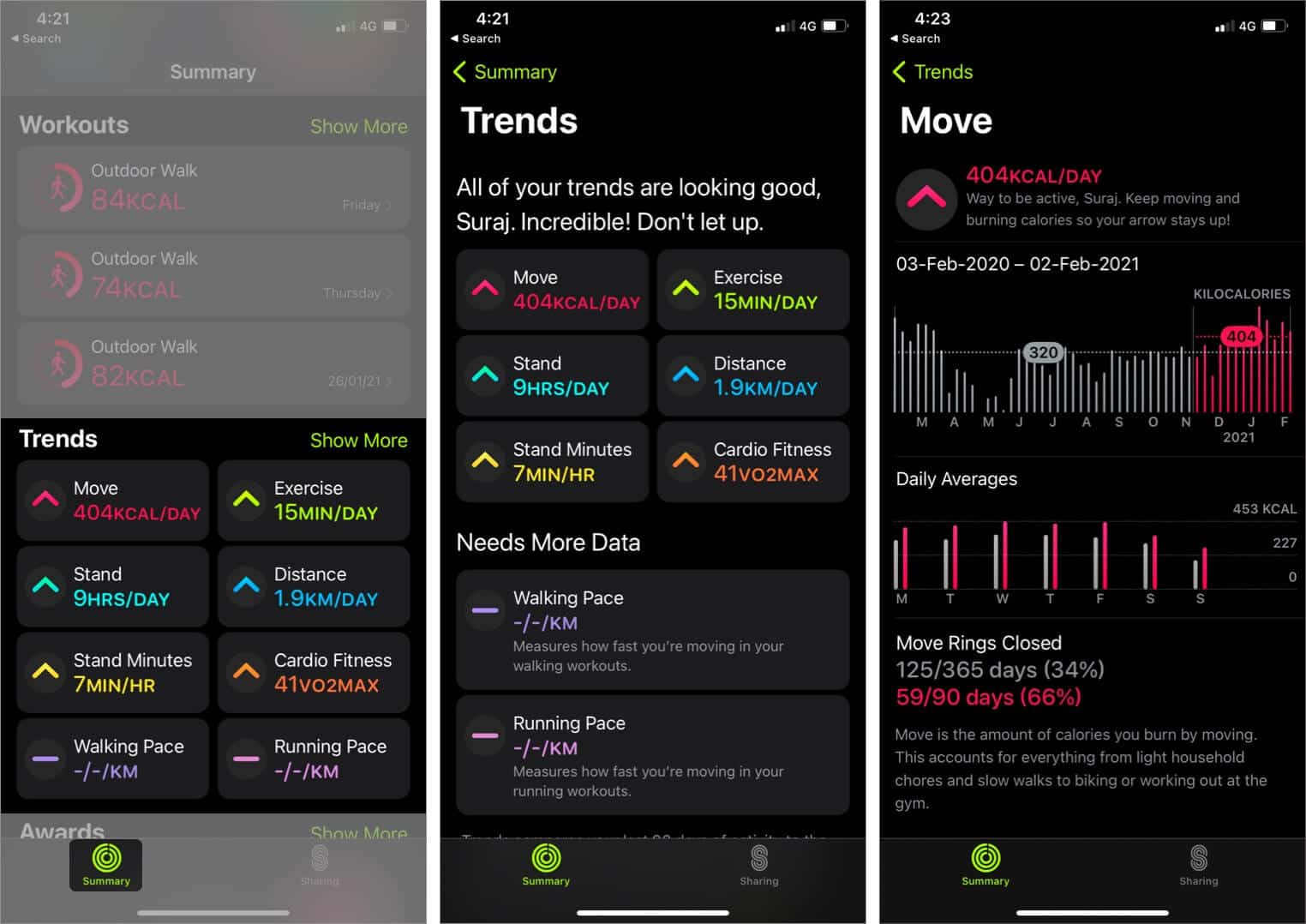
If you have 180 days of activity on your Apple Watch, you will see your trends. This chart of activity trends basically shows what you are doing right and where you need improvements. Here is how to see it.
- Open the Fitness app on your iPhone running iOS 14.
- Tap Show More next to Trends from the Summary tab.
- From this screen, you can see if your trends arrows are going up or down. You do not need to think much about those with an up arrow. Just keep following what you regularly do. Trends with a down arrow are where you should improve. Tap on any of the trends to get detailed information.
Ready to burn calories!
This is how you can increase or decrease your calorie goal on the Apple Watch. In trends, if you see an instruction asking you to burn more calories for a given number of days, then you may configure your daily goal accordingly to stay fit and healthy.
More helpful Apple Watch posts for you:
Topics

Written by
Ankur ThakurI have been an Apple user for over seven years now. At iGeeksBlog, I love creating how-tos and troubleshooting guides that help people do more with their iPhone, iPad, Mac, AirPods, and Apple Watch. In my free time, I like to watch stand up comedy videos, tech documentaries, news debates, and political speeches.
View all posts →More from Apple Watch

Apple Watch Not Responding? 8 Fixes That Actually Work
Is your Apple Watch unresponsive or stuck on a black screen? Here are 8 proven fixes to help you unfreeze it and get it working again quickly.
 VikhyatMarch 3, 2026
How to Mirror Your Apple Watch on Your iPhone: A Simple Guide
Want to control your Apple Watch using your iPhone? This guide explains how to turn on Apple Watch Mirroring, use it easily, and fix common issues.
 Arshmeet KaurFebruary 27, 2026
How to Restore Apple Watch From a Backup
Need to reset or switch iPhones? Here’s how to restore your Apple Watch from a backup, what data comes back, and how to make sure everything syncs properly.
VikhyatFebruary 23, 2026