
How to Dim Flashing Lights in Videos on iPhone, iPad, and Mac
Reduce flashing visuals for a calmer, more comfortable viewing experience.
- Why flashing lights cause problems: Flashing or strobing scenes in videos can trigger discomfort or reactions, so Apple’s Dim Flashing Lights feature lowers their intensity while keeping the rest unchanged.
- What Apple’s Dim Flashing Lights does: The feature on iPhone, iPad, and Mac automatically dims or blacks out rapid flashes in supported videos to make playback feel safer and easier on your eyes.
- How to enable Dim Flashing Lights on iPhone and iPad: You can turn it on from Settings > Accessibility > Motion, where the toggle instantly applies to most apps that play video.
- How to enable it on Mac: You can enable Dim flashing lights in System Settings > Accessibility > Motion, and it also works with streaming sites in Safari.
Flashing lights in videos can be annoying and, for some people, even unsafe. Whether you’re sensitive to strobe effects or just want a smoother viewing experience, Apple now offers a built-in option that automatically dims flashing lights in videos. The best part? You can use it across iPhone, iPad, and Mac.
In this guide, I’ll show you how to use the Dim Flashing Lights accessibility tool. Let’s jump in.
Why You Should Dim Flashing Lights in Videos
Flashing or strobing lights can cause discomfort, distraction, and even trigger reactions such as headaches, vertigo, motion sickness, or seizures in sensitive viewers. Apple created a solution that reduces the intensity of those flashes without changing the rest of the video.
Once turned on, your device scans videos as you’re watching them. If it detects rapid flashing, it automatically dims those sections.
How to Dim Flashing Lights in Videos on iPhone and iPad
- Open the Settings app on your device.
- Scroll down and select Accessibility.
- Inside Accessibility, choose Motion.
- Toggle on Dim Flashing Lights.
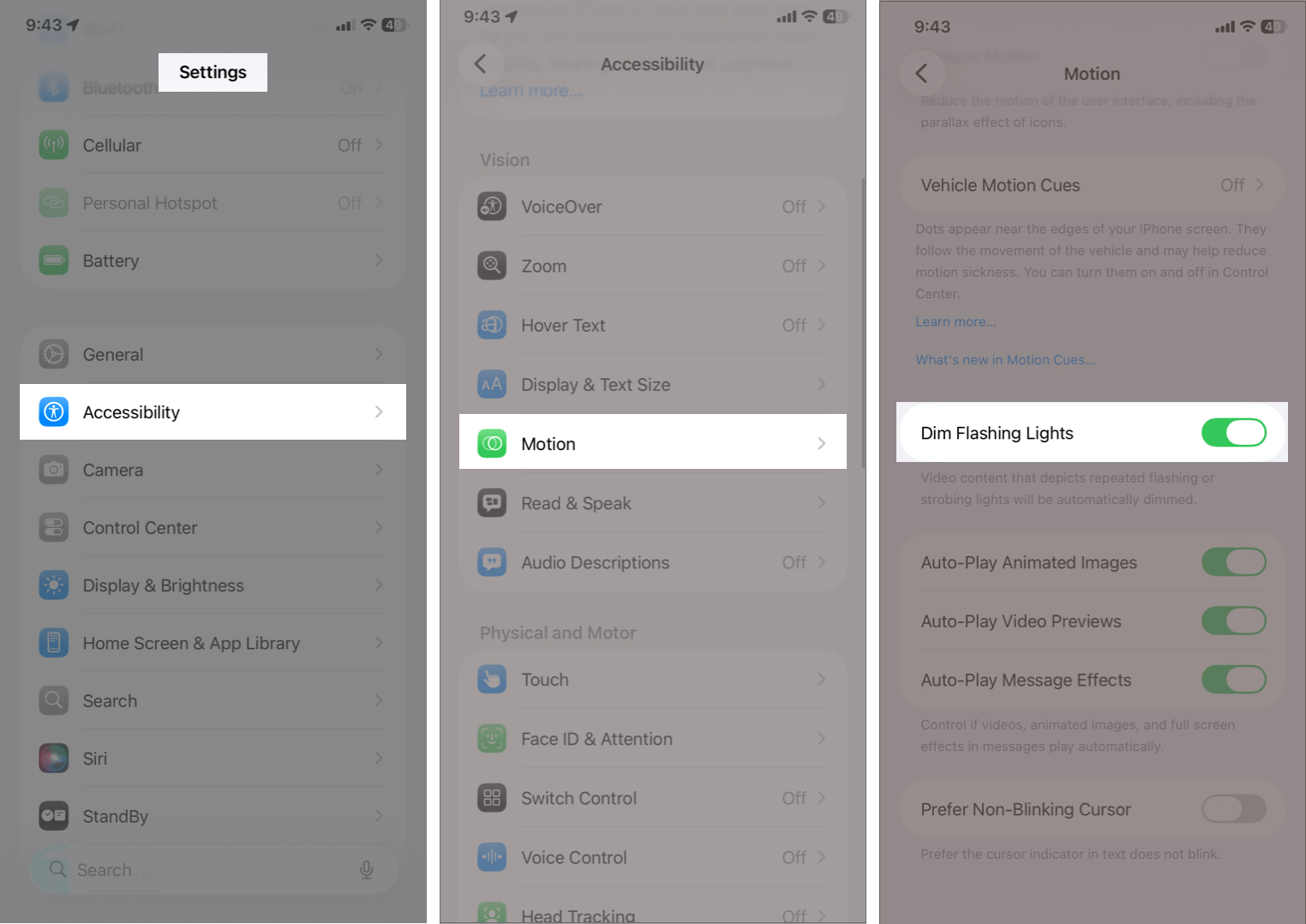
Once activated, videos with sudden flashing or strobe-like effects will be automatically dimmed or blacked out during playback.
Tip:
How to Dim Flashing Lights in Videos on Mac
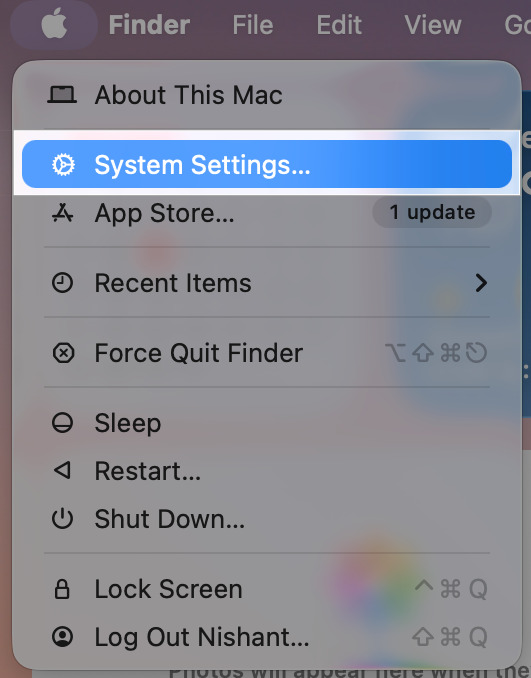
- Click the Apple menu at the top and select System Settings.
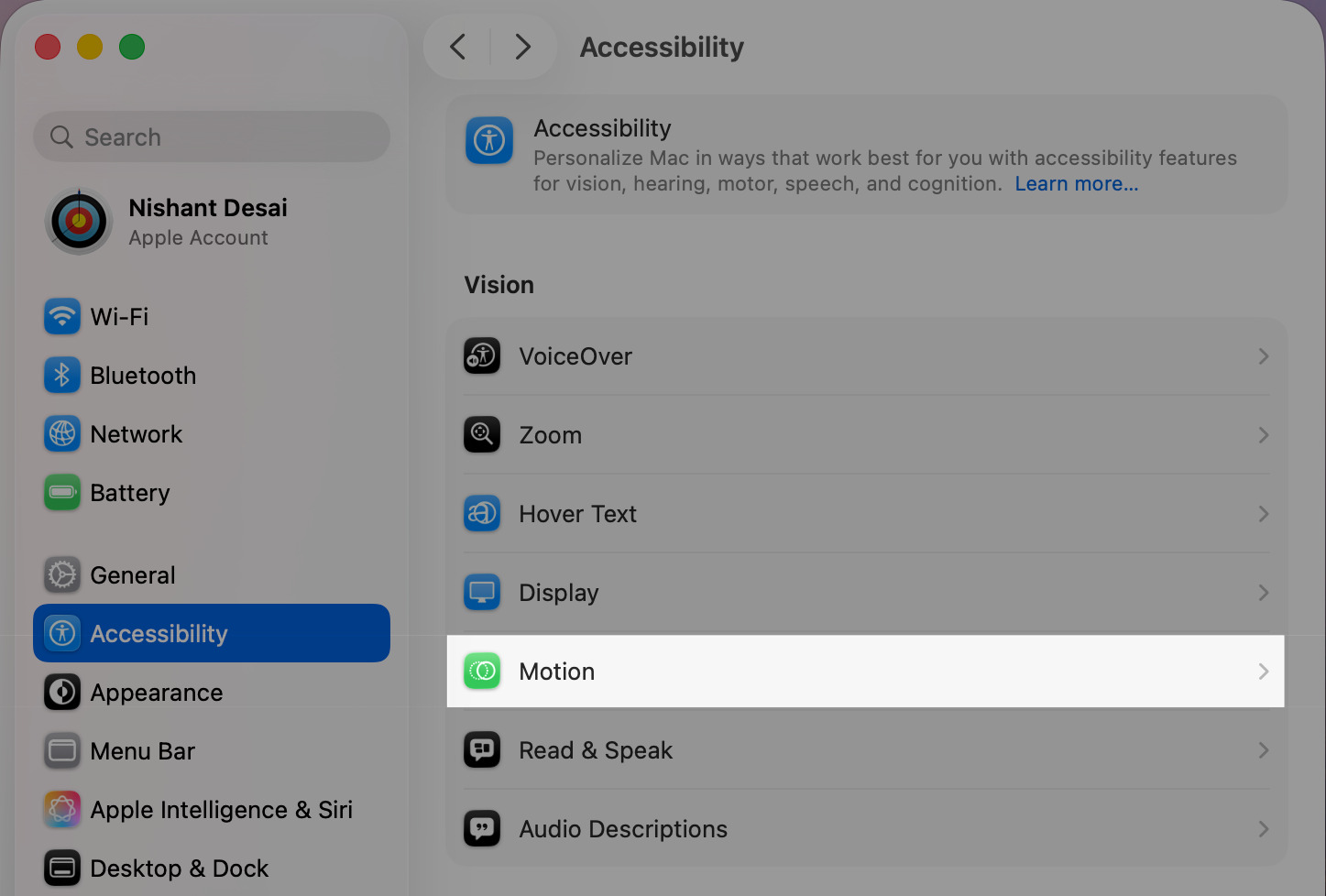
- Scroll the sidebar and select Accessibility.
- Under Vision settings, click Motion.
- Toggle Dim flashing lights to turn it on.
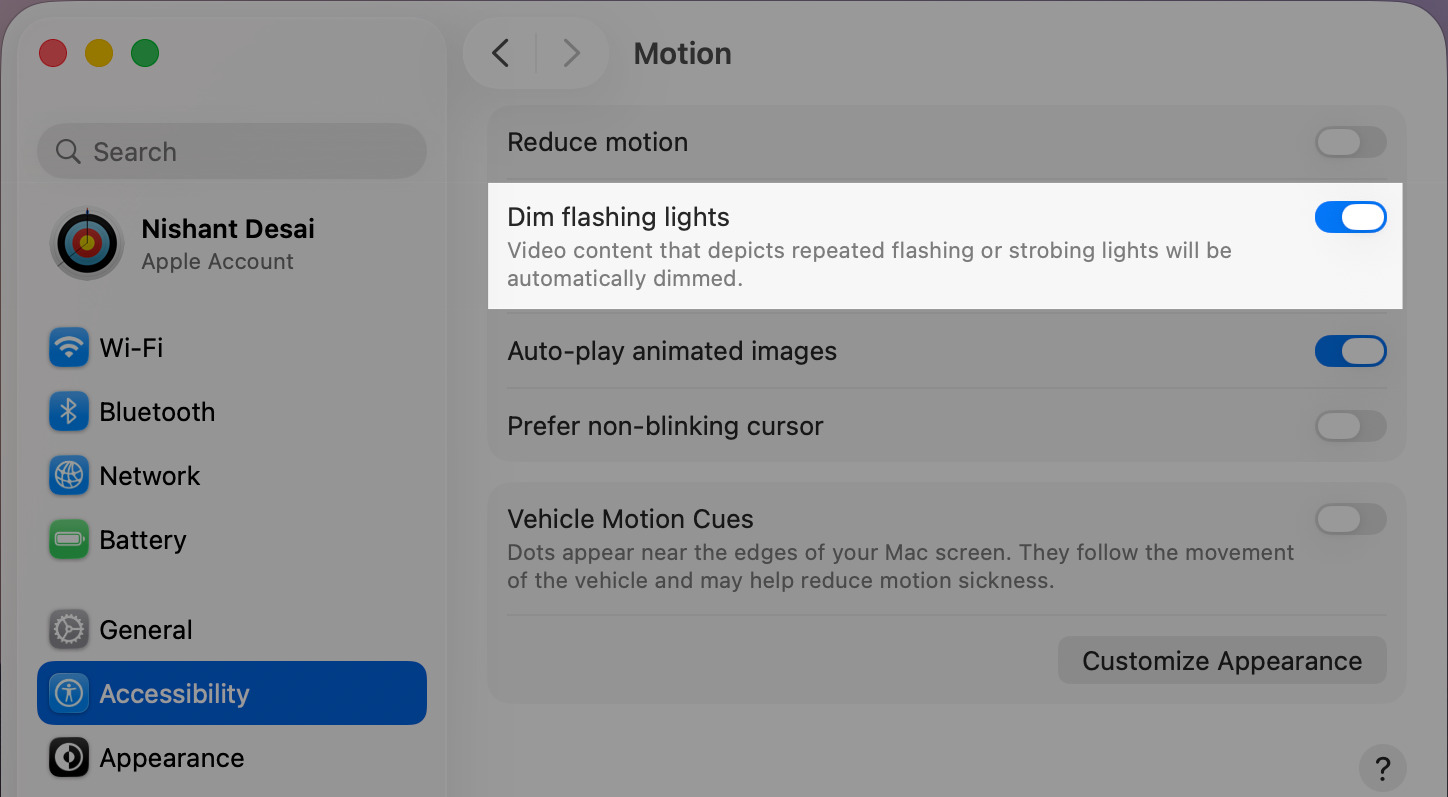
Similar to iPhone, macOS will automatically reduce the brightness of flashing scenes in supported video apps. It works even while streaming content in Safari.
You can see the sections where flashing lights are detected in the video timeline.
How the Dim Flashing Lights Feature Works
Apple uses on-device processing to detect when the video suddenly spikes in brightness or contains strobe-like effects. The system then:
- Identifies the flashing section
- Lowers the brightness at those moments
- Restores normal brightness afterward
This ensures the rest of the video remains unchanged.
Since everything happens on the device, no data is sent to Apple. It’s fast, private, and doesn’t affect your overall video quality.
Apps and Services That Support Dim Flashing Lights
This feature works in most apps that use Apple’s default video player, including:
- Apple TV app
- Safari (web videos)
- Photos app
- Many streaming apps that haven’t replaced the native player
Some third-party apps use custom players (such as Netflix or YouTube), and they may not fully support the feature. If you don’t see the dimming during flashing scenes, that app may not be using Apple’s default video engine.
Fix Dim Flashing Lights Not Working
If the feature isn’t working as expected, try this:
- Ensure your software is up to date.
- Force-quit the app or restart the iPhone.
- Test using another video with detectable flashes.
- Check if the app supports Apple’s video player.
Final Thoughts
Flashing lights in videos can be overwhelming, but Apple’s Dim Flashing Lights setting makes watching content much more comfortable, especially for viewers who are sensitive to intense visual effects. Once you turn it on, you can enjoy videos without the harsh strobe effects.
Did you know about this feature? Let us know in the comments below!
Read more:

Written by
Rachel Ann Tee-MelegritoRachel, an experienced Apple technology writer since 2021 and a long-time user since 2003, began her journey with a silver iPod Classic. Currently, she owns an array of modern Apple gadgets. At iGeeksBlog, her expertise shines through in the crafting of comprehensive how-to articles, informative guides, and well-curated roundups.
View all posts →More from How-to

Snapchat Parental Controls: How to Set Up Family Center and Keep Your Teen Safe
Snapchat’s Family Center lets parents monitor their teen’s friend activity and screen time without reading private messages. Here’s how to set it up and what to expect.
 VikhyatMarch 3, 2026
How to Block and Unblock Someone on Instagram
Instagram lets you block or unblock someone in seconds. Follow these simple steps to take full control of your privacy and online peace.
 Ava BiswasMarch 2, 2026
Apple Watch Not Responding? 8 Fixes That Actually Work
Is your Apple Watch unresponsive or stuck on a black screen? Here are 8 proven fixes to help you unfreeze it and get it working again quickly.
VikhyatMarch 3, 2026