
It’s hard to believe, but we’re just a couple of days away from the release of GTA 6. That’s right, gamers, more than a decade of waiting is finally coming to an end, as we’ll be able to dive into the world of Leonida on November 18, 2026. However, if you want to experience the criminal journey of Jason and Lucia in the best way possible, you’ll want to get your PS5 ready beforehand.
From improving audio immersion and visual quality to optimising performance, there are a bunch of console settings you can tweak to make your GTA 6 experience even better. So let’s take a look at the five best PS5 settings you should change before jumping into GTA 6.
5 PS5 settings to change before playing GTA 6 at a glance
| PS5 Setting | Recommended Change | Why it matters |
|---|---|---|
| Enable HDR | Switch on HDR and calibrate it based on your monitor or TV. | Doing this will improve the colour reproduction, brightness, and contrast of the game. |
| Performance Mode | Change your PS5’s game mode to Performance Mode | This will give you the best frame rates in the game possible. |
| 3D Audio Settings | Enable 3D Audio for headphones | This will create a more immersive soundscape and help you hear sounds clearly. |
| Adjust Resolution and Display | Set your resolution to automatic | You will get the best possible image quality. |
| Customise DualSense Controller | Adjust Vibration Intensity and Trigger Effect | You will get the most out of the haptic feedback and adaptive triggers for immersion. |
1. Enable HDR for better visuals
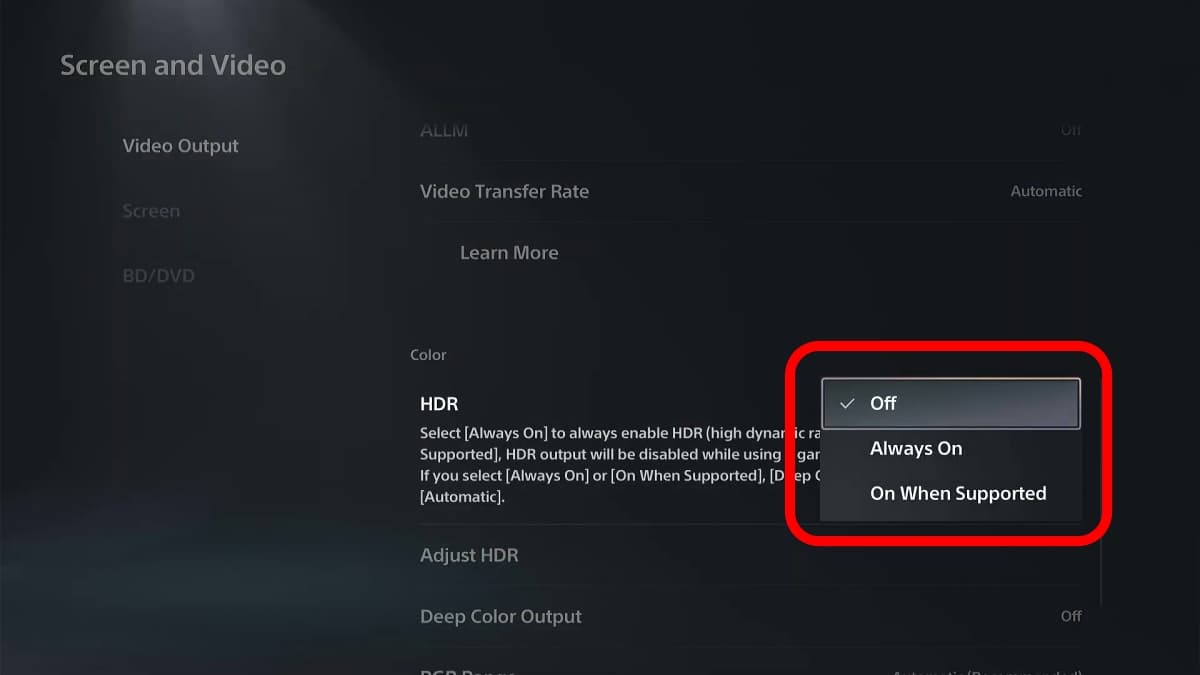
One of the first PS5 settings you should enable before playing GTA 6 is High Dynamic Range (HDR). This enhances the range of colors, brightness, and contrast displayed on your screen, making the game’s visuals look vibrant and detailed. HDR can make a noticeable difference when exploring Vice City, especially in scenes with contrasting lighting.
To enable HDR on your PS5, here’s what you need to do:
- Open Settings.
- Select Screen and Video.
- Head to Video Output.
- Set HDR to On When Supported.
Once you’ve enabled HDR, select Adjust HDR and follow the further instructions to calibrate your display’s brightness level. Also, make sure HDR is enabled on your television or monitor for the HDMI input that’s connected to your PS5.
2. Set your PS5 to Performance Mode
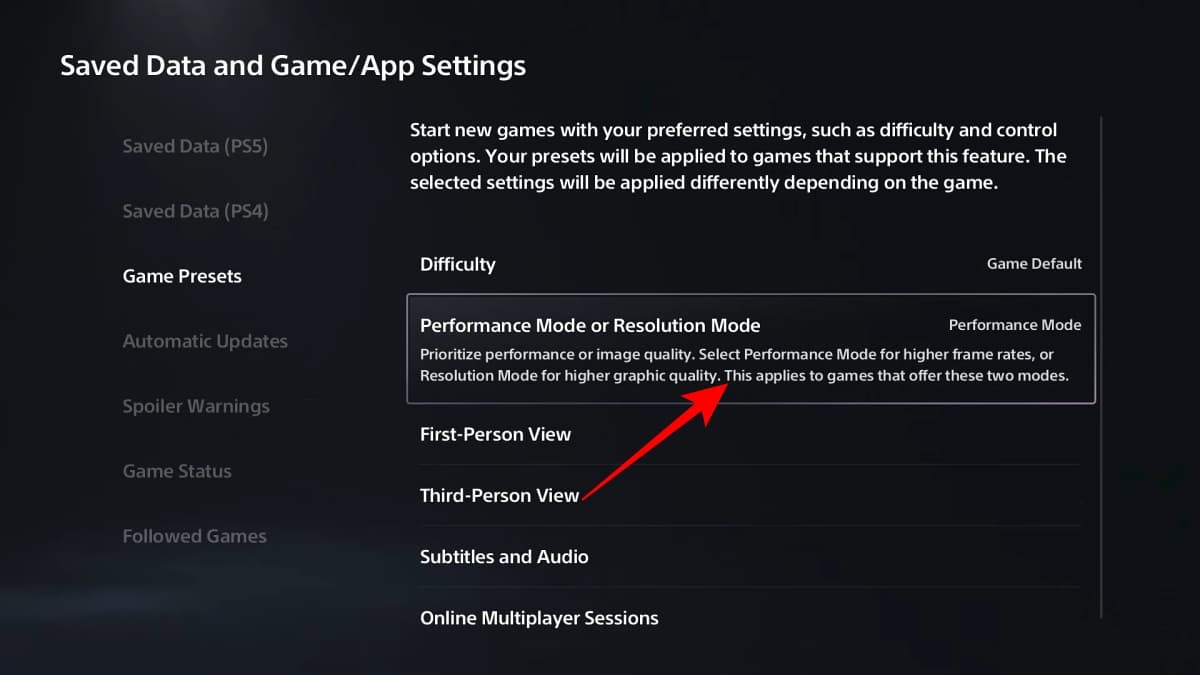
Rockstar has confirmed that GTA 6 will run at 30 FPS on the PS5. That’s quite disappointing for players hoping for a higher frame rate, but it’s worth remembering that GTA 6 is an incredibly demanding title for the current-generation consoles.
However, you can still prepare your PS5 to priorities smoother gameplay wherever possible by setting your preferred game preset to Performance mode. This ensures the game, when supporting the option, priorities frames over visual fidelity.
Here’s how to enable it:
- Open Settings.
- Head to Saved Data and Game/App Settings.
- Choose Game Presets.
- Select Performance Mode.
3. Adjust 3D audio settings
Rockstar has put a lot of effort into making GTA 6’s soundscape feel as realistic and immersive as possible. Gone are the days of the franchise’s arcade-style audio, as players will now experience punchier gunfire, punches that carry a satisfying physical impact, police sirens chorusing through the city’s buildings, and even distant seagulls.
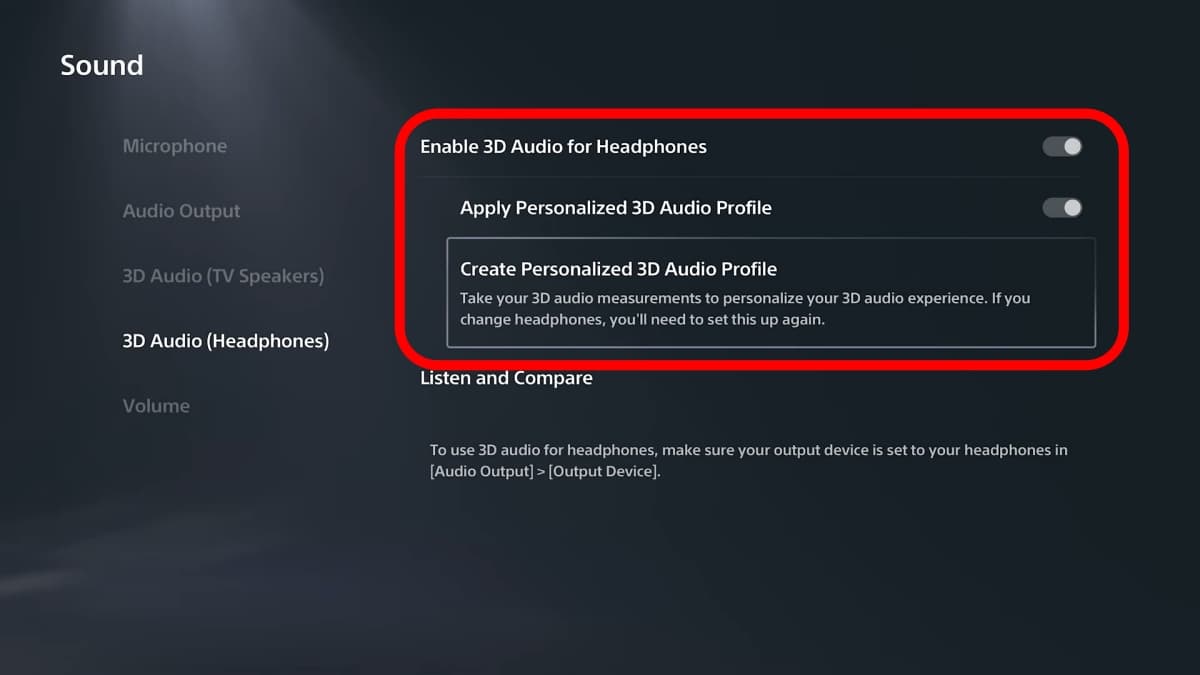
To make the most of these audio details, one of the best PS5 settings for GTA 6 you can enable is 3D Audio. It creates a more immersive sound experience by adding depth and direction to in-game sounds.
Here’s how to switch it on:
- Open Settings.
- Navigate to Sound.
- Choose 3D Audio (Headphones) or 3D Audio (TV Speakers).
- Enable the feature and follow the instructions on your console.
4. Adjust resolution and display settings
If you’ve gone through the official or even the leaked GTA 6 gameplay footage, it should be quite evident that it’s an incredibly detailed game. Of course, you’ll want to experience its visuals at the highest resolution possible, regardless of whether you’re playing on a 4K television or a gaming monitor.
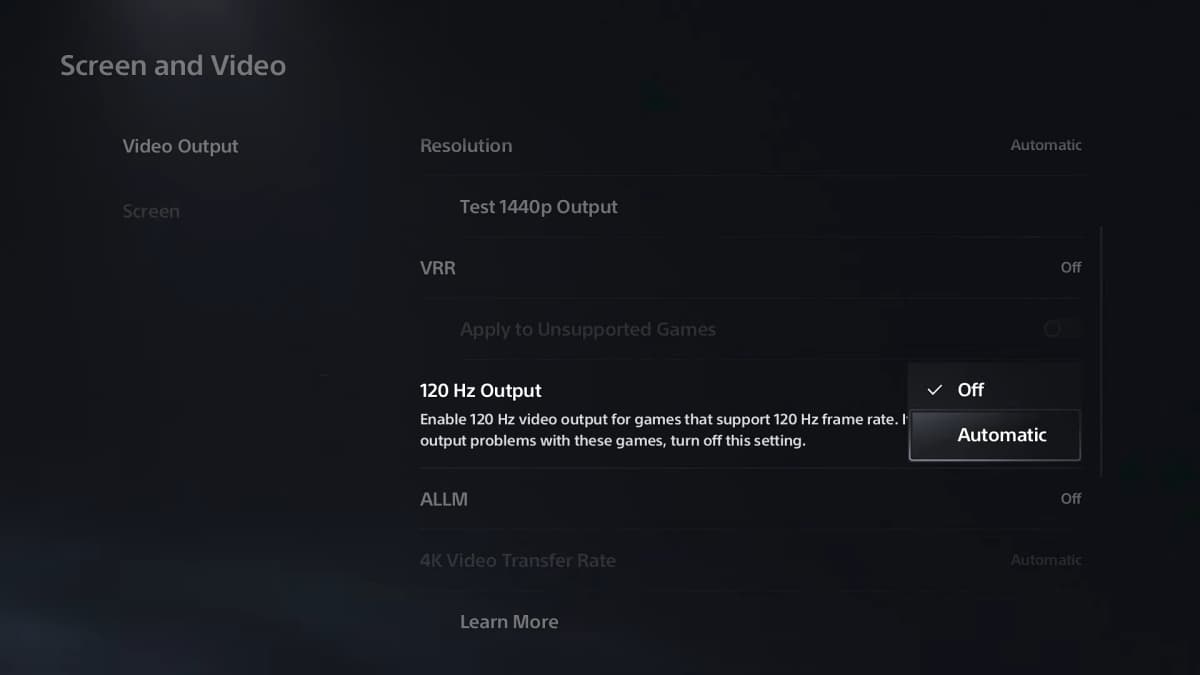
To make sure your PS5 is outputting the best resolution supported by your display, here’s what you need to do:
- Open Settings.
- Choose Screen and Video.
- Head to Video Output.
- Change Resolution to Automatic or choose 2160p if your display supports 4K.
- Set 120 Hz Output to Automatic.
Your work isn’t done here. Head into your monitor or television’s settings and make sure to enable features such as Game Mode. This can reduce input lag and make your gameplay feel even more responsive.
5. Customise your DualSense controller settings
GTA 6 is taking full advantage of the PS5, particularly its adaptive triggers and haptic feedback. The adaptive triggers will make different in-game actions feel more realistic, whether you’re firing weapons or getting involved in intense car chases. On the other hand, the controller’s haptic feedback will allow you to feel the impact of bullets, explosions, vehicle collisions, and other in-game activities.
Do these features sound exciting? Obviously they do! However, you might want to adjust your controller settings and find the right balance between comfort and immersion. After all, GTA 6 can take hours to complete; the last thing you want to experience is controller fatigue.
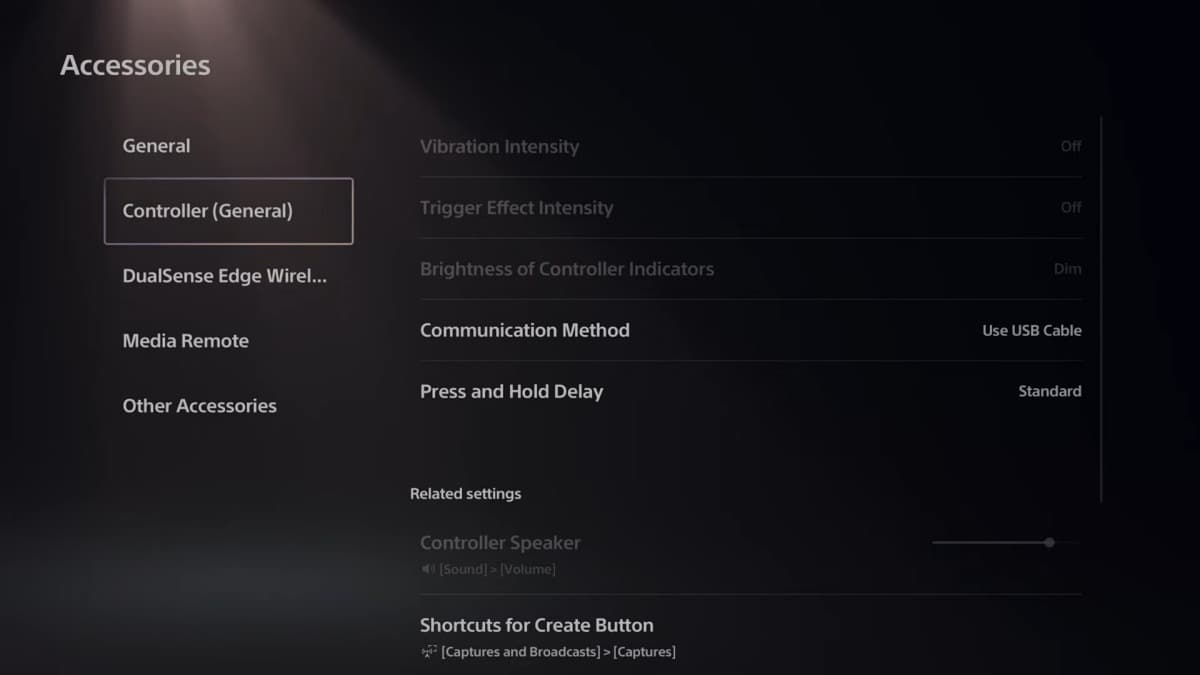
So, here’s how you can customise your DualSense settings on the PS5:
- Open Settings.
- Head to Accessories.
- Choose Controller (General).
- Adjust the Vibration Intensity and Trigger Effect Intensity.
- You can also change the brightness and volume of the controller.
This setting ultimately comes down to personal preference. If you’re someone who finds adaptive triggers distracting, especially during driving or combat scenes, it’s a good idea to lower the intensity for a more comfortable experience. However, if you want to make the most of the DualSense’s immersion, keep both Trigger and Vibration Intensity high.
Wrapping up
Getting your PS5 ready for GTA 6 doesn’t require a complicated setup. Enabling HDR where supported, configuring 3D Audio, checking your display output, and adjusting DualSense feedback can help you get the most out of the game’s PlayStation features.
Just remember that selecting Performance Mode won’t turn GTA 6 into a 60 FPS experience, as Rockstar has confirmed a 30 FPS target for current-generation consoles.
You should also prepare your console by checking the reported GTA 6 PS5 file size and freeing up enough storage before launch. If you’re planning to play as soon as the game becomes available, check the GTA 6 global release times for your region. And if you haven’t purchased the game yet, here’s how to pre-order GTA 6 on PS5 and Xbox.