
Best Live Wallpaper Apps for iPhone in 2026 (Free & Paid Picks)
iGeeksBlog is supported by its readers. When you buy through links on our site, we may earn an affiliate commission. This doesn't affect our editorial independence.
Bring your iPhone Lock Screen to life with the best live wallpaper apps. Discover top picks for stunning animations, easy setup, and custom designs made from photos or videos.
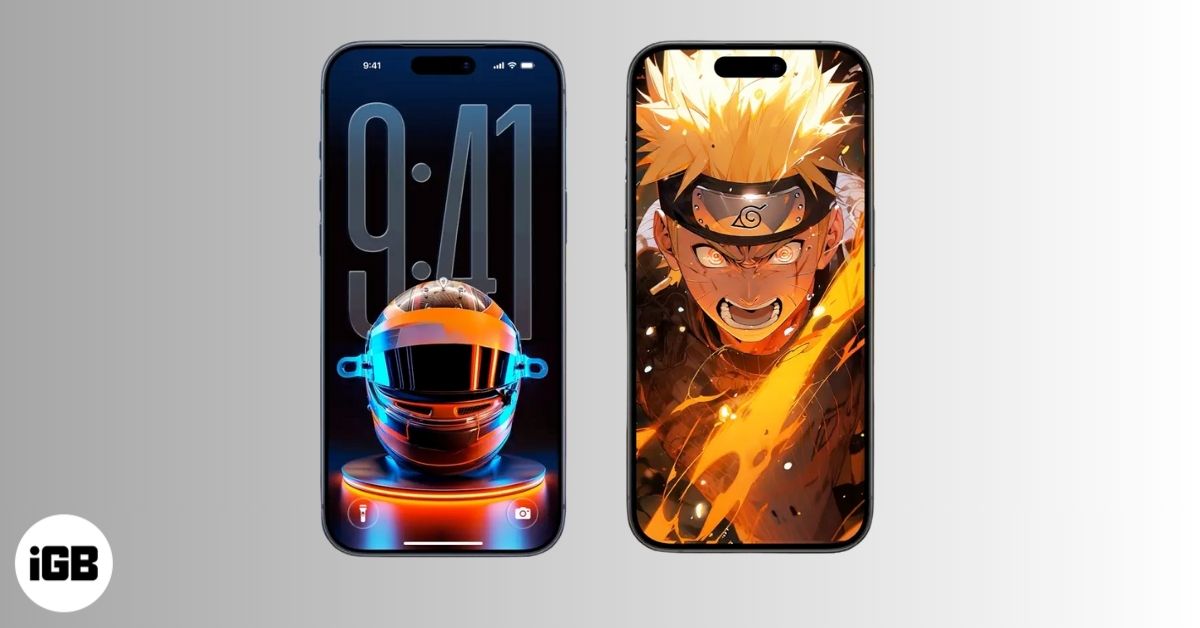
Let’s be honest. Static wallpapers are starting to feel a bit dated. You check your iPhone dozens of times a day, so it makes sense to give it a screen that feels alive. That’s where live wallpapers come in. They add motion, depth, and personality to your Lock Screen.
In this guide, you’ll find the best live wallpaper apps for iPhone that deliver great visuals, simple setup, and options for every style. Whether you prefer minimal designs, bold animations, or custom creations made from your own photos and videos, there’s something here for you.
Best Features to Look for in a Live Wallpaper App for iPhone
Not all wallpaper apps are worth installing. Some look great in previews but end up blurry, laggy, or overloaded with ads. Here’s what actually matters.
- High-quality animations: A good live wallpaper should look sharp and smooth on your iPhone. No pixelation, no stuttering, just clean animation.
- Customization options: The best apps let you adjust animation effects, widgets, clock styles, text overlays, and more.
- Ease of use: You should not need a tutorial just to set a wallpaper. A good app makes the process quick and straightforward.
- Regular updates: Fresh wallpapers keep your phone feeling new. Apps that update often are more enjoyable over time.
- Free vs. paid value: Many apps offer limited free access with optional premium upgrades. Make sure the paid features are actually worth it.
8 Best Live Wallpaper Apps for iPhone in 2026
Here are the top live wallpaper apps you can try on your iPhone.
1. MyScreen – Live Wallpapers: Trendy, Aesthetic Lock Screens
MyScreen is packed with stylish, modern designs, ranging from neon art to trippy live wallpapers that work well with iOS Lock Screen features. You also get Spatial Scene wallpapers, an AI wallpaper generator, and charging animations.
Why people love it:
- Huge variety of animated backgrounds
- Lock screen styles with matching widgets and keyboards
- Seasonal and trending collections
- Easy one-tap saving
Downside: Some of the best designs require a premium subscription.
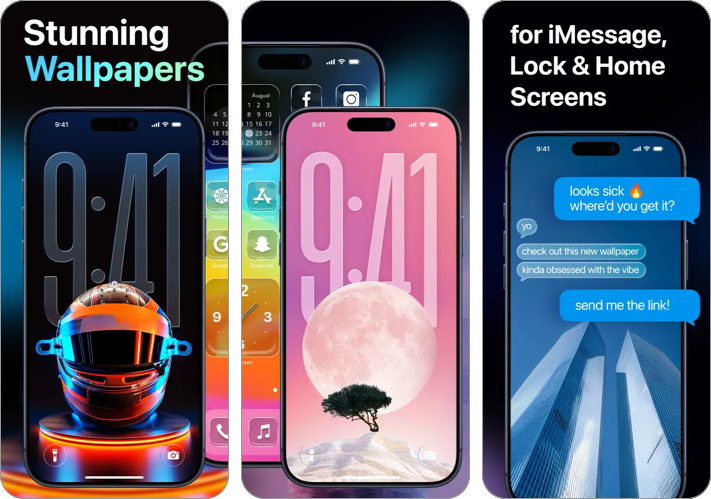
2. WallCraft – Wallpapers, live: Ultra-high-quality 4K Backgrounds
WallCraft focuses on sharp visuals. If you dislike blurry wallpapers, this app is a strong choice. It offers clearly organized categories, making it easy to browse and set wallpapers in just a few taps.
Highlights:
- 4K and high-resolution animated wallpapers
- Categories like space, abstract, and nature
- Optimized for different iPhone screen sizes
- Clean, simple interface
Keep in mind: The free version is limited. Most live content is unlocked with the premium plan.
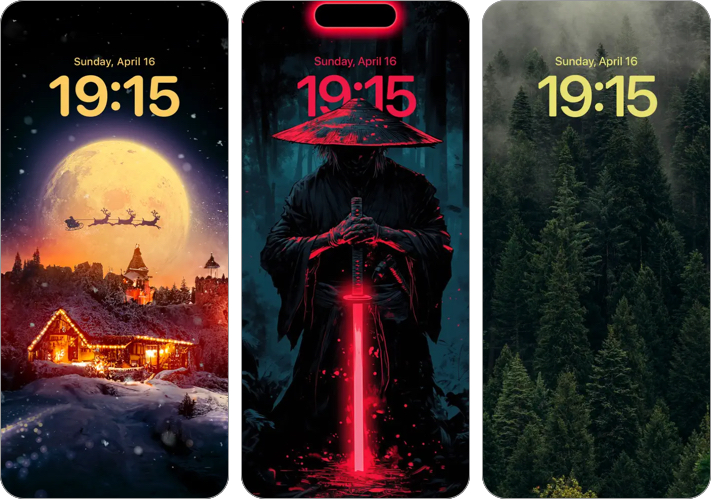
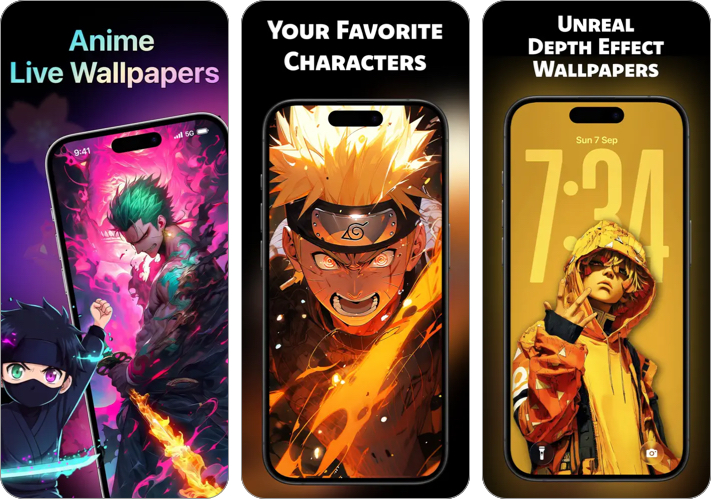
3. Anime Wallpaper Live: Best for Anime Fans
If you enjoy anime characters and dramatic animated scenes, this app delivers exactly that. It offers a constantly growing collection from trending anime series to classics like Naruto and One Piece. You also get high-quality Depth Effect wallpapers.
Features:
- Wide collection of animated anime scenes
- Regularly updated library
- Strong colors and dynamic effects
Watch out: Some designs can feel visually busy and may clash with Lock Screen notifications.
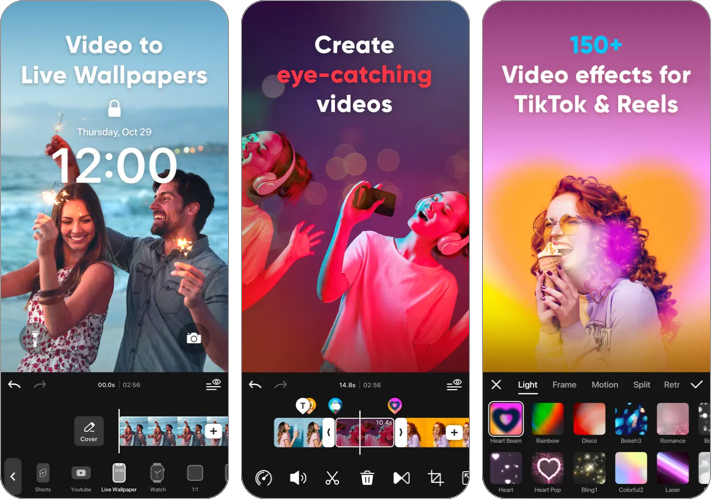
4. intoLive – Live Wallpapers: Turn Your Live Photos into Wallpapers
intoLive focuses on personalization rather than pre-made designs. It lets you convert videos and Live Photos into animated Lock Screen wallpapers. You get a wide range of effects, text styles, and editing tools to make each wallpaper stand out.
What makes it special:
- Turn any video into a live wallpaper
- Filters, speed controls, and effects
- Trim videos for smooth looping
- Great for pets, travel clips, and memories
Limitation: Most features are centered on video editing rather than browsing ready-made wallpapers.
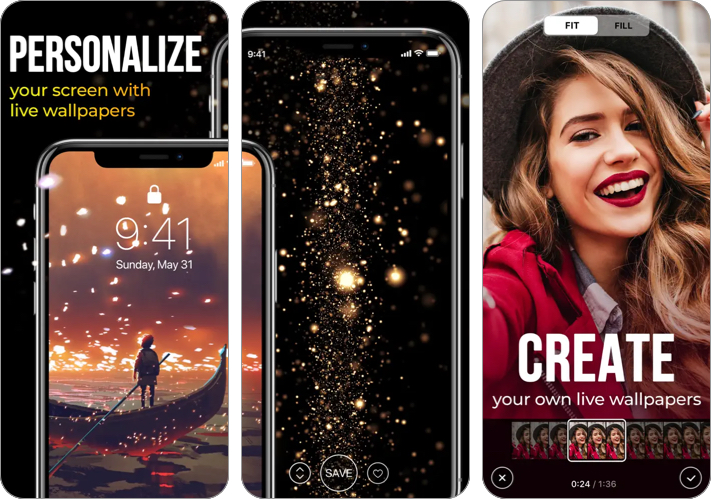
5. Live Wallpapers for Me: Classic Wallpaper Styles
This app has been around for years and focuses on popular live wallpaper themes like time-lapse scenes and abstract motion. The library is updated weekly with new dynamic themes, and you can also create custom live wallpapers from your videos.
Why it stands out:
- Large, well-organized library
- Smooth looping animations
- Simple setup process
Drawback: The interface feels slightly dated compared to newer apps.
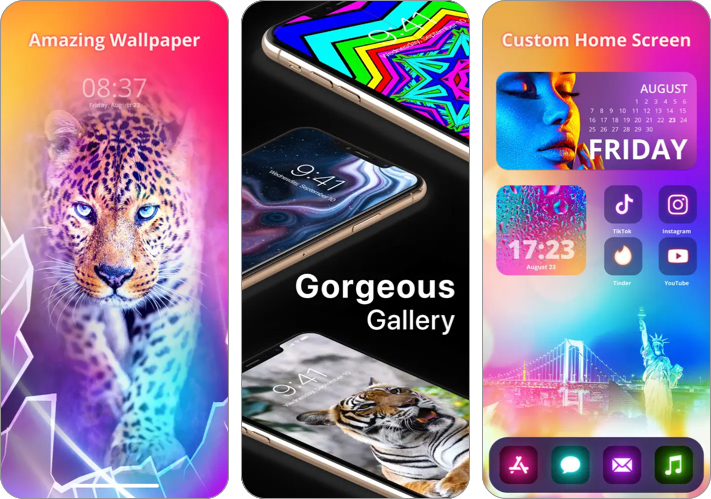
6. Cool Live Wallpapers Maker 4K: Creative Custom Designs
This app works as both a wallpaper gallery and a design tool. You can set your own videos as live wallpapers and customize your screen with animated effects and colorful widgets. Its Color Search feature scans objects and suggests matching live themes.
What you get:
- Built-in animation effects
- Custom color controls
- Unique, eye-catching motion styles
Best for users who: Want something different from standard nature or abstract loops.
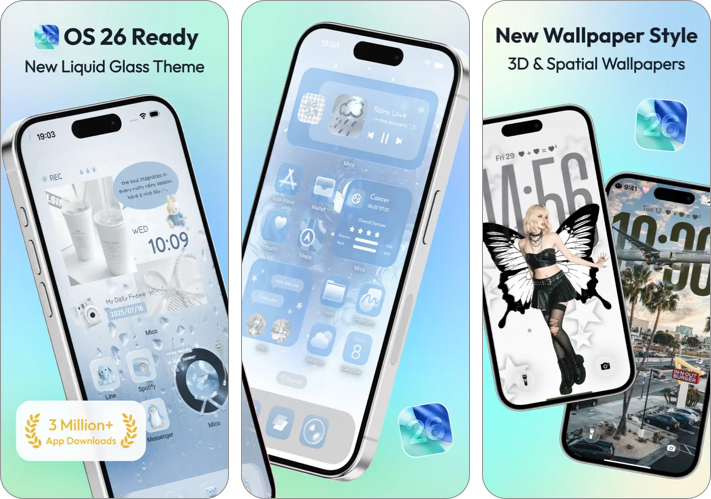
7. Mico – Widget & Live Wallpaper: Latest OS Themes
Mico combines animated wallpapers with matching widgets so your clock, battery, and overall aesthetic stay consistent. The wallpaper generator includes templates like Polaroid frames, heart collages, and flip cards. It also offers Liquid Glass–style themes inspired by iOS 26.
Top features:
- Coordinated lock screen themes
- Cute, aesthetic designs
- Easy customization
Great choice if: You want a full Lock Screen makeover, not just a wallpaper.
8. WallPics: 8K Quality Live Wallpapers
WallPics offers ultra-high-quality animated live wallpapers, including options labeled up to 8K. You can browse a large collection, create custom wallpapers with text and graphics, add charging animations, and use stylish photo widgets for a complete visual refresh.
Why it’s useful:
- Use personal memories as live backgrounds
- Collage and layout tools
- Subtle animation styles
Perfect if you prefer meaningful wallpapers over generic designs.

How to Set a Live Wallpaper on iPhone (Step-by-Step Guide)
Once you’ve picked a wallpaper, here’s how to apply it.
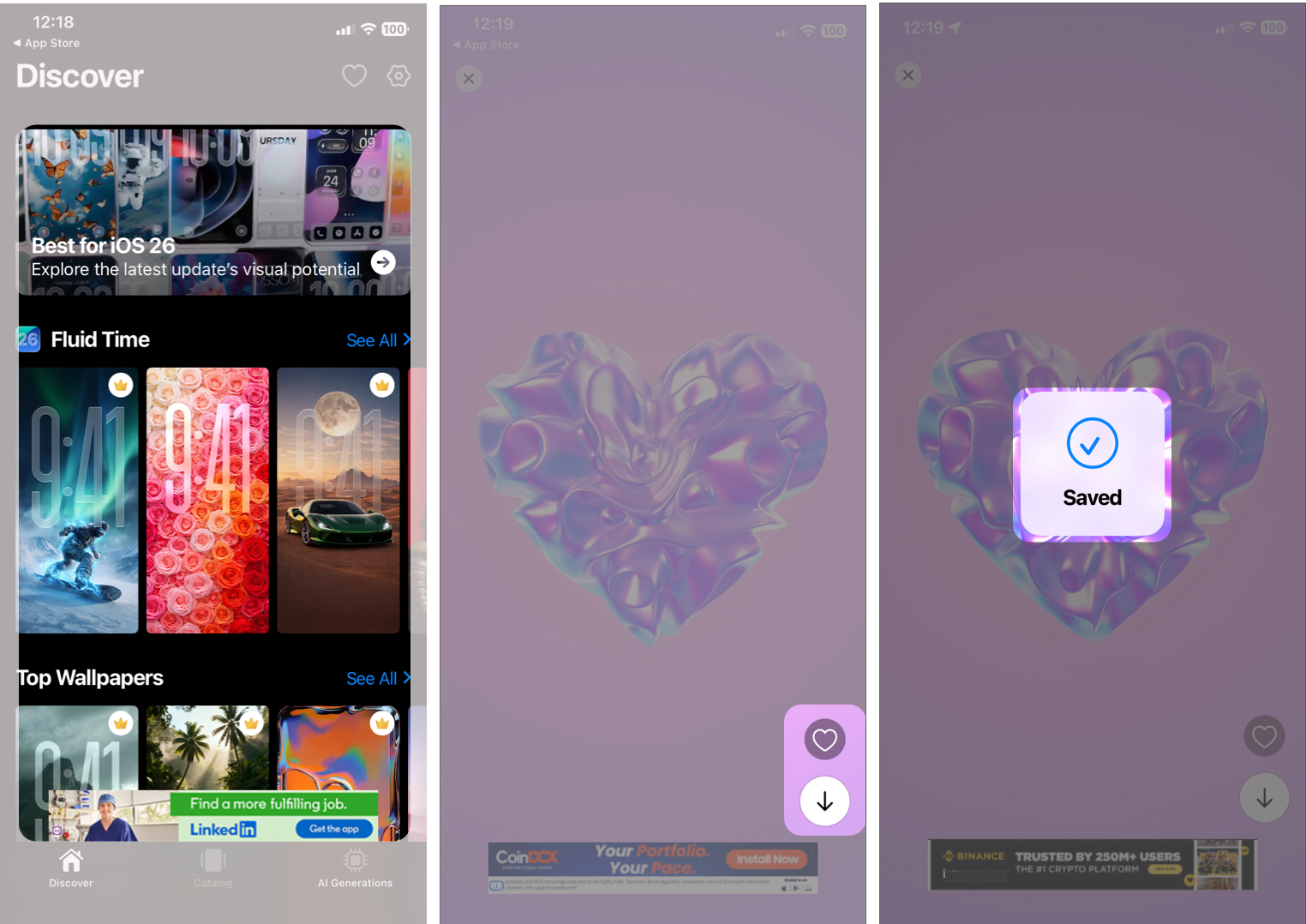
- Open the wallpaper app and move to the Live Wallpaper section.
- Choose a wallpaper you like and see its animation preview.
- Tap the download or Save button.
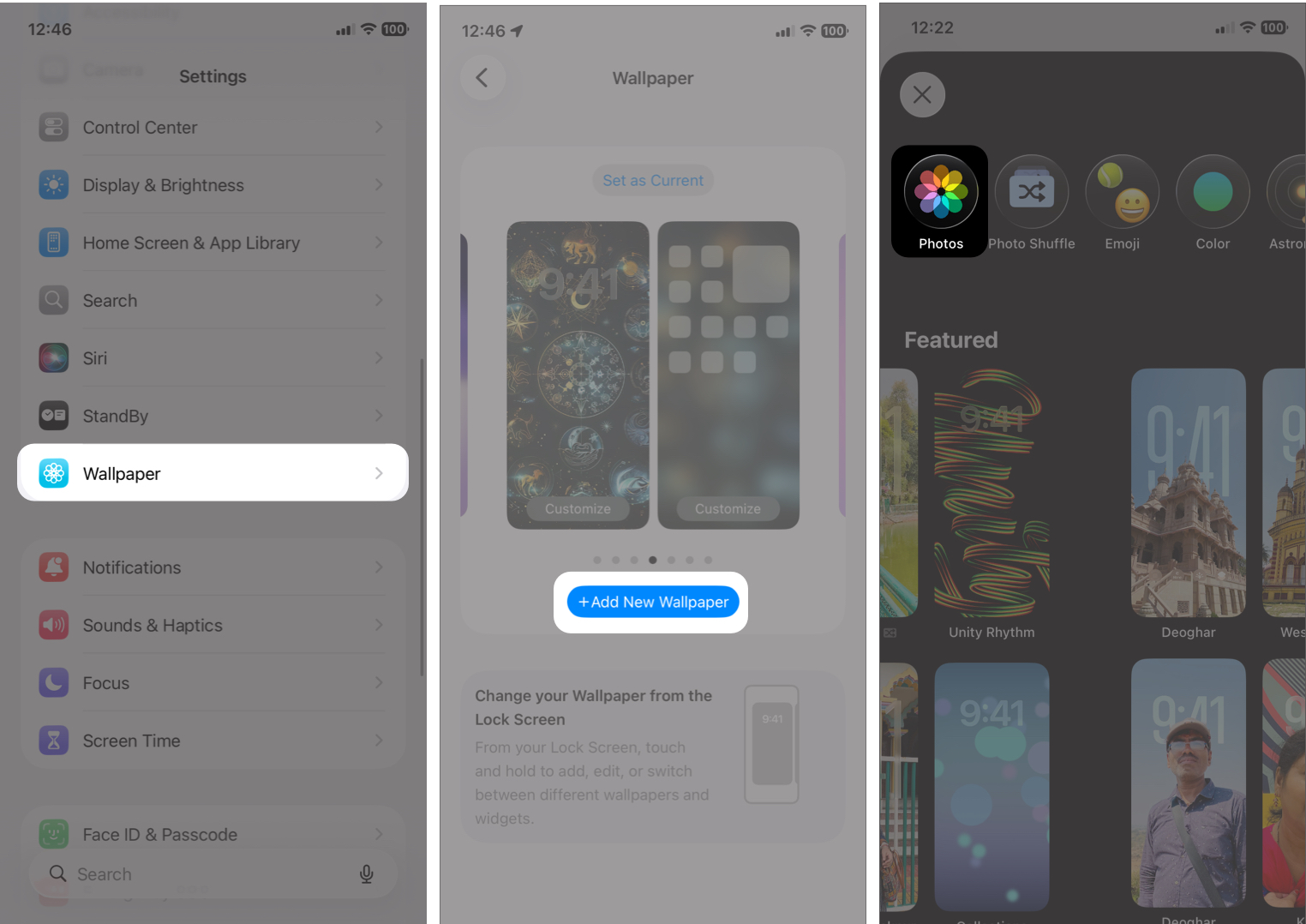
- Go to Settings > Wallpaper > Add New Wallpaper.
- Tap Photos at the top and go to All tab.
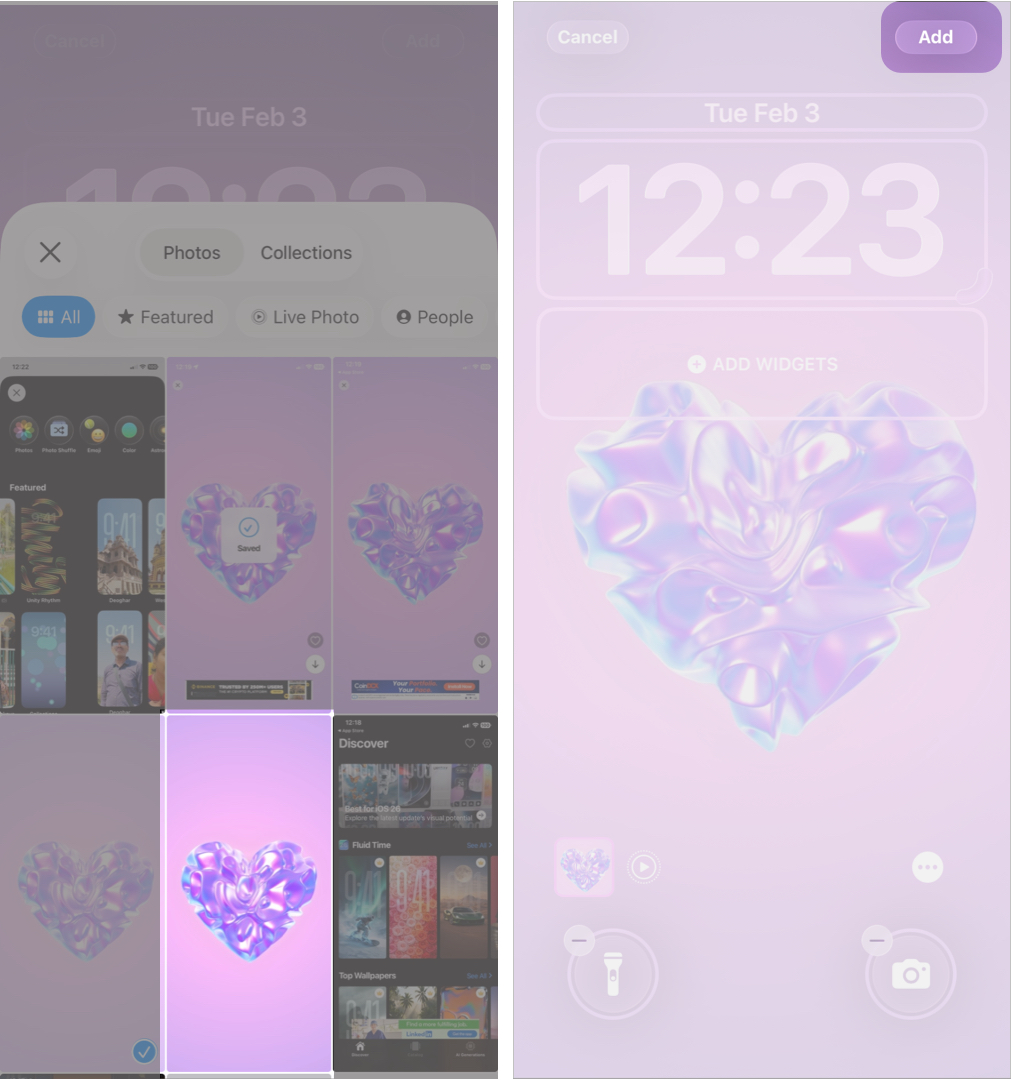
- Now, select the wallpaper you downloaded.
- Ensure the Live Photo icon is enabled, and tap Add.
- Tap Customize Home Screen to set it as your Lock Screen.
- Light up your Lock Screen to see the animation.
Common Live Wallpaper Issues on iPhone (And How to Fix Them)
| Issues | Live wallpaper is not moving |
| The live wallpaper is not moving | Make sure Live Photo is enabled when applying the wallpaper. Also, animation only appears when you wake up your iPhone. |
| Wallpaper looks zoomed in | Adjust and reposition before saving. Some apps let you crop or scale. |
| Animation laggy | Choose simpler designs and close background apps. |
Tips to Get the Best Live Wallpaper Experience on iPhone
Live wallpapers are easy to apply and use on your iPhone. Here are some simple tips to improve your experience.
- Use live wallpapers mainly on the Lock Screen.
- Lower animation intensity for better battery life.
- Avoid cluttered designs if you rely on notifications.
- Try different styles, such as minimalist, animated art, or personal videos, to match your preferences.
Final Thoughts
Live wallpapers are one of the easiest ways to make your iPhone feel fresh again. Whether you want calming motion, bold animations, or personal memories on your Lock Screen, there’s an app that fits your style.
If you prefer ready-made aesthetics, apps like MyScreen and WallCraft are solid choices. For deeper personalization, intoLive and WallPics stand out.
Frequently Asked Questions
Missed This? Check It Out
Topics

Written by
Ava BiswasAva is a die-hard Apple aficionado and seasoned writer with a knack for breaking down complex tech concepts into easily digestible content. Having honed her writing and editing skills over 4 years at renowned media houses like TechBurner, Ava crafts informative and engaging articles including troubleshooting guides, product reviews, editorials at iGeeksBlog. When not typing, you can find her exploring the latest Apple releases or pondering the future of tech innovation.
View all posts →More from Apps
Today’s Apps Gone Free on The App Store
Snag top paid apps now FREE on the App Store: Games, tools, and more! Hurry before the deals disappear!
 Dhvanesh AdhiyaFebruary 27, 2026
Best Mac Apps You Should Install in 2026
Upgrade your macOS experience with the best Mac apps. Explore our top picks for productivity, organization, and creativity. Enhance your workflow now!
 VikhyatFebruary 27, 2026
Best Snapchat Filters and Lenses to Make Your Snaps Stand Out
From trending AR lenses to timeless face filters, these Snapchat effects will help your snaps grab attention and stand out in any chat or Story.
VikhyatFebruary 27, 2026