
Apple TV got a blinking light? Here’s how to fix it!

You’ve got the popcorn, the drink, and the lights dimmed. You are ready for an evening of shows on Apple TV. Suddenly, you notice a blinking light on a black screen, and you’re unable to turn on your Apple TV. What’s going on?
In this article, I’ll explain what the Apple TV blinking light means and how you can fix it.
What does the blinking light on the Apple TV indicate?
Known as the Flashing White Light of Death, that blinking light on your Apple TV isn’t just annoying but keeping you from watching your favorite shows. If you see that light, you would probably be unable to turn on the Apple TV at all and remain stuck with a black screen.
Most times, the blinking light is the result of a failed firmware update. This could be because of an unsuccessful download of the update or a power glitch during installation.
Luckily, fixing this issue isn’t difficult, and you’ll be tuning into that awesome show or movie in no time.
2 Ways to fix the blinking light on Apple TV
In most cases, restarting your Apple TV will fix the blinking light issue. You can do a simple force restart of your Apple TV using your remote. If this doesn’t work, you may need to restore your Apple TV using your computer. So, be sure you have your remote, computer, and necessary cables handy.
1. Force restart your Apple TV
You can force restart your device using your Apple TV remote in just a few steps.
- Depending on the remote you own, hold the Menu and TV buttons or Back and TV buttons at the same time for at least five seconds. Then, release.
- When you see the Apple TV LED light flash, unplug the device from the outlet.
- Wait at least 5 seconds and then plug the device back in.
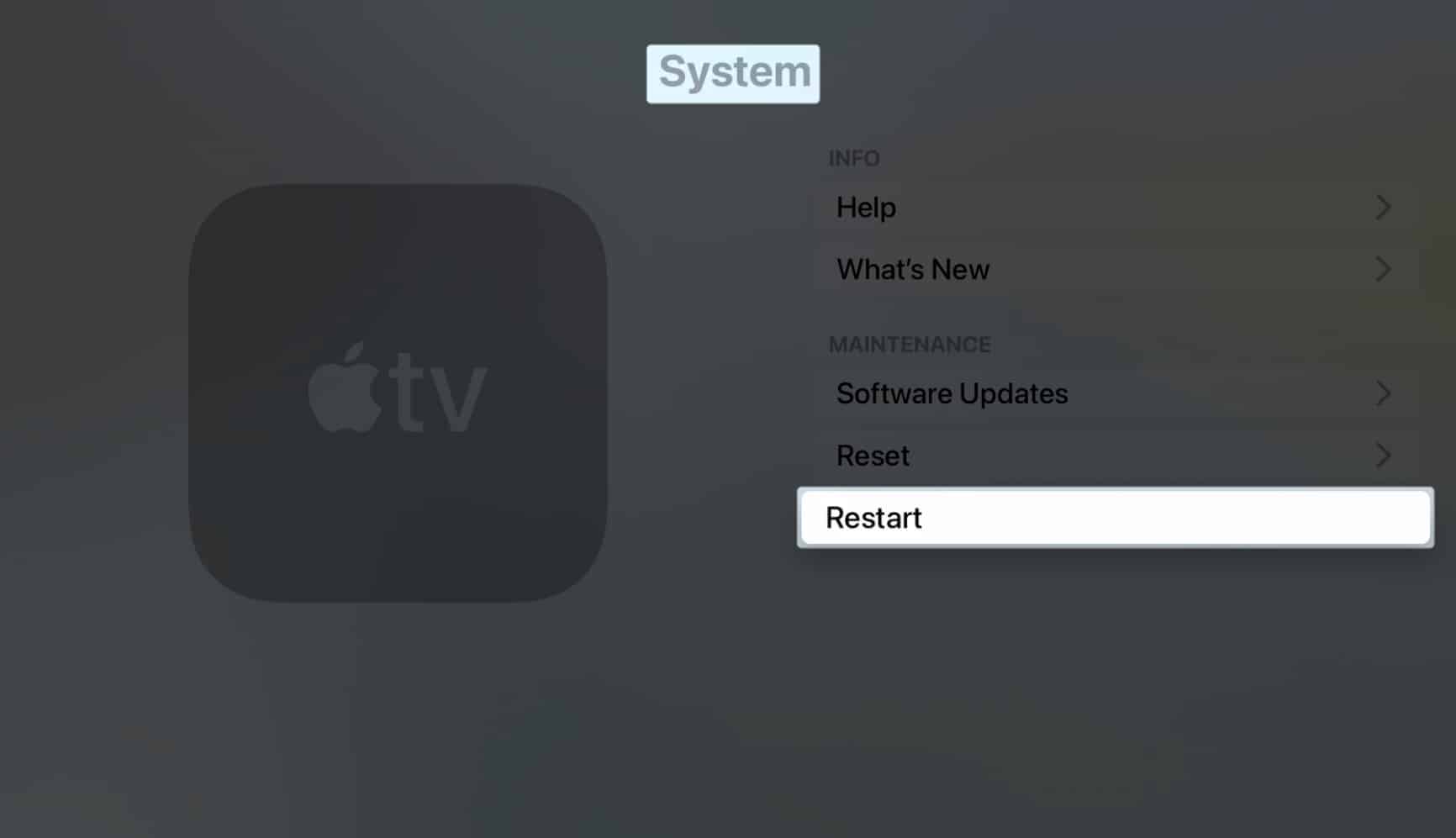
- After your Apple TV turns back on: Open the Settings → Go to System → Select Restart.
2. Restore your Apple TV
If force restarting your Apple TV doesn’t fix the issue, you may need to restore the device using Finder or iTunes, depending on your computer and operating system.
Note:
You cannot do this manually if you have an Apple TV 4K. In such a case, contact Apple Support for assistance.
- Disconnect the HDMI cable from your Apple TV.
- Then, connect the Apple TV to your computer using a micro-USB or USB-C cable, depending on your device model.
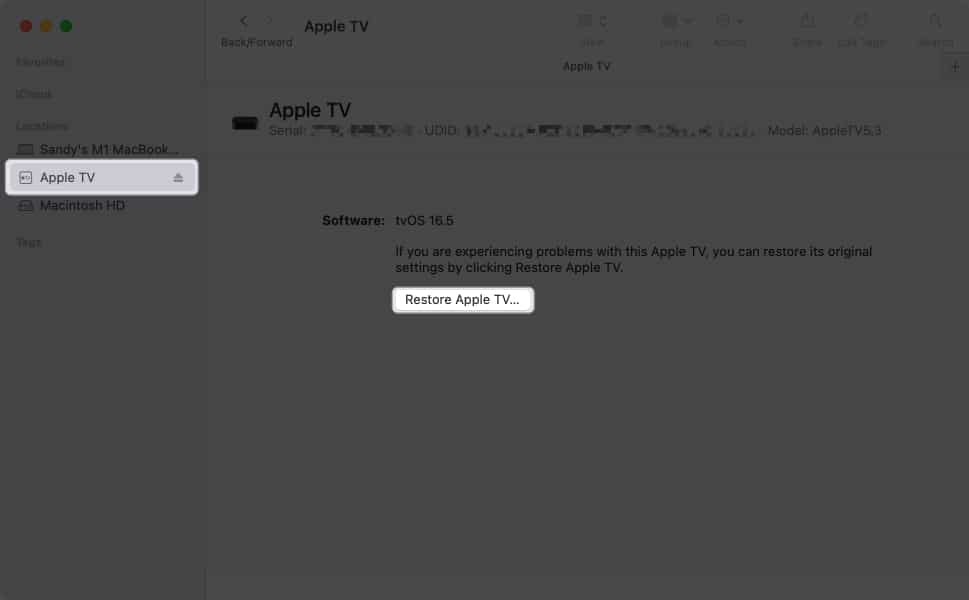
- On macOS Catalina or later, open Finder. On earlier versions of macOS or Windows, open iTunes.
- Select your Apple TV in the navigation → Choose Restore Apple TV. Then, follow the onscreen prompts to complete the process.
- Once complete, eject and disconnect your Apple TV from your computer and reconnect the HDMI cable.
Get your Apple TV back!
The Flashing White Light of Death on Apple TV is scary but fixable. If you continue to have issues or different problems with your Apple TV, contact Apple Support for further assistance.
For more, look at our big list of Apple TV tips and hidden features.
Read more:
Topics

Written by
SandySandy relishes crafting how-tos, listicles, and explainers, empowering others to unlock the full potential of their Apple devices. She joined iGeeksBlog in 2023, and her decade-long experience in tech writing shines through, starting with Apple products in 2015 and further enriched by collaborations with prestigious publications like Lifewire, How-To Geek, Digital Trends, iDownloadBlog, MakeUseOf, groovyPost, and AppleToolbox.
View all posts →More from Apple TV
New Shows and Movies Coming to Apple TV in March 2026
Apple TV is packed this March! Explore all the new movies and shows releasing in March 2026 and what’s coming next on the streaming platform.
 Ava BiswasFebruary 25, 2026
How to Sign Out of Netflix: A Step By Step Guide
Secure your Netflix account by signing out of all devices you don’t use.
 Anoop VargheseFebruary 12, 2026
Best 4K TVs for Apple TV 4K in 2026
Upgrade your home cinema with the best 4K TVs. Explore top-rated models featuring stunning OLED displays, high refresh rates, and smart features for gaming and movies.
 Dhvanesh AdhiyaDecember 26, 2025