
How to use Waveroom to record and edit videos from any browser
iGeeksBlog is supported by its readers. When you buy through links on our site, we may earn an affiliate commission. This doesn't affect our editorial independence.
Detailed review of Waveroom: Record and edit videos seamlessly across browsers with ease and precision
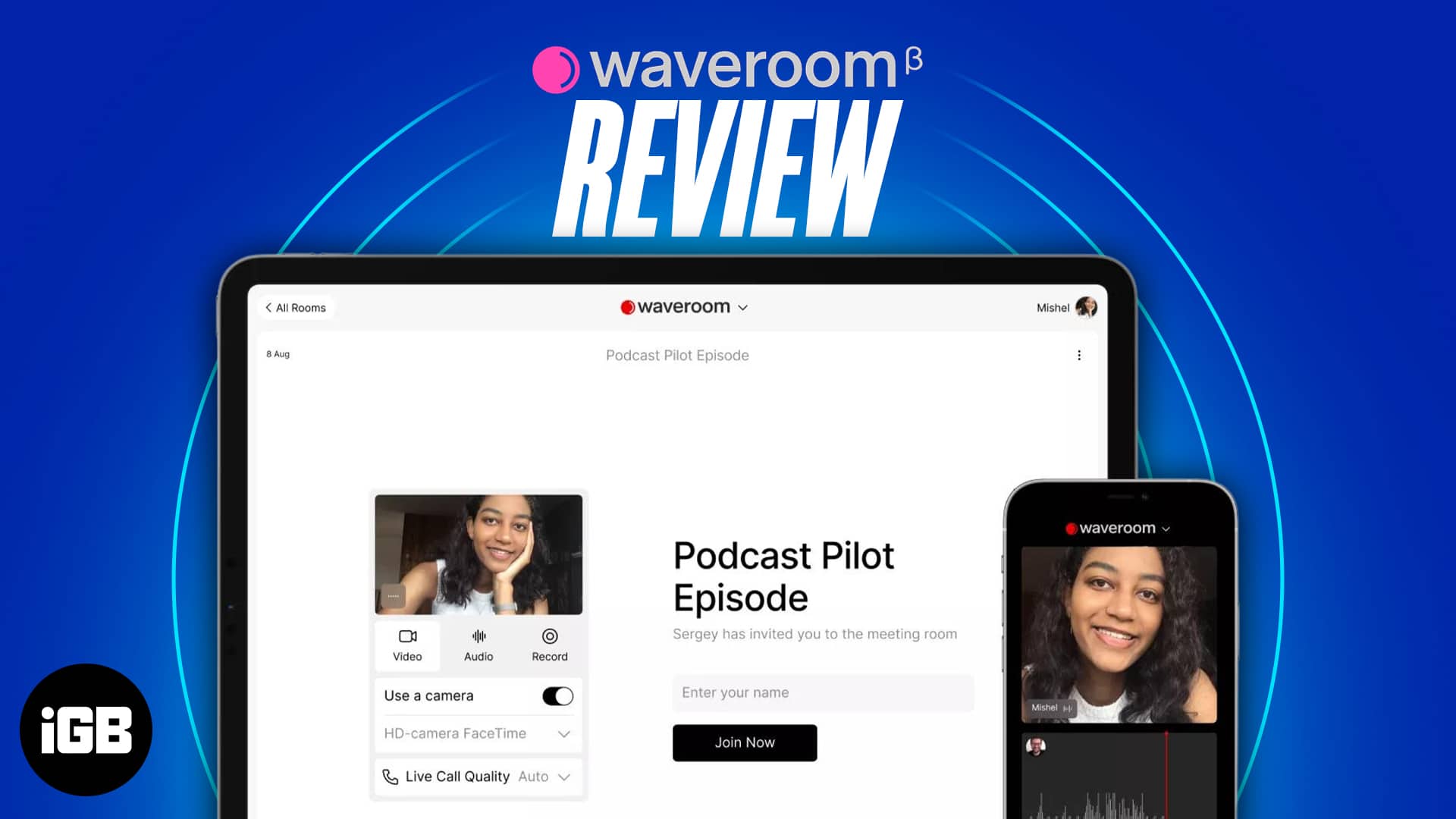
Waveroom is a tremendous virtual recording studio tool that lets you record and edit your video on the same platform.
- Easy-to-use interface
- High-quality video and audio recording
- Cloud storage for recordings
- More features could be added to the Premium version
Pricing: Premium – $10 | Free trial available
The importance of video calls has increased drastically over time, especially for team collaboration, learning, podcast recording, and more. When it comes to video conferencing apps, you’ll find a ton of apps available.
However, if you’re using those apps, you won’t get the best video and audio recording. As a result, you might end up with a bad video call recording that you might not use later. In such cases, you can use Waveroom to take your recording to the next level.
What is Waveroom?
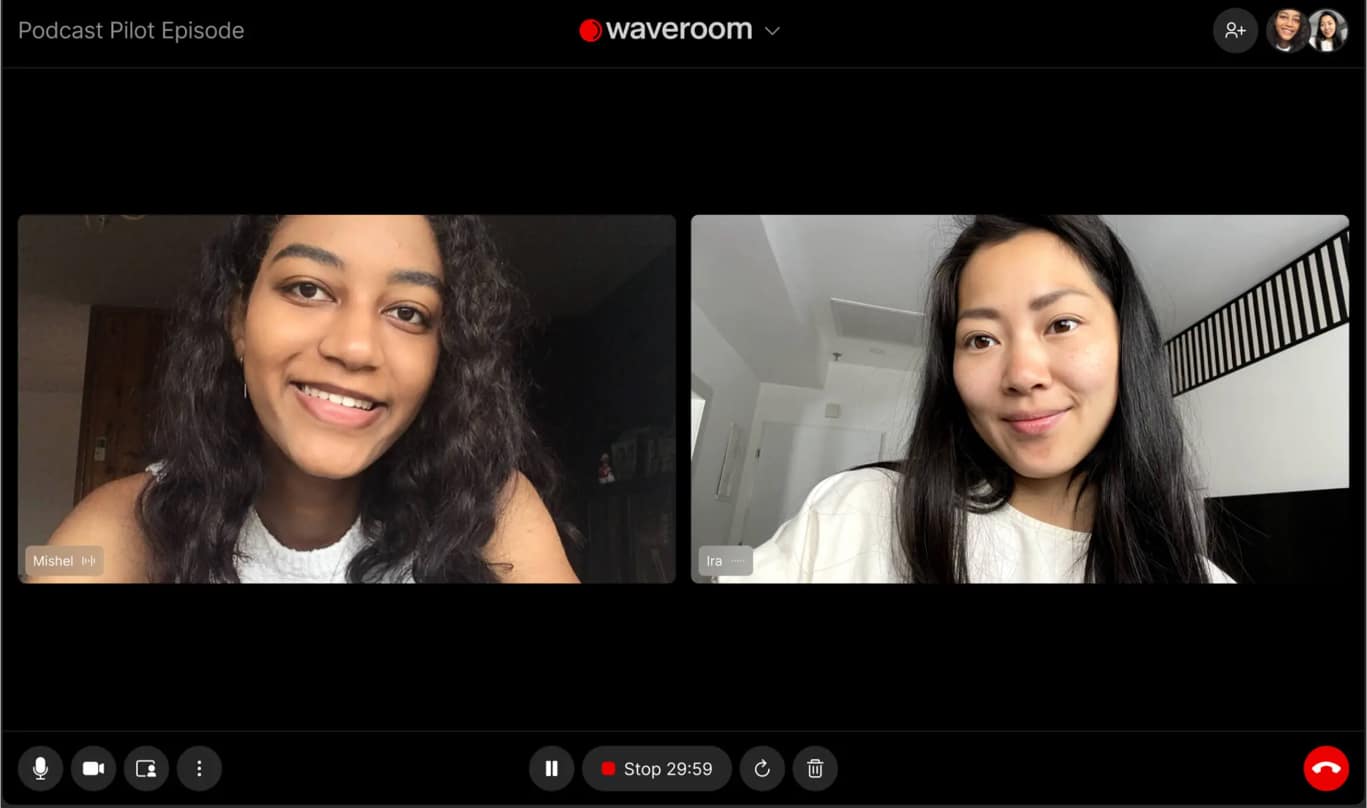
Waveroom is a next-gen virtual recording studio that lets you record and edit high-quality videos online without the need for external software. I tried Waveroom on my M1 MacBook in the Arc browser, and here is my review of the same.
Waveroom – Features and user interface
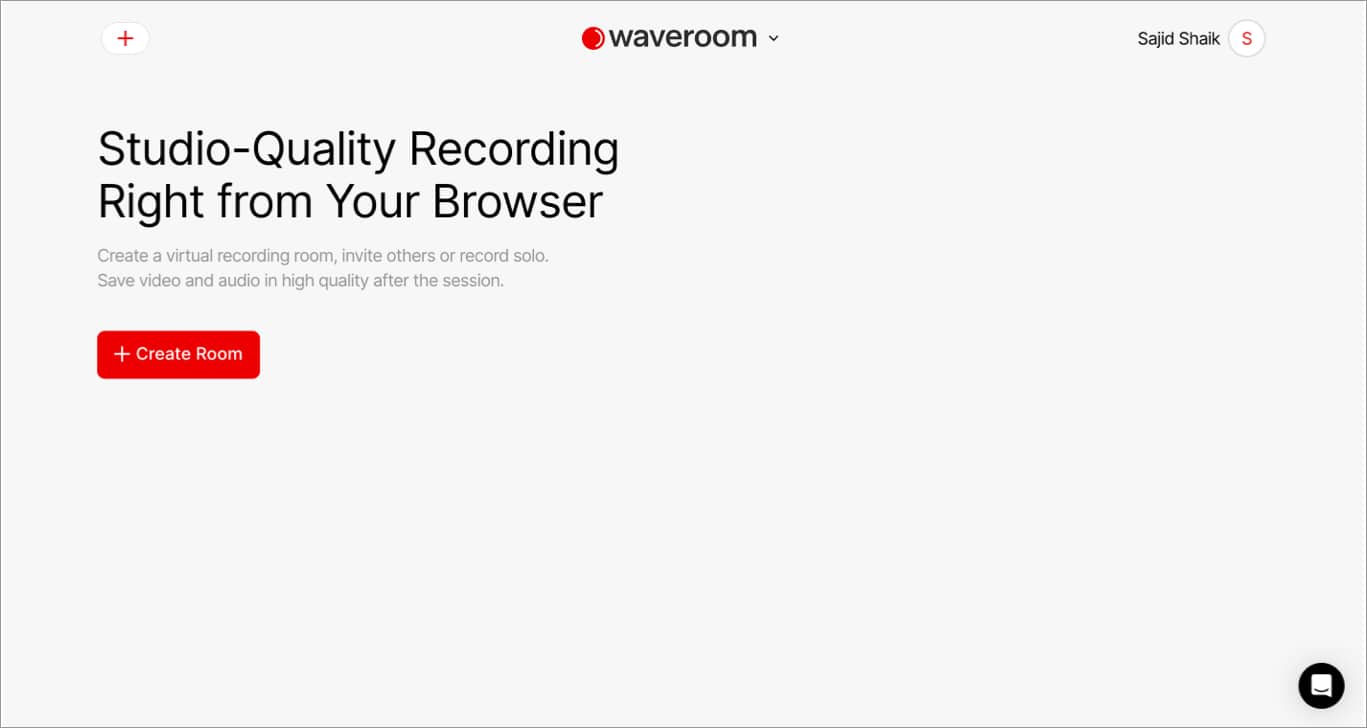
Waveroom is accessible via any web browser; you’ll need to create an account to use it. As soon as you log in to your account, you’ll see the option to create a new room to record the video call.
The user interface is minimal, and it won’t take long to understand the basics. If you’re familiar with other video conferencing apps, you won’t find using Waveroom challenging.
High-quality video and audio recording
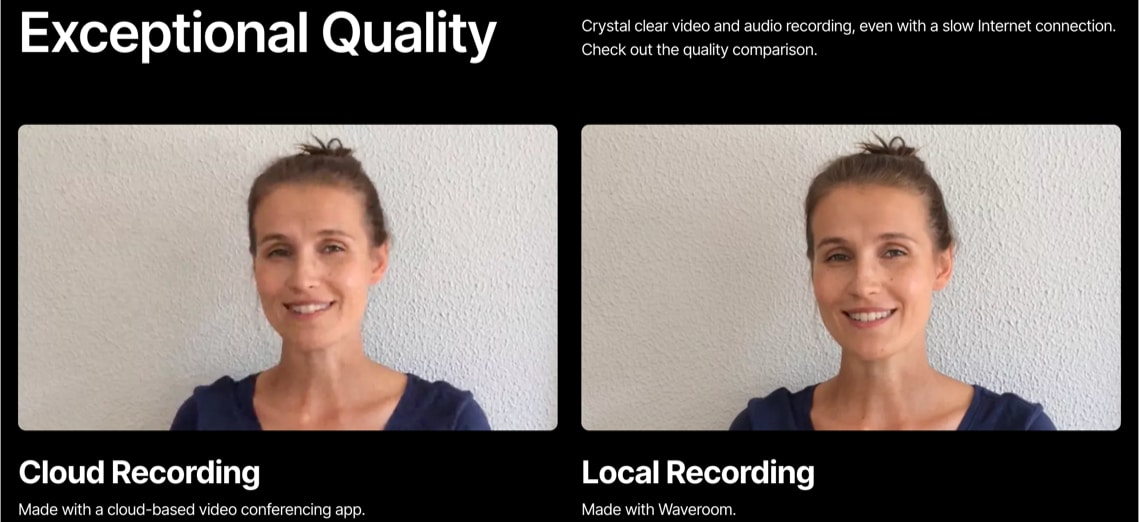
Most video call recording apps don’t allow you to record high-quality video and audio. Although there are a few exceptions, most of them are expensive. On the other hand, Waveroom offers high-quality video and audio recording up to 4K and 48KHz, respectively.
Once the recording is done, Waveroom will store the uploads in the same room you recorded so you can find them easily. Lastly, you can download the recordings once uploaded to the cloud.
Video editing tools
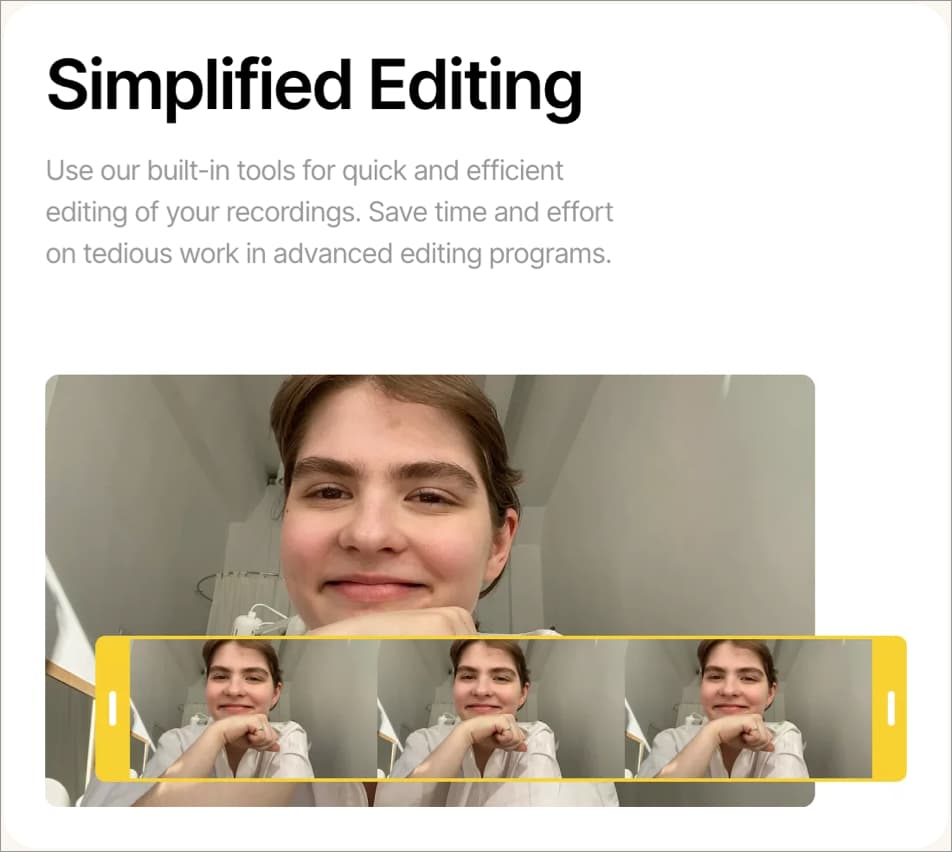
Waveroom plans to add video editing tools in the future, allowing you to edit your videos instantly right after the recording session. You’ll be able to cut, trim, and add effects to your video.
Noise and gap removal
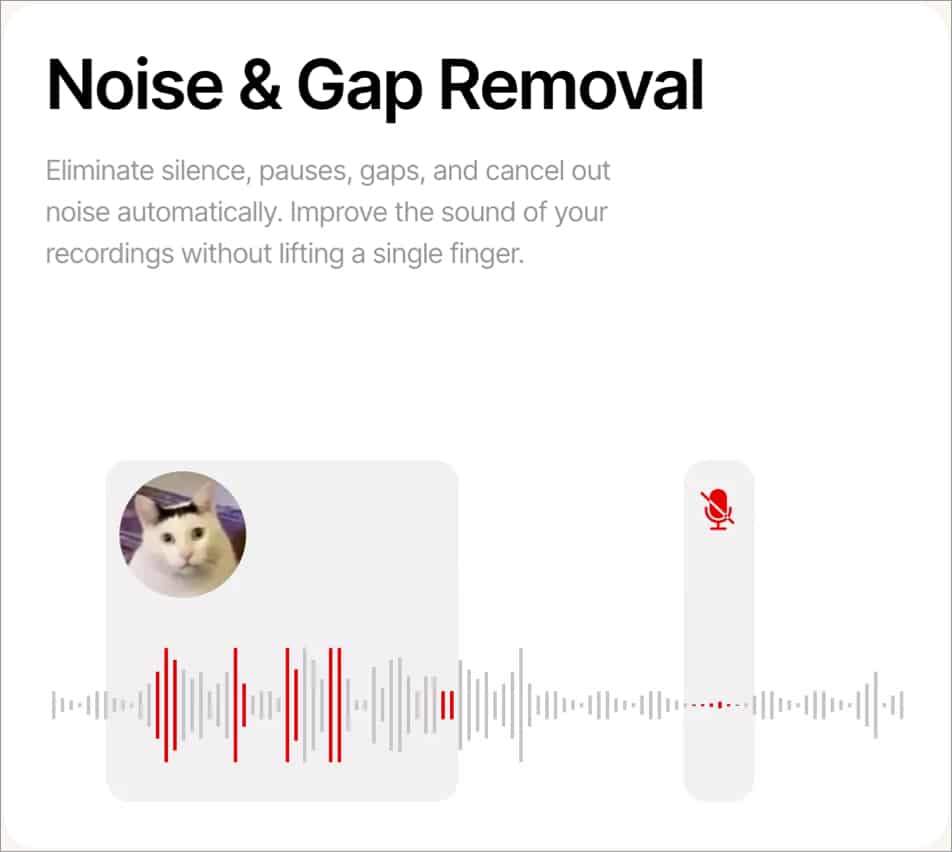
Noise and gap removal is another upcoming feature in Waveroom that removes pauses, gaps, silences, and unwanted noise from the video. It also enhances the existing audio to make it sound better.
How to use Waveroom on any browser
Using Waveroom is fairly easy compared to any other video conferencing tool. Here’s how you can create a room and start recording your video with Waveroom:
- Open Waveroom.com and log in with your account in any browser on your computer.
- Click the Create Room option.
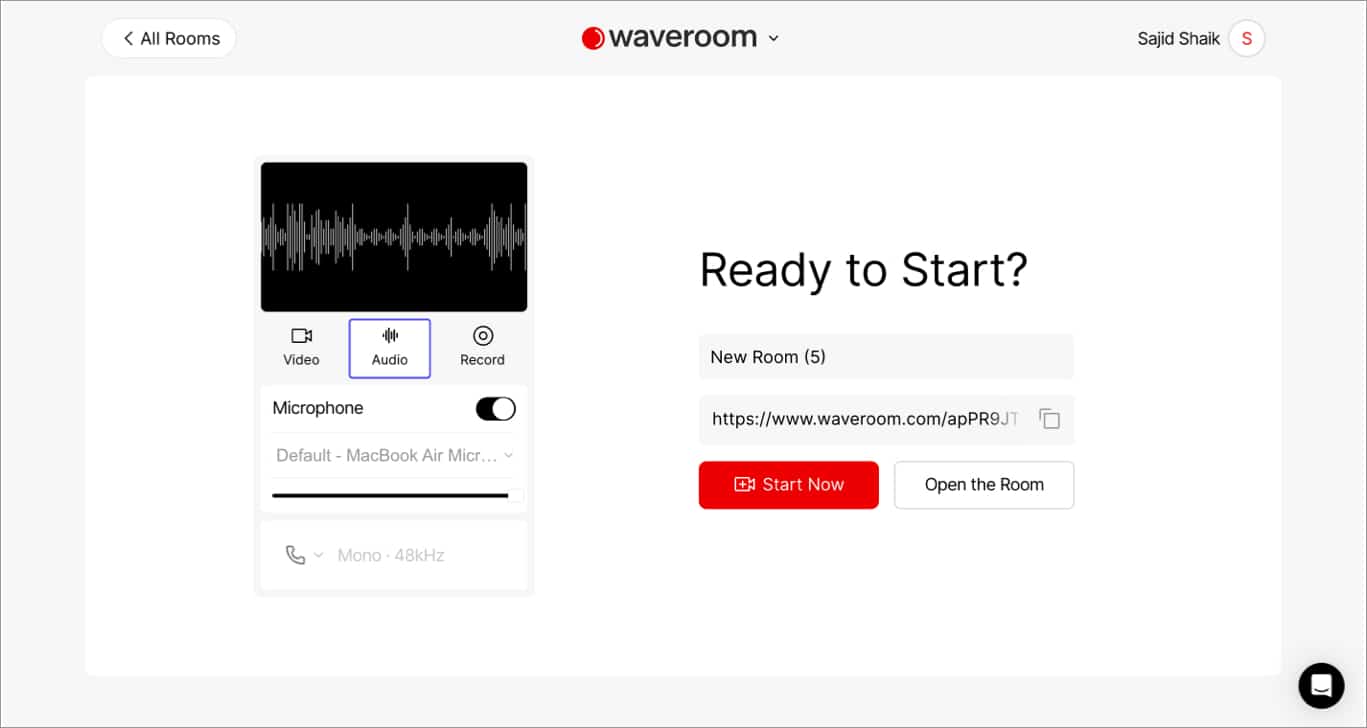
- Give a name to your room and configure the video, audio, and recording settings.
- Copy the link to the room and share it with the other person(s).
- Select the Start Now option when everything is ready.
- You can start recording the room by clicking the Record button once you’re in the room.
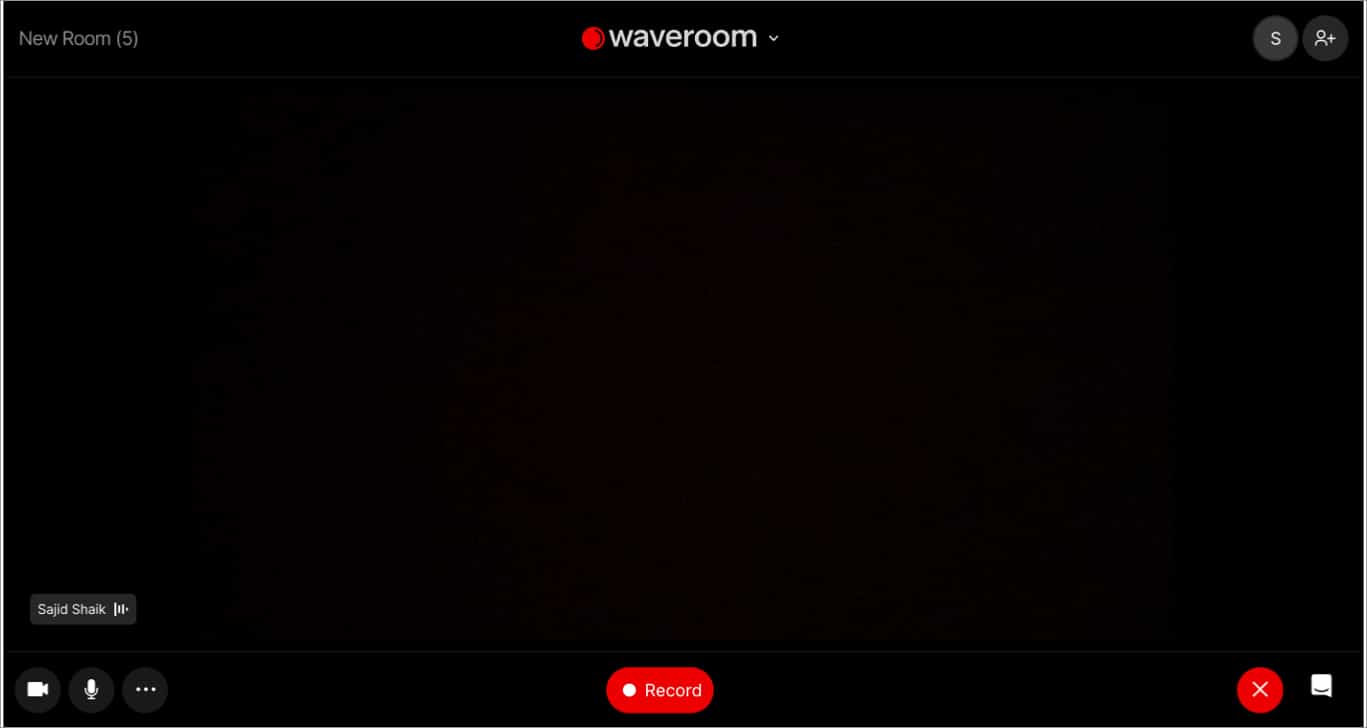
- Once done, click the Stop button to end the recording. The recording will start uploading to the room.
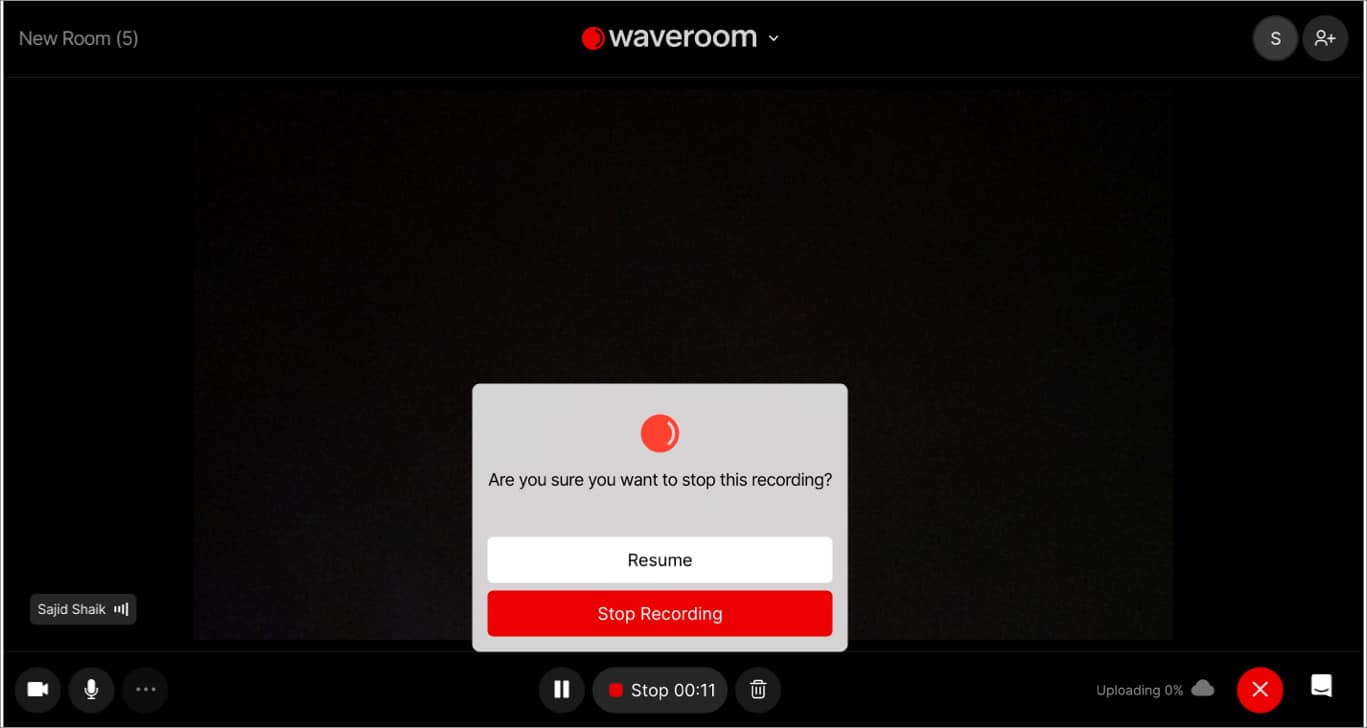
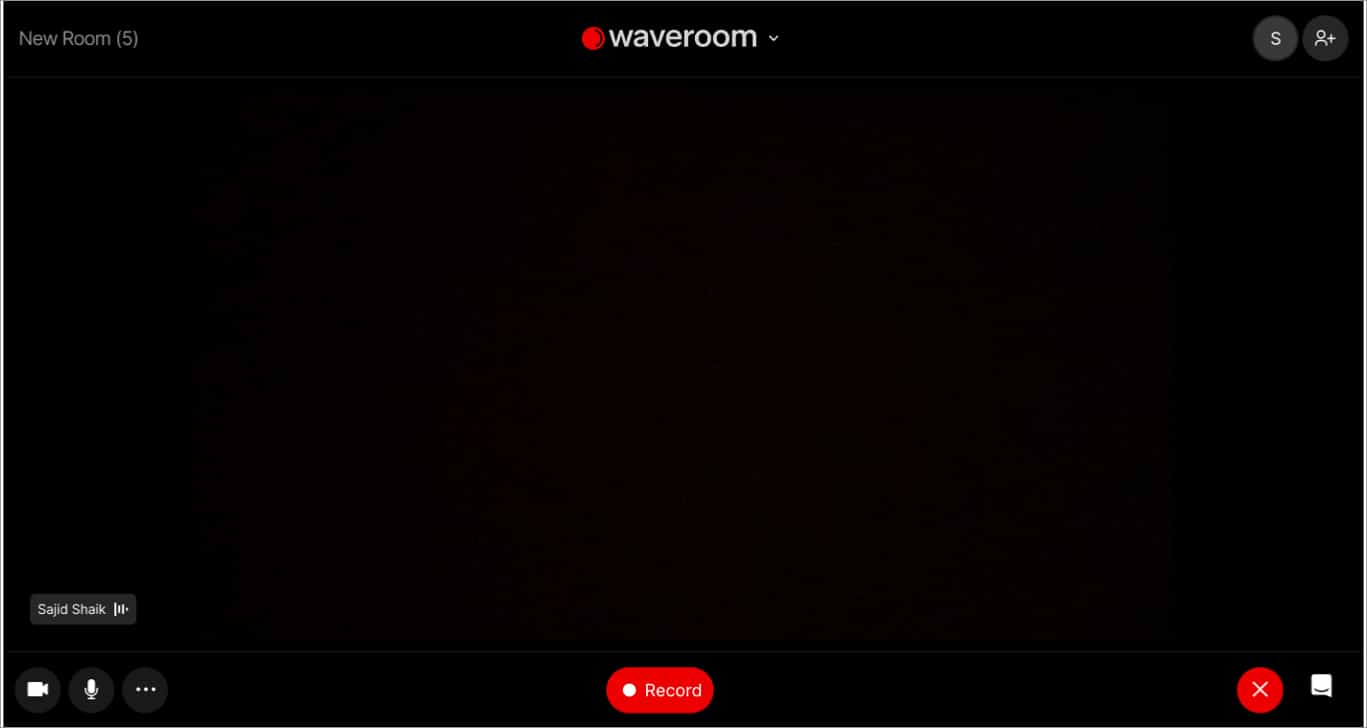
- Select the Cross (X) option to end the call.
Should you get Waveroom?
Waveroom is excellent for those who usually record many videos and save them for later purposes, and one such good example should be teachers. Provided that Waveroom is free for everyone to a reasonable extent, I would suggest you get Waveroom without a second doubt.
However, note that Waveroom is in beta, and some features are yet to arrive. As a result, you can record videos up to 1080p for now, but the team is working on bringing 2K and 4K options soon.
Pricing
Regarding pricing, you get 120 minutes of free recording when you sign up on Waveroom as a trial. You’ll have to upgrade to Waveroom Premium for more minutes and high-quality video recording options.
Topics

Written by
Sajid ShaikSajid Shaik is a tech enthusiast who explains complex concepts in a clear and concise way. For the past 7 years, he has been a regular contributor to tech blogs and publications, including MakeUseOf and iGeeksBlog. Sajid also has extensive knowledge of the Apple ecosystem, which he shares with his readers through his words. He has created a wide range of content, such as How-Tos, Reviews, Listicles, and much more. Aside from that, Sajid has a degree in Electronics and Communication Engineering, which gives him an advantage in better understanding technology at hardware level. Apart from writing, you can find him fiddling with Apple products or keeping up with all things Apple.
View all posts →More from How-to

How to Turn Off Location on Snapchat (Step-by-Step Guide)
Want to stop sharing your location on Snapchat? This guide explains how Snapchat location sharing works and shows simple ways to turn off your location using Ghost Mode or phone settings. Stay in control of your privacy in just a few steps.
 VikhyatMarch 5, 2026
Snapchat Parental Controls: How to Set Up Family Center and Keep Your Teen Safe
Snapchat’s Family Center lets parents monitor their teen’s friend activity and screen time without reading private messages. Here’s how to set it up and what to expect.
VikhyatMarch 3, 2026
How to Block and Unblock Someone on Instagram
Instagram lets you block or unblock someone in seconds. Follow these simple steps to take full control of your privacy and online peace.
 Ava BiswasMarch 2, 2026