
How to Turn Off Location on Snapchat (Step-by-Step Guide)
Want to stop sharing your location on Snapchat? This guide explains how Snapchat location sharing works and shows simple ways to turn off your location using Ghost Mode or phone settings. Stay in control of your privacy in just a few steps.

Snapchat’s Snap Map is a fun way to discover what’s happening around you, letting you explore snaps and stories from friends and nearby users. However, it also shows your location to friends on the map when location sharing is enabled, which might raise privacy concerns for some users.
To help protect users’ privacy, Snapchat lets you share your location with specific friends, hide it from certain people, turn it off for everyone using Ghost Mode, or completely disable location access in your phone’s settings.
Keep reading to learn how Snapchat location sharing works and how to turn off location on Snapchat.
What Is Snapchat Location Sharing and How Does It Work?
Location sharing is a Snap Map feature that updates your approximate location on the map every time you open the Snapchat app. It helps users discover nearby snaps, view local stories, and know where friends are when they are active on the app.
All your friends on the platform can view your location on the live map through your Bitmoji. The visibility of your location depends on your privacy settings, which let you share it with all friends, selected friends, or no one using Ghost Mode.
If you don’t use Snapchat for a while, your location automatically disappears from Snap Map. Additionally, you can completely disable location access at any time in your phone’s settings for added privacy.
How to Turn Off Location on Snapchat
As previously mentioned, Snapchat lets you turn off your location on the Snap Map entirely or for selected friends, while still keeping location access enabled for other purposes.
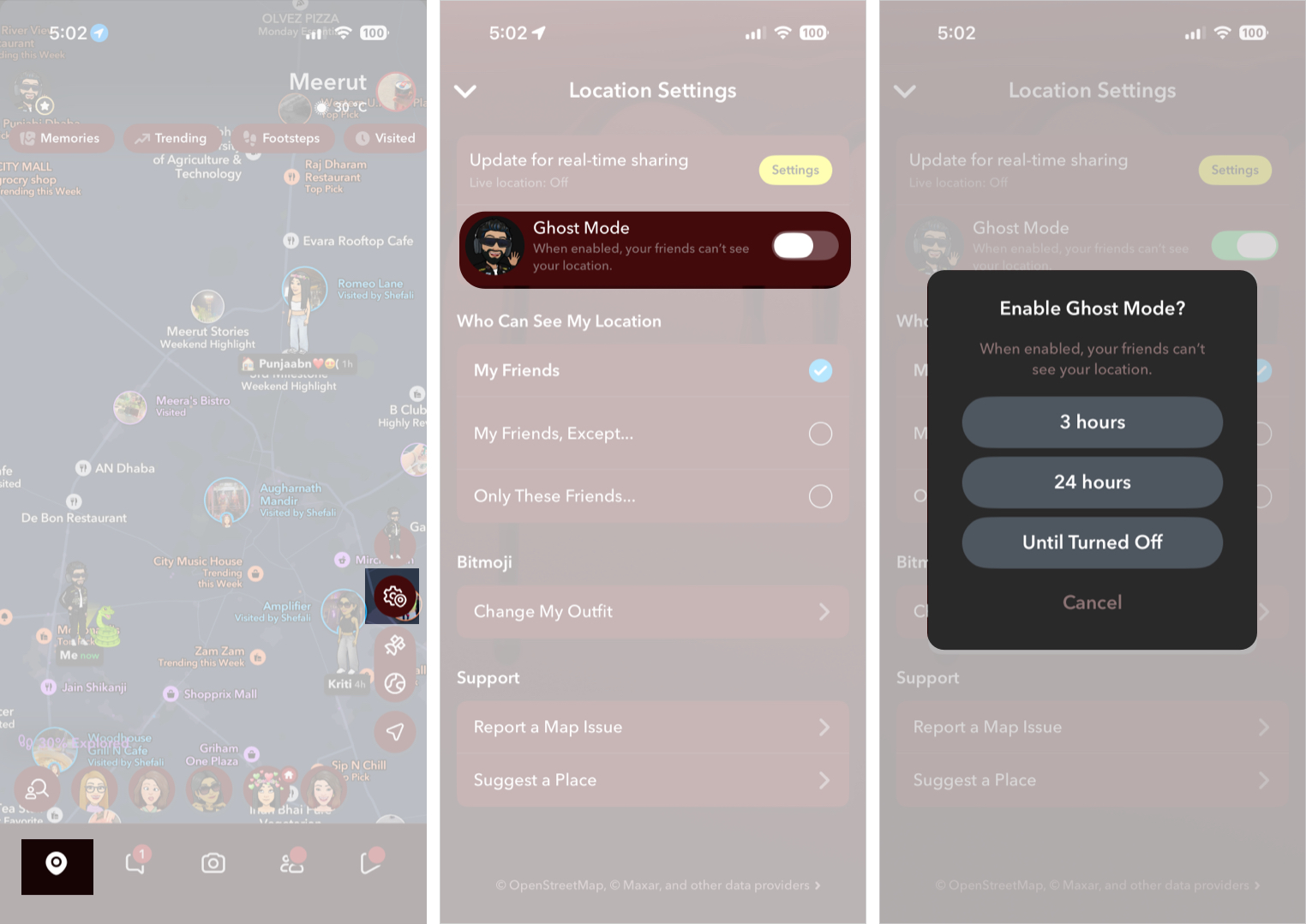
Method 1: Turn On Ghost Mode on Snapchat
Ghost Mode on Snapchat lets you turn off your location on the Snap Map while still allowing you to view friends’ locations when they have location sharing enabled.
- Open the Snapchat app and tap the Snap Map (Location Pin) icon in the bottom-left corner.
- Tap the Settings icon.
- Toggle on Ghost Mode.
- Select the Until Turned Off option in the pop-up menu that appears.
Method 2: Hide Your Snapchat Location From Specific Friends
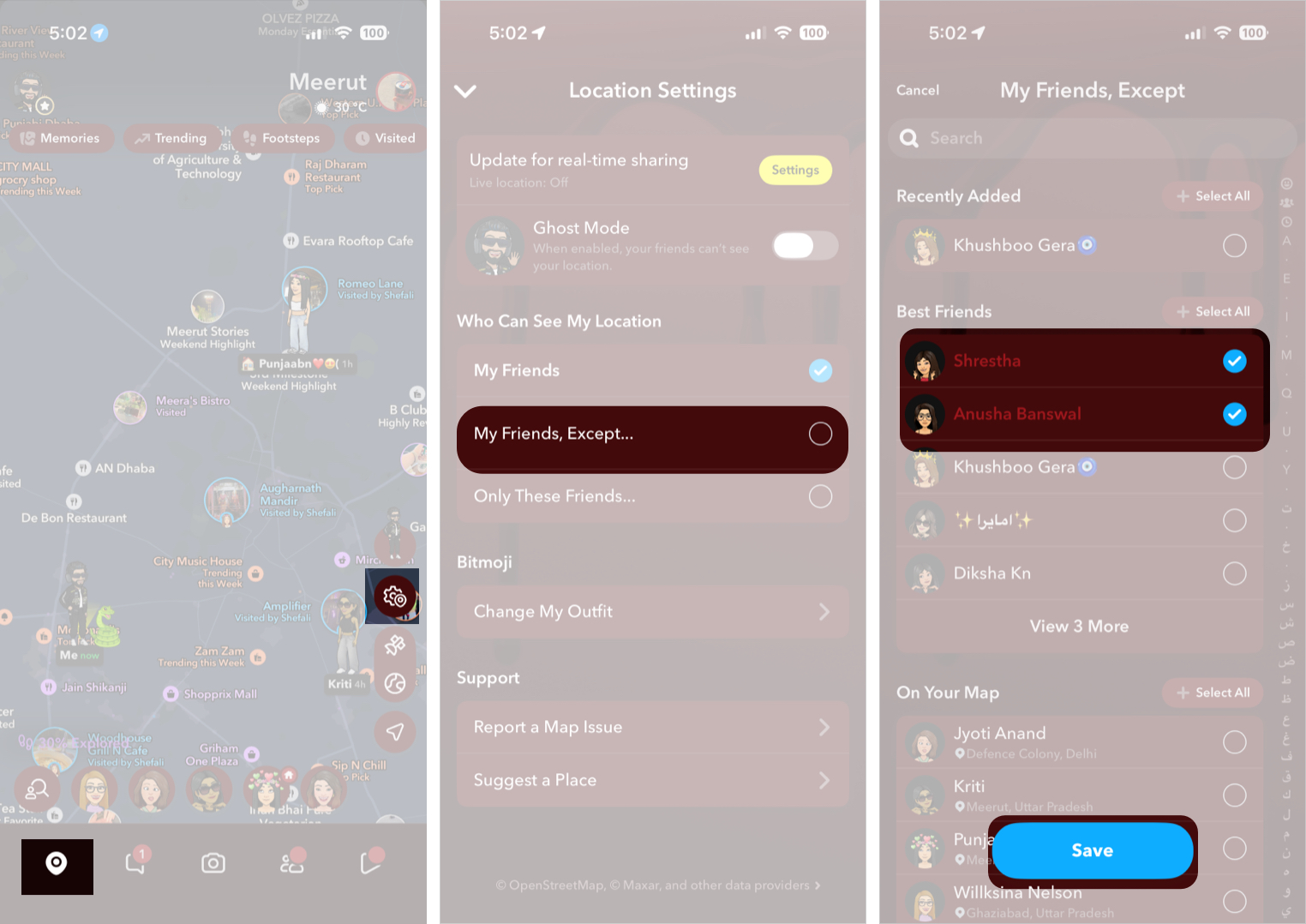
If you don’t want to disappear completely but prefer to hide your location from certain friends, Snapchat lets you customize who can see your location.
- Tap the Settings icon on the Snap Map tab.
- Tap My Friends, Except under the Who Can See My Location section.
- Select the accounts you want to turn off location sharing for, then tap Save.
Method 3: Disable Snapchat Location Access From Phone Settings
While Ghost Mode hides your location from friends, Snapchat can still access location data internally. To completely turn off location on Snapchat, you need to change your device’s permissions.
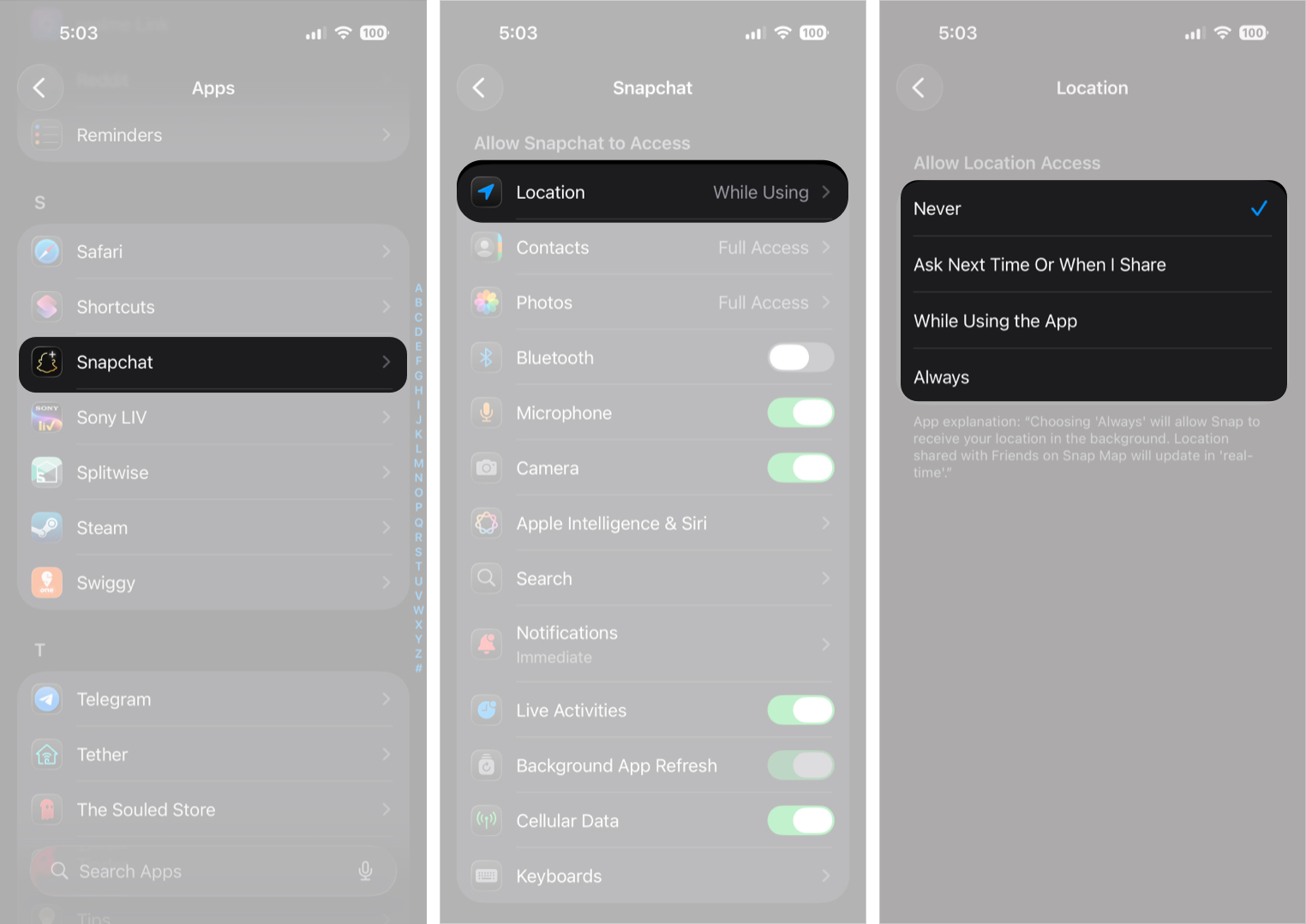
On iPhone:
- Go to Settings → Apps → Snapchat.
- Tap Location.
- Select Never under Allow Location Access.
Also Read: How to Change Your Location on an iPhone
On Android:
- Go to Settings → Apps → Snapchat.
- Tap Permissions → Location.
- Select Don’t Allow under Location access for this app.
Does Snapchat Track Your Location When the App Is Closed?
No, Snapchat does not actively update or share your live location while the app is closed. Your location on Snap Map updates only when you open and use Snapchat.
When you leave the app, your last known location may remain visible to friends for a few hours. After a period of inactivity, Snapchat automatically removes your location from the map until you reopen the app.
Keep in mind that this also depends on your phone’s location permissions. If location access is set to Always, Snapchat can access location data at the system level, but your Snap Map location still refreshes primarily when the app is in use. Setting location permission to Never completely prevents Snapchat from accessing your location.
What Happens When You Turn Off Location on Snapchat?
When location sharing is disabled:
- Your Bitmoji disappears from Snap Map.
- Friends cannot track your real-time location.
- You can still view the map and stories.
- Snapchat stops updating your visible location on the Snap Map.
Summing Up
Turning off your location on Snapchat takes only a few seconds once you know where to look. Enabling Ghost Mode instantly hides your location, while device-level permissions let you control how much data Snapchat can access.
Have more Snapchat privacy questions? Ask them in the comments section.
Frequently Asked Questions

Written by
VikhyatVikhyat has a bachelor's degree in Electronic and Communication Engineering and over five years of writing experience. His passion for technology and Apple products led him to the tech writing space, where he specializes in writing App features, How-to guides, and troubleshooting guides for fellow Apple users. When not typing away on his MacBook Pro, he loves exploring the real world.
View all posts →