Siri app suggestions are one of the proactive features in iOS. Based on your routines and how you use your apps, it makes recommendations for what you might want to do next. This includes helpful hints, like asking you to confirm an appointment, send an email, call someone, visit a website, etc. If you are used to this, it can be inconvenient, once Siri suggestions stop working on iPhone or iPad. Hence, here are some tips to fix the issue.
1. Restart Your Device
Whenever you run into some technical glitches, it’s useful to first restart your iPhone or iPad as this often fixes a lot of problems with minimal effort.
For iPhone 11 and X series, press and hold the side button together with either of the volume buttons. Release when the slider appears on-screen and push the slider from left to right. For iPhone SE (2nd generation), 8 and earlier models, Press and hold the side button until the power off slider appears and then Drag the slider.
Wait for at least 30 seconds before again powering on your iPhone. Check if you can see Siri app suggestions now. If not, try the next solutions below.
2. Toggle OFF and ON Siri Suggestions
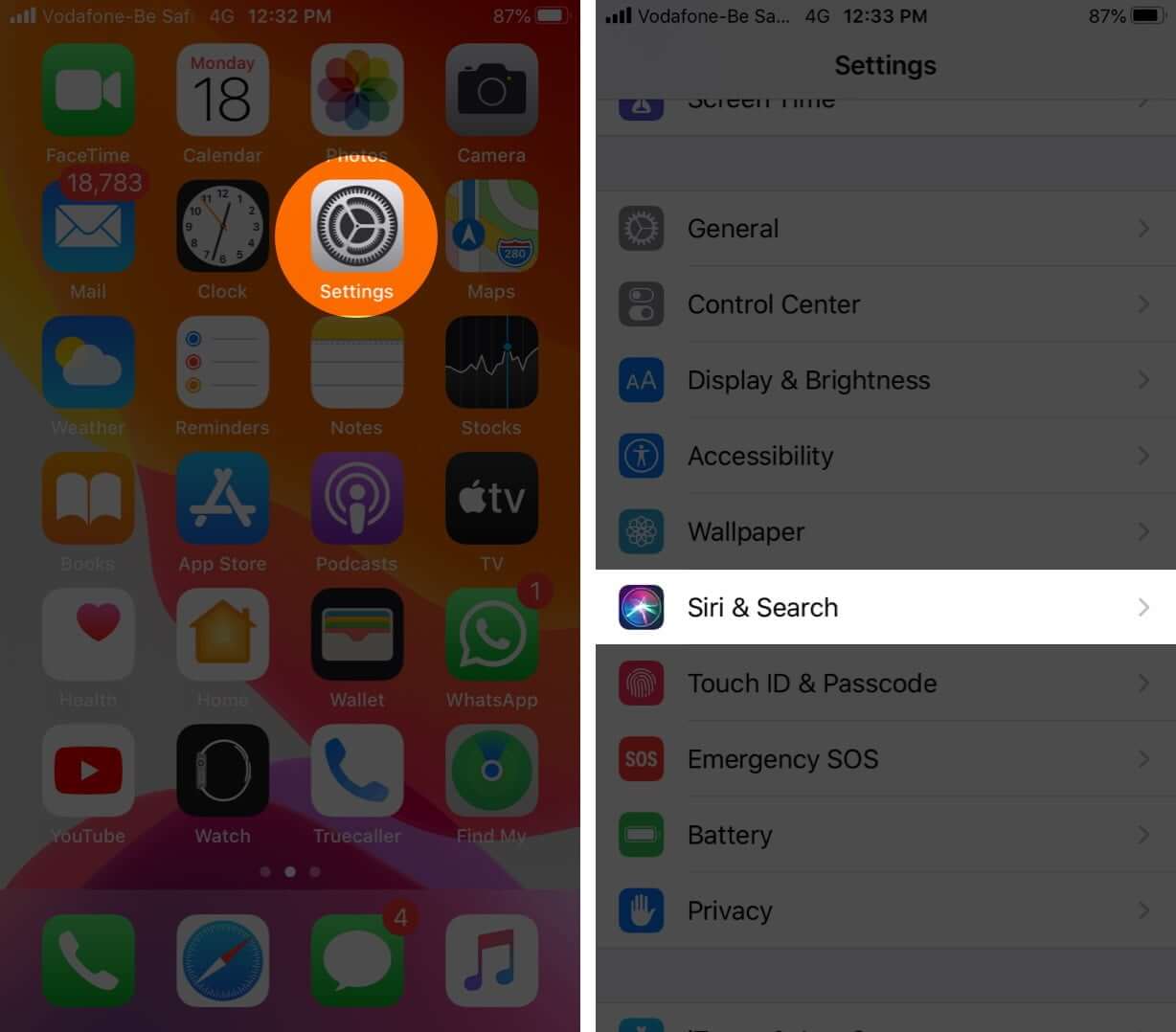
- Go to Settings →Siri & Search.
- Turn the toggle Off, for Suggestions in Search, Look Up, and Lock Screen and then turn it back On.
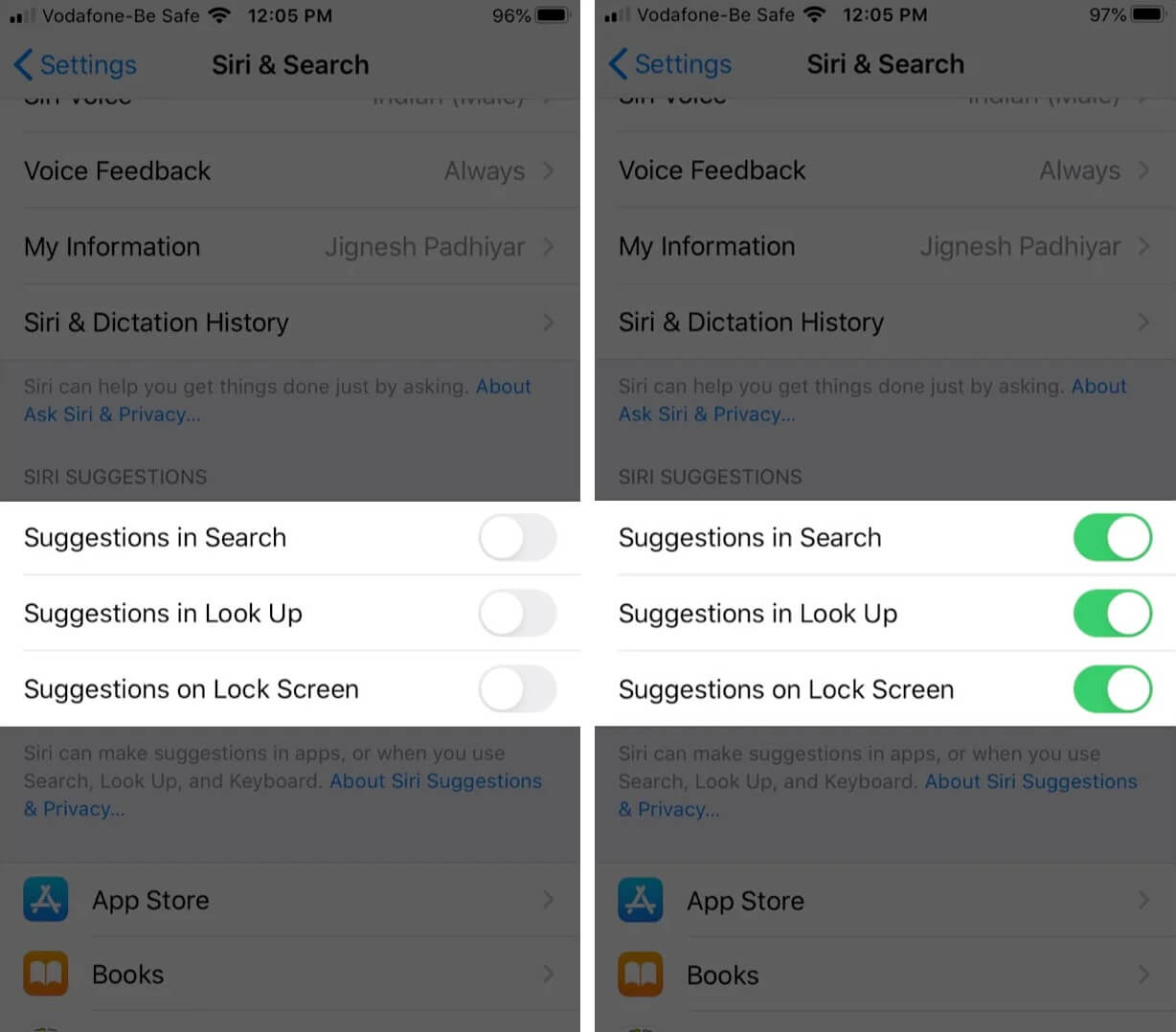
Check if this fixes the problem and then proceed to the next step if needed.
4. Update iOS to the latest version
In general, it’s always best to keep your phone updated with the latest software.
Go to Settings →General → Software Update.
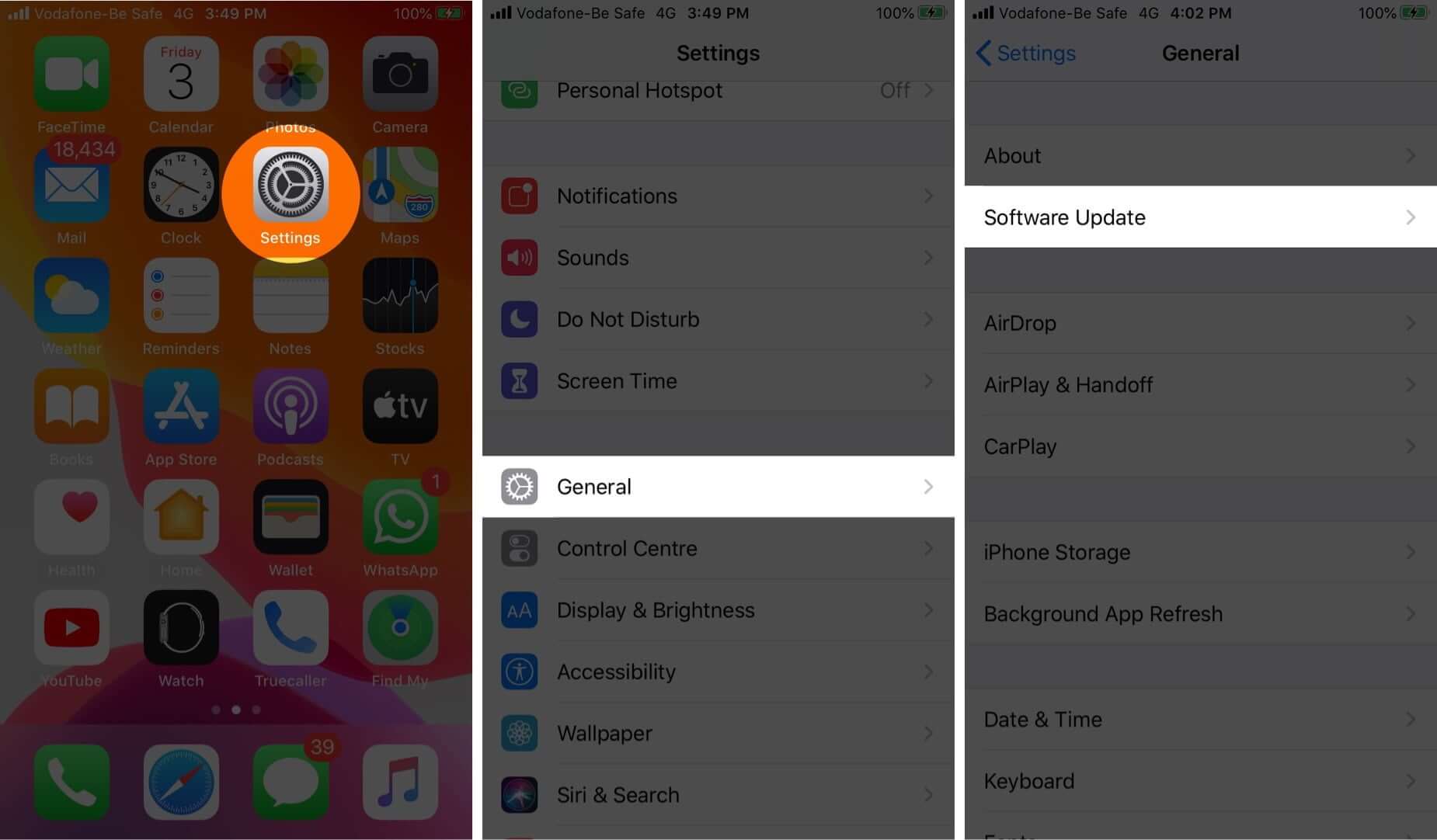
Usually, this will fix any issues you’re experiencing.
Summing Up
Did these tips work to get Siri Suggestions working again on your iPhone? Share your experience in the comments below and let us know if you’re looking for any other troubleshooting guides like this.
You would like to read these posts as well: