
What is Inactivity Reboot in iOS 18.1, and how does it work?
Everything you need to know about the iOS 18.1 Inactivity Reboot feature.
Apple continues to solidify its reputation for security with iOS. Its recent update, iOS 18.1, offers an array of features with a groundbreaking Inactivity Reboot that raises the security bar on your iPhone. Keep reading as we explore what the Inactivity Reboot feature is and explain how it works seamlessly in the background on your iPhone to prevent unauthorized access.
What is Inactivity Reboot in iOS 18.1?
Inactivity Reboot is a new iPhone security feature in iOS 18.1 that automatically restarts your device after three days of inactivity. While the feature was discovered accidentally, it can effectively secure your device data from thieves and unauthorized access.
This undocumented security feature can make it difficult for someone trying to break into your device. Inactivity Reboot puts your iPhone into a BFU (Before First Unlock) state, encrypting the user data, which is much harder to crack as compared to the AFU (After First Unlock) state.
How does the iPhone Inactivity Reboot feature work?
The Inactivity Reboot feature uses SEP (Secure Enclave Processor) to track the last unlocked state of your iPhone. If the last unlock time exceeds three days (72 hours), SEP initiates the command to restart the system.
Once your iPhone restarts, it enters the Before First Unlock (BFU) state. In this state, encryption keys are enabled to ensure your data remains encrypted and secure until the device is unlocked again.
BFU VS AFU
BFU (Before First Unlock) is a state when your iPhone restarts, but you haven’t unlocked it with a PIN or a password, as FaceID or TouchID alone won’t let you do so. This state engages automatically on reboot and keeps the device data encrypted till you unlock it. Your iPhone is in its most secure state in BFU and can only receive calls.
Once you unlock your iPhone with the correct PIN or password, the AFU (After First Unlock) state kicks in, offering some level of decrypted data access, making it friendly for forensic and hacking tools to crack and extract your data on the device.
In simple words, AFU is less secure than BFU and easier to crack for tools to access your personal content.
How to get Inactivity Reboot on your iPhone
iOS 18.1 doesn’t have a specific toggle to enable or disable Inactivity Reboot. The feature is hardwired in the code and triggers automatically after a certain period of inactivity. This inactivity period was initially set to seven days in iOS 18.0 but later updated to three days in iOS 18.1.
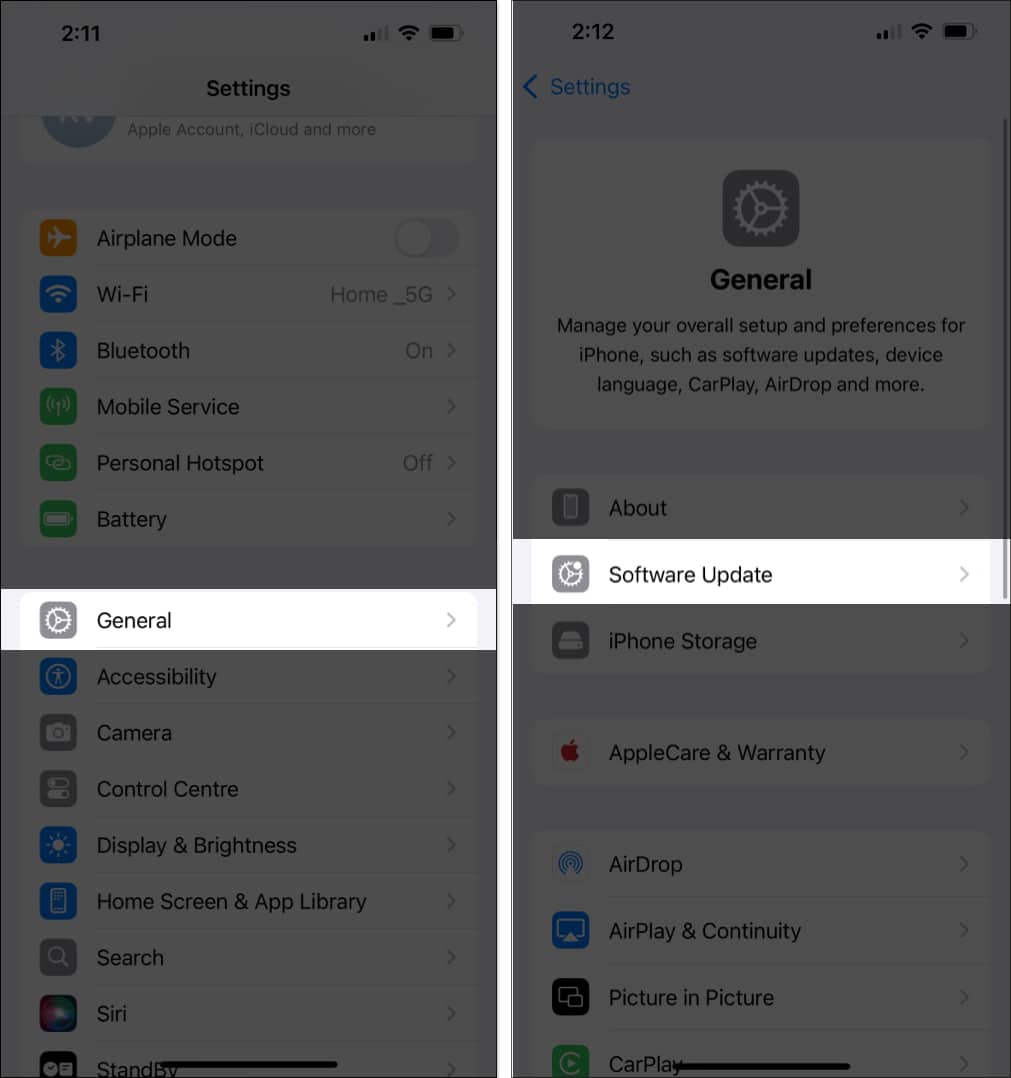
To get this feature working on your iPhone, you must update it to iOS 18.1 or above. Here’s how:
- Open the Settings app and go to General.
- Tap Software Update and select Install Now.
Advantages and disadvantages of iPhone rebooting after 3 days of inactivity
Having your iPhone reboot after three days of inactivity can serve several advantages. Aside from improving your device’s performance and overall stability, it eliminates any security vulnerability or background process that may exploit your iPhone’s security. In addition, it can optimize your iPhone’s battery and prevent unnecessary battery drain.
I don’t see any significant disadvantages of having your iPhone reboot after being inactive for three days. At most, it may disrupt your file download queue or flush your temporary app data, which can be restored by simply opening the app again.
Wrapping up
Inactivity Reboot may not seem like a significant feature at first, but it can truly be a game-changer for defining the iPhone security standard. That said, law enforcers and hackers still have an opportunity to bypass your device before the inactivity reboot triggers after three days of inactivity. To stay protected, I recommend rebooting your iPhone while you can — a simple but effective way to strengthen its security.
For a deep dive, you can check out Jiska Classen’s blog on Inactivity Reboot, where he reverse-engineers the feature and explains the nitty-gritty in detail.
Frequently Asked Questions
Topics

Written by
Ava BiswasAva is a die-hard Apple aficionado and seasoned writer with a knack for breaking down complex tech concepts into easily digestible content. Having honed her writing and editing skills over 4 years at renowned media houses like TechBurner, Ava crafts informative and engaging articles including troubleshooting guides, product reviews, editorials at iGeeksBlog. When not typing, you can find her exploring the latest Apple releases or pondering the future of tech innovation.
View all posts →More from How-to

How to Turn Off Location on Snapchat (Step-by-Step Guide)
Want to stop sharing your location on Snapchat? This guide explains how Snapchat location sharing works and shows simple ways to turn off your location using Ghost Mode or phone settings. Stay in control of your privacy in just a few steps.
 VikhyatMarch 5, 2026
Snapchat Parental Controls: How to Set Up Family Center and Keep Your Teen Safe
Snapchat’s Family Center lets parents monitor their teen’s friend activity and screen time without reading private messages. Here’s how to set it up and what to expect.
VikhyatMarch 3, 2026
How to Block and Unblock Someone on Instagram
Instagram lets you block or unblock someone in seconds. Follow these simple steps to take full control of your privacy and online peace.
Ava BiswasMarch 2, 2026