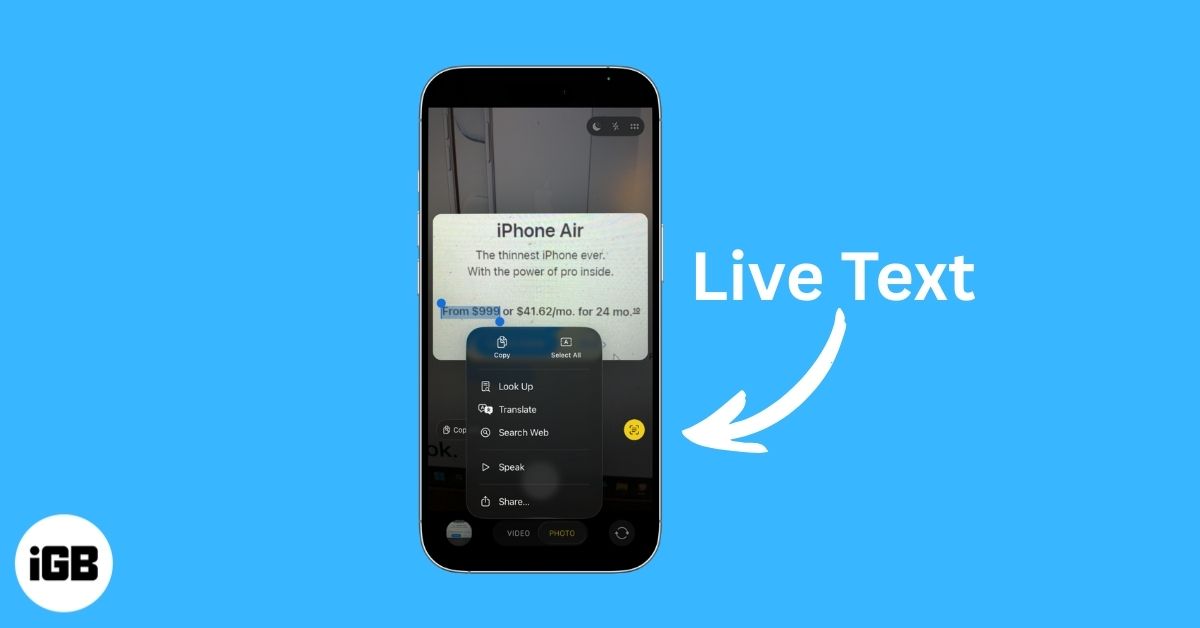
If you have ever wanted your iPhone to copy and interact with text from images and videos in real time, recognize phone numbers from a sign, or instantly translate a sentence captured with your camera, Apple’s Live Text makes it possible. It turns your iPhone into a powerful text recognition tool that works quickly and intelligently.
Whether you are a student, traveler, or professional, this feature helps you get more done with less effort. In this guide, you will learn how to use Live Text to copy text from photos and videos on your iPhone, along with practical tips to get the most out of it.
What Is Live Text on iPhone and How Does It Work?
Live Text is an Apple feature that lets your iPhone detect and interact with text from images and the live camera viewfinder. It uses on-device intelligence to understand what is in front of you and offers actionable options such as copying text, calling a phone number, or translating foreign language text.
How Live Text Works
Live Text uses on-device machine learning and OCR (optical character recognition). This means your iPhone can read text without sending data to the cloud, making it fast and privacy focused.
When text appears in your camera view or in a photo:
- A Live Text indicator appears
- You can tap to interact with detected text
- Your iPhone highlights recognized letters and numbers
You no longer need to manually type text from signs, menus, or screenshots. Live Text lets you instantly copy long paragraphs, saving time and reducing errors.
Supported Languages and Content Types
Similar to Google Lens, Live Text can recognize:
- Printed text such as books, signs, and posters
- Handwriting, especially neat or block writing
- Numbers including phone numbers, prices, and dates
- URLs and email addresses
- Physical addresses
Live Text supports multiple languages, and recognition improves with each iOS update. It works best when your region and language settings match the text you are scanning.
How to Enable Live Text on iPhone
Before using Live Text, make sure the following requirements are met:
- Your iPhone is running iOS 15 or later. Updating to the latest iOS version is recommended.
- You are using a supported model with an A12 Bionic chip or newer.
- Live Text is enabled in Settings.
Steps to Enable Live Text:
- Open Settings.
- Tap General > Language & Region.
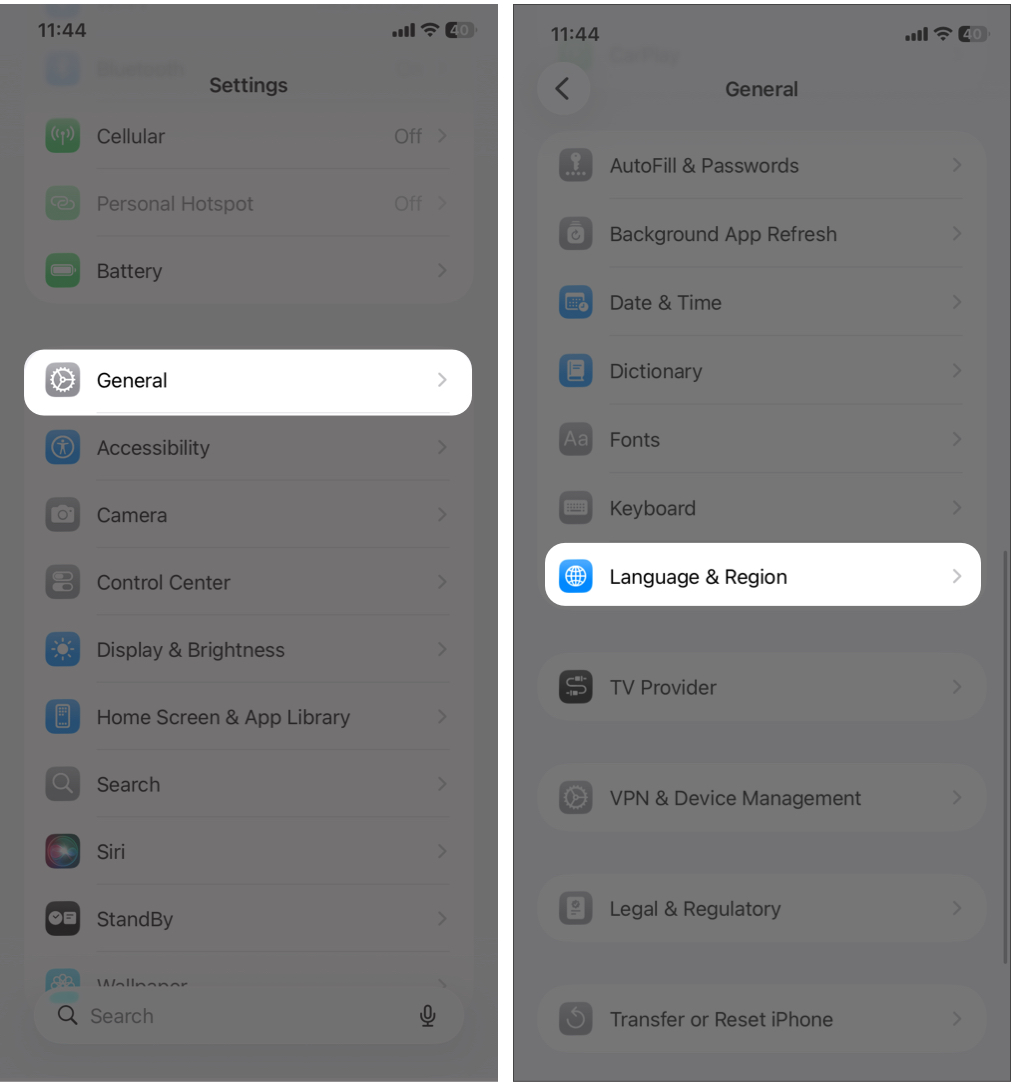
- Make sure Live Text is turned on.
- Go back to the main Settings screen and select Camera.
- Turn on Show Detected Text.
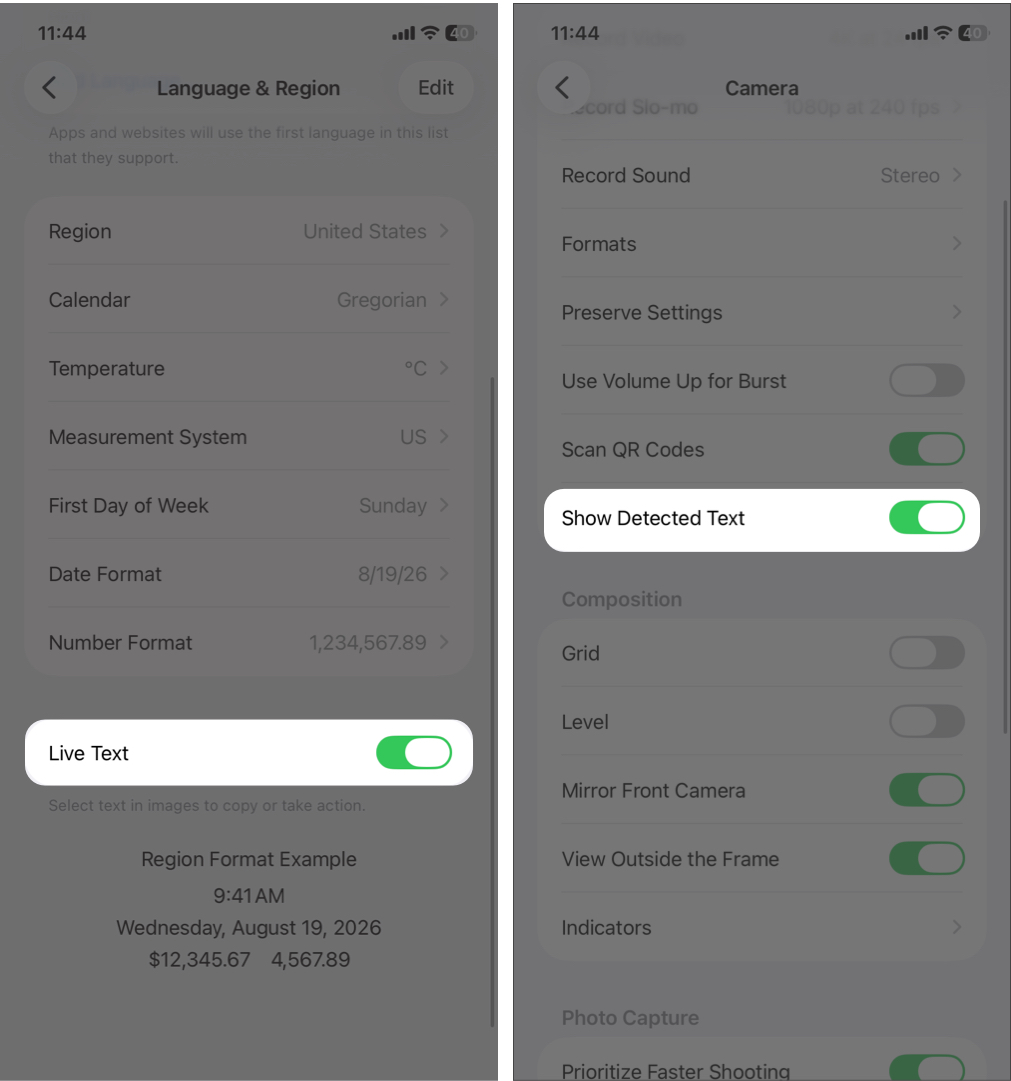
If you do not see these options, your iPhone model or iOS version may not support Live Text.
How to Use Live Text on iPhone
Live Text works across the system, including the Camera app, Photos app, and supported apps like Safari and Mail.
Using Live Text in the Camera App
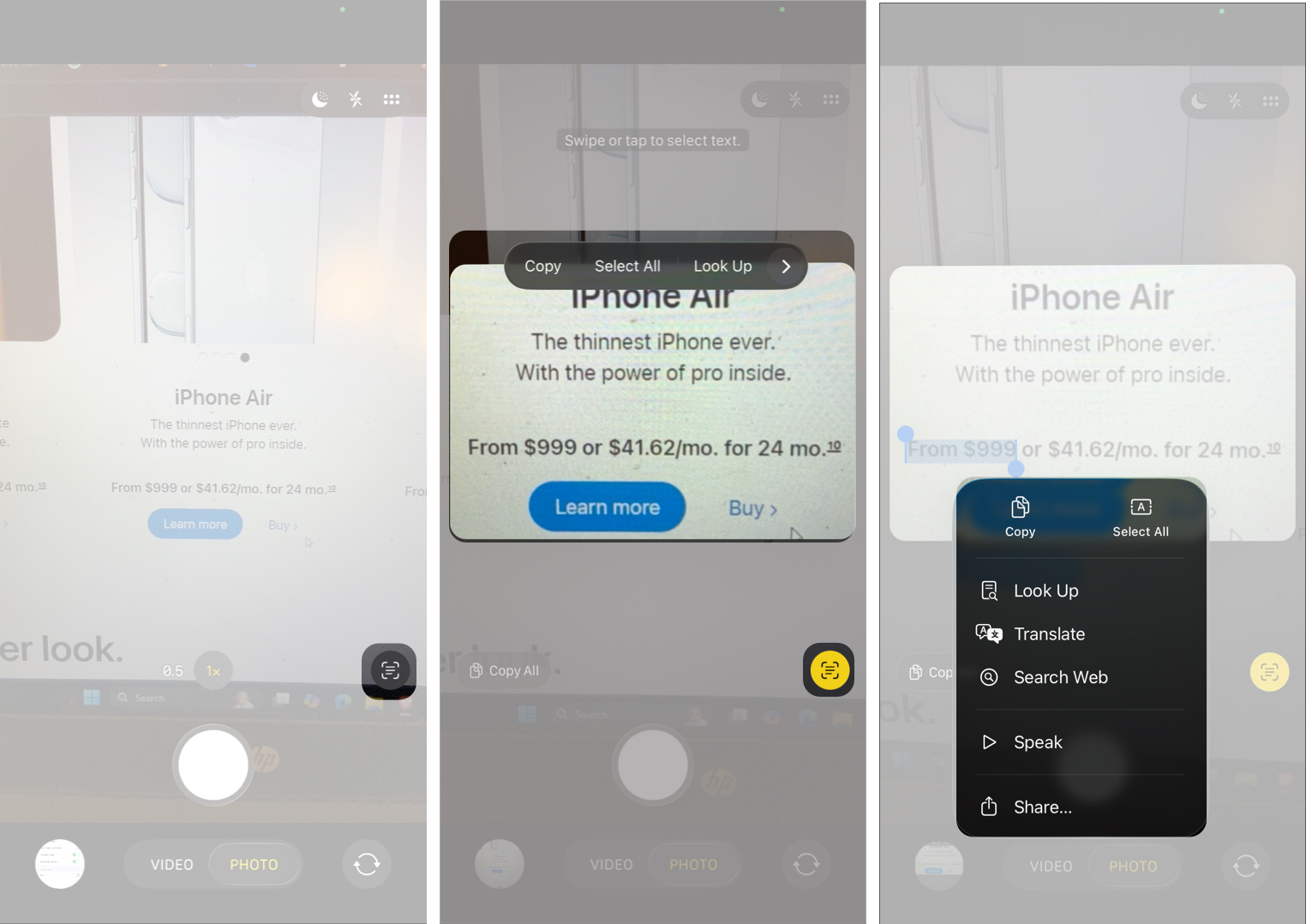
- Open the Camera app.
- Point at text (a sign, document, page).
- Look for the Live Text icon in the bottom right corner.
- Tap the icon to capture text in between the yellow box.
- Now, tap and hold the text to highlight it.
- Choose actions like Copy, Look Up, Translate, etc.

Using Live Text in the Photos App
- Open the Photos app.
- Tap a photo containing text.
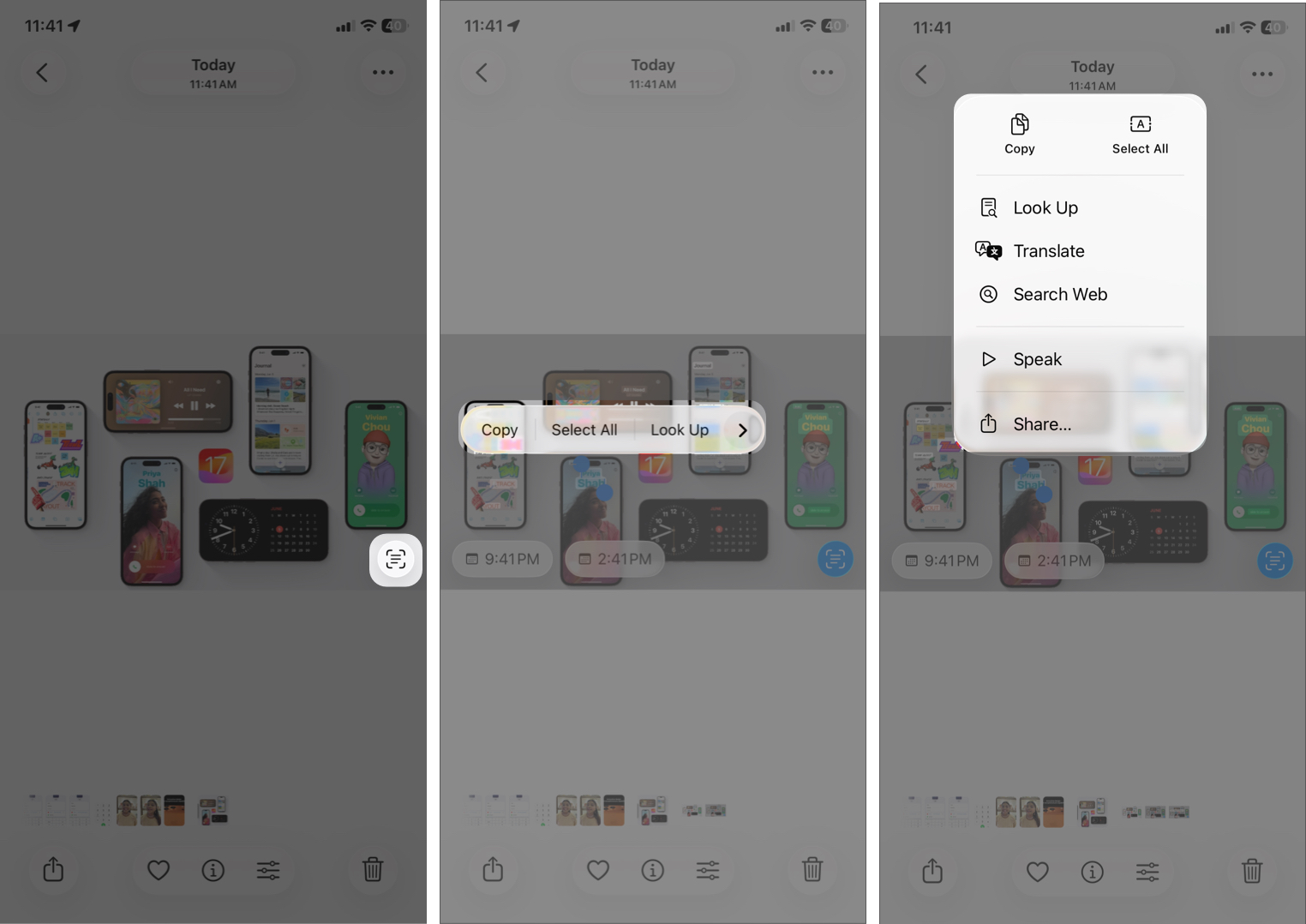
- Tap the Live Text icon in the bottom right corner.
- All recognized text will be highlighted. If the image includes a phone number or foreign language text, you may see action buttons such as Call or Translate.
- To interact with specific text, tap and hold it. You can then tap the arrow icon in the floating menu to access options like Copy, Writing Tools, Look Up, or Search Web.

Live Text also works with videos. Pause the video at any frame and select the text. The feature is available on Mac as well, so you can use it across Apple devices.
Using Live Text in Safari, Mail, and Other Apps
Live Text works inside supported apps:
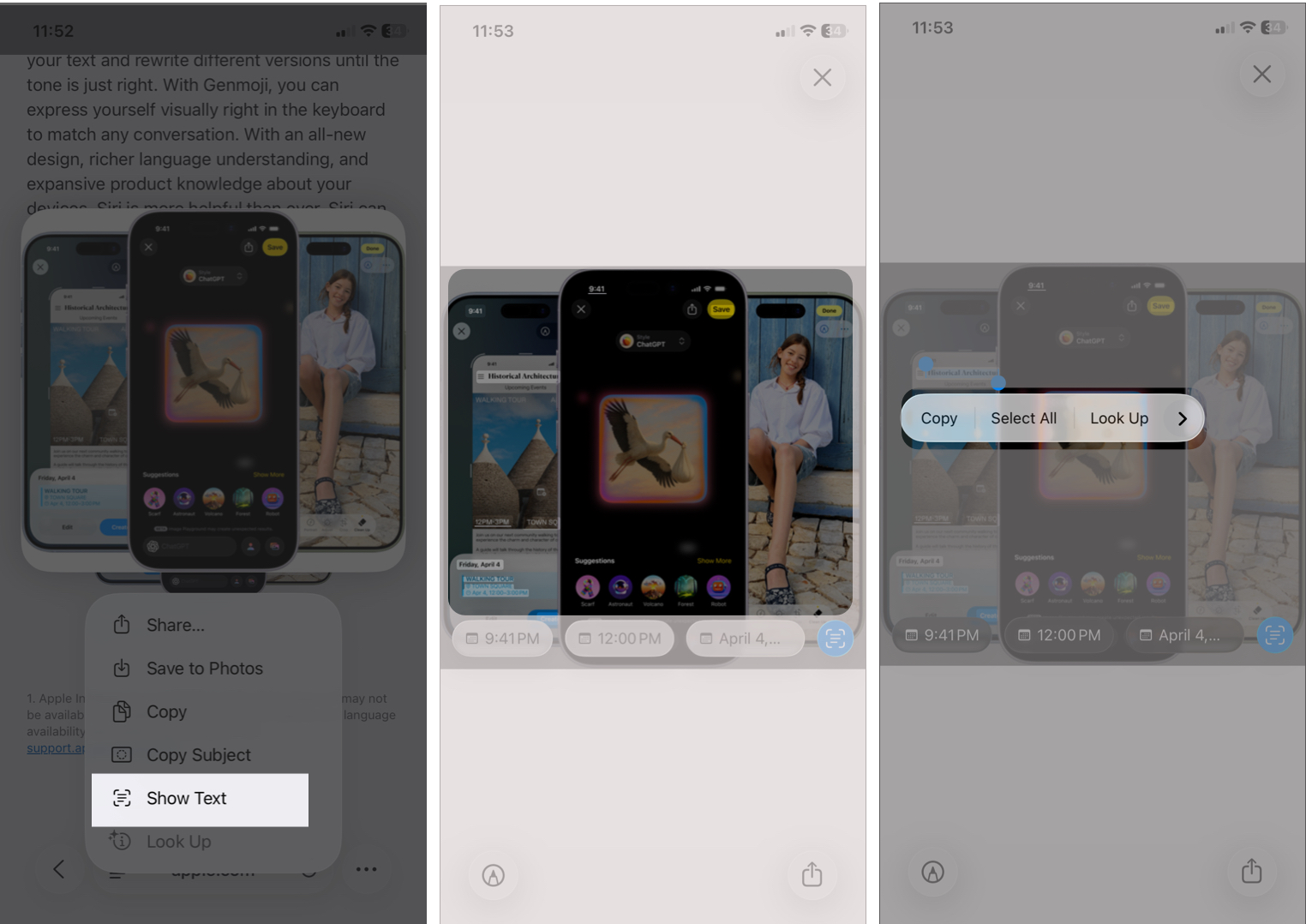
- In Safari, tap and hold an image and select Show Text. It will launch the Live Text interface. Now you can copy, translate, or Look Up for it.
- In Mail and Messages, tap and hold on the text from photos to interact.

The experience is consistent across apps. If you can see text, Live Text can usually detect it.
Live Text Actions You Can Perform
Live Text offers more than simple copy and paste:
- Copy and paste text from images into any app
- Translate text instantly into your system language
- Look up addresses and directions in Maps
- Call phone numbers or email contacts with a single tap
- Search the web using detected text
- Track flights using flight numbers in images
- Convert currency into your local format
- Add events to Calendar when dates or times are detected
- Track shipments using recognized tracking numbers
What is the Difference Between Live Text and Visual Look Up?
Although they often work together, Live Text and Visual Look Up serve different purposes:
- Live Text focuses on detecting and interacting with text.
- Visual Look Up identifies objects, animals, landmarks, artwork, and more.
Use Live Text when you want to read or interact with text. Use Visual Look Up when you want more information about objects in an image.
Tips and Tricks for Using Live Text Effectively
- Use good lighting and focus for better accuracy.
- Keep handwriting clear and neat for reliable recognition.
- Add multiple languages in Settings > General > Language & Region if you frequently scan foreign text.
Common Problems and How to Fix Them
If Live Text is not working on your iPhone, try these solutions:
| Live Text icon not appearing | Make sure Live Text is enabled and your iPhone model supports it. |
| Text not being detected properly | Improve lighting, hold the camera steady, and move closer to the text. |
| Device compatibility issues | Older iPhones may not support Live Text. Check Apple’s official compatibility list. |
| Language and region issues | Go to Settings > General > Language & Region and add the required languages. |
Final Thoughts
Live Text may seem like a small feature, but once you start using it, it becomes a daily productivity booster. It turns your iPhone into a powerful text reader, and after a while, it is hard to imagine using your phone without it.
Have you tried Live Text yet? Share your experience in the comments.