
What Is Sleep Mode on Instagram and How to Use It (Complete Guide)
Instagram’s Sleep Mode silences notifications for messages, likes, comments, and other activity during scheduled hours. Here’s how it works and how to turn it on or off.

Constant notifications from Instagram about direct messages, likes, comments, and Reels interactions can keep your phone buzzing throughout the day and even late at night. While these alerts may motivate a budding creator who wants to stay engaged with their audience, many users eventually find the constant pings overwhelming and distracting.
To help people manage their time on the platform and reduce notification fatigue, Instagram introduced Sleep mode, previously known as Quiet mode. This feature, when enabled, silences notifications and gives you a break from the app’s nonstop activity.
Keep reading to learn everything you need to know about Sleep mode on Instagram.
What Is Sleep Mode on Instagram?
Sleep mode, as the name suggests, temporarily pauses your Instagram activity by silencing most app notifications. When this feature is enabled, Instagram stops sending alerts for direct messages, likes, comments, mentions, and other interactions for a set period.
The goal of Sleep mode is to reduce distractions and help users take a break from constant notifications. Instead of your phone lighting up every few minutes, Instagram holds those alerts until Sleep mode ends. Once the scheduled time is over, the app sends you a summary of the notifications you missed during that period.
Additionally, it changes your activity status so others know you are unavailable. If someone sends you a direct message while the feature is active, Instagram may notify them that you are currently in Sleep mode and might respond later.
How Sleep Mode on Instagram Works
Instead of manually turning individual Instagram notifications on or off whenever you want fewer interruptions, Sleep mode automates the entire process for a specific time period that you set.
You can set a specific time range during which Instagram will automatically pause notifications. Instagram also gives you flexibility in how you schedule it. You can select the days Sleep mode should run, adjust the start and end times, and modify the schedule at any time to match your routine.
Here is what happens while the feature is active:
Notifications Are Paused
All push notifications from Instagram are temporarily muted, including alerts for:
- Direct messages
- Likes and comments
- Story mentions
- Follows
- Reels interactions
This prevents constant alerts from interrupting your sleep or work sessions.
Auto-Reply in Direct Messages
If someone sends you a DM while Sleep mode is active, Instagram automatically notifies them that you are currently in Sleep mode and may respond later.
Activity Status Changes
Your activity status shows that Sleep mode is enabled, which is often indicated by a moon icon instead of the green active status dot.
How to Turn On Sleep Mode on Instagram
Turning on Sleep mode (formerly Quiet mode) is pretty straightforward if you know the right steps. Here’s how:
- Open the Instagram app and head to your profile.
- Here, tap the hamburger (More options) button in the top-right corner to access your account settings.
- Now, tap Notifications or Time management under the How you use Instagram section.
- Next, select Sleep mode.
- Toggle on Sleep mode.
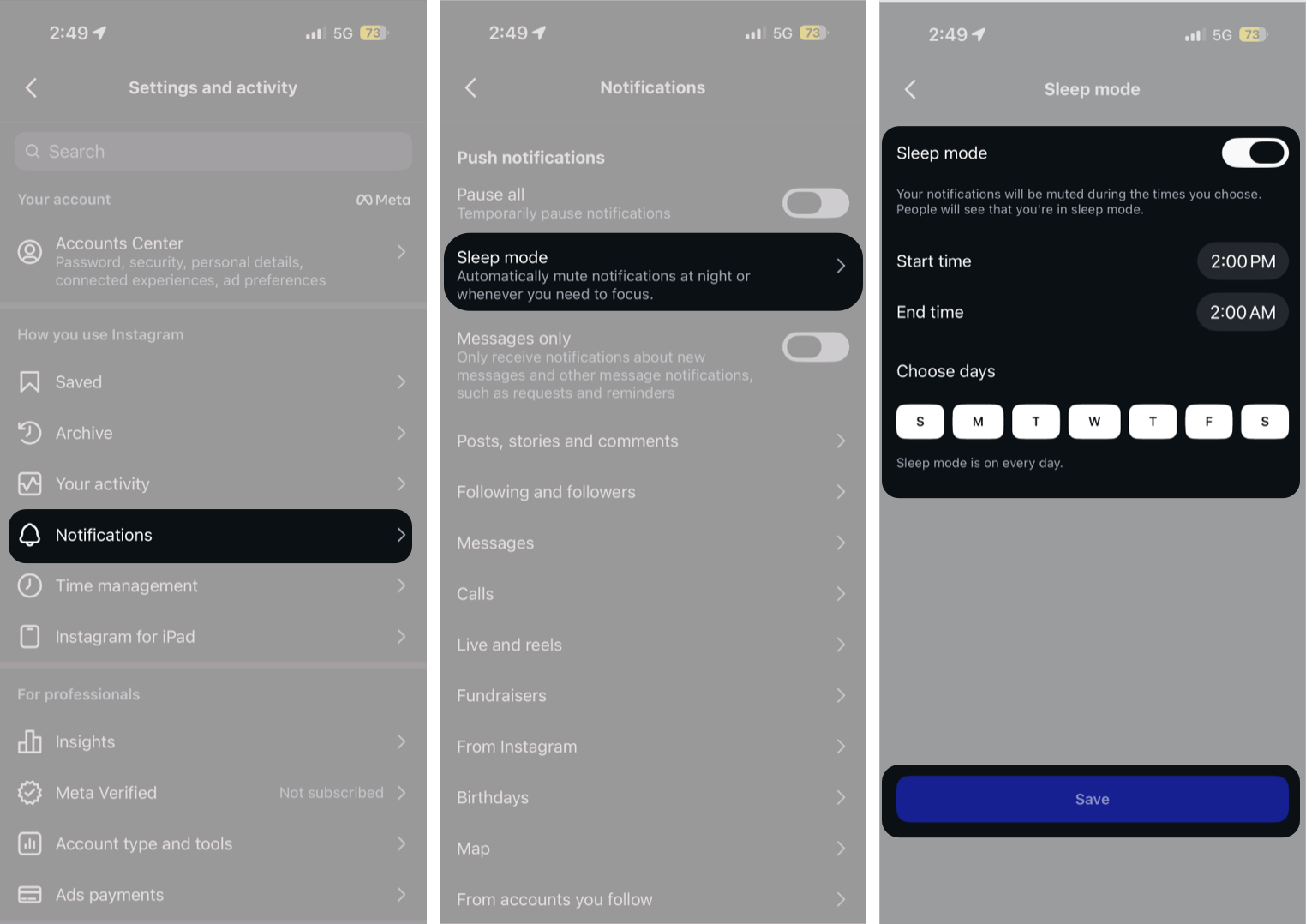
- Choose your preferred start and end times, and the days you want Sleep mode to remain active.

Once done, Instagram will automatically activate Sleep mode during the scheduled hours.
How to Turn Off Sleep Mode on Instagram
While Sleep mode automatically turns off once the scheduled time period ends, you can disable it manually if you no longer need it or want to start receiving notifications again immediately. Here’s how:
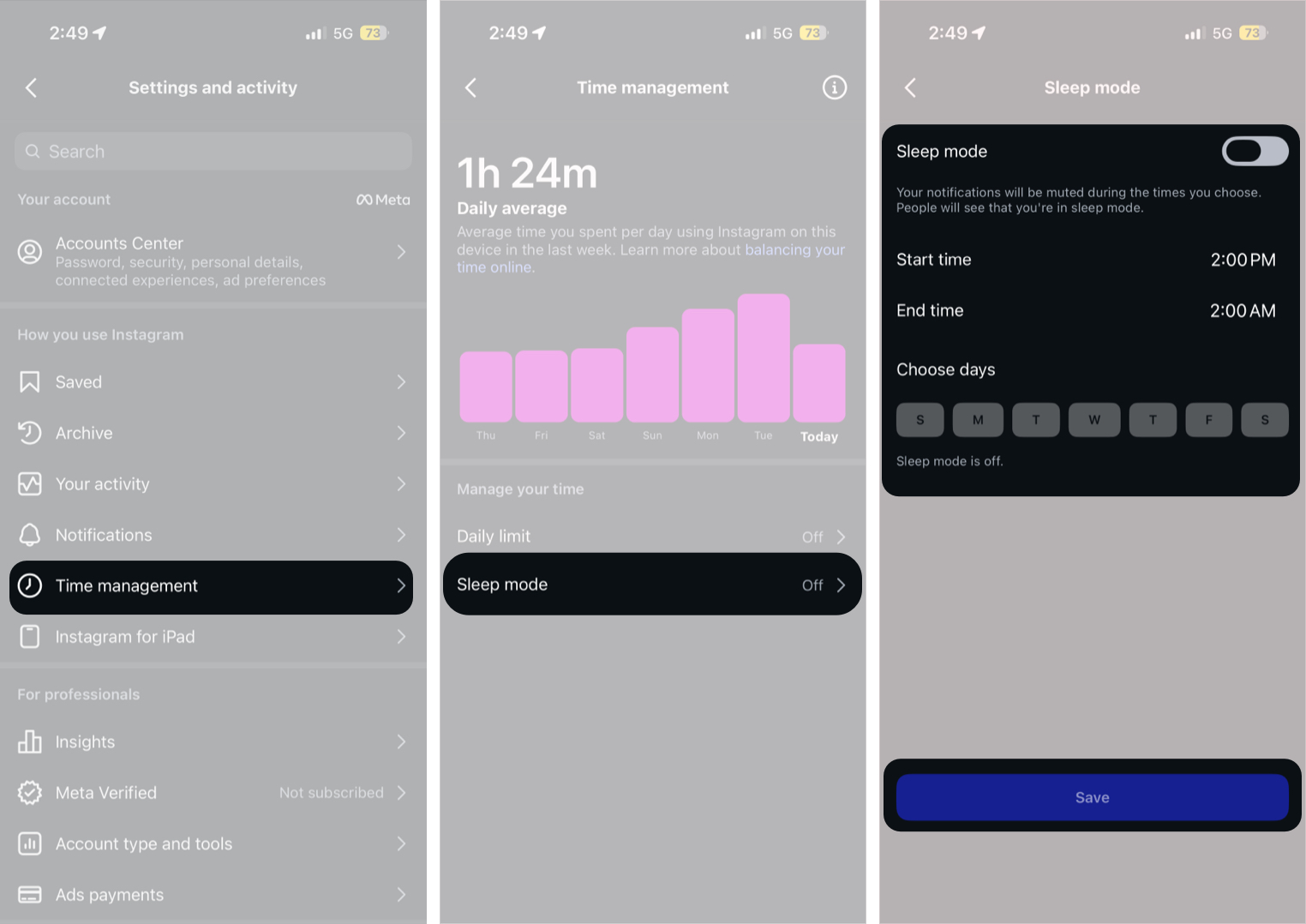
- Head to your Instagram profile → Settings & Activity → Notifications or Time management.
- Select Sleep mode.
- Toggle off Sleep mode.

Sleep Mode vs Pause All Notifications on Instagram
| Feature | Sleep Mode | Pause All Notifications |
|---|---|---|
| Notifications | Muted during scheduled hours | Muted temporarily |
| Activity Status | Shows you are in Sleep Mode | No status change |
| Auto-reply in DMs | Yes | No |
| Schedule | Custom schedule available | Temporary pause |
Why You Should Use Instagram Sleep Mode
The responsibility for managing and limiting your social media screen time ultimately lies with you. However, staying disciplined with app usage can be difficult when platforms like Instagram constantly send notifications about messages, likes, comments, and new activity. This is where Instagram’s Sleep mode helps.
- Better Focus: Without constant notifications, it becomes easier to concentrate on work or studying.
- Healthier Digital Habits: Encourages you to step away from social media and maintain a healthier relationship with your devices.
- Fewer Late-Night Distractions: Enable it at night to avoid late-night scrolling and notification interruptions.
- Improved Productivity: Muting alerts during working hours helps maintain productivity and prevents frequent phone checking.
Make Instagram Less Distracting…
That’s it. This was everything you needed to know about Instagram’s Sleep mode. By enabling this feature, you can easily limit your screen time and avoid being nudged by constant notifications until you decide to turn them back on.
Do you keep notifications on or rely on Sleep Mode? Let us know in the comments.

Written by
VikhyatVikhyat has a bachelor's degree in Electronic and Communication Engineering and over five years of writing experience. His passion for technology and Apple products led him to the tech writing space, where he specializes in writing App features, How-to guides, and troubleshooting guides for fellow Apple users. When not typing away on his MacBook Pro, he loves exploring the real world.
View all posts →