

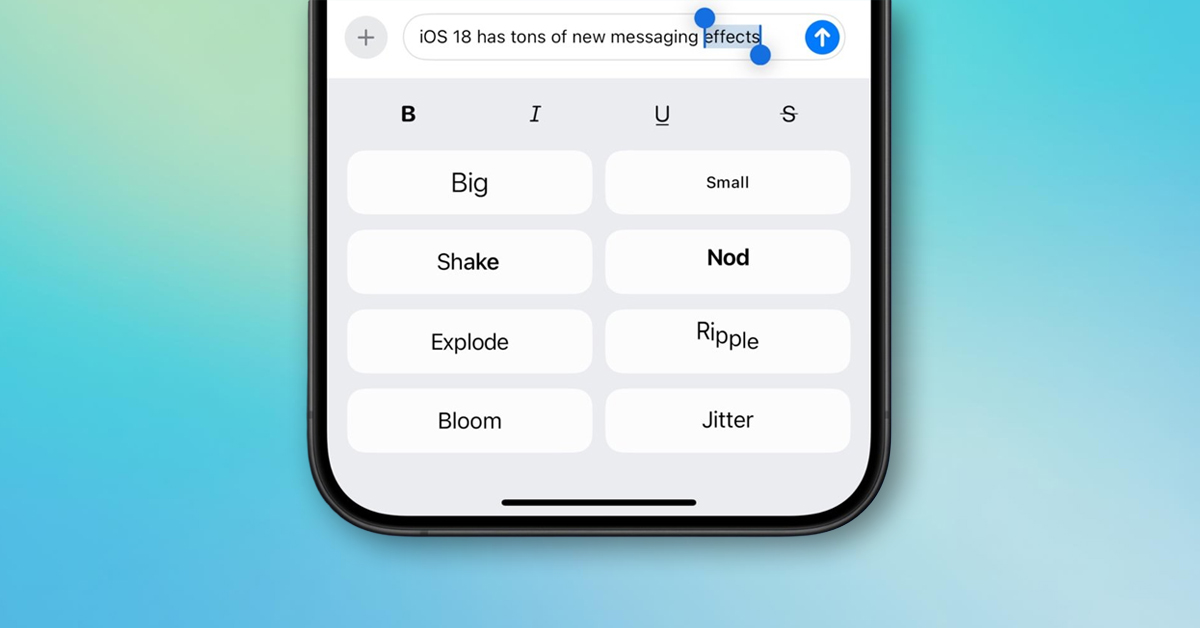
Being an avid iMessage user, I love how Apple’s Messages app has moved far beyond plain text. First came bubble and screen effects, followed by text formatting and text effects, all of which let me add emphasis to messages without turning conversations into sticker-heavy chaos.
Unlike bubble or screen effects that animate an entire message, text effects and formatting work at a more precise level. You can highlight a word, style a short phrase, or animate an emoji inside the message bubble itself. The result feels intentional and conversational rather than loud or gimmicky.
If you have seen bold text, styled words, or animated phrases in an iMessage thread and were not sure how they were created, read on to learn everything you need to know about text formatting and text effects on iPhone and iPad.
What Are Text Formatting and Message Effects in iMessage?
Besides bubble and screen effects, Apple offers two distinct ways to enhance text in Messages. Although they are often grouped together, they serve very different purposes.
Text formatting changes how your text looks. It is static, focused on readability, and lets you apply bold, italic, underline, or strikethrough. This makes it ideal for adding emphasis in longer messages, instructions, or more serious conversations.
Text effects add animation to selected text or emojis inside the message bubble. Options such as Big, Small, Shake, Nod, Explode, Ripple, Bloom, and Jitter draw attention to specific words. These effects work best for short reactions, emotional emphasis, or playful moments rather than full paragraphs.
Text Formatting vs Message Effects: What’s the Difference?
| Feature | Text Formatting | Text Effects |
|---|---|---|
| Purpose | Improves clarity and emphasis | Adds emotion and visual emphasis |
| Appearance | Static styling | Animated text |
| Examples | Bold, italic, underline, strikethrough | Big, Small, Shake, Nod, Ripple, Bloom, Jitter |
| Best used for | Longer messages, instructions, serious conversations | Short messages, reactions, emphasis |
| Animation | No | Yes |
| Accessibility friendly | Yes | Depends on motion settings |
Requirements to Use iMessage Text Formatting and Effects
- Both text formatting and text effects require iOS 18 and iPadOS or later installed on your iPhone and iPad.
- Works only in iMessage conversations.
- Both the sender and the recipient must be on compatible software for the effects to appear correctly.
How to Send Text Messages With Effects or Formatting on iPhone and iPad
Once you know what text formatting and text effects do, the actual process of using them is straightforward. Both options are built directly into the text field in the Messages app and work on selected text before you send the message. Here’s how:
- Open the Messages app and head to an existing iMessage conversation or create a new one.
- Here, type your message as you normally do, but do not hit the Send button.
- Now, select the part of the message you want to animate.
- Tap Text Effects in the contextual menu that appears. You can tap and hold a word or double-tap to highlight it, then adjust the selection handles to include more text or an emoji.
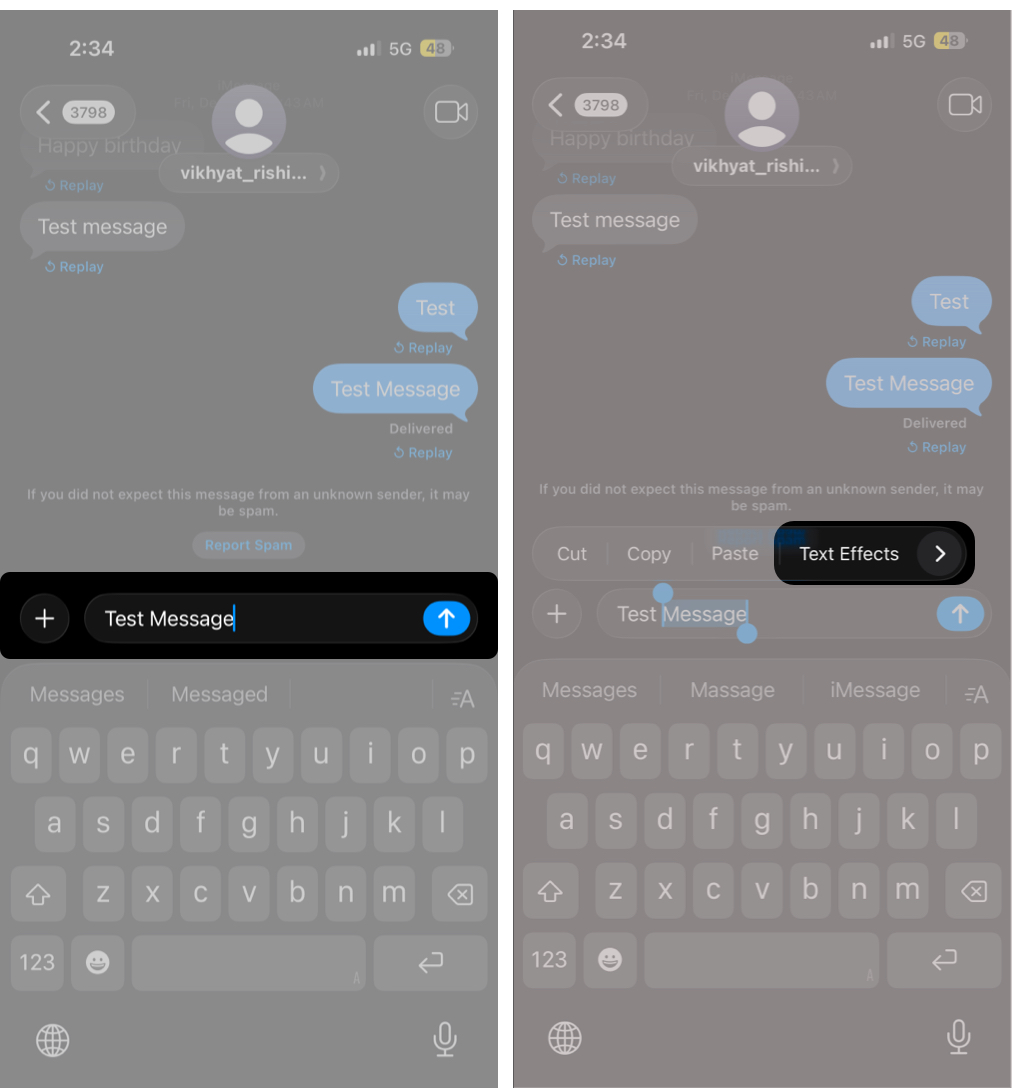
- You will now see a list of available animations along with the text formatting options.
- Tap an effect or formatting option to preview it directly on your selected text.
- Once satisfied with the selected animation or formatting, tap the Send button next to the message field.
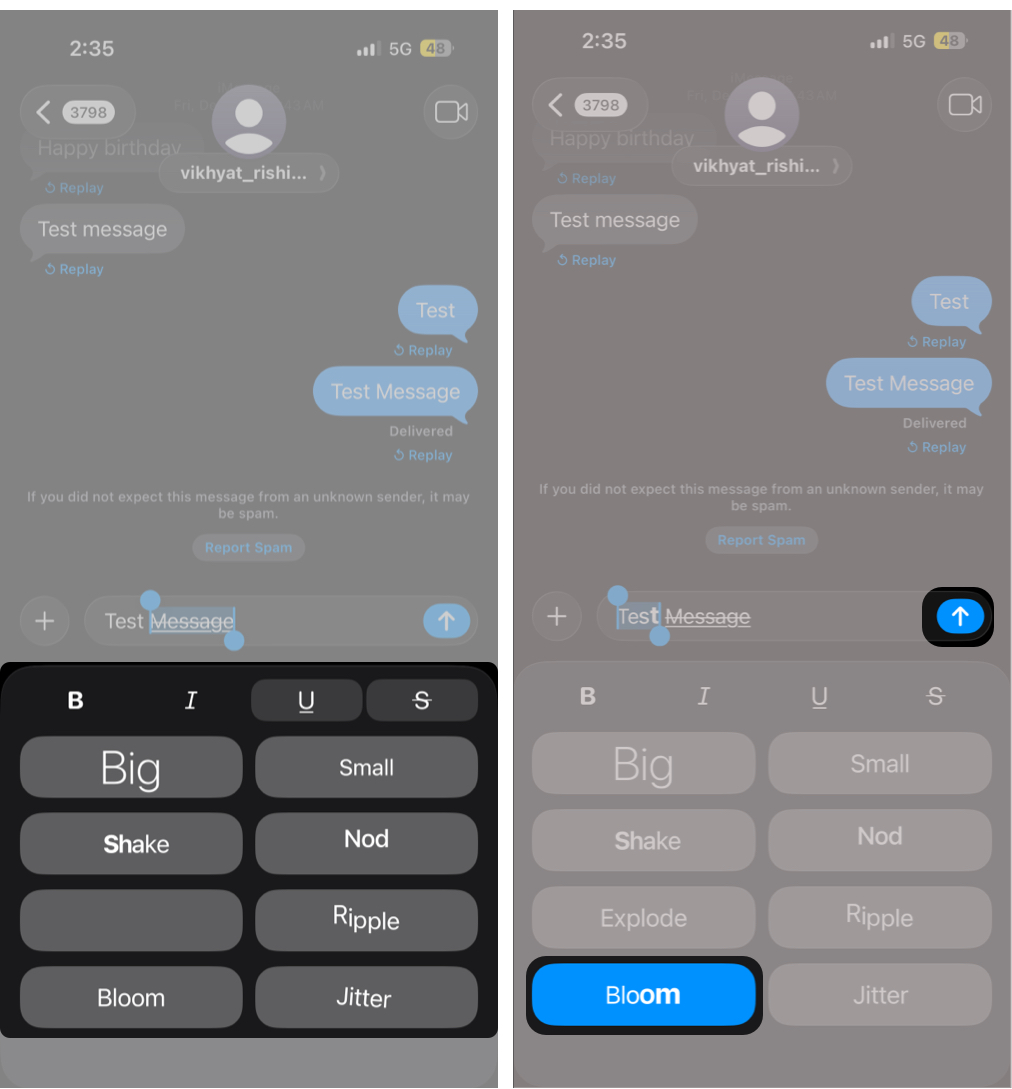
- Alternatively, you can use text formatting and text effects together by applying formatting to one part of the message and a text effect to another part before sending it.
Note:
How to Combine Text Formatting With Bubble and Screen Effects
Text effects, bubble effects, and screen effects can work together. You can apply a text effect to specific words first, then long-press the Send button to choose a bubble or screen effect. The animation plays on the selected text inside the message bubble, while the bubble or screen effect surrounds the entire message.
Text formatting works alongside text effects as well, although moderation matters. A bold word with a subtle animation can feel expressive and deliberate. Too many effects layered together quickly feel noisy rather than thoughtful.
Best Practices for Using iMessage Text Effects
Message effects are most effective when they feel deliberate rather than decorative. Used thoughtfully, they help guide attention and tone without distracting from the conversation. Here are the best practices to follow:
- Use effects intentionally to match the conversation’s tone.
- Avoid applying multiple animations in a single message.
- Prefer text formatting for longer or serious messages.
- Use text effects mainly for short reactions or emphasis.
- Preview the message before sending to check readability.
- When unsure, choose subtle formatting over animation.
iMessage Text Effects Not Working? How to Fix It
| Issue | Likely Cause | What to Do |
|---|---|---|
| Text effects or formatting are not showing | The conversation is not using iMessage | Make sure the message bubble is blue and iMessage is enabled |
| Recipient cannot see text effects | Recipient is on an older iOS or iPadOS version | Ask them to update to a compatible software version |
| Animations do not play at all | Reduce Motion is enabled | Turn off Reduce Motion. Go to Settings → Accessibility → Motion → Toggle Off Reduce Motion. |
| Effects worked before but stopped | Temporary Messages app or system glitch | Restart the Messages app or reboot the device |
| Effects not available in the menu | Effects are missing in group chats | Update iOS or iPadOS to the latest version |
| The recipient cannot see text effects | Mixed devices or software versions | Effects display only for participants with compatible devices |
Express More With iMessage Text Effects and Formatting
Text effects in Messages are one of those underrated features that feel unnecessary until you start using them thoughtfully. When applied with restraint, they add clarity, tone, and personality without distracting from the conversation.
If you rely on iMessage for everyday conversations, text effects give you greater control over how your messages are read and perceived.