


“Do Not Disturb” (DND) is a useful iOS feature that silences calls and texts when your iPhone is locked. If you’re in a meeting or simply don’t want distractions, enabling DND helps you stay focused. However, the downside is that you may miss important calls or messages while it’s turned on.
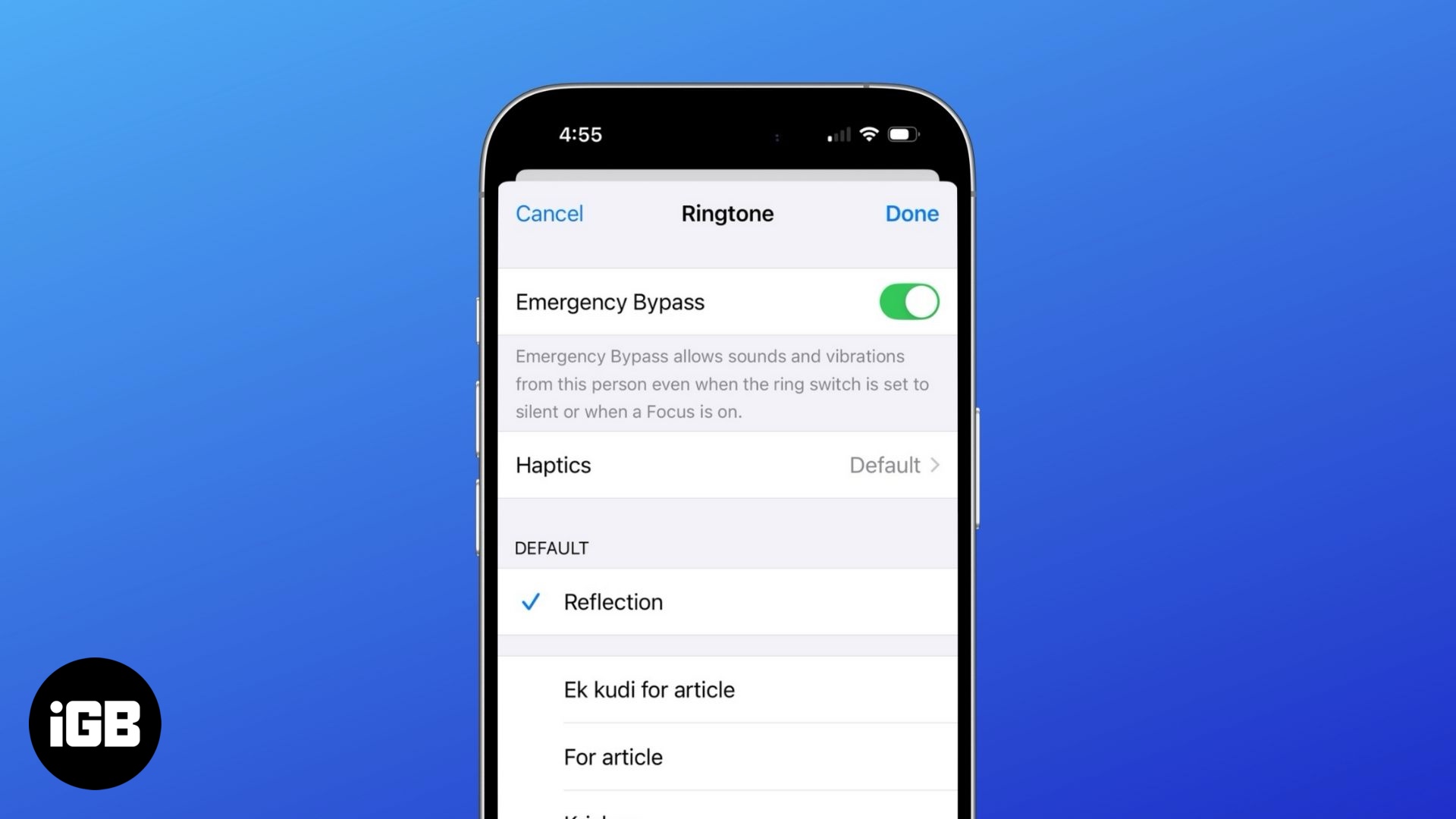
To avoid this, you can enable Emergency Bypass for specific contacts on your iPhone or iPad. This ensures that certain calls and messages come through even when Do Not Disturb or Silent mode is active. Let’s explore how to set it up!
What is Emergency Bypass?
Emergency Bypass allows you to customize Do Not Disturb (Focus) by letting specific contacts bypass the restriction. Normally, DND silences all calls and messages, but with this feature, you can ensure that select people can still reach you.
While iOS also offers an “Always Allow Calls from” setting, it only applies to contact groups. In contrast, Emergency Bypass works for individual contacts, giving you greater flexibility without the need to create a group.
How to enable Emergency Bypass for calls
- Open the Contacts app and select the person you want to enable Emergency Bypass for.
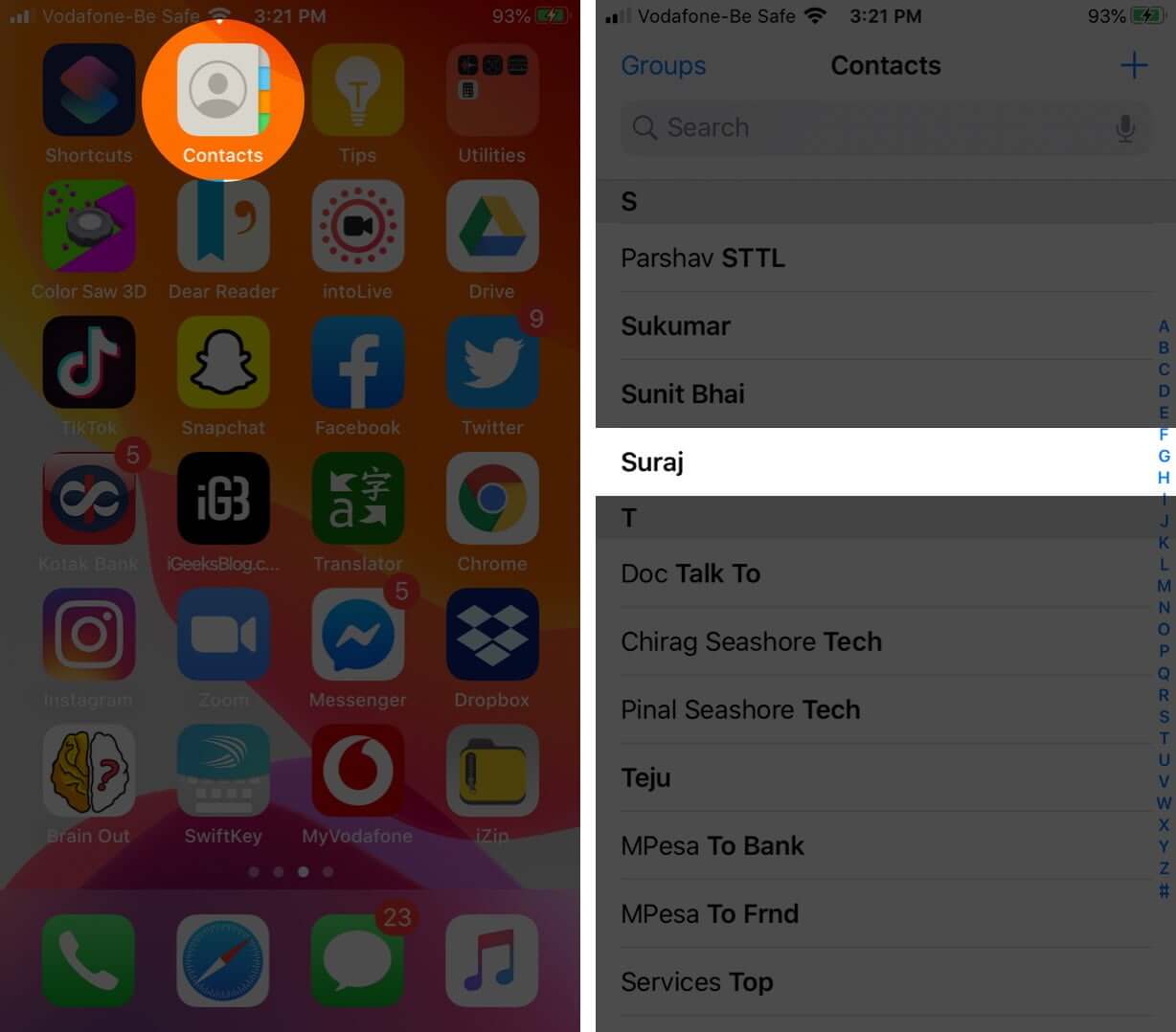
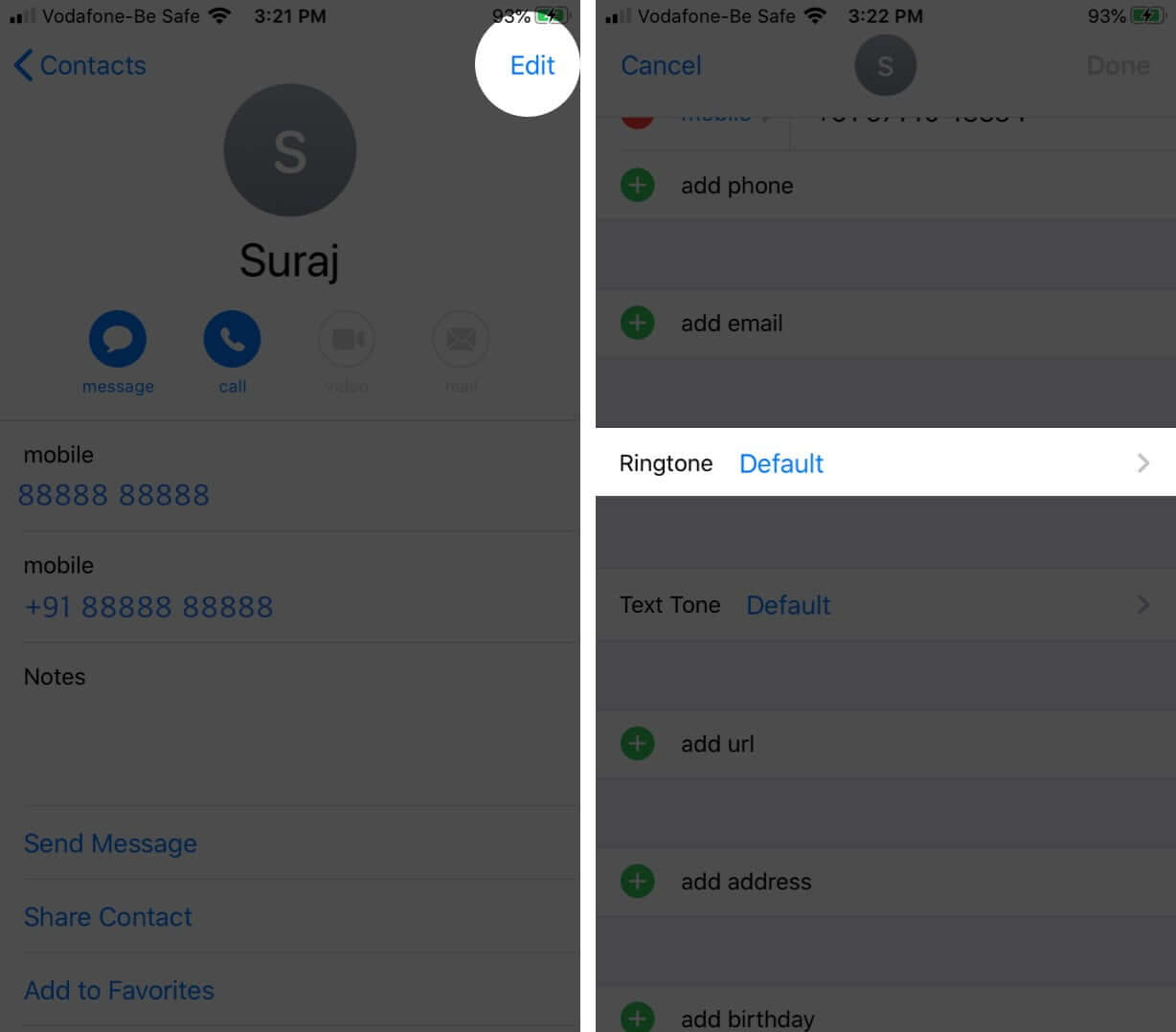
- Tap Edit in the top-right corner.
- Scroll down and tap Ringtone.
- Toggle ON the switch next to Emergency Bypass to allow calls.
- Tap Done → Tap Done again to save changes.
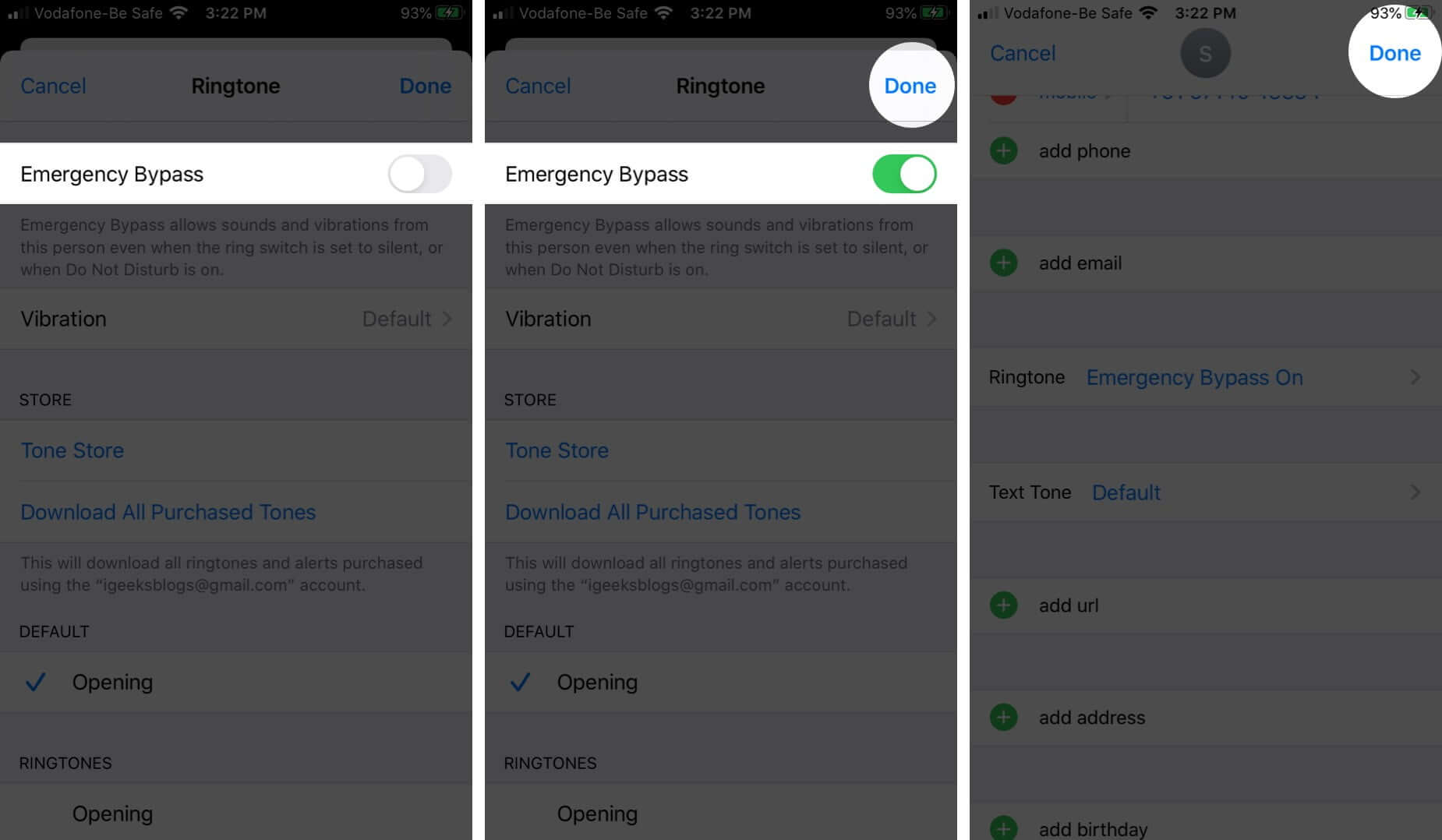
Now, your phone will ring even if Do Not Disturb or Silent mode is enabled when this contact calls you. You may want to set a subtle ringtone for these instances.
To disable Emergency Bypass for calls, follow the same steps and turn off the toggle at the end.
How to enable Emergency Bypass for text messages
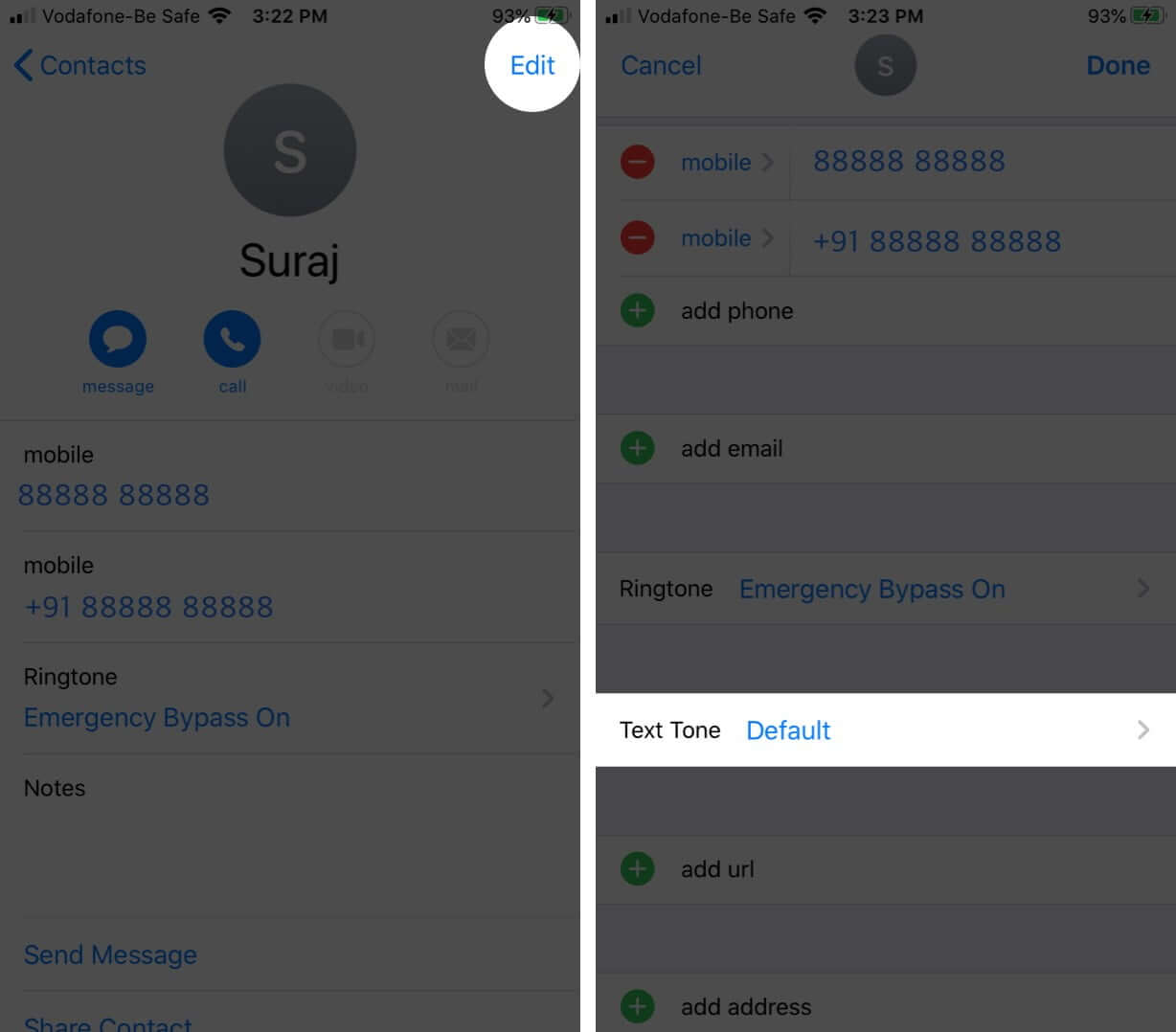
- Open the Contacts app and select the person you want to allow messages from.
- Tap Edit in the top-right corner.
- Select Text Tone.
- Toggle ON the switch next to Emergency Bypass to allow messages.
- Tap Done → Tap again to confirm.
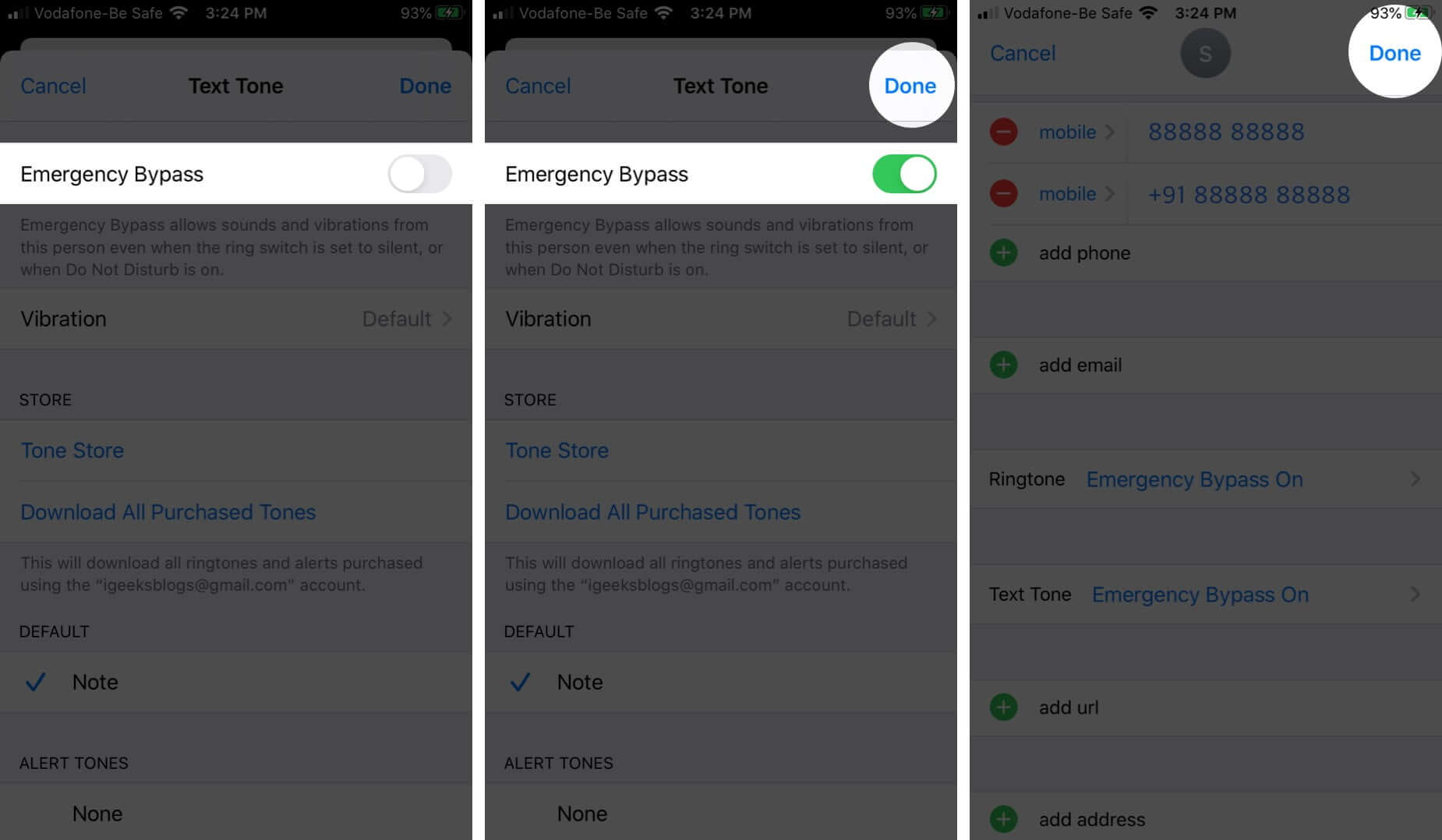


To disable Emergency Bypass for text messages, follow the same steps and turn off the toggle.
How to enable Emergency Bypass for FaceTime calls
- Open the FaceTime app on your iPhone or iPad.
- Enter the contact’s name in the search bar. (Alternatively, if they’re already in your recent calls, tap the “i” button next to their name.)
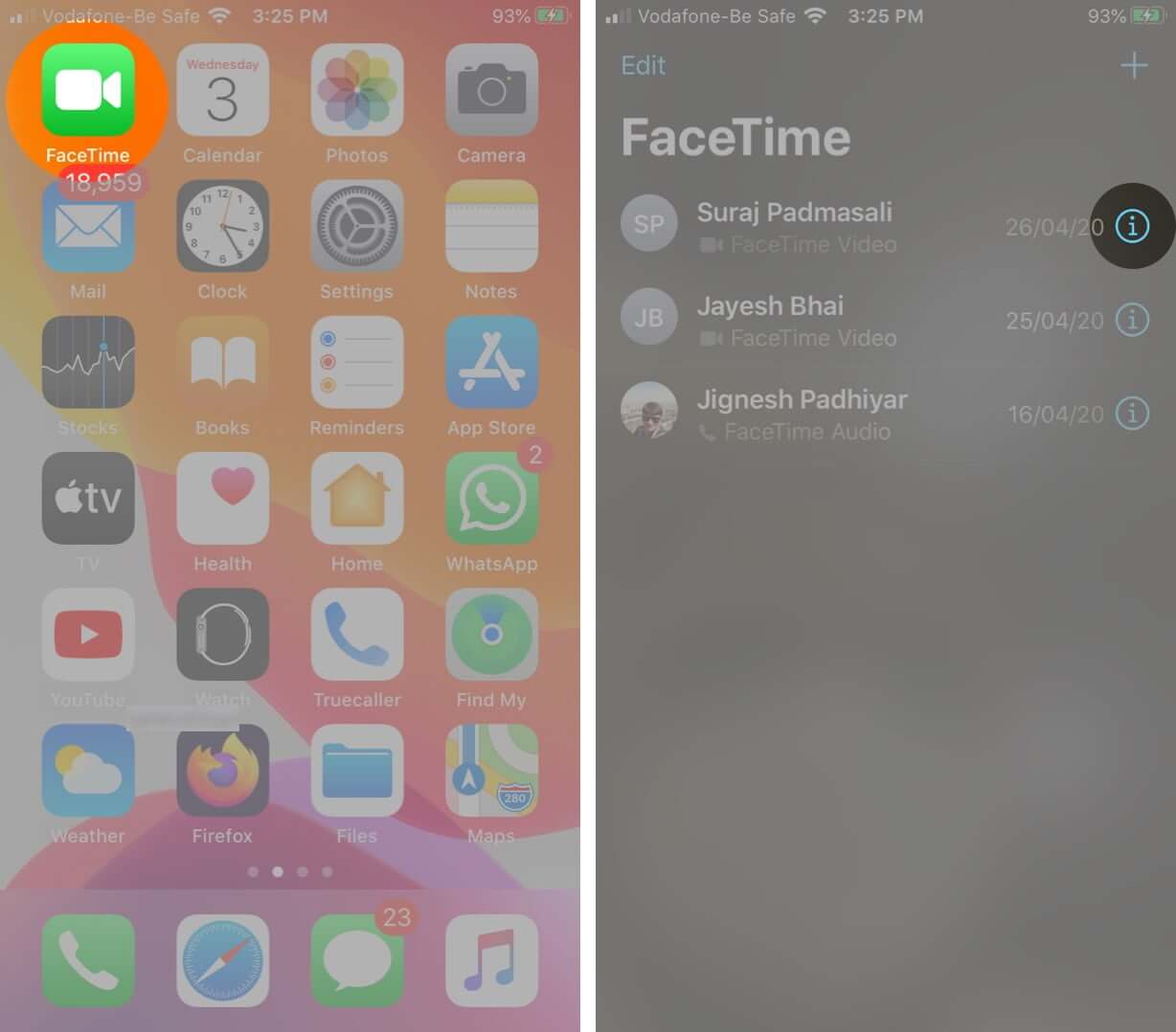
- Tap Edit in the top-right corner.
- Scroll down to Ringtone and Text Tone settings.
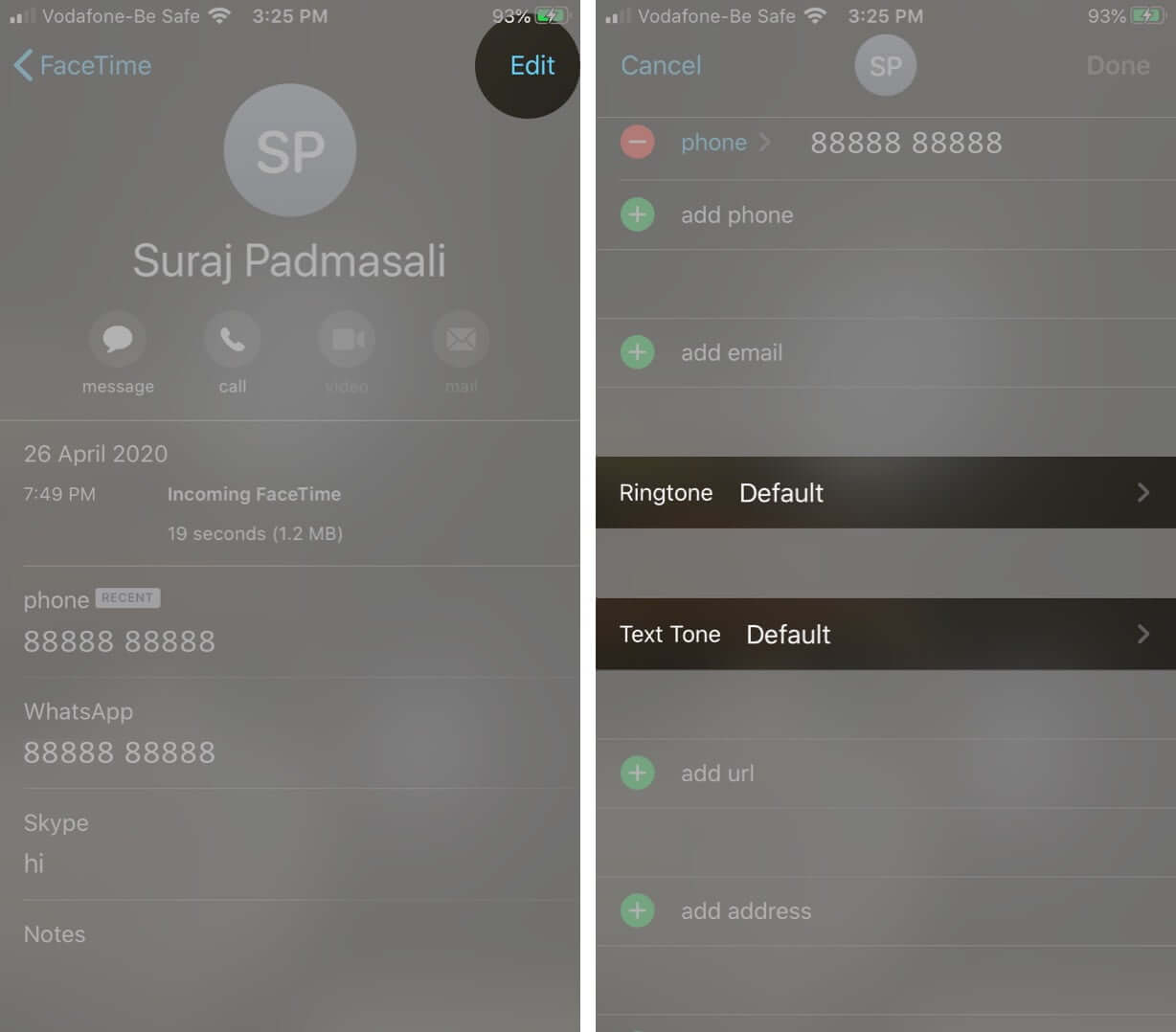
- If you want to receive FaceTime calls when DND is on, tap Ringtone and enable Emergency Bypass.
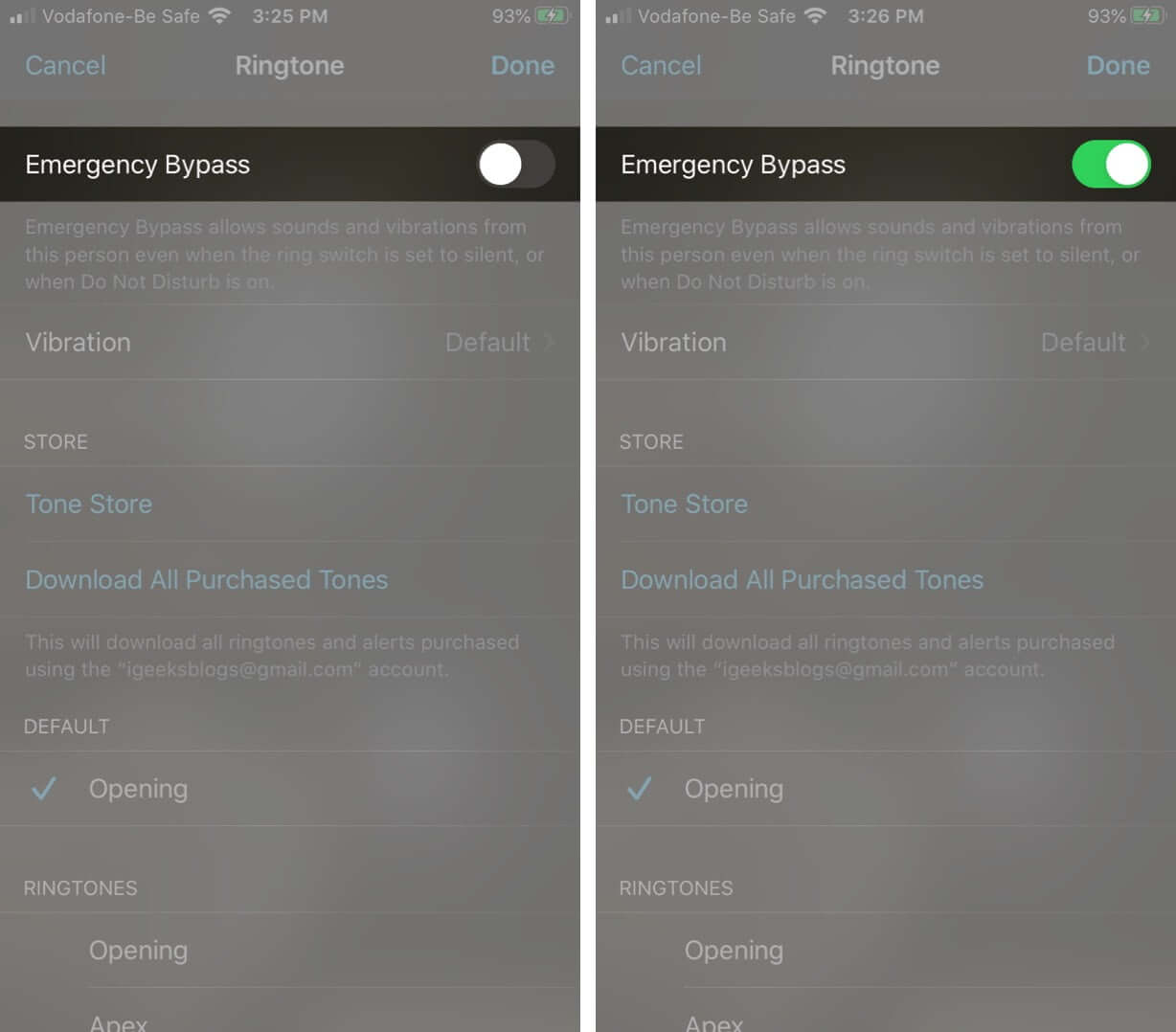
- If you want to receive FaceTime message alerts, tap Text Tone and enable Emergency Bypass. Tap Done to save changes.
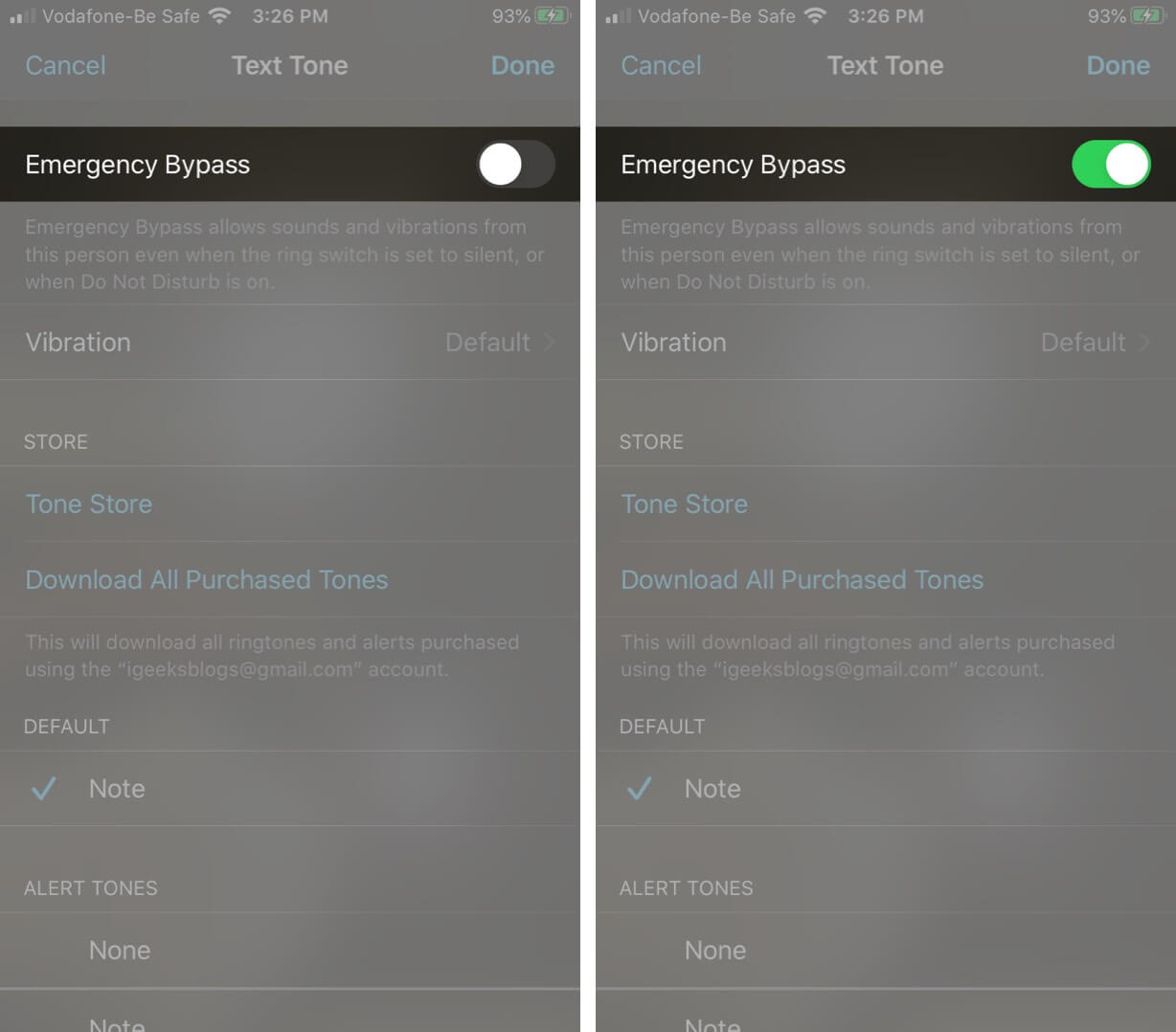


To disable Emergency Bypass for FaceTime, repeat the steps and toggle OFF the switch under Ringtone and Text Tone.
Summing up
Setting up Emergency Bypass ensures that you never miss important calls or messages while Do Not Disturb or Silent mode is enabled. It’s especially helpful if you frequently forget to turn off DND.
What do you think about this feature? Let us know in the comments below! Also, if you want another way to avoid missing important calls, consider enabling the Auto-Answer feature on your iPhone.




