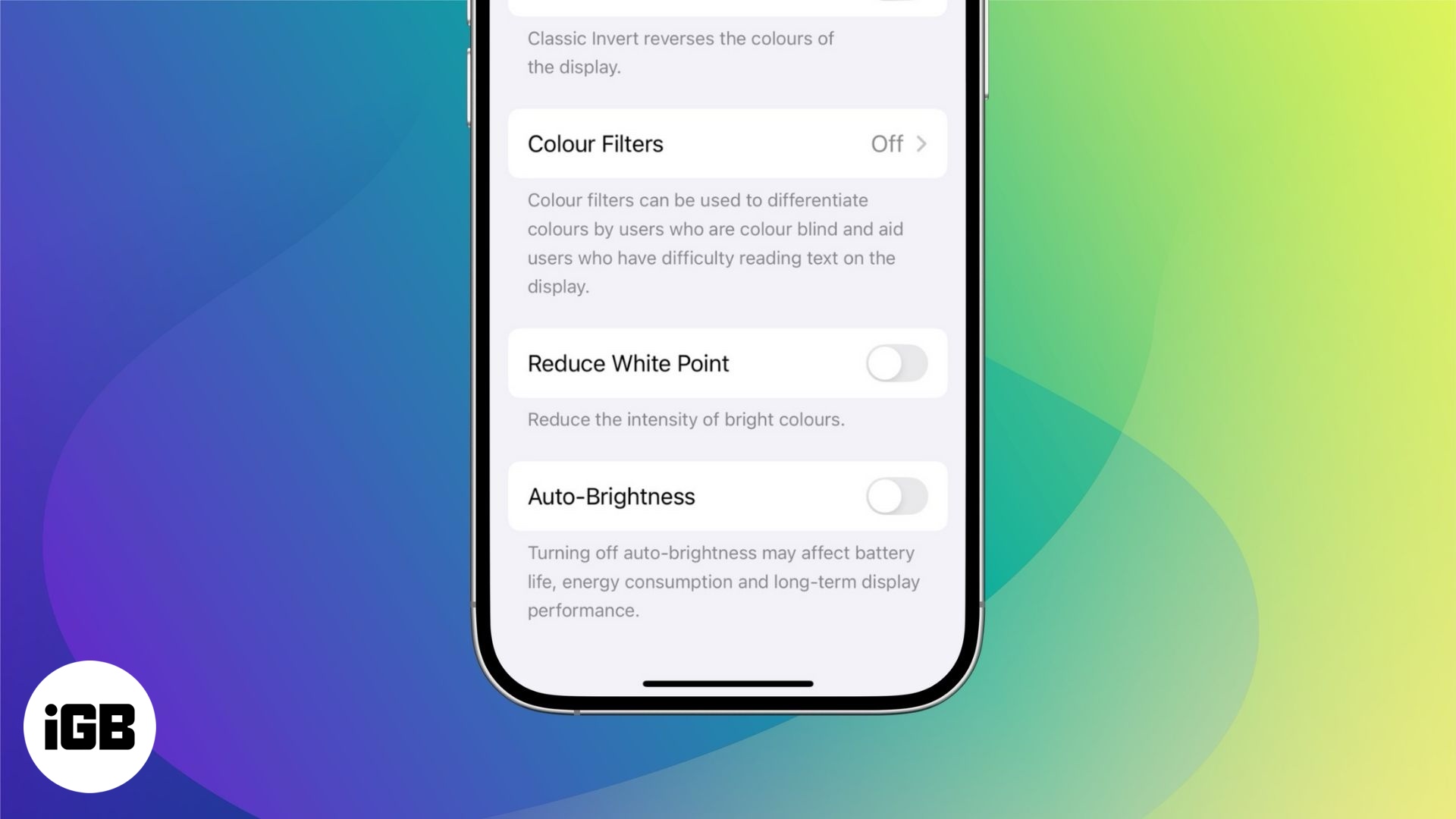
- Auto-brightness adjusts your iPhone or iPad screen based on lighting using ambient sensors to balance visibility and battery life.
- Apple enables auto-brightness by default to reduce eye strain and extend battery without needing constant manual adjustments.
- You can turn off auto-brightness under Accessibility settings by toggling it off in Display & Text Size for full manual brightness control.
- Manually adjust brightness anytime from Control Center or use the slider in Settings > Display & Brightness for more precise screen tuning.
- If dimming continues after disabling auto-brightness, check other settings like Low Power Mode, True Tone, and Night Shift, or consider hardware issues.
Has your iPhone or iPad screen been dimming automatically—even when you don’t want it to? That’s probably due to the auto-brightness feature. It’s designed to save battery life and reduce eye strain, but it can sometimes feel more like a nuisance than a benefit.
If you want full control over your screen’s brightness, here’s how to turn off auto-brightness on your iPhone or iPad and set things just the way you like.
What is auto-brightness on iPhone and iPad?
Auto-brightness is a smart feature built into your iPhone and iPad. It uses ambient light sensors-located near the front-facing camera-to detect lighting conditions around you and adjust the screen brightness accordingly.
- In bright settings: The screen gets brighter so it stays readable.
- In dark settings: It dims to avoid blinding your eyes.
Why Apple enables auto-brightness by default:
- Battery saving: Reduces unnecessary screen brightness and conserves power.
- Eye comfort: Automatically adjusts to reduce strain, especially in dark environments.
But sometimes, adaptive brightness doesn’t work in your favor-like when you’re reading in bed and the screen keeps dimming, or you’re outside and can’t see the screen well enough. If you prefer a consistent screen brightness, turning off auto-brightness might be exactly what you need.
How to turn off auto-brightness on iPhone or iPad
Here’s how to disable auto-brightness on your iOS device:
- Open the Settings app.
- Scroll down and tap Accessibility.
- Under the Vision section, select Display & Text Size.
- Scroll to the bottom and toggle Auto-Brightness off (the switch will turn gray).
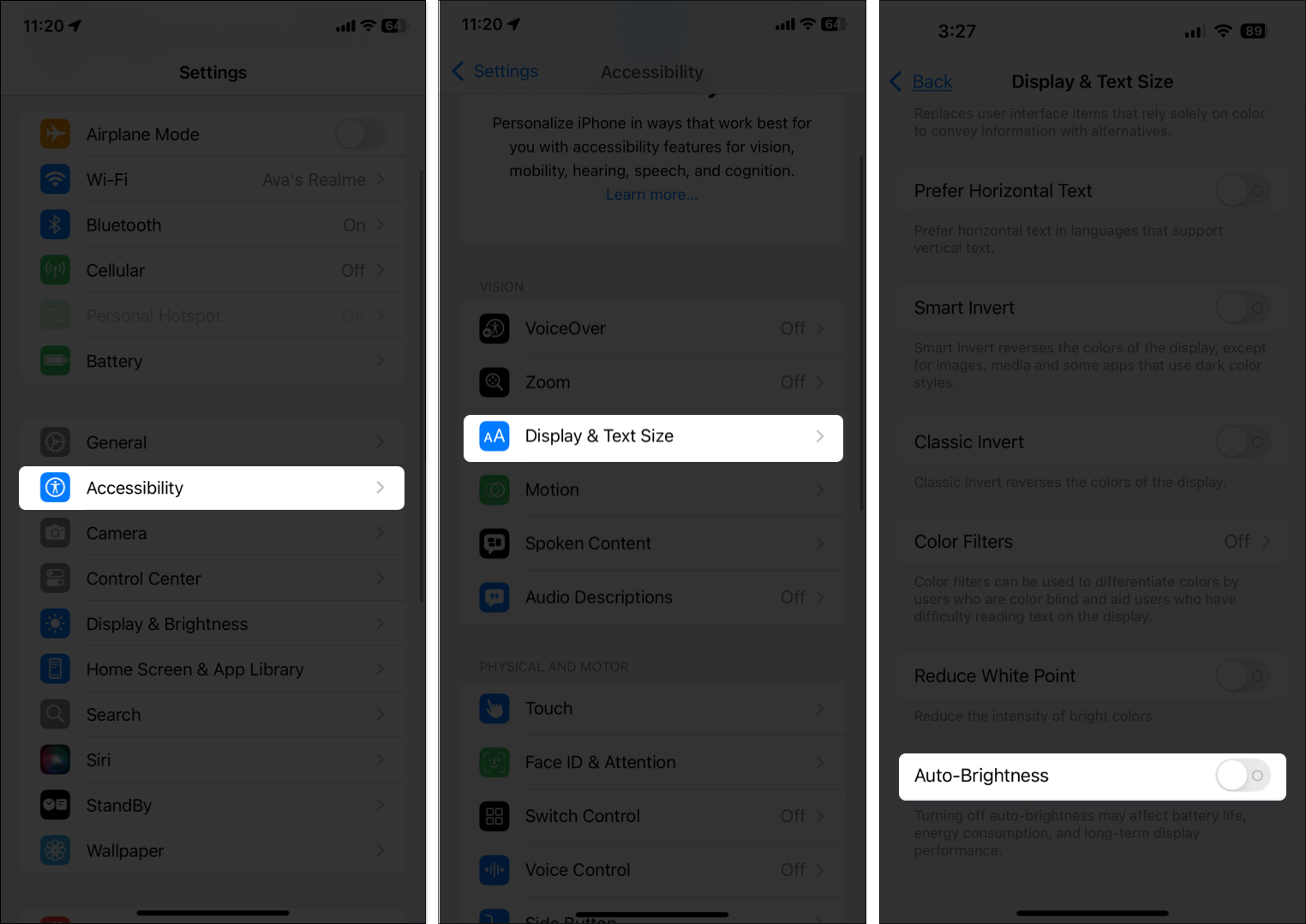
Done! Your iPhone or iPad will now maintain the brightness level you set, regardless of the lighting around you.
How to manually change brightness on iPhone or iPad
Once you’ve disabled auto-brightness, you can manually adjust the brightness anytime using these two easy methods:
1. Using Control Center
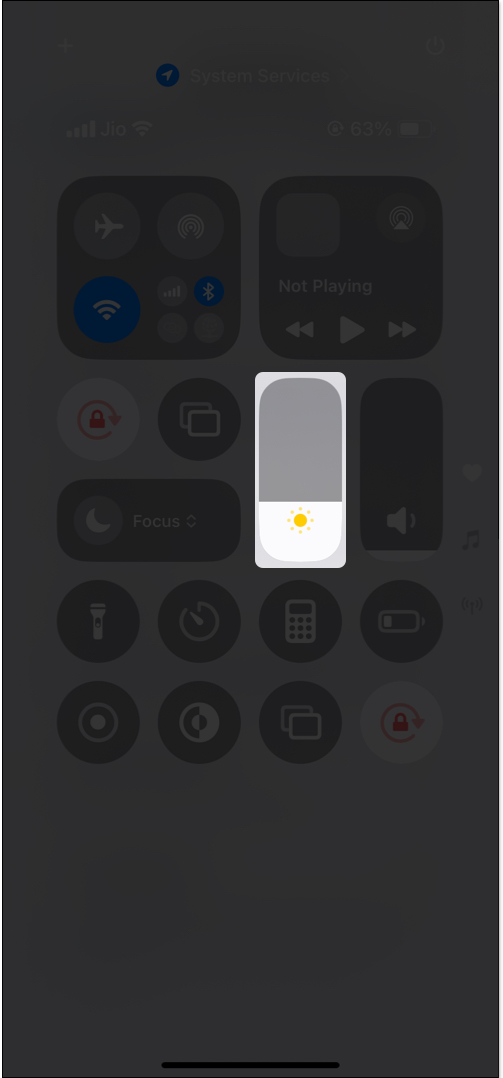
- On iPhones with Face ID or iPads: Swipe down from the top-right corner.
- Find the brightness slider (sun icon).
- Slide up to brighten the screen or down to dim it.
Related: How to customize Control Center on iPhone
2. Using Settings
- Open the Settings app.
- Tap Display & Brightness.
- Use the slider to adjust your preferred brightness level.
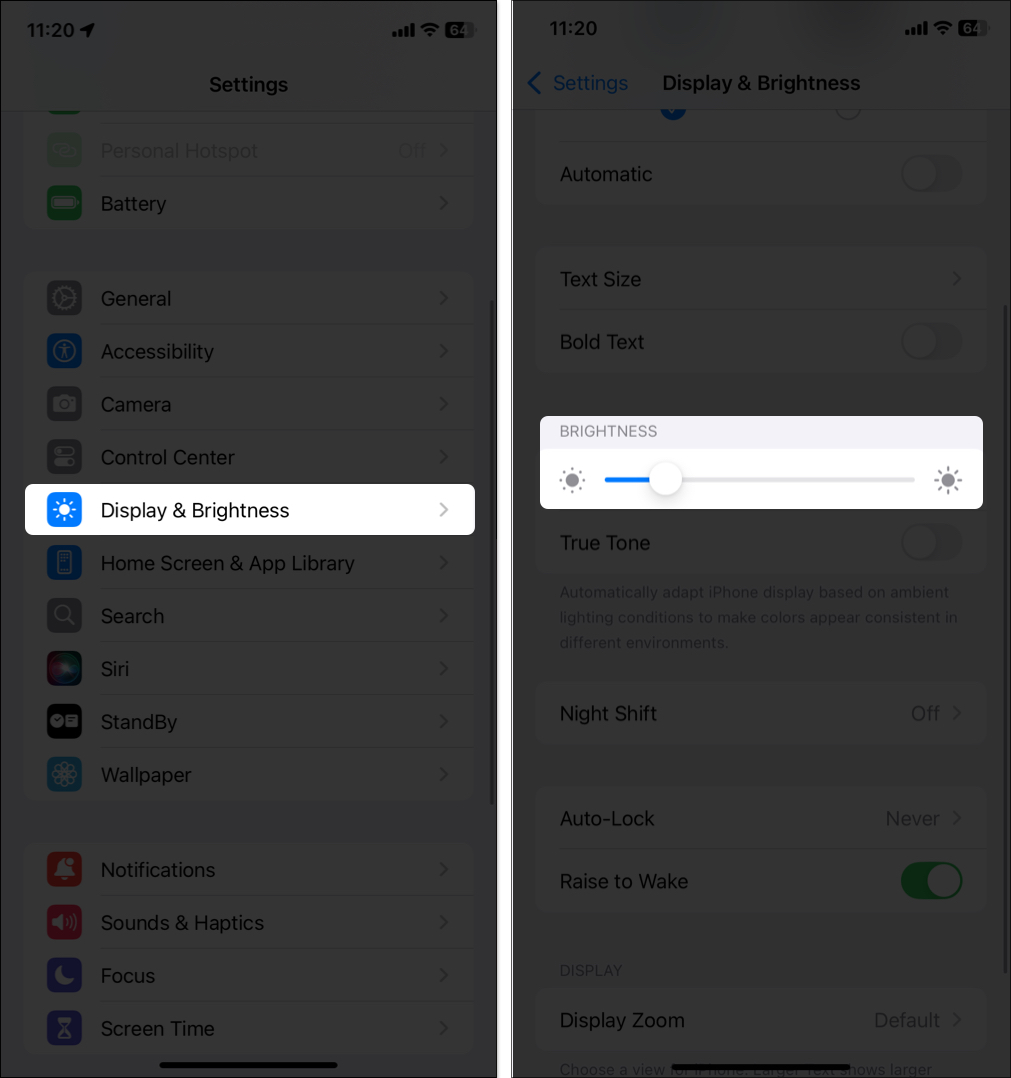
This method is helpful if you’re already in Settings or want to fine-tune your display.
iPhone screen still dimming after turning off auto-brightness?
If your screen keeps dimming even with auto-brightness off, there could be other features at play:
- Low Power Mode: Reduces brightness to save battery.
- Overheating protection: iPhone dims the screen to cool itself down.
- Night Shift & True Tone: These features adjust the display based on the time of day and lighting, which can affect brightness perception.
- Software bugs or hardware issues: Rare, but possible.
Check out our guide to fixing iPhone screen dimming problems for a deep dive into possible causes and proven solutions.
Signing off
Disabling auto-brightness gives you total control over your screen’s appearance. Whether you’re outdoors under the sun or relaxing in a dim room, your iPhone or iPad will now stick to the brightness level you choose, no surprises.
Take charge of your screen, eliminate frustrating dimming, and enjoy a viewing experience that works the way you want it to.
Check out these helpful guides too: