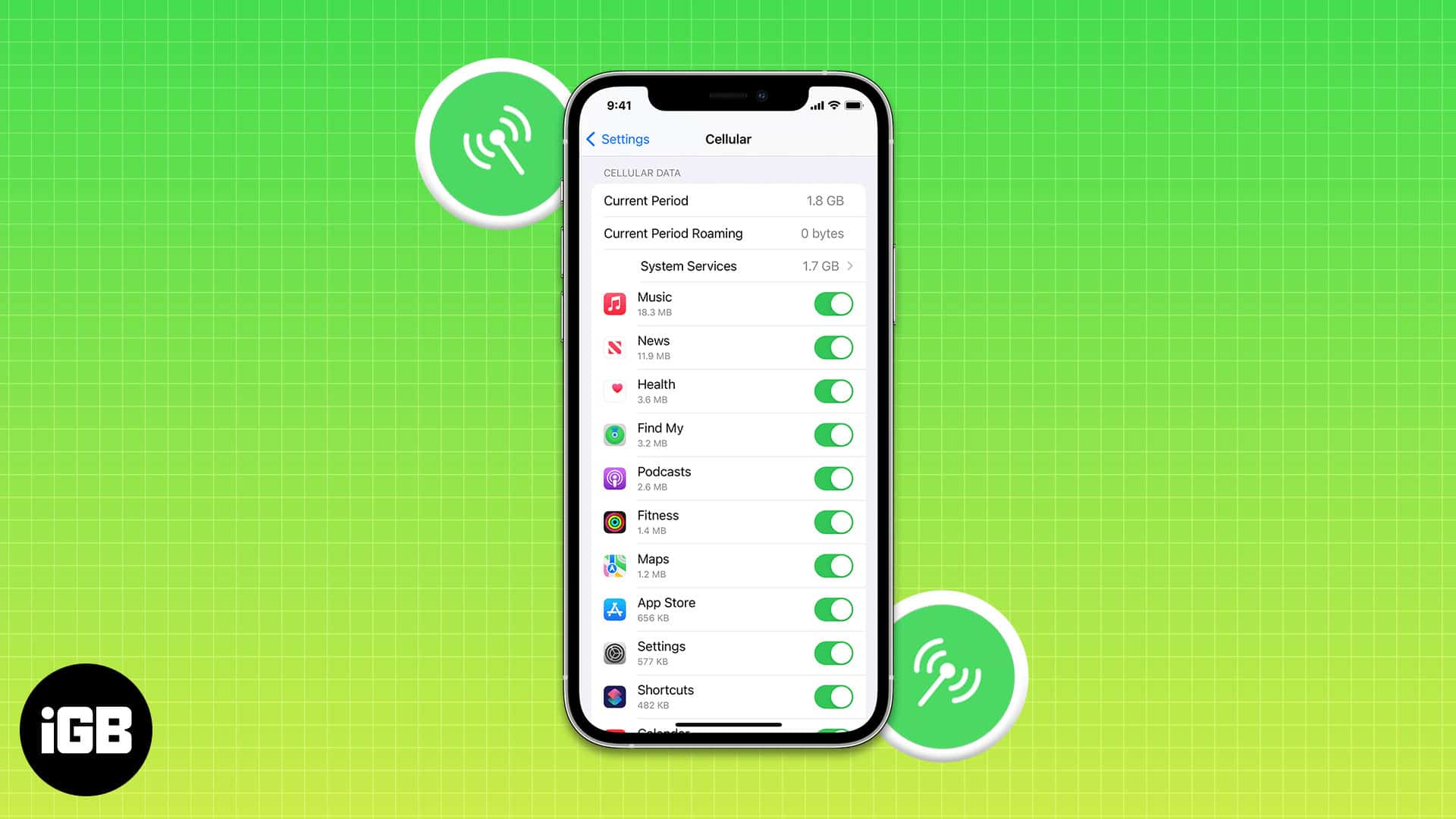
In most parts of the world, cellular data plans are costly, and there is a cap on the data limit. Once you cross your usages, the additional charges are very high. To ensure you do not pay a hefty fee, you should regularly check your cellular data usage on your iPhone or iPad.
How to check cellular data usage on iPhone
- Open the Settings app.
- Tap Cellular.
- Under the Cellular Data section, next to the Current Period tab, you’ll be able to view your data usage.
Those using iOS 16 or earlier will find this data next to the Usage tab.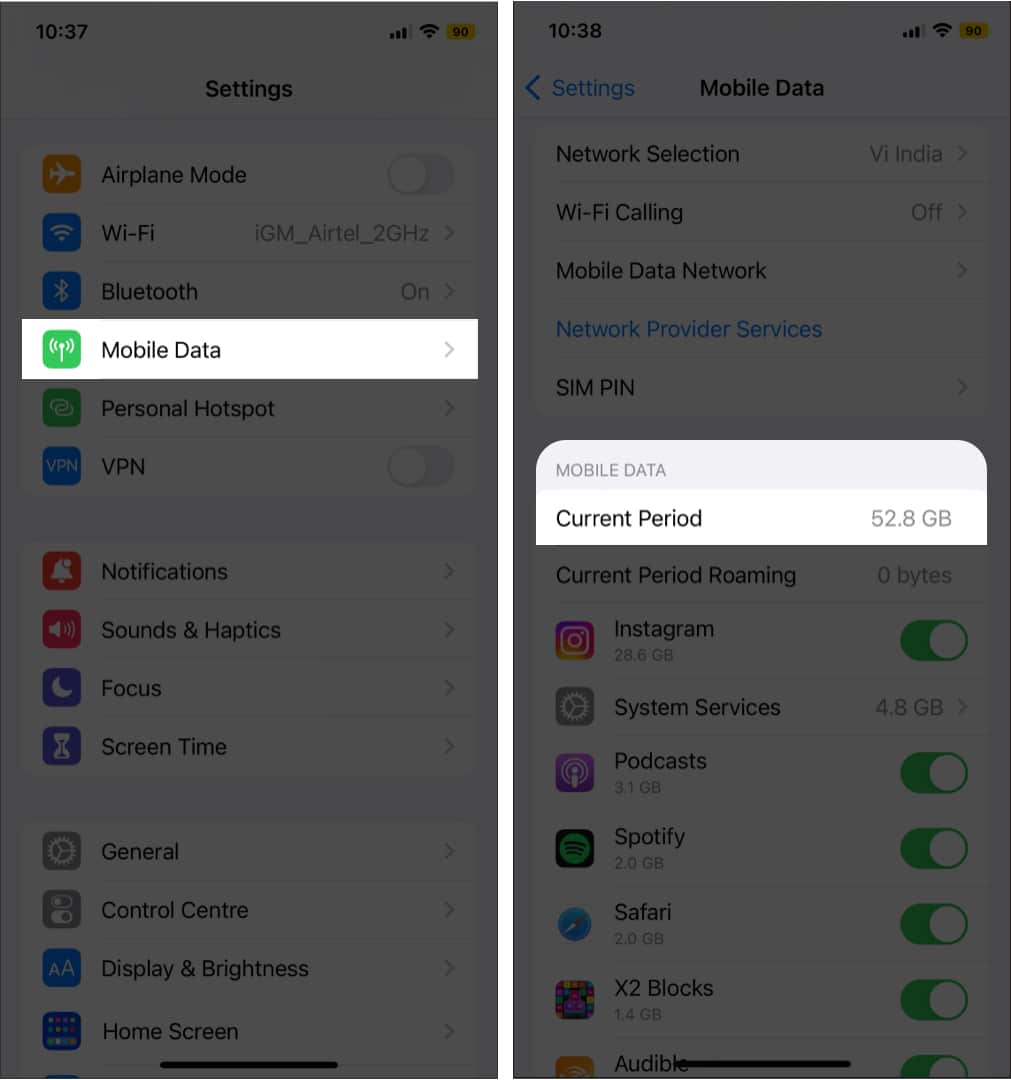
Note
- Current Period Roaming is data usage of iPhone when.
Check data usage by logging into the carrier’s website or app
You can also view the total cellular data that your iPhone has consumed from the website or application of your carrier. You might not be able to real-time stats, but you would still be able to determine how much data you are using.
Monitor data consumption of Personal Hotspot on iPhone
- Open the Settings app → Tap Cellular.
- Scroll down to the Cellular Data section.
- Check the total data usage next to the Personal Hotspot section.
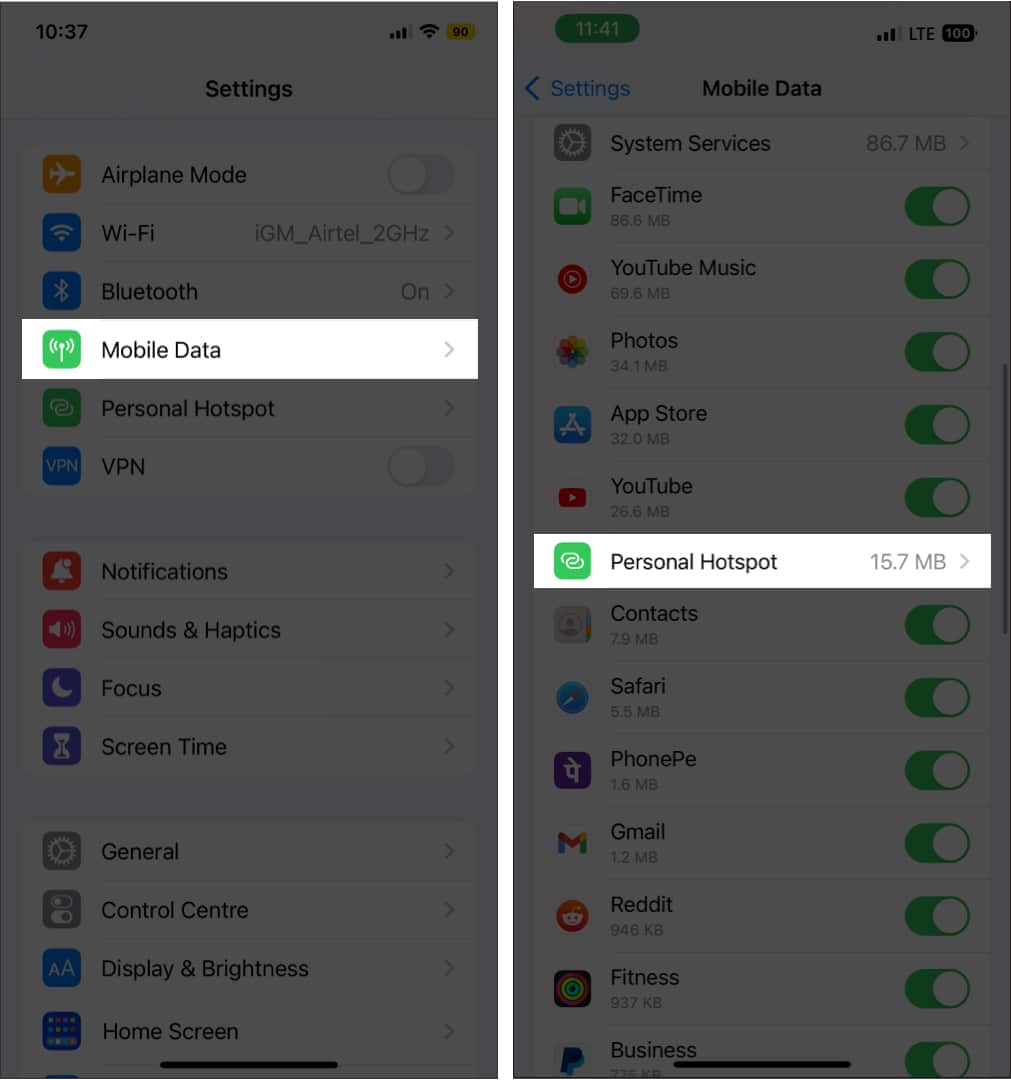
It shows how much data has been used to provide internet access to your hotspot-connected device. If you tap it, you can see the device names.
Note
- The tab for System Services shows the amount of mobile data used for performing various basic tasks and services on the system level of your iPhone. When you tap it, you find how much cellular data Siri, Push Notifications, Software Updates, Backup, Documents & Sync, etc. have consumed.
Check data usage for individual apps on iPhone
- Go to Cellular settings.
- Under the Cellular Data section, you’ll be able to view the data consumption of individual apps.
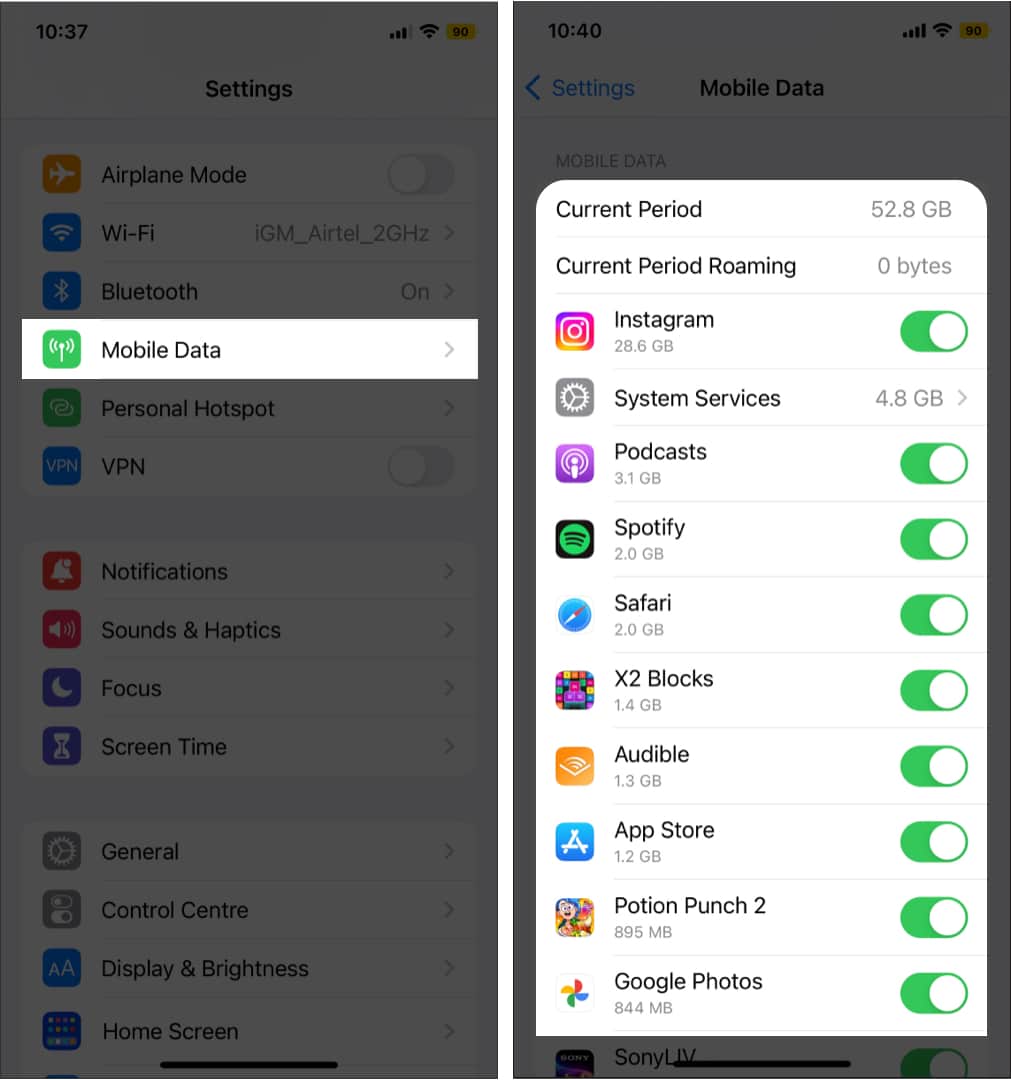
If you find some apps are consuming too much data, you may turn off cellular data for those specific apps.
Also, scroll down to check the Wi-Fi Assist usage data. This handy feature automatically uses cellular data when Wi-Fi connectivity is poor. If you have a limited plan, make sure to turn Wi-Fi Assist off.
Finally, if you turn on the iCloud Drive toggle, your mobile data will be used to transfer documents and data when the iPhone isn’t connected to Wi-Fi. Since my plan has unlimited data, I have this toggle turned ON.
How to reset data statistics on iPhone
If you have a monthly plan, like most of us, it is a good idea to reset the mobile data usage statistics on the initial day of your data plan’s term. Some carriers do this automatically. Once you reset it, you will be able to track and know your usage for the month precisely. To do so:
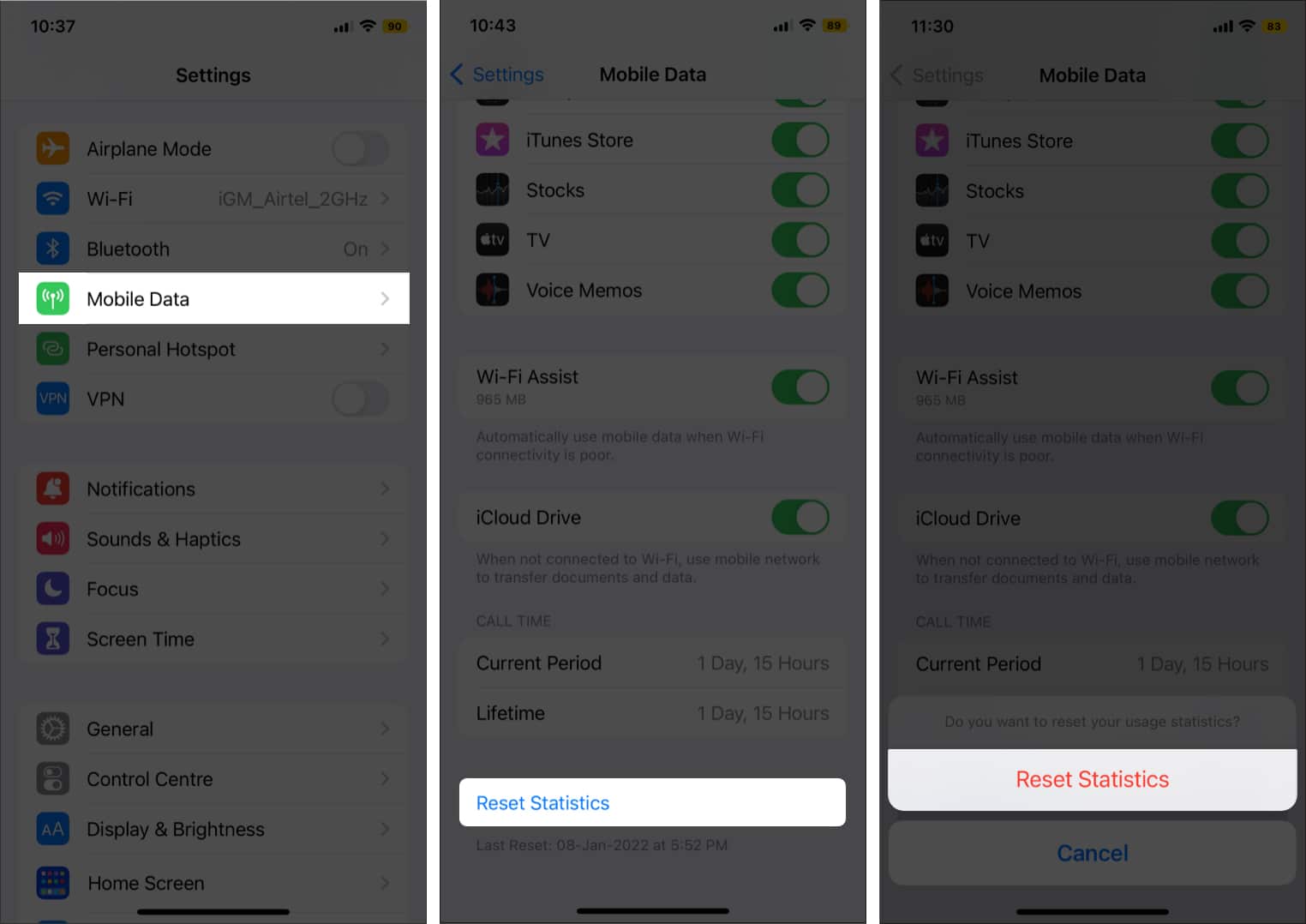
- Go to Settings → Cellular.
Scroll all the way to the bottom. - Select Reset Statistics.
- Again, tap Reset Statistics.

Signing off…
So this is how you can effortlessly check data usage on iPhone and iPad. If you have further questions, please feel free to drop them in the comments below. I’ll try to respond as soon as possible. In the meantime, you may read some of our other articles.