

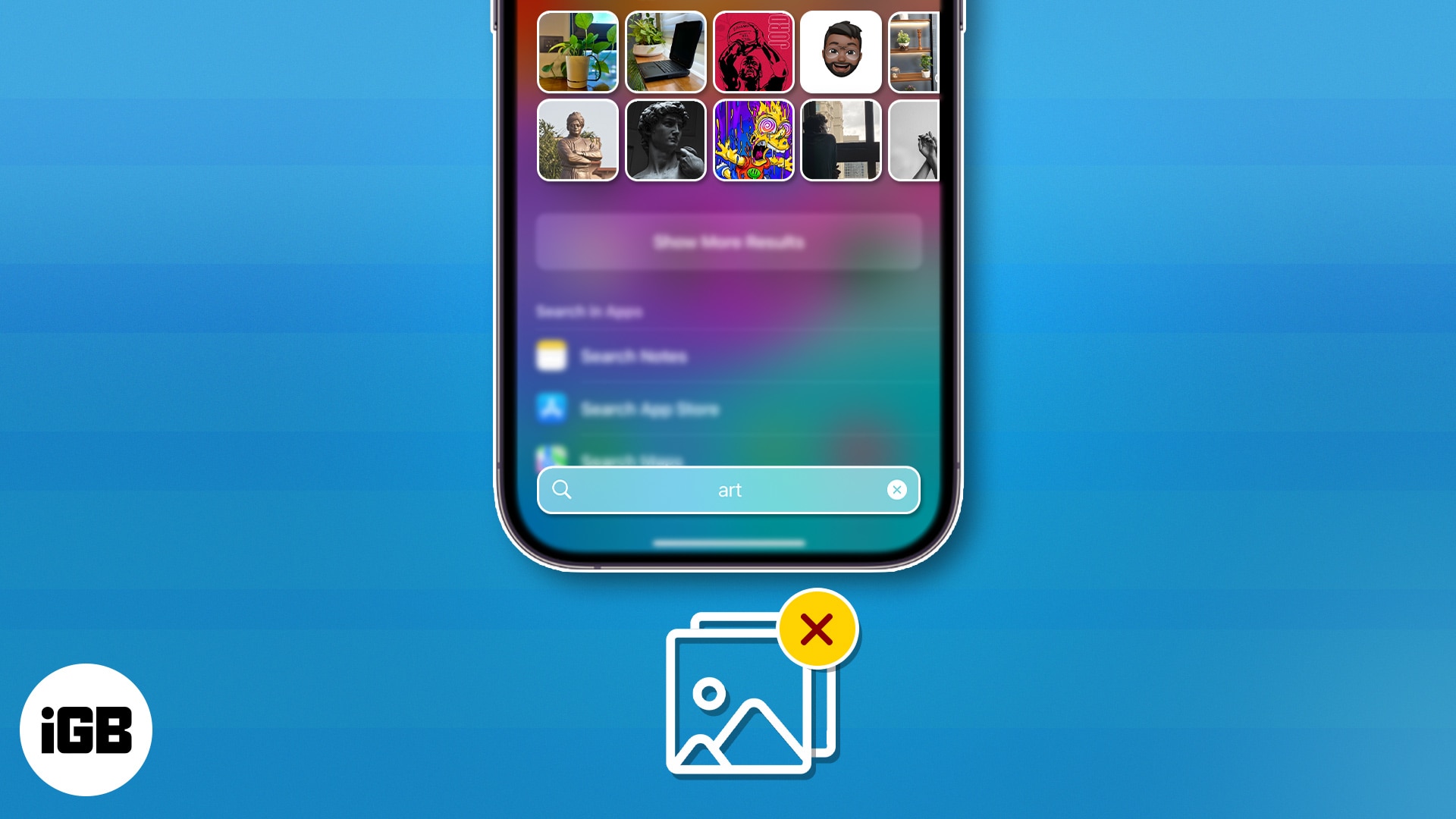
While we love to summon a file or app via Spotlight, let’s face it, there are photos we’d rather keep private. Regardless of the picture, it’s essential to know how to manage what shows up in the Spotlight search on your iPhone or iPad.
This tutorial will help you avert this problem. Without further ado, let’s explore possible ways to remove Photos from Spotlight search on iPhone or iPad.
How to stop Spotlight search from suggesting Photos app on iPhone or iPad
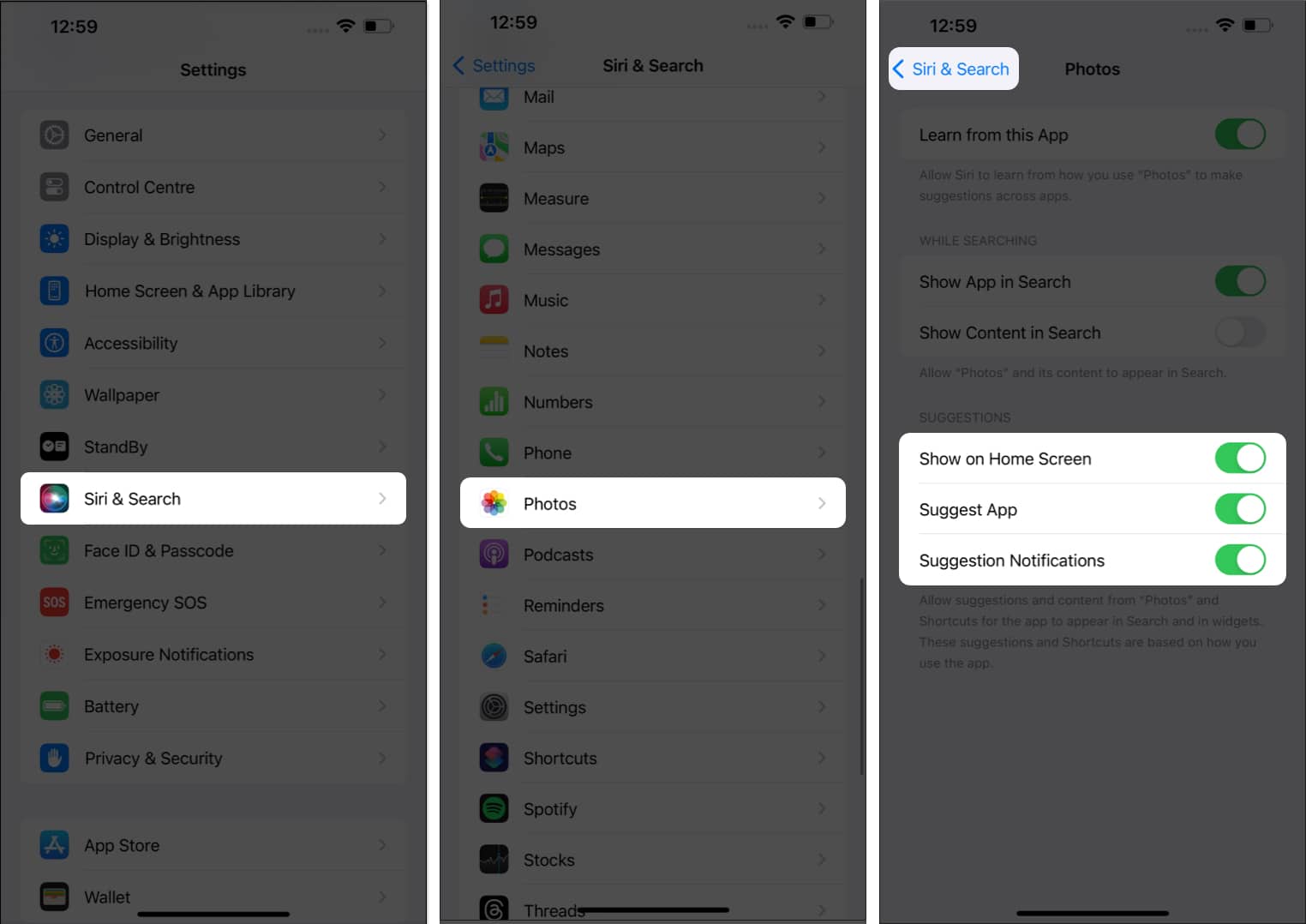
- Launch the Settings app on your iPhone.
- Access Siri & Search from the menu.
- Now, scroll down and select Photos.
- Toggle off Show App in Search.
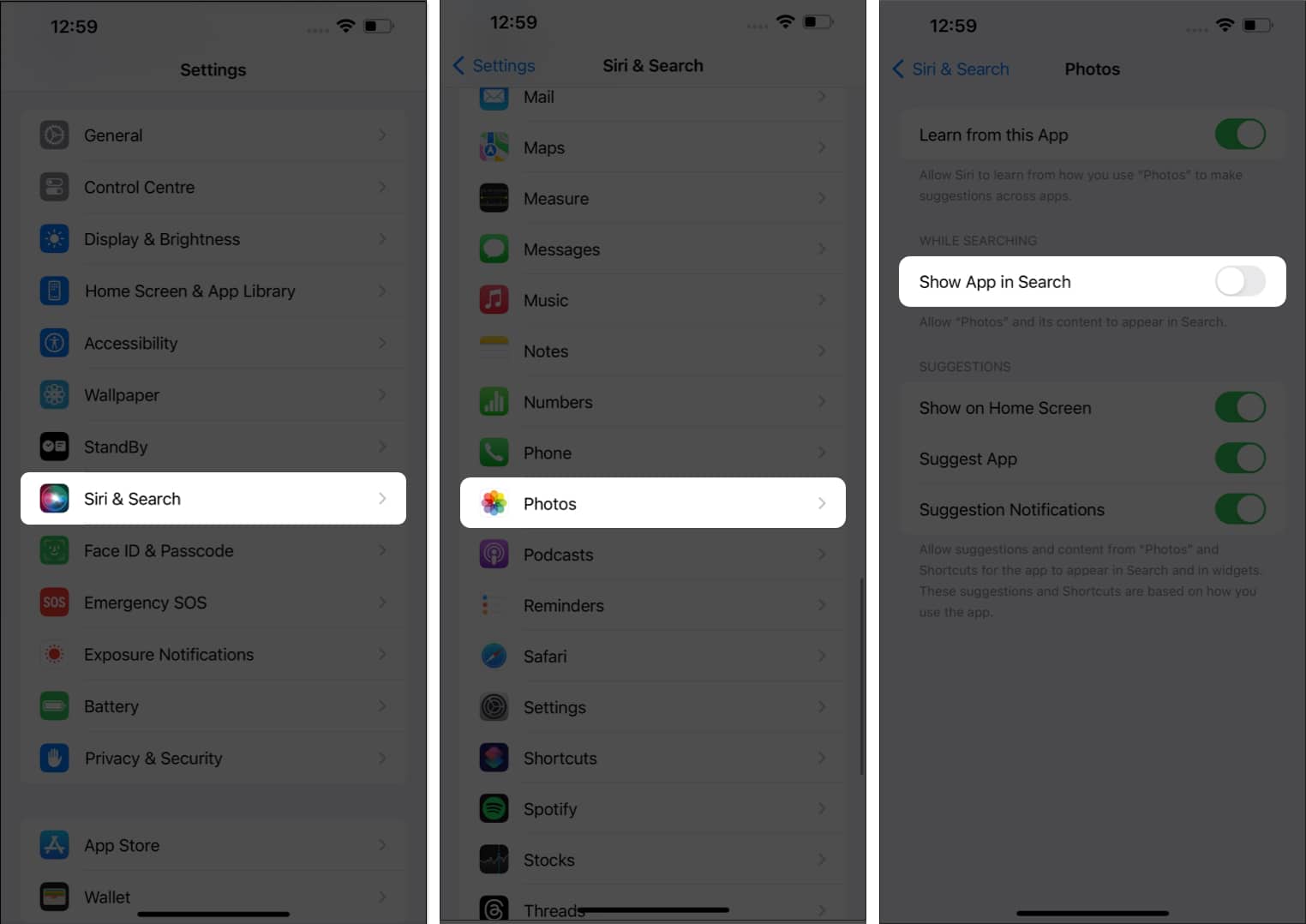
No more accidental swipes or unintentional taps leading straight to your entire photo gallery. You have got that sorted!
If you don’t want to carry something as extreme as hiding the entire Photos app, there’s an alternative available for you. You can repeat the same for selected candid shots, personal memories, or any picture that’s for your eyes only. Let’s see how.
How to stop Spotlight search from suggesting images on iPhone
- Go to Settings → Siri & Search → Photos.
- Toggle off Show Content in Search.
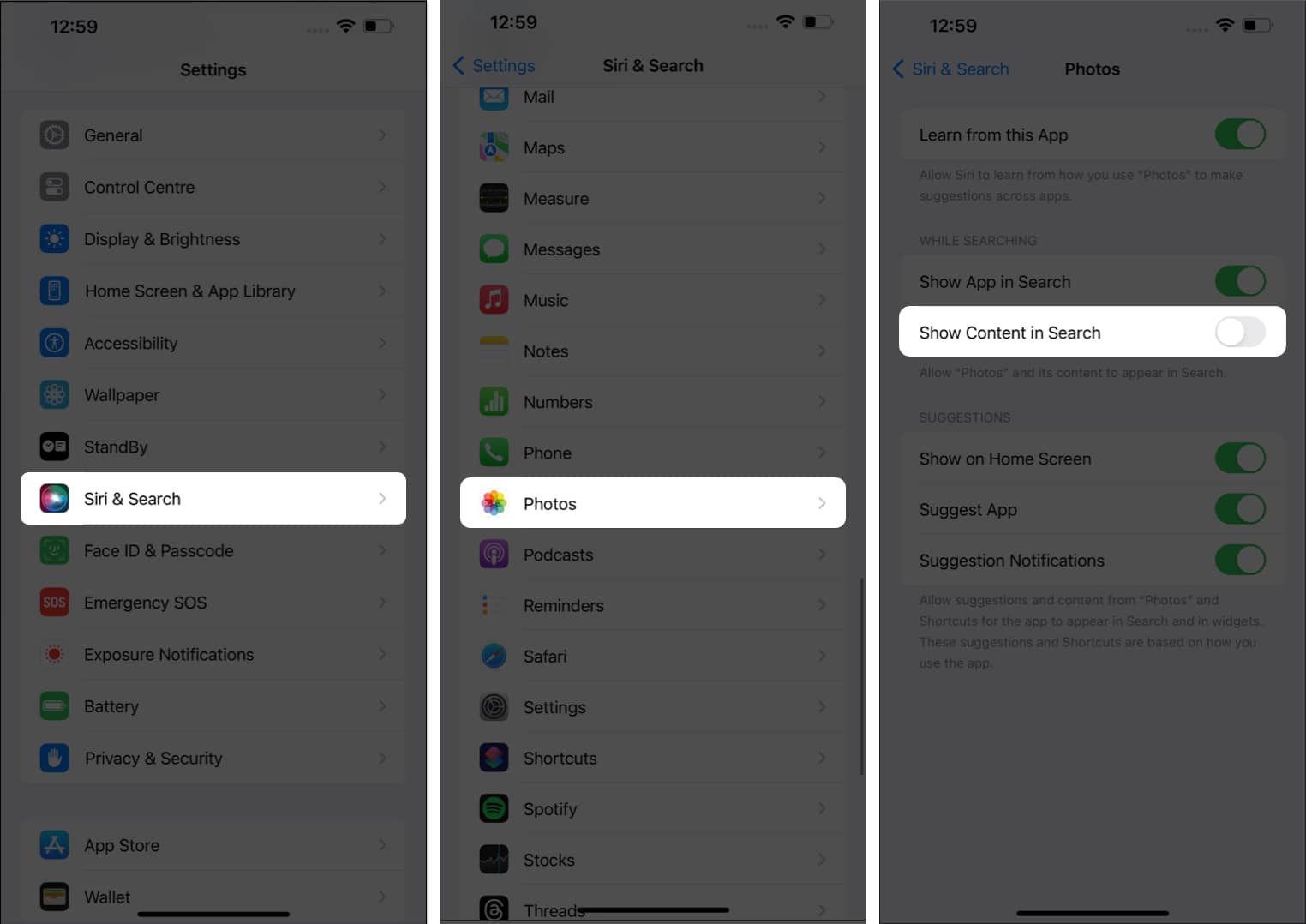
It’s that simple.
How to hide select Photos from appearing in the Spotlight search
Gone are the days of fretting over the possibility of someone catching a glimpse of your private pictures while innocently searching for something else. Refer to the following steps to gain full control over the pictures in the Photos app of your iPhone.
- Launch the Photos app on your iPhone.
- Select a Photo you seek to hide.
- Tap the three-dot icon and tap Hide Photo when prompted.
- Repeat the same for multiple photos as well.
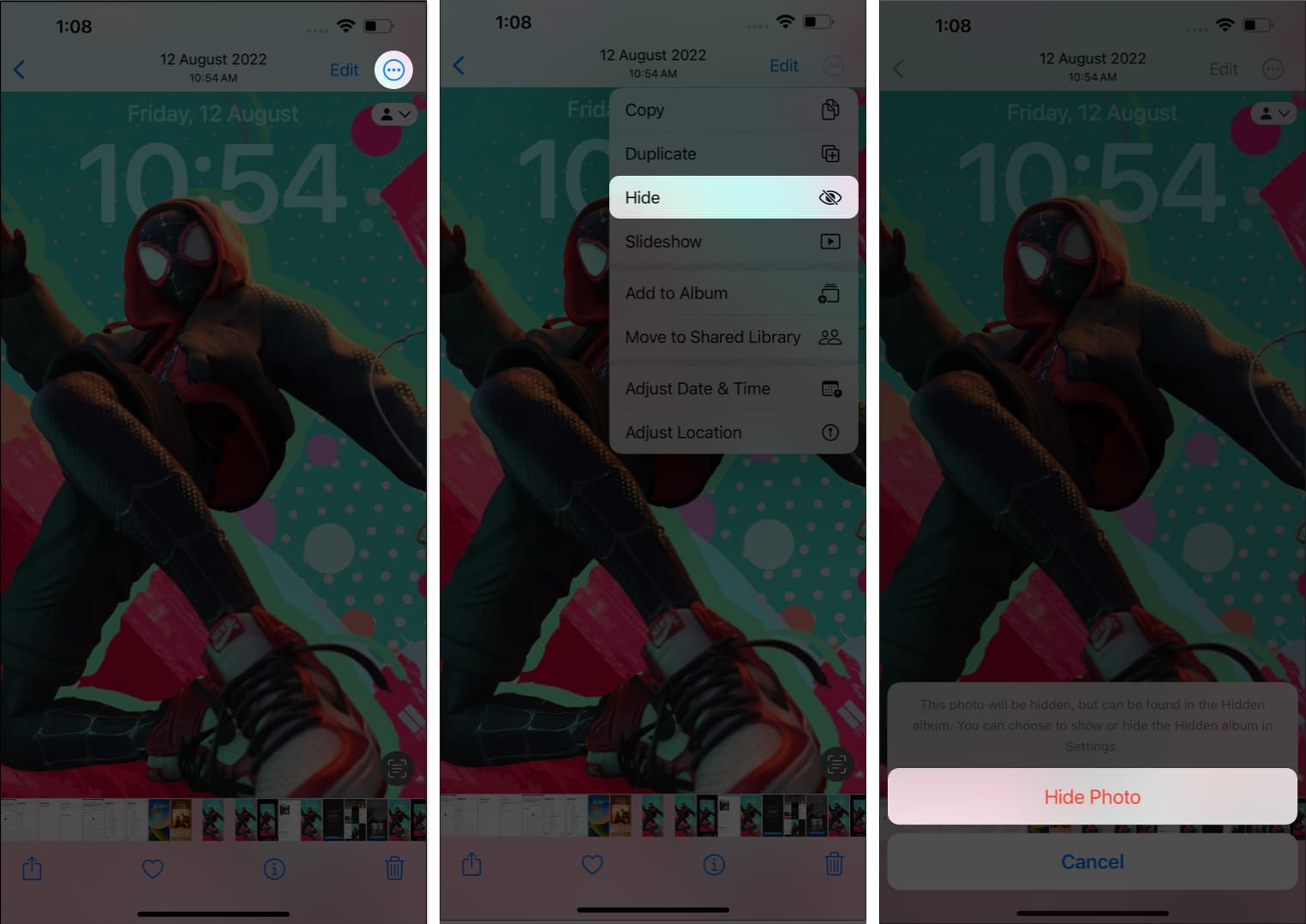
Moreover, if you feel like it, you can always access the hidden photos on your iPhone without any hassle.
How to turn off Photo suggestions on iPhone or iPad
Last but not least, you can discover the joy of a more personalized and secure iPhone as we go through the settings of the Photos app. Let’s get you equipped with a search experience that’s efficient, seamless, and, most importantly, respectful of your privacy.
- Navigate to Settings → Siri & Search → Photos.
- Under the SUGGESTIONS menu, you may alter the following:
- Show on Home Screen: Controls whether the Photos app should be displayed on the Home Screen of your iPhone.
- Suggest App: Allows you to control whether someone can access the app via Spotlight or Siri.
- Suggest notifications: This enables you to prevent the Photos app from sharing alerts or notifications.
- Once the settings are set to your preference, simply head back to Siri & Search menu.

Secrets are better hidden!
You’ve successfully manifested the art of keeping your secrets hidden by taking control over what appears in your iPhone’s Spotlight search. By following these straightforward steps, you’ve ensured that your private photos remain private, even from prying eyes. Remember to take into account your situation and consider a solution that suits your preferences.
Thank you for reading. Please take a moment to share your thoughts in the comments below.


