


I have an age-old penchant for creating a special collection of videos. Whenever I seem to be a bit under the weather, I like watching hilarious clips and sharing them with my friends. One of the prime secrets why my library never goes cold is that I don’t fail to save exciting Snapchat videos and photos on the iPhone or iPad.
Snapchat allows you to save your memories with ease. Unfortunately, there is no official way to download the snaps shared by other users. But, there is always a workaround to shoot out the hurdle.
How to save Snapchat photos and videos to iPhone camera roll
Snapchat allows you to save the images or videos you take on the app to your iPhone gallery. Here, I will share several methods; choose one per your situation. If you want to save pictures from your Snapchat chat to camera roll, learn how to screenshot on Snapchat without knowing them.
Save the Snaps you captured
- Launch Snapchat → Capture a photo or video.
- Tap the Save button.
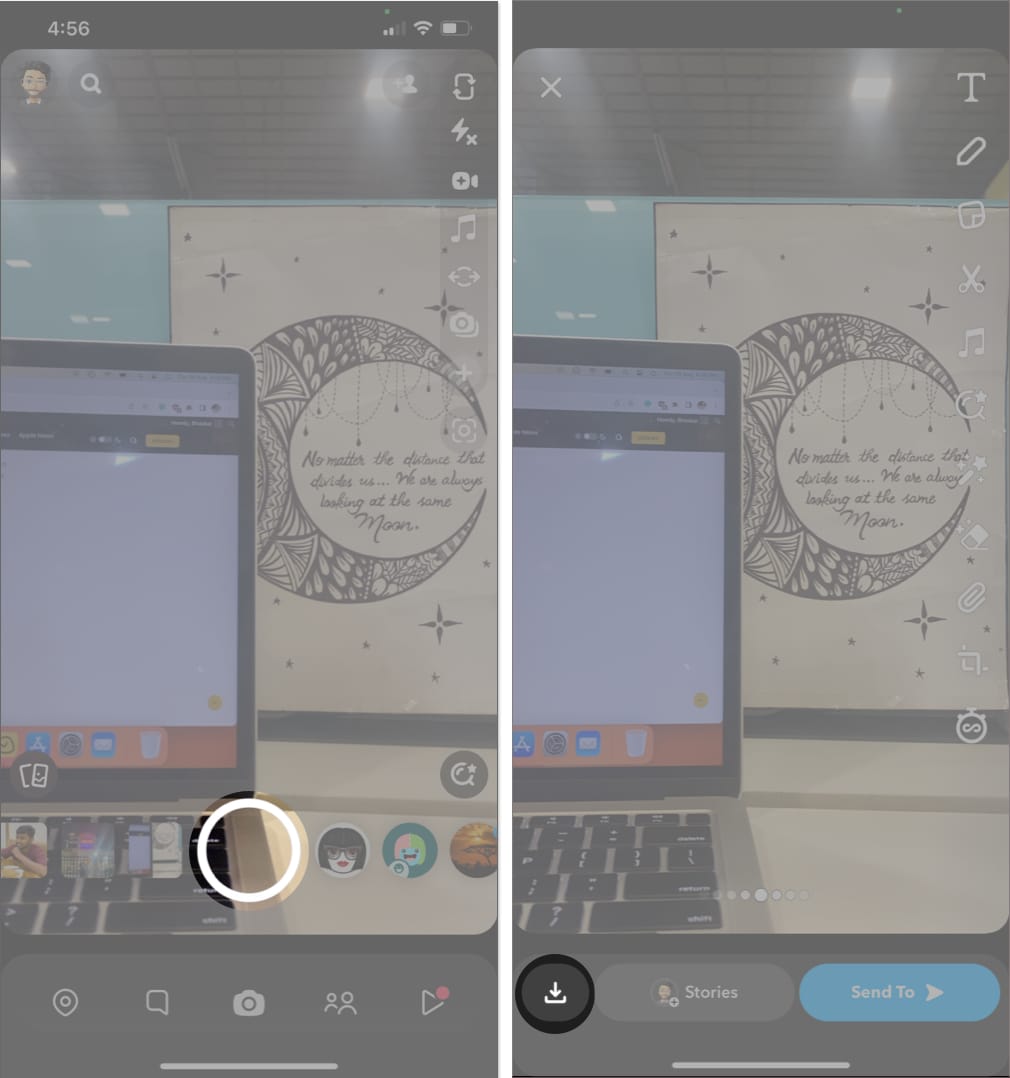
Download previously captured Snaps
- Open Snapchat → Tap the Memories icon.
- Under the Snaps section, press and hold the photos and videos you want to download.
- Tap the Send button → Swipe and select Download.

How to automatically save all Snaps to your iPhone
Follow the instructions below to save all of the photos or videos you capture on Snapchat to your iPhone without doing it manually.
- Open Snapchat app on your iPhone.
- Tap your Profile icon → Choose Settings → Go to Memories.
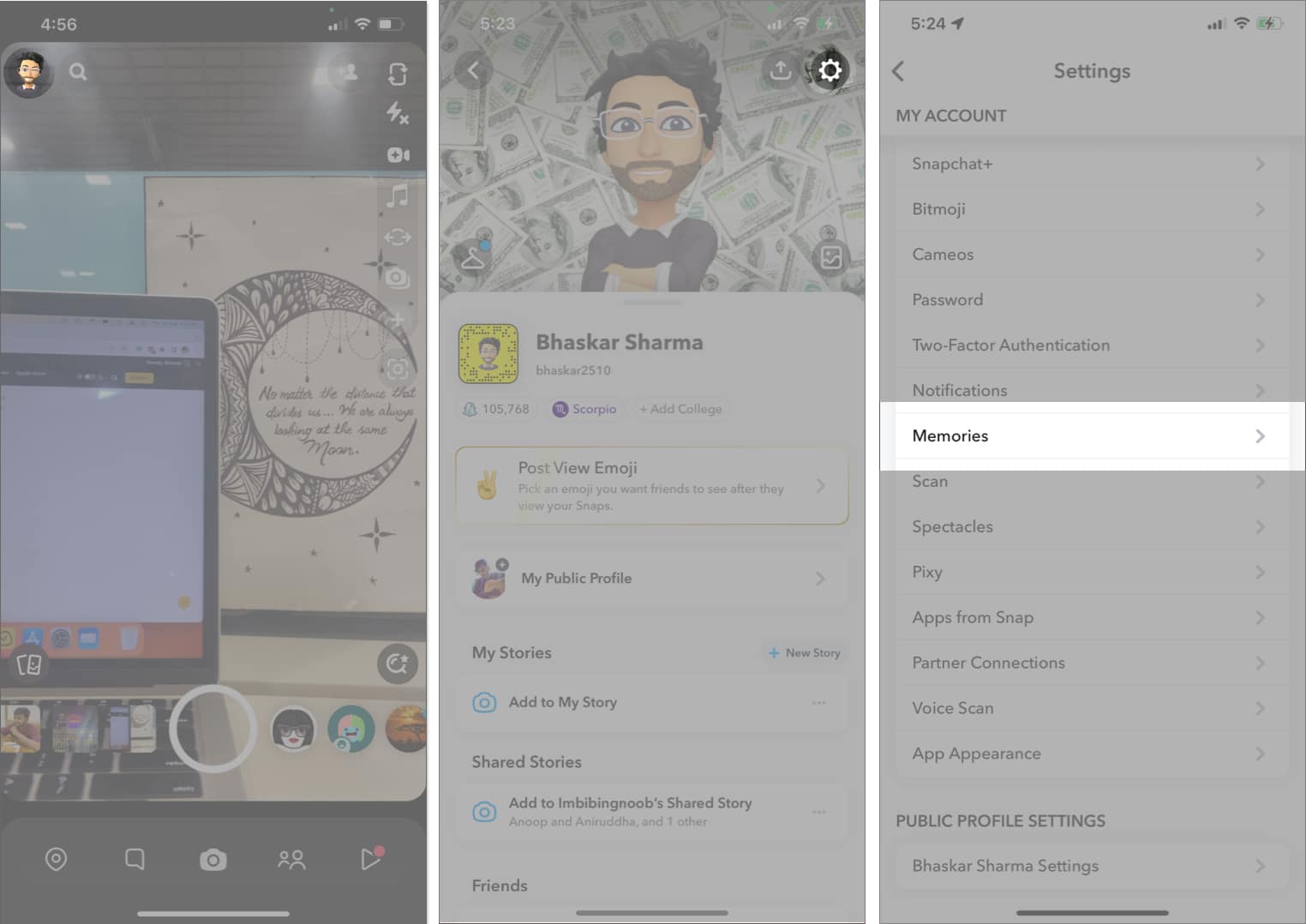
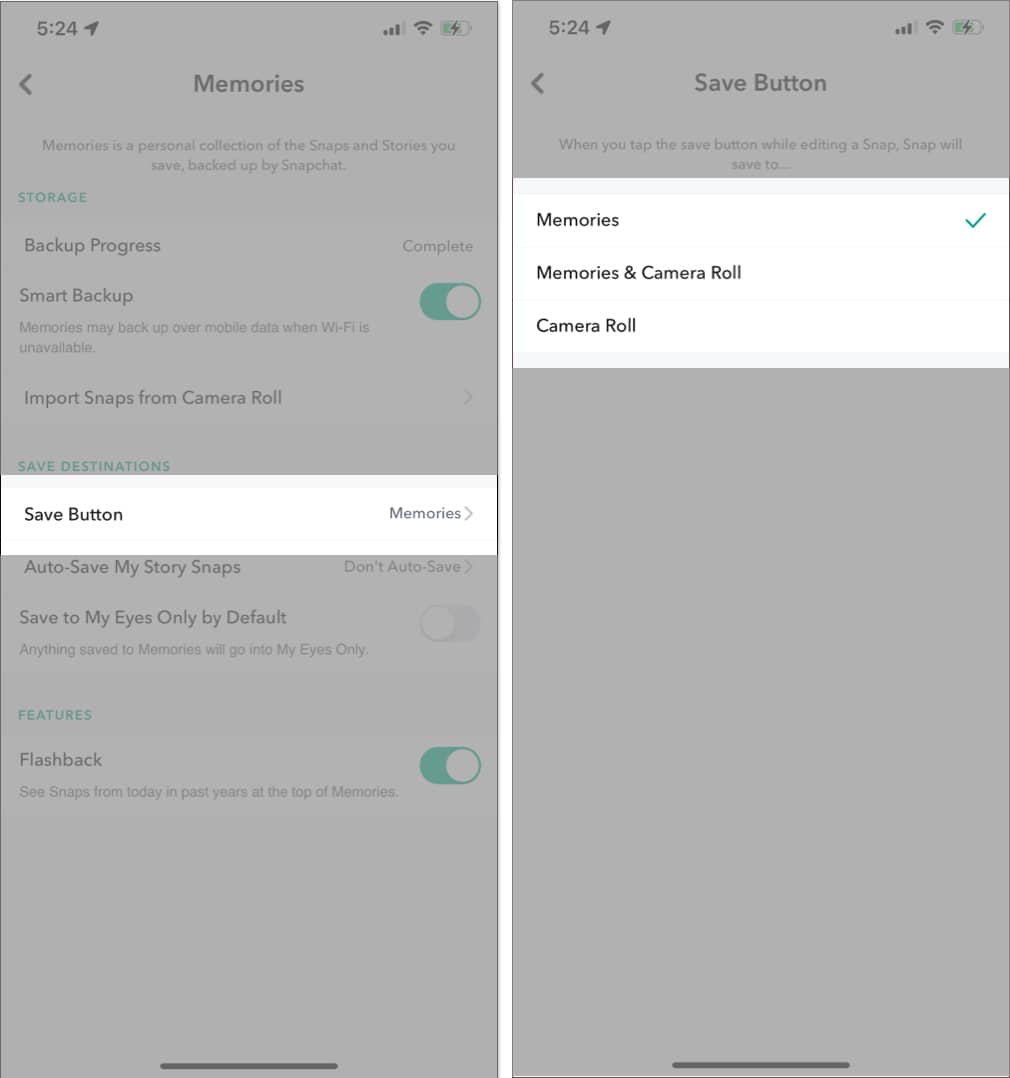
- Select Save Button.
- Pick from the available options:
- Memories & Camera Roll: Save pictures on Snapchat cloud and your iPhone gallery.
- Camera Roll: Save snaps on your iPhone only.
- Tap Auto-Save My Story Snaps → Select Auto-Save to Memories.
So, you can download your Story Snaps from Memories following the first method.
How to save Snaps you received on your iPhone
You may download snaps you received from a friend. Follow the provided techniques to accomplish this. However, note that the sender of the snap will receive a notification informing them that you have saved their photo to your Camera Roll.
For Snaps without expiration timer
- Open Snapchat.
- Navigate to the Chats tab → Find the chat you wish to save a snap from.

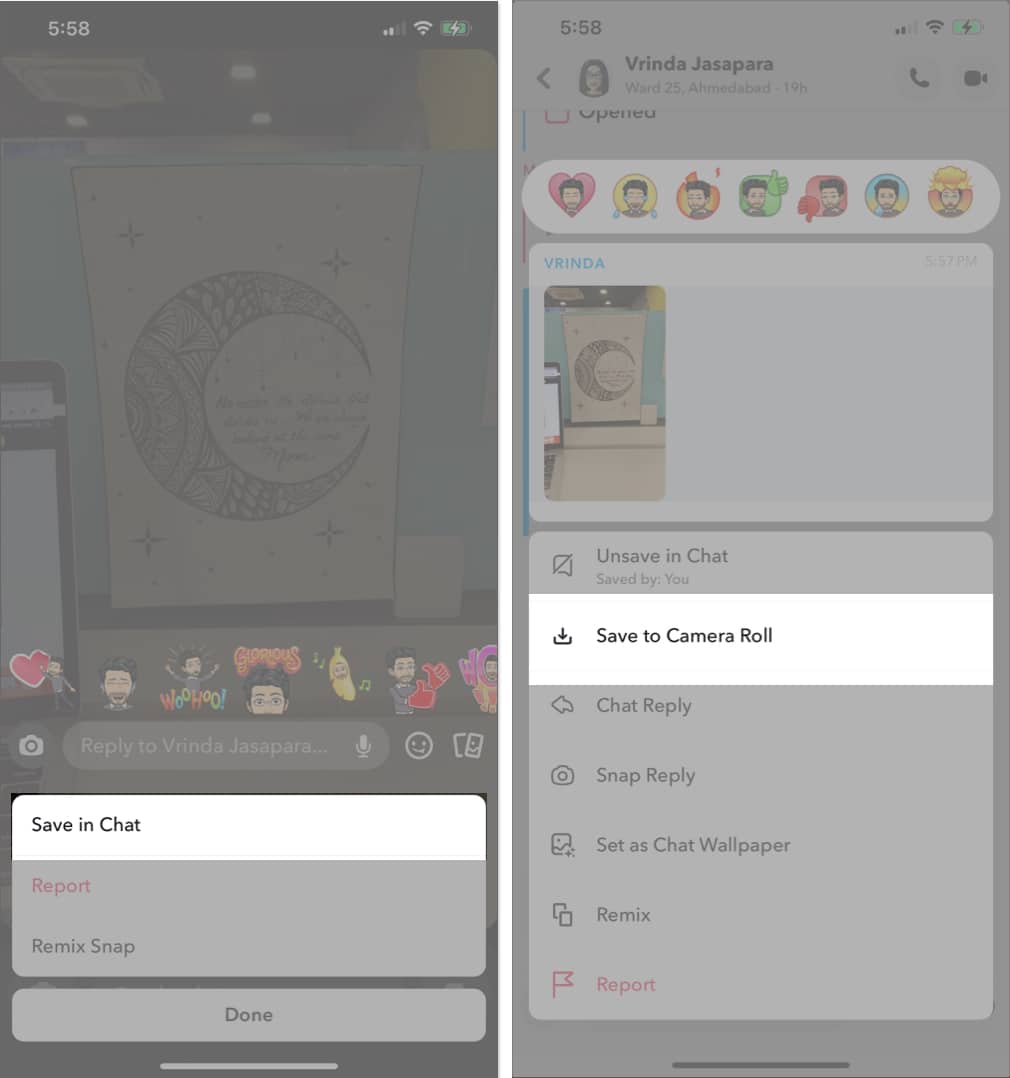
- Open the snap → Tap and hold the snap → Select Save in Chat.
- Return to the chat → Tap and hold the image → Select Save to Camera Roll.


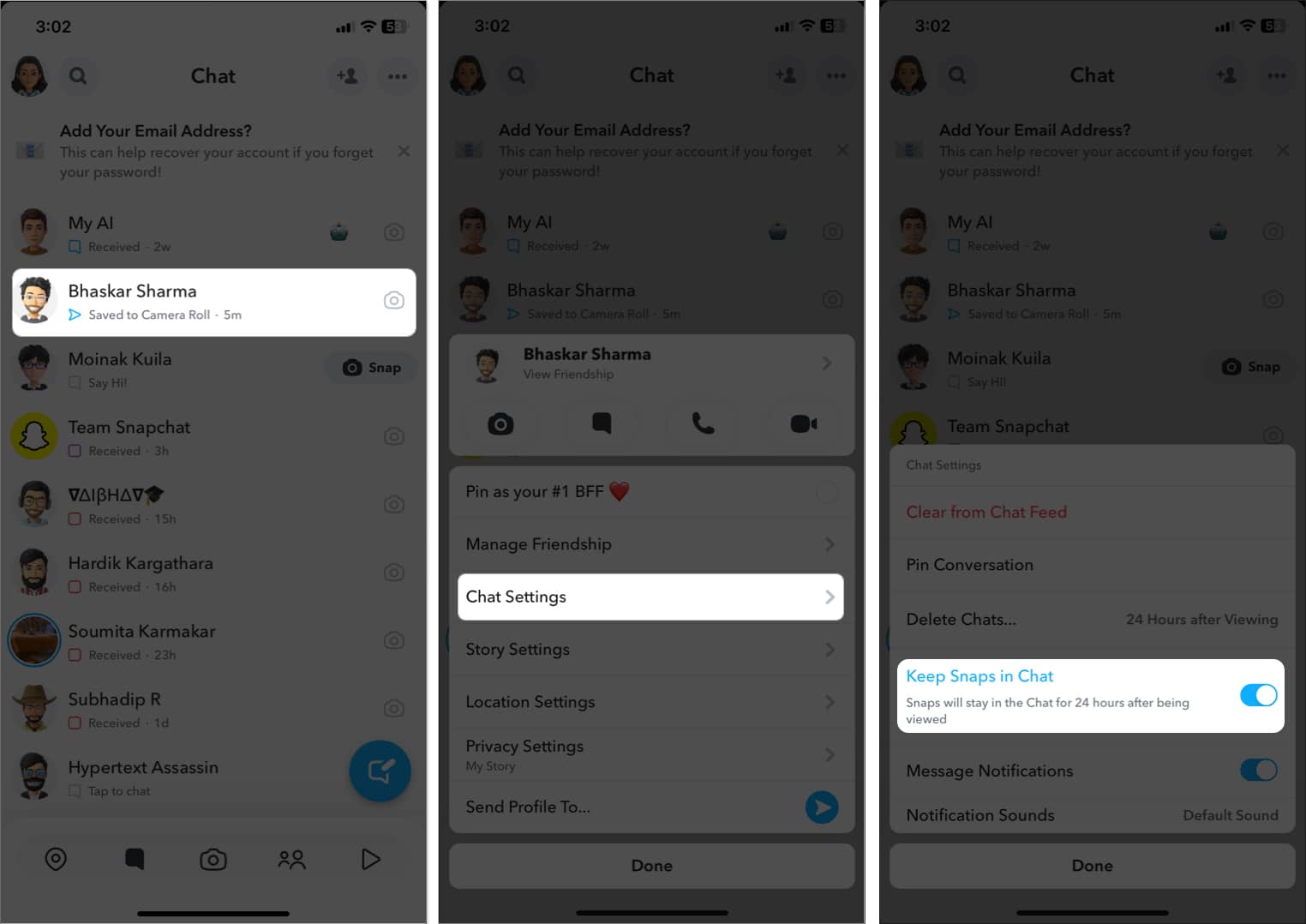
Besides, you may retain the snaps for a day after opening it.
- Tap and hold the friend → Select Chat Settings.
- Toggle on Keep Snaps in Chat.

For Snaps with expiration timer
Even though Snapchat does not allow you to store your friends’ snaps with an expiration timer, there is a workaround. You may capture the video using the Screen Recording function on your iPhone. Buremembernd that your friend will be informed that you took a screenshot of the chat.
Get your snap
Snapchat prioritizes people’s privacy by not automatically saving each image and video you send or receive. The app understands that not everyone wants their snaps to be saved forever. So, that’s how you can save some of the memorable snaps to your iPhone to catch up with them at your own pace.