
How to find the MAC address on an iPhone or iPad
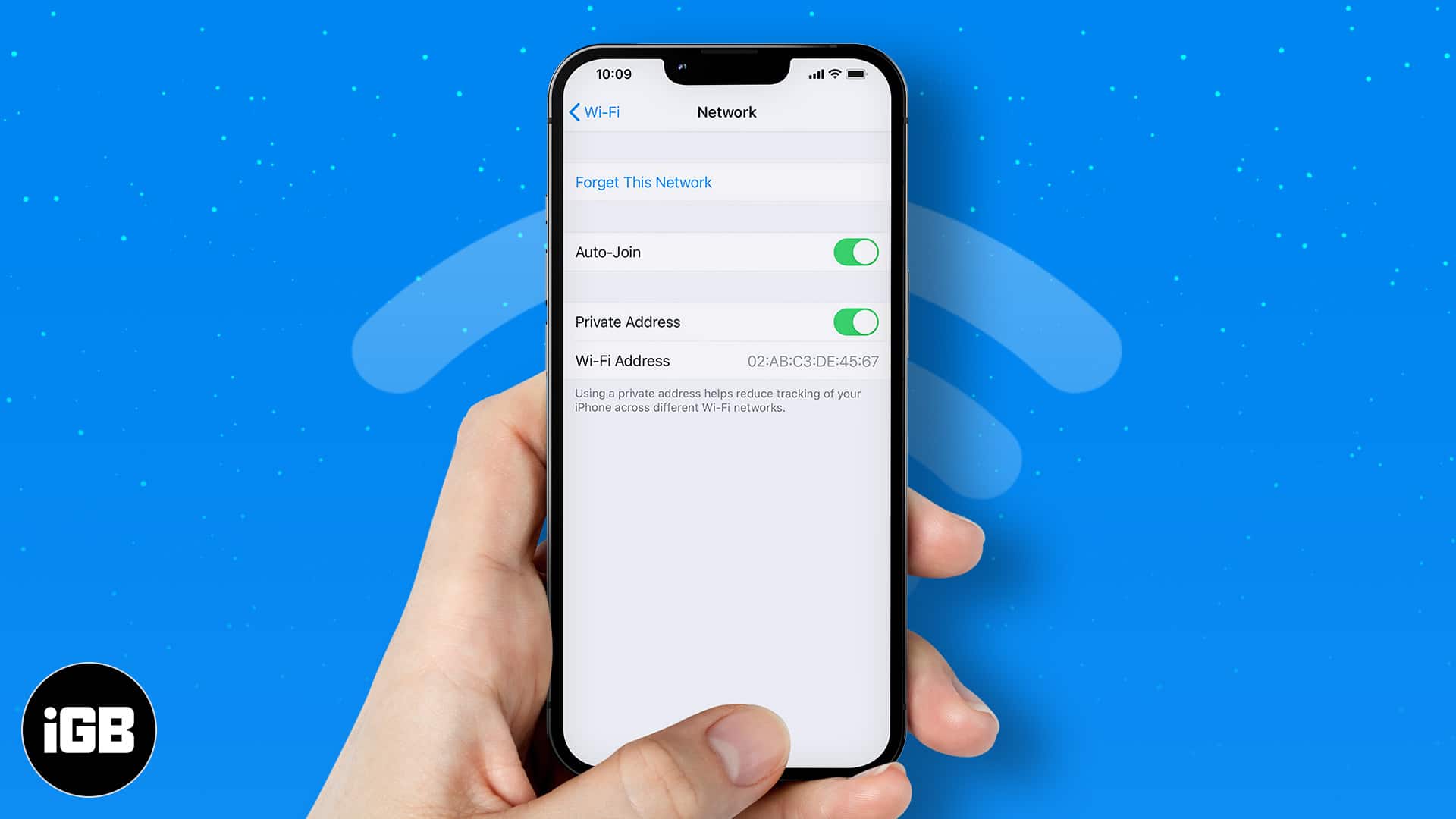
Some companies or organizations operate on a close Wi-Fi network. So it’s not uncommon for them to ask their staff for their MAC address. Well, you might be confused about what this strange acronym means. To start, MAC stands for Media Access Control, and it’s unique to every device that supports an internet connection. So, your iPhone has it, too.
Read on to learn more about what a MAC address is and how you can locate yours on your iPhone or iPad.
What’s a MAC Address on iPhone, and why would you need it?
The MAC address on your iPhone or iPad is the unique ID that distinguishes it from the others on a shared network. The network internet controller (NIC) hosts the MAC address on internet-enabled devices. While this chip remains fixed to the motherboard on iPads and iPhones, it’s removable in some older devices.
When you turn on a public router, for instance, it locates all close-by devices using their MAC addresses. Thus, a device without a MAC ID can’t connect to Bluetooth or a Wi-Fi network.
MAC address is often handy when specifying devices that can join a closely shared network. For example, you can configure a router to accept specific MAC IDs. And like usernames, it rejects any MAC ID not stored in its configuration memory.
And that explains why your organization or company might ask you to provide your MAC address. Nonetheless, some people without access still try to fool such a close network through what’s called MAC ID spoofing.
Although there are third-party spoofers for changing a device’s MAC address, this isn’t easily achieved on iOS. That said, starting with iOS 14, Apple now allows you to switch your MAC ID to a private one. It still doesn’t mean you can generate random MAC addresses for your iOS device.
How to see your MAC address on iPhone or iPad
- Open Settings.
- Go to General.
- Tap About.
- You’ll see your device’s Wi-Fi MAC address to the right of the Wi-Fi Address.
The Bluetooth MAC address is also next to Bluetooth.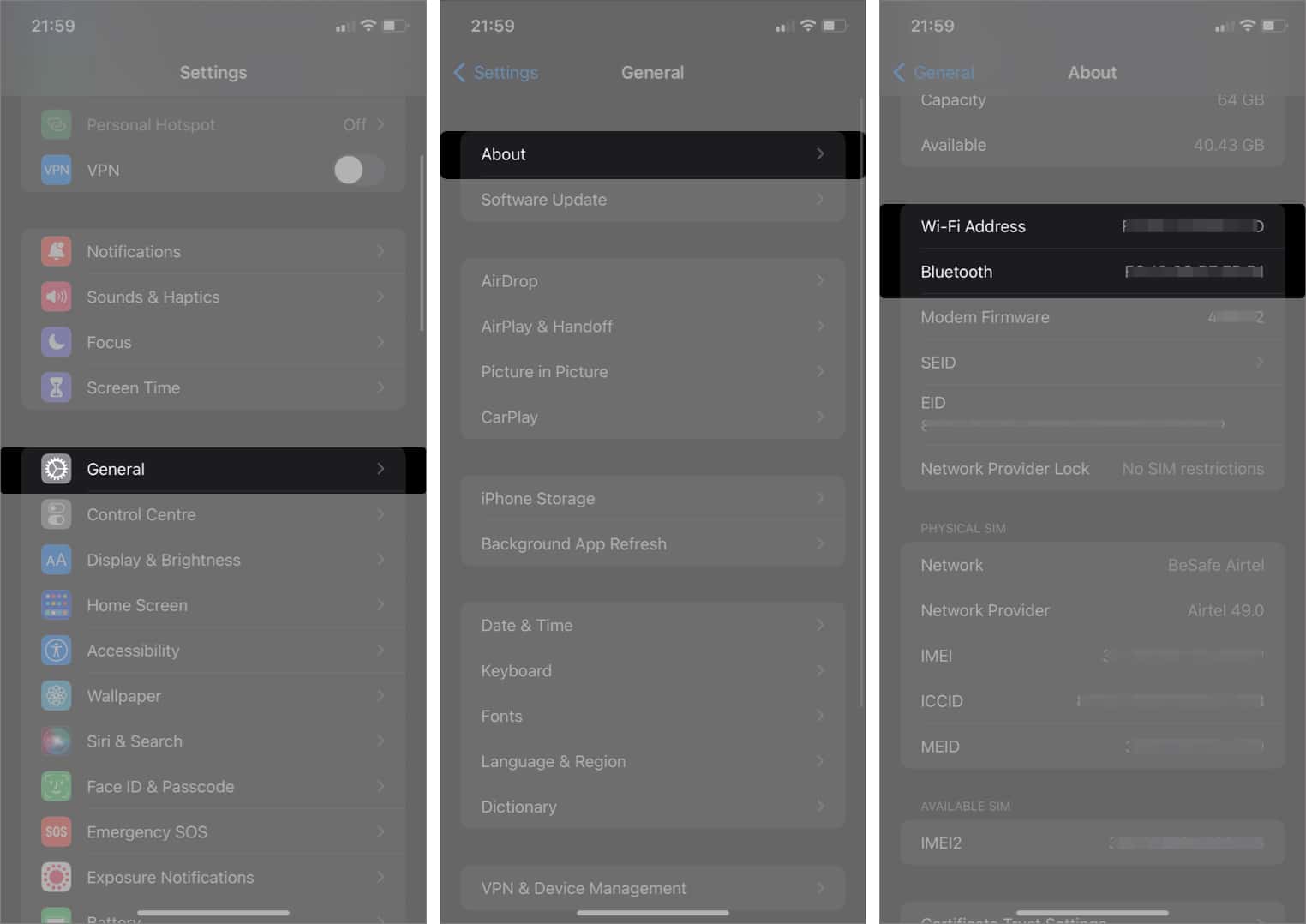
That’s it! You can now long-press your Mac address and tap Copy to share it with anyone that needs it.
Frequently Asked Questions
Knowing what a MAC address is and how to find it can save you a lot of confusion whenever you need it. And I hope this article solves your problem already.
Are you wondering if someone might track you with your MAC address? Well, it’s not impossible. But we all share it when we connect to public networks. So feel free to share it with whoever needs it. Have more questions? Share them in the comments below.
Read next:

Written by
Idowu OmisolaIdowu is an avid tech writer and a software surfer who loves covering knowledge gaps in consumer software, including anything related to iPhones. Well, when he's not reading and learning new things, you'll find Idowu losing gallantly on a solid chessboard or virtually on Lichess.
View all posts →