
Easy Ways to Clear System Data on Mac (Beginner Guide)
Discover what fills System Data on your Mac and learn simple, safe ways to clear caches, logs, and leftover files to free up meaningful storage.
Mac storage often fills up faster than expected, and the most confusing part of it is the System Data section. It grows quietly in the background, holds files you never see, and sometimes takes up an unreasonable amount of space. Many users try deleting apps or moving photos to iCloud only to find that nothing really changes. The real fix starts with understanding what System Data contains and how to clean it safely.
This post explains what System Data is, how to clear it to free up valuable storage, and how to keep your Mac running smoothly.
How to Check Storage on Mac
Checking storage in macOS is straightforward. Follow the instructions below to check the occupied and available storage on your Mac.
- Open System Settings from the Apple menu.
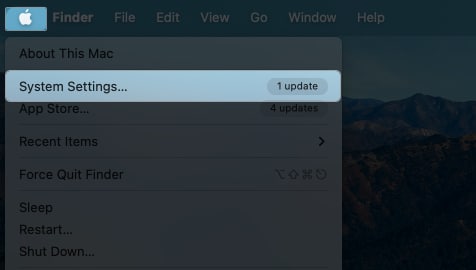
- Select General from the left pane.
- Click Storage in the right pane, and wait a few seconds for the storage to finish analyzing your Mac.
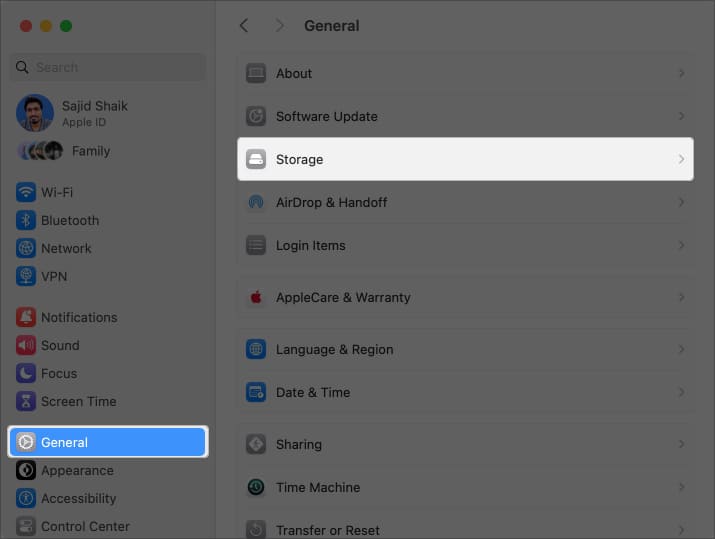
Once done, you can find the occupied and available storage.
Below, you’ll see your current occupied space divided into different categories. It helps you identify which files take up the most space on your Mac so you can delete them accordingly.
At the bottom right, you’ll see macOS and System Data take up a considerable amount of space. Let’s understand what files those sections contain.
What is System Data on Mac?
System Data storage on Mac consists of files that don’t fit into the standard categories (such as Photos, Documents, Applications, Music, etc.) of your Mac’s storage.
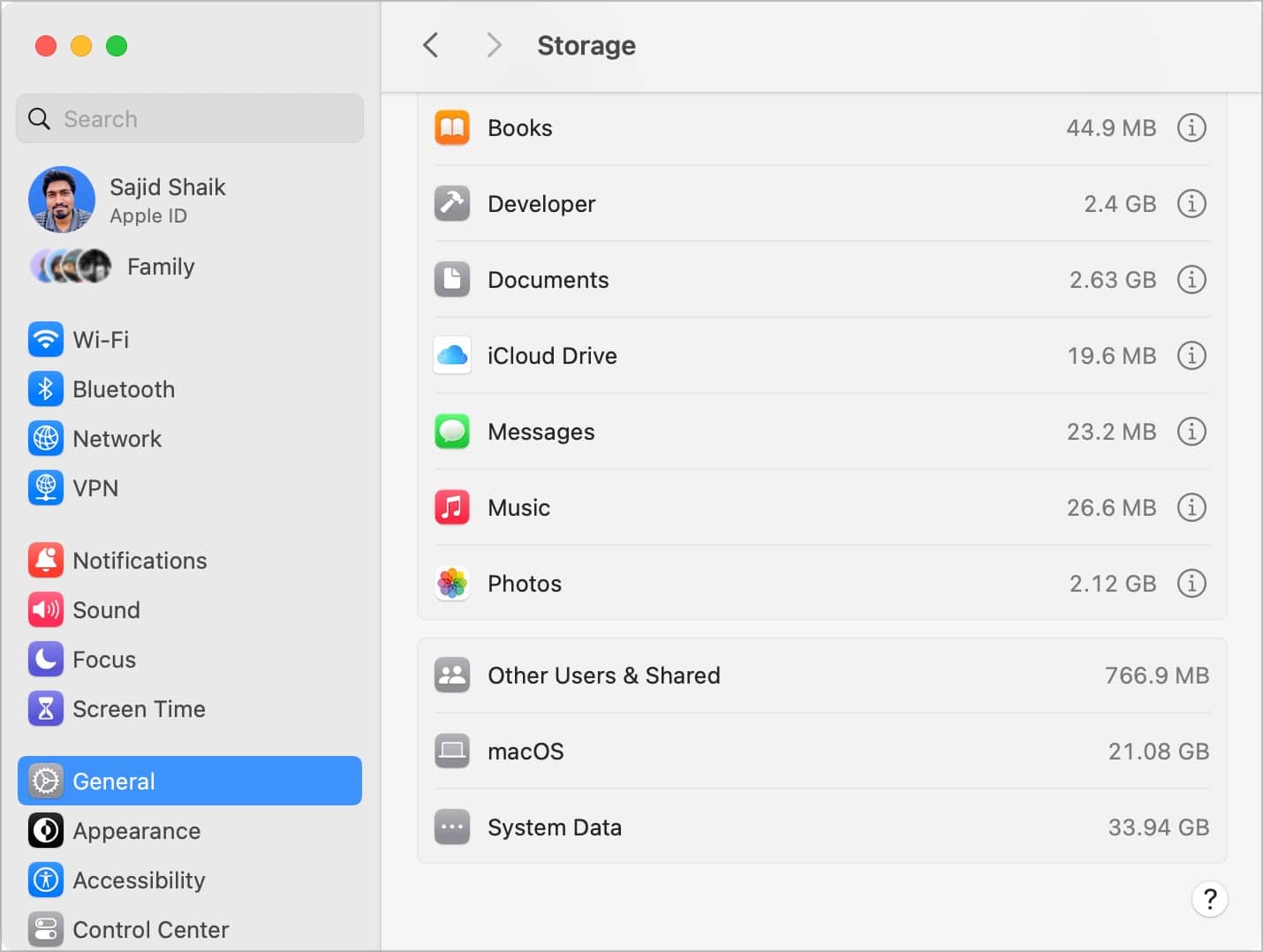
It hosts cached and temporary files, as well as files that macOS can’t recognize. Nonetheless, not all files categorized into the System Data storage category are junk or need deletion. You can eliminate temporary and cached files to free up space on your Mac.
If you’re on macOS Monterey or an earlier version, you’ll see Other storage. To delete that, refer to our separate, detailed guide on deleting Other storage on Mac.
It hosts the same files as the System Data on macOS Ventura or later. Only the nomenclature has changed; I hope that clears the confusion!
Now, to clear files stored in either System Data, you will need to use a few workarounds. I have mentioned them below.
6 Ways to Clear System Data on Mac
There are various ways to free up System Data on your Mac.
1. Delete DMG Files and Old Downloads
You might have downloaded applications, videos, photos, and other files from the internet. While a few of them can be useful for you, many downloads, such as DMG files, aren’t useful anymore.
Deleting these files can save a lot of space and lower System Data storage on your Mac. Here’s how you can delete old downloads and DMG files from your Mac:
- Open System Settings from the Apple menu ().
- Select General from the left pane → Click Storage on the right pane. Wait a few seconds for the storage to complete analyzing your Mac.
- Click the “i” button next to Documents.
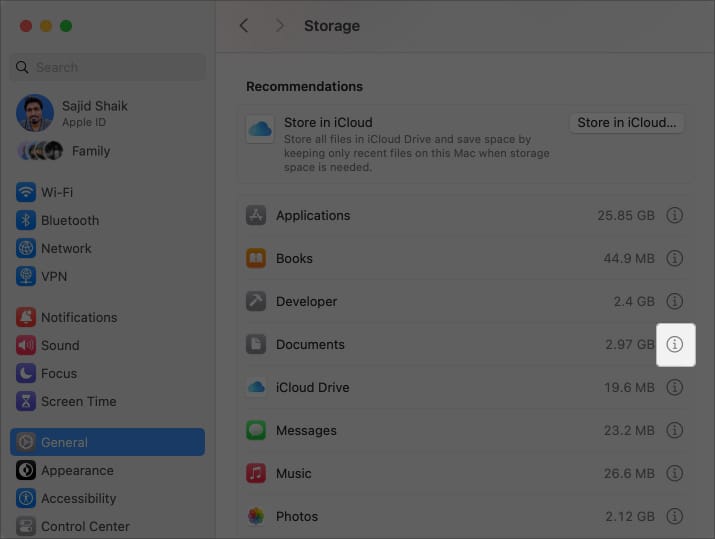
- Go to the Downloads tab in the new window. Wait for a few seconds.
- Select the old downloads that you no longer need. Hold the Command (⌘) key to select multiple files.
- Click the Delete option at the bottom right to delete the selected files.
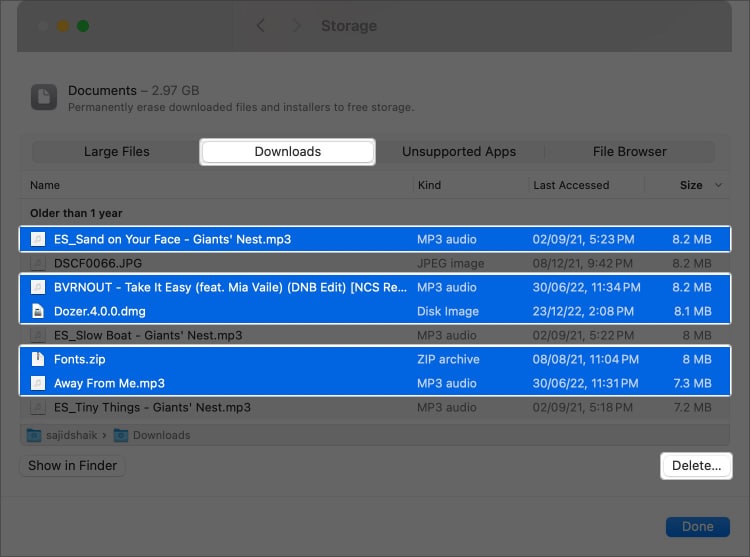
If you want to delete DMG files specifically, follow these steps:
- Open Finder on your Mac.
- Type DMG in the search box on the top-right of the Finder window.
- From the options below, choose Disk Image under Kinds.
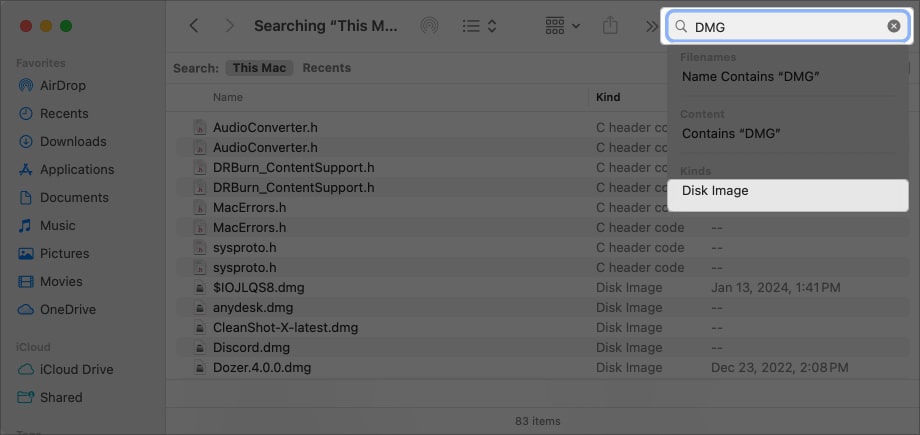
- On the left, click This Mac when the search results appear.
- Press Cmd (⌘) + A on your keyboard to select all DMG files.
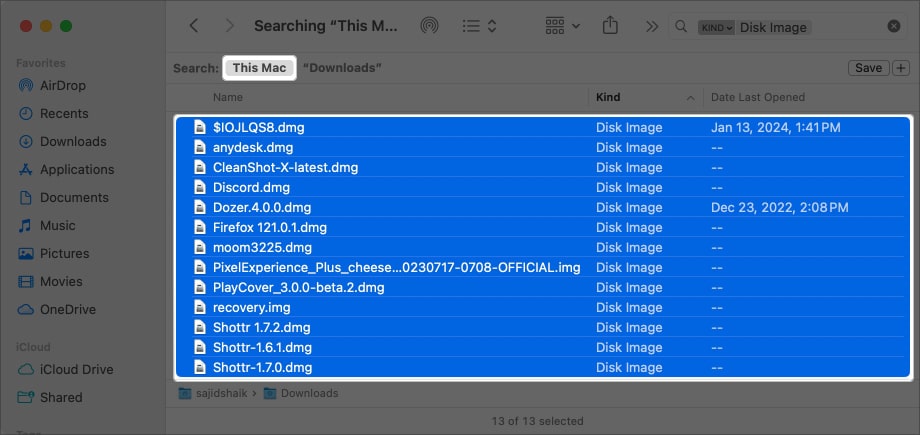
- Press Cmd (⌘) + delete from your keyboard to delete them. Alternatively, right-click (or secondary click) the selected files and choose Move to Trash.
- Further, in the Dock, right-click (or secondary click) the Trash icon → Empty Trash.

Once you delete DMG files, you’ll free up some space from System Data in Storage.
You may have forgotten to delete dated and temporary files, in addition to DMG files.
Go through your Documents, Pictures, Movies, and Downloads folders to see if you’ve such files, and delete them if you think they’re unnecessary.
If you think a few are important, you can move those files to an external drive or upload them to a cloud storage service, such as Google Drive, iCloud, or Dropbox.
2. Uninstall Browser Extensions and Plug-Ins
Browser extensions, plug-ins, or add-ons might help ease your tasks, but they can take up space in your Mac’s System Data.
To regain the space, uninstall browser extensions, add-ons, or plug-ins from your Mac. Here’s how you can do it in different browsers:
Google Chrome and Chromium-Based Browsers
- Open Google Chrome (or Chromium-based browser) on your Mac.
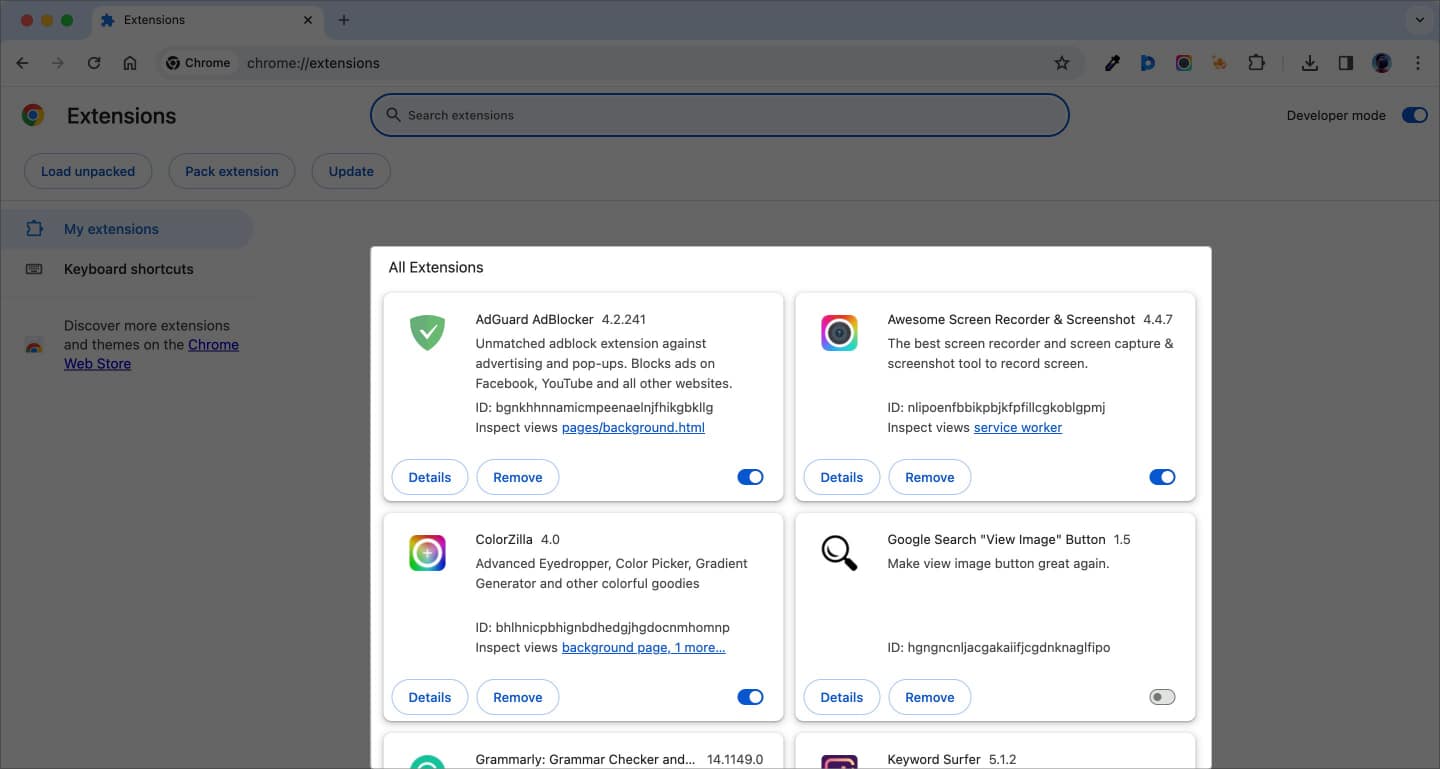
- Type “chrome://extensions” in the address bar, followed by the return key.
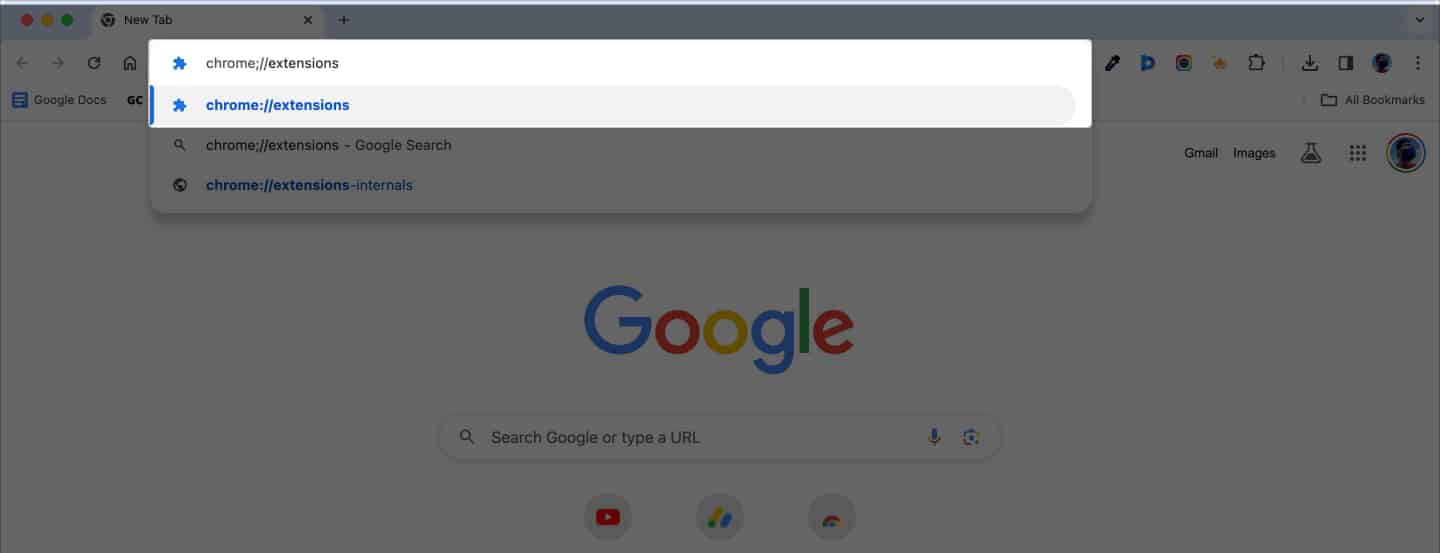
- Select the extension you want to remove, then click the Remove button next to Details.
Safari
- Open Safari on your Mac.
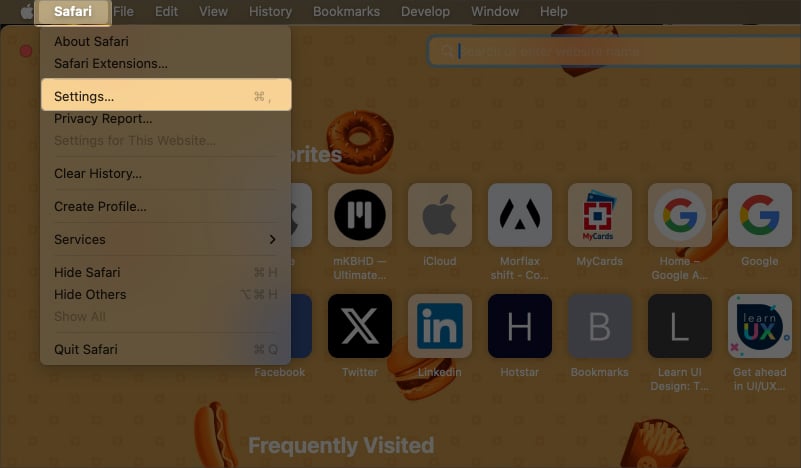
- From the menu bar, navigate to Safari → Settings (or Preferences).
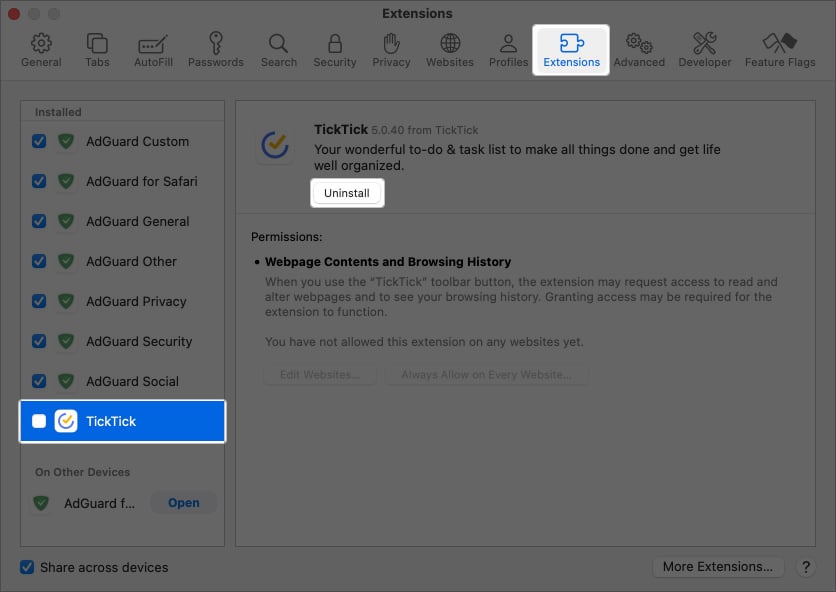
- Click the Extensions tab.
- Select the extension you want to uninstall and click Uninstall.
Mozilla Firefox
- Open Mozilla Firefox on your Mac.
- Click the menu button (three vertical bars) on the top-right.
- Choose Add-ons and Themes from the list.

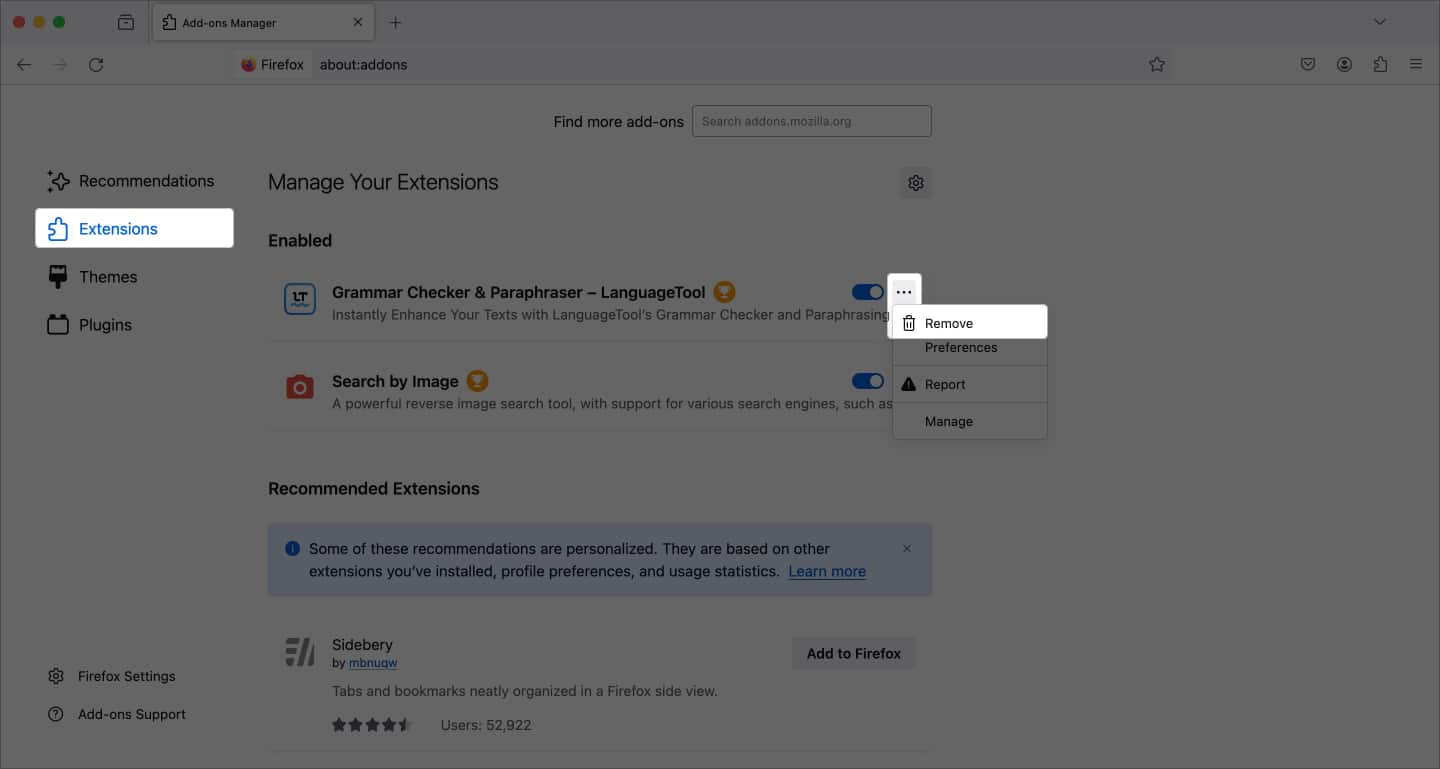
- Select Extensions from the left pane.
- From the list of extensions, click the Edit button (three vertical dots) → Remove next to the add-on you want to remove from Firefox.
Once you uninstall browser extensions from your Mac, you’ll free up a lot of space from System Data storage on your Mac.
3. Remove Cache Files
When you install any application on a Mac, it generates cache files that store user data. A cache allows applications to load data faster when they open. The Cache files include images, user data, and other such files.
Cache files can take up space in the System Data storage section. You can safely delete these to free up space.
- Open Finder on your Mac
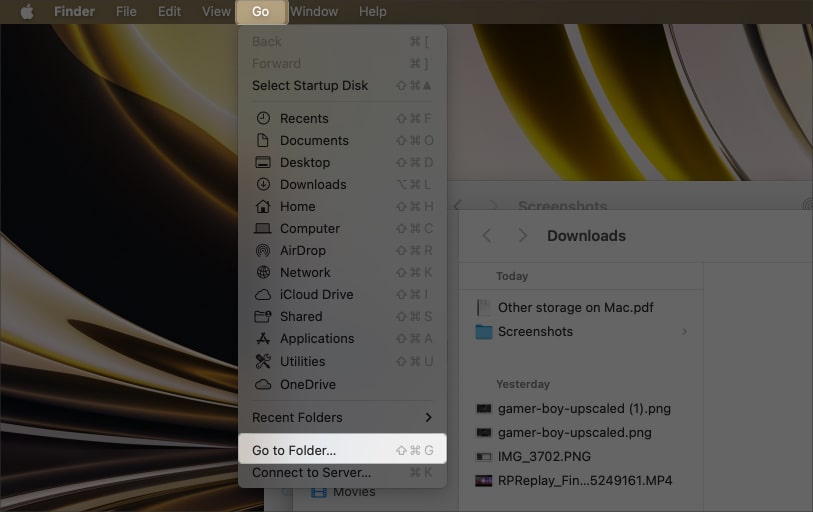
- From the menu bar, select Go → Go to Folder.
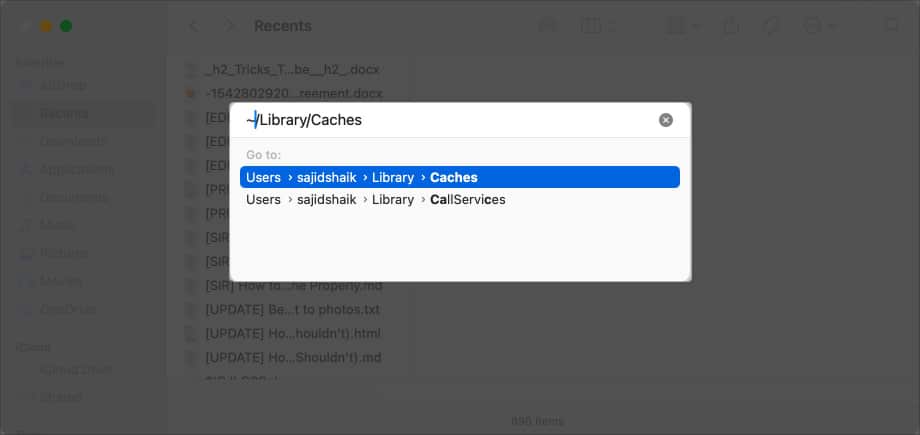
- Type ~/Library/Caches in the Go to Folder box, and press the return key on your keyboard.
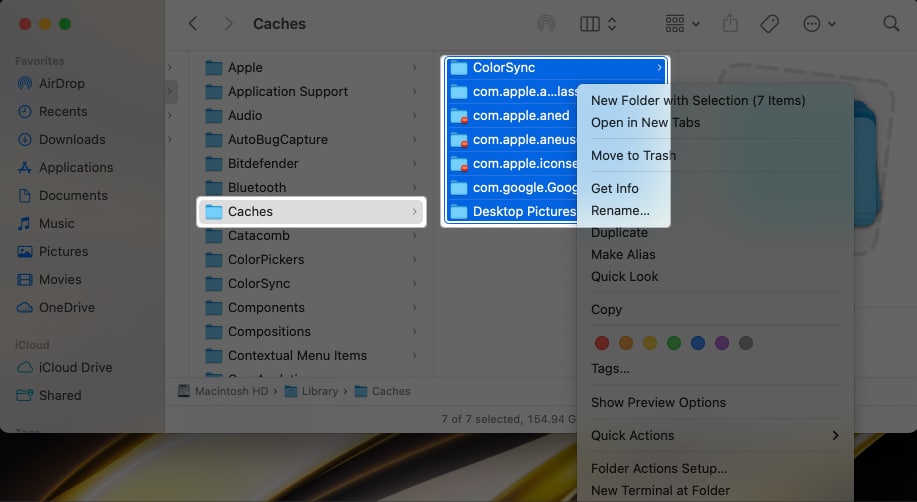
- Drag and drop the Caches folder to your desktop or another folder to make a backup in case something goes wrong.
- Click and open the Caches folder → Select all files in the Cache folder and delete them using Cmd (⌘) + delete.
Follow the same steps for ~/Library/Logs and /Library/Caches (no ~). Removing these files might make more space on your Mac. However, a few applications may take slightly longer to load than usual.
4. Delete Application Support Files
While Cache files are one type of temporary files, Application Support files are another. Many applications create support files to manage the app’s data.
But when you uninstall an app, these support files might remain as residue or as a backup if you ever reinstall that app. Removing these files can save space and reduce System Data storage on your Mac.
Nonetheless, follow these simple instructions to delete Application Support files from your Mac:
- Open Finder on your Mac.
- Select Go → Go to Folder option from the menu bar.
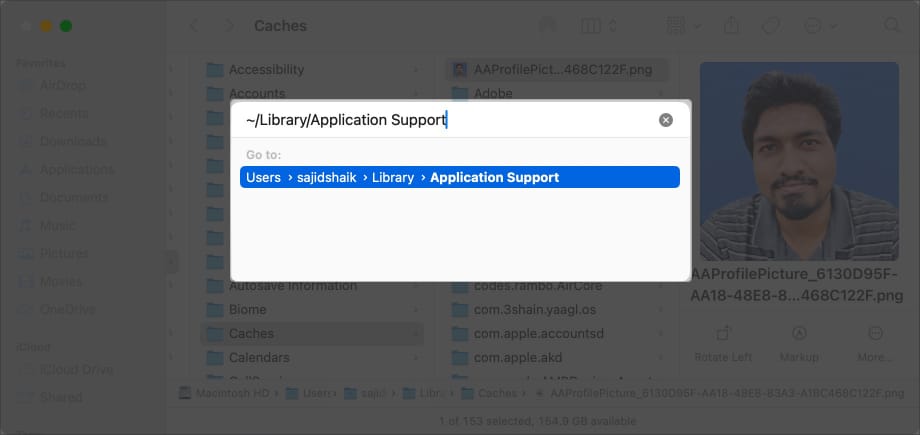
- Type ~/Library/Application Support in the Go to Folder box, and press the return key on your keyboard.
- Go through the folder. Using the cmd (⌘) key, select the folder(s) of the application that you removed or that aren’t on your Mac anymore.
- Press the Command (⌘) + Delete shortcut to delete the files.
Go through the files and ensure you’re deleting the right folders, as deleting folders containing applications installed on your Mac can be risky.
Similarly, you can check other folders for app-related files on your Mac, such as:
- ~/Library/Logs
- ~/Library/Containers
- ~/Library/Internet Plug-Ins/
- ~/Library/Preferences/
- ~/Library/Saved Application State/
- ~/Library/Application Support/CrashReporter/
5. Delete Old Time Machine Snapshots or Backups
Time Machine backups or snapshots are an excellent way to save your files or create a backup before risky operations on your Mac or before moving to a new Mac. However, these backups tend to take up a lot of space in System Data.
Here’s how you can delete your Time Machine backups from an external drive.
- Open Finder on your Mac and navigate to the external disk where you saved your Time Machine backup.
- Locate the Backup.backupdb folder on the external drive.
- Open the folder, then right-click the backup files and select Move to Trash.
- Right-click the Trash icon in the Dock and select Empty Trash.
If you deleted all previous backups, you can create a new one to free up storage while keeping a newer Time Machine backup of your Mac.
6. Use Third-Party Software to Remove System Data Files
If you don’t know much about computers or can’t recognize application-related files, you can use third-party tools to do it for you.
Here is a list of a few apps that you can use to clean System Data storage on your Mac.
- CleanMyMac X
- Avast Cleanup Premium
- CCleaner
- DaisyDisk
- Nektony AppCleaner and Uninstaller
- Mac Cleaner Pro
These are only a few apps that can help you clean up System Data storage, but you can use other tools to perform the same.
Summing Up…
System Data storage can accumulate for various reasons, primarily because of old, temporary, junk, and cached files. You can use the methods mentioned above to free up space in System Data on your Mac.
Alternatively, I’ve provided a list of tools that can help you quickly clean up System Data. If you’ve got any further questions or suggestions, please leave them in the comments below.
Frequently Asked Questions

Written by
Sajid ShaikSajid Shaik is a tech enthusiast who explains complex concepts in a clear and concise way. For the past 7 years, he has been a regular contributor to tech blogs and publications, including MakeUseOf and iGeeksBlog. Sajid also has extensive knowledge of the Apple ecosystem, which he shares with his readers through his words. He has created a wide range of content, such as How-Tos, Reviews, Listicles, and much more. Aside from that, Sajid has a degree in Electronics and Communication Engineering, which gives him an advantage in better understanding technology at hardware level. Apart from writing, you can find him fiddling with Apple products or keeping up with all things Apple.
View all posts →More from How-to

Snapchat Parental Controls: How to Set Up Family Center and Keep Your Teen Safe
Snapchat’s Family Center lets parents monitor their teen’s friend activity and screen time without reading private messages. Here’s how to set it up and what to expect.
 VikhyatMarch 3, 2026
How to Block and Unblock Someone on Instagram
Instagram lets you block or unblock someone in seconds. Follow these simple steps to take full control of your privacy and online peace.
 Ava BiswasMarch 2, 2026
Apple Watch Not Responding? 8 Fixes That Actually Work
Is your Apple Watch unresponsive or stuck on a black screen? Here are 8 proven fixes to help you unfreeze it and get it working again quickly.
VikhyatMarch 3, 2026