If you, too, are bored of the dull look of My AI on your Snapchat, then you’re in for a treat. Allow me to introduce you to a simple and effective way to change My AI gender and name in Snapchat on iPhone. Buckle up as we tweak Snapchat’s AI and explore the fun side of augmented reality.
How to change My AI gender in Snapchat on iPhone
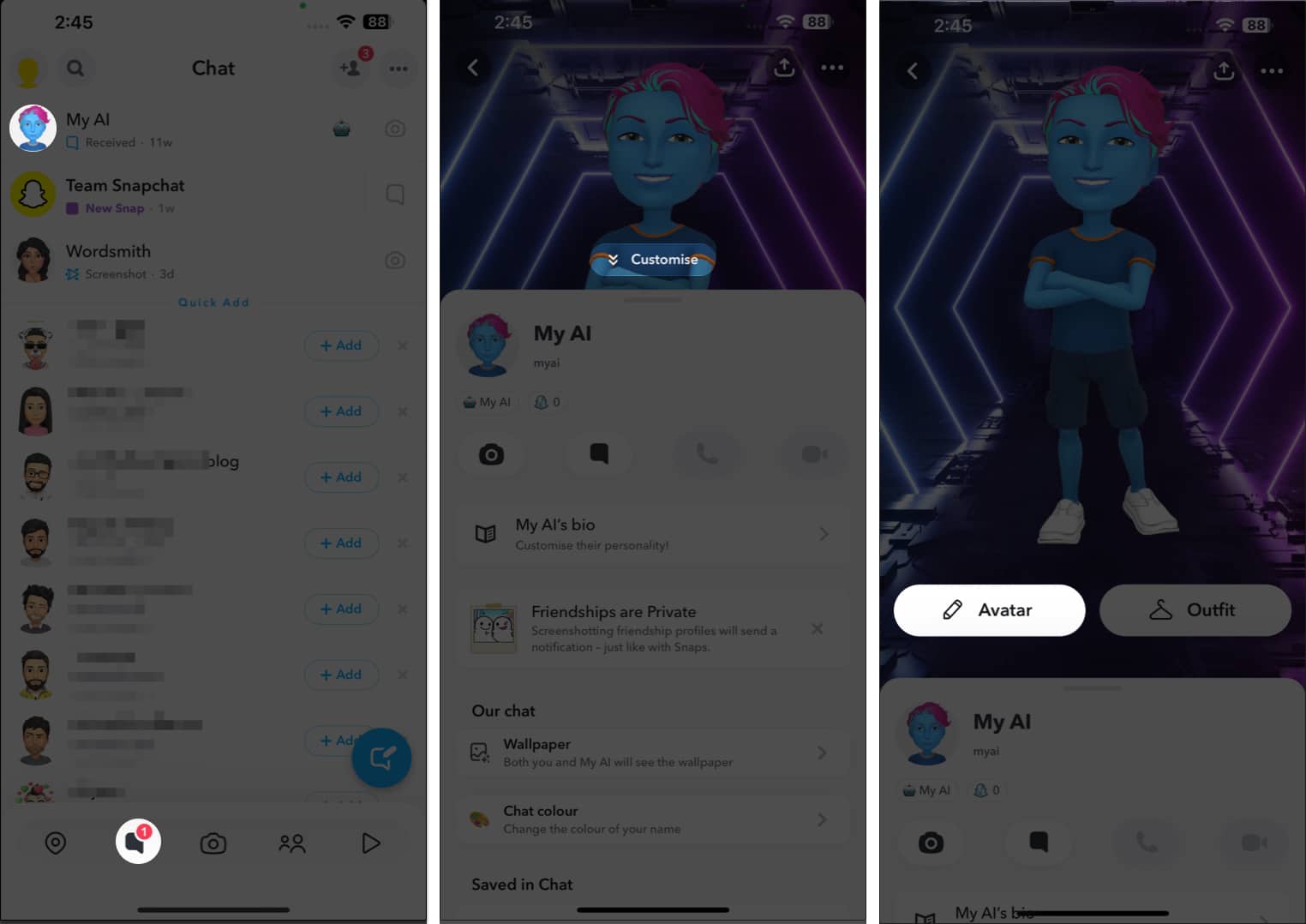
- Launch Snapchat → Navigate to the Chat tab.
- Tap the My AI profile icon → Select Customize.
- Hit Avatar.
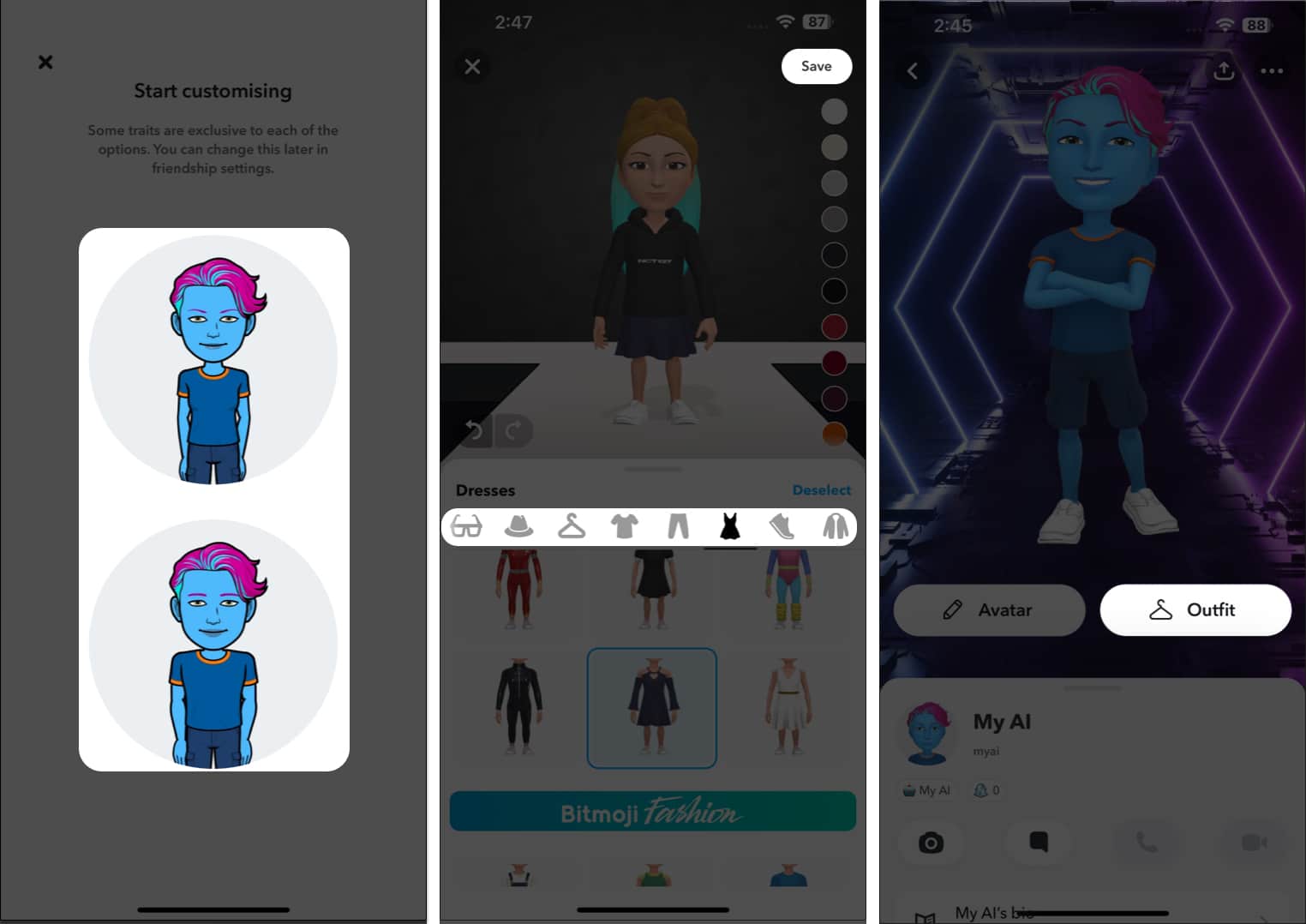
- Choose a gender and customize the look of Snap My AI as you desire.
Additionally, tap Outfit to customize my Snapchat AI chatbot beyond changing its gender. - Once ready, tap Done.
Note:
You can always go back and change your preferences for your AI friend.
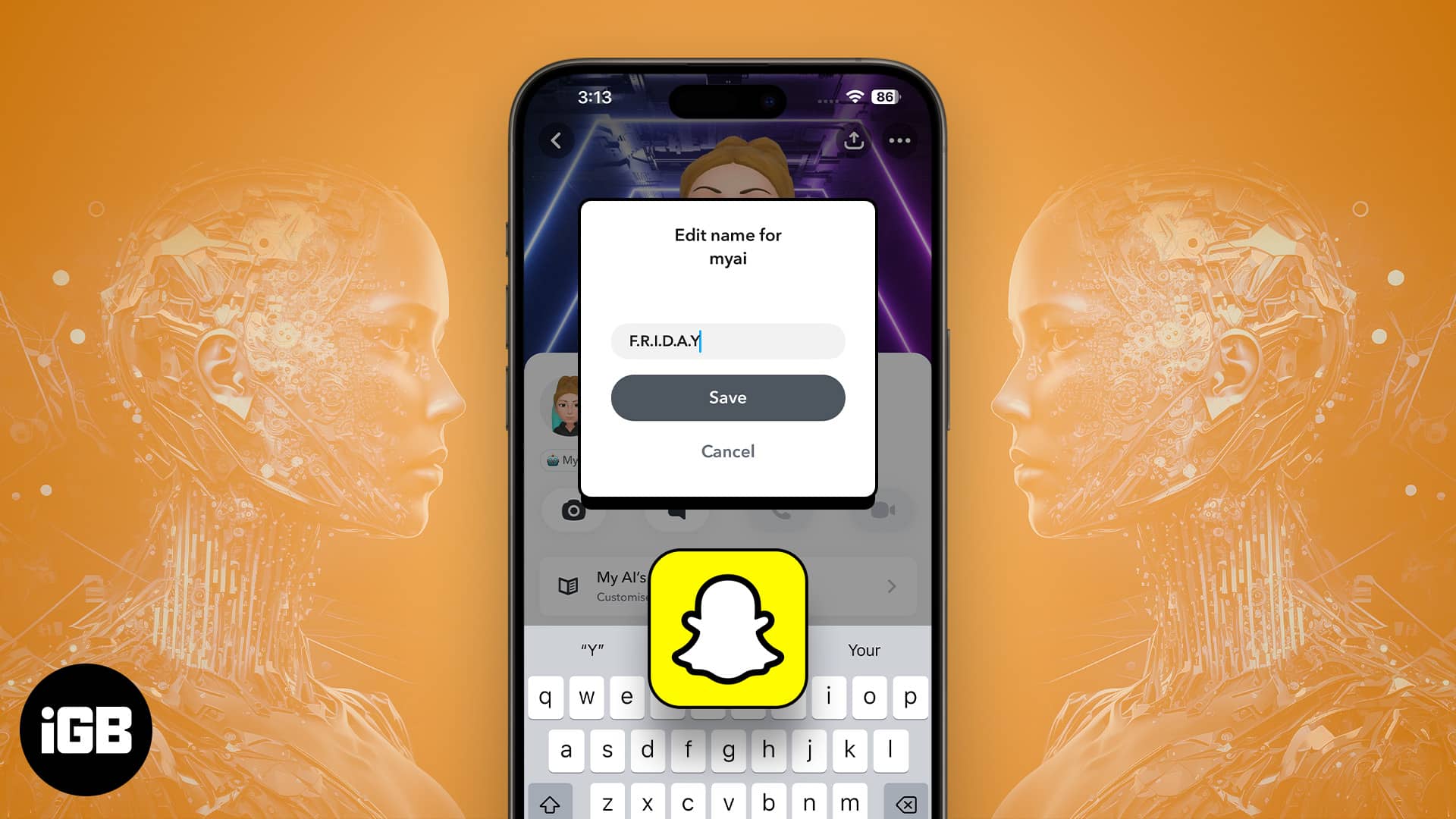
How to change My AI name in Snapchat on iPhone
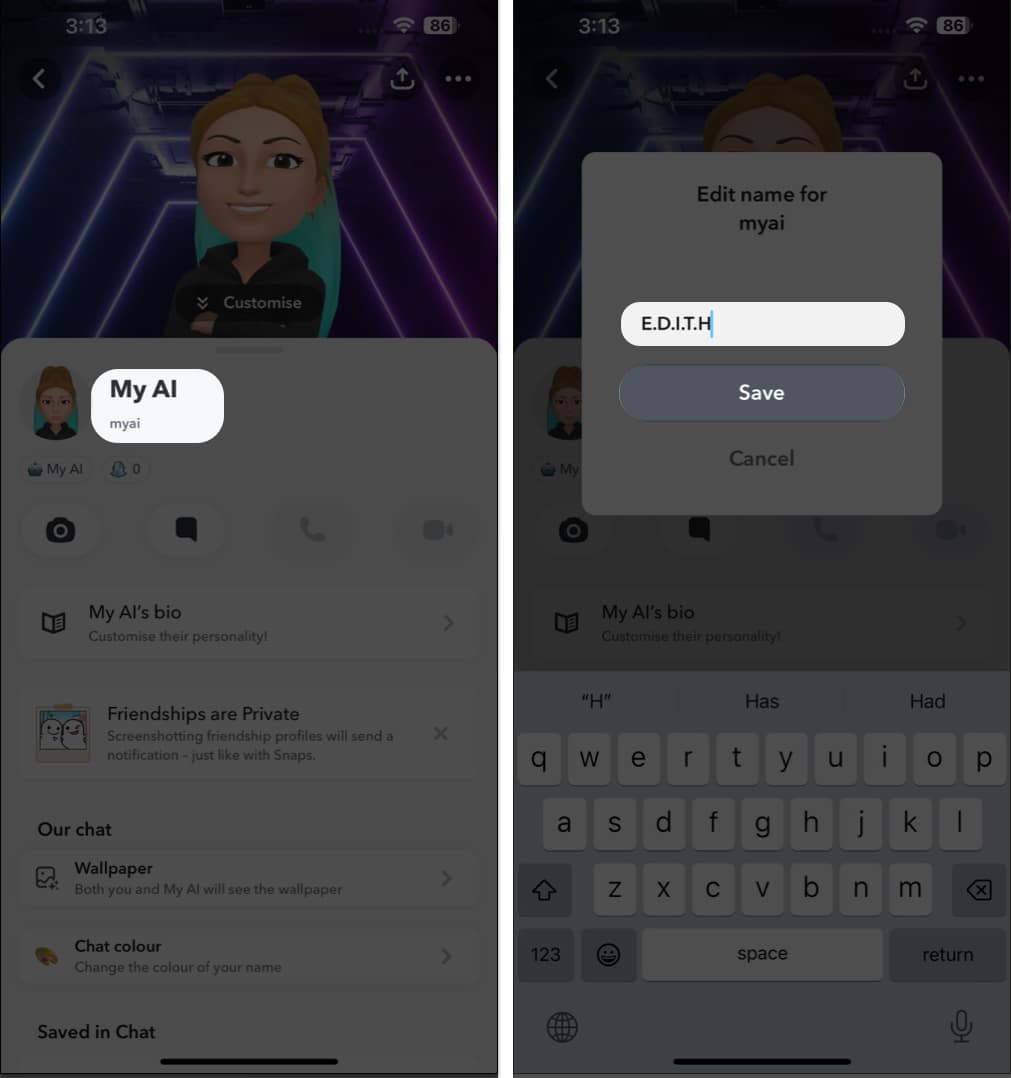
- Access the My AI profile as we discussed above.
- Tap My AI → Rewrite the name as you desire.
- Tap Save to give My AI a nickname.
Morph and mold your AI!
Now that you can change Snapchat My AI gender and name on your iPhone, you can make this boring chatbot into your 24/7 friend. Keep snapping, tweaking, and enjoying the endless possibilities of the ever-evolving Snapchat verse.
Thank you for reading. Please take a moment to leave your thoughts in the comment section below.