
How to change name of your Apple Watch
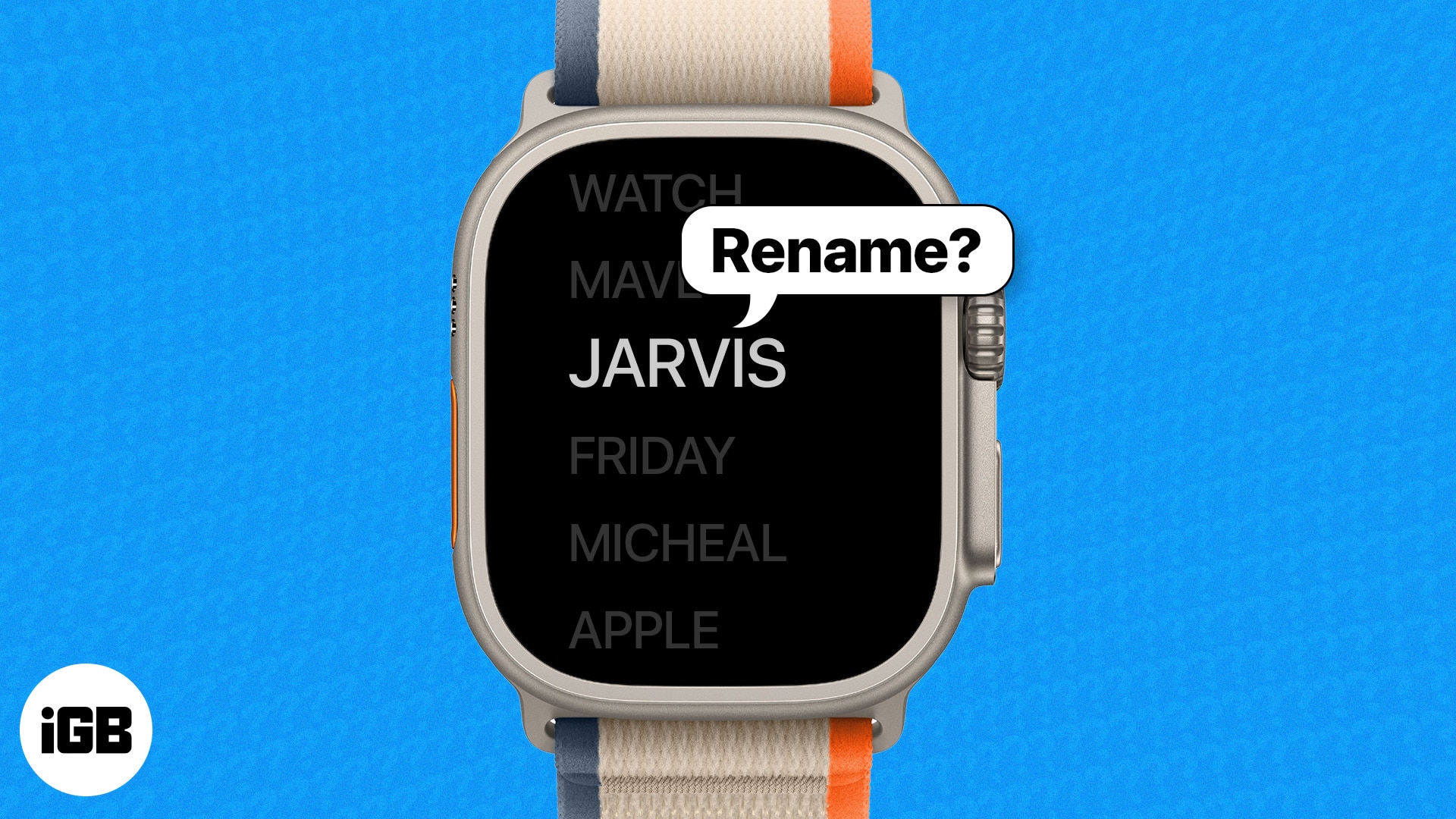
If you are using two or more Apple Watches with the same Apple ID, all of those will appear under the same name on your paired iPhone. Thus, changing the name of your Apple Watch becomes a necessity.
Wondering how it’s done? Here’s a step-by-step guide on how to rename your Apple Watch. Go ahead, personalize your Apple Watch name, and make it more identifiable!
How to rename your Apple Watch
When you set up an Apple Watch, the system automatically assigns a name corresponding to the paired iPhone.
Interestingly, you can’t change the name directly on the Apple Watch. You will need the paired iPhone to do so.
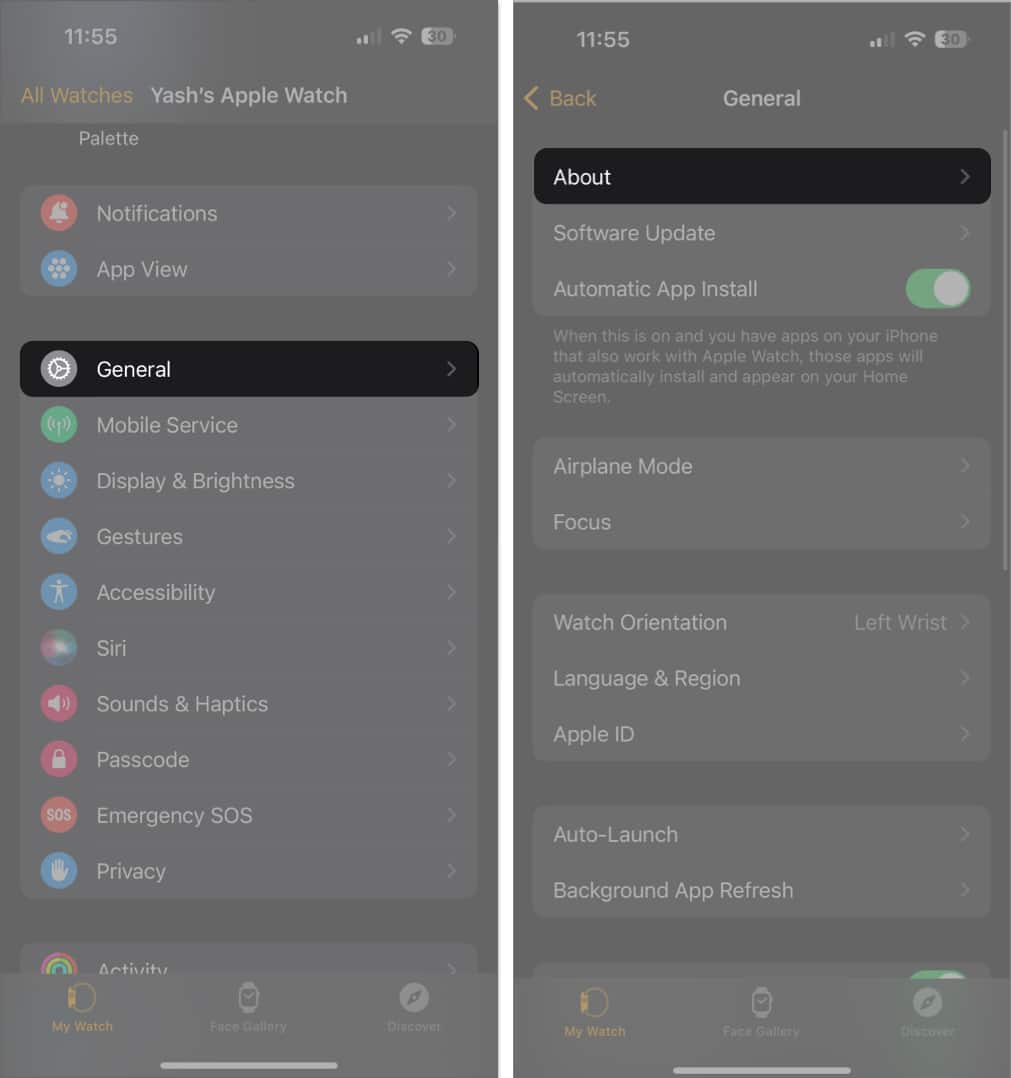
- Launch the Watch app on your iPhone.
- From the My Watch tab, go to General → About.
- Select Name → Change the name of your Apple Watch.
- Finally, tap done at the bottom of your keyboard or About to save your preferences.
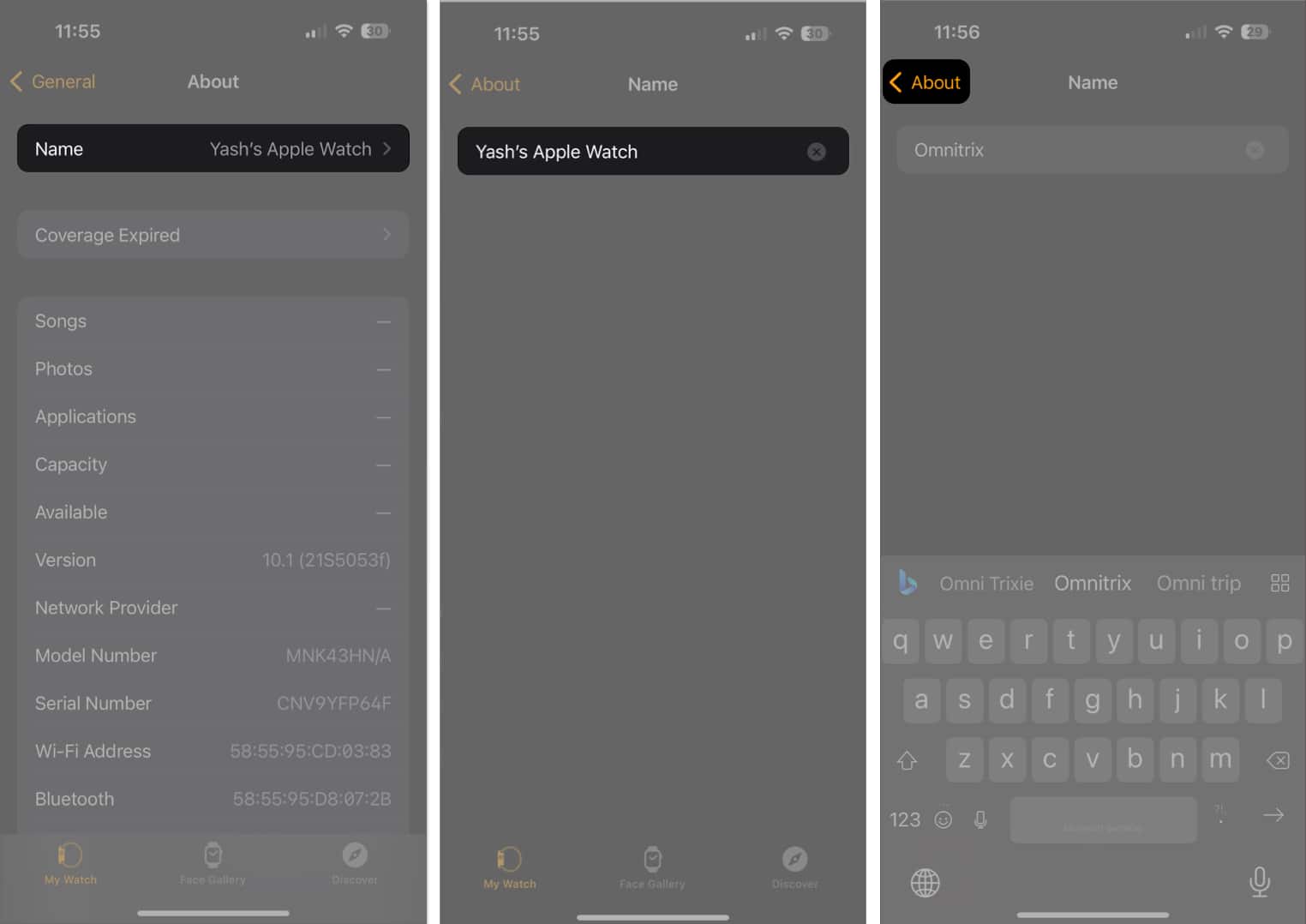
If your Apple Watch is connected to other Apple devices, the change in name will be reflected on those devices as well. Don’t worry if you can’t spot the change immediately; it usually tends to take some time.
Importance of renaming your Apple Watch
Although renaming an Apple Watch is a simple process, you may wonder whether doing so is a good idea or not. Let me explain.
- By changing the name of your Apple Watch, you can easily identify it when connected to multiple devices or when managing several Apple Watches from the same device.
- If Apple Watches are set up via Family Sharing, you can distinguish one from another easily.
- If you ever find yourself in a situation where you either need to create or retrieve an Apple Watch backup, finding the right device becomes easier.
- Finally, apps like Walkie-Talkie will start to reflect your personalized profile, which makes it more fun to use.
Wrapping up!
By following the steps outlined in this guide, you can easily rename your Apple Watch to whatever you want. So go ahead and give your Apple Watch a new name and enjoy the personalized experience it offers!
Did you find this helpful? Please take a moment to leave your thoughts in the comments below.
Read more:

Written by
VikhyatVikhyat has a bachelor's degree in Electronic and Communication Engineering and over five years of writing experience. His passion for technology and Apple products led him to the tech writing space, where he specializes in writing App features, How-to guides, and troubleshooting guides for fellow Apple users. When not typing away on his MacBook Pro, he loves exploring the real world.
View all posts →More from Apple Watch

Apple Watch Not Responding? 8 Fixes That Actually Work
Is your Apple Watch unresponsive or stuck on a black screen? Here are 8 proven fixes to help you unfreeze it and get it working again quickly.
VikhyatMarch 3, 2026
How to Mirror Your Apple Watch on Your iPhone: A Simple Guide
Want to control your Apple Watch using your iPhone? This guide explains how to turn on Apple Watch Mirroring, use it easily, and fix common issues.
 Arshmeet KaurFebruary 27, 2026
How to Restore Apple Watch From a Backup
Need to reset or switch iPhones? Here’s how to restore your Apple Watch from a backup, what data comes back, and how to make sure everything syncs properly.
VikhyatFebruary 23, 2026