
How to change distance units on Apple Watch and iPhone
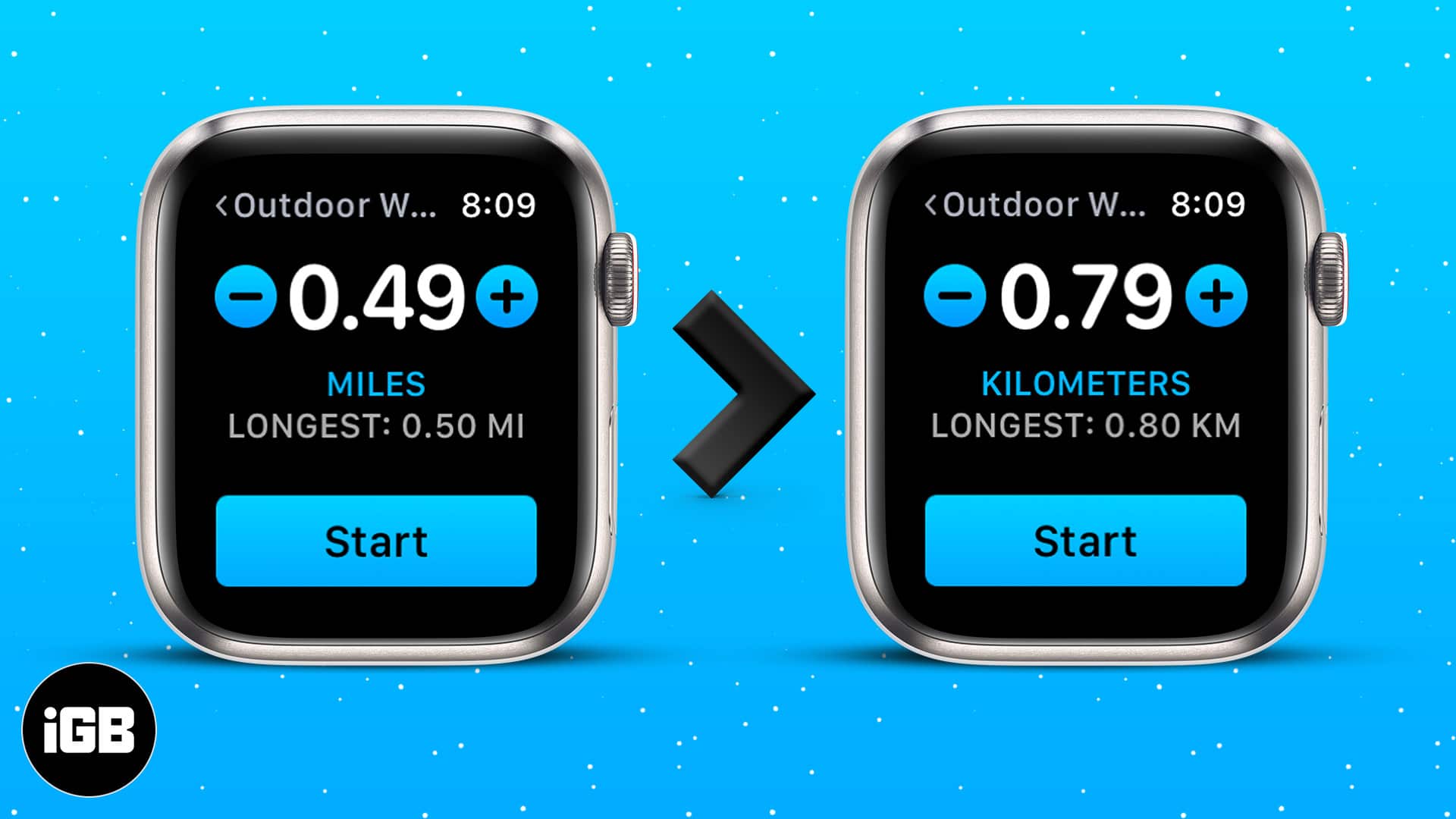
For regular runners and joggers, measuring the distance is crucial as it is in direct proportion to the calorie they lose every day. But not everybody likes to measure the distance in miles. Moreover, Apple Watch measures distance in miles by default. Therefore, you need to change miles to kilometers on your Apple Watch. Let’s learn how!
- How to change miles to kilometers on Apple Watch
- How to switch between miles and kilometers on iPhone
Note:
If you switch the measurement unit on one device, whether the Apple Watch or iPhone, it will instantly change on the paired device too.
How to change miles to kilometers on Apple Watch
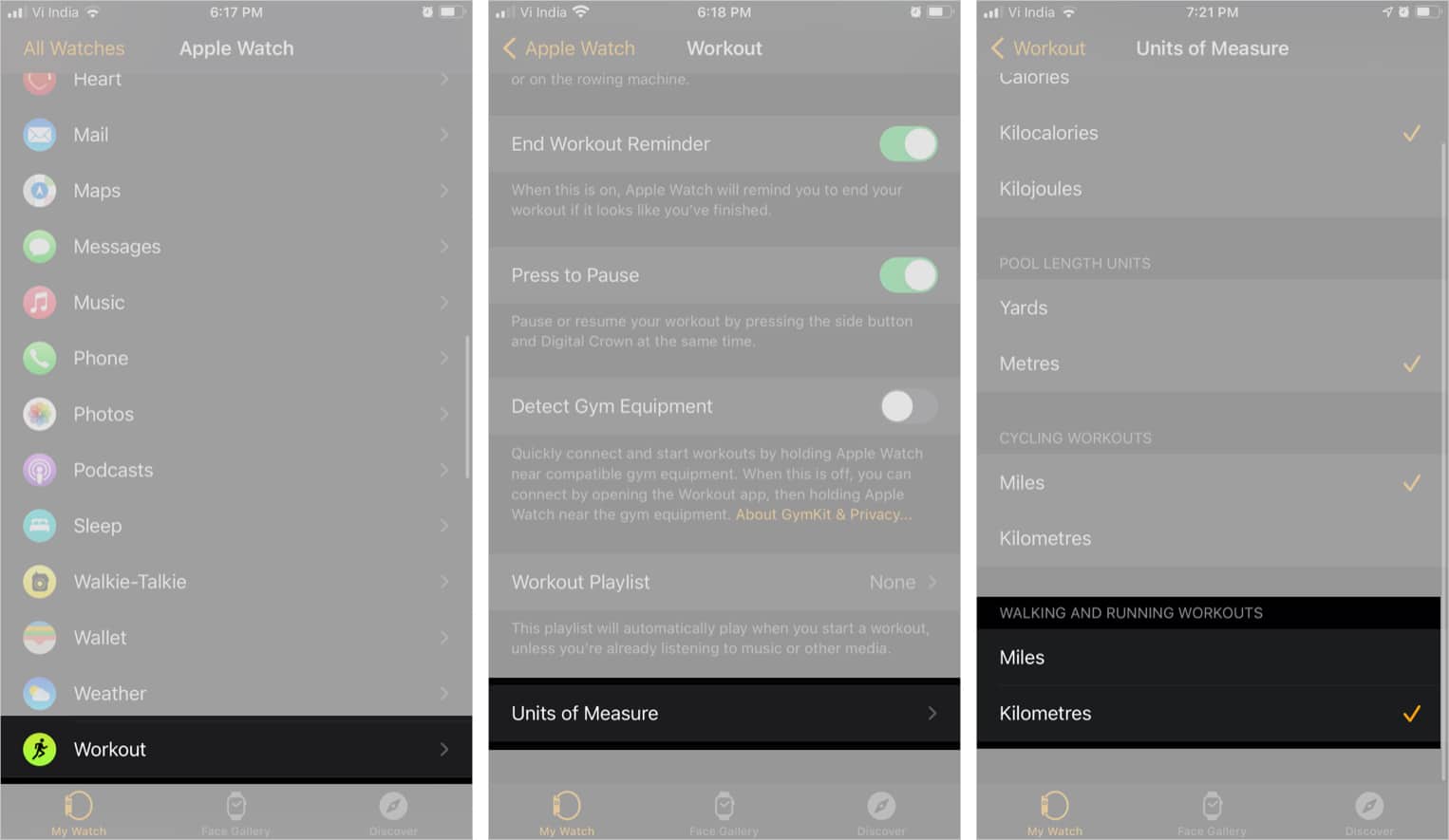
- Open Apple Watch Settings.
- Scroll down to Workout.
- Tap Units of Measure.
- Select Kilometers under the Walking and Running Workouts section
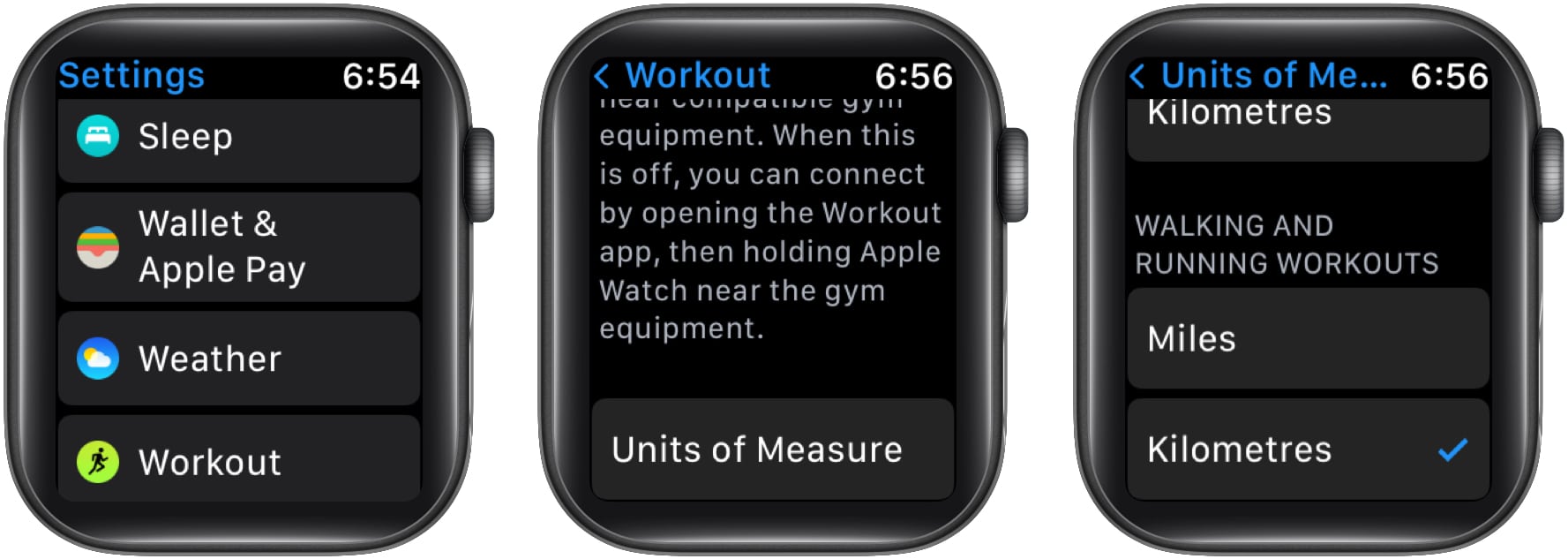
- Optional: You can also switch units for cycling, energy, and swimming.
That’s it! Now, all the units will be updated.
How to switch between miles and kilometers on iPhone
Using the Health app
- Launch the Health app and tap Show All Health Data.
- Select Walking and Running Distance.
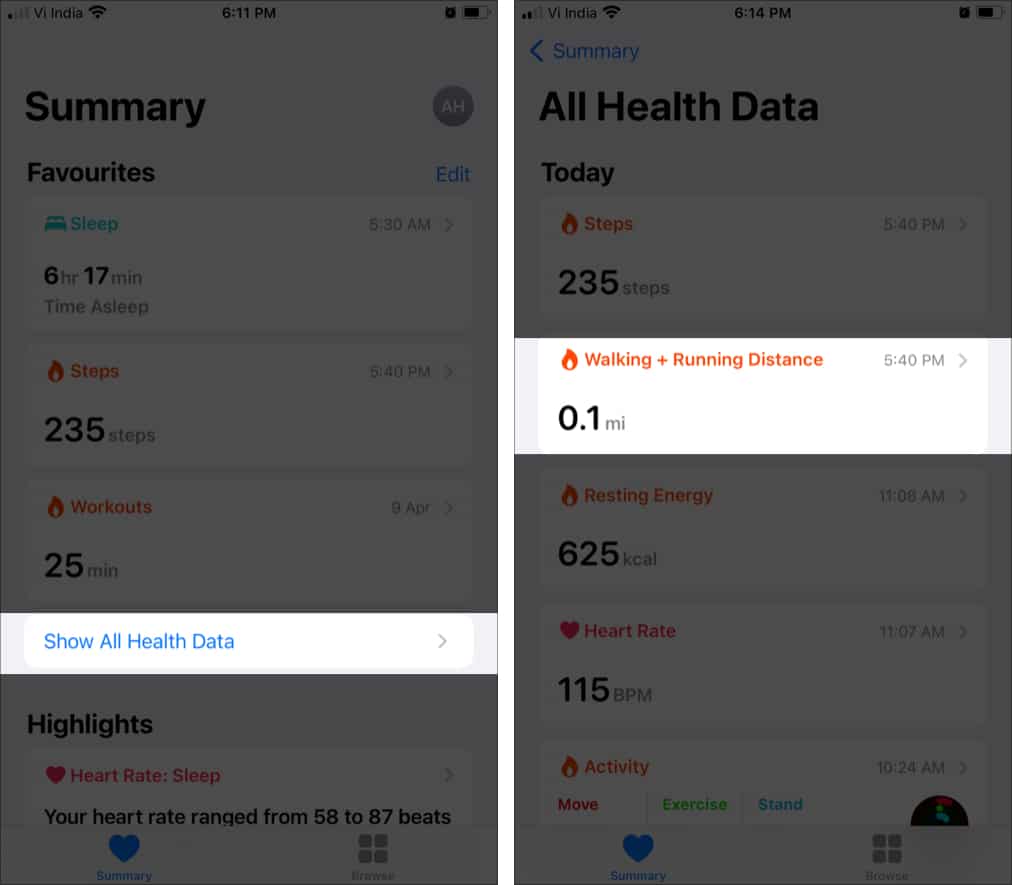
- Scroll down and tap Unit.
- Choose km for Kilometers.
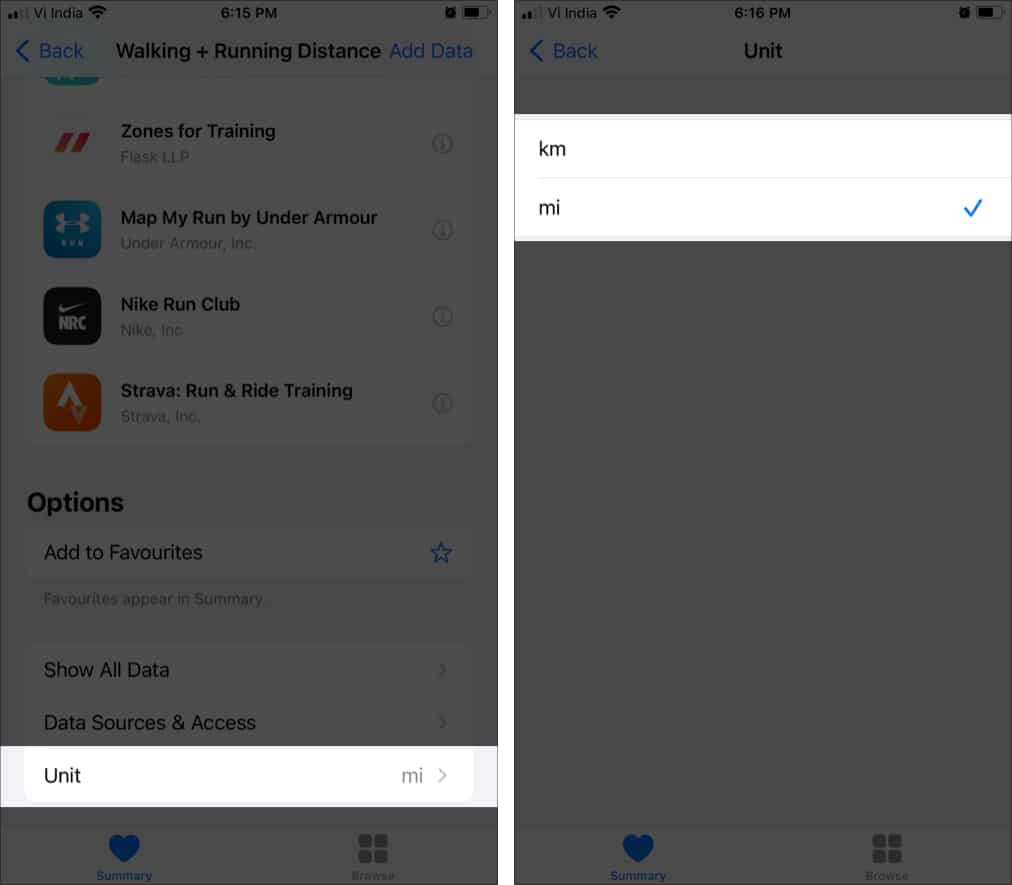
Now, go to the dashboard. You will notice that all the past activities have changed into the updated unit.
Using the Watch app
- Launch the Watch app and scroll down to select Workout.
- Scroll down and tap Units of Measure.
- Under the Walking and Running Workouts section, select Miles or Kilometers.
Note:
When managing the units from the Apple Watch app, you can also tweak units for cycling workouts, energy units, and Pool length.
While I understand the whole concept of the imperial and metric system of measurements, it can still be confusing. The struggle between miles to kilometers and pounds to kilograms is real, especially when you are traveling.
I either end up Googling stuff or depend upon a unit converter app to handle things smoothly. Do you depend on an app or have some amazing trick up your sleeve? Share your thoughts in the comments below.
Check other amazing Apple Watch tricks:

Written by
Arshmeet KaurA self-professed Geek who loves to explore all things Apple. I thoroughly enjoy discovering new hacks, troubleshooting issues, and finding and reviewing the best products and apps currently available. My expertise also includes curating opinionated and honest editorials. If not this, you might find me surfing the web or listening to audiobooks.
View all posts →More from Apple Watch

Apple Watch Not Responding? 8 Fixes That Actually Work
Is your Apple Watch unresponsive or stuck on a black screen? Here are 8 proven fixes to help you unfreeze it and get it working again quickly.
 VikhyatMarch 3, 2026
How to Mirror Your Apple Watch on Your iPhone: A Simple Guide
Want to control your Apple Watch using your iPhone? This guide explains how to turn on Apple Watch Mirroring, use it easily, and fix common issues.
Arshmeet KaurFebruary 27, 2026
How to Restore Apple Watch From a Backup
Need to reset or switch iPhones? Here’s how to restore your Apple Watch from a backup, what data comes back, and how to make sure everything syncs properly.
VikhyatFebruary 23, 2026