
How to Block and Unblock Someone on Instagram
Instagram lets you block or unblock someone in seconds. Follow these simple steps to take full control of your privacy and online peace.

Instagram is a great place to share photos, watch stories, and stay connected. However, there are times when you may not want certain people to view your profile or contact you. Whether it is unwanted messages, spam, or simply a need for personal space, Instagram gives you tools to control who can interact with you.
In this guide, you’ll learn exactly how to block and unblock someone on Instagram, what happens when you do, and how to manage your privacy in a simple, stress-free way.
What Happens When You Block Someone on Instagram?
When you block someone on Instagram, several things happen instantly.
- Once blocked, they can’t search for your account or see your posts or stories, even if they are logged out. To them, it’s almost like your account doesn’t exist.
- Their likes and comments will disappear from your posts. However, they can still see your likes and comments on public posts or accounts they follow.
- They cannot send new messages, and you cannot message them either. Blocking does not automatically delete chat history on your side. Your previous conversation in DMs stays in your inbox.
- If you’re in a group chat with a blocked user, you can choose to stay or leave. If you stay, both you and the blocked person will be able to view each other’s messages in the group.
- They can’t tag or mention you anymore. Existing tags may remain unless you remove them manually.
- If you create a room after blocking someone, they won’t be able to join it.
Instagram does not send a notification when you block someone. Also, Instagram may block their current and future accounts linked to the same person.
How to Block Someone on Instagram (iPhone and Android)
You can block someone in several ways on both iPhone and Android. Here are four methods to block a user on Instagram without them knowing.
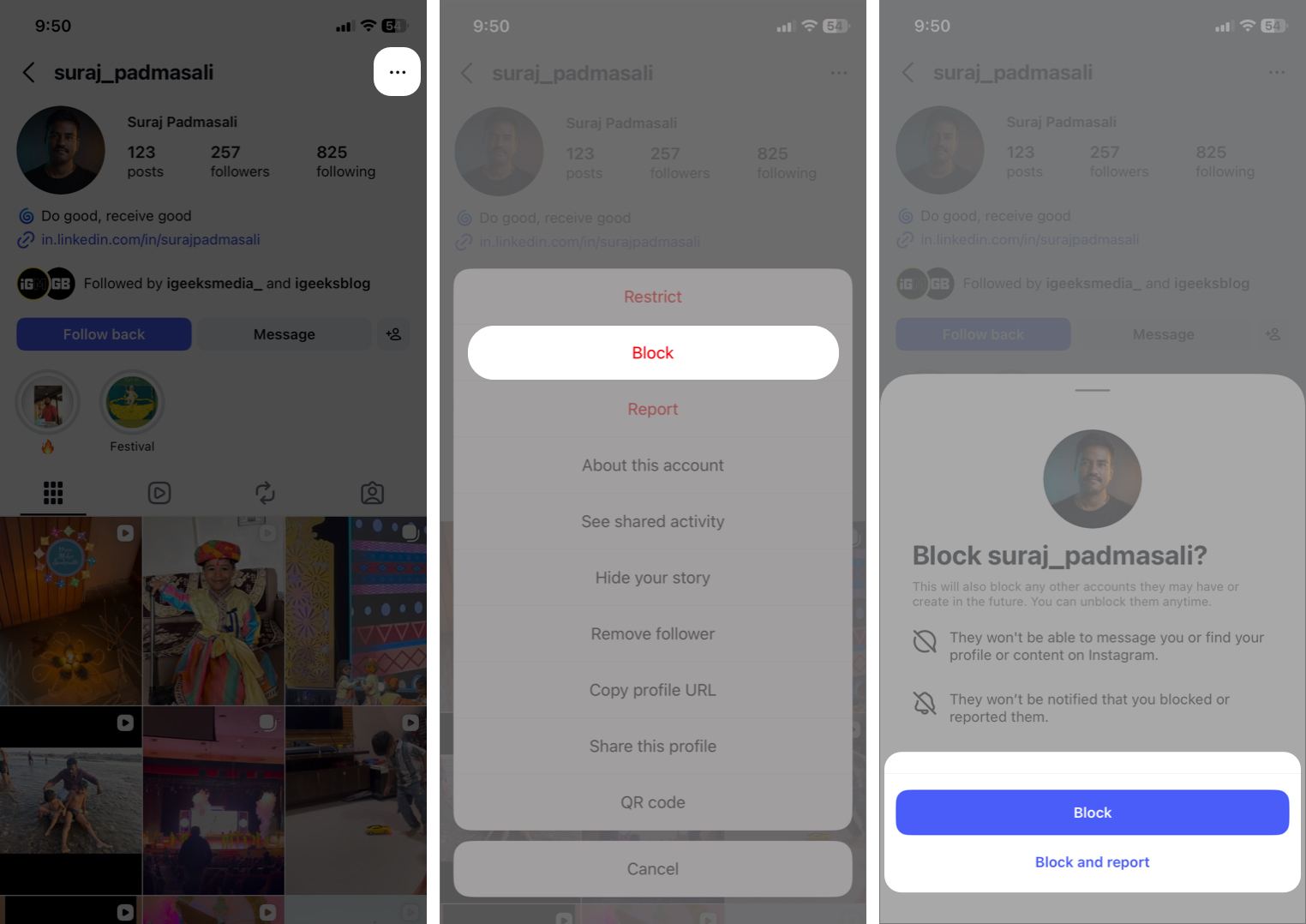
From Someone’s Profile
This is the most common method.
- Open Instagram and tap the search button to find the person.
- Tap the username to visit their profile.
- Tap the three-dot menu in the top-right corner.
- Select Block and confirm your choice by tapping Block on the pop-up. You can also choose Block and report if the account is spamming.

Via Direct Messages (DM)
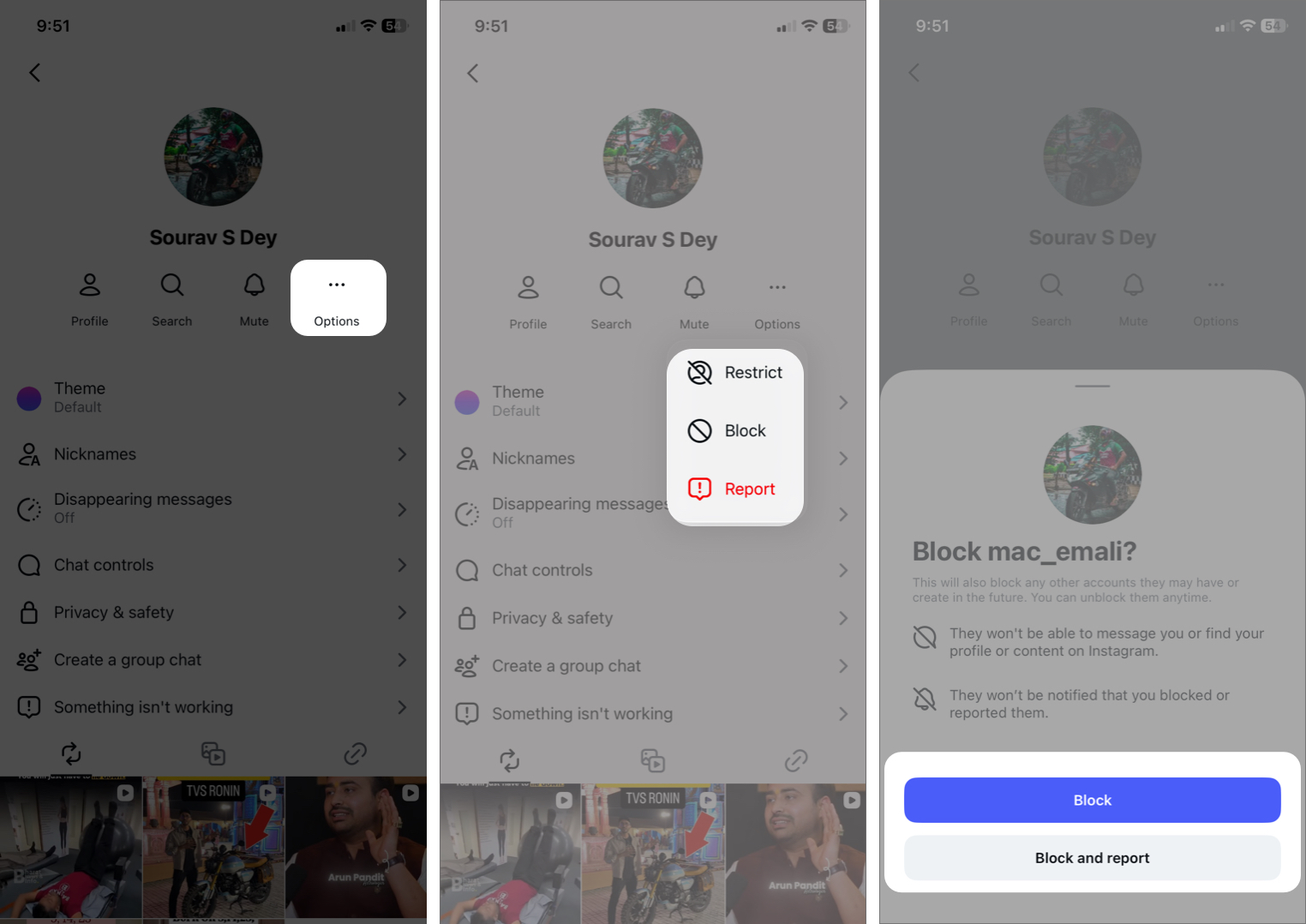
You can also block someone directly from your chat.
- Open your Instagram inbox from the bottom menu.
- Tap the chat of that person.
- Tap their name at the top.
- Select Options and choose Block.
- Tap Block again to confirm.

From a Comment on Your Post
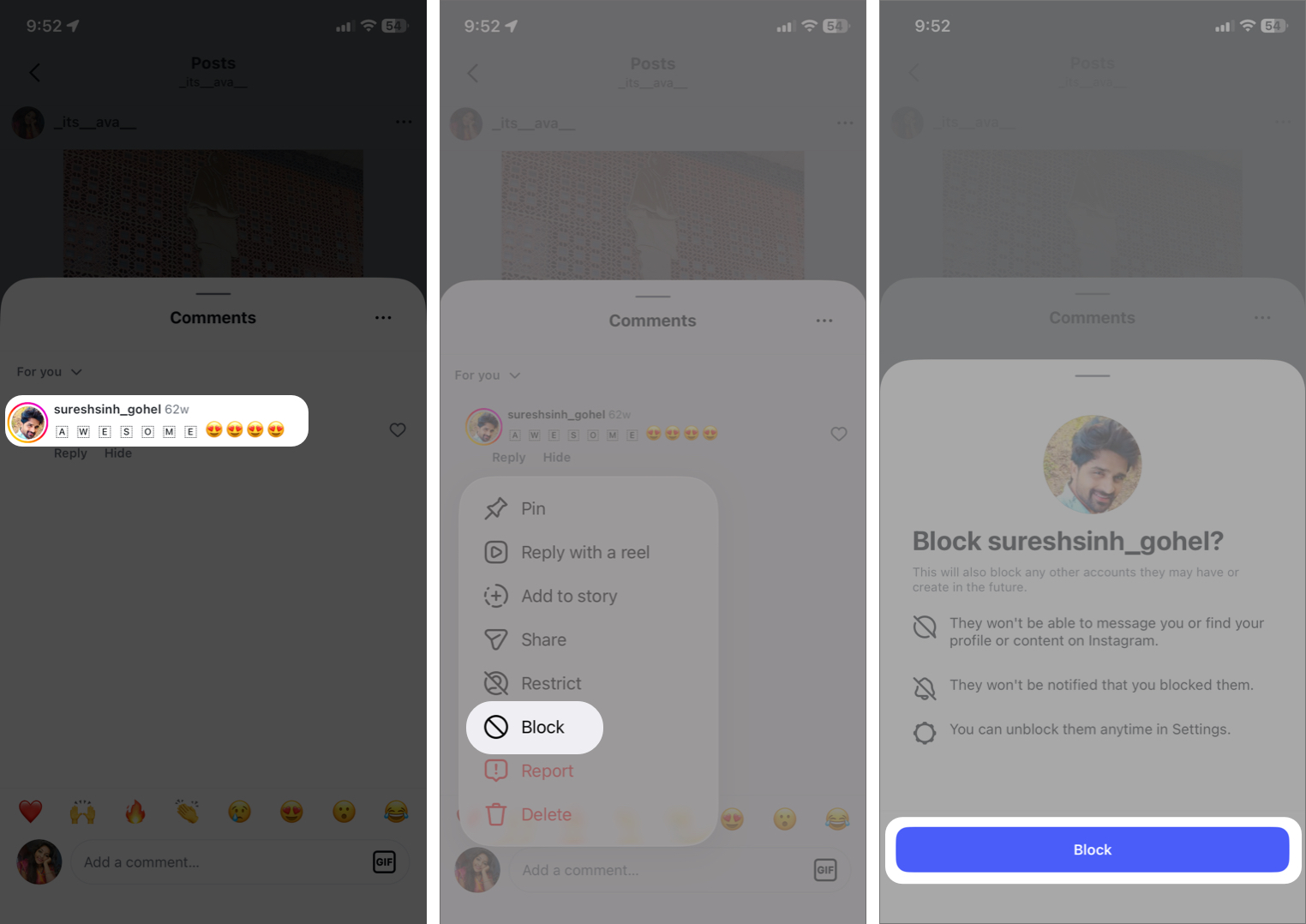
If someone leaves an unwanted comment, you can block them immediately.
- Tap your profile photo in the bottom menu and open a post.
- Go to the comment section.
- Press and hold the comment of the person you want to block.
- Select Block from the dropdown menu and confirm.

How to Unblock Someone on Instagram
Changed your mind? Here’s how to reverse it on iPhone and Android.
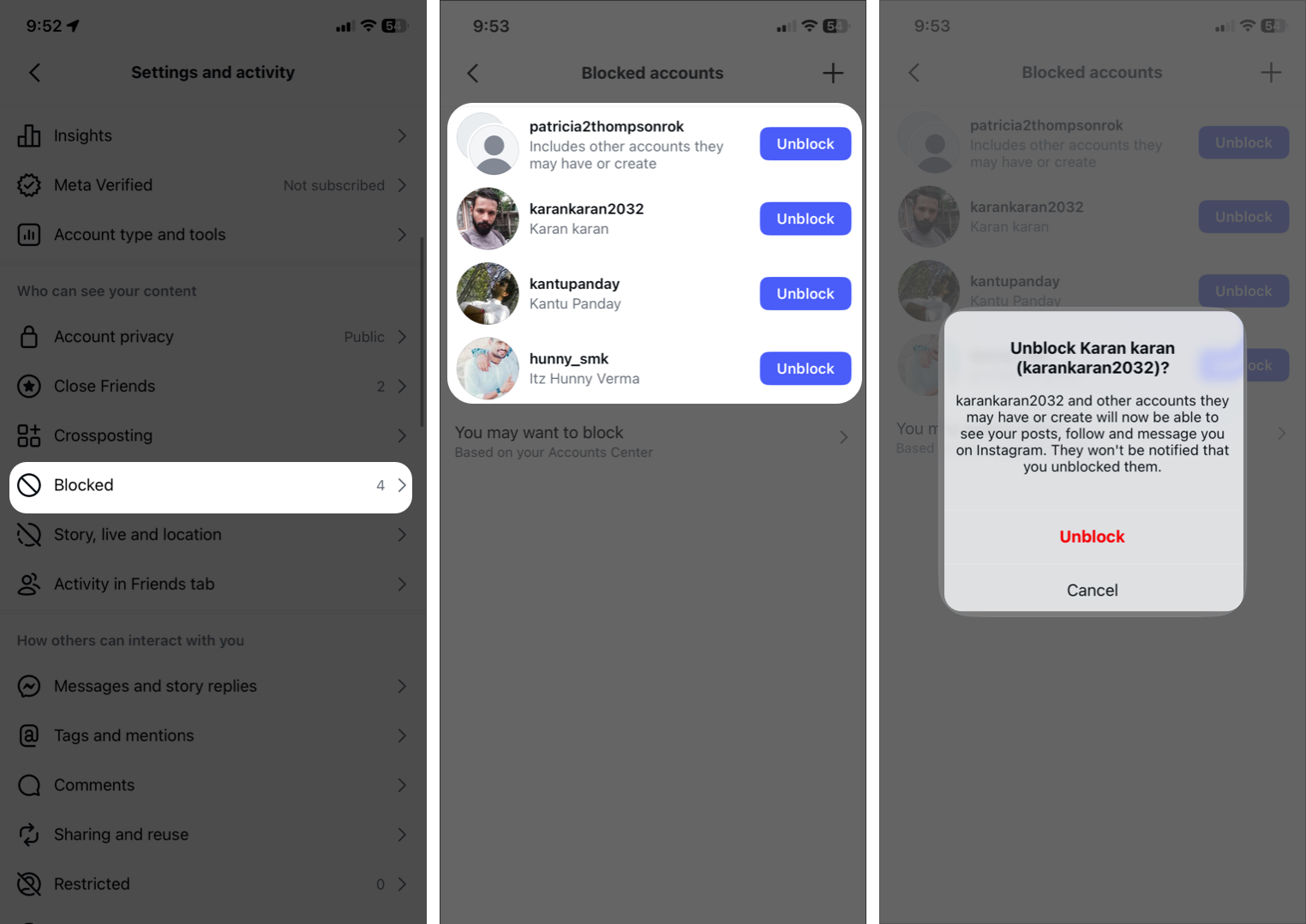
From the Blocked Accounts List
- Go to your profile.
- Tap the menu (☰) and open Settings.
- Scroll down and select Blocked.
- You’ll see your list of blocked accounts. Find the account you want to unblock.
- Tap Unblock beside the account.
- Confirm your choice.

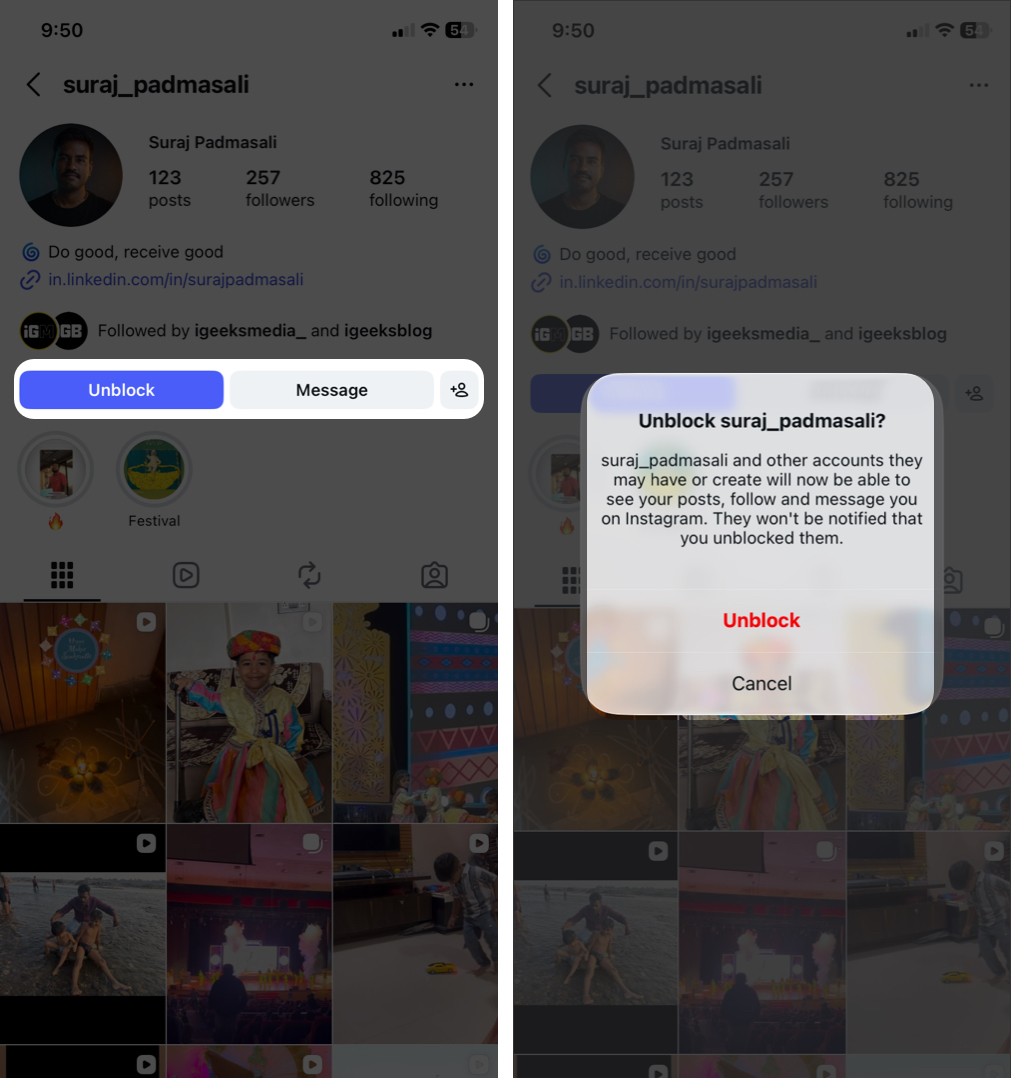
Directly From Their Profile
If you remember their username and can find their profile:
- Tap the search button in the bottom menu bar.
- Open the profile.
- Tap the Unblock button under their bio.
- Tap Unblock again in the dialog box to confirm.

What Happens After You Unblock Someone on Instagram?
When you unblock someone, most restrictions are lifted. However, there are a few important details to keep in mind.
- Instagram does not notify users when you unblock them.
- Your old chat thread remains if it wasn’t deleted. However, any messages they tried to send while blocked will not be delivered.
- You must manually follow each other again. If your account is private, they’ll need to send a follow request.
- Instagram may require you to wait up to 48 hours before blocking the same person again.
Block vs Restrict vs Mute on Instagram: Key Differences Explained
Blocking isn’t always necessary. Instagram offers softer options to improve your experience.
Here’s a simple comparison:
| Feature | Block | Restrict | Mute |
|---|---|---|---|
| Can see your profile | No | Yes | Yes |
| Can message you | No | Limited | Yes |
| Comments publicly visible | No | Only if you approve | Yes |
| Notified? | No | No | No |
| Best for | Harassment | Quiet control | Reducing feed clutter |
When to Use Each Option
- Block: For harassment, stalking, or spam.
- Restrict: For acquaintances you want to limit quietly.
- Mute: For friends who post too often.
If you’re dealing with serious harassment, blocking is usually the safest option. You can also limit comments to followers and filter offensive comments automatically.
Make Your Instagram Experience Better by Blocking
Blocking someone on Instagram is simple and completely private. It’s designed to help you feel safe and in control of your online space. There are also softer alternatives like mute and restrict if blocking feels too extreme.
Use the Block feature wisely. Social media should support your well-being, not harm it.
Frequently Asked Questions

Written by
Ava BiswasAva is a die-hard Apple aficionado and seasoned writer with a knack for breaking down complex tech concepts into easily digestible content. Having honed her writing and editing skills over 4 years at renowned media houses like TechBurner, Ava crafts informative and engaging articles including troubleshooting guides, product reviews, editorials at iGeeksBlog. When not typing, you can find her exploring the latest Apple releases or pondering the future of tech innovation.
View all posts →More from How-to

Apple Watch Not Responding? 8 Fixes That Actually Work
Is your Apple Watch unresponsive or stuck on a black screen? Here are 8 proven fixes to help you unfreeze it and get it working again quickly.
 Vikhyat
How to Block or Unblock Someone on WhatsApp
Want to stop someone from messaging you on WhatsApp? Here’s a simple guide to block or unblock contacts on iPhone, Android, and Web.
 Bhaskar
How to Mirror Your Apple Watch on Your iPhone: A Simple Guide
Want to control your Apple Watch using your iPhone? This guide explains how to turn on Apple Watch Mirroring, use it easily, and fix common issues.
 Arshmeet