
How to Remove Fake Apple Security Alerts on iPhone
Getting fake Apple security alerts on iPhone? Follow this simple guide to remove scam warnings and keep your iPhone safe.

Seeing a sudden “Apple Security Alert” pop-up on your iPhone can be scary, especially when it claims your Apple ID is hacked, your iPhone is infected, or your device will be blocked unless you act immediately. The truth is, in most cases, these alerts are completely fake. They are designed to panic you into tapping a link, calling a number, or sharing personal information.
This post details why fake Apple security alerts appear on iPhone and the steps to remove them safely so they don’t keep coming back.
What is a Fake Apple Security Alert on iPhone?
A fake Apple security alert is a scam pop-up or notification that pretends to be from Apple. It usually appears in Safari or while browsing a random site and displays messages like:
- “Your iPhone has been hacked!”
- “Apple Security Alert: Virus detected.”
- “Your Apple ID is locked.”
- “Call Apple Support immediately.”
These alerts are not real system warnings. Apple does not show virus pop-ups in Safari, and it never asks you to call a phone number through a browser alert.
Why You’re Getting Fake Apple Security Alerts on iPhone
Fake security alerts can appear for various reasons, but almost all are related to web browsing, notifications, or spam subscriptions.
- You landed on a scam website: Some websites run scripts that automatically trigger fake warnings and keep redirecting you to more scam pages.
- You accidentally allowed Safari notifications: If you tapped Allow when a site asked for permission to send notifications, that site can push fake alerts even after you close Safari.
- You subscribed to a spam calendar: Many scams add a calendar subscription filled with events such as “Apple Security Warning” or “Your iPhone is infected,” which causes repeated notifications.
- You installed a suspicious profile or VPN: If you ever installed a configuration profile from an unknown website, it may modify settings and cause persistent spam behavior.
How to Remove Fake Apple Security Alerts on iPhone
The steps detailed below fix almost every fake security alert issue.
1. Force Close Safari Immediately
First, do not tap any buttons inside the alert. Not even Cancel. Here’s what you need to do instead:
- Swipe up from the bottom and hold (Face ID models) or double-press the Home button (Touch ID models)
- Swipe Safari up to close it completely
This stops the scam page from running.
2. Clear Safari History and Website Data
Clearing Safari removes the stored website data responsible for repeated pop-ups.
To clear Safari history:
- Open Settings → Apps → Safari.
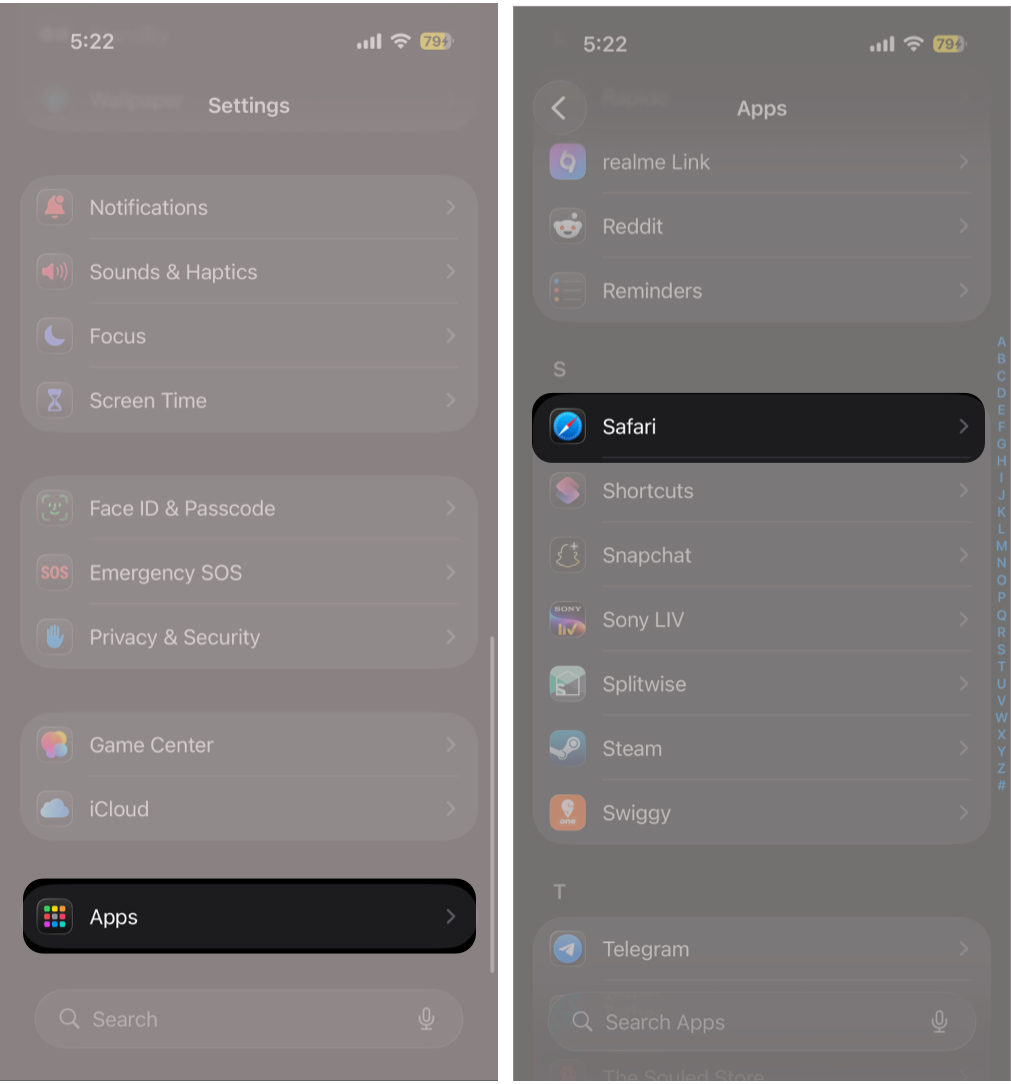
- Tap Clear History and Website Data under History and Website Data.
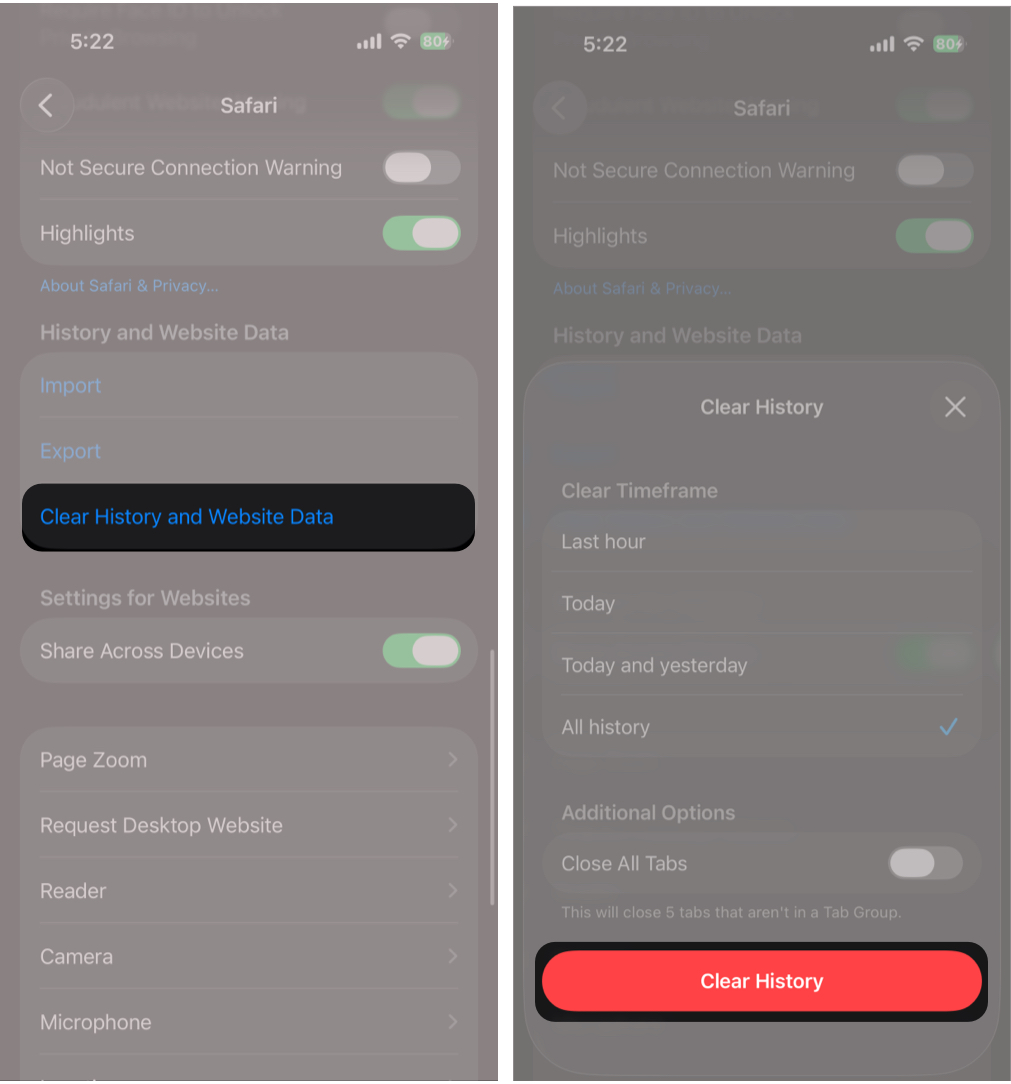
- Select the timeframe and tap the Clear button.


To clear website data:
- Open Settings → Apps → Safari →
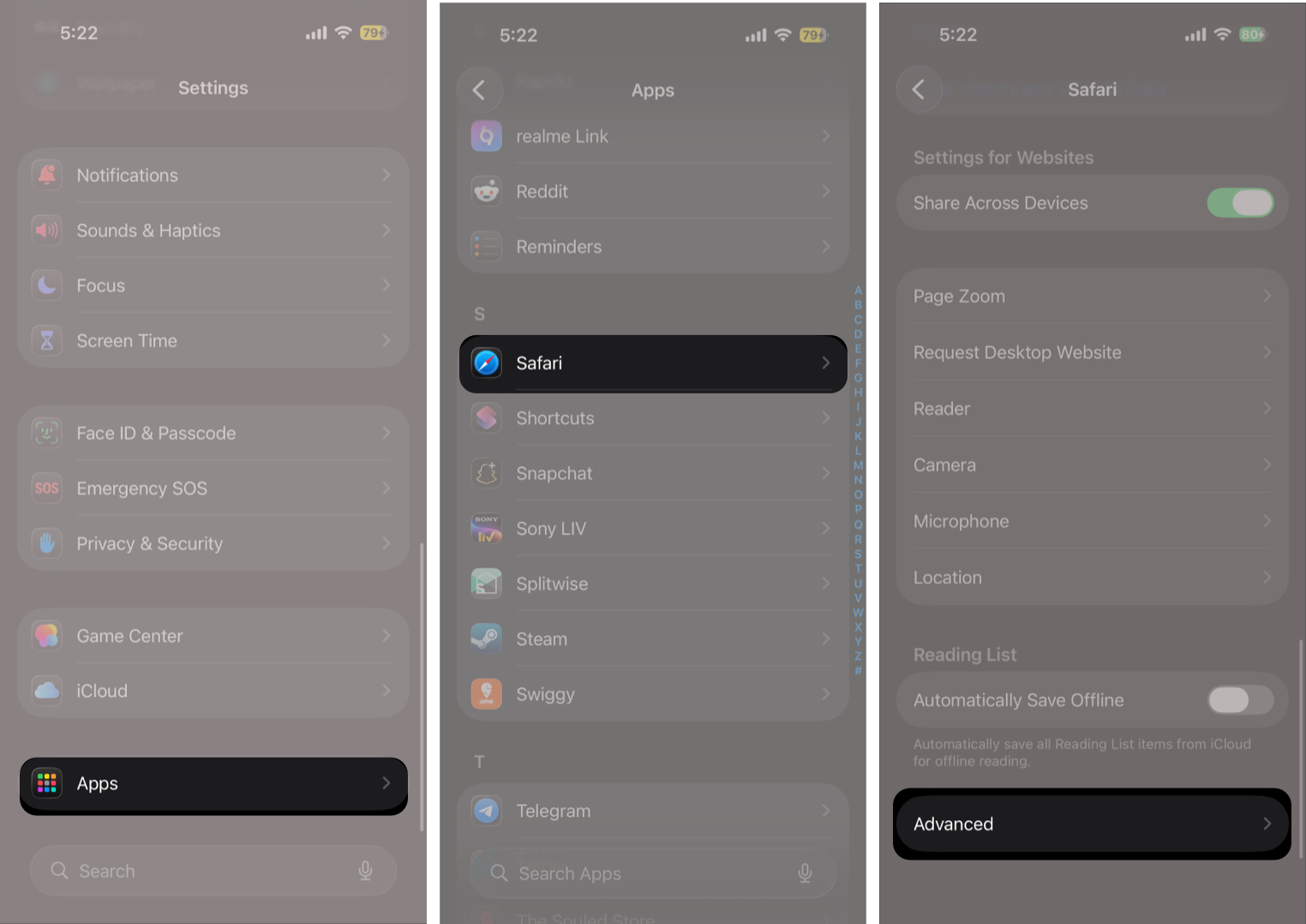
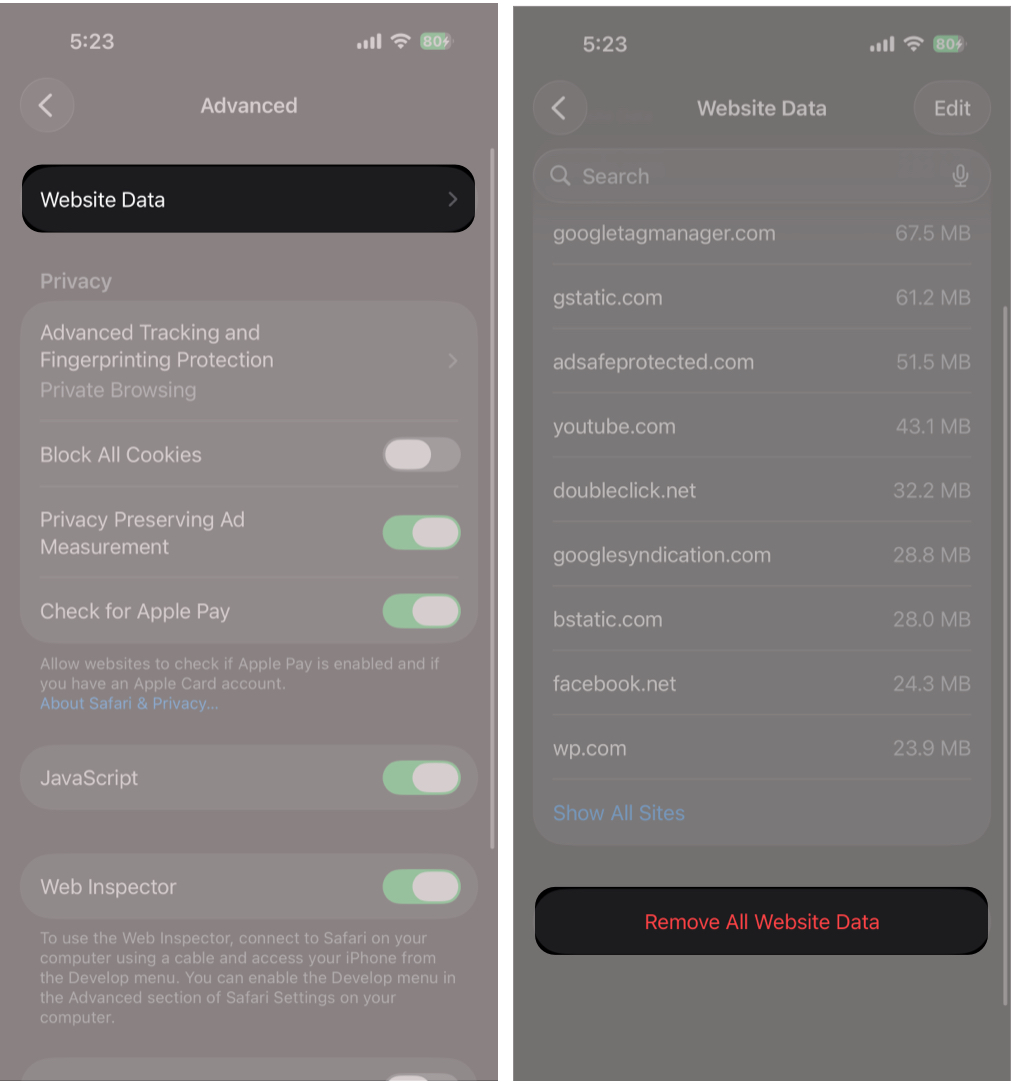
- Scroll down and tap Advanced → Website Data.
- Tap Remove All Website Data.


3. Remove Spam Calendar Subscriptions
If you keep receiving fake Apple security alerts as calendar events, you need to delete the spam Calendar subscription.
- Open Settings → Apps → Calendar.
- Select Calendar Accounts.
- Tap Subscribed Calendars.
- Delete anything you do not recognize.
Alternatively, you can also do this directly inside the Calendar app:
- Calendar → Calendars → remove suspicious calendars.
4. Disable or Delete Unknown Safari Extensions
Even with the “Block Pop-ups” setting enabled, extensions can still inject pop-ups or redirect you.
- Go to Settings → Apps → Safari.
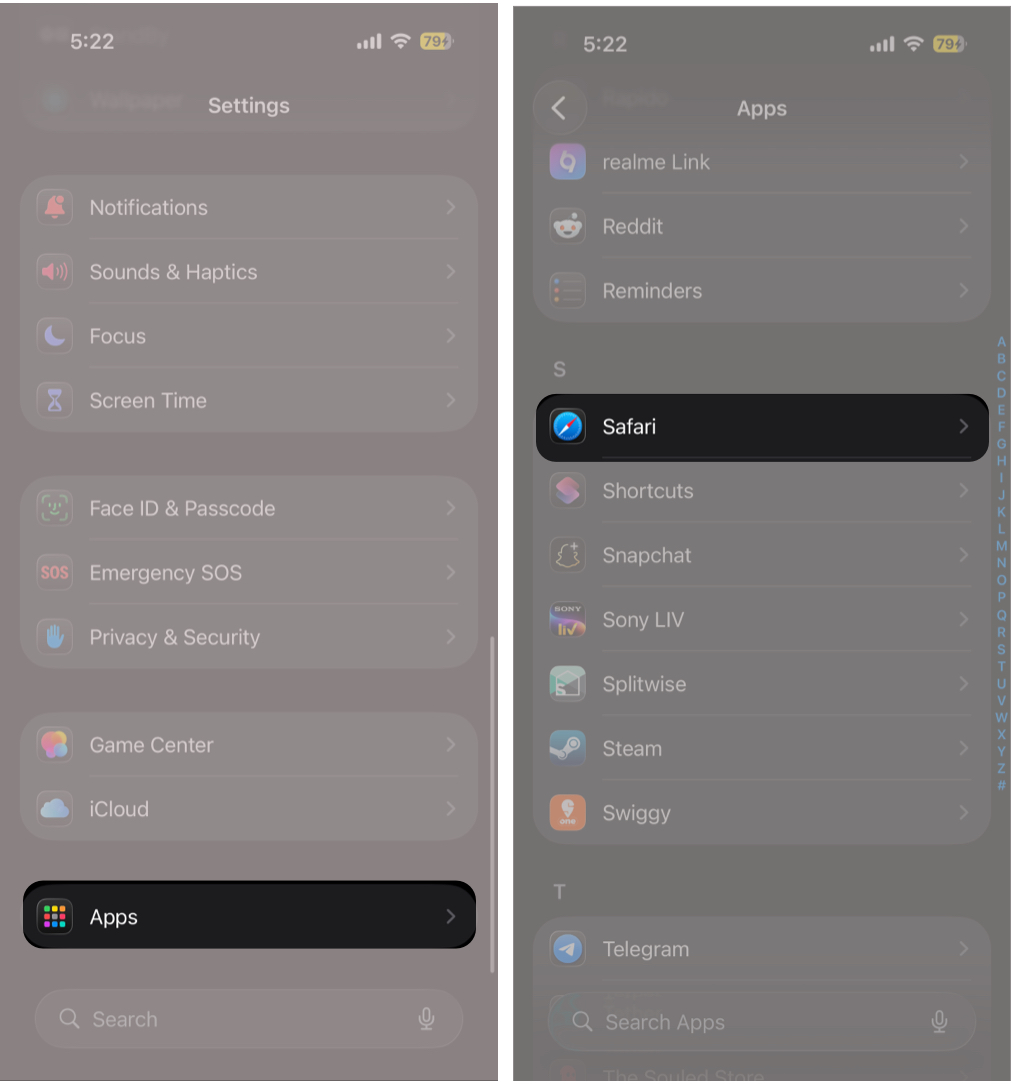
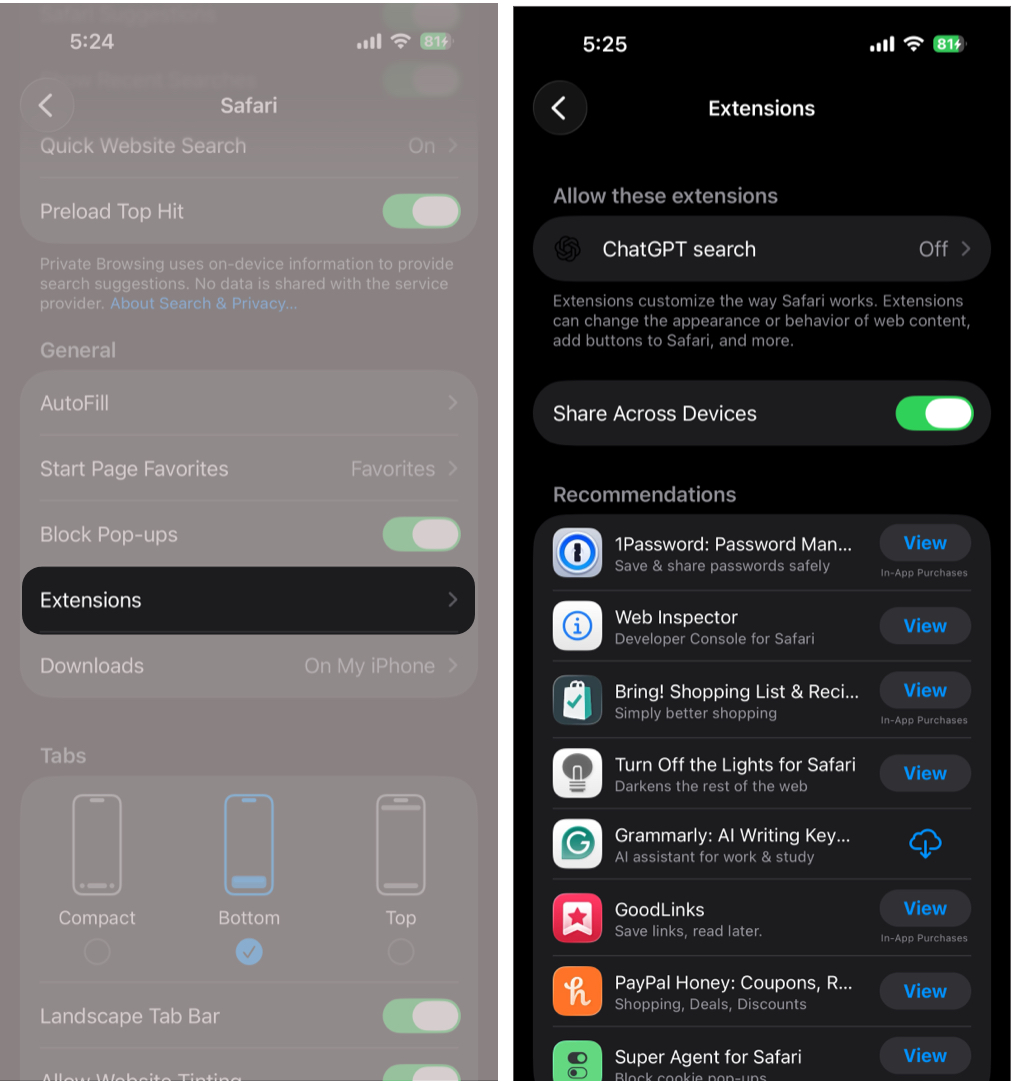
- Tap Extensions.
- Turn off or remove anything you did not install intentionally.


5. Remove Suspicious Profiles or Device Management
While the chances of this happening are slim, some scam sites trick users into installing configuration profiles that can interfere with Safari or push unwanted content.
Therefore, it is wise to check for any unrecognized device profiles or VPN configurations.
Here’s how:
- Open Settings → General → VPN & Device Management.
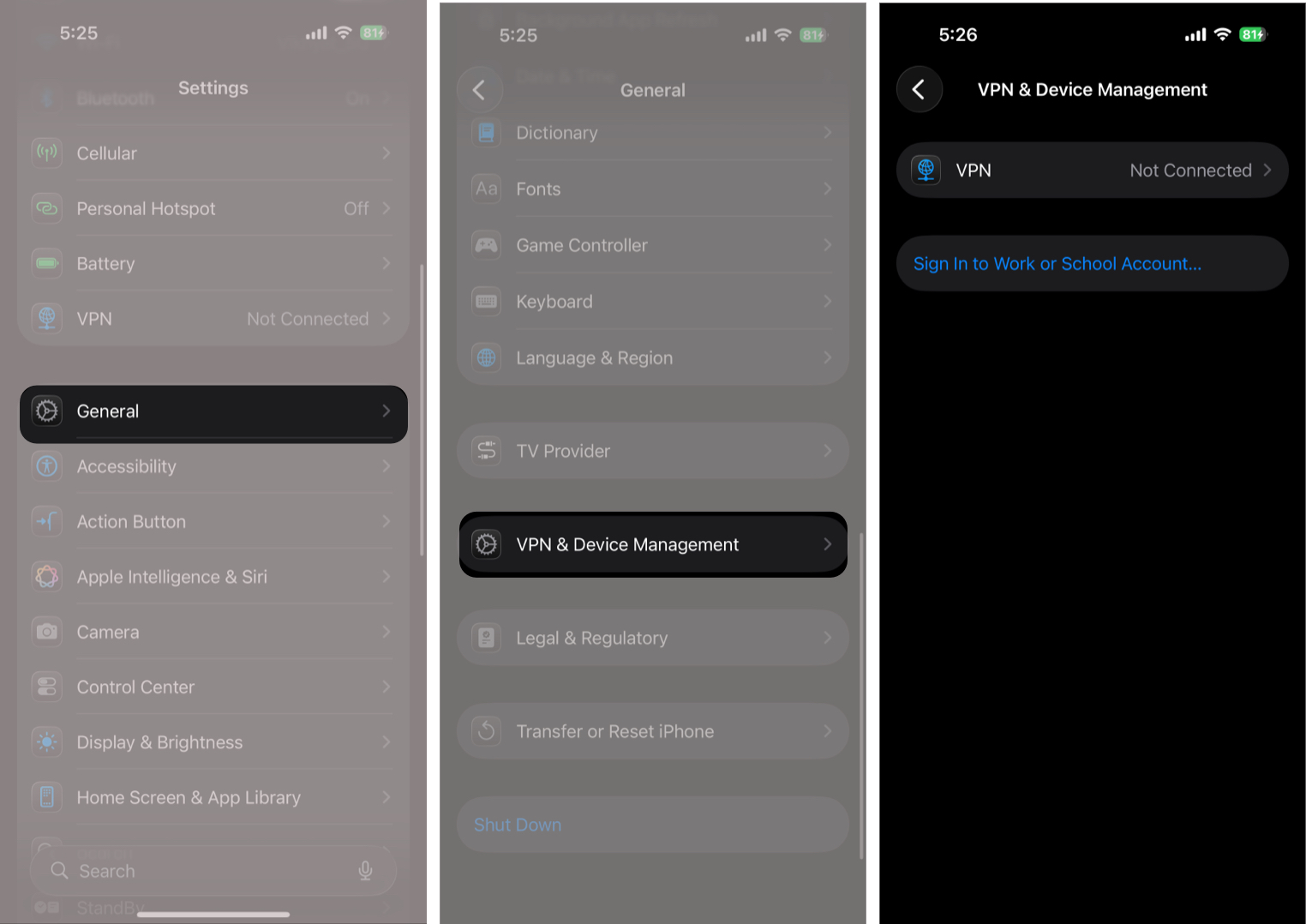
- If you see any profiles or VPNs you don’t recognize, remove them immediately.
- If you don’t see this option at all, that’s normal and simply means no profiles are installed on your iPhone.

6. Restart Your iPhone and Update iOS
Once done, check for any available software updates; if there are, install them immediately. This is because Apple regularly patches security vulnerabilities and improves Safari’s protection. Keeping your iPhone up to date reduces the risk of encountering similar fake alerts again.
What to Do If You Clicked the Fake Apple Alert?
If you only saw the alert and closed Safari, you are probably safe. But if you interacted with it, do this immediately.
If You Entered Your Apple ID:
Change your password right away.
- Settings → Your Name → Sign-in & Security → Change Password.
Once done, check for unknown logins and devices in the Apple ID device list.
If You Installed an App From the Alert:
Delete the app and check for subscriptions.
- Settings → Your Name → Subscriptions
If You Shared Payment Info:
If you entered card details or UPI info, contact your bank immediately and block your card or account access.
How to Avoid Fake Apple Security Alerts in the Future
Here’s how to prevent it from happening again:
- Never tap pop-ups that say “virus detected.”
- Never call phone numbers shown in Safari alerts.
- Do not allow notifications from random sites.
- Avoid installing profiles from unknown sources.
- Use Safari content blockers if you browse a lot.
Keeping Your iPhone Safe…
Fake Apple security alerts are designed to scare you, but they’re usually easy to remove once you clear Safari data and revoke notification access. The key is to stay calm, never interact with the pop-up, and clean up Safari permissions. Once you follow the steps above, the alerts should stop permanently.
Have you ever run into a fake Apple security alert on your iPhone? Let us know in the comments how you fixed it.
Frequently Asked Questions

Written by
VikhyatVikhyat has a bachelor's degree in Electronic and Communication Engineering and over five years of writing experience. His passion for technology and Apple products led him to the tech writing space, where he specializes in writing App features, How-to guides, and troubleshooting guides for fellow Apple users. When not typing away on his MacBook Pro, he loves exploring the real world.
View all posts →More from How-to

Apple Watch Not Responding? 8 Fixes That Actually Work
Is your Apple Watch unresponsive or stuck on a black screen? Here are 8 proven fixes to help you unfreeze it and get it working again quickly.

How to Block or Unblock Someone on WhatsApp
Want to stop someone from messaging you on WhatsApp? Here’s a simple guide to block or unblock contacts on iPhone, Android, and Web.
 Bhaskar
How to Mirror Your Apple Watch on Your iPhone: A Simple Guide
Want to control your Apple Watch using your iPhone? This guide explains how to turn on Apple Watch Mirroring, use it easily, and fix common issues.
 Arshmeet