

Although removing an app from your Mac is simple, it can become quite frustrating when the app doesn’t delete from Launchpad or Finder. In this article, I’ve covered the simplest methods to fix the problem of deleted apps still showing up on Mac. So, let’s get started!
1. Clear Mac cache
Your Mac uses a temporary storage location to hold frequently accessed data to speed up its performance. Nevertheless, if you have uninstalled an application on your Mac but the app icon is stuck in Launchpad, it could be due to cached data linked to that app.
- Launch Finder.
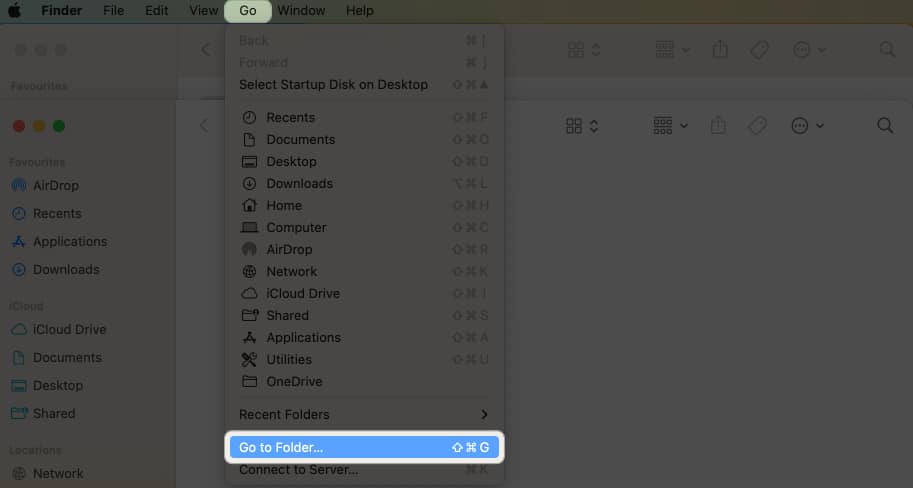
- Select Go from the menu bar → Head to Go to Folder.
- Type
~/Library/Cachesand press Return.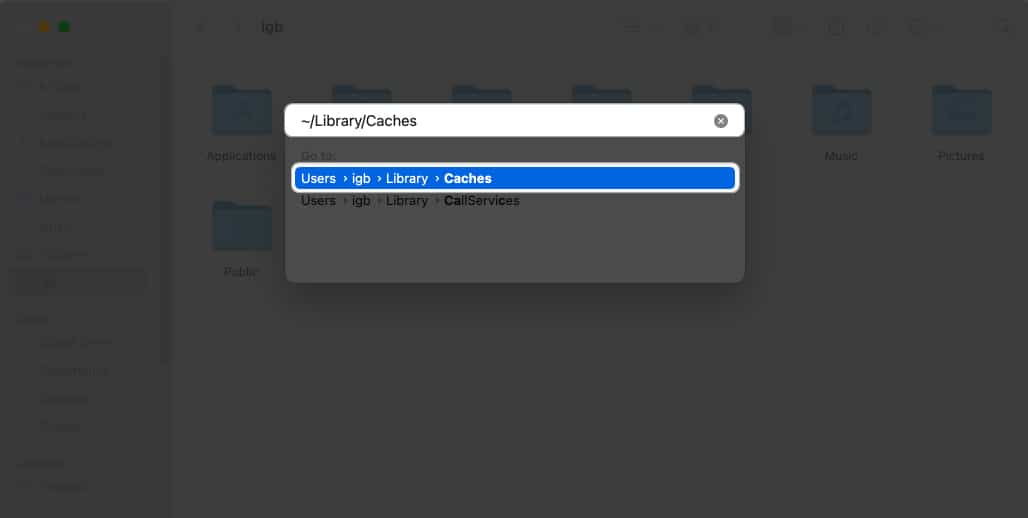
You will be directed to the cache folder. Here you must drag the file or folder containing the deleted application name to the trash icon in the Dock menu.
2. Remove app data with Spotlight Search
Some third-party software has scripts, support files, self-design drivers, standalone helpers, and app extensions dispersed around your Mac. So, moving the application to Trash leaves its associated files and data on your Mac. You must delete those remaining data to erase all traces of the app.
- Open Spotlight Search by pressing Command (⌘) + Space Bar.
- Type the app name.
- Press and hold the Command key to get the exact location of the app.
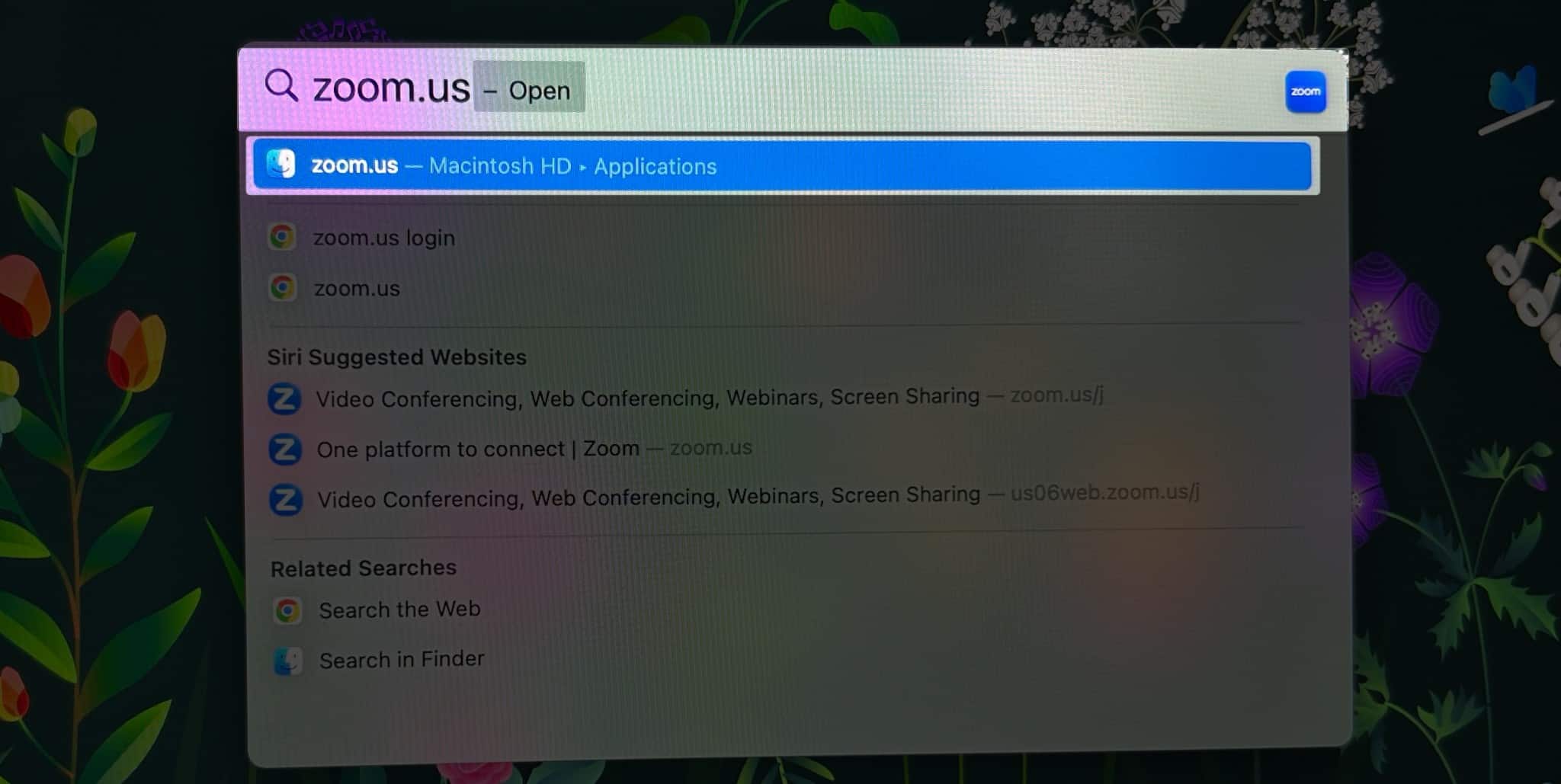
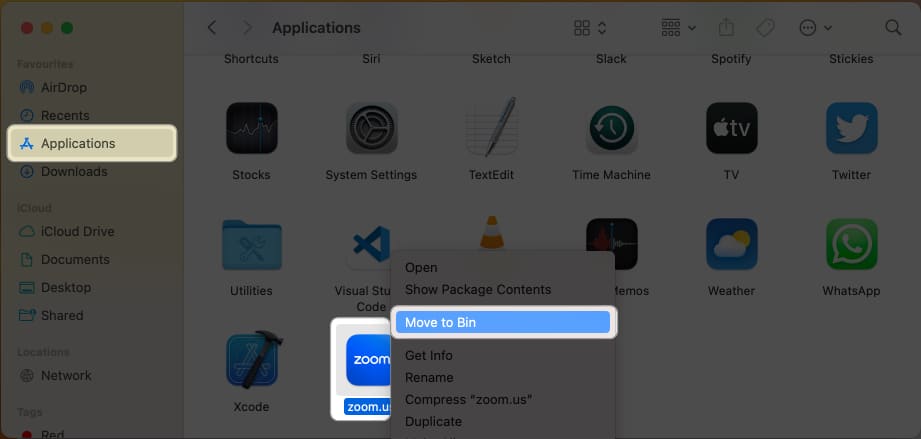
- Head to that location → Right-click on the app file → Select Move to Bin.
3. Uninstall Mac programs from Launchpad
- Go to Launchpad → Find the app you want to delete.
- Click and hold the app until it jiggles.
Alternatively, hold down the option key (⌥) on your keyboard until the app jiggles.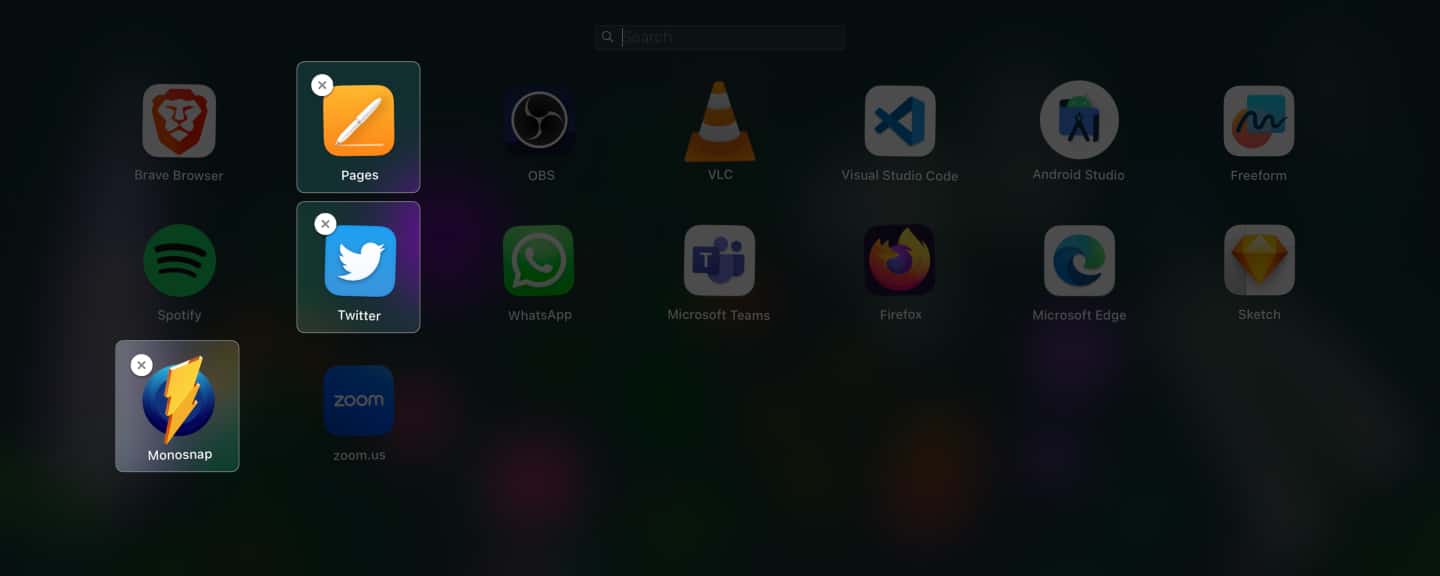
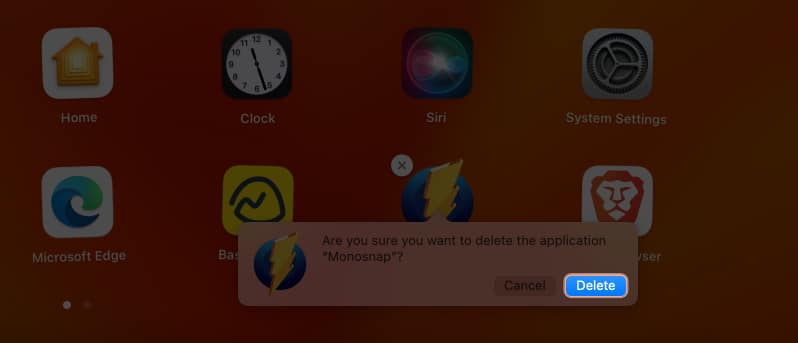
- Click the X icon → Select Delete.
- Right-click on Bin on Dock → Select Empty Bin.
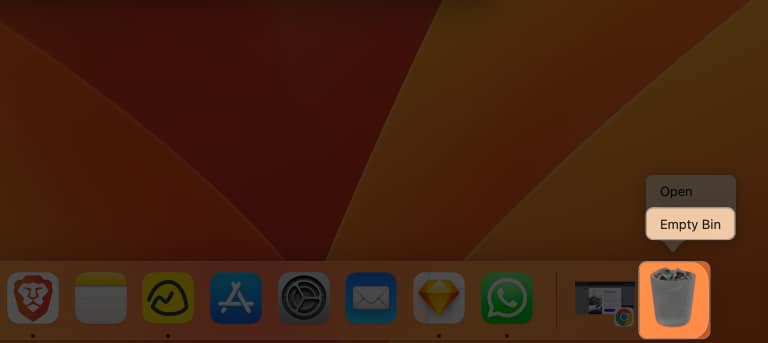
- Confirm by selecting Empty Bin.



Note:
This method only allows you to remove programs downloaded from the App Store.
4. Uninstall app using Finder
Finder lets you uninstall your third-party apps. So if you can’t delete apps from Launchpad, give it a shot!
- Open Finder → Select Applications on the left pane.
- Find the app you wish to delete.
- Right-click the app → Select Move to Bin.
5. Permanently delete an app from Terminal
If the app you want to remove is freezing up or stuck while uninstalling, it’s best to delete it permanently from the Mac Terminal. It will remove all the app files and related data from the root directory.
- Open Spotlight search (Command (⌘) + Space Bar).
- Search and launch Terminal.
- Type
cd /Applications/→ Press Return. - Type
sudo rm -rf→ Enter a space → Drag the app from Finder’s Application section → Press Return. - Enter your Mac’s password → Hit Return.
6. Force Restart Launchpad using Terminal
The Terminal enables you to perform tasks that may not be achievable normally on macOS. You can force restart Launchpad on your Mac via the Terminal to remove the stuck apps.
- Launch Terminal.

- Write
killall Dock→ Hit return.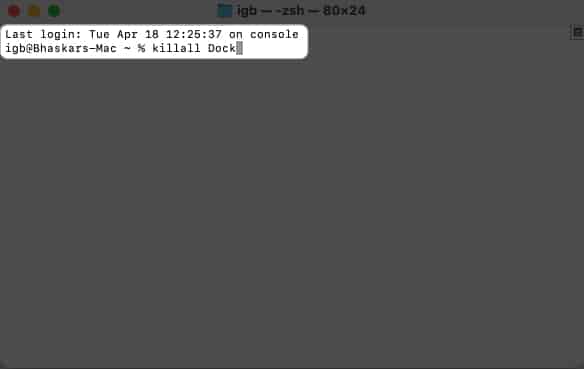


It will restart the Dock and Launchpad, and the app icon will no longer be visible on the Launchpad.
7. Reset Launchpad to delete an already uninstalled app
Resetting the Launchpad is a quick and easy way to solve the deleted apps still showing up on your Mac issue. It removes any invalid entries and clears the cache of the Launchpad.
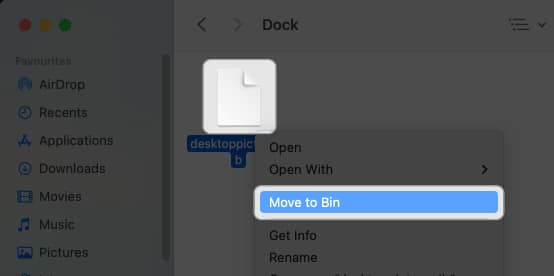
- Navigate to Finder → Choose Go from the top → Click Go to Folder.
- Search for
~/Library→ Hit return.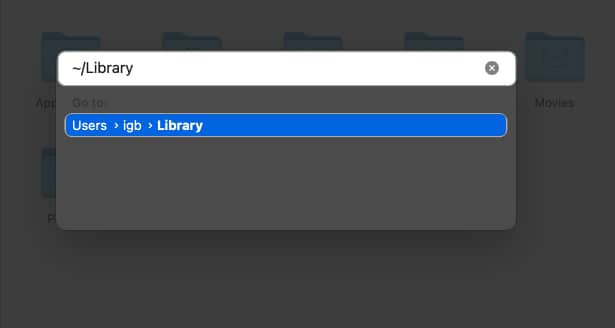
- Open the Application Support folder.
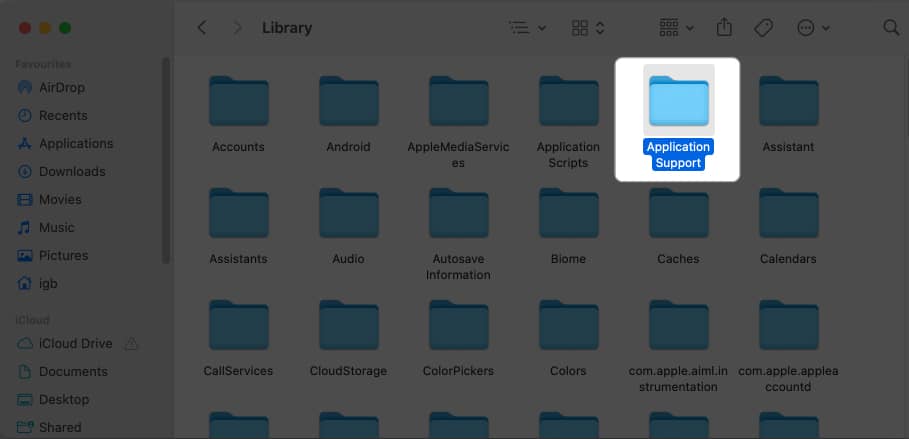
- Head to the Dock folder.
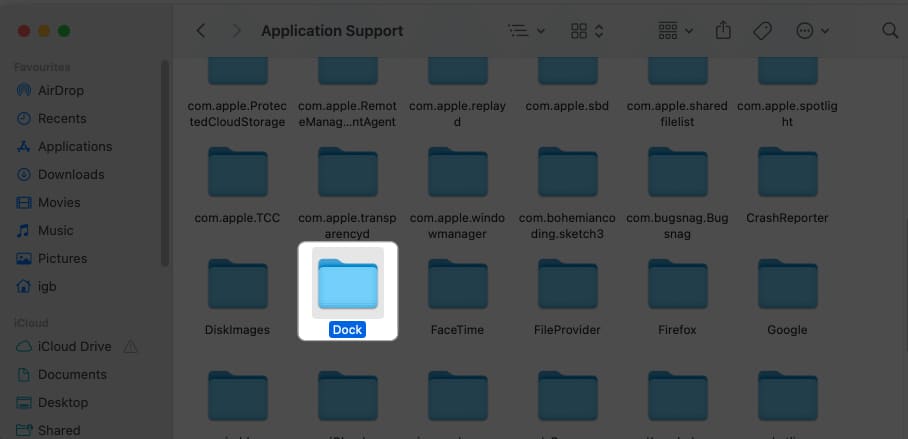
- Locate files ending with “.db” → Right-click and select Move to Bin.


8. Boot Mac into Safe Mode
Booting your Mac into Safe Mode lets you eliminate any lingering files or settings related to the deleted app. Read our article to find out how to access Safe Mode on your Mac.
9. Use third-party app cleaner apps
You can use a third-party cleaner app to deal with the time-consuming process of manually removing all app data and files.
I highly recommend CleanMyMac X as a reliable choice. To learn more about the software and its features, take a look at our article CleanMyMac X: All-In-One Software to Clean, Protect, & Speed up your Mac.
10. Other basic fixes
In case you’ve attempted the above troubleshooting steps to remove the deleted app icon but have not succeeded, you could try these simple yet effective solutions.
- Restart Mac: Although restarting your Mac may seem like a basic fix, it can be a powerful solution to eliminate any glitches. To restart your Mac, click the Apple logo () → Select Shut Down.
- Reset Mac: Resetting your Mac can fix the deleted app still showing up in your Applications folder or Dock. It eliminates any temporary files or caches that might keep track of the deleted app.
- Contact Apple Support: A deleted app from your Mac may still be showing up for a number of reasons, including a bug in the operating system or a problem with the app itself. You can get professional advice and easily fix the aggravating problem by contacting Apple Support.
Get rid of your deleted app icon!
From manually removing leftover files to using third-party apps, there are several ways I’ve covered to resolve your issue. So, try the method that works best for your specific situation and ensure your system is running smoothly. For more such information and recommendations, be sure to check out the read more section below.





