
AirPods Max 2 Digital Crown: All Controls and Gestures Explained
iGeeksBlog is supported by its readers. When you buy through links on our site, we may earn an affiliate commission. This doesn't affect our editorial independence.
Get the most out of the Digital Crown on AirPods Max 2. This guide covers every gesture for volume, playback, calls, Siri, and camera control.
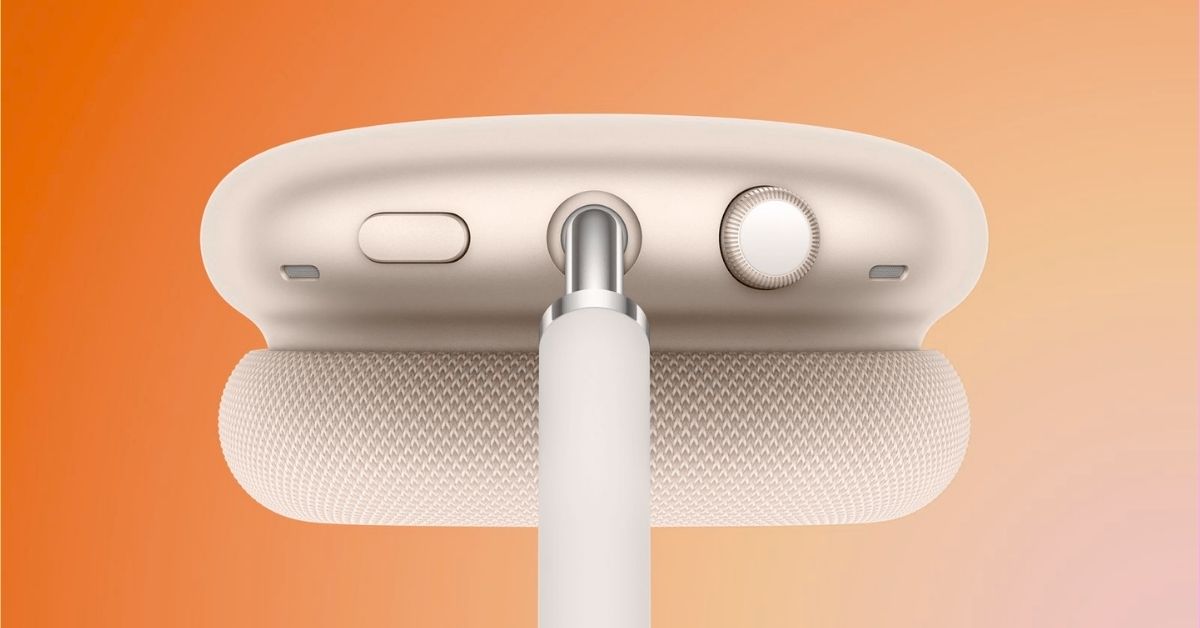
Apple’s AirPods Max have always stood out for their design, premium audio quality, and intuitive controls. Instead of relying on touch or swipe gestures, Apple chose a physical Digital Crown, similar to the one on the Apple Watch, to control playback and system functions.
With the launch of AirPods Max 2, Apple has expanded the Digital Crown’s capabilities. Along with the familiar playback and volume controls, the crown now supports new gestures and camera controls, making it even more versatile.
Here’s a complete guide to AirPods Max 2 Digital Crown controls and gestures.
What is the Digital Crown on AirPods Max 2?
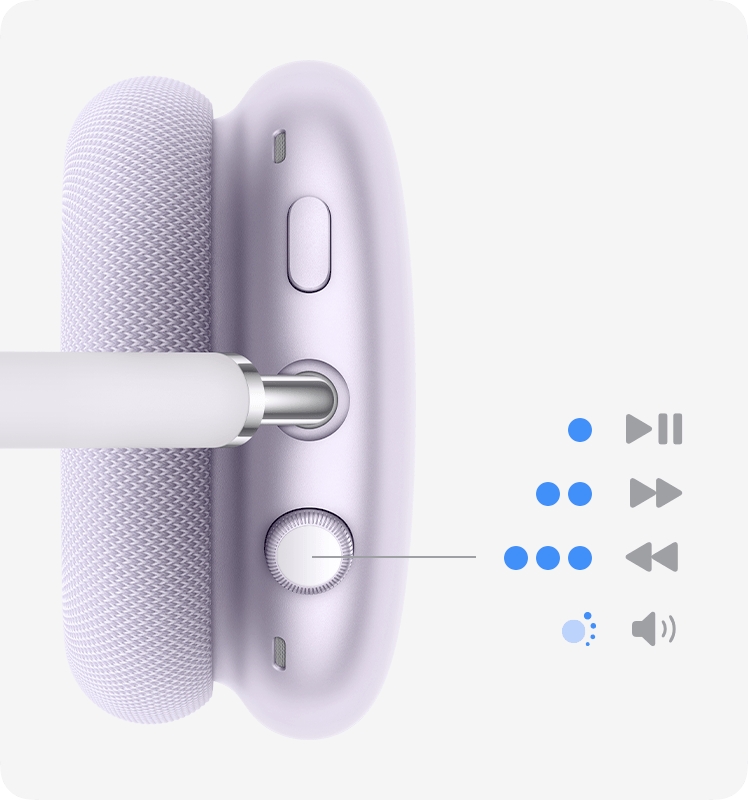
The Digital Crown on AirPods Max is similar to the one found on the Apple Watch. It is a rotary knob located on top of the right ear cup, designed to provide precise and tactile control over various functions.
Instead of relying on touch gestures, Apple uses the Digital Crown to let users interact with the headphones through rotation and press gestures. By rotating the crown, you can adjust the volume with fine precision, while pressing it in different patterns allows you to control playback, manage calls, and activate Siri.
This mechanical control system makes the AirPods Max easy to operate even when you are on the move, wearing gloves, or unable to quickly access your iPhone.
All Digital Crown Controls and Gestures on AirPods Max 2
These are all the ways you can use the Digital Crown on the AirPods Max 2:
Rotate to Adjust Volume
The primary function of the Digital Crown on the AirPods Max is volume control. Rotating the crown clockwise (downwards) decreases the volume, while rotating it counterclockwise (upwards) increases the volume.
Unlike on-screen sliders, the crown allows fine-tuned volume adjustments, making it easier to set the exact listening level you want.
Press Once to Play or Pause Media
Besides volume control, the Digital Crown also lets you control playback directly from the headphones without touching your iPhone. Press the Digital Crown once to:
- Play music or podcasts
- Pause the currently playing media
This gesture works across most audio apps, including Apple Music, Spotify, and podcast apps.
Double-Press to Skip Forward
If you want to jump to the next track, the Digital Crown provides a quick shortcut.
- Press the crown twice quickly to skip to the next song or audio track.
This particularly comes in handy when you want to change tracks while walking, working out, or commuting without taking out your phone.
Triple-Press to Go Back to the Previous Track
In addition to skipping forward, you can use the Digital Crown to return to the previous track or replay the current one.
To do so, press the Digital Crown three times quickly.
Press and Hold to Activate Siri
As with the AirPods, pressing and holding the Digital Crown on the AirPods Max 2 activates Siri. Once Siri is active, you can ask it to perform tasks such as playing music, sending messages, checking weather updates, adjusting volume, getting directions, and much more.
Press Once to Answer a Call or Mute / Unmute
When you receive a call, you can manage it directly from the Digital Crown.
- Press once to answer an incoming call.
- During a call, press once to mute or unmute your microphone.
Press Twice to End a Call
To disconnect an ongoing call, press the Digital Crown twice quickly. This gesture immediately ends the call, making it easy to wrap up conversations directly from the headphones.
Use as a Camera Remote
One of the most interesting additions to the Digital Crown capabilities on the AirPods Max 2 is the ability to control the camera on your iPhone or iPad using it.
The feature requires iOS 26.4 installed on your iPhone and works with Apple’s Camera app or compatible third-party camera apps on an iPhone or iPad.
All you need to do is open the Camera app and press the Digital Crown to trigger the shutter button. This allows you to:
- Take photos remotely
- Start video recording
- Stop video recording
Everything at Your Fingertips…
Apple has designed the Digital Crown on the AirPods Max 2 to serve as the central hub for media, calls, voice commands, and, now, even photography. While most of the controls were already available on the first-gen AirPods Max, the addition of camera controls has expanded the Digital Crown’s functionality beyond audio, making the AirPods Max 2 more versatile in everyday use.
Got a favorite Digital Crown gesture on AirPods Max 2? Share your experience or tips in the comments below.
You might also like:
Topics

Written by
VikhyatVikhyat has a bachelor's degree in Electronic and Communication Engineering and over five years of writing experience. His passion for technology and Apple products led him to the tech writing space, where he specializes in writing App features, How-to guides, and troubleshooting guides for fellow Apple users. When not typing away on his MacBook Pro, he loves exploring the real world.
View all posts →