Dynamic Island transforms the once static notch into a live, adaptive display that keeps your most important alerts, activities, and app updates right at your fingertips. Think of it as a smart companion built directly into the top of your screen. This guide explains what Dynamic Island is, how it works, its standout features, and practical ways to use it in everyday life.
What Is Dynamic Island on iPhone?
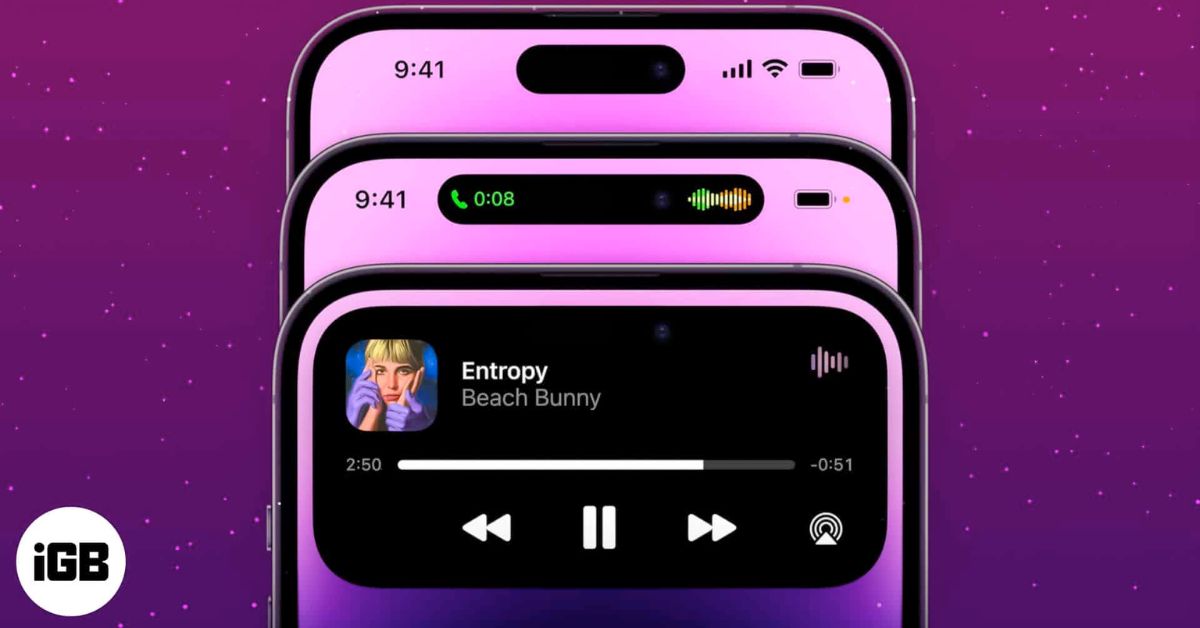
Dynamic Island is the pill-shaped area at the top of the iPhone screen that houses the front camera and Face ID sensors. It replaces the older static notch with a flexible space that grows, shrinks, and animates depending on what is happening on your iPhone.
Apple introduced this feature with the iPhone 14 Pro lineup and now includes it across the latest iPhone models. It works as a live status hub that keeps ongoing activities, such as timers, calls, navigation, or media playback, visible while you continue using your phone.
Supported devices include:
- iPhone 14 Pro and 14 Pro Max
- iPhone 15, 15 Plus, 15 Pro, 15 Pro Max
- iPhone 16, 16 Plus, 16 Pro, 16 Pro Max
- iPhone 17, 17 Pro, 17 Pro Max
Key Features of Dynamic Island on iPhone
Before diving in, here are the features that make Dynamic Island so useful:
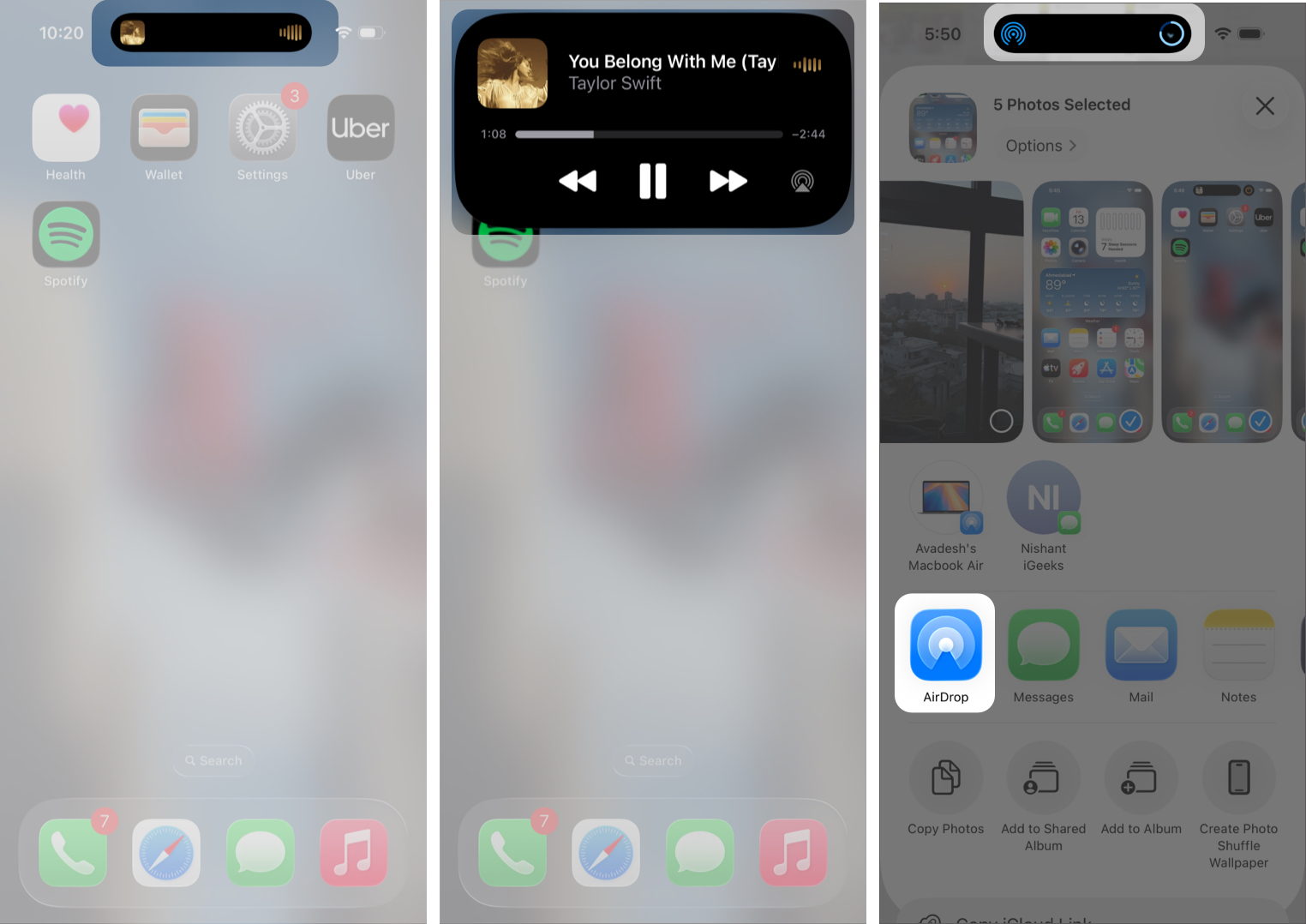
- Alerts and Notifications: Dynamic Island displays quick alerts such as calls, Apple Pay confirmations, AirDrop transfers, charging updates, and privacy indicators in a compact view.
- Live Activities: It shows real-time updates from apps, allowing you to follow sports scores, deliveries, rides, and flights without leaving your current app. These updates remain visible in a compact form and expand when you long-press.
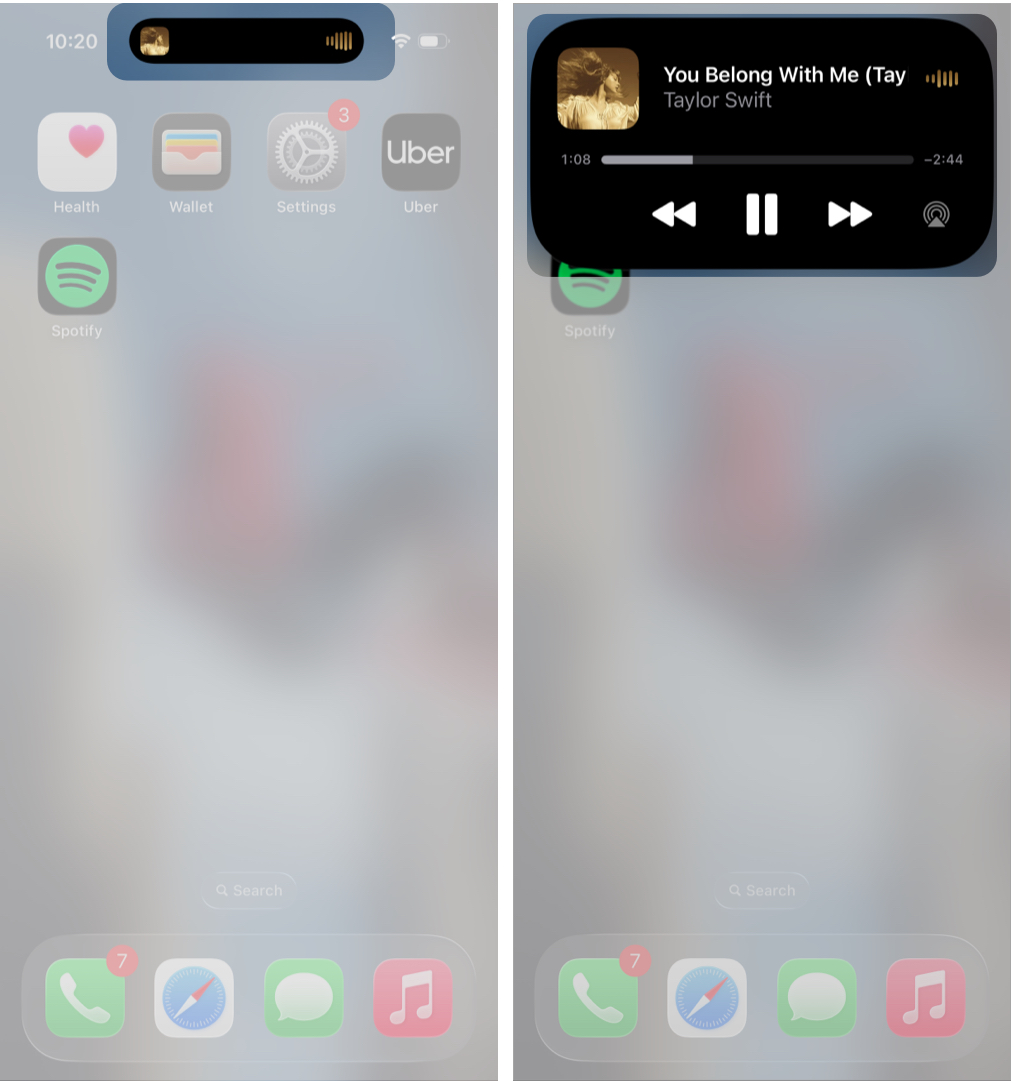
- Background Activities: Dynamic Island makes it easy to monitor ongoing tasks. When you play music, set a timer, start navigation, or record your screen, a small preview remains visible so you can check progress at any time. It also shows connected accessories, such as AirPods or hotspot activity.
- Split View for Multiple Activities: When two tasks run at the same time, Dynamic Island displays them in two bubbles. For example, you can see music playback on one side and a timer on the other. You can tap either side to expand it or swipe between them for quick control.
How to Use Dynamic Island on iPhone
Here are step-by-step, practical instructions with real examples.
Basic Interactions
Dynamic Island responds to simple gestures so you can check or control tasks quickly.
| Gesture | Action | Example Use |
| Tap | Opens the connected app | Jump to Spotify |
| Long-press | Expands controls for quick actions | Pause music, adjust a timer |
| Swipe from center to edge | Reveal details | Check ETA in Maps |
| Swipe from edge to center | Collapses or minimizes | Hide after a quick check |
| Swipe left or right (split view) | Switch between activities | Music and call |
Practical Ways to Use Dynamic Island in Everyday Life
Dynamic Island is most helpful when it shows information you would normally switch apps to check. Many third-party apps also support it for quick updates.
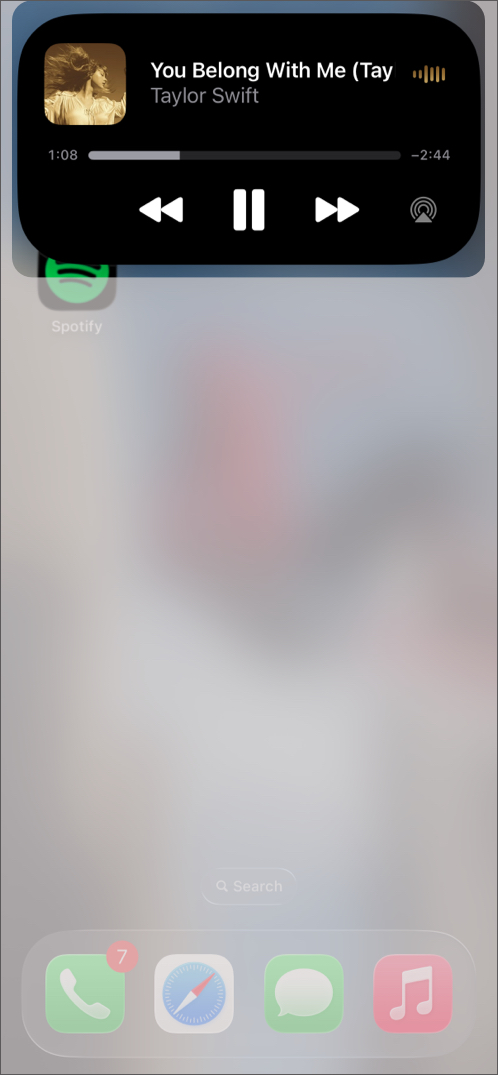
- Music and Podcasts: When you play a song in Apple Music, YouTube Music, Spotify, or another app, Dynamic Island shows track details and a waveform. Long-press to pause, skip, or change audio output without opening the app.
- Timers and Countdowns: Start a timer and glance at the top of your screen to see the countdown. Tap to return to the Clock app or long-press to pause or cancel it.
- Navigation: Apple Maps or Google Maps displays turn-by-turn directions in the Island. You can see your next turn and distance while using other apps. A long-press reveals more details.
- Ride Updates: Apps like Uber and Lyft show your driver’s ETA and trip progress so you can keep browsing or messaging without switching back.
- Delivery Tracking: Food and package delivery apps update arrival times in Dynamic Island. This keeps you informed without reopening the app.
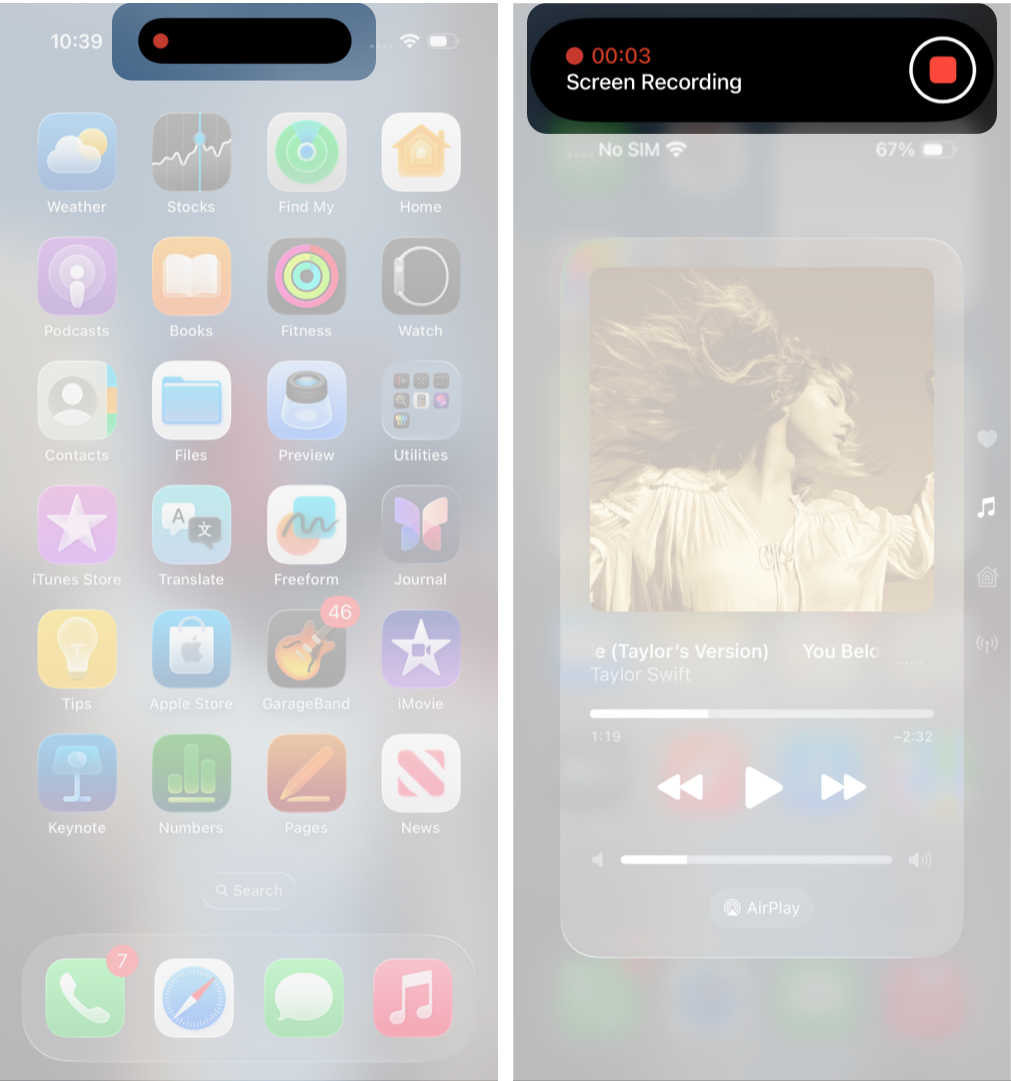
- Screen Recording: When recording your screen, a red indicator and timer appear in the Island. Tap it to stop recording quickly.
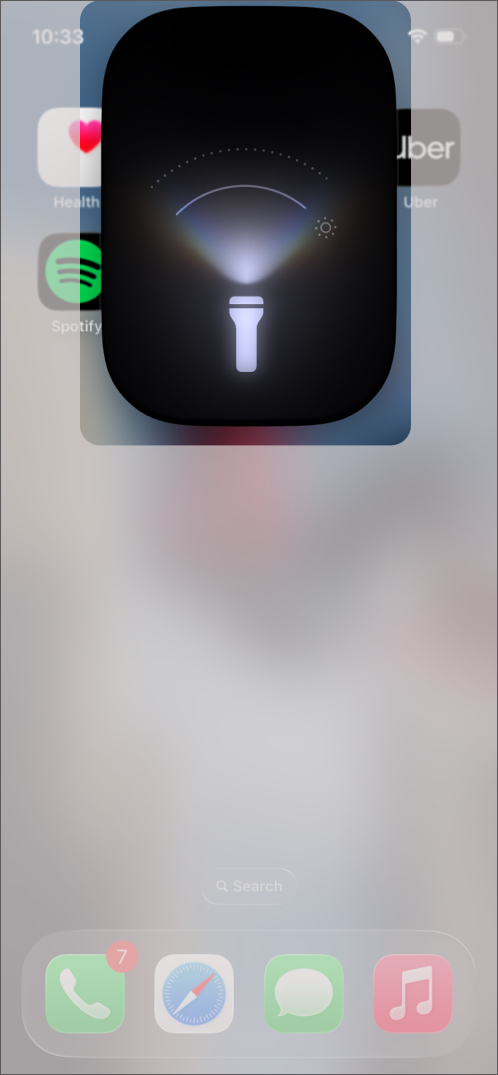
- Flashlight Indicator: Turning on the flashlight shows an indicator in Dynamic Island. On supported models, you can adjust brightness or beam width with simple swipe gestures.
- Parking Timer Reminders: If you use a parking timer app, the remaining time stays visible at the top of your screen so you can check it at a glance.


If you want to dismiss an activity, simply swipe it to the side.
Other popular examples include:
- Live sports and score updates such as ESPN or MLB
- Health and fitness apps like SmartGym, Posture Pal, Steps
- Productivity and finance tools like Dynamic Island Notes & Memo or Calzy
- Weather apps such as Carrot Weather
- Games like Hit The Island
- Cooking apps such as Pestle
Tips to Use Dynamic Island More Efficiently
Make Dynamic Island cleaner and faster to use with these tips:
- Use apps that support Live Activities for richer real-time updates.
- Adjust Live Activities in Settings to control what appears and reduce clutter.
- Use long-press gestures for quick actions instead of opening full apps.
- Keep your iPhone updated for improved animations and app support.
- Limit unnecessary background activities.
- Allow notifications only from apps you want visible in the Island.
Dynamic Island vs Live Activities: What’s the Difference?
Dynamic Island turns the notch area into a functional hub. It makes important updates easier to follow and keeps ongoing tasks within reach.
What Are Live Activities?
Live Activities are real-time notifications that stay visible on your Lock Screen and in Dynamic Island on supported iPhones. They show continuously updating information such as:
- Sports scores
- Food delivery progress
- Ride‑share arrival time
- Timer countdowns
- Music playback info
- Flight status
Apps update these Live Activities in the background so you can glance at them without reopening the app.
How Live Activities Work With Dynamic Island
Dynamic Island acts as the interactive space where Live Activities appear. They show as compact indicators that you can expand for more details or controls. The Island can handle multiple activities at once with smooth transitions.
In simple terms, Live Activities provide the data, and Dynamic Island provides the interface.
Related: Live Activities on Apple Watch: How to Use and Customize Them
Pros and Cons of Dynamic Island on iPhone
- Provides real-time updates without interrupting your workflow.
- Helps you multitask by keeping active apps visible at the top of the screen.
- Offers quick access to essential controls through long-press gestures.
- Displays smooth animations that make alerts easy to understand.
- Works automatically with supported apps, requiring no setup.
- Can feel distracting when multiple activities appear at once.
- Does not allow customization of its appearance or behavior.
- Depends on developer support, so not all apps work with it yet.
- Split view can feel cramped when two activities are shown.
- Animations may occasionally pull attention away from your main task.
Wrapping Up
Dynamic Island blends design and usability in a practical way. It keeps important updates visible and makes multitasking easier. Once you get comfortable with the gestures, it becomes a natural part of using your iPhone every day.