
How to Turn Off SharePlay on iPhone, Mac, and Apple TV: Complete Guide
Not using SharePlay? Learn how to switch it off on iPhone, Mac, and Apple TV, including FaceTime settings and system controls.
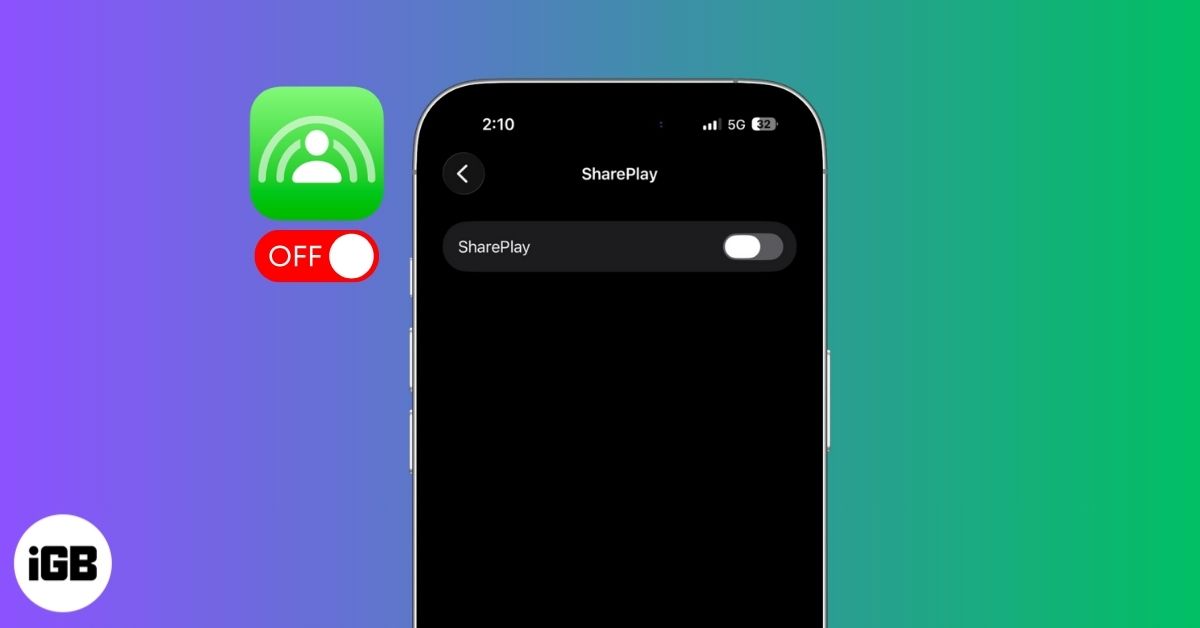
Apple’s SharePlay is a great feature for hosting watch parties or listening to music with your friends during a FaceTime call. However, no matter how useful it is, it can quickly become intrusive when it pops up at the wrong moment or starts suggesting shared sessions while you play media during a call. So, turning off SharePlay is the easiest fix if you prefer keeping your viewing or listening experience private or want manual control over it.
This post details how to turn off SharePlay on iPhone, Mac, and Apple TV.
What Is SharePlay and When Does It Turn On?
SharePlay is Apple’s proprietary real-time media sharing feature built into FaceTime and supported apps like Apple Music, Apple TV, Disney+, Fitness+, and many other apps.
It syncs playback, so everyone can watch or listen together across iPhone, iPad, Mac, and Apple TV. SharePlay activates automatically in certain situations:
- When you start playing a song or video during a FaceTime call.
- When someone invites you to join a SharePlay session.
- When using the built-in screen sharing.
- When using CarPlay SharePlay (iOS 18 and later), let passengers control music.
- When supported apps detect an active FaceTime call, they may suggest shared playback.
How to Turn Off SharePlay on iPhone
There are two ways to disable SharePlay on your iPhone. While the FaceTime settings let you turn off SharePlay only in the FaceTime app, Screen Time lets you turn it off system-wide on your iPhone and your child’s and the devices you’re sharing your Screen Time settings with.
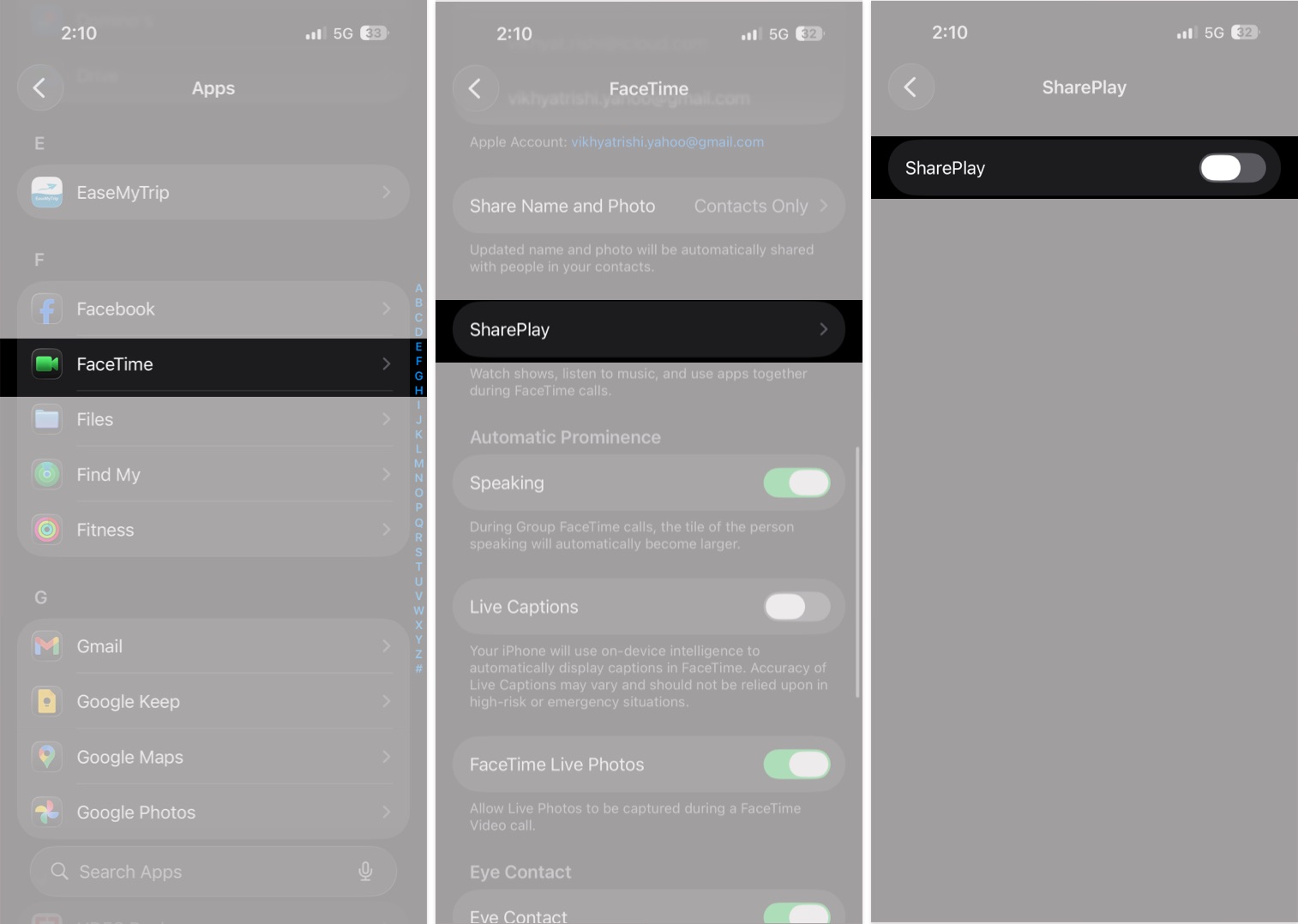
Disable SharePlay Using FaceTime Settings
- Go to Settings → Apps → FaceTime.
- Here, locate and tap SharePlay.
- Toggle OFF SharePlay.
Disable SharePlay Using Screen Time
- Go to Settings → Screen Time.
- Tap Content and Privacy Restrictions.
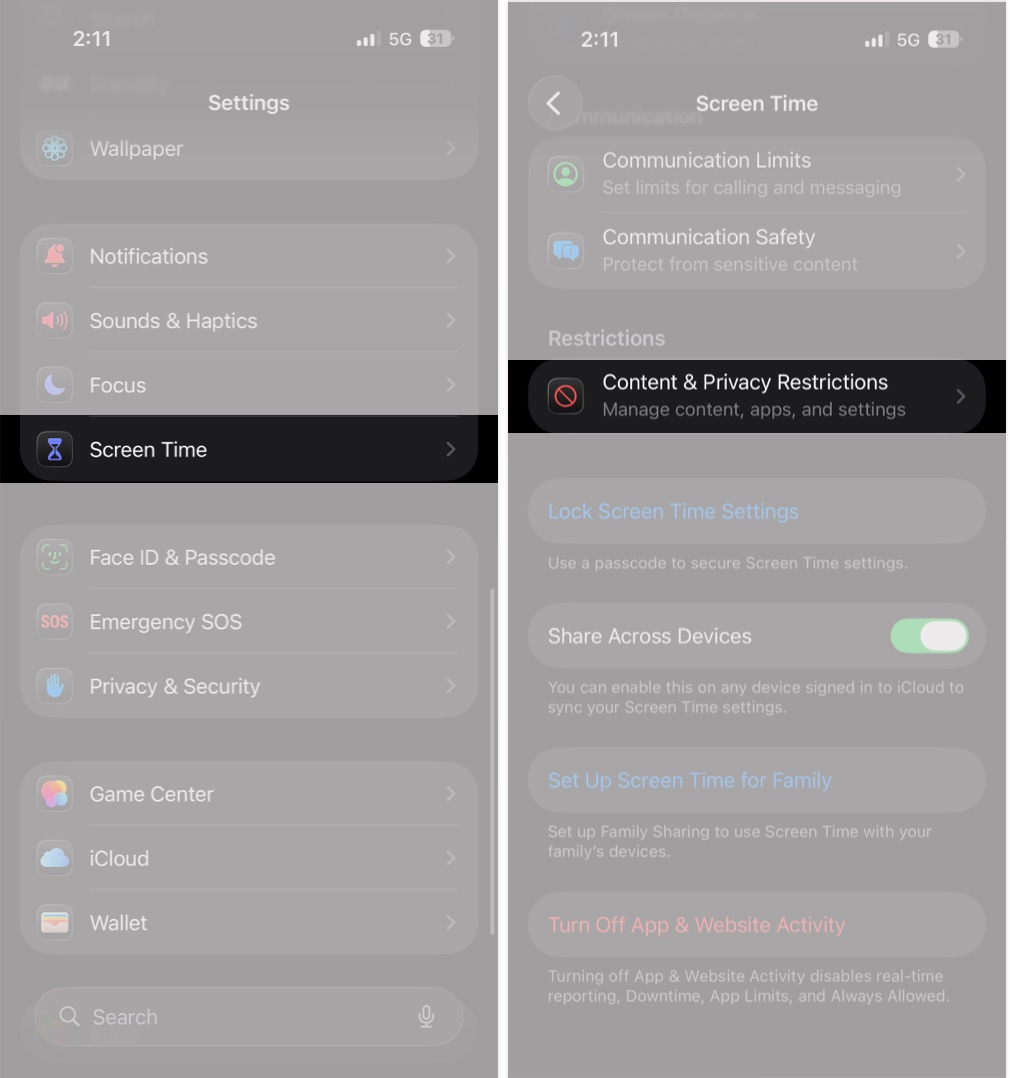
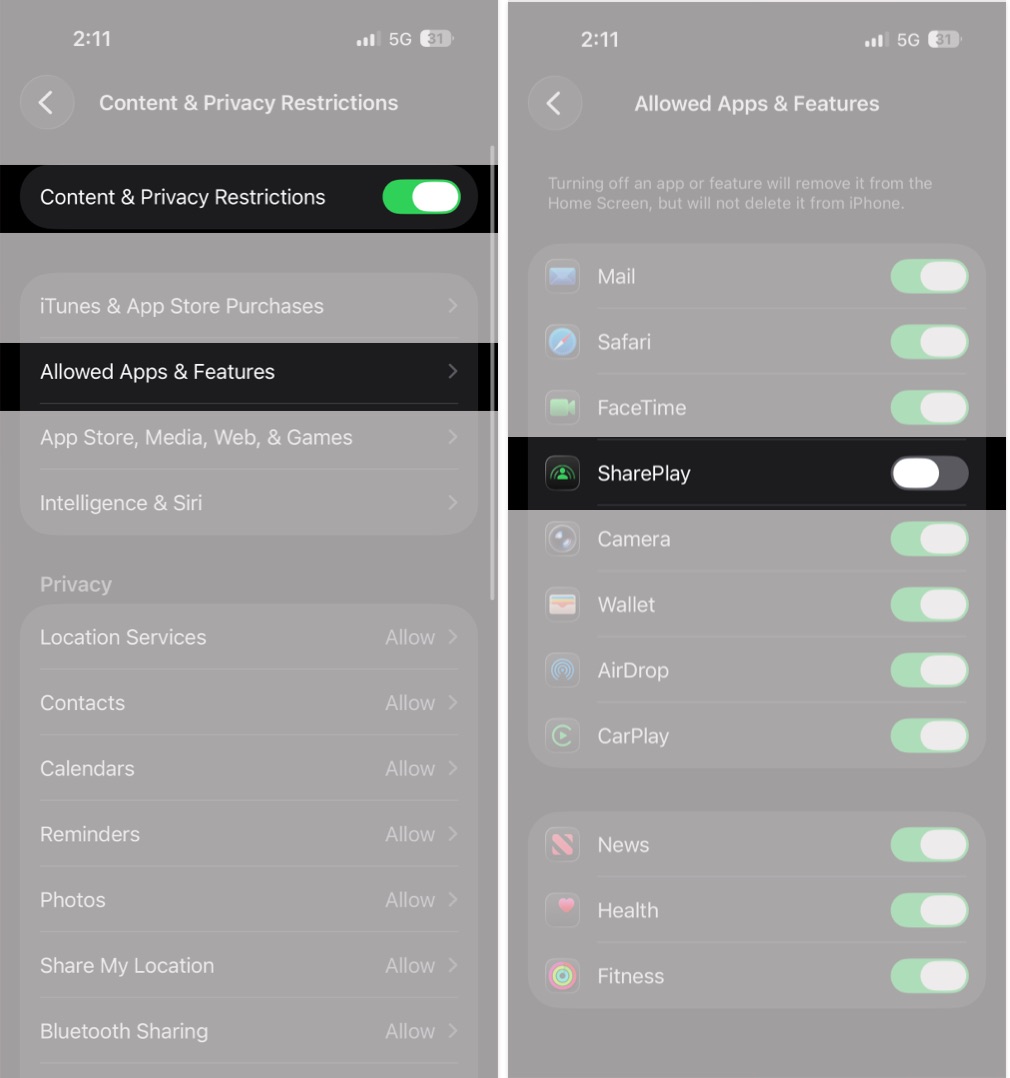
- Here, toggle ON Content and Privacy Restrictions if it’s not already.
- Next, tap Allowed Apps & Features.
- Toggle OFF SharePlay.
How to Turn Off SharePlay on Mac
Like the iPhone, your Mac also offers two ways to disable SharePlay: via FaceTime app settings and Screen Time.
Using FaceTime Settings
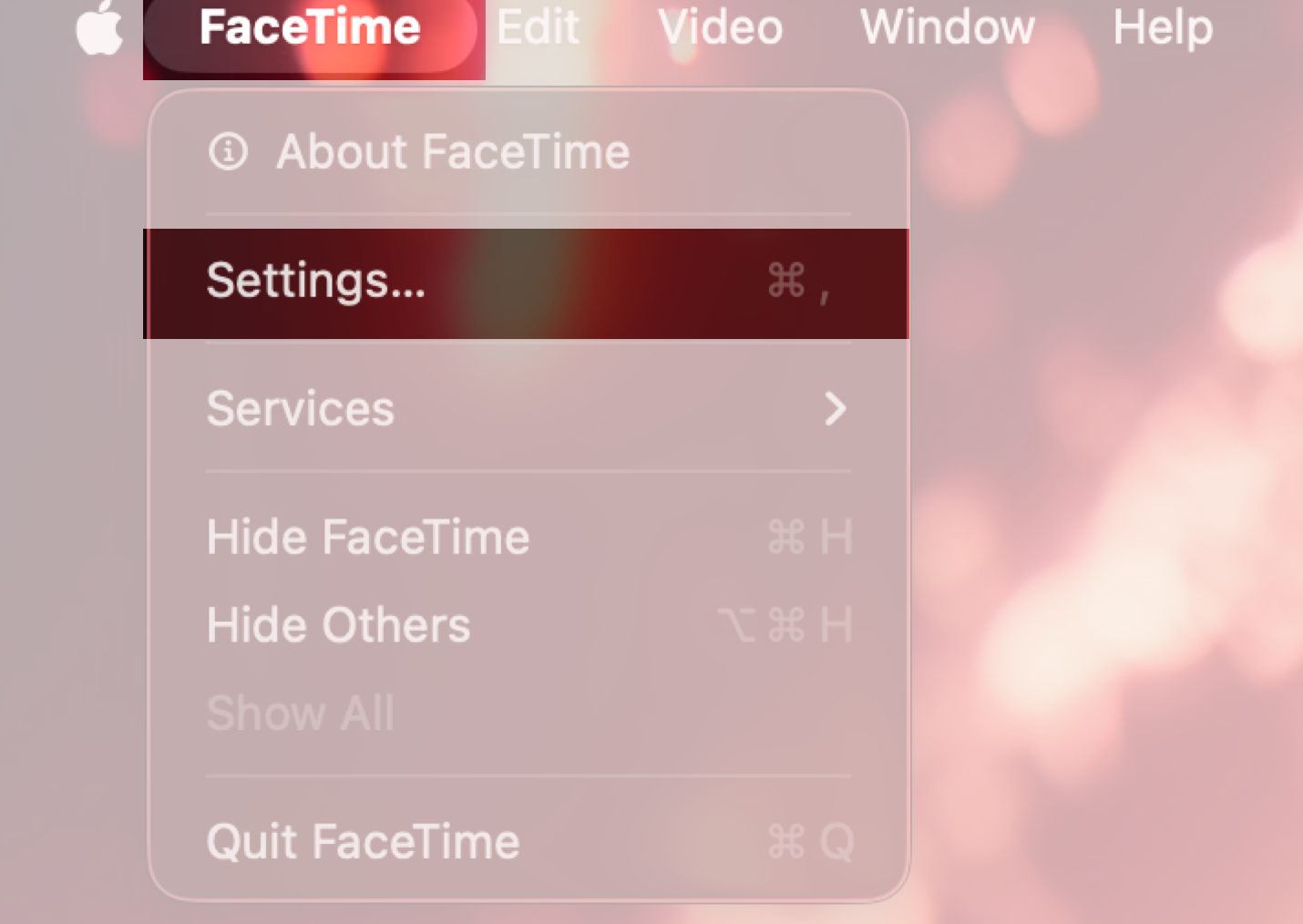
- Open the FaceTime app and click the FaceTime button in the menu bar at the top of the screen
- Click Settings in the drop-down menu.
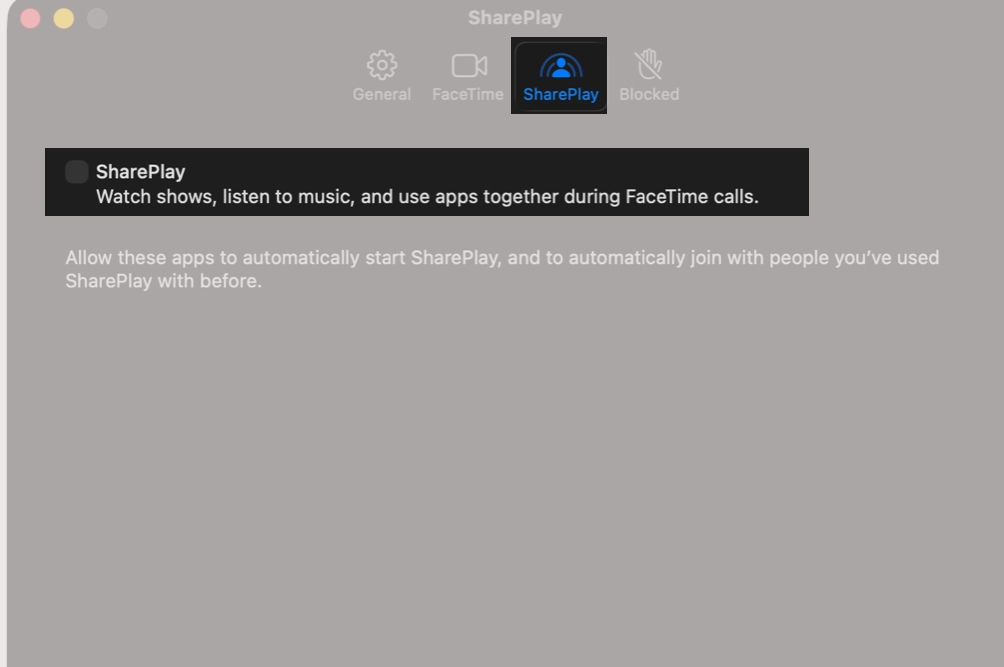
- Now, head to the SharePlay tab and disable the SharePlay checkbox.
Using Screen Time
- Open the Settings app and select Screen Time in the sidebar.
- Here, click Content & Privacy under Restrictions.
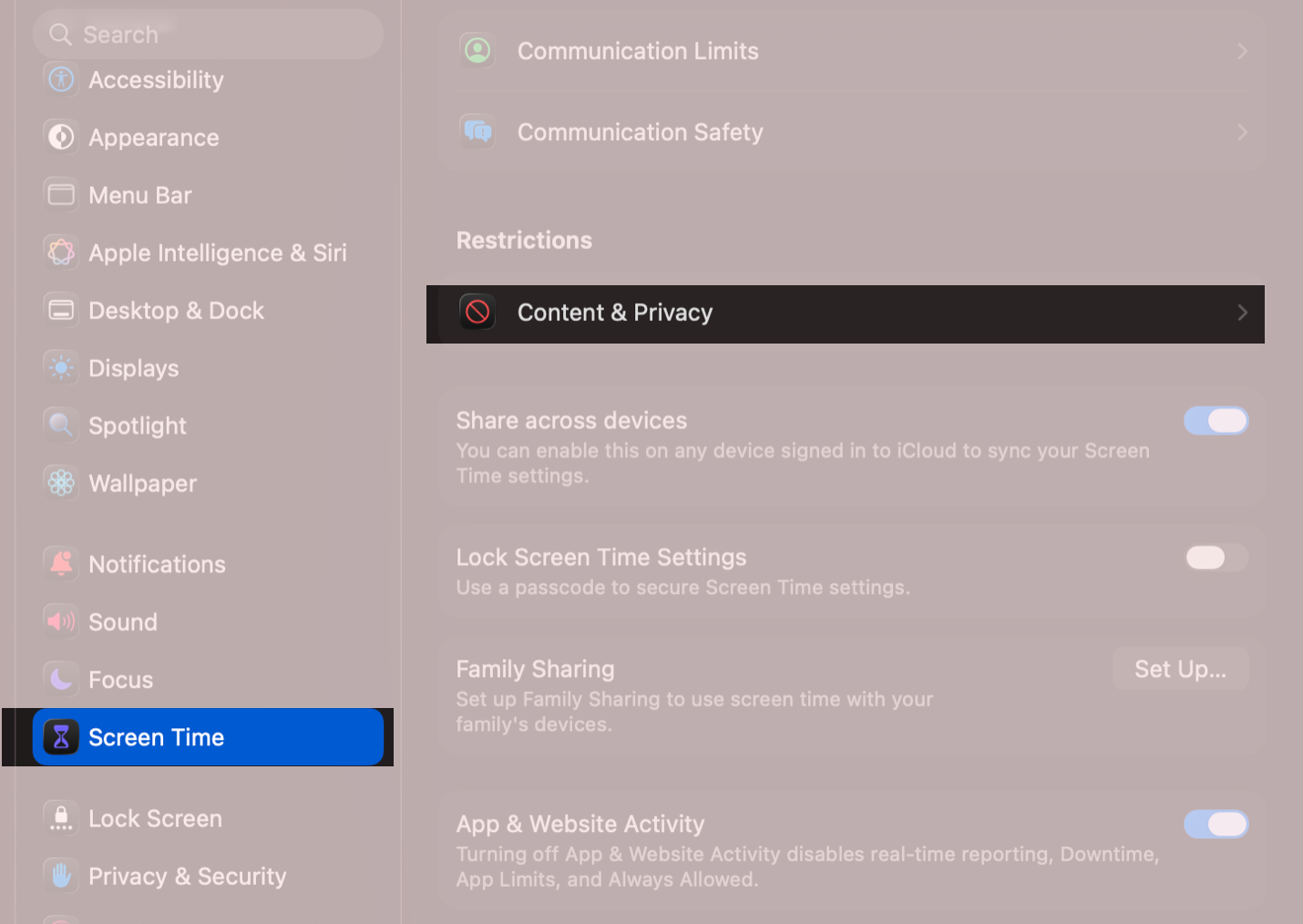
- Toggle ON Content & Privacy if not already.
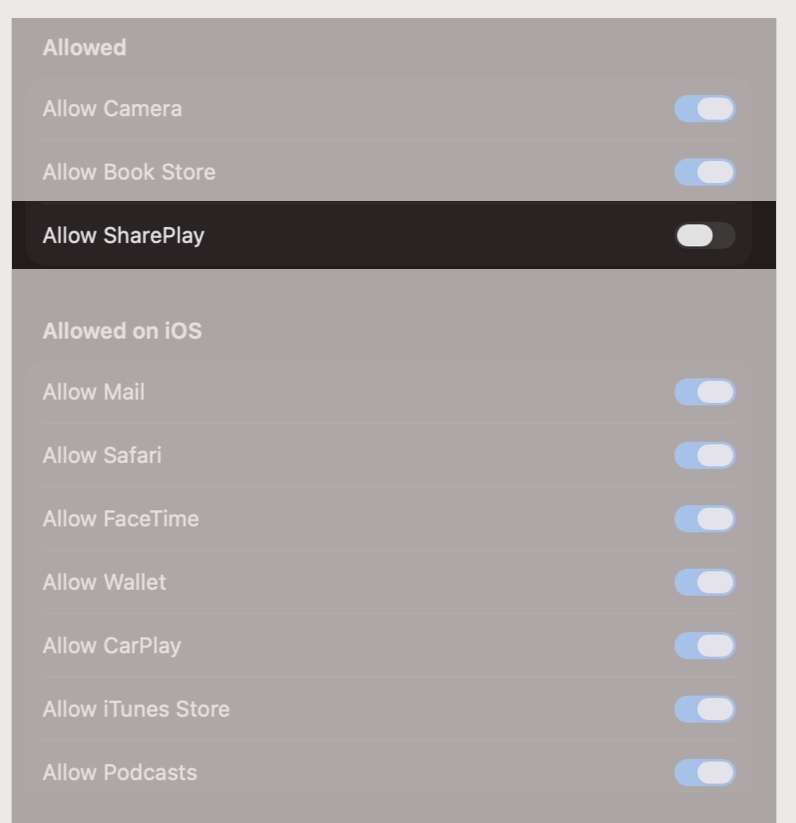
- Now, select App & Feature Restrictions.
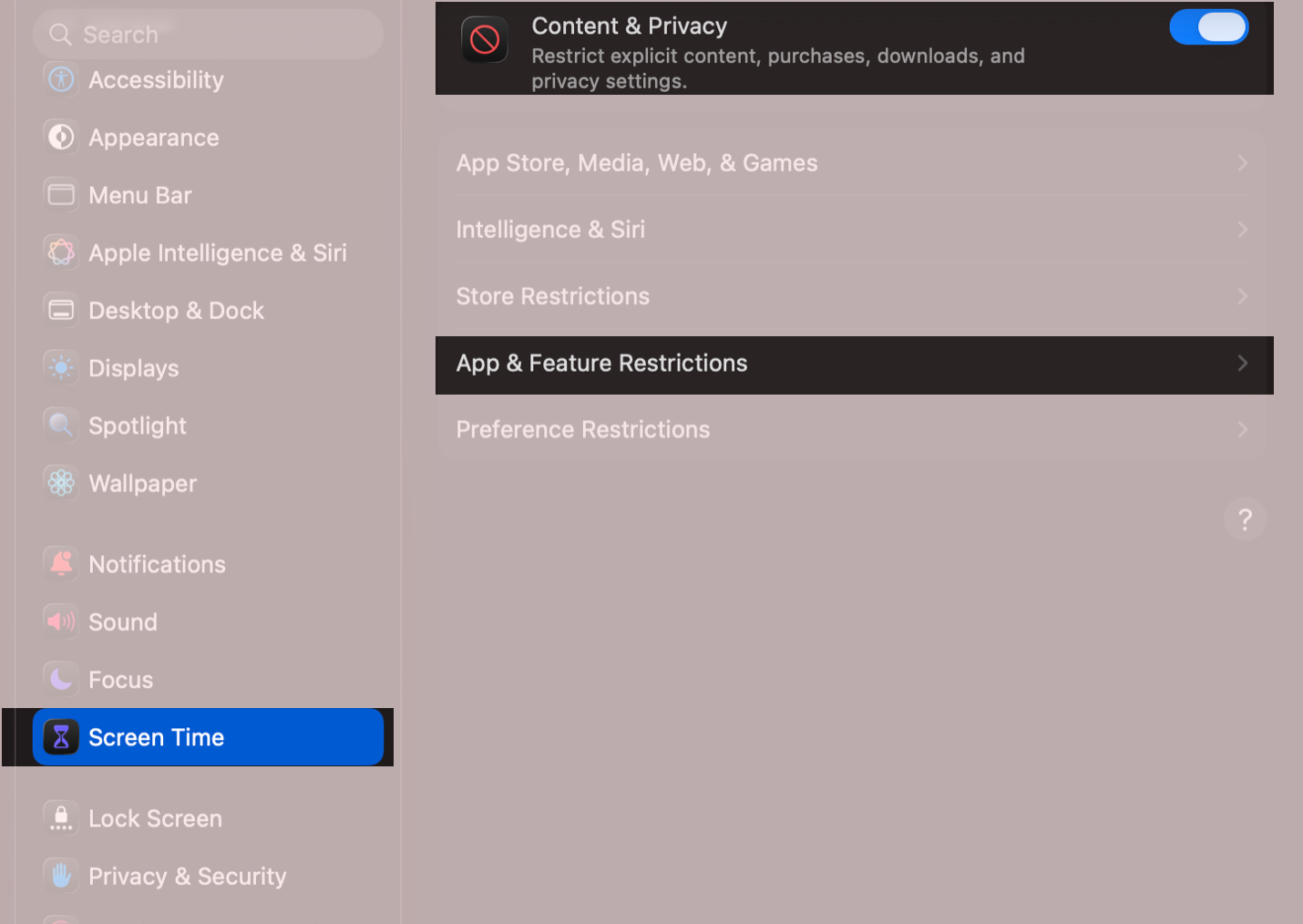
- Next, toggle OFF Allow SharePlay.
How to Turn Off SharePlay on Apple TV
Apple TV manages SharePlay a little differently from the iPhone and Mac. Instead of offering a single system-wide switch, SharePlay-related controls are linked to each user profile, so the behavior you see depends on the profile you’re signed into.
Now that you know the basics, here’s how you can turn off SharePlay on Apple TV:
- Go to Settings → Users and Accounts.
- Now, select your user account.
- Next, select Shared with You and turn it off to disable SharePlay.
Repeat the steps to turn it off for other user profiles.
Signing Off…
SharePlay is a powerful feature for connecting with friends and family, but it doesn’t suit every situation. Turning it off gives you more privacy, control, and fewer interruptions across your Apple devices. Whether you turn it off system-wide or just the FaceTime app, the steps above ensure your iPhone, iPad, Mac, and Apple TV behave exactly the way you want.
Still facing SharePlay pop-ups or unwanted prompts? Drop your issue in the comments, and we’ll guide you through the fix.
Frequently Asked Questions

Written by
VikhyatVikhyat has a bachelor's degree in Electronic and Communication Engineering and over five years of writing experience. His passion for technology and Apple products led him to the tech writing space, where he specializes in writing App features, How-to guides, and troubleshooting guides for fellow Apple users. When not typing away on his MacBook Pro, he loves exploring the real world.
View all posts →