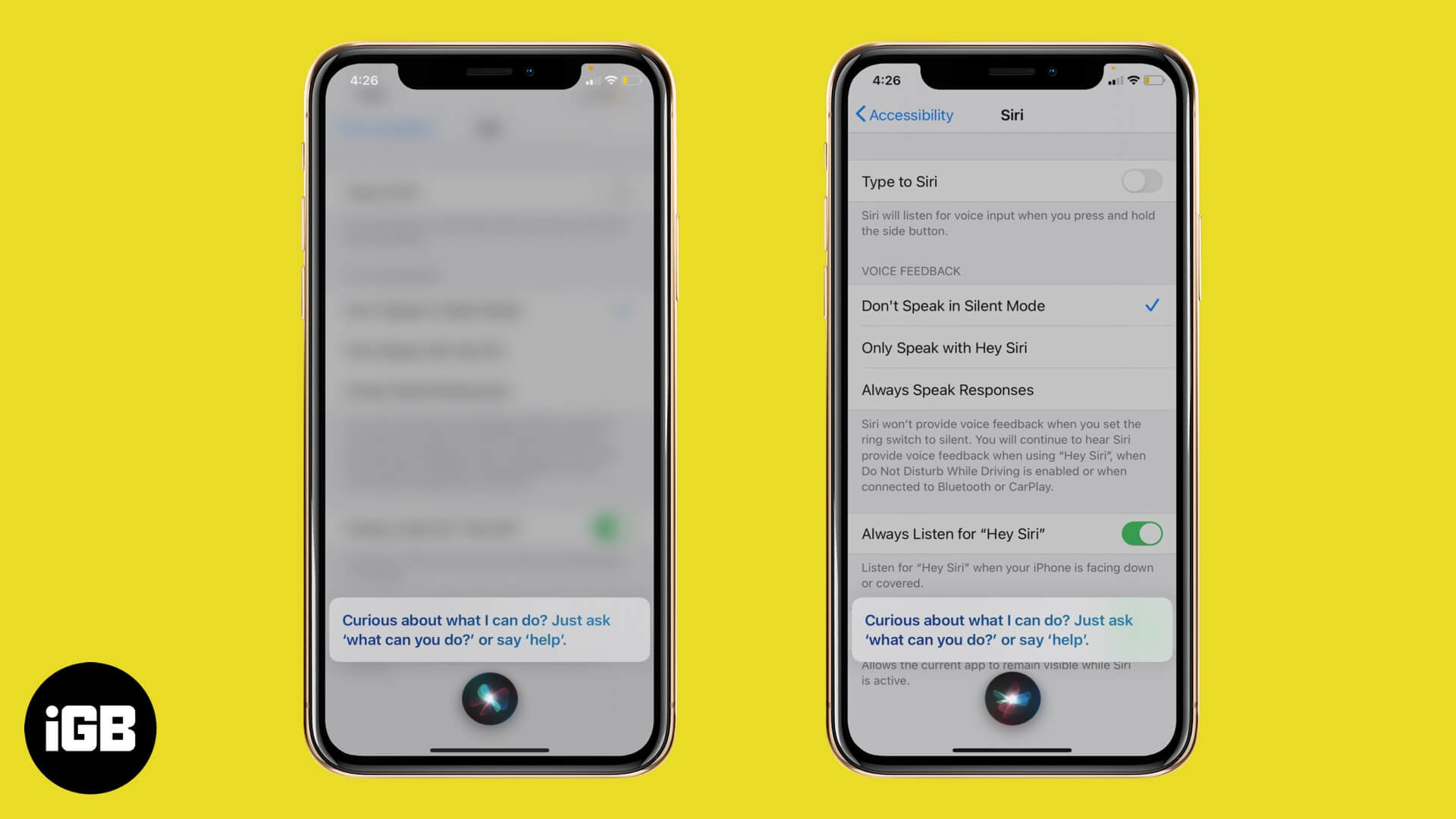
On iOS 14 and later, your favorite smart assistant Siri appears as a small circle at the bottom of the screen when invoked. But you can make Siri full-screen on your iPhone if you want. This was the norm on earlier versions of iOS. If you prefer the older full-screen interface, here’s how to get it on the latest iOS versions too.
How to enable full-screen Siri on iPhone
- Open the Settings app.
- Tap on Accessibility.
- Tap on Siri.
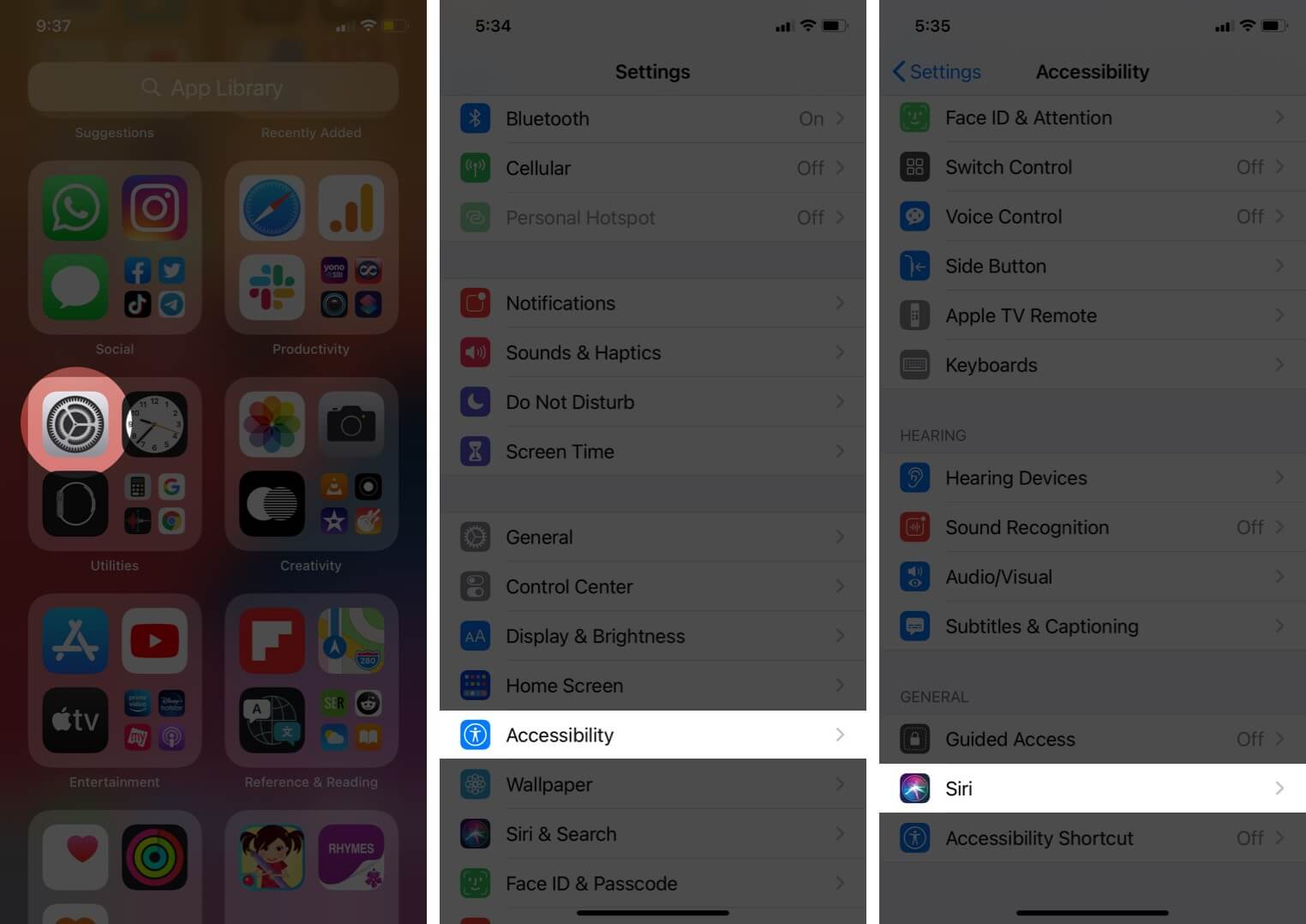
- Disable Show Apps Behind Siri.
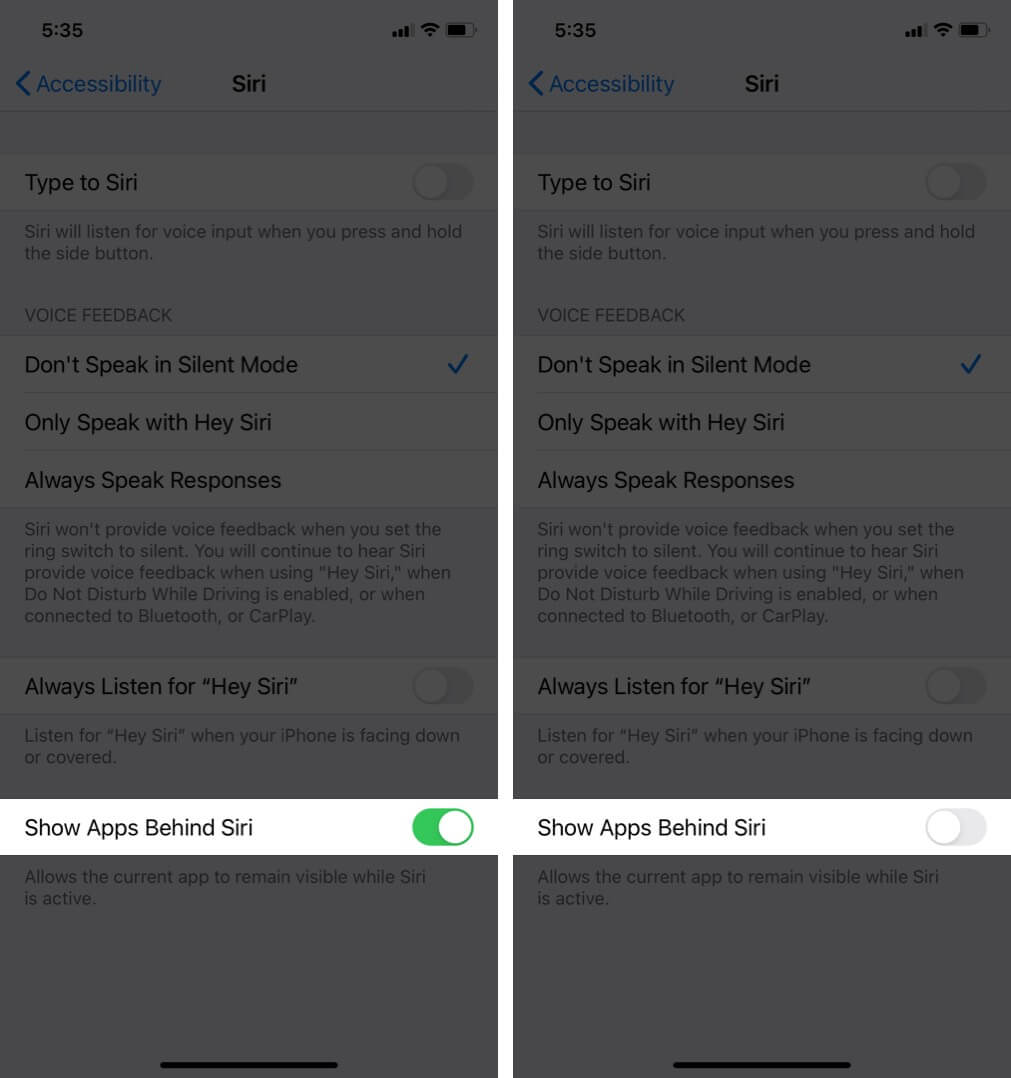
Now, press the Right side button or use Hey Siri. You will see that the assistant takes the full-screen and blurs the background.
How to disable Siri full-screen on iPhone
After you download and install the latest iOS, by default, Siri takes over the compact look. However, if you followed the above steps and changed it to full-screen mode, you can revert it back by enabling Show Apps Behind Siri.
That’s all!
Which function excites you the most? Please share it with us in the comments section below.
Read more: