If Facebook suddenly feels slow, freezes mid-scroll, or keeps showing the same posts, the cache might be the problem. The good news is that it’s simple to fix. Clearing your Facebook cache frees up storage, removes old data, and gives the app a fresh start without deleting your account or personal information.
In this guide, you’ll learn what Facebook cache is, why it can cause problems, and how to clear it step by step.
What Is Facebook Cache and How Does It Work?
Every time you scroll through your feed, view photos, or watch Reels, Facebook stores temporary data called cache so it doesn’t have to download the same content again. This helps the app load faster and lets you view previously loaded posts even when you’re offline.
Facebook uses three types of cache:
- In-App Browser Cache: When you open links inside Facebook, the built-in browser saves cookies and website data.
- Browser-Based Cache (Desktop/Web): If you use Facebook through Chrome, Safari, Firefox, or other browsers, cached images and files are stored by the browser, not Facebook itself.
- App Cache: Stored on your phone by the Facebook app (mainly on Android). This includes images, videos, thumbnails, and temporary files that help the app run faster.
Why Clearing Facebook Cache Improves Performance
Clearing your Facebook cache is one of the simplest ways to keep the app running smoothly and ensure what you see is accurate and up to date.
Here’s why it matters:
- Your device runs faster: Every video you watch, profile you open, or photo you zoom into gets saved temporarily. Over time, this data builds up and takes unnecessary space. Clearing the cache gives your device more breathing room. Apps launch faster, scrolling feels smoother, and your phone is less likely to overheat.
- It fixes random glitches: If Facebook has been acting strange, such as buttons not working, images not loading, or the feed freezing, it often happens because stored cache files become corrupted. Clearing the cache works like a soft reset. It removes faulty files so the app can rebuild fresh ones.
- Pages, Groups, and Ads display correctly: If you manage a business page, run a group, or interact with ads, you might notice updates not appearing right away. This happens when Facebook continues using old cached data. Clearing the cache forces the app to sync new updates so you see the latest version.
- It adds an extra layer of privacy: When you open websites inside Facebook, the app stores cookies, browsing activity, and tracking data. Clearing the cache removes traces of those visits. While this does not replace proper privacy settings, it offers a simple extra layer of protection.
- It prevents post-update issues: After Facebook releases updates, old cached files may conflict with new features. That’s why the app sometimes feels buggy after an update. Clearing the cache ensures the updated version runs properly.
How Often Should You Clear Facebook Cache?
There is no strict rule, but the more you use Facebook, the faster cache builds up. If Facebook feels slow or laggy, that’s usually a sign it’s time to clear it.
Here’s a simple guideline:
- Daily users or heavy video watchers: Clear every 1–2 weeks
- Average users: Clear every 3–4 weeks
- Occasional users: Clear only when Facebook slows down
Clearing your cache isn’t just troubleshooting. It’s basic maintenance. Since it only removes temporary files, there’s no real downside to doing it regularly.
How to Clear Facebook Cache on iPhone and iPad
Apple devices do not offer a direct “Clear Cache” button for apps, but you can remove cached data by offloading or deleting the app.
Method 1: Offload the App
- Go to Settings > General > iPhone Storage.
- Find and select the Facebook app.
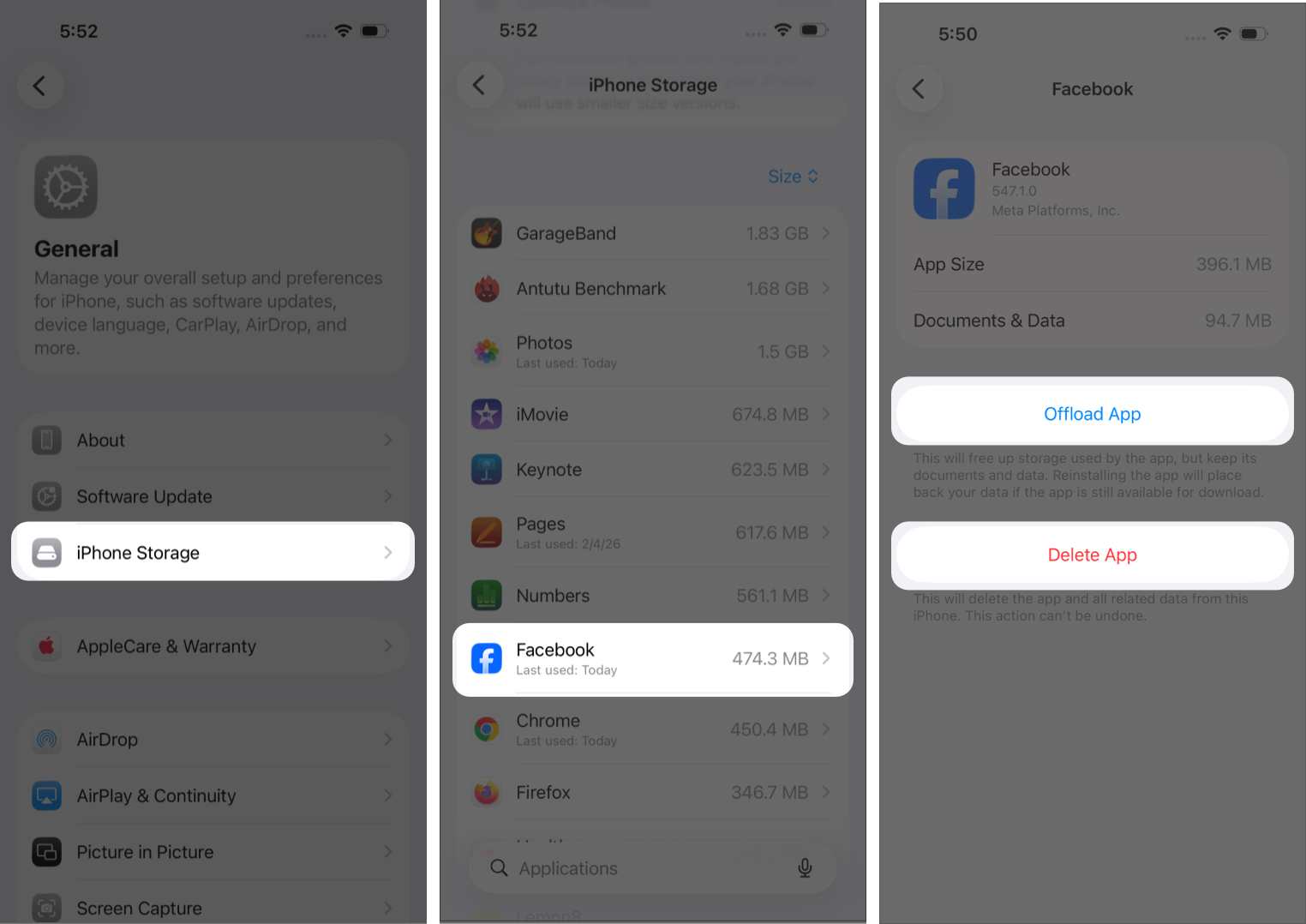
- Tap Offload App.
This removes the app but keeps your personal data.
Method 2: Delete and Reinstall the App
- Go to Settings > General > iPhone Storage.
- Select Facebook.
- Tap Delete App.
- Reinstall Facebook from the App Store.
This deletes the app and all stored cache, giving it a completely fresh start.

Alternatively:
- Press and hold the Facebook app on your Home Screen.
- Tap Remove App > Delete App.
- Tap Delete again to confirm.
Related: What Does Offload App Mean and How to Use It on iPhone and iPad
How to Clear Facebook Cache on Android (Quick Method)
Android provides a built-in way to clear app cache. It’s the simplest and most effective method.
- Open your device’s Settings.
- Tap Apps or Application Manager (the name may vary by device).
- Select Facebook.
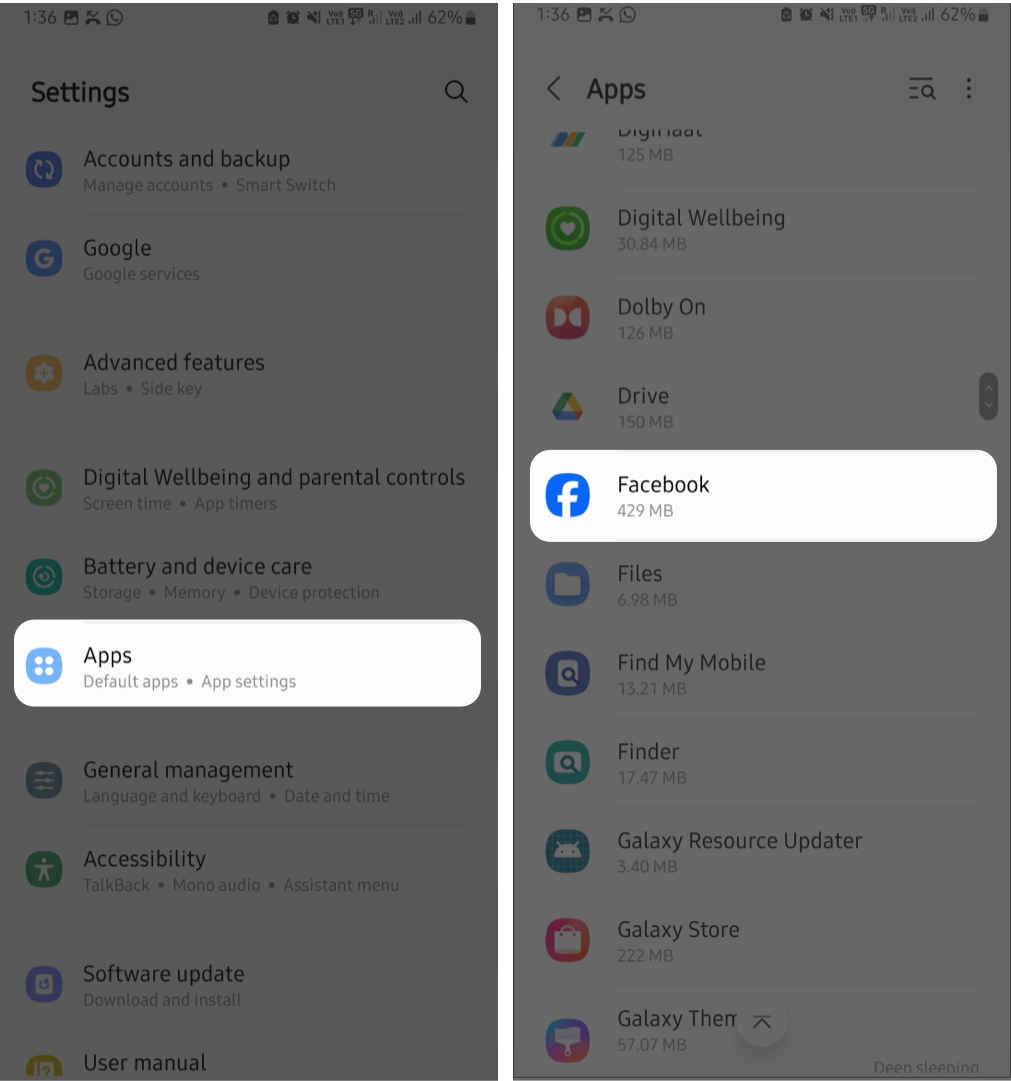
- Tap Storage or Storage & Cache.
- Tap Clear Cache.
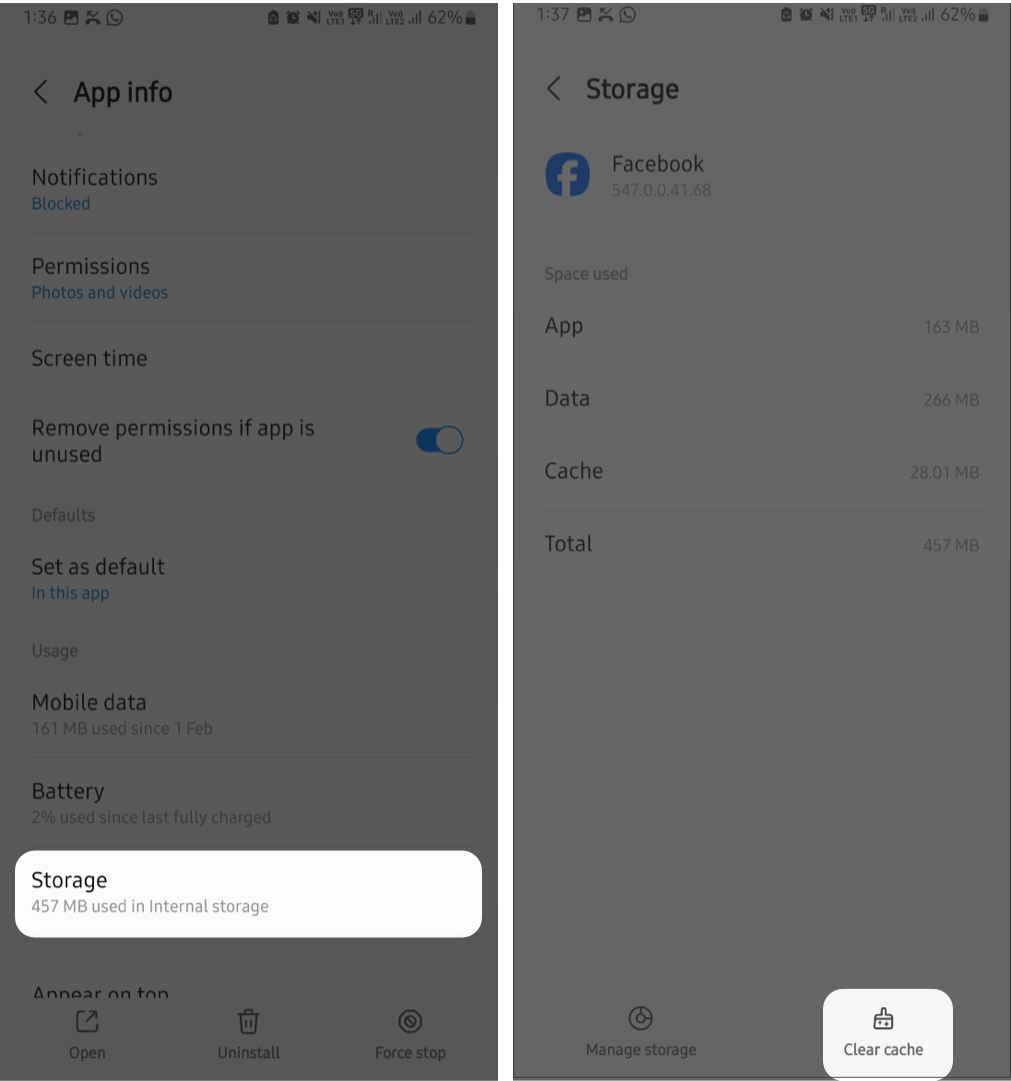


This removes only temporary files. It does not delete your login details, posts, messages, or photos.
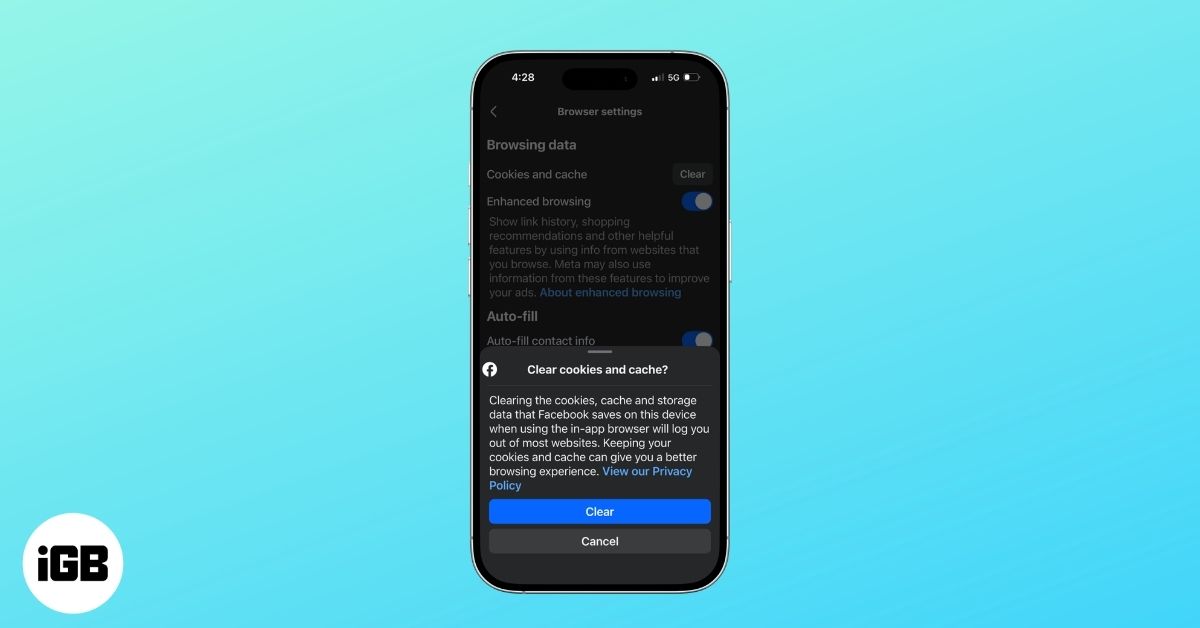
How to Clear Facebook’s In-App Browser Cache
Facebook has a built-in browser that opens whenever you tap a link inside the app. This browser stores cookies and website data separately from your main app cache.
Note:
Here’s how to clear it:
- Open the Facebook app
- Tap Menu (☰). This is usually in the top‑left corner on iPhone & Android. It opens all settings and tools inside Facebook.
- Tap Settings & Privacy to reveal more options.
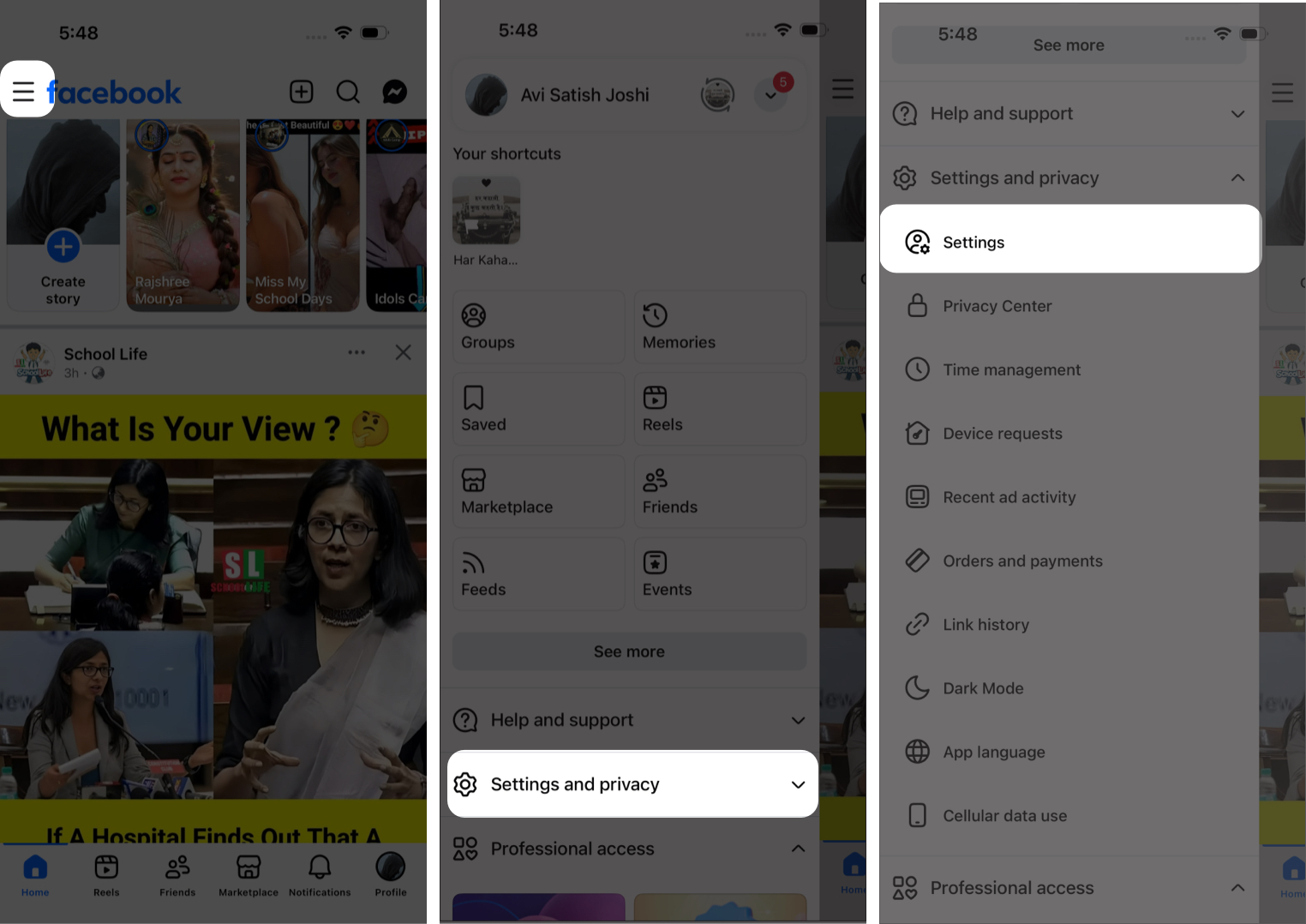
- Select Settings.
- Scroll to the Preferences section.
- Tap Browser.
- Tap Clear, next to Cookies and Cache.
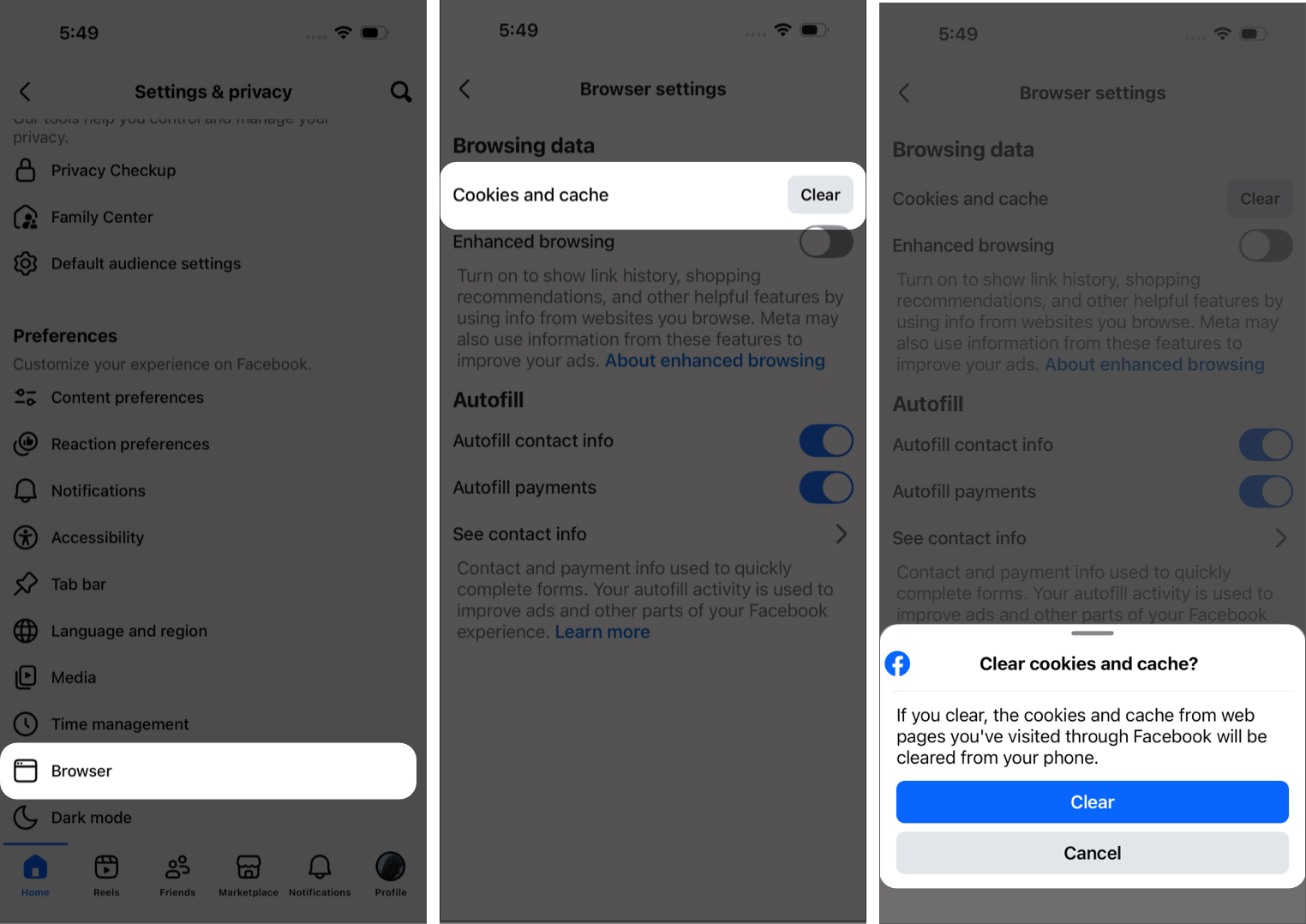
- A quick confirmation message may appear depending on your version; select Clear if prompted.


What Happens After You Clear Facebook Cache?
Clearing your cache may seem small, but you’ll often notice an immediate difference.
Here’s what happens:
- You free up storage space on your device.
- Facebook reloads fresh data the next time you open it.
- Your feed refreshes with updated posts and images.
- The app feels smoother and more responsive.
- Minor bugs, such as images not loading or buttons not responding, often disappear.
Important:
ly, clearing the cache does not delete your account, posts, messages, or saved content.
Extra Tips to Improve Facebook Performance
If Facebook still feels slow, try these additional steps:
- Android users can switch to Facebook Lite, which uses less storage and data.
- Disable auto-play videos: Go to Settings > Media and Contacts > Autoplay and select Never Autoplay Videos.
- Keep the Facebook app updated to receive performance improvements.
- Turn off background data on Android if the app feels sluggish.
Final Thoughts
Facebook cache builds up over time, but clearing it is simple and safe. Whether you’re using an iPhone, iPad, or Android device, refreshing the cache keeps Facebook running smoothly and ensures you see the most up-to-date content.
Regularly clearing cached data can free storage, fix glitches, and improve your overall experience without affecting your personal information.