
How to buy Kindle books on iPhone and iPad (2026)
Learn how to buy ebooks on your iPhone or iPad with this simple guide. Since you can’t buy them in-app, we’ll show you the quick browser workaround.
Things to know:
- Amazon refuses to pay Apple’s fee for purchases made via the iOS apps. So, you can’t buy Kindle books using the Amazon app or Kindle app.
- To buy books on iPhone, you must access the Kindle store using the Amazon.com website with Safari.
Kindle is one of the most popular book-reading apps. With over a million books, the app is ideal for avid readers. Whether you’re a bookworm or just looking for a new way to spend your time, knowing how to buy Kindle books on iPhone and iPad will allow you to access the world of literature quickly.
How to purchase Kindle books on iPhone or iPad
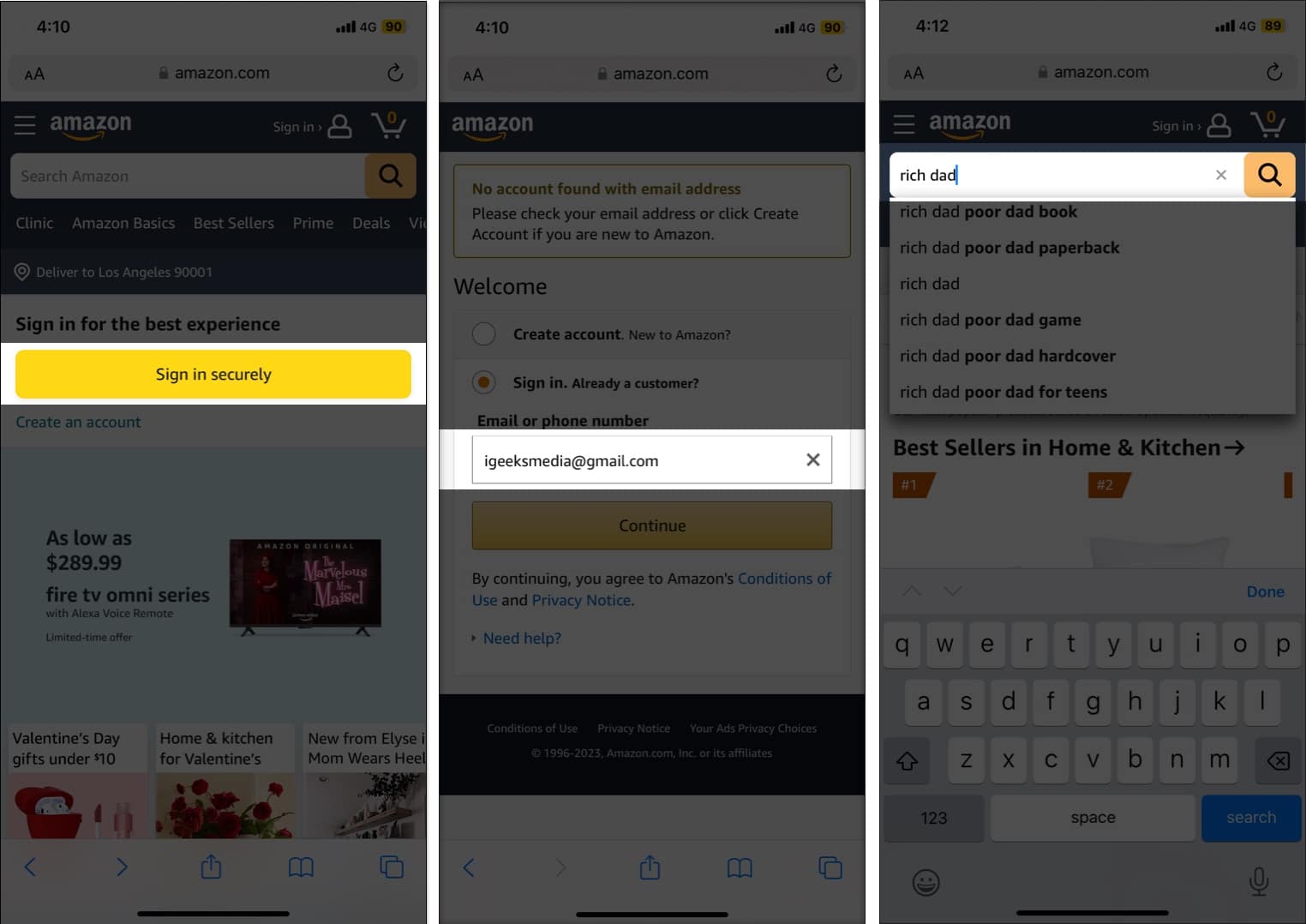
- Launch the Safari app on your iPhone.
- Head to Amazon.com → tap Sign In.
- Log in with your E-mail and Password.
- Search for your desired book in the Search Amazon bar.
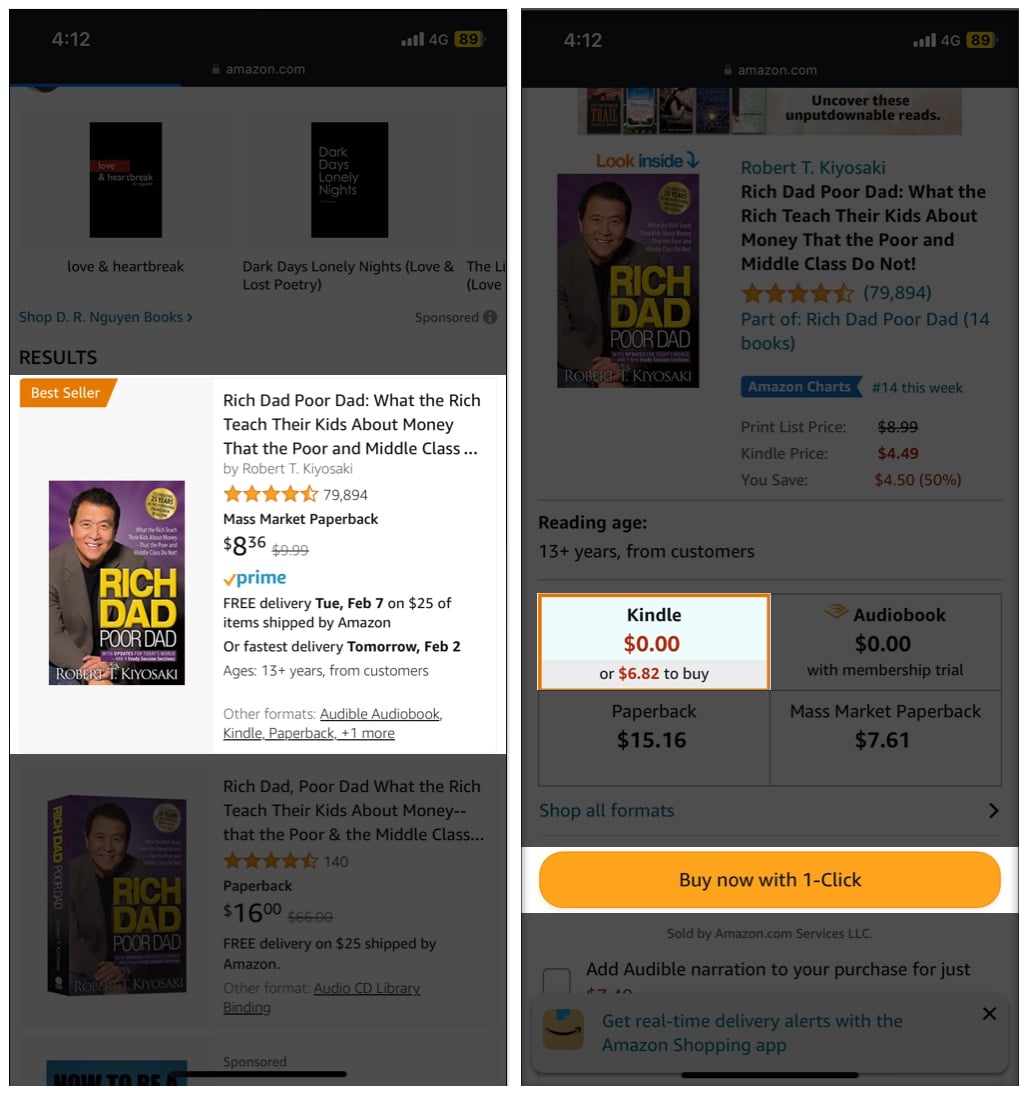
- Tap the book → choose Kindle.
- Tap Buy now with 1-Click or Buy Now and complete your purchase.
Congratulations! You’ve successfully purchased your book.
Create a Shortcut to Kindle Store on your Home Screen
- Open the Safari app and navigate to Amazon.com
- Select the Menu icon (three lines) and navigate to Kindle.
- Go to Kindle Books.
- Tap the Share icon from the bottom of the screen.
- Choose Add to Home Screen.
- Rename the icon.
- Tap Add.
Voila! You can now directly buy books on your Amazon.com from the Kindle shortcut.
Access purchased books in Kindle app on iPhone or iPad
Before accessing the books, make sure you have logged in to the Kindle app using the same email ID you made the purchase with.
- Open the Kindle app on your iPhone.
- Head to the Library view.
- Tap the purchased book to download it to the device.
You’ll notice a check mark on the book’s cover, which indicates that you’ve successfully downloaded the book to your device.
Remove downloaded books from the Kindle app
- Head to Kindle app → Library view.
- Switch to the Downloaded tab.
- Press and hold a book.
- Choose Remove Download.
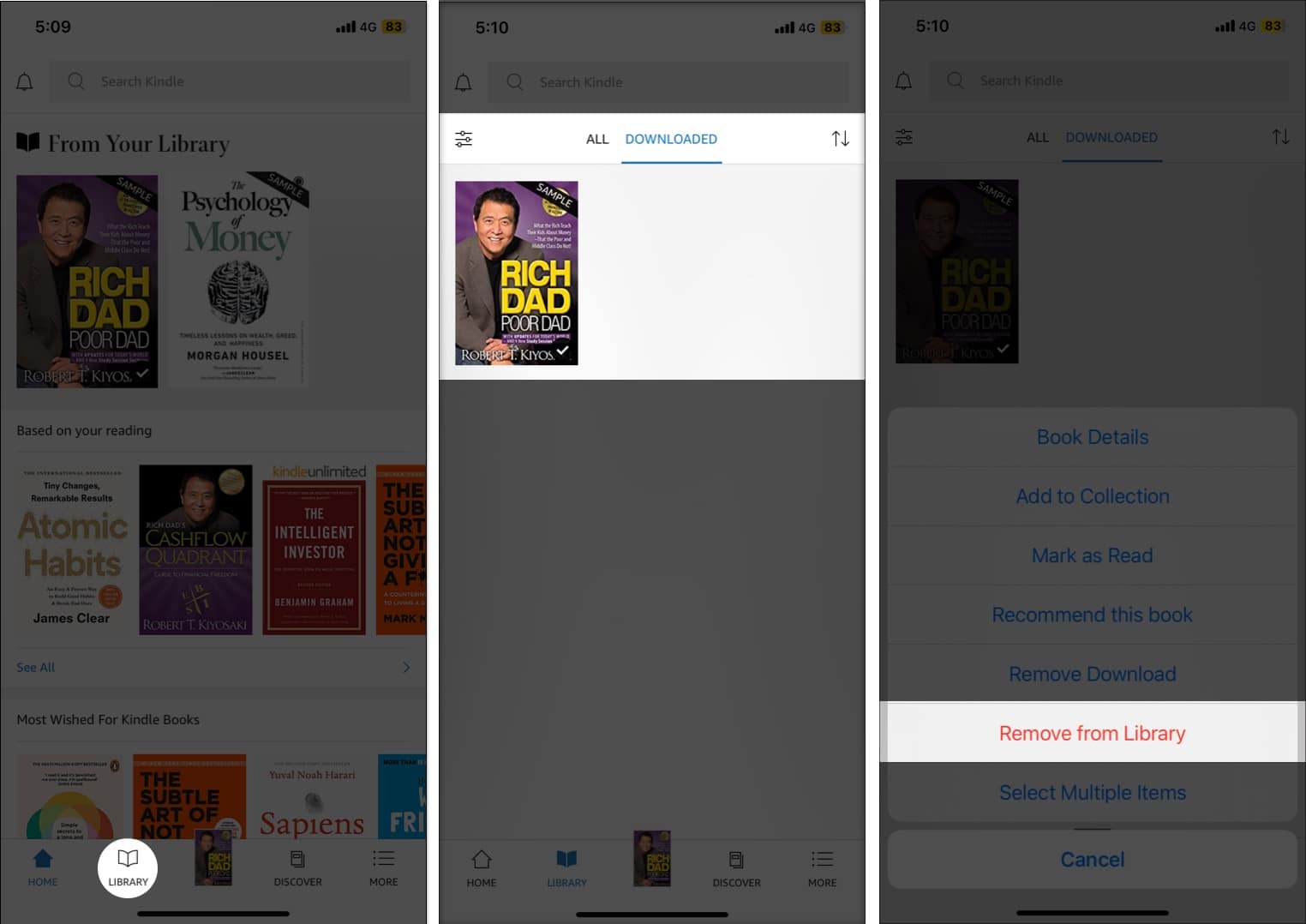
You may also choose Permanently Delete. However, this will erase your purchase, and you might need to repurchase it for future reference. I’d suggest avoiding this option.
Happy reading…
I hope this article has helped you buy your favorite Kindle books on iPhone and iPad. Below, don’t forget to take a look at my recommendations that might help you read more!
Frequently Asked Questions

Written by
Bhaskar SharmaBhaskar is a tech guru who turned wordsmith. Hiding his B.Tech degree in a closet, he ditched the corporate path to simplify tech for everyone. For the past 5 years, he's been dishing out how-tos, reviews, and sharp insights. But there's more! He's a witty interview champ and has been sharing his wisdom for 3 years. Furthermore, he has honed his editing skills for 1.5 years and is now delving into marketing to assist newcomers. When not jamming his fingers on those mechanical keyboards, you may find him on strings or engaging in sports. And by evening, his quotes will be appearing on your Instagram feeds.
View all posts →