
iPhone Camera Exposure: How to Brighten or Darken Photos
Adjust iPhone exposure with a quick tap and slide to brighten or darken your shot for clearer, balanced photos in any lighting.

Adjusting exposure on your iPhone camera is one of the easiest ways to fix photos that look too bright or too dark. The Camera app gives you quick manual controls that let you fine-tune brightness before you take the shot. Whether you’re shooting in harsh sunlight, indoor low light, or want more detail in your subject, a simple press-and-slide gesture helps you set the right exposure instantly.
This guide walks you through the steps, explains what exposure actually does, and shows how to use it for sharper, clearer photos in any lighting.
Why Should You Adjust Camera Exposure on the iPhone?
Exposure is the amount of light entering the camera lens when you take a photo and shouldn’t be confused with a long-exposure image. It determines the brightness or darkness of the final image. So, the exposure feature is useful when capturing scenes with high contrast ranges, such as a bright sky and a darker landscape.
By adjusting the exposure, you can balance light levels to ensure the sky and landscape are properly exposed. Additionally, you can use exposure to highlight a specific subject by illuminating it with more light.
When using the exposure compensation, you must ensure your iPhone is stable while capturing images. For video recordings, I recommend using a tripod for better stability.
How to Change Exposure in the iPhone Camera App
- Launch the Camera app.
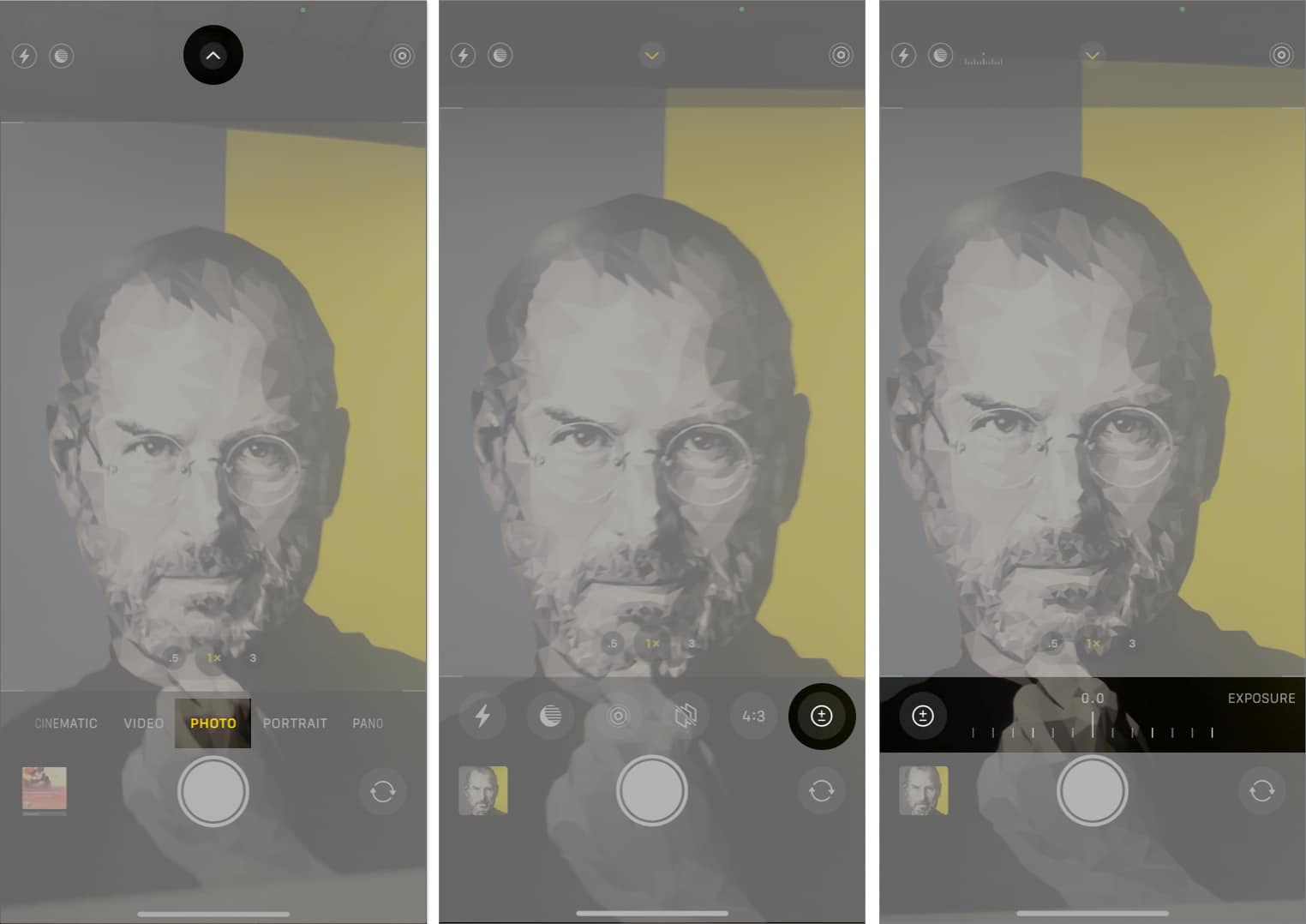
- Select Photo mode → Tap the up arrow at the top.
- Tap the exposure icon (±) → Adjust the slider.

Lock Camera Exposure on iPhone
- Open Camera → Frame a person or an object you want to capture.
- Tap the screen to focus on the person or object.
- To lock the focus, press and hold the screen.
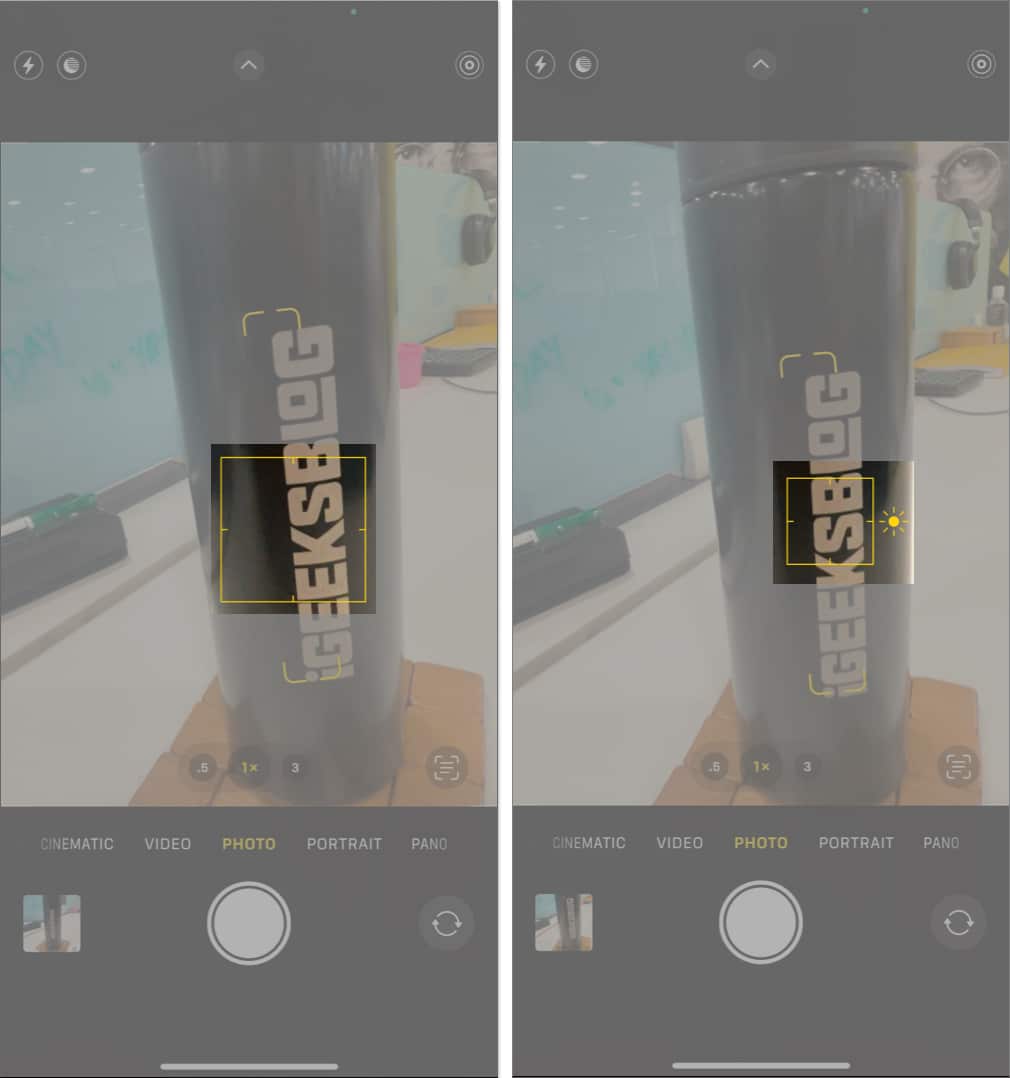
- You will notice the AE/AF LOCK at the top with a flash of the yellow box.
- Now adjust the camera exposure by swiping the sun icon upwards to make it brighter or downwards to make it darker.

How to Preserve iPhone Camera Exposure Settings
Adjusting exposure each time you capture pictures in different lighting conditions is daunting. So, I prefer to preserve the settings. To do so,
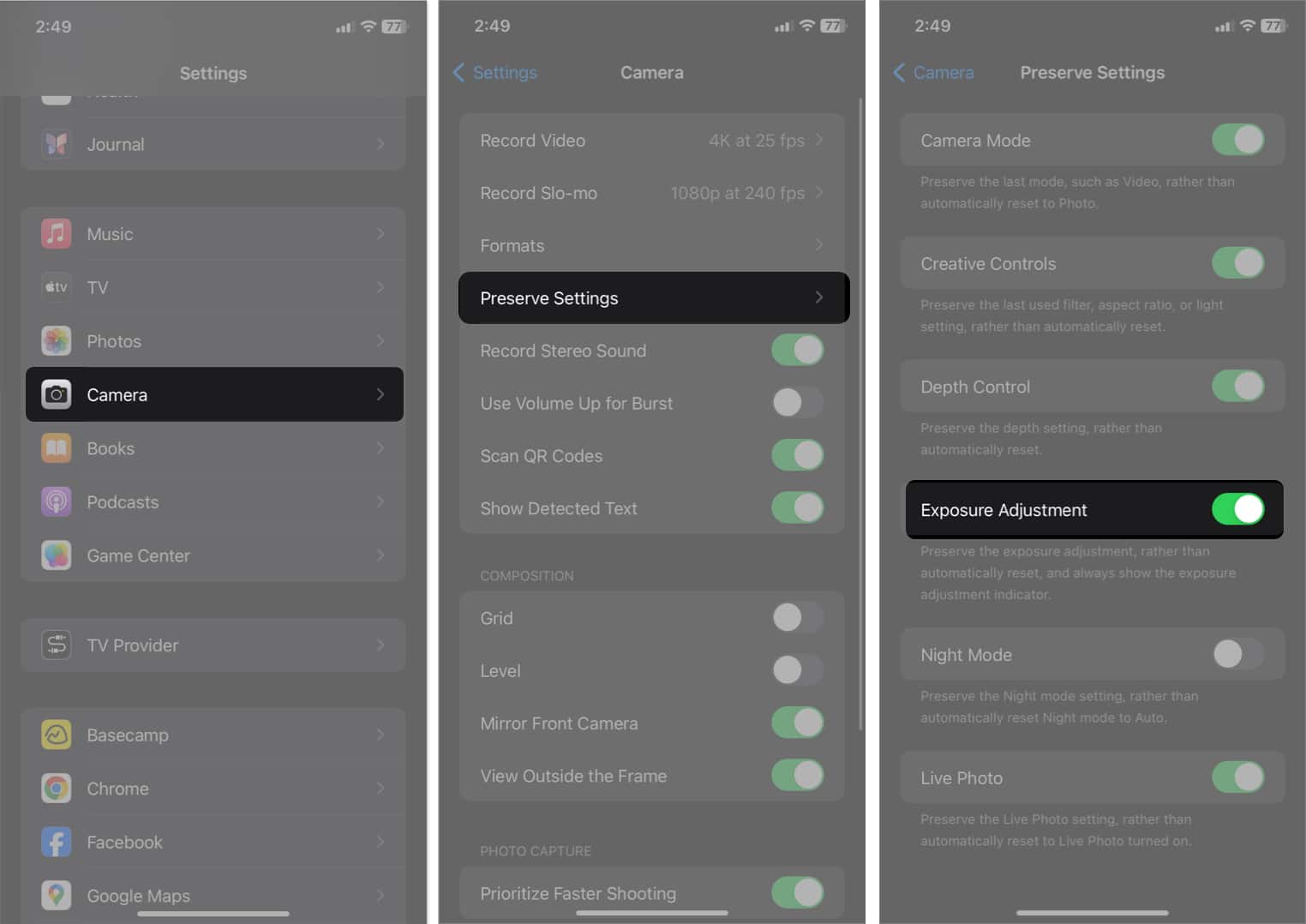
- Go to Settings → Select Camera.
- Tap Preserve Settings.
- Toggle on Exposure Adjustment.

Wrapping up…
The iPhone Camera is among the most valued features. It offers simple-to-use controls, like the exposure function, to make your images stand out. With this in mind, I hope the above steps helped you to effortlessly utilize the exposure feature on your iPhone’s camera.
Frequently Asked Questions

Written by
Ava BiswasAva is a die-hard Apple aficionado and seasoned writer with a knack for breaking down complex tech concepts into easily digestible content. Having honed her writing and editing skills over 4 years at renowned media houses like TechBurner, Ava crafts informative and engaging articles including troubleshooting guides, product reviews, editorials at iGeeksBlog. When not typing, you can find her exploring the latest Apple releases or pondering the future of tech innovation.
View all posts →More from How-to

How to Use Photographic Styles on iPhone
This guide explains how to enable and use Photographic Styles on iPhone to give your photos a unique look.
 VikhyatMarch 9, 2026
How to Use Front and Back Cameras at the Same Time on iPhone
Want to record yourself and what’s in front of you at the same time? Here’s how to use both the front and rear cameras on your iPhone simultaneously.
 Anoop VargheseMarch 9, 2026
How to Share Screen on WhatsApp (iPhone, Android, and Desktop)
Sharing your screen on WhatsApp makes it easier to explain things visually. Here’s how to use screen sharing on iPhone, Android, and desktop devices.
 Avadesh JoshiMarch 6, 2026