


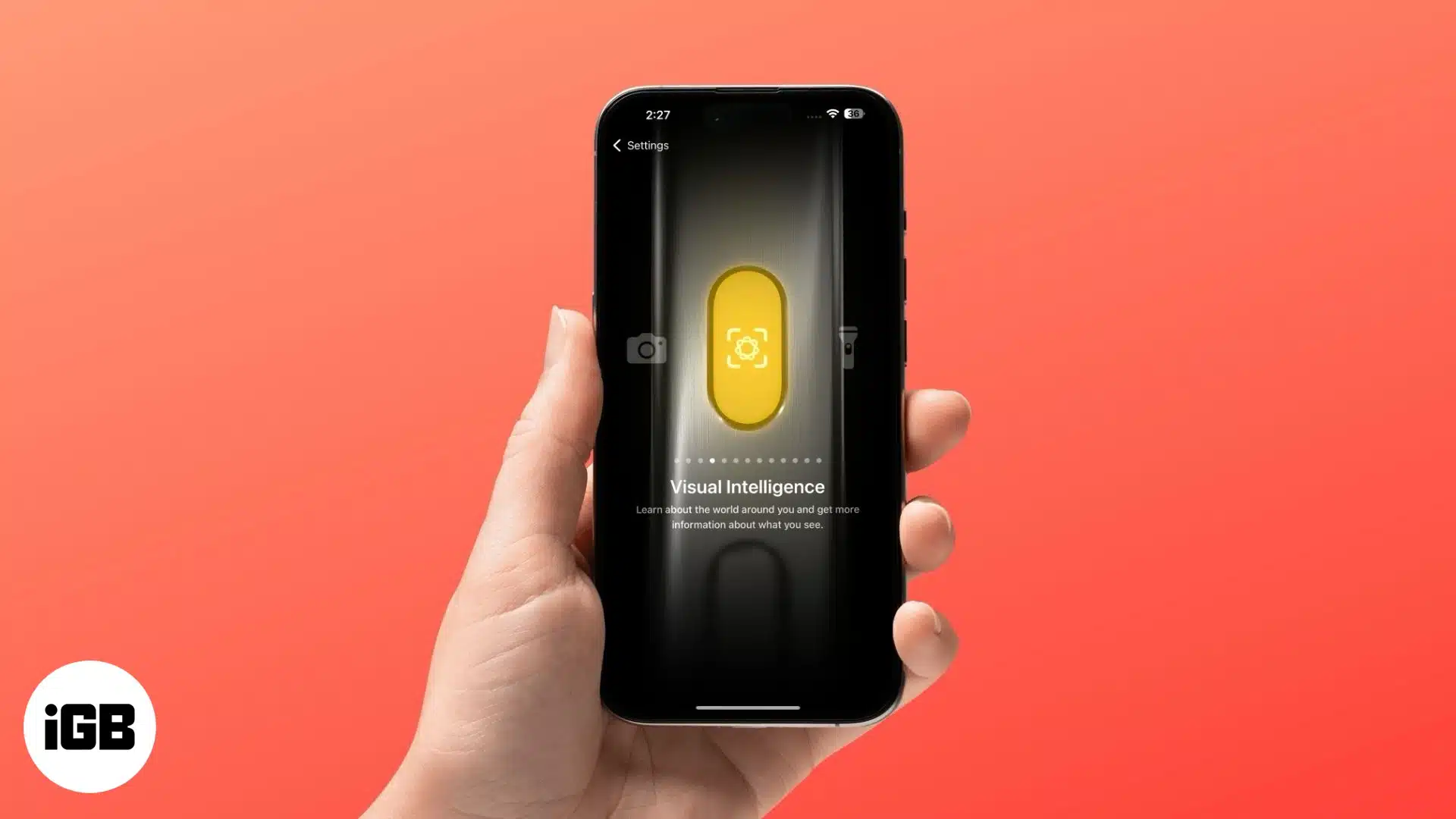
Until the release of the iPhone 16e, Visual intelligence support was limited to iPhones with a physical Camera Control button, i.e., the original iPhone 16 lineup. However, since the iPhone 15 Pro and 15 Pro Max support Apple Intelligence, not having Visual Intelligence support because of a missing button left many users fuming.
Thankfully, Apple shipped the iPhone 16e with an iOS 18 version that supports Visual Intelligence despite lacking Camera Control. And now, with iOS 18.4, Apple has expanded the Visual Intelligence support to iPhone 15 Pro and 15 Pro Max as well. Keep reading to learn how to get Visual Intelligence on iPhone 15 Pro in iOS 18.4.
What you can do with Visual Intelligence on iPhone 15 Pro?
With Visual Intelligence on your iPhone, you can:
- Get details about a particular place
- Ask ChatGPT about what’s in the frame
- Create calendar events
- Look up things on Google
- Summarize and translate text, and more
All processes are done on the device, so there isn’t any risk of data leakage.
How to set up Visual Intelligence on iPhone 15 Pro
Visual Intelligence is among the many new features in iOS 18.4. There are two ways you can set up and use Visual Intelligence on Apple Intelligence-supported iPhones despite the missing Camera Control.
1. Assign Visual Intelligence to Action Button
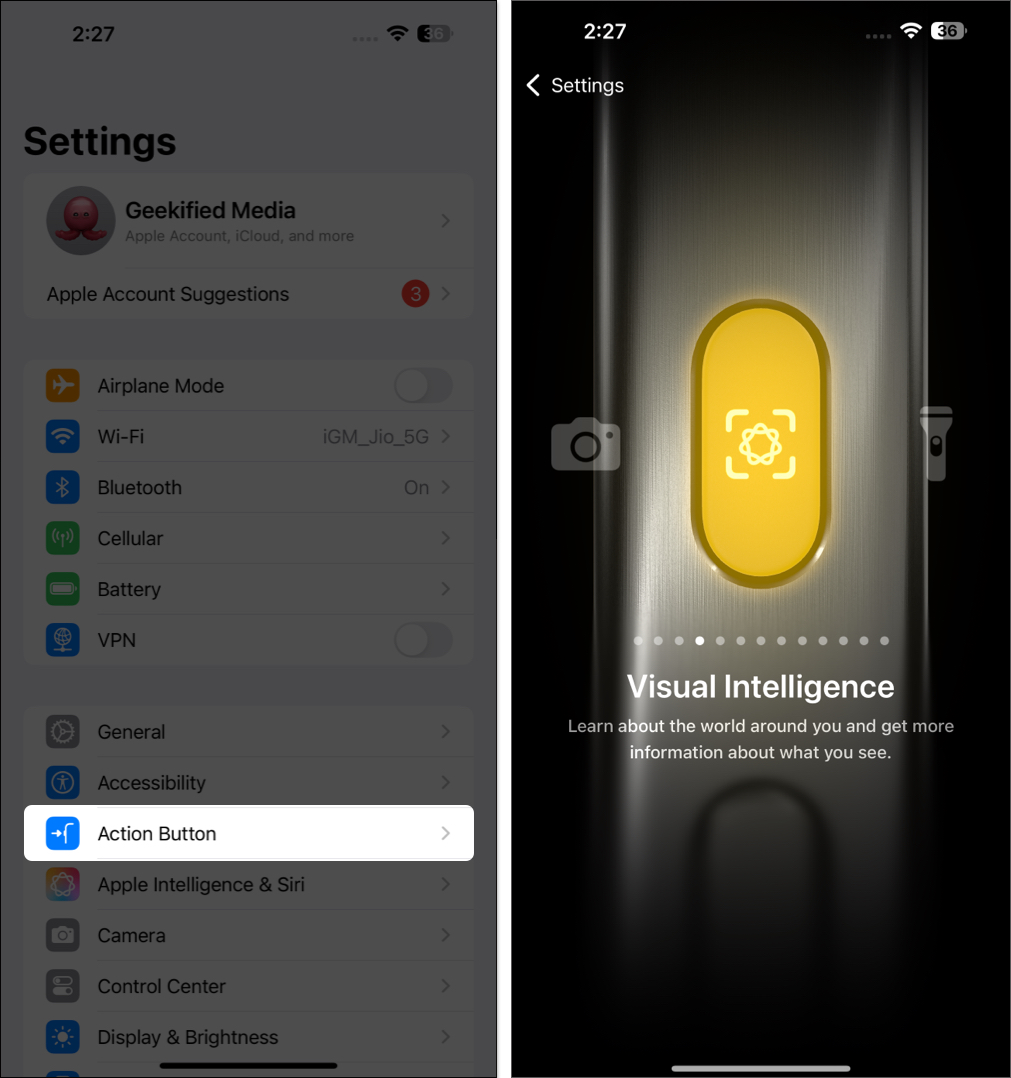
Introduced with the iPhone 15 Pro, the Action Button replaced the traditional Ring/Silent switch and can be assigned one of many possible functionalities, including activating Visual Intelligence. Here’s how to set up the Action Button to launch Visual Intelligence on your iPhone 15 Pro and iPhone 16e:
- Open Settings and select Action Button.
- Depending on where you are on the list, swipe left or right until the Visual Intelligence action appears, and you should have the Action Button set to the Visual Intelligence option.
2. Add Visual Intelligence to Control Center
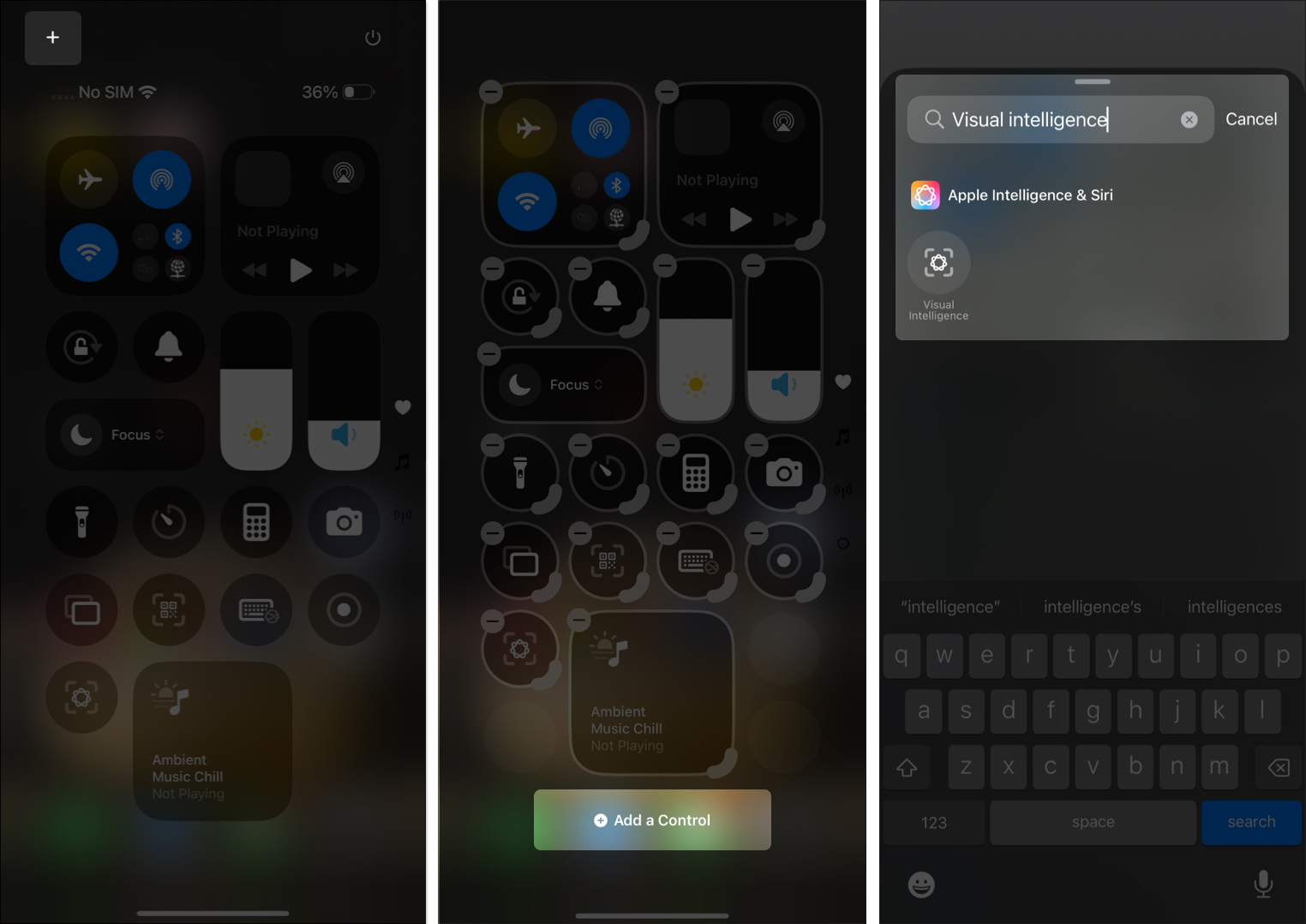
Besides the Action Button, you can customize the Control Center on your iPhone and add the Visual Intelligence control to it. This is what you need to do:
- Swipe down from the top-right corner of the screen to bring up the Control Center.
- Here, tap the + button in the top-left corner, then tap Add a Control at the bottom of the screen.
- Next, search for Visual Intelligence in the search bar at the top. Alternatively, you can scroll down until the Apple Intelligence section appears.
- Tap the Visual Intelligence control to add it to the Control Center.
How to use Visual Intelligence on iPhone 15 Pro
Now that you have successfully set up Visual Intelligence on your iPhone 15 Pro or iPhone 16e, you can long-press the Action Button or tap the Visual Intelligence control button in the Control Center to launch and use Visual Intelligence on your iPhone.
Signing off…
Visual Intelligence is easily one of the best Apple Intelligence features. And it would have been unfair to the iPhone 15 Pro users had Apple kept it limited to iPhones with Camera Control.
If you like the idea of using Visual Intelligence right now, update your iPhone 15 Pro to iOS 18.4.
Feel free to reach out to us via comments if you need further help.
Explore these: