


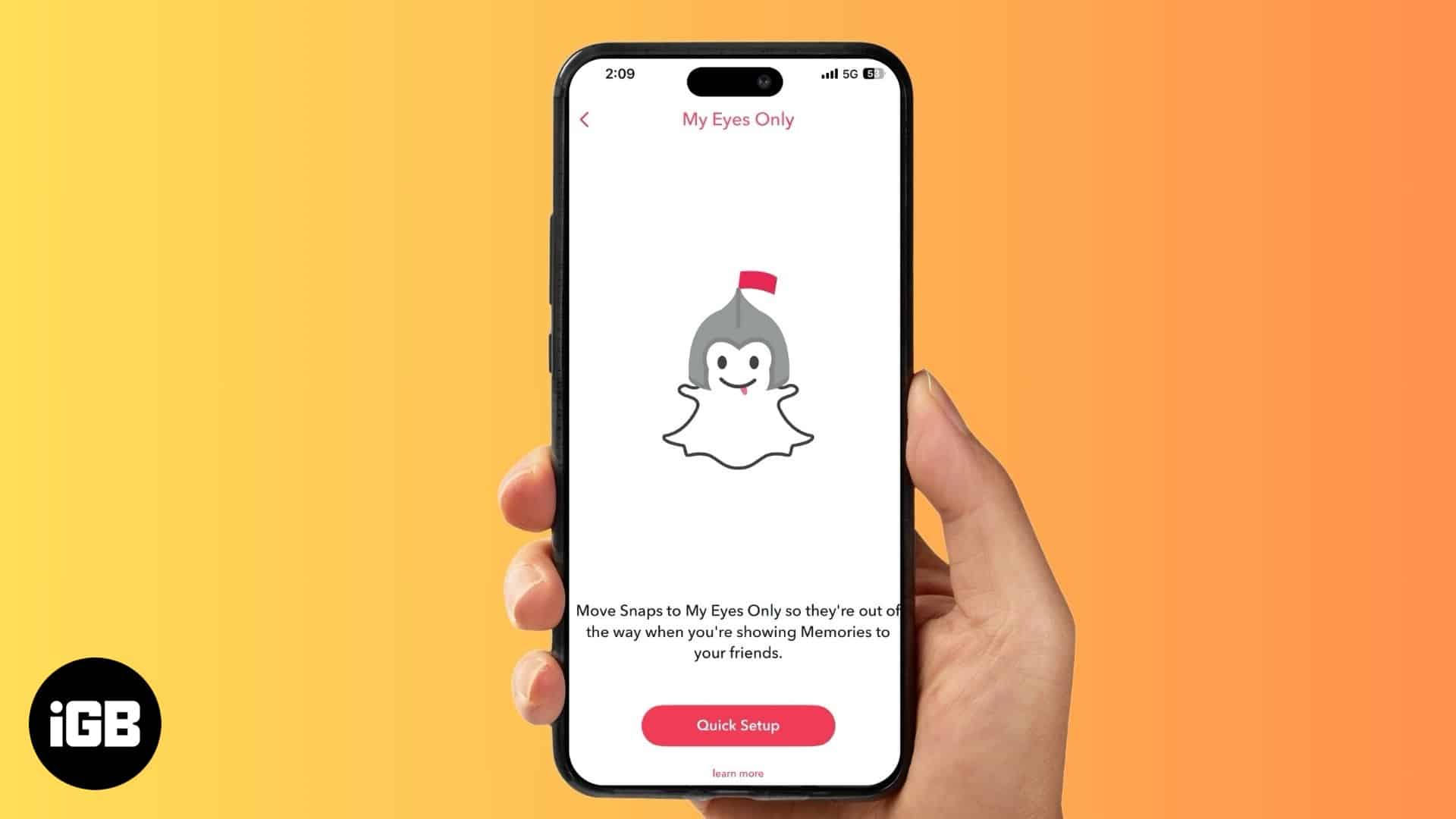
- What It Is: “My Eyes Only” is a private, passcode-protected folder within Snapchat Memories, designed to securely store personal snaps you want to keep hidden from the main gallery.
- Setup and Use: Set it up in Memories by creating a 4-digit passcode. To add photos, select them from your snaps and choose the “Hide Snap” option.
- Crucial Passcode Warning: If you forget your passcode, you will lose everything inside My Eyes Only forever. Resetting your passcode permanently deletes all of its contents.
- Changing Your Passcode: If you know your current passcode, you can easily change it at any time by going into the “My Eyes Only” options menu within Memories.
- Default to Private: For enhanced privacy, you can change your settings to automatically save all new snaps directly to “My Eyes Only” instead of your main Memories gallery.
Snapchat is one of the most popular social media platforms for sharing moments with friends, but some memories are meant to stay private. While you can lock the Snapchat app on your iPhone to safeguard your private memories, anyone with your iPhone passcode can access it. That’s exactly where Snapchat’s My Eyes Only feature comes to your rescue, adding an extra layer of security to your private memories in Snapchat.
Keep reading to learn everything you need to know about My Eyes Only on Snapchat.
What is “My Eyes Only” on Snapchat?
My Eyes Only mode is part of Snapchat’s Memories section, which works similarly to the Hidden folder in iPhone’s Photos app. The folder is password-protected, and you can move all your current and previous saved snaps to it so only you can revisit them later. You must enter the chosen 4-digit passcode to access the snaps you previously moved to this folder.
To access My Eyes Only, swipe on the default Camera tab, swipe left to the My Eyes Only folder and enter the 4-digit passcode.
You can also use iOS 18’s lock apps feature to lock the Snapchat app on your iPhone, adding another layer of security.
How to set up “My Eyes Only” on Snapchat from iPhone
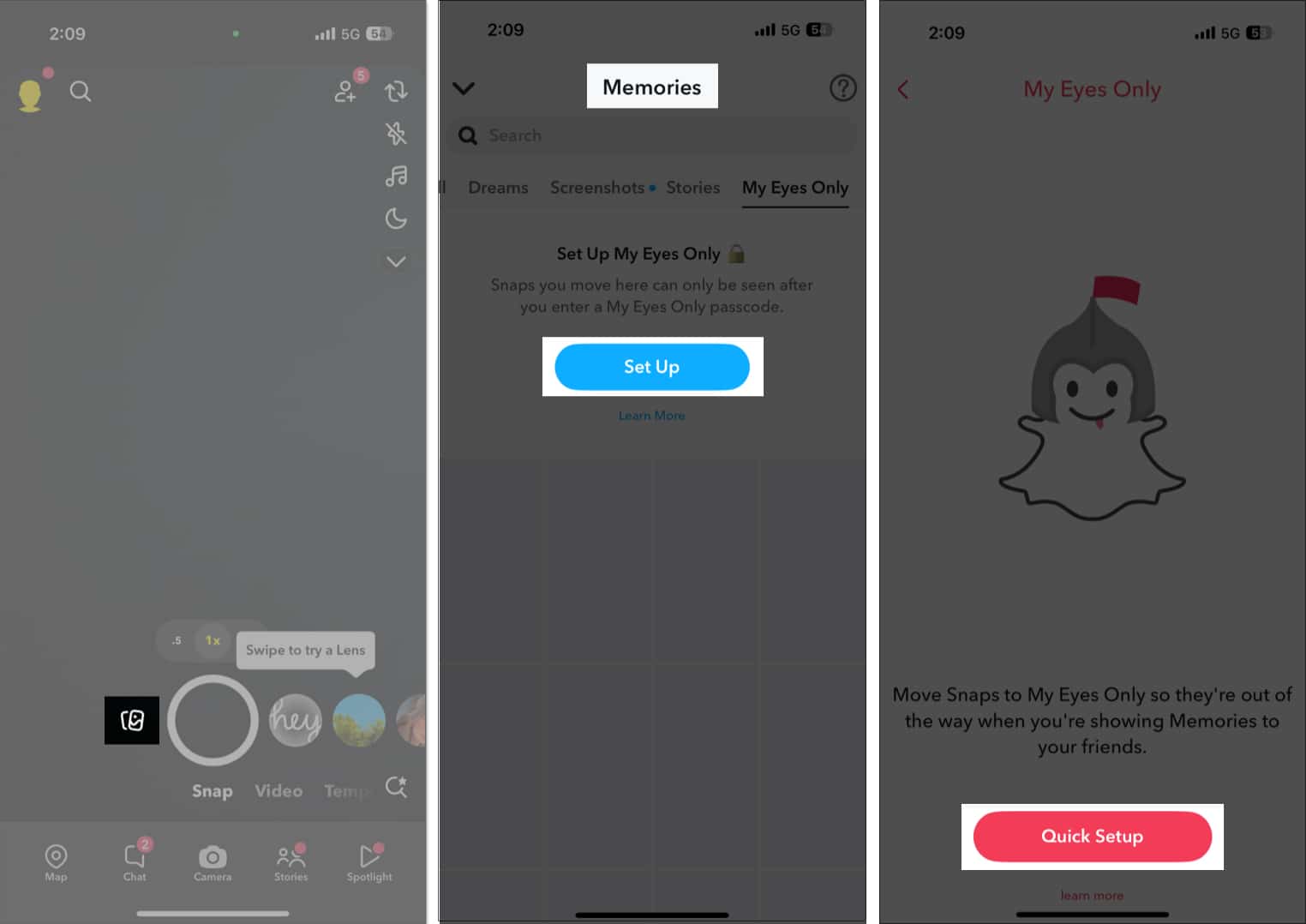
Here’s how you can set up My Eyes Only on Snapchat:
- Open the Snapchat app and swipe up on the Camera tab to access the Memories section.
- Swipe right on the horizontal menu bar below the Search bar and tap My Eyes Only.
- Next, tap the Set Up button, then tap Quick Setup.
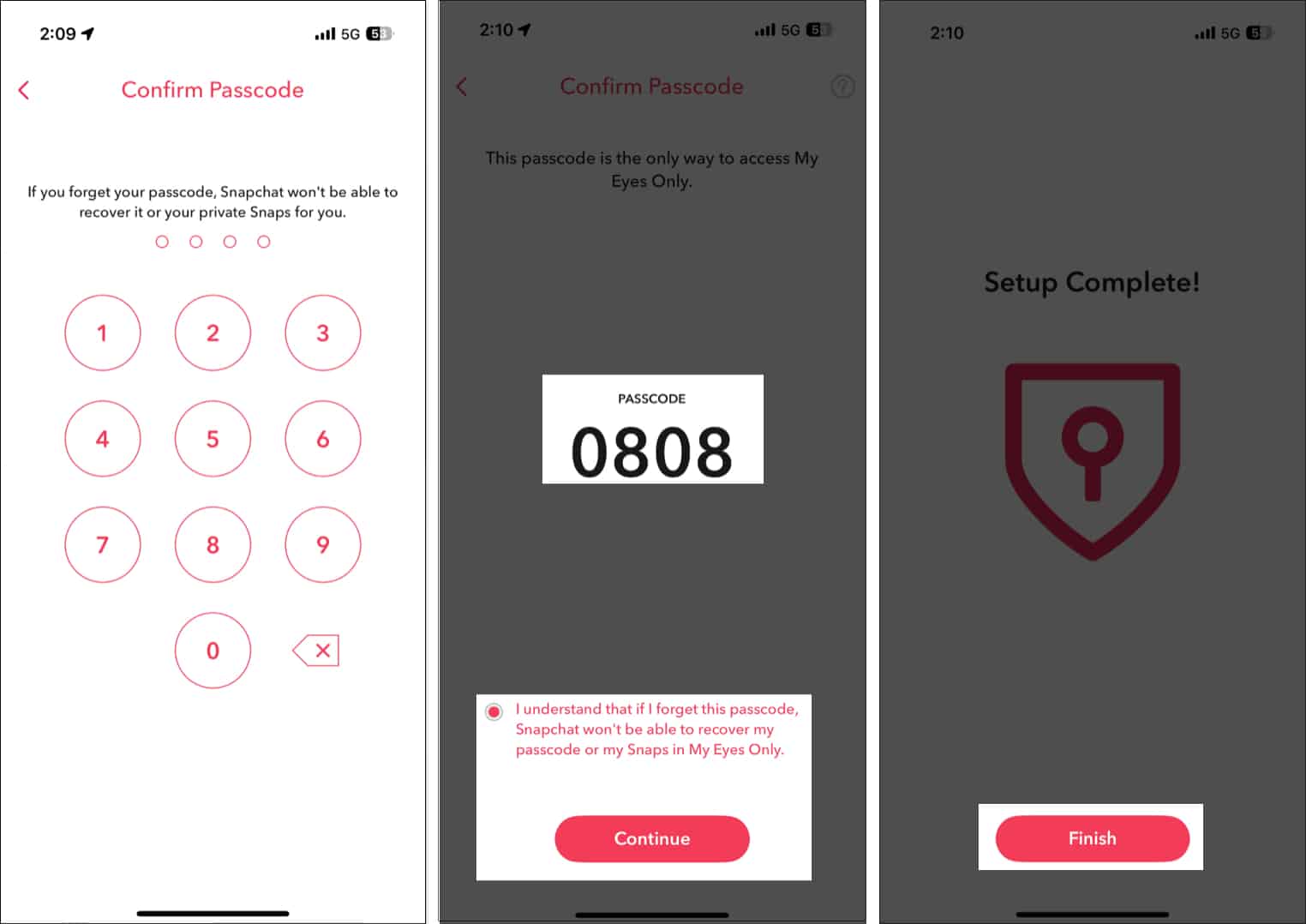
- Now, choose a 4-digit passcode, then reenter it to confirm.
- Finally, agree to the terms and conditions, then tap on Continue to complete the setup process.
Note:
How to add snaps to My Eyes Only
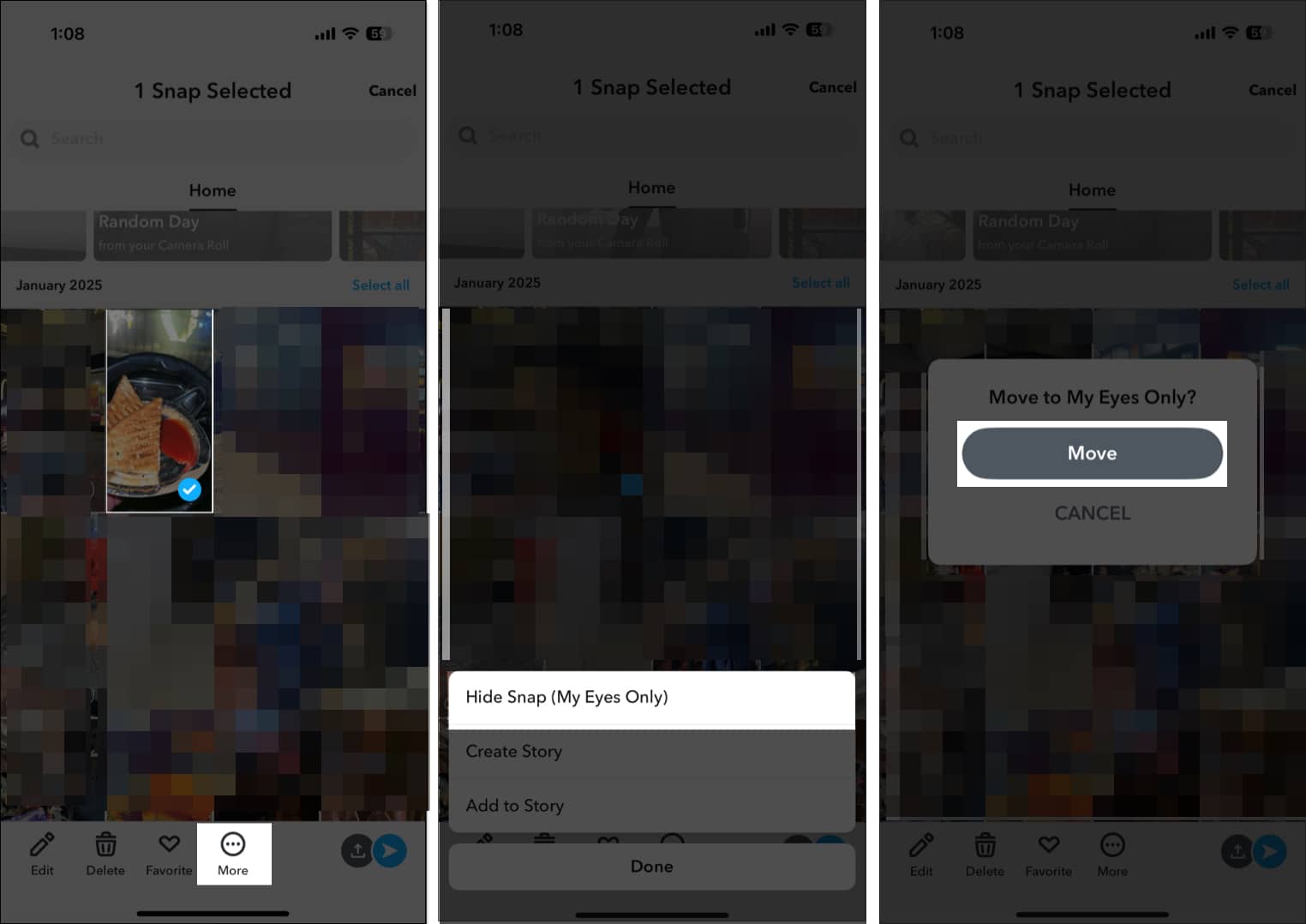
Now that you have successfully set up your “My Eyes Only” folder in Snapchat you can move your photos, and video snaps memories to safeguard them behind the chosen passcode. Here’s how you can do this:
- In the Snapchat app, swipe up on the default Camera tab to enter the Memories section.
- Here, long press on the Snap you wish to hide, then tap the Three Dot button that appears at the bottom.
- Next, tap on Hide Snap (My Eyes Only) in the pop-up menu that appears.
- Tap the Move button on the confirmation prompt that appears.
How to change My Eyes Only password on Snapchat
There may come an instance when you accidentally reveal your My Eyes Only passcode to someone. However, considering the privacy of the contents, you won’t want anyone to access it using the said passcode. In that case, you can quickly change your Snapchat My Eyes Only passcode.
Here’s how you can do this:
- Head to the My Eyes Only section on the Snapchat app.
- Here, tap on Options at the bottom right.
- Next, tap the Change Passcode button, then enter your current passcode.
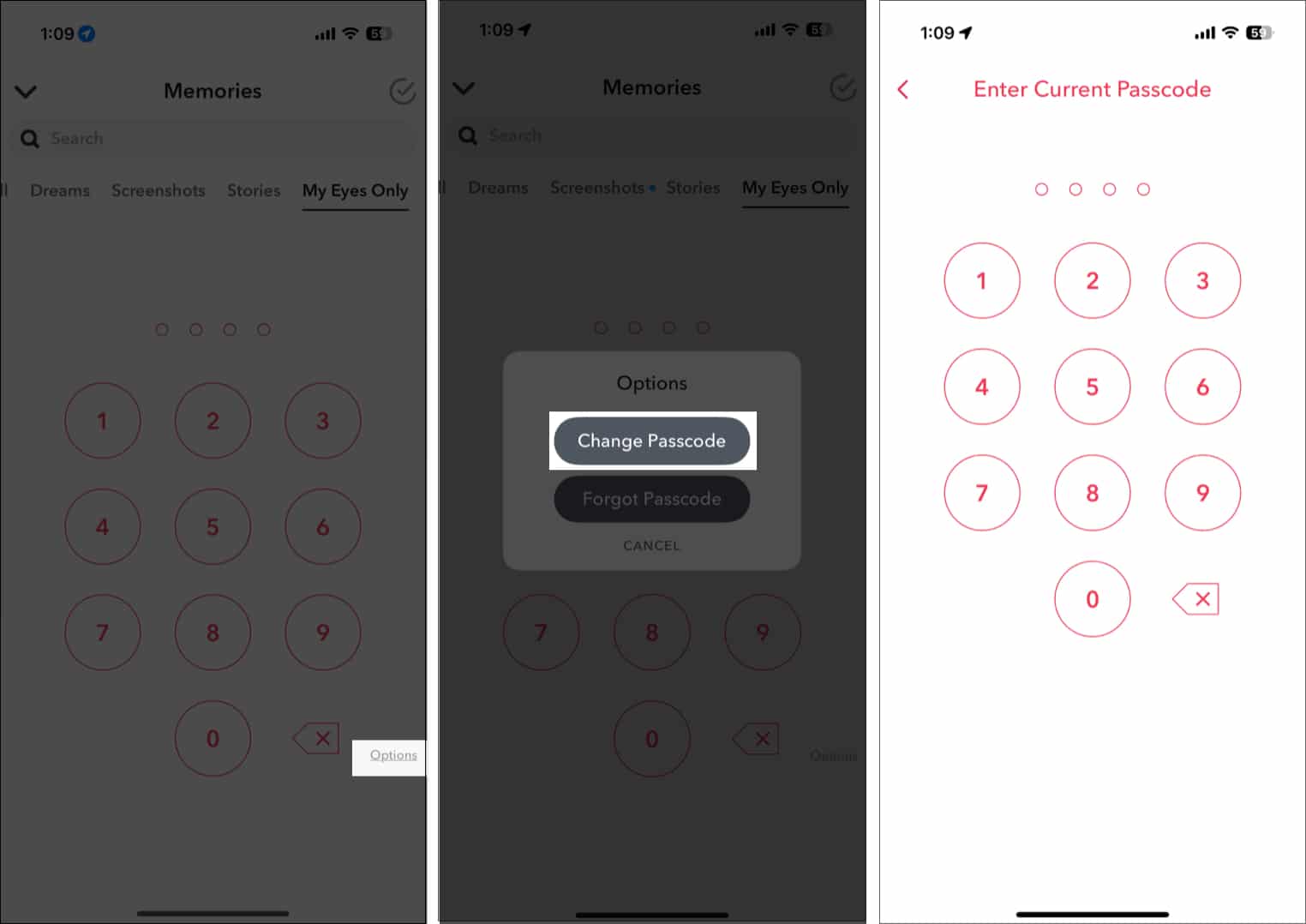
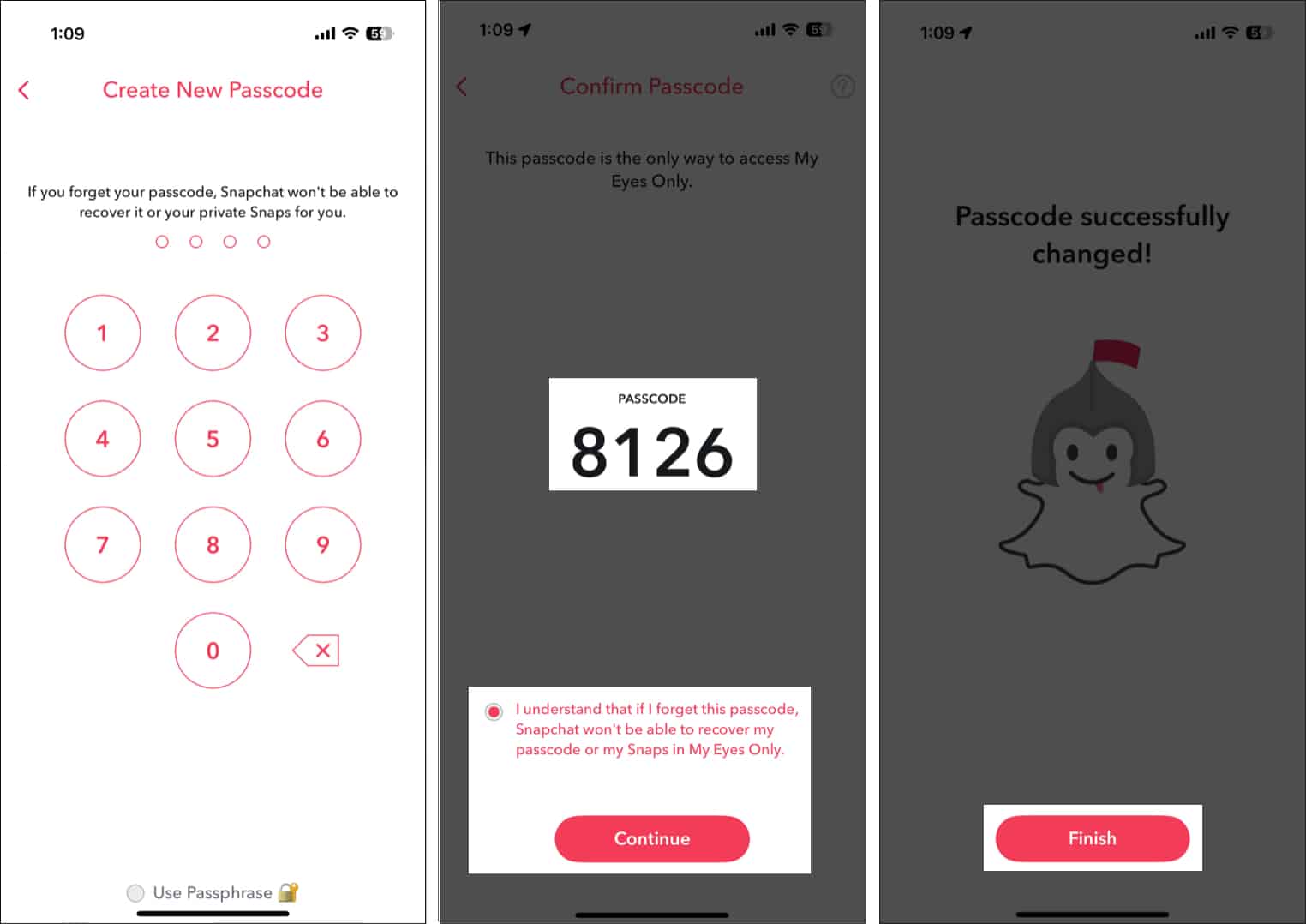
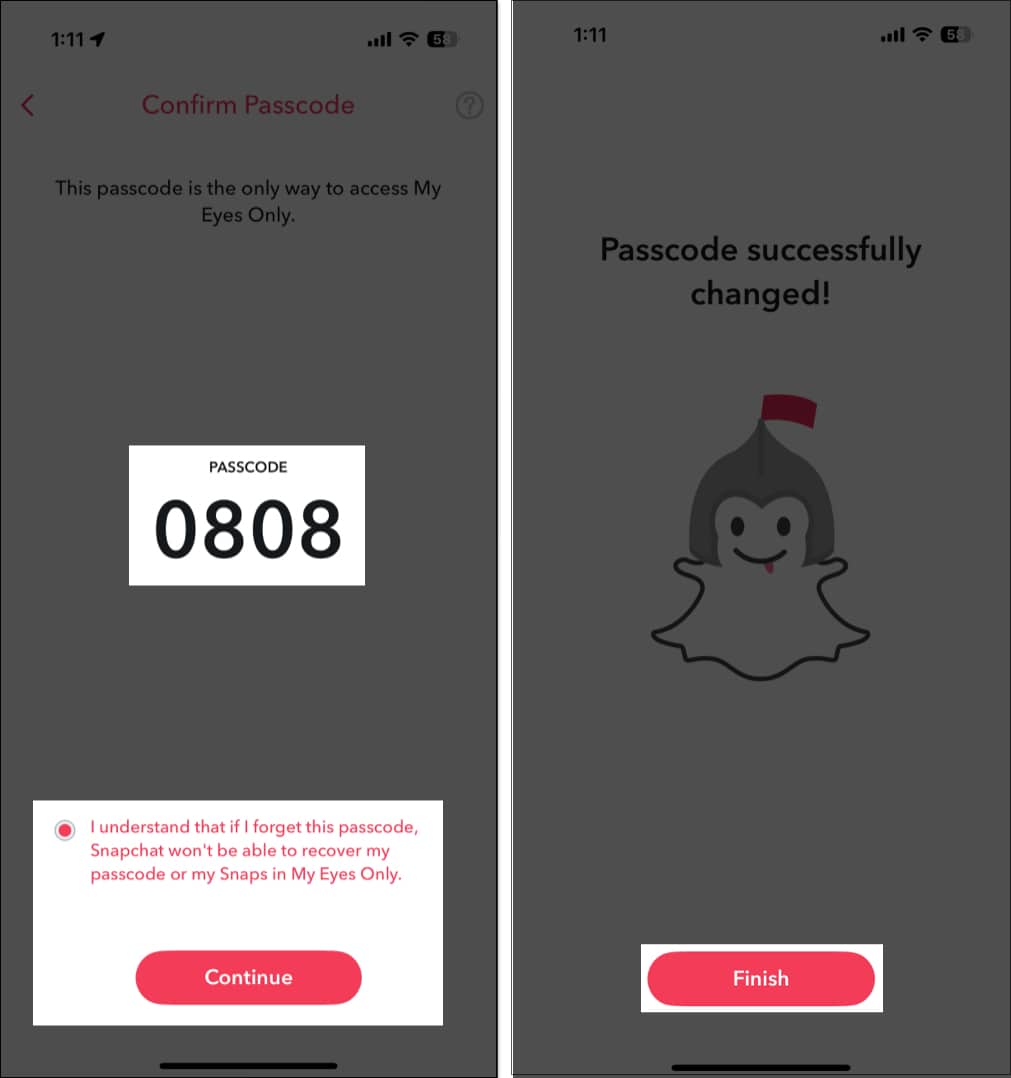
- Now, choose a new 4-digit passcode and reenter it to confirm.
- Agree to terms and conditions, then tap Continue.
- Finally, tap Finish.


You may like to read: How to Use the 2D Comic Style Bitmoji on Snapchat
What to do if you forget your My Eyes Only passcode
The My Eyes Only folder in the Snapchat app is similar to the Hidden folder on your iPhone’s Photos app. If you forget the passcode, you cannot access its contents, as Snapchat does not allow its recovery.
Luckily, Snapchat allows you to reset the My Eyes Only passcode if you have your Snapchat account’s password. Here’s how you can reset your My Eyes Only passcode if you forget it:
- Head to the My Eyes Only section on the Snapchat app.
- Here, tap on Options at the bottom right.
- Next, tap the Forgot Passcode button, then enter your Snapchat Account password.
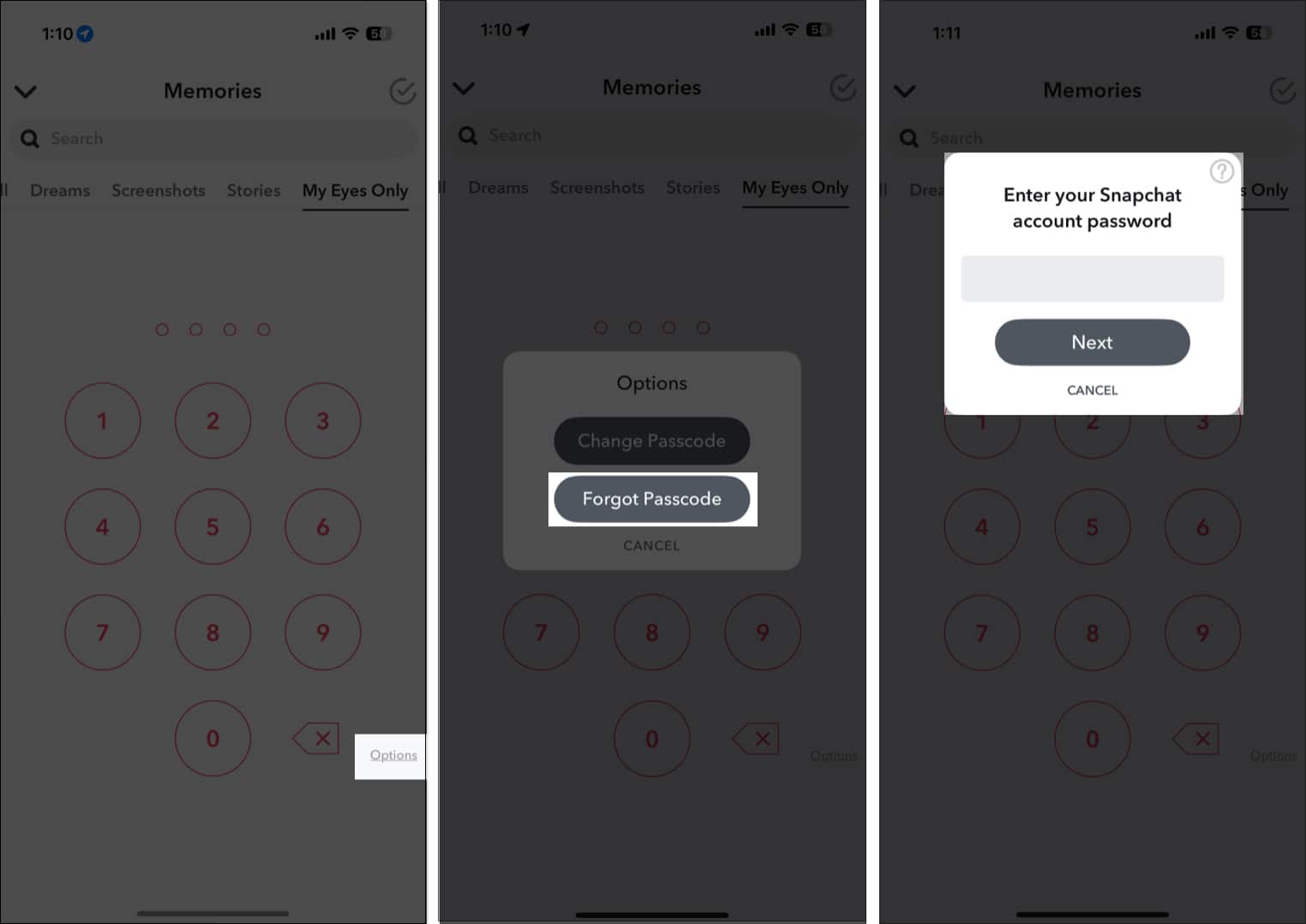
- Agree to terms and conditions and tap on Continue.
- Now, choose a new 4-digit passcode and reenter it to confirm.
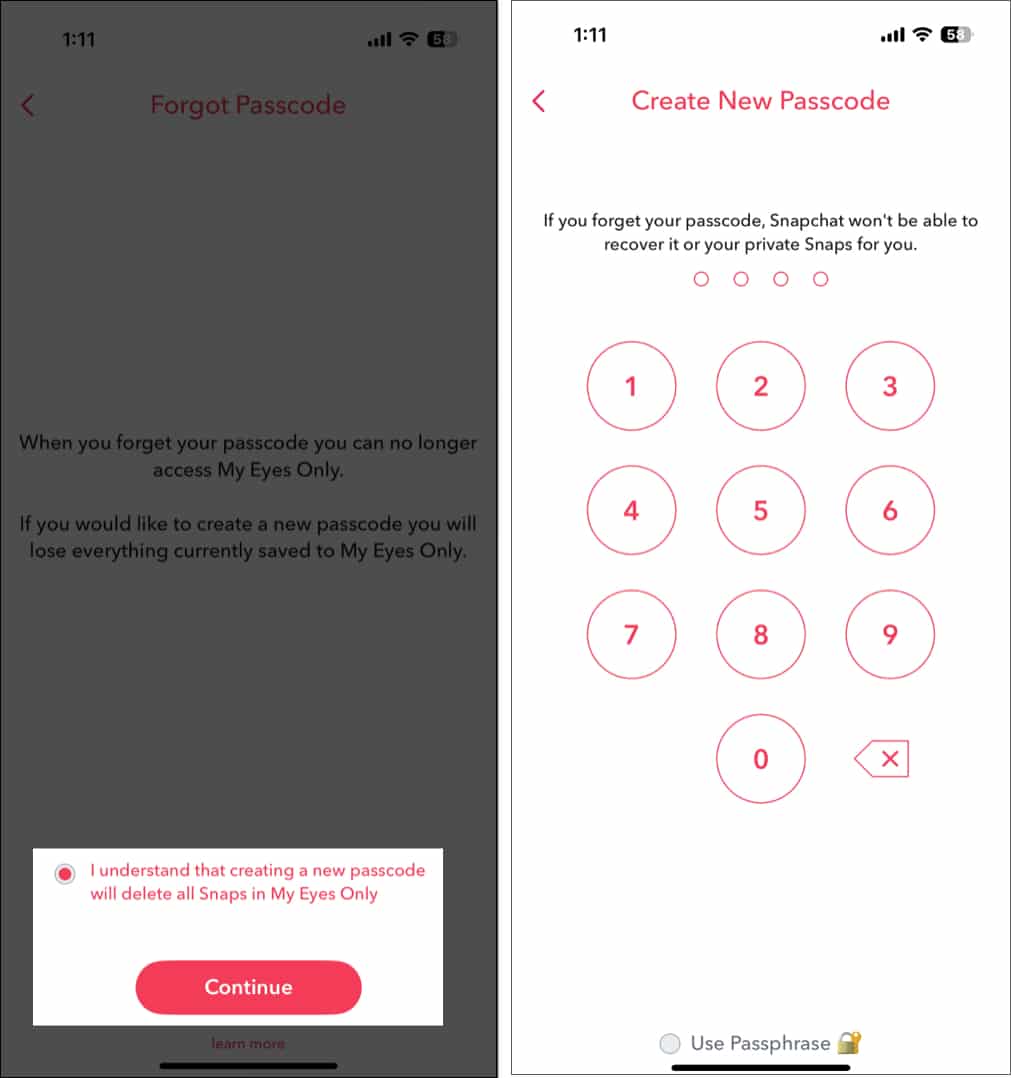
- Again, agree to the terms and conditions and tap on Continue.
- Tap Finish.


How to save every Snap memory to My Eyes Only by default
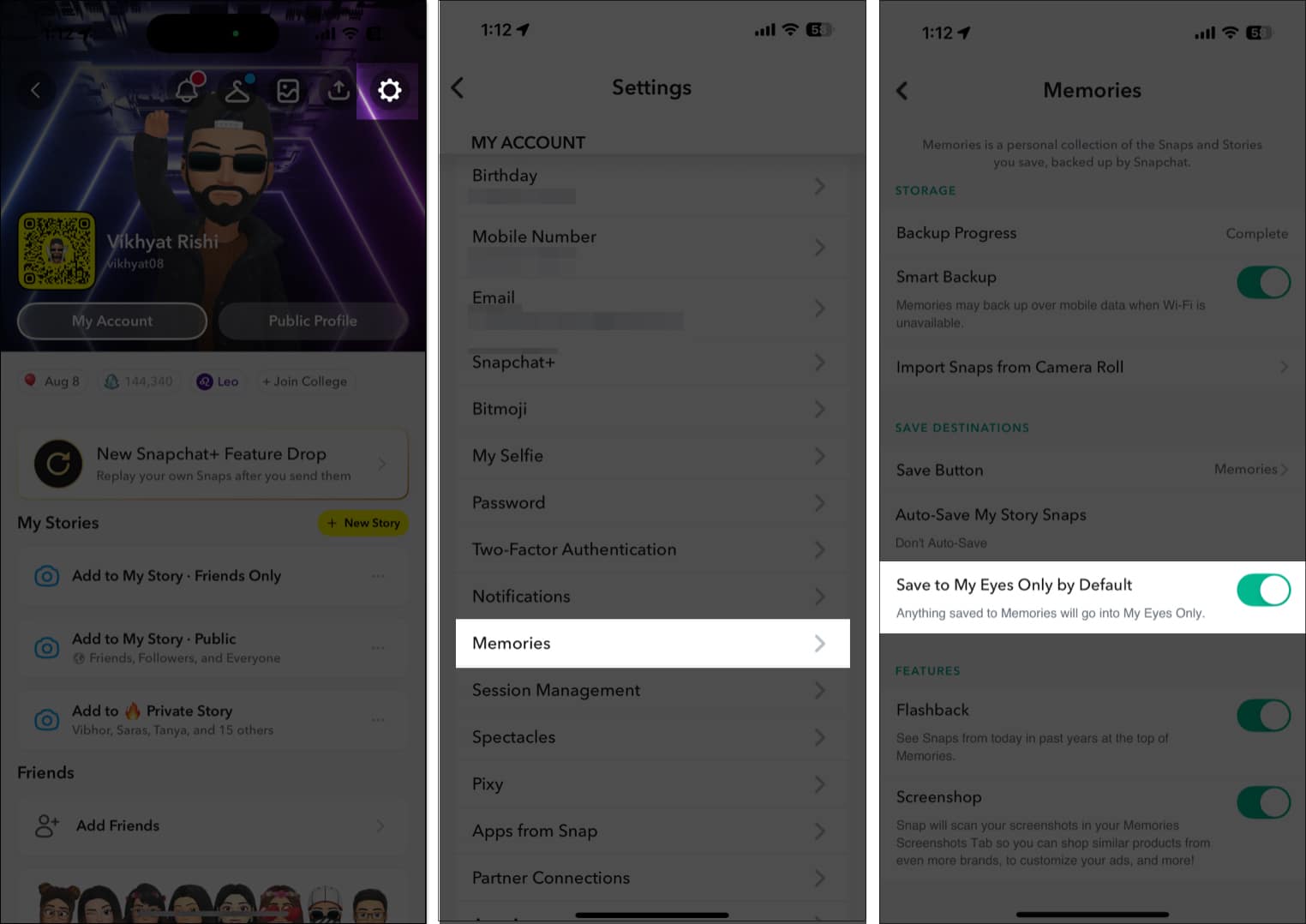
If you don’t want to go through the hassle of saving a snap to Memories first and then moving it to My Eyes Only, you can have all your Snaps automatically saved to My Eyes Only by default. Here’s how:
- Open Snapchat on your iPhone and tap your Bitmoji in the top left corner.
- Here, tap the Settings icon at the top right corner.
- Next, scroll down, locate and tap on Memories.
- Now, toggle on Save to My Eyes Only by Default.

Signing off…
That’s how you can safeguard your private snaps by moving them to the My Eyes Only folder in Snapchat. While the feature pretty much does everything one could ask for, it would be nice if Snapchat added a way to recover the forgotten passcode for users who wish to stick to the original passcode.
Feel free to reach out to us via comments if you have any doubts.




