Snapchat is leaving no stone unturned to position itself as the go-to social media platform for creators. One of the biggest challenges for new creators is producing short videos that sync cleanly with a song’s beat, a process that often requires time, precision, and manual editing. Snapchat’s new Quick Cut feature directly addresses this pain point. The feature eliminates the need for manual editing and enables creators to quickly produce polished, music-synced short videos within the Snapchat app.
Read on to learn what Snapchat’s Quick Cut feature is and how to use it to make short-form video creation faster and easier.
What Is Snapchat Quick Cut?
Quick Cut is a built-in short-video creation tool in the Snapchat app that automatically edits selected Memories or camera clips to match the rhythm of a song. Instead of relying on separate video editing apps or manual editing, Snapchat analyzes the selected music and aligns clip transitions precisely to the beat.
The feature positions Snapchat as a faster and more accessible alternative to traditional short-form video editors, particularly for users who want polished, music-synced videos without working with timelines, keyframes, or complex editing tools.
How Snapchat Quick Cut Works
After you select the photos and videos you want to include, Snapchat automatically applies a music track, detects beats and tempo changes, and times clip transitions accordingly. The entire edit is generated in seconds, with no manual trimming required.
You can also switch to a different song at any point. When you do, Snapchat instantly resyncs the clips to the new track, maintaining a smooth, rhythm-matched flow without any additional effort.
If a Quick Cut created by another Snapchatter inspires you, you can unlock it and replace the original media with your own photos or videos. This makes it easy to recreate trending styles while still keeping the content personal.
How to Use Quick Cut on Snapchat
Now that you know how Snapchat Quick Cut works, here’s how you can use it to create professional-looking short videos in seconds:
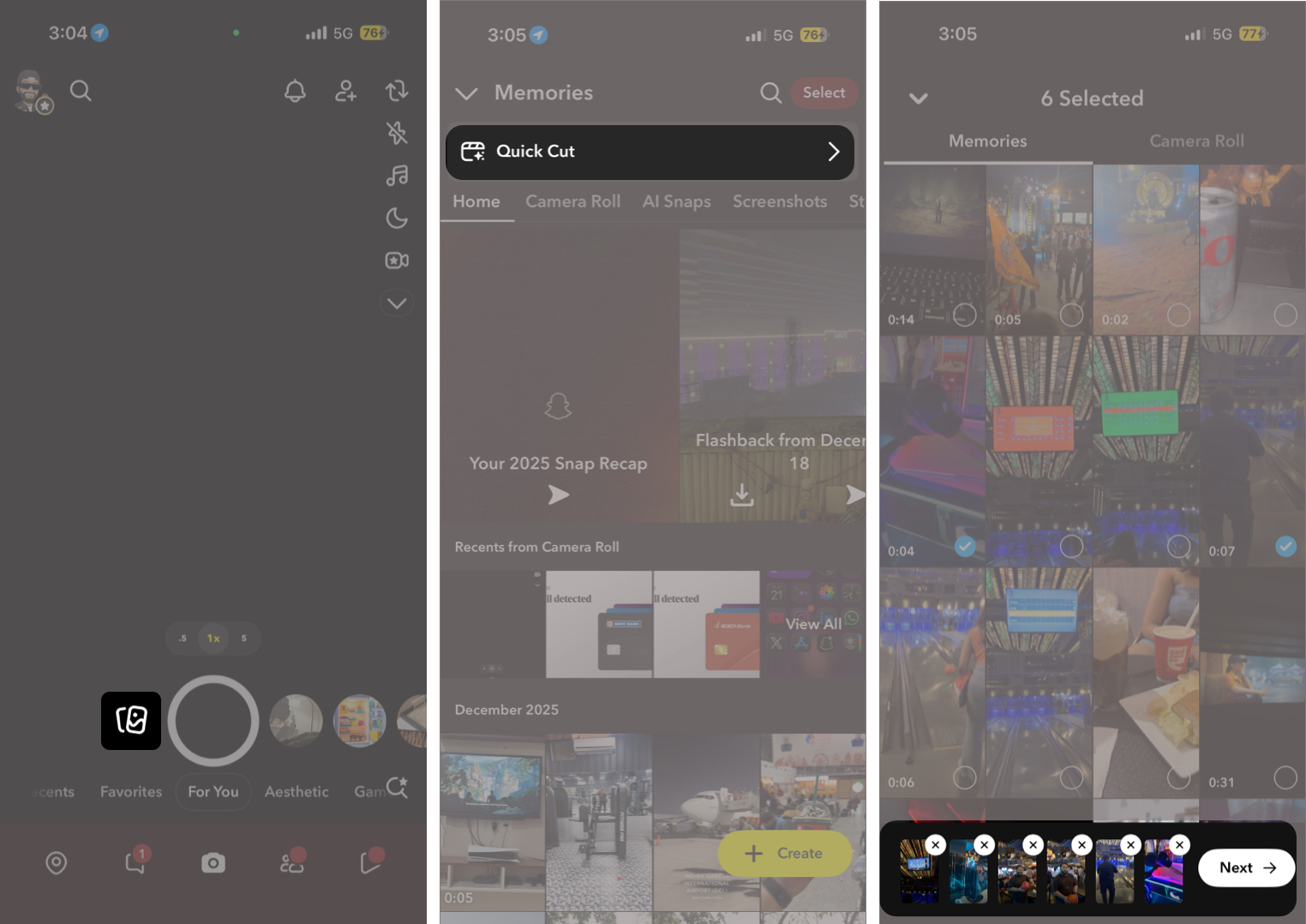
- Open the Snapchat app and swipe up on the Camera tab, or tap the Memories icon next to the camera shutter to open your Memories.
- Here, tap the Quick Cut banner at the top of the Memories screen.
- Now, select multiple photos or video clips from your Memories, Camera Roll, or a combination of both.
- Tap Next. Snapchat will automatically create a video and sync your clips to a default music track.
- Tap the music banner to choose a different song from Snapchat’s music library. Your clips will be re-synced automatically to the new track.
- To enhance the video, swipe through the effects carousel at the bottom and apply a visual effect. Note that changing effects may also switch the music, so reselect your preferred track if needed.
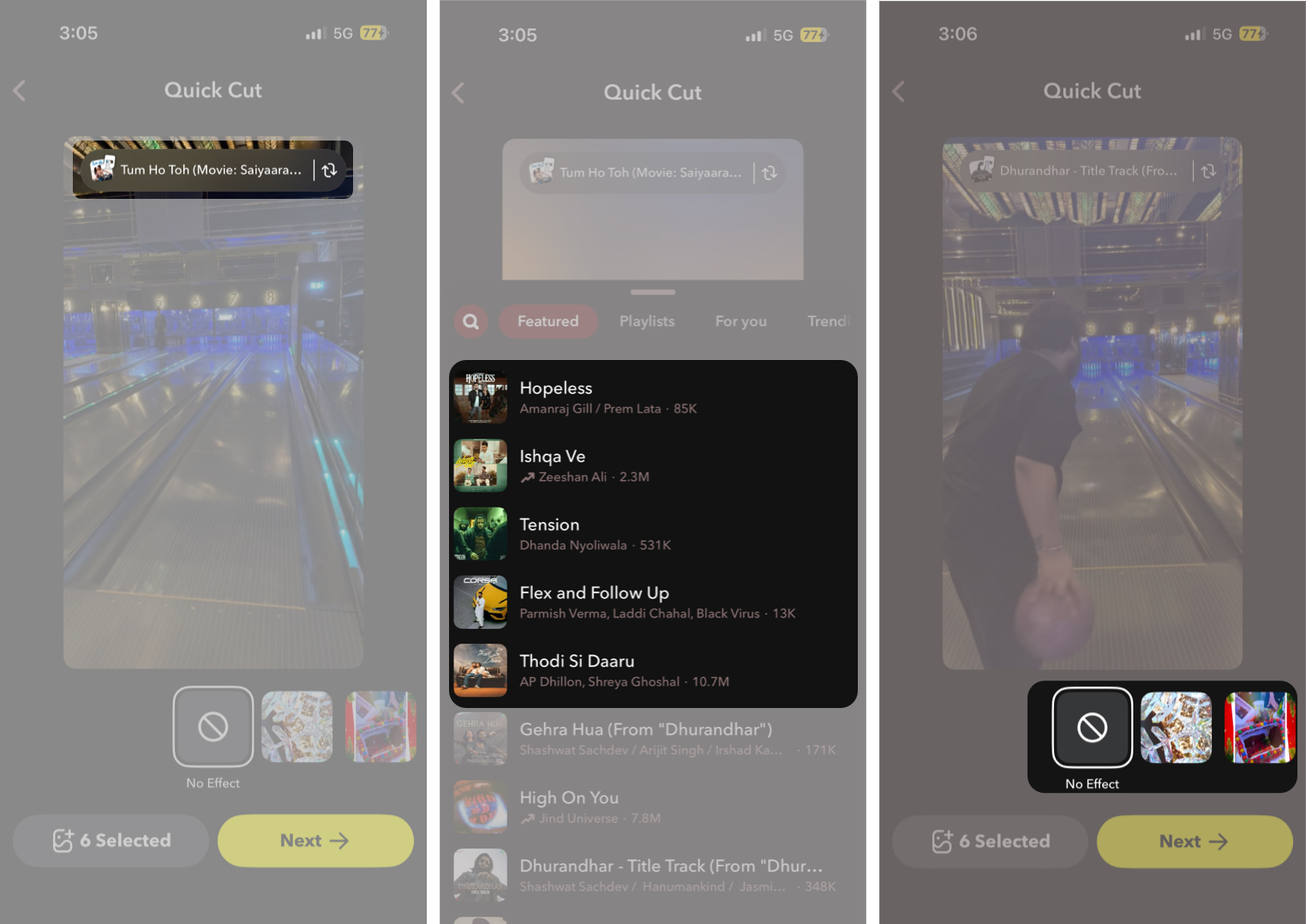
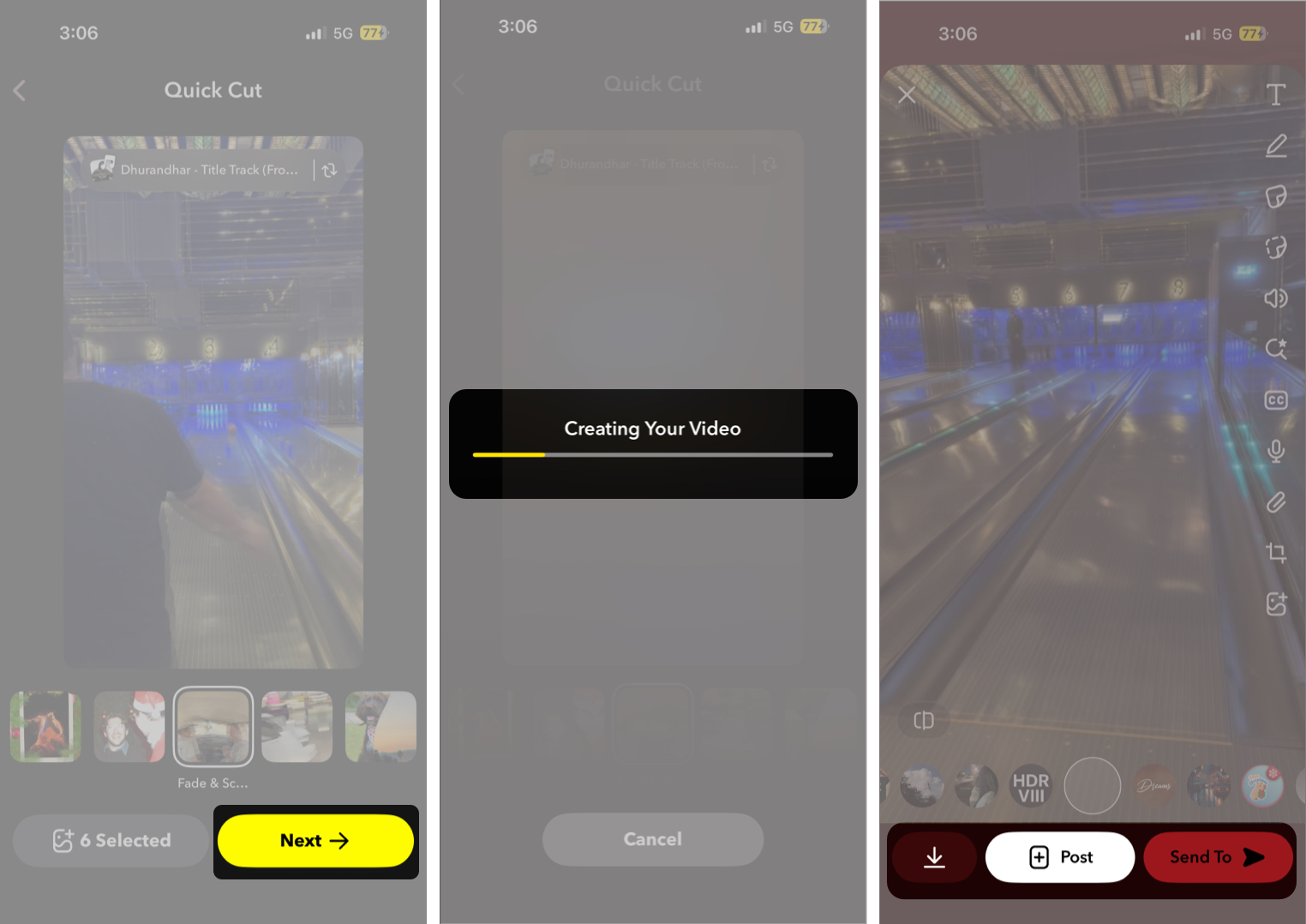
- Tap Next once you are satisfied with the result.
- Preview the final video, make any optional adjustments, then save it to Memories or share it as a Snap or Story.
Limitations You Should Know
While Quick Cut is designed for speed and simplicity, it does come with a few limitations that are worth keeping in mind before you start creating videos:
- You cannot use your own music with Quick Cut; only tracks available in Snapchat’s built-in music library are supported.
- Like many other Snapchat features, Quick Cut is limited to the mobile app. You cannot view or create Quick Cut videos on Snapchat Web.
- Advanced manual editing controls are limited compared to professional editors.
- Music selection is subject to regional availability.
What Makes Snapchat Quick Cut a Must-Use?
If you lack advanced editing skills or the time to edit videos manually, Quick Cut offers a simple way to create music-driven content. It lowers the barrier to entry by automating beat syncing, allowing casual users to produce engaging videos without editing experience, while helping creators quickly generate beat-synced clips for Stories and social sharing.
Availability and Release Timeline
Quick Cut is now available to iOS users worldwide, with Snapchat confirming that the feature will arrive on Android in the coming months. We will update this post once it does.
Start Creating With Quick Cut…
Snapchat Quick Cut is built for speed, simplicity, and visual impact. If you enjoy sharing memories set to music but dislike manual editing, this feature is worth trying. It turns everyday photos and clips into polished videos with almost no effort, directly from your phone.
If you have tried Quick Cut already, share how it fits into your content workflow.