If you love customizing your devices, you might want to change the color of the Dock on your iPhone. The Dock is the special area at the bottom of your screen that holds four app icons. By default, it’s slightly transparent and blends in with your wallpaper. Unfortunately, there’s no outright way to change the color of the Dock. The only customization you can do is reduce the transparency. This is an accessibility feature designed to make the screen easier to see. But it also changes the look of the Dock, so you might like to try it. Let’s check out what’s involved.
How to change the dock color on your iPhone
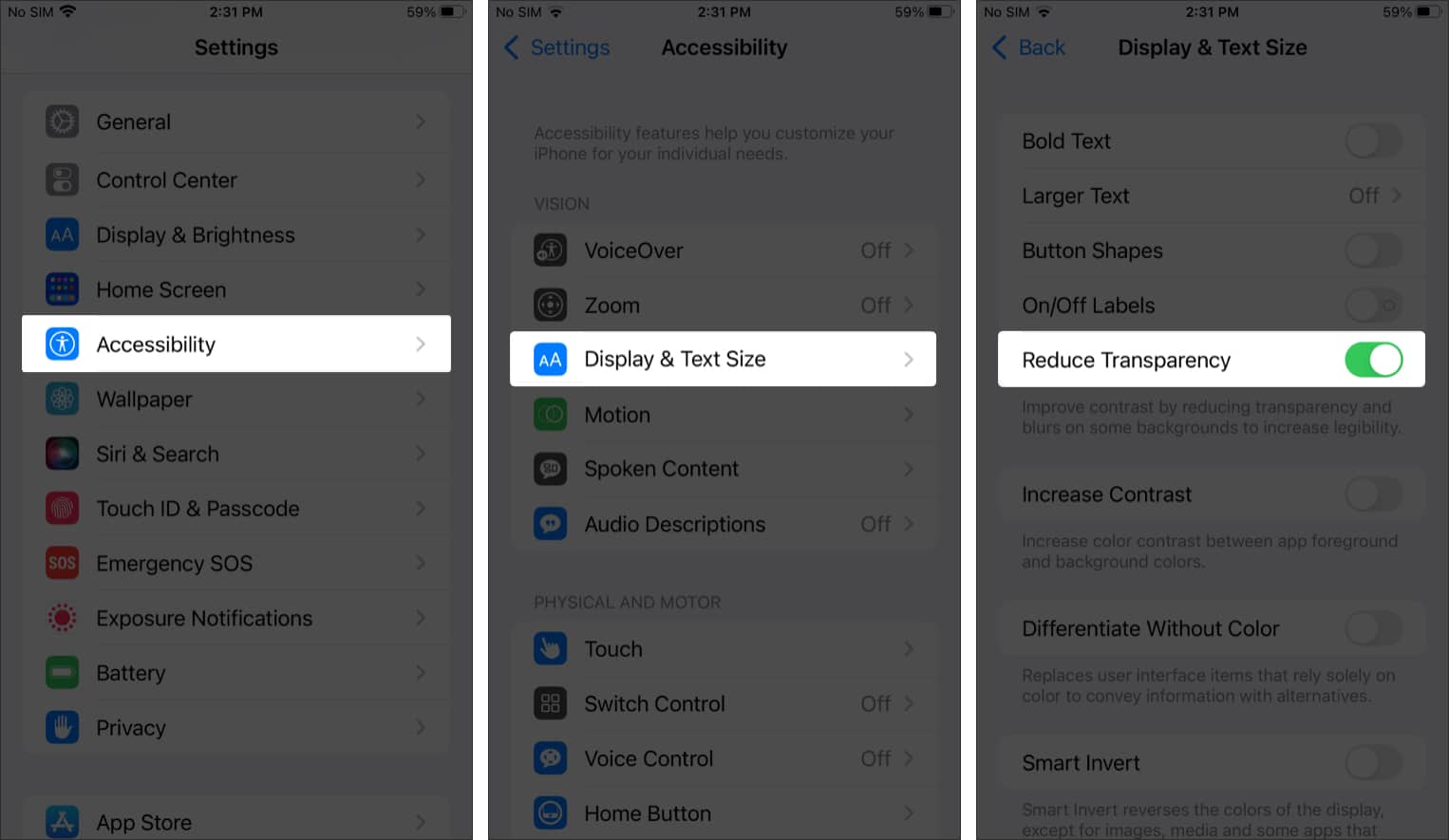
By default, the Dock on your iPhone or iPad is transparent. To change its appearance slightly, you can reduce the transparency as follows:
- Open the Settings app and tap Accessibility.
- Tap Display & Text Size.
- Toggle on Reduce Transparency.
Now go to your Home screen and check out the Dock. It will appear more solid in color. This color will automatically match your wallpaper.
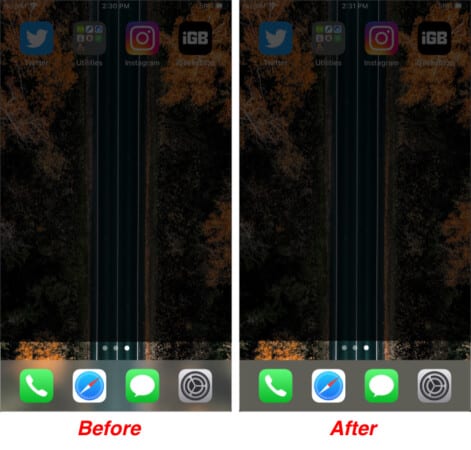
You will also notice a reduction in transparency everywhere on your iPhone. For example, folders widgets, Control Center, search bar, etc., will have a solid background rather than a transparent one.
If you want to go back to the default transparent look, just follow the steps mentioned above and toggle off Reduce Transparency.
Liked this tip? We have more tips and tricks to make the most out of your iPad’s dock. Go through our expert guide on how to use dock on iPad.
Signing off…
Customizing the dock color on your iPhone or iPad is a simple yet effective way to make your device truly your own. This can also refresh your home screen and enhance your overall experience. So, try experimenting with different wallpapers or themes to find a combination that suits your style. If you have any questions, feel free to share them in the comments below. I’ll be happy to help!
Read more: